AI Block Editor – Gutenberg Block Generator & AI Assistant

AI Block Editor – Gutenberg Block Generator & AI Assistant
Description
AI Block Editor adds a Gutenberg blocks assistant inside the WordPress editor. Describe what you want to add or change, and AI Editor will place, arrange, and update WordPress blocks directly in the editor. Use it for complex block layouts or simple edits. It supports the latest OpenAI models and lets you use your own API key.
When your theme uses theme.json, AI Editor can follow your global styles, presets, and design tokens like colors, typography, spacing, and layout so generated blocks match your site’s design system.
Major updates released in May 2026: theme.json style matching, selected block editing, and newer AI models with reasoning controls.
Features
- Natural language block creation: Describe your desired content in plain language and the AI will handle the rest.
- Core Gutenberg blocks: AI Editor can use core Gutenberg blocks to create complete page sections and complex layouts, not just add single blocks one at a time.
- Selected block editing: Select one or more blocks in Gutenberg and ask AI Editor to update the selected content or layout.
- Custom block editing: Custom and third-party blocks can be edited after you add and select them. AI Editor uses the markup it can see for the selected block, so review the result because custom blocks may have private fields, dynamic rendering, or plugin-specific rules the AI cannot fully infer.
- Existing content lookup (WordPress 6.9+): AI Editor can look up existing WordPress posts, pages, and public custom post types for context, then use that text while helping you create or edit content.
- Theme-aware output: For themes that use theme.json, AI Editor can use your theme’s presets and editor settings to keep generated layouts consistent with your site’s colors, spacing, typography, and other design styles.
- Abilities API support: On WordPress 6.9+, connect custom WordPress Abilities API features to AI Editor so it can use site-specific data or actions while helping in the editor.
- Resizable sidebar: Drag the left edge of the AI Editor sidebar to make the chat panel wider.
- GPT model selection: Choose from the GPT models supported by AI Editor and available to your OpenAI account.
- Reasoning effort controls: Choose how much reasoning the model should use for faster simple edits or more careful complex layout work.
- Conversation context controls: Limit how many recent chat messages are sent with each request.
- Prompt caching: AI Editor keeps repeated system instructions stable so OpenAI prompt caching can reuse shared context when available, helping monitor API usage and reduce repeated input processing.
- Theme compatibility check: Review whether the active theme is a good fit for AI Editor’s Gutenberg and theme style workflow.
- BYOK: Use your own OpenAI API key.
- Language translation: Multilingual support.
Prompt Examples
- “Add this article as a magazine-style layout using blocks: (paste article here).”
- “Create a layout for an About Us page, including sections for a mission statement, team members, and contact.”
- “Add 3 columns, each with a pricing plan.”
- “Create a table comparing the caffeine content of popular drinks.”
- “Rewrite this testimonial block to sound more concise.”
- “Update the selected columns for better balance.”
Getting The Best Results
- Quickly add content blocks: Ask AI Editor to add headings, sections, buttons, lists, tables, columns, and other core blocks for your content.
- Turn full copy into blocks: Paste a full page draft or section copy and let AI Editor structure it into blocks.
- Use existing site content: Ask AI Editor to work from existing posts, pages, or custom post types when the request needs site context. With lower models or no reasoning, be explicit, such as “use the current page content as context” or “find posts about pricing and add a summary section.”
- Choose settings for the task: Select an available model and adjust reasoning effort based on the complexity of the requested layout or edit.
- Select the right amount of content: If the change depends on a parent layout, columns, group spacing, or surrounding section structure, select the whole relevant block or section and say what you want changed.
- Use narrow selections for simple edits: If you only need a specific text, button, heading, or single block changed, select just that block and give a direct instruction.
Settings
Navigate to Settings -> AI Editor to configure the plugin.
- OpenAI API Key: Add your own OpenAI API key. Requests are sent from your WordPress site to OpenAI.
- GPT Model: GPT-6 Astra is recommended and is the default for new settings. GPT-5.6 Sol, Terra, Luna, GPT-5.5, GPT-5.4, and GPT-5.4 mini are also available.
- Reasoning Effort: Choose
none,low,medium, orhigh. GPT-6 Astra useslowwhennoneis selected. Lower values are faster for simple edits; higher values can help with larger layouts or more careful restructuring but may take longer and use more tokens. - Theme Style Context For AI: A short style note used as design direction. AI Editor can rewrite the active theme description with AI. Raw theme presets are handled separately, so this field should stay short and human-readable.
- Limit Conversation Context Sent To OpenAI: Turn on/off trimming of older chat messages before sending a new request.
- Max Messages In Conversation Context: Set how many recent messages are kept when conversation context trimming is enabled. The default is 50.
- Theme Compatibility For AI Editor: Run a compatibility check for the active theme. It reviews Gutenberg support, block theme signals, editor style support, and available theme presets so you can spot where manual cleanup may be needed.
Note: AI Editor is powered by OpenAI’s GPT technology. For more information on the data handling and privacy aspects, please refer to OpenAI’s Privacy Policy and Terms of Service.
Connect Custom Abilities
On WordPress 6.9+, developers can connect custom abilities registered with the WordPress Abilities API to AI Editor. If your plugin or theme registers a custom ability, add an AI Editor config to the ability meta. Example:
'meta' => array(
    'ai_editor' => array(
        'action_name' => 'get_product_details',
        'description' => 'Use this when the user asks for current product details from WooCommerce.',
    ),
)
AI Editor will only use abilities that explicitly opt in. Keep ability results focused and avoid returning large private datasets or unrelated site data.
Requirements
PHP 7.0+ is recommended, WordPress 5.8+, with Gutenberg active. An OpenAI API key is required.
Installation
- From your WordPress dashboard, go to Plugins > Add New.
- Search for AI Editor in the Search Plugins box.
- Click Install Now to install the AI Editor Plugin.
- Click Activate to activate the plugin.
- In the WordPress menu, go to Settings -> AI Editor to add your OpenAI API key and select the desired GPT model.
- Open the Gutenberg editor for your post or page.
- Click on the three dots in the top-right corner to expand the options menu.
- Under the Plugins section, click on AI Editor to enable the AI sidebar.
- Once the AI Editor sidebar appears, you may click the star icon at the top of it. This action pins the AI Editor to the toolbar for quick access.
- Ask the AI to add blocks or layouts by providing descriptions.
Screenshots
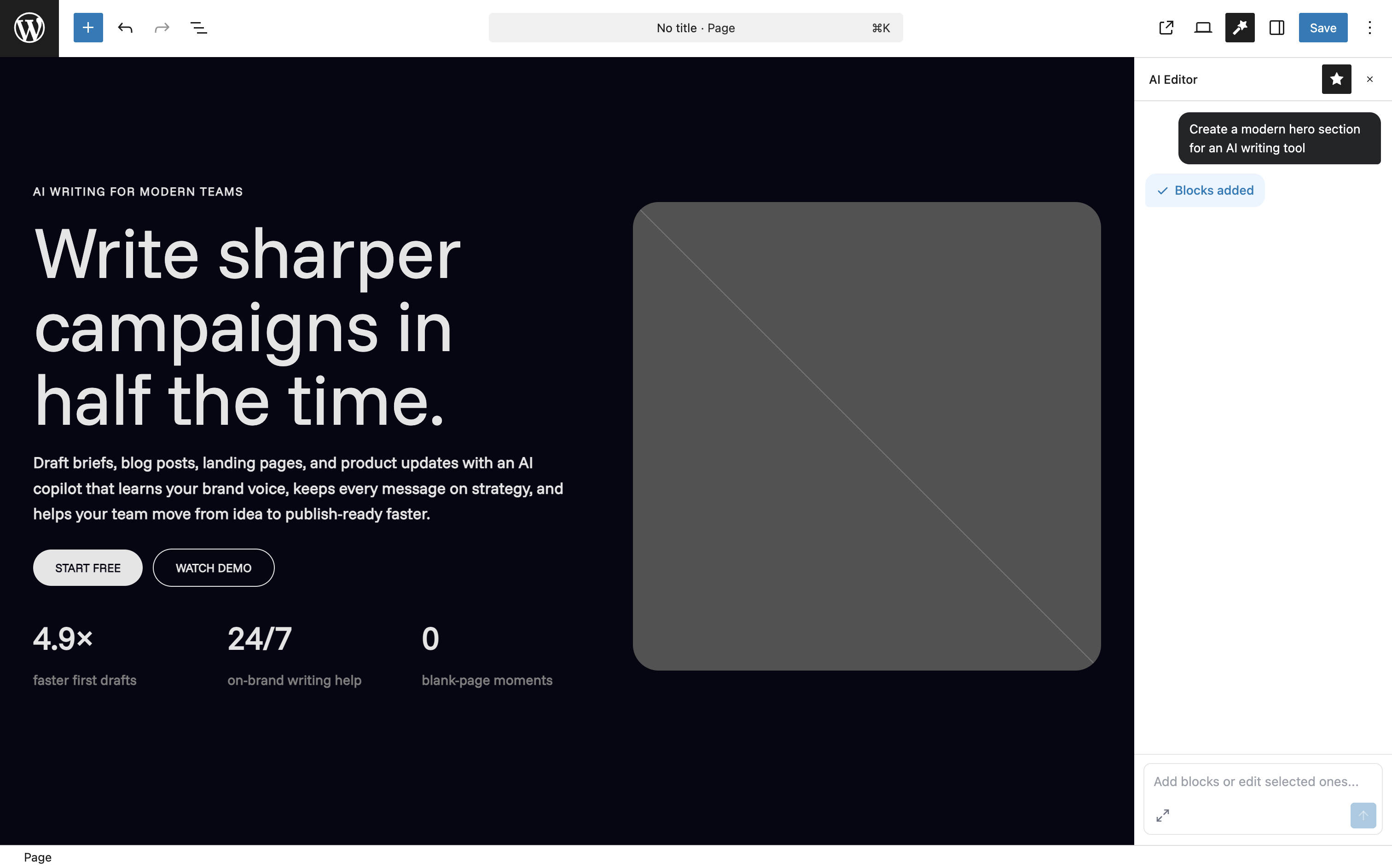
Using AI Editor to add blocks.
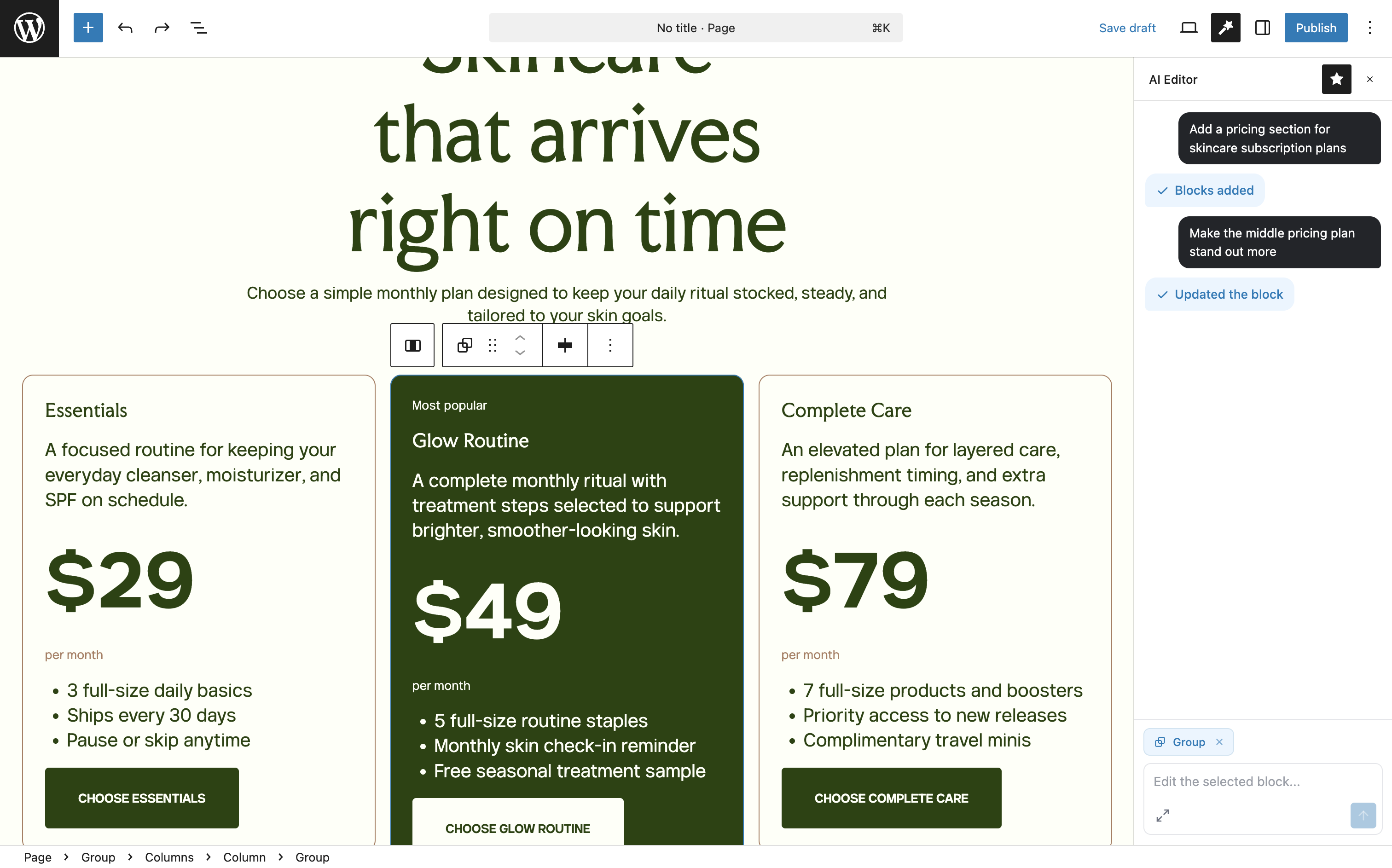
AI Editor in the Gutenberg sidebar.
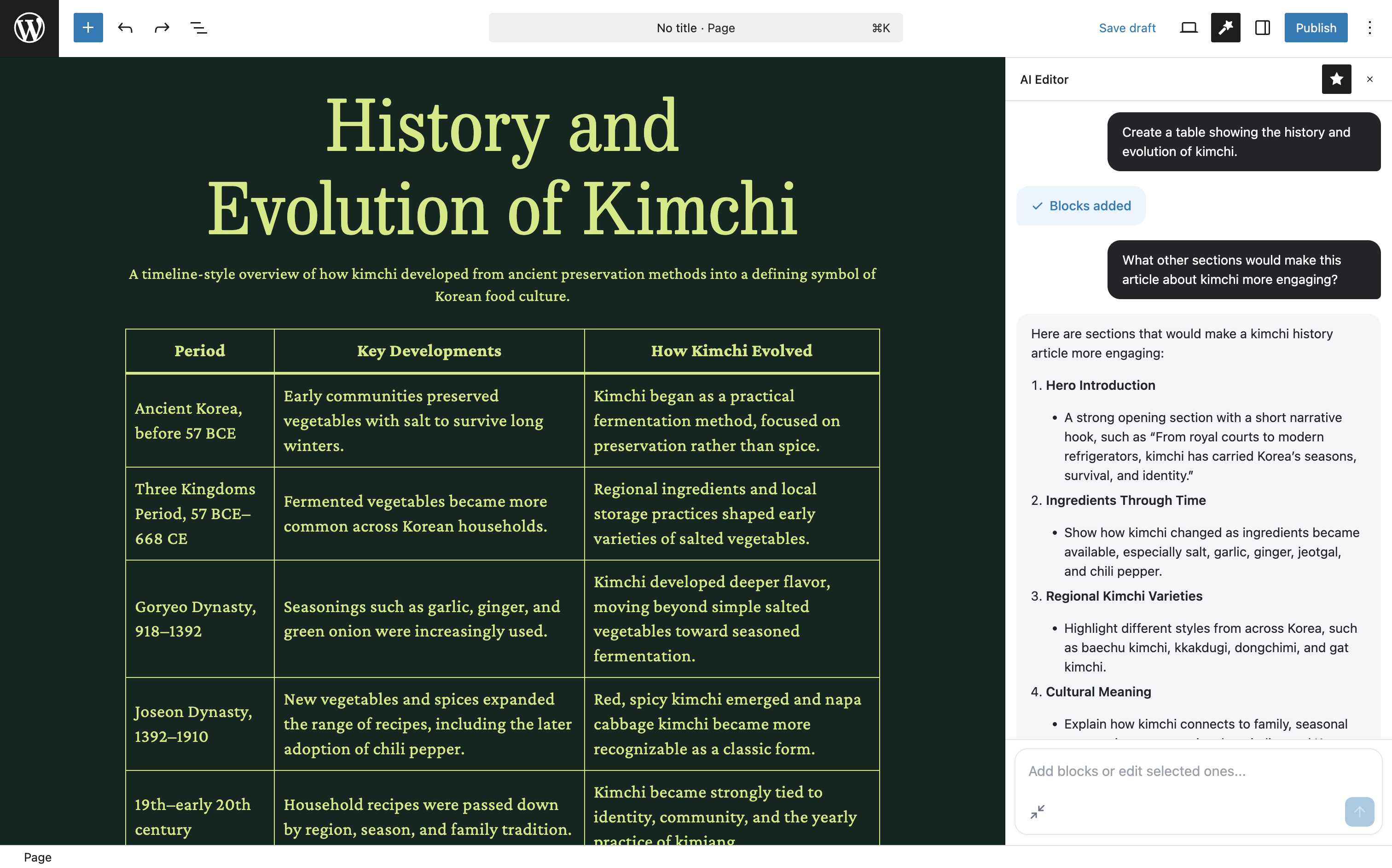
Creating tables quickly.
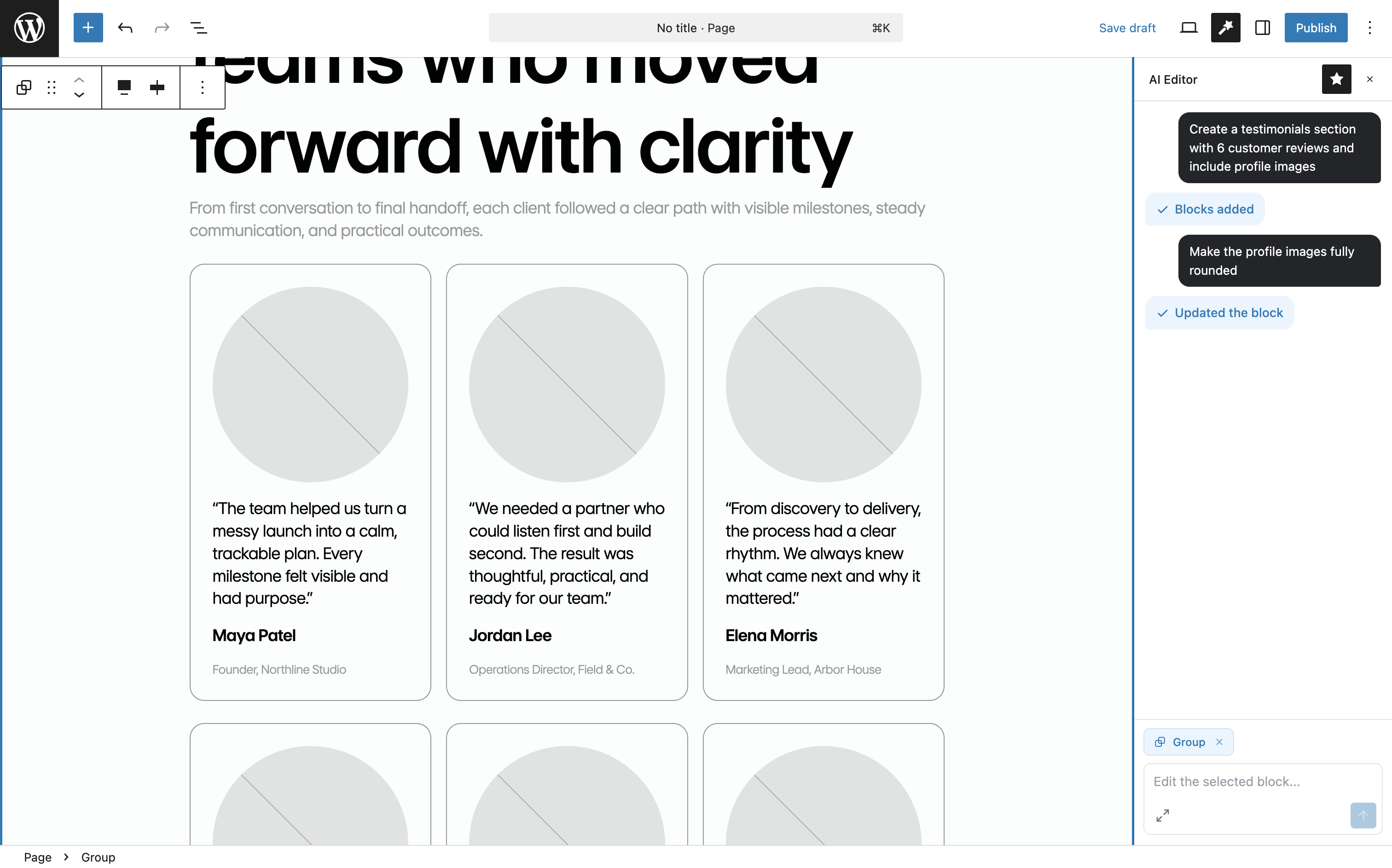
Adding and editing blocks.

Settings page for AI Editor.
Faq
Gutenberg is the modern block-based editor in WordPress, allowing users to create content using a variety of blocks.
Once installed, go to the Gutenberg editor, enable the AI Editor sidebar, and start adding blocks by describing to the AI what you need.
Yes, an OpenAI API key is required to use the AI Editor. You can enter your API key in the plugin settings.
On WordPress 6.9+, plugins and themes can register custom abilities with the WordPress Abilities API. Developers can opt those abilities into AI Editor so it can use approved site-specific data or actions while helping in the editor. AI Editor only uses abilities that explicitly opt in.
Register a custom ability in your plugin or theme, then add meta.ai_editor.action_name and meta.ai_editor.description to the ability registration. AI Editor can expose that ability to the AI assistant so it can call it when the user request needs that data or action. See the “Connect Custom Abilities” section above for the required meta fields.
- AI Editor can insert core Gutenberg blocks. Custom and third-party blocks should be added manually first, then selected for editing.
- Custom block edits depend on the selected markup AI Editor can see. Some custom blocks store data outside saved markup or render dynamically, so AI Editor may make mistakes and you should review the result.
- New image blocks are blank placeholders. AI Editor does not add external image URLs, Unsplash images, generated image sources, or media library items.
- AI Editor uses your theme settings when they are exposed through theme.json. If your theme does not provide theme.json settings, AI Editor cannot see all of your theme styles, so the final look and feel will depend more on your theme’s default styling.
Reviews
Just WOW! and thank you
By 
I am a blind site owner and designing pages has always been a crap shoot. Depending on knowledge of HTML and CSS getting a layout to look attractive has always been a pain. However when WordPress introduce the block editor I thought things were going to get better. But it sure has been a long hard road. While big strides have been made to make the editor accessible via a screen reader it is still a bear to navigate understand that later this week, WordPress 7.1 will address something like 43 accessibility issues, we still need a simpler way to construct complex layouts and do it using a screen reader. Along comes AI Block Editor – Build in Gutenberg by chatting with AI. This plugin is a game changer . I've been playing around with it for a couple of weeks now and it is simply amazing. I don't know where WordPress is going with its AI implementation, but as an aid to building a site I hope this plugin is around for a longtime to come.
We should support this!
By 
These are the jewel plugins we should suppport. No bloat, not intrusive adds, just functional proper functionality.
I'd subscribe or donate anytime! @virgildia please give us the options. Maybe we can colaborate through github?
Great for speeding up page building with gutenberg!!
By 
I tried a few AI plugins and this is exactly what I wanted for Gutenberg. It works well with my theme styles and makes gutenberg much easier for me! Also there are no signups or unnecessary features like many other AI plugins have. I entered my own OpenAI api key and it works. Simple!
Great idea, unfortunately currently limited to very basic block creation only
By 
Setup of the plugin worked well, though manual upload was necessary as plugin is not supported in current version (6.9.4). Added API key and selected GPT 4o (v5 seemed to be missing in drop down). Was able to then access the AI chat in the page builder, and it was able to create a new block. Unfortunately it was not able to change any styling, access external website or any existing block, which really limits its use.
Would be great to see:
- Ability to edit existing page content/blocks.
- Ability to adjust styling
- Able to access external pages to pull content to build pages.
Promising solution to generate AI based content in Gutenberg
By 
I tried several solution to get GPT model to Gutenberg, but this one looks very promising. I hope it will be envolved for example to generate title based on content or some how to use custom GPT trained model to have more precise information.
Changelog
1.0.7
- Added GPT-5.6 model options.
- Improved screen-reader support, keyboard resizing, focus behavior, and accessibility across the sidebar and settings screens.
- Improved canonical Gutenberg markup handling for lists, quotes, and legacy text alignment.
- Increased the default conversation context limit to 50 messages.
1.0.6
- Added WordPress Abilities API support so opted-in custom abilities can provide site-specific data or actions to AI Editor.
- Added existing content lookup for WordPress posts, pages, and public custom post types.
- Added support for custom extra AI Editor instructions with
ai_editor_instructions_extra(experimental). - Improved tool handling so ability results can be used before AI Editor inserts or updates blocks.
1.0.5
- Added support for GPT-5.4 and GPT-5.5 models.
- Selected block editing for one or more selected blocks.
- Theme-aware output using active editor settings and theme.json presets when available.
- Prompt caching for repeated AI Editor system instructions.
- Reasoning-effort settings for balancing speed and more careful layout work.
- Conversation context controls.
- Theme style context generation from the active theme description.
- Theme compatibility checks for AI Editor’s Gutenberg workflow.
- Resizable AI Editor sidebar.
- Updated translation template and added translator comments for placeholder strings.
1.0.4
Added GPT-4.1 model.
1.0.3
Added GPT-4o mini model.
1.0.2
UI updates.
1.0.1
Added GPT-4o model.
1.0.0
First release of the plugin.