Albert – The AI Butler

Albert – The AI Butler
Description
Every well-run site deserves a proper butler. Albert stands at the door of your WordPress site, ready to welcome AI assistants like Claude and ChatGPT and put them to work.
An open door for AI assistants
Install Albert, grant an AI assistant access, and it can start managing your site — writing and editing posts, organizing media, moderating comments, and handling day-to-day tasks. No custom code, no complicated setup. Albert takes care of the introductions.
A well-stocked service tray
Albert presents AI assistants with a curated set of abilities — the tasks they’re permitted to carry out on your site. When plugins like WooCommerce or Advanced Custom Fields are active, Albert extends the service with additional abilities tailored to each one.
The butler manages the household
Not every guest needs access to every room. From the admin panel, you decide exactly which abilities are on the tray and which stay behind closed doors. You remain in charge — Albert just makes sure your instructions are followed.
Proper credentials at the door
Every AI assistant must present proper credentials before Albert lets them in. Connections are secure, scoped, and fully under your control.
Privacy Policy
Albert does not collect, store, or transmit any user data to external servers. All authentication tokens are stored locally in your WordPress database. When you authorize an AI assistant, that assistant will have access to perform actions on your WordPress site according to the permissions you grant. You control which abilities are enabled and can revoke any session at any time.
Credits
Developed by Mark Jansen – Your Mark Media
Website: https://yourmark.nl
Plugin URL: https://github.com/YourMark/albert-ai-butler
Built with:
* league/oauth2-server for OAuth 2.0 implementation
* Model Context Protocol (MCP) for AI assistant connectivity
* WordPress Coding Standards
Installation
From WordPress.org
- Install Albert through the WordPress plugin directory
- Activate the plugin through the ‘Plugins’ menu in WordPress
- Go to Albert > Connections and add yourself as an allowed user
- Copy the MCP endpoint URL from the dashboard
- Add the URL to Claude Desktop, ChatGPT, or another MCP-compatible assistant
- Authorize when prompted — you’re connected
Manual Installation
- Download the plugin files
- Upload the
albert-ai-butlerfolder to/wp-content/plugins/ - Activate the plugin through the ‘Plugins’ menu in WordPress
- Follow the setup steps above
Connecting Claude Desktop
- In WordPress, go to Albert > Connections and add yourself as an allowed user
- Copy the MCP endpoint URL from the Albert dashboard
- In Claude Desktop, go to Settings > MCP Servers and add a new server
- Paste the endpoint URL and save
- Claude will open a browser window to authorize — log in and approve
- Claude Desktop can now work with your WordPress site
Connecting ChatGPT
- In WordPress, go to Albert > Connections and add yourself as an allowed user
- Copy the MCP endpoint URL from the Albert dashboard
- In ChatGPT, connect to the MCP endpoint using the URL
- Authorize when prompted
- ChatGPT can now work with your WordPress site
Full setup guide available at Documentation
Screenshots
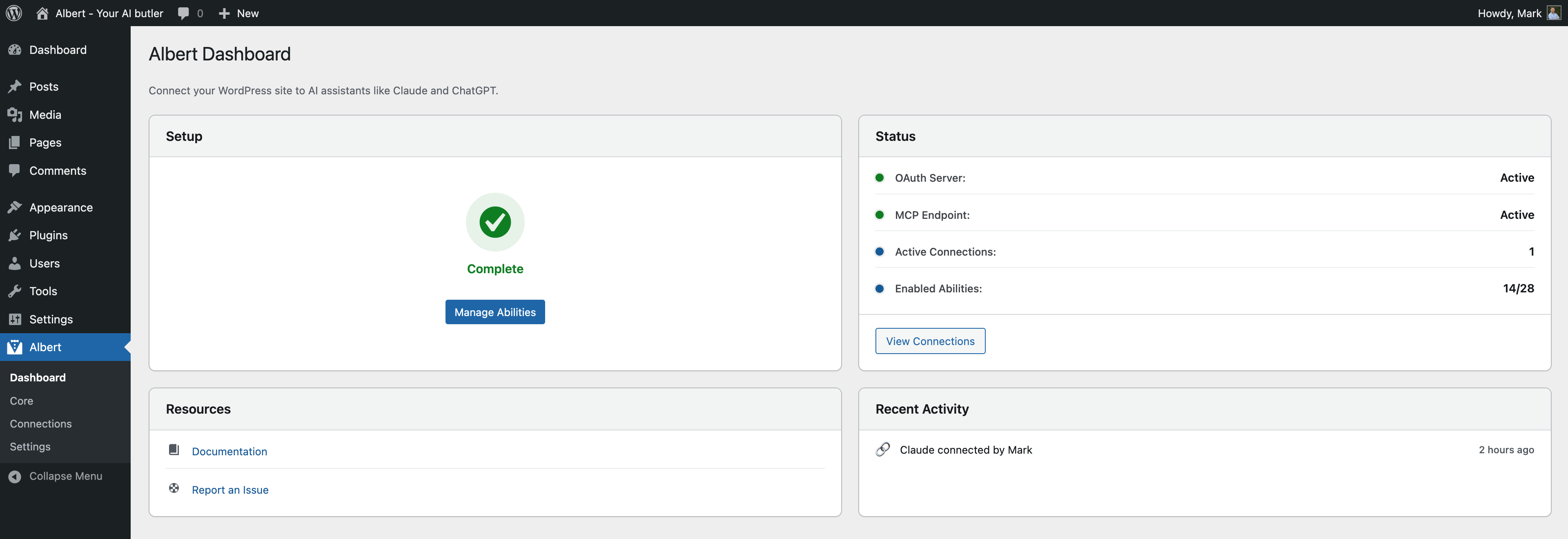
Albert dashboard with setup checklist and status overview
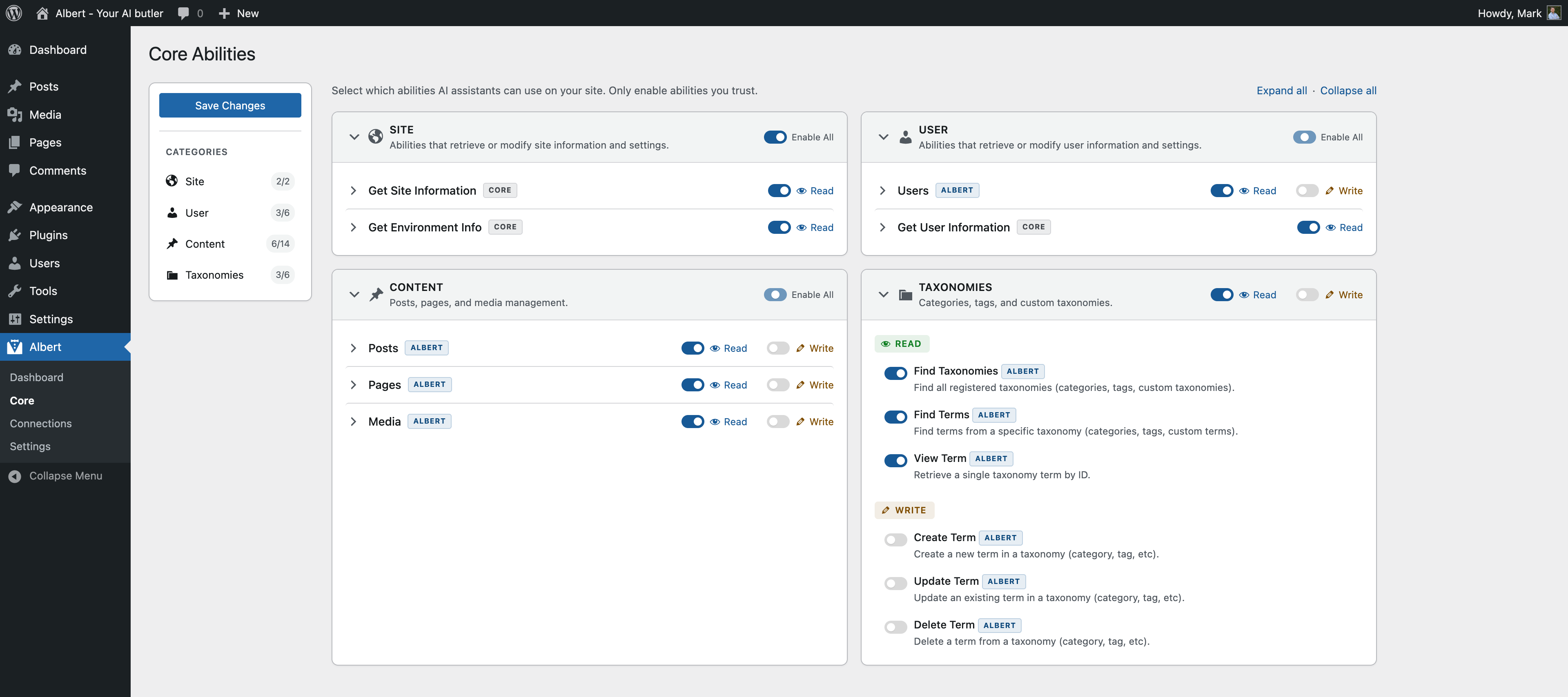
Abilities page — toggle read and write permissions per content type
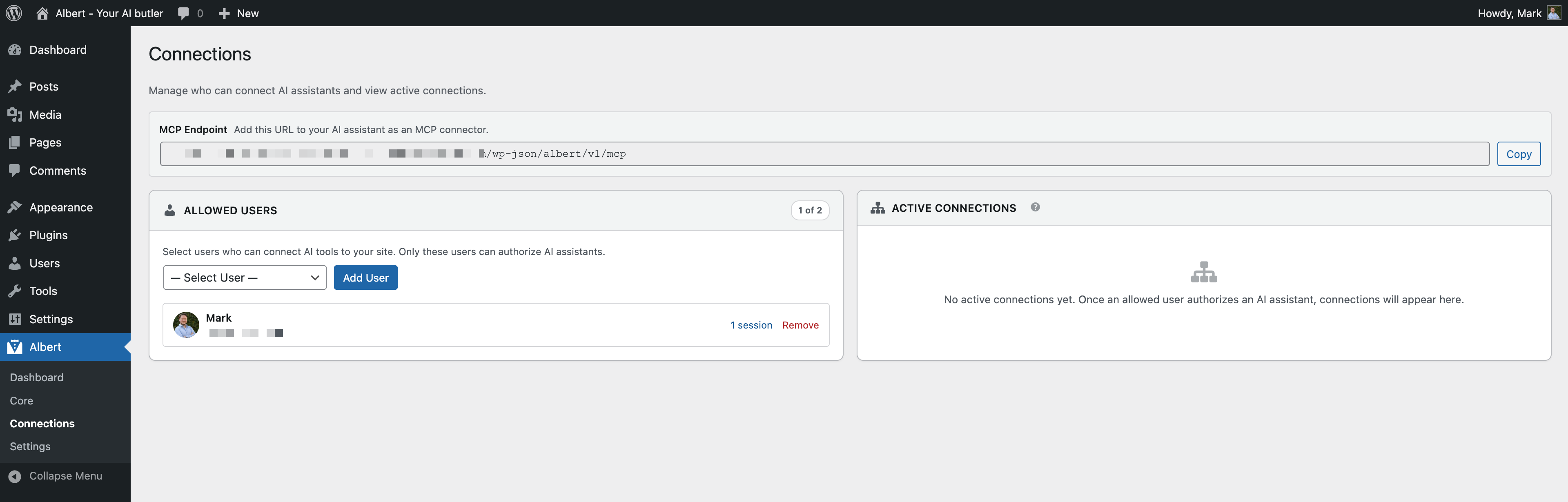
Connections page — manage allowed users and active AI assistant connections
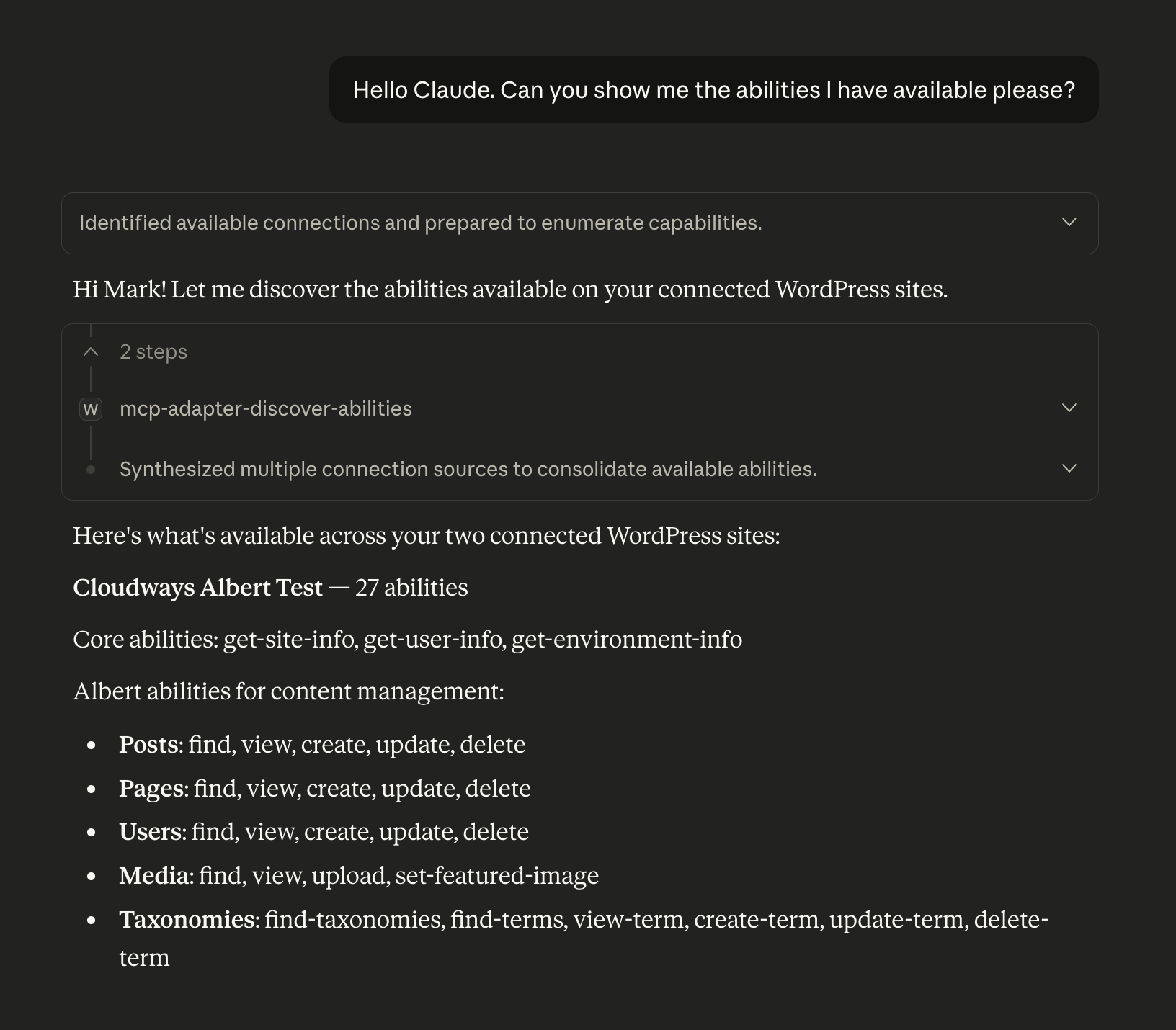
An active connection with Claude Desktop
Faq
Albert works with Claude Desktop, ChatGPT, and any AI assistant that supports the Model Context Protocol (MCP). The connection process is the same for all: copy the endpoint URL, paste it into your assistant, and authorize.
Three steps: add yourself as an allowed user, copy the MCP endpoint URL, and paste it into your AI assistant. No technical knowledge required.
Yes. Albert uses OAuth 2.0 — the same standard used by Google, GitHub, and other major platforms. Your AI assistant receives a time-limited access token that automatically refreshes. No passwords are shared. All operations respect WordPress’s built-in capability and role system, and you control exactly which abilities are enabled.
Albert ships with 25+ abilities covering WordPress core:
- Posts — Find, view, create, update, and delete posts
- Pages — Find, view, create, update, and delete pages
- Users — Find, view, create, update, and delete users
- Media — Find, view, upload media, and set featured images
- Taxonomies — Find taxonomies, find/view/create/update/delete terms
When WooCommerce is active, additional abilities are available for products, orders, and customers.
Yes. The abilities page lets you toggle read and write permissions per content type. Write abilities are disabled by default — you choose exactly what to enable. All actions also respect WordPress user capabilities, so your AI assistant can never do more than the authorized user could do manually.
No. Albert works with WordPress core out of the box. WooCommerce abilities appear automatically when WooCommerce is active.
Yes. Developers can register custom abilities using the WordPress Abilities API to expose any functionality to AI assistants. See the documentation at GitHub.
Albert is designed for single-site installations. Multisite support is on the roadmap.
- WordPress 6.9 or higher
- PHP 8.2 or higher (8.3+ recommended)
- MySQL 8.0+ or MariaDB 10.5+
- HTTPS (required for OAuth 2.0)
- Documentation: GitHub Wiki
- Support Forum: WordPress.org support forums
- GitHub: Report issues
Reviews
Changelog
1.0.0
Initial release.
- MCP server — Turns your WordPress site into an MCP endpoint. Copy the URL, paste it into Claude Desktop, ChatGPT, or any MCP-compatible assistant, authorize, and you’re connected. No configuration files or developer setup needed.
- OAuth 2.0 server — Full authentication server with PKCE support, RSA-signed access tokens, automatic token refresh, and sessions that persist up to 30 days.
- Abilities Manager — Admin interface to toggle read and write permissions per content type. Write abilities disabled by default. All actions respect WordPress capabilities.
- 25+ WordPress abilities — Posts, Pages, Users, Media, and Taxonomies with find, view, create, update, and delete operations.
- WooCommerce abilities — Products, Orders, and Customers when WooCommerce is active.
- Connections management — Control which users can connect AI assistants. View active connections, disconnect individual sessions, or end entire sessions with token revocation.
- Dashboard — Setup checklist, status overview, active connection count, and recent activity feed.
- Extensible — Register custom abilities with the WordPress Abilities API. Hookable architecture with filters and actions.