All-in-One WP Preloader

All-in-One WP Preloader
Description
All-in-One WP Preloader shows a loading screen while your page loads, then hides it with a smooth animation once everything is ready. No code needed: pick a design, add your logo, choose a color and you are done.
The settings page has a live preview, so you can see exactly what your visitors will see, and replay the hide animation, before saving anything.
7 preloader designs
- Loader 1: Logo inside a spinning ring.
- Loader 2: Centered image that slides away.
- Loader 3: Image with a three-panel reveal.
- Loader 4: Logo with bouncing dots, fades out.
- Loader 5: Logo with a progress bar, slides up.
- Loader 6: Logo with an orbiting dot, curtains open.
- Loader 7: Logo with ripples, circle reveal.
Features
- Enable or disable the preloader with one switch.
- Use your own logo or image from the Media Library, or the built-in default.
- Set any background color.
- Live preview on the settings page, with a replay button for the hide animation.
- Modern settings page built with the WordPress components you already know.
- Pure CSS animations, responsive on every screen size.
- Works with classic and block themes.
- Optional: delete all plugin data when the plugin is uninstalled.
- Translation ready.
Lightweight by design
- The preloader CSS and JavaScript load only when the preloader is enabled.
- No external requests, no tracking, no extra database tables.
- All settings are stored in a single option.
Installation
From your WordPress dashboard
- Go to Plugins > Add New Plugin and search for “All-in-One WP Preloader”.
- Click Install Now, then Activate.
- Go to All-in-One WP Preloader in the admin menu, turn on Enable Preloader, pick a design and click Save Changes.
Manual upload
- Download the plugin zip file.
- Go to Plugins > Add New Plugin > Upload Plugin and choose the zip file.
- Click Install Now, then Activate.
- Configure it from the All-in-One WP Preloader admin menu.
Screenshots
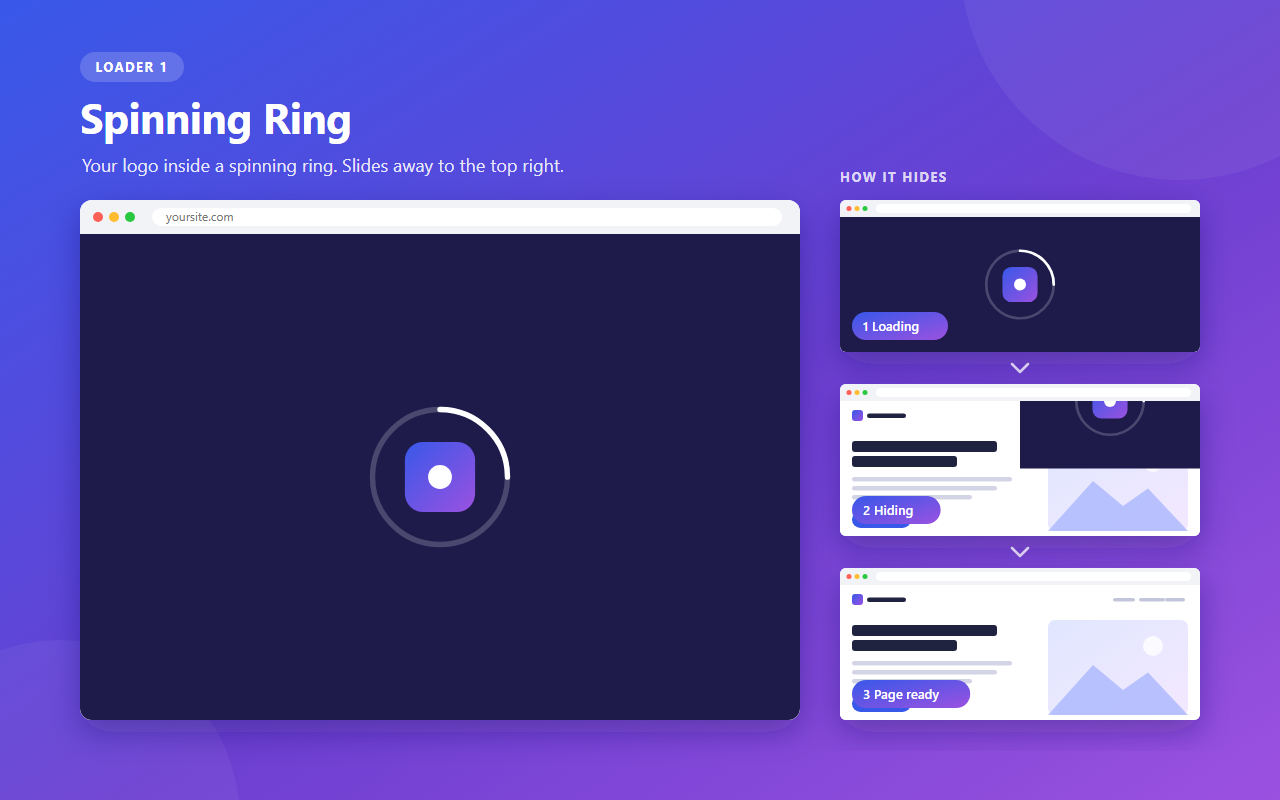
Loader 1, Spinning Ring: your logo inside a spinning ring, slides away to the top right.
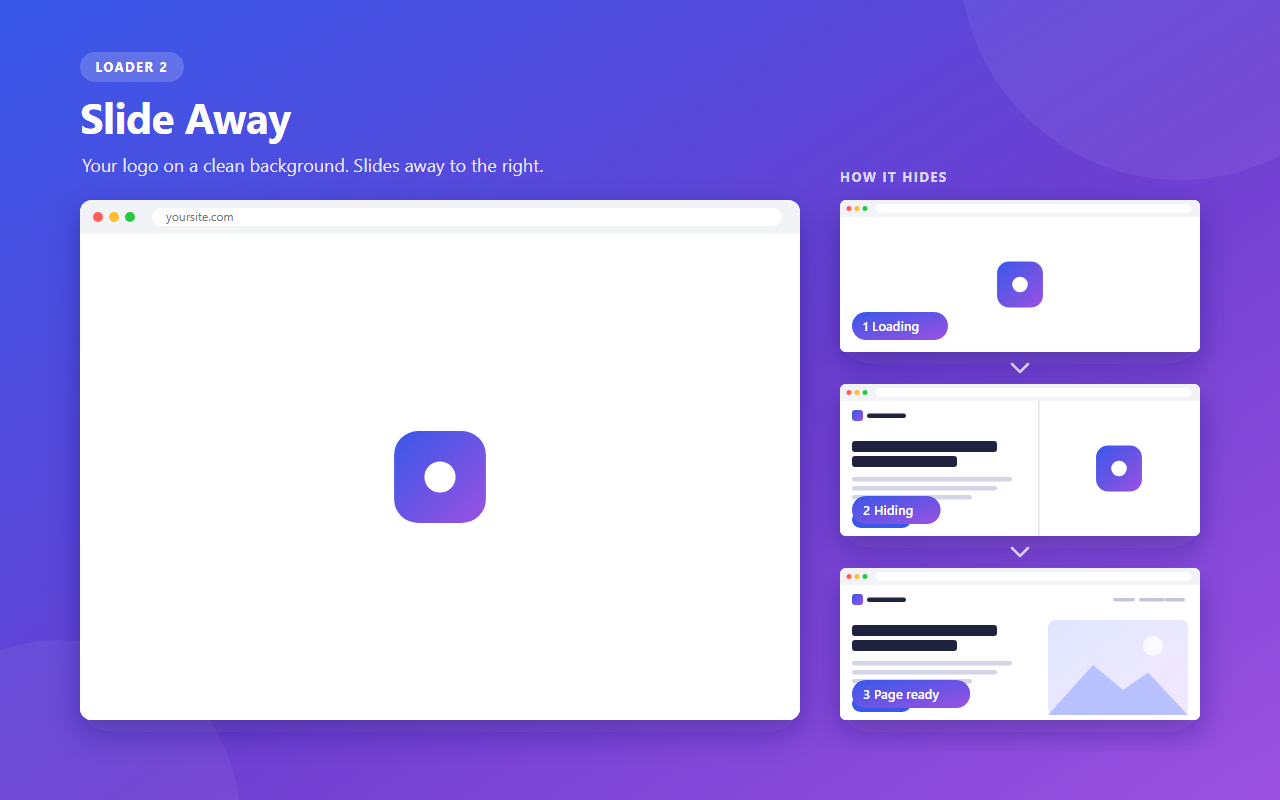
Loader 2, Slide Away: your logo on a clean background, slides away to the right.

Loader 3, Three-Panel Reveal: three panels pull back to reveal the page.
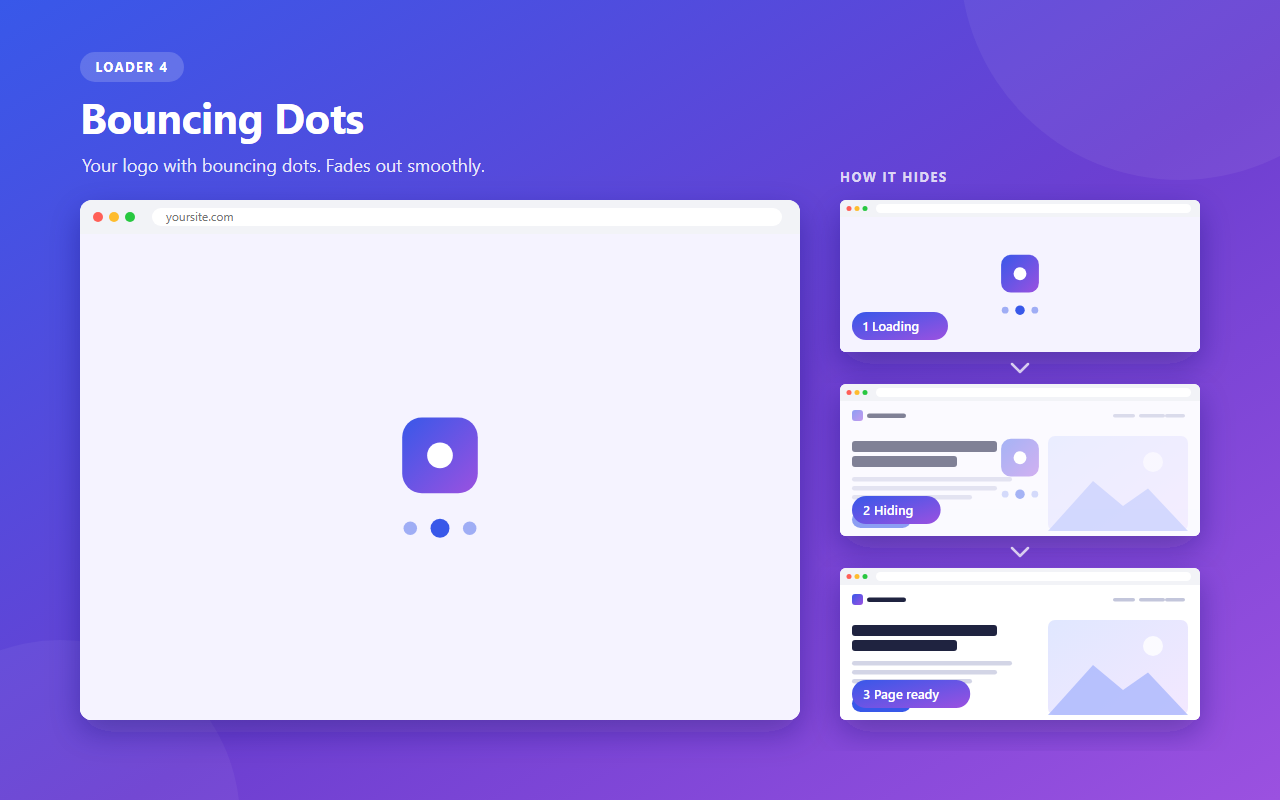
Loader 4, Bouncing Dots: your logo with bouncing dots, fades out smoothly.
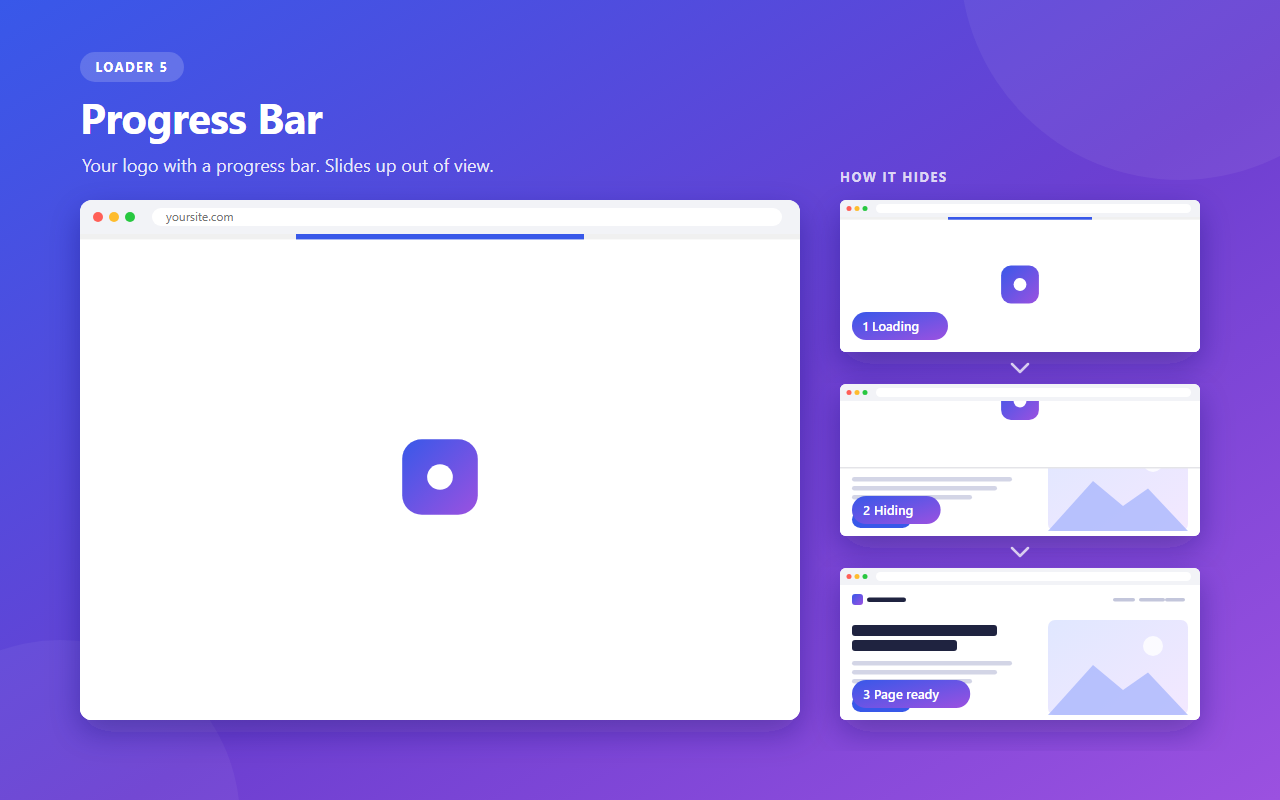
Loader 5, Progress Bar: your logo with a progress bar, slides up out of view.
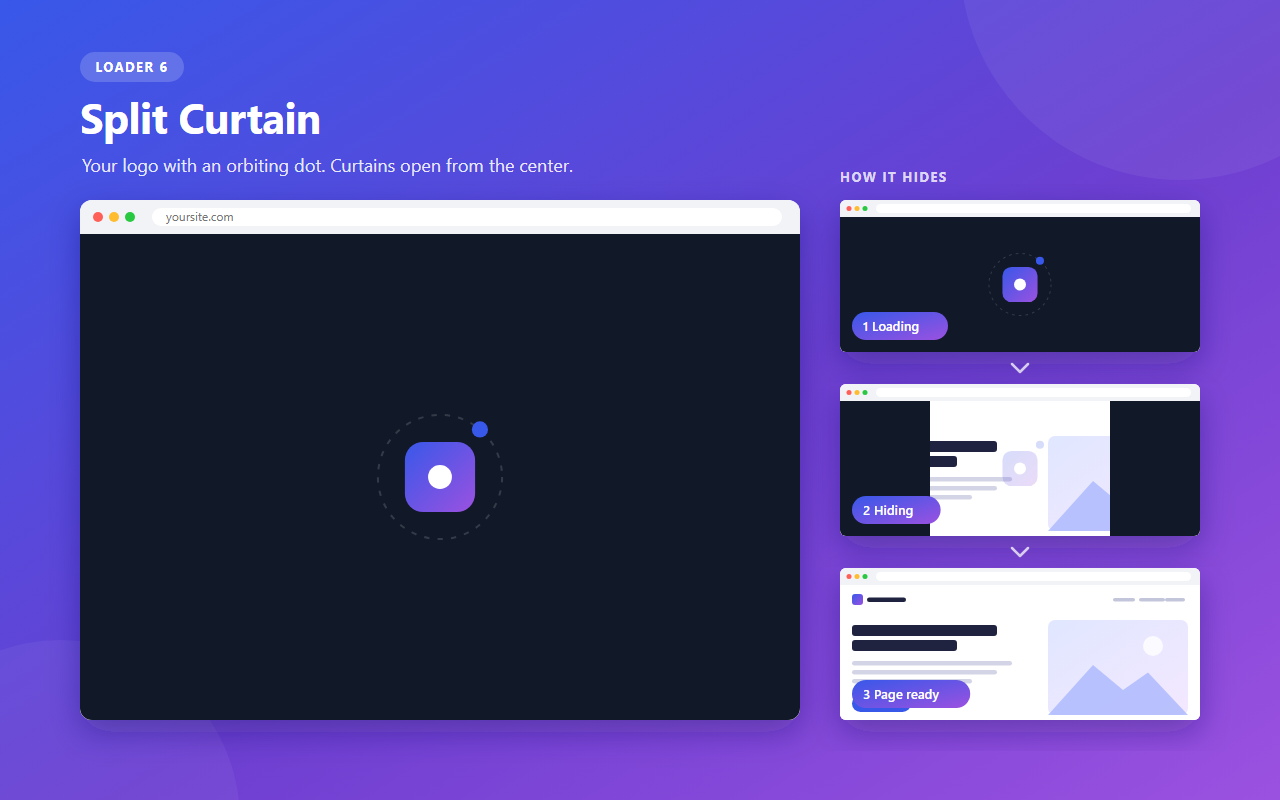
Loader 6, Split Curtain: your logo with an orbiting dot, curtains open from the center.
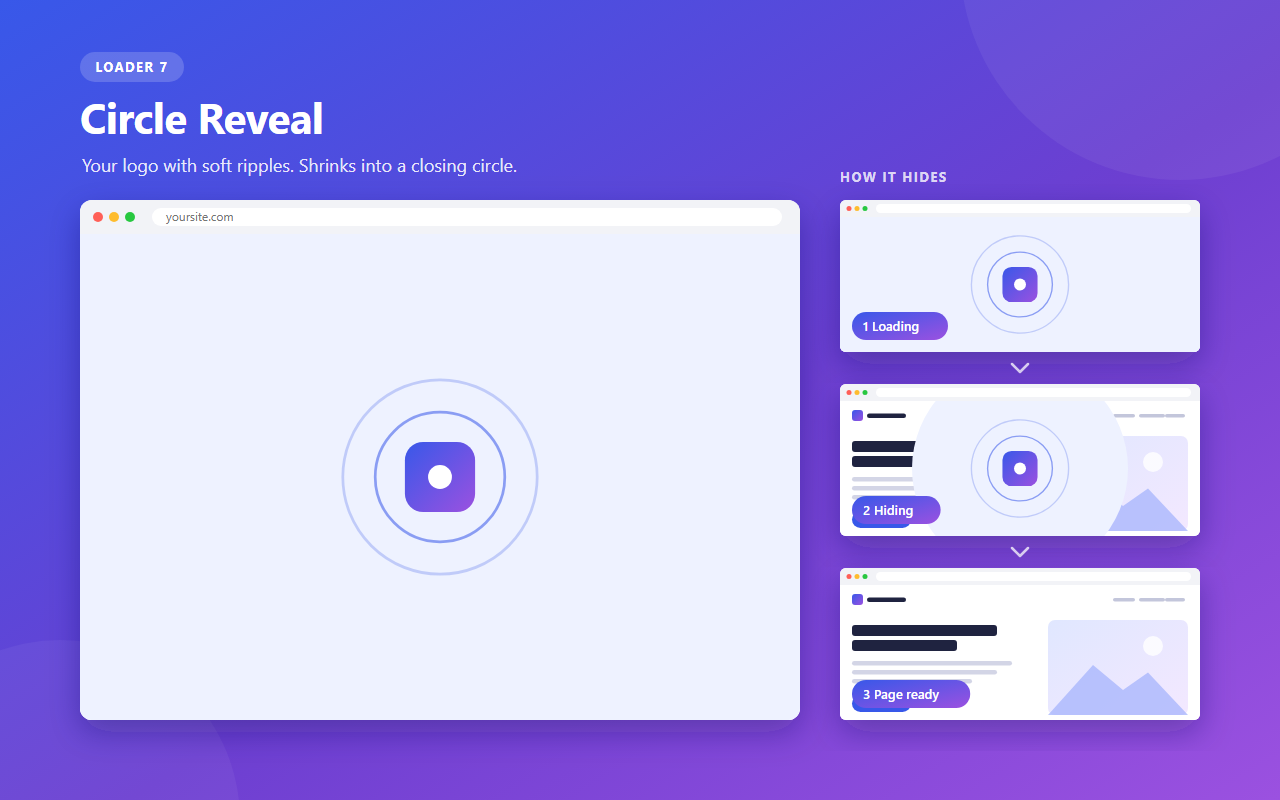
Loader 7, Circle Reveal: your logo with soft ripples, shrinks into a closing circle.
Faq
In your WordPress admin, click All-in-One WP Preloader in the left menu.
First check that Enable Preloader is turned on and your changes are saved. The preloader is added through the wp_body_open hook, which is supported by block themes and most modern classic themes. If your theme is very old and does not call wp_body_open(), the preloader cannot be shown. Ask your theme author to add it, or switch to an up-to-date theme.
As soon as the browser has finished loading the page, including images, the preloader plays its hide animation and the page becomes visible.
Yes. Choose any image from the Media Library under Preloader Image. If no image is selected, the default image is used.
Yes. The live preview on the settings page updates as you change the design, image or color, even while the preloader is disabled. Click Play Animation to replay the hide animation.
The preloader adds one small CSS file and one small JavaScript file, and only when it is enabled. It makes no external requests. The script uses jQuery, which most themes already load.
No. Your existing settings are moved to the new format automatically the first time the updated plugin runs. Version 1.0.1 requires WordPress 6.6 or newer.
By default your settings are kept, so you can reinstall the plugin later without setting it up again. To remove all plugin data when the plugin is deleted, turn on Delete data on uninstall under Advanced in the plugin settings before deleting it. Deactivating the plugin always keeps your settings.
Please open a topic in the plugin’s support forum on WordPress.org.
Reviews
Changelog
1.0.1
- New: Settings page rebuilt with React and WordPress components.
- New: Live preview with a replay button for the hide animation.
- New: 4 preloader designs: Bouncing Dots, Progress Bar, Split Curtain and Circle Reveal.
- New: “Delete data on uninstall” option (off by default) to remove all plugin data when the plugin is deleted.
- Improvement: Removed the Carbon Fields library, making the plugin much smaller.
- Improvement: Preloader CSS and JavaScript load only when the preloader is enabled.
- Improvement: Settings are stored in a single option. Existing settings are migrated automatically.
- Improvement: New plugin structure following the WordPress Coding Standards.
- Fix: Compatibility with jQuery 3.
- Requirement: WordPress 6.6 or newer.
1.0.0
- Initial release.