AuditPulse Activity Log & Site Monitor

AuditPulse Activity Log & Site Monitor
Description
I built AuditPulse because I kept running into the same problem on client sites: something changes and nobody knows who did it or when. A plugin gets deactivated, a page gets edited, a new admin account shows up out of nowhere — and there’s no record of any of it.
AuditPulse keeps a log of that activity so you actually have something to check when things go wrong.
It logs things like:
- Logins, logouts and failed login attempts (with the IP address)
- Posts and pages being created, edited or deleted
- Plugins being installed, activated, deactivated or removed
- New user accounts and role changes
- Changes to site URL, permalinks and other core settings
- Media uploads and deletions
- Theme switches
- WooCommerce order and product changes, if WooCommerce is installed
- Anything matching a custom alert rule you set up (email or Slack)
Everything works right after you activate the plugin. There’s nothing to unlock, no key to enter, no signup required to use any of it.
There’s an optional “Stay Updated” page where you can leave your email if you want to hear about new releases. That’s it — totally optional, skip it if you’re not interested.
Privacy
Activity logs (user actions, IP addresses, timestamps) stay in your own WordPress database. Nothing gets sent anywhere else.
If you do use the “Stay Updated” signup, your name and email get saved so I can notify you about updates — that’s the only thing that data is used for, and it’s only collected if you choose to enter it.
Installation
- Upload the plugin folder to
/wp-content/plugins/auditpulse - Activate it
- Open AuditPulse Activity Log — logging starts immediately, nothing else to configure unless you want to.
Screenshots
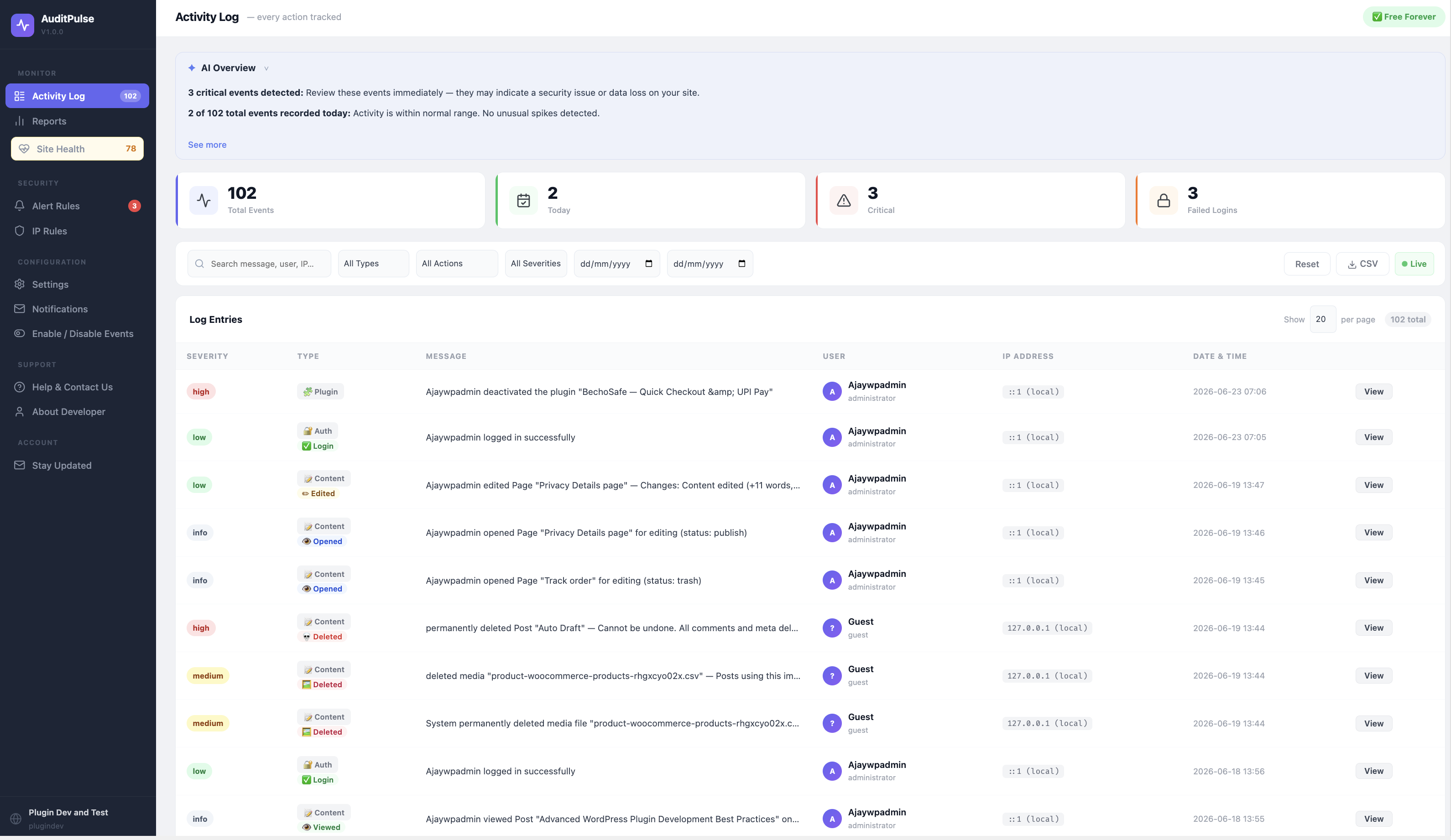
The activity log — filters by type, severity, user and date
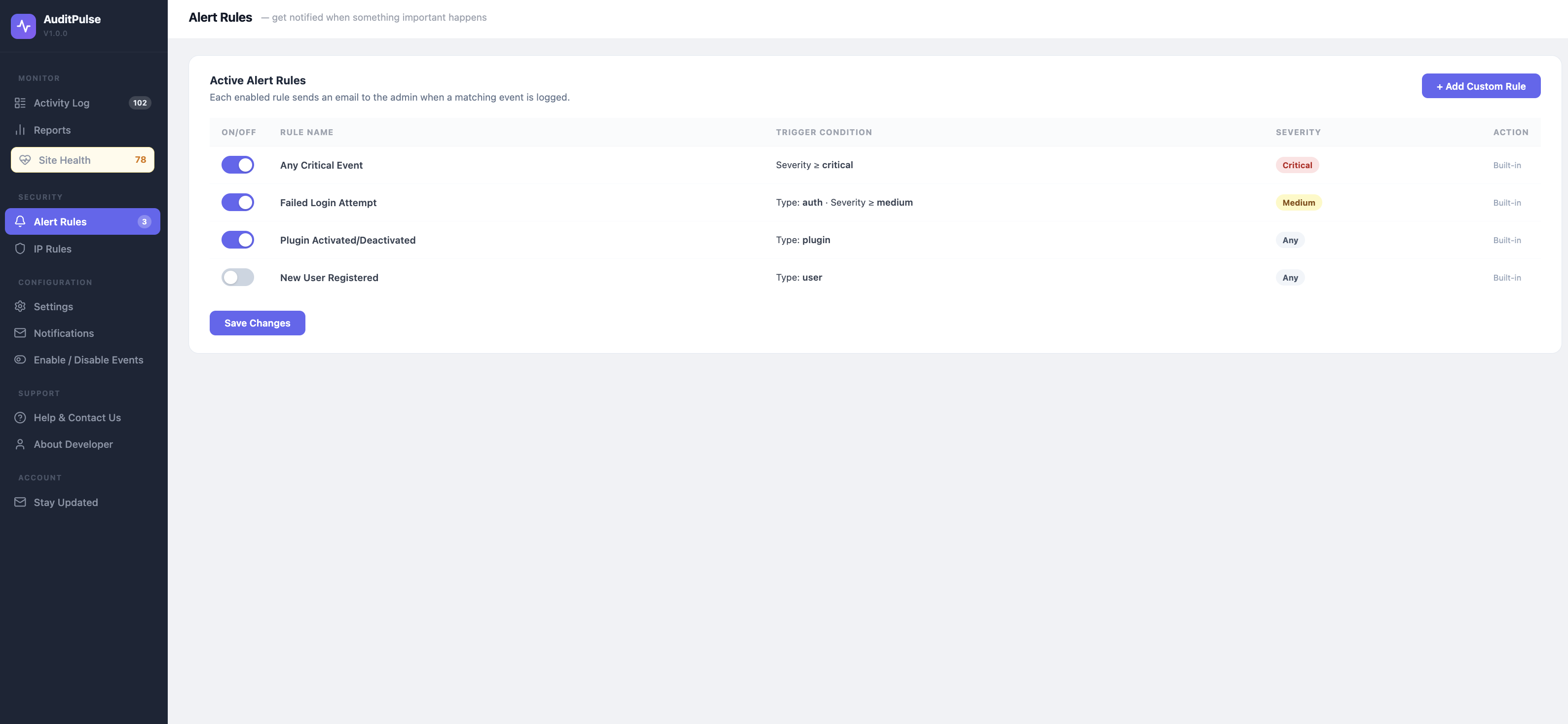
Alert rules screen
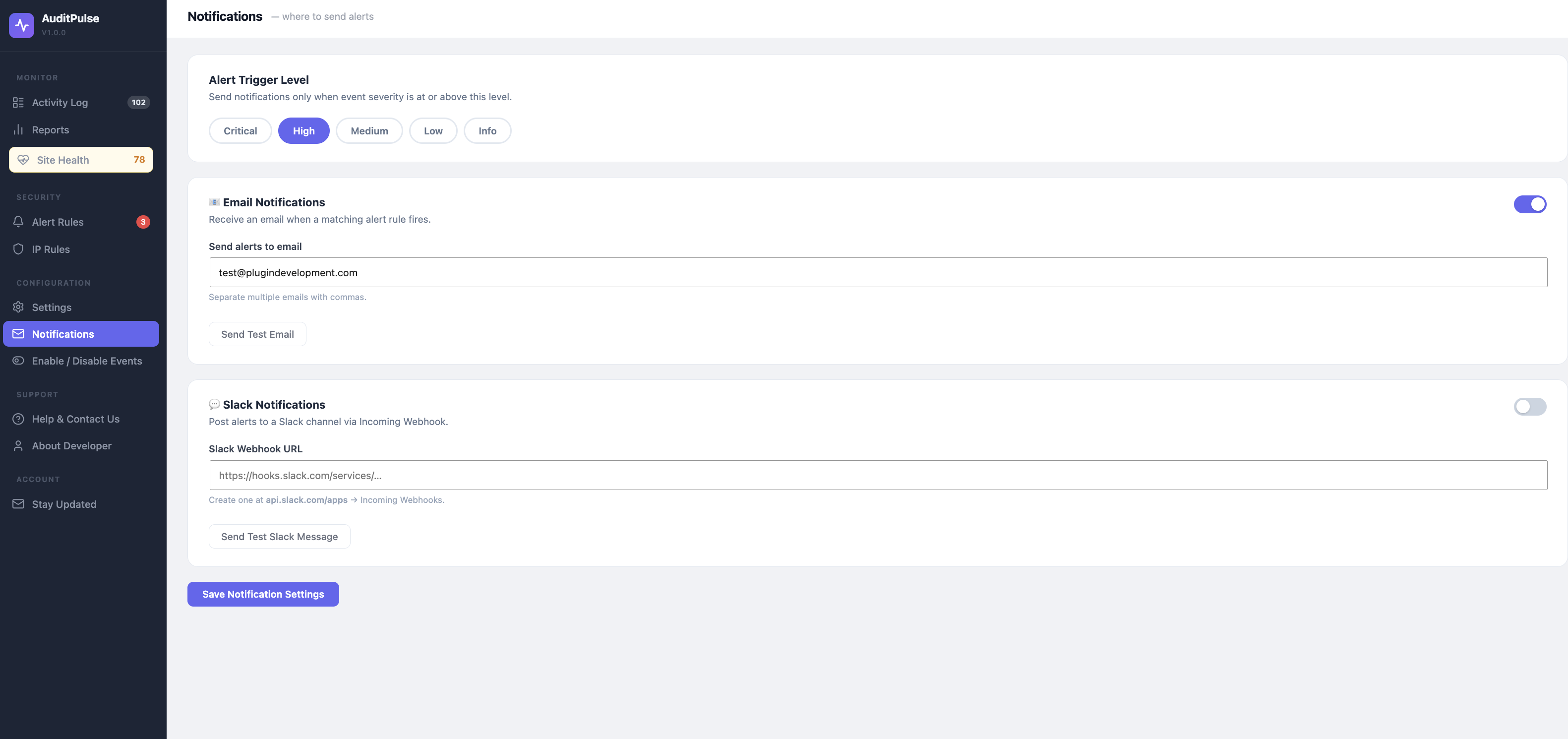
Notification settings (email + Slack webhook)
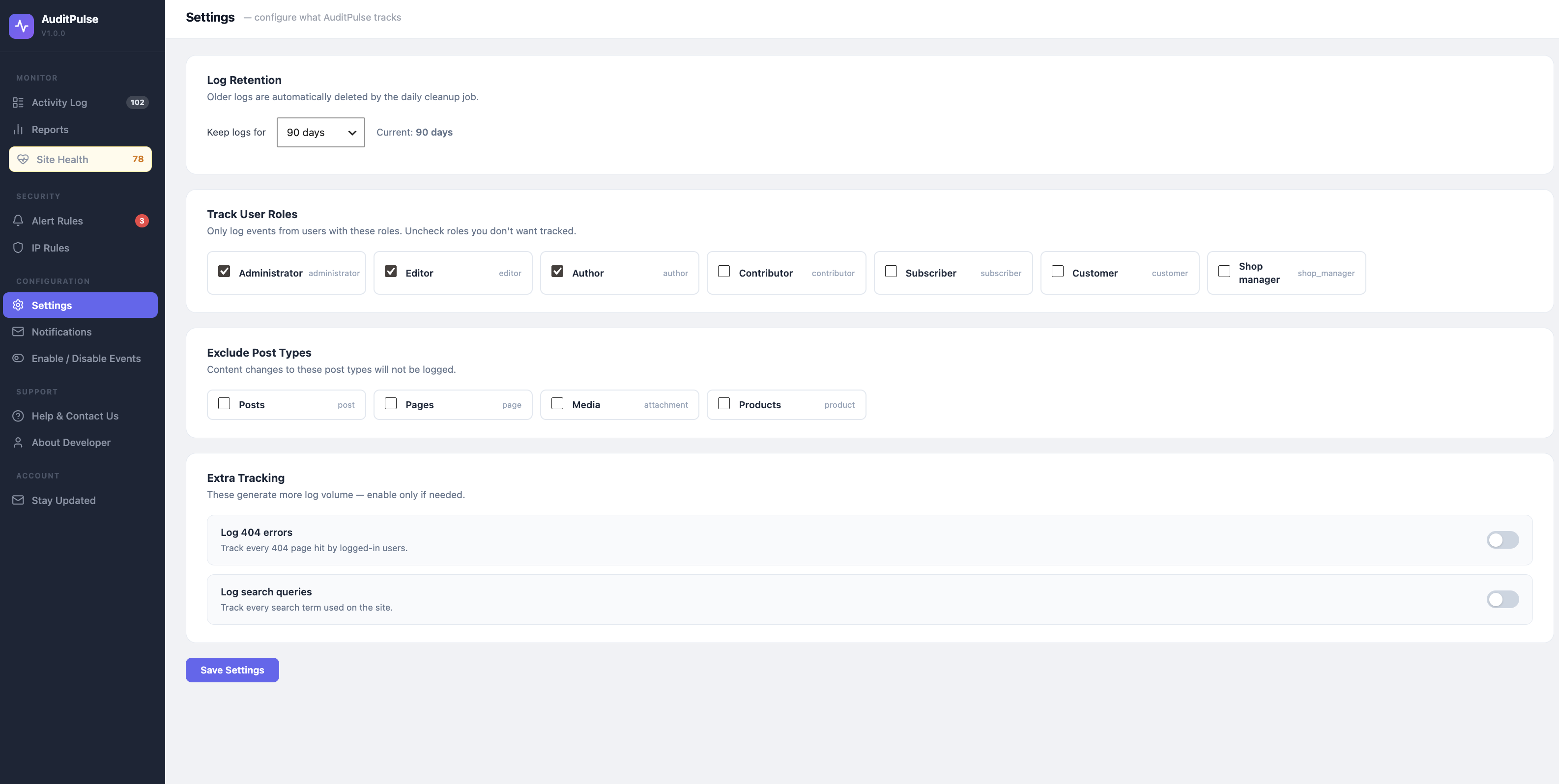
Settings page
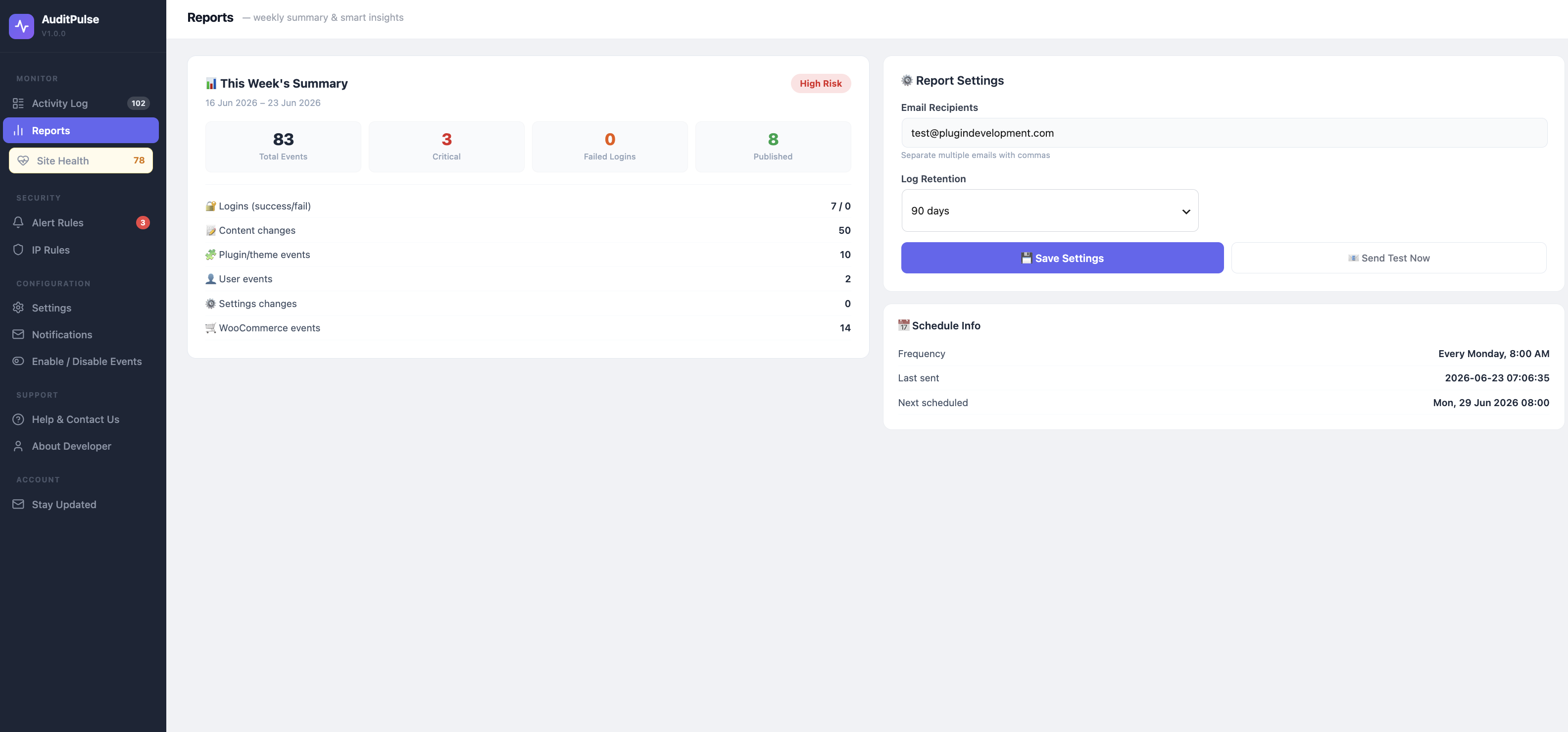
Weekly report screen
Faq
No catch. Everything you see in the plugin works without paying anything. I’m not holding features back for a future “Pro” version.
It shouldn’t be noticeable. Logging happens on the backend when an admin action occurs — there’s no extra JS or anything running on your actual site pages for visitors.
90 days by default, but you can change that in Settings — anywhere from a week to a year.
Yes, under Enable/Disable Events you can switch off whatever event types you don’t care about.
If WooCommerce is active, order and product changes get logged automatically.
Set up a rule for that under Alert Rules — pick the “Failed Login” event and you’ll get an email (Slack too, if you’ve set up a webhook).
Nowhere outside your own database. No external services are called.
Not yet in this version — it’s on my list for later.
Reviews
Changelog
1.0.0
- First release