Auto Image Alt Generator

Auto Image Alt Generator
Description
Auto Image Alt Generator fills in image metadata in two independent ways. Only empty fields are filled, so text you wrote yourself is never changed.
1. Filename mode (default, local, free)
Uses a cleaned-up version of the filename. No account, no AI, nothing leaves your server. Works on every WordPress version the plugin supports.
blue-tshirt.jpg → “Blue Tshirt”
product-photo-1024x768.jpg → “Product Photo”
summer-dress-01.jpg → “Summer Dress”
Filenames that say nothing useful, such as IMG_1234.jpg, are skipped.
2. AI mode (optional, WordPress 7.0 or newer, off until you set it up)
Asks an AI model to look at the image and suggest alt text, title, caption and description in a language you choose. The plugin does not contact any AI service itself and stores no API keys: it uses the WordPress AI Client, so you connect a provider once under Settings Connectors and WordPress handles credentials and requests. Suggestions wait in Media AI Review, where you can edit, approve, reject or regenerate each field. AI text can be wrong; always check it. Read “External services” before enabling.
Filename text is a starting point, and AI text is a suggestion. Neither is a guarantee of accuracy or of accessibility compliance, and neither is promised to improve search ranking.
Features
* Alt text, title, caption and description, each switched on or off separately
* Optional AI image analysis through the WordPress AI Client (WordPress 7.0+); filename mode keeps working without it
* Review queue for AI suggestions with edit, approve, reject and per-field regenerate (Media AI Review)
* Templates per field, for example Image: {filename} or {product_name} - {filename}
* Context from the parent post title and, if WooCommerce is active, the product name
* Bulk tool for existing images with preview, progress, summary and resume (Media Bulk Alt Text), for both modes
* Alt Text Audit report (Media Alt Text Audit)
* Decorative image patterns and a “keep empty alt text” option
* Skip rules by filename pattern, and image type selection
* Settings export and import (JSON)
* WP-CLI commands and developer hooks
External services
Filename mode contacts no one. AI mode is off by default and does nothing until an administrator ticks the confirmation box and enables it. It also needs WordPress 7.0+ and an AI provider connected under Settings Connectors.
This plugin makes no network requests of its own. When AI runs, it asks the WordPress AI Client (wp_ai_client_prompt()), and WordPress sends the request to the provider you connected (for example Google, Anthropic or OpenAI). That provider’s terms, prices, rate limits and data-use rules apply; read them. The service, endpoint and credentials are chosen and stored by WordPress, not by this plugin.
What the plugin hands to WordPress for each AI request:
* The image: the 1024px “large” version if WordPress made one, otherwise the original file, only if it is 8000×8000 pixels or smaller and within the file size limit you set (default 5 MB, at most 7 MB). It is sent as file data from your server, never as a URL.
* The instructions the plugin writes, plus the options you tick under “Context sent with the image”: file name, title of the published page or post the image is attached to, WooCommerce product name, and the first 300 characters of that page’s excerpt or text. Draft, private and password-protected pages are never used. Your optional style notes are also sent.
When it runs: only when you start an AI bulk job, press “AI suggest” on an image, regenerate a field, run wp aag generate --method=ai, or (if you enabled it) when a new image is uploaded. Saving settings and the status check send nothing.
Free tiers and costs. Providers may charge per request or give a limited free allowance that they can change at any time. Some free tiers (for example Google Gemini’s, per Google’s terms checked 2026-10-21) allow the provider to use submitted content, including images, to improve its products and let people review it. Do not send private, client or personal images through a free tier. The plugin shows request counts but no cost estimates and cannot read your quota.
Credentials. The plugin stores no API keys. Version 3.0 deletes any key saved by version 2.x from the database when an administrator next opens the admin; revoke those old keys at their provider if you no longer use them.
Images and languages
Images: JPEG, PNG, GIF (first frame) and WebP, checked by reading the file itself, not its extension. Output languages: English, Tamil, Hindi, Spanish, French, German, Portuguese, Italian, Japanese, Chinese, Arabic, or your site language. Quality may differ between languages and models; existing text is never translated.
Quality checks on AI text
Each field must be plain text (no HTML or links), not too long, not generic (“image”), not just the filename, not a keyword list, different from the other fields, and in the right script for Tamil, Hindi, Japanese, Chinese and Arabic. A field that fails is dropped with a reason shown in AI Review. These checks catch common problems; they cannot tell whether a description is true.
Reliability
Network errors, timeouts and rate or quota errors are handled by pausing, not hammering: a bulk job stops, says how long to wait, and finished images are not sent again. Upload jobs run in WP-Cron (never blocking the upload), try up to 3 times, then fall back to the filename if that is enabled. Upload jobs need WP-Cron to run.
Template variables
{filename}the cleaned filename{attachment_id}the attachment ID{post_title}title of the public post or page the image is attached to{site_name}the site name{product_name}WooCommerce product name, only when the image belongs to exactly one product
A variable with no value is left out. If {filename} is used but the filename is uninformative, or every variable is empty, that field is not filled. Templates are plain text and never run as code.
Decorative images
List filename patterns under Decorative images and their alt text is never generated. An empty alt text saved on purpose can be kept with the “keep empty” option. The AI is also told it may return empty alt text for a purely decorative image; that is treated as “no suggestion”.
WP-CLI
wp aag statuswp aag missing --limit=50wp aag generate --dry-run(filename mode, writes nothing)wp aag generate --fields=alt,caption --limit=200wp aag generate --method=ai --limit=20sends images to your connected AI provider; suggestions go to AI Review. Add--applyto save them into empty fields.--dry-runwith--method=aimakes no request.
Exit code is 1 if an image failed or arguments were invalid.
Developer hooks
aag_skip_attachment(bool $skip, int $id, string $filename)aag_generate_field(bool $generate, string $field, int $id)aag_generated_text(string $text, string $field, int $id, string $filename): also applied to AI textaag_template_variable(string $value, string $name, int $id)aag_ai_providers(array $providers): replace the AI provider class (it must implementAAG_Provider)aag_metadata_updatedaction (int $id, array $updates)
Settings are under Settings Auto Image Alt.
Known limitations
- AI mode needs WordPress 7.0 or newer and a provider connected in WordPress. It has been tested here against a stand-in provider and WordPress’s real client without any provider, not against a live AI service.
- AI accuracy, and quality in each language, cannot be guaranteed.
- The plugin cannot read your provider quota or choose the model.
- Bulk jobs run while the page is open; background processing exists only for new uploads.
- Individual images cannot be picked for bulk jobs; use scope, skip patterns, or “AI suggest” per image.
License
This plugin is free software; you can redistribute it and/or modify it under the terms of the GNU General Public License as published by the Free Software Foundation; either version 2 of the License, or (at your option) any later version.
Credits
Developed by Ponsiva Pandian
Website: http://iamponsiva.rf.gd
Installation
- Upload the plugin files to the
/wp-content/plugins/auto-image-alt-generator/directory, or install the plugin through the WordPress Plugins Add New screen. - Activate the plugin through the Plugins screen in WordPress.
- Optional: open Settings Auto Image Alt to choose fields, templates and skip rules.
- Upload a new image, or open Media Bulk Alt Text to fill existing images.
Setting up AI (optional, WordPress 7.0+)
1. Open Settings Connectors and connect an AI provider that can read images (follow WordPress’s instructions there; create keys in your own provider account, never share them in a chat or public form).
2. In Settings Auto Image Alt AI image analysis, check that the status says a provider is connected, tick the data-sharing confirmation, tick “Enable AI features” and save.
3. Choose the AI method in Media Bulk Alt Text, or press “AI suggest” under an image in the Media Library list. Review results in Media AI Review.
Bulk tool
1. Pick a method (filename or AI), tick the fields, and choose all images or only those without alt text.
2. Press Preview. Preview changes nothing and, in AI mode, sends nothing.
3. Press Start. Progress is saved after each step; close the page and press Resume later.
4. AI jobs stop at the job limit (set it below any free allowance you have), pause on rate limits or provider problems, and never send an image twice unless you regenerate it.
Screenshots
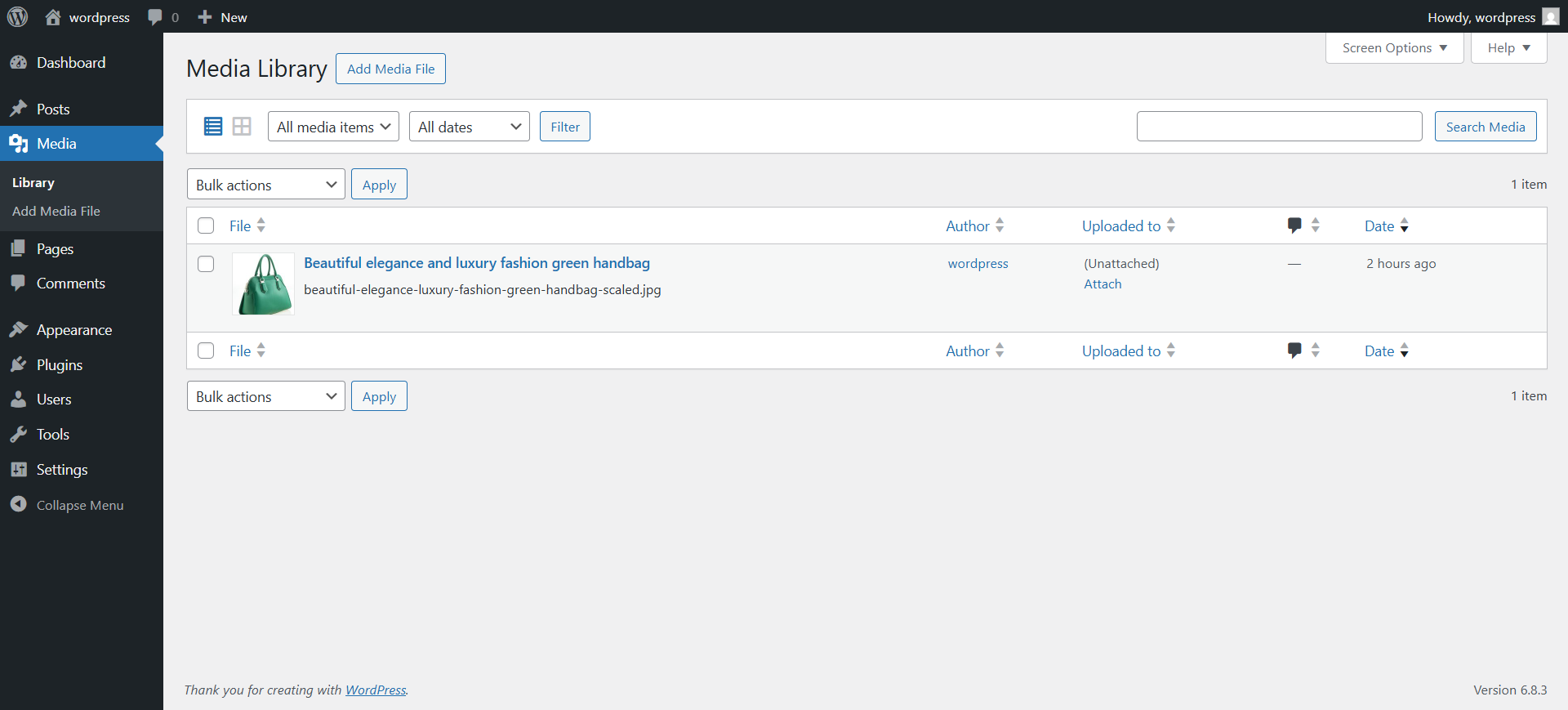
The Media Library with an image that was uploaded.
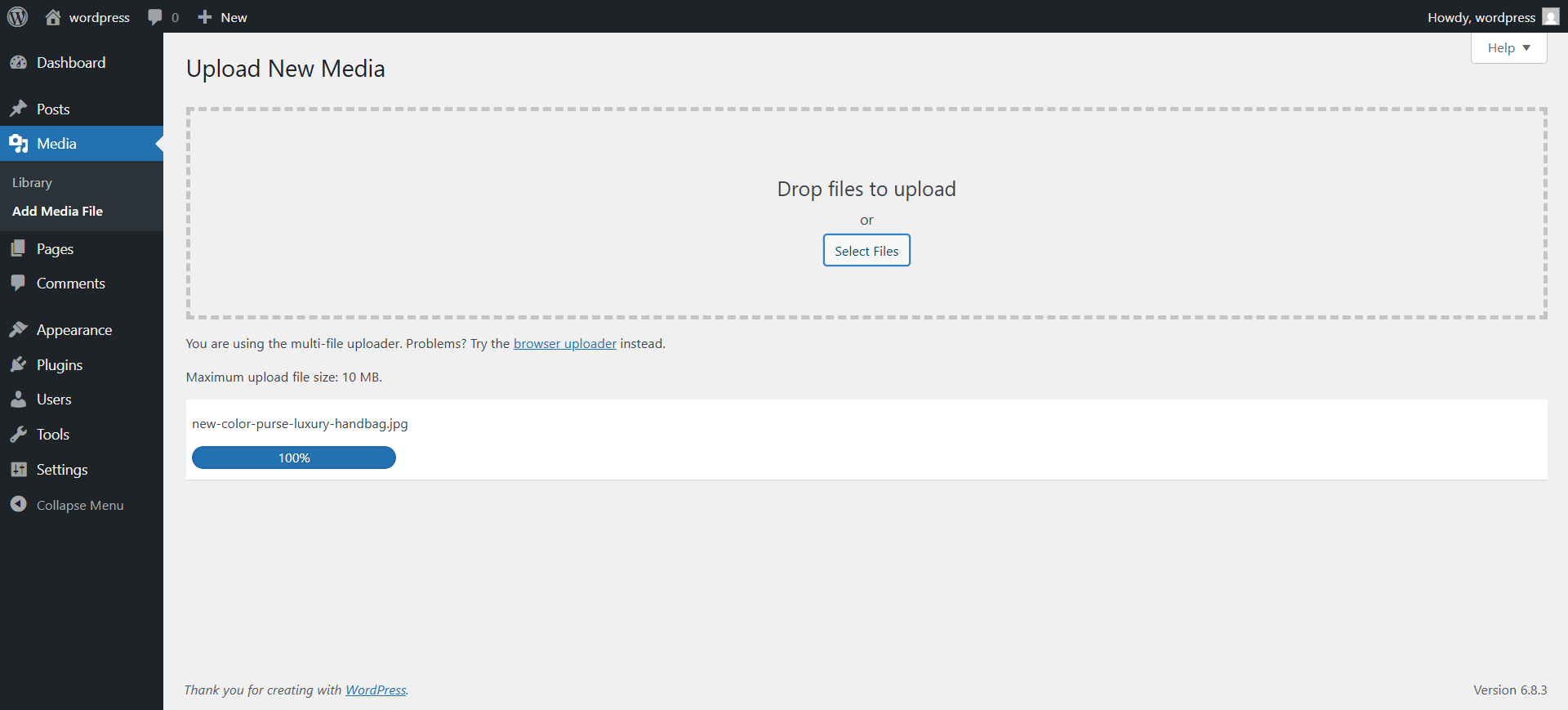
Uploading an image with the media uploader.
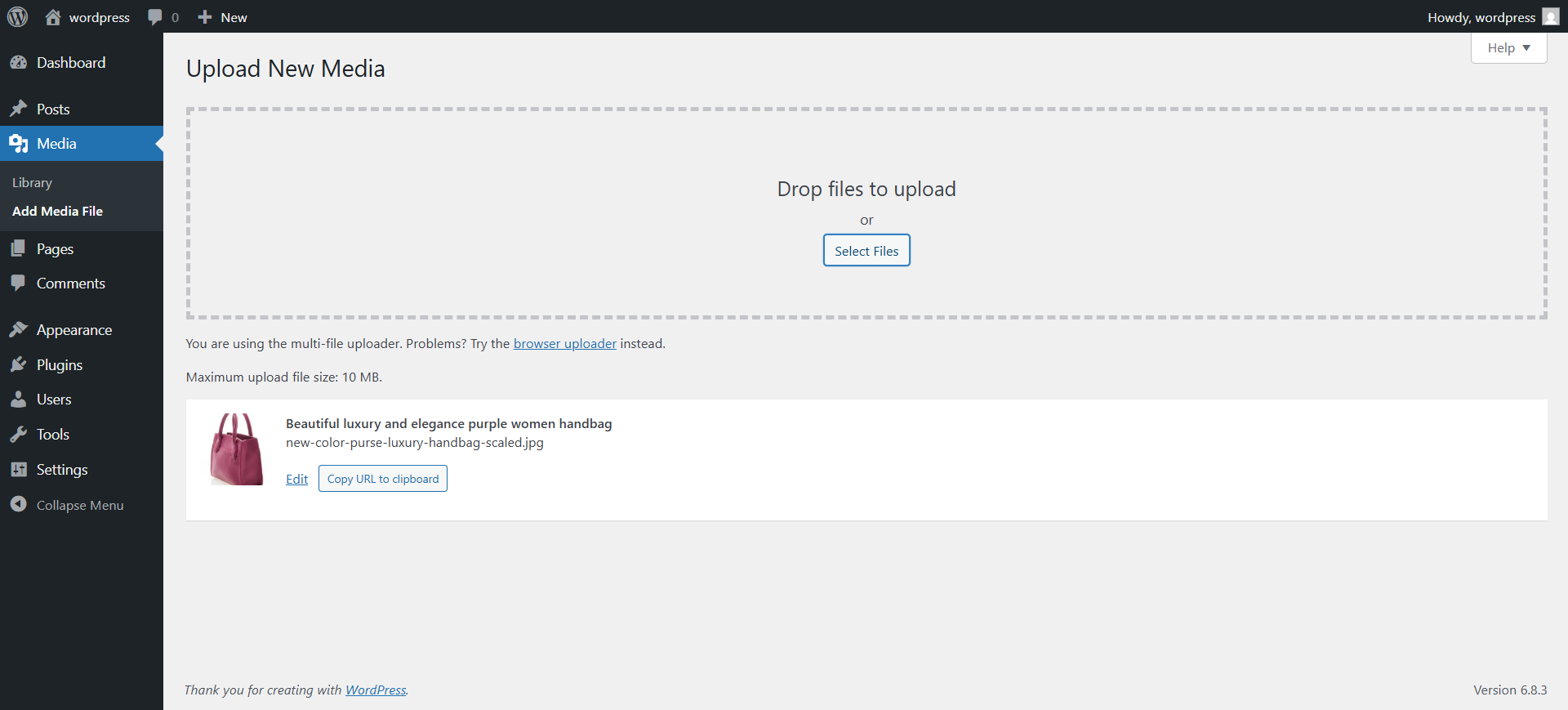
The finished upload.
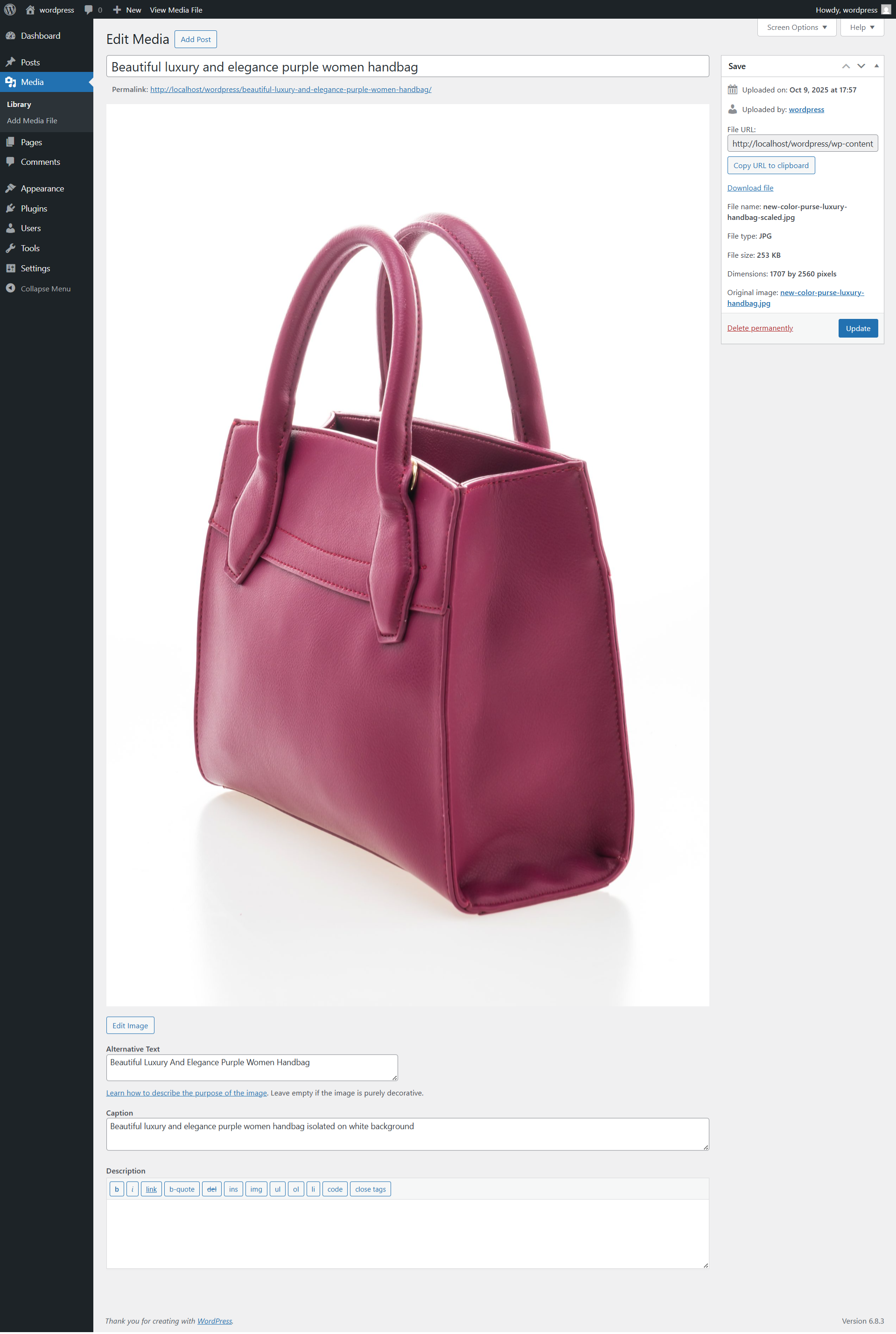
The Edit Media screen: the alt text was filled in automatically from the filename.
Faq
No. Filename mode works fully without it, on every supported WordPress version.
No. Nothing is sent until you enable AI mode and run it.
Whichever you connect under Settings Connectors in WordPress 7.0+ that can read images and write text. This plugin does not choose or contact the provider itself.
In WordPress, managed by Settings Connectors. This plugin stores none and removes keys saved by older versions.
No, not by default. It only targets empty fields. Replacing needs an explicit tick, and AI suggestions are not saved until you approve them, unless you choose the “save right away” options.
Your edit is kept and marked. Later runs skip images that already have a suggestion, so your edit is never overwritten.
The prompt forbids it, but AI can still make mistakes. Check suggestions, especially for people, places, products and medical or sensitive images.
- “No AI provider is connected”: add one under Settings Connectors, make sure it supports image input, and check that AI is not disabled for the site (
WP_AI_SUPPORT). - “AI needs WordPress 7.0”: AI mode is not available on older versions; filename mode is.
- “rate limit or quota reached”: wait a minute; if it persists you may have used a free daily allowance.
- “declined to describe this image”: the provider’s safety filters blocked it; write that one by hand.
- Bulk jobs time out: lower “images per bulk request” or the timeout in the AI settings.
- New uploads get no AI text: upload jobs need WP-Cron; if it is disabled, run it from a system cron.
JPG, PNG, GIF and WebP. You can switch types off.
Reviews
Changelog
3.0
- Changed: AI now uses the WordPress AI Client (WordPress 7.0+). The plugin no longer contains its own Claude or Gemini integration, stores no API keys, and has no provider, model or key settings. Connect a provider under Settings Connectors.
- Changed: AI is switched off after updating from 2.x until an administrator confirms the data-sharing notice again. Old keys are removed from the database.
- Changed: the largest image file sent is capped at 7 MB.
- New: a notice when WP-Cron is disabled, because upload jobs need it.
- Unchanged: filename mode, templates, bulk tool, AI Review, audit, import/export, WP-CLI and all other settings.
2.1
- Added Google Gemini as an AI provider (replaced in 3.0).
2.0
- Optional AI image analysis (Claude, replaced in 3.0), AI Review queue, AI bulk and CLI mode, background AI for uploads, quality checks.
1.3
- Templates, parent post and WooCommerce context, Alt Text Audit, decorative images, WP-CLI, settings import/export.
1.2
- Bulk tool for existing images.
1.1
- Settings page, skip rules, improved filename cleanup, filters.
1.0
- Initial release — automatically generates alt text for uploaded images based on filenames.