Booking Works

Booking Works
Description
Booking Works turns your WordPress site into a booking platform. Visitors pick a date or time on a clean calendar, see the price immediately and book in seconds. You get a dashboard, a booking calendar, e-mail notifications, tickets with QR codes and a customer area without installing anything else.
Built for non-technical site owners. A short setup wizard asks what you offer (rooms, rentals, tours, appointments, real estate…) and configures everything for you. Every option can be changed later under Settings > Booking Works.
What you can sell
- Date ranges – hotel rooms, vacation rentals, car and equipment rental, real estate stays (per night / per day / per person).
- Time slots – appointments, services, classes, property viewings, hourly rental.
- Fixed events and tours – a limited number of seats per date.
Main features
- Built-in booking engine – WooCommerce is optional. Existing WooCommerce based sites keep working (classic mode).
- Live availability calendar and instant price quote on the booking form.
- Opening days and hours, slot length, buffer time, minimum and maximum stay, lead time, advance booking window and closed dates – globally and per item.
- Manual approval toggle (global, overridable per item).
- Customer cancellation and rescheduling toggles with time windows.
- E-mails to customers and the owner with editable templates and reminders.
- Tickets with QR code, print / save as PDF, and a check-in screen with camera scanning.
- Customer area (My Bookings) with tickets, cancel, reschedule and “add to calendar”.
- Admin dashboard with statistics, bookings list with filters, bulk actions and CSV export.
- Admin calendar with month, week and day views, color coded statuses and drag and drop rescheduling.
- iCal export of bookings and availability feeds for other platforms.
- Gutenberg blocks and shortcodes.
- Basic front-end form where approved users can add and edit their own items.
- REST API, webhook and developer hooks (Settings > Booking Works > Developers).
- GDPR tools: personal data export and erase, suggested privacy policy text.
- Multisite ready, WooCommerce HPOS and block checkout compatible, uninstall cleanup is opt-in.
Shortcodes
[BW-BOOKING-FORM id="123"]– booking form of one item (it is also added automatically to item pages)[BW-ITEMS type="range" category="rooms" limit="12" columns="3"]– grid of items[BW-MY-BOOKINGS]– customer area (also available as theWP-BOOKING-TRACKINGshortcode)[ns-add-product],[WP-CA-PRODUCTS-BY-USERS],[WP-CA-SALES-BY-USERS],[BECOME-A-VENDOR]– front-end item management
Classic WooCommerce mode
Sites that sold bookable WooCommerce products with earlier versions are upgraded automatically and keep the classic behaviour. Third-party plugins used by classic mode (WC Vendors, YITH Wishlist, NS Add Product Frontend, Security Deposits, Inbox…) remain supported but are no longer required for the built-in engine.
Third-party libraries
- QRCode.js generator (qrcode-generator) – MIT License, bundled in js/qrcode.js.
- Bootstrap 3, Font Awesome, moment.js, html2canvas and jsPDF – MIT / OFL licensed, bundled and used only by the classic WooCommerce screens.
Installation
- Upload the plugin to the
/wp-content/plugins/directory or install it from the Plugins screen. - Activate it. The setup wizard opens automatically.
- Answer the questions, then add your first item under Booking Works > Bookable Items.
- Visit the item page: the booking form is already there. Use
[BW-MY-BOOKINGS]on a page for the customer area (the wizard creates it).
Screenshots
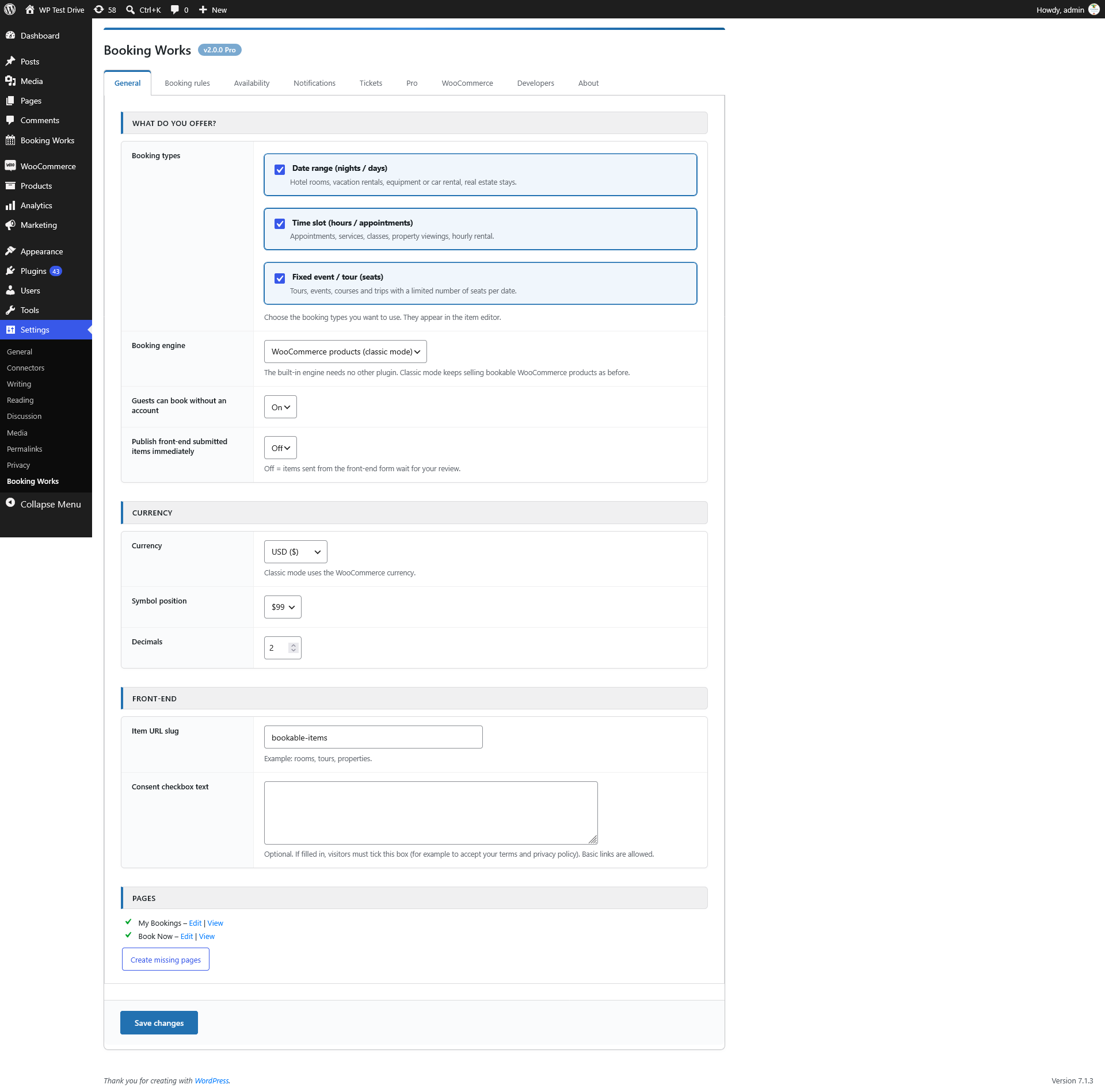
Settings › General – booking types, engine, currency and front-end options.
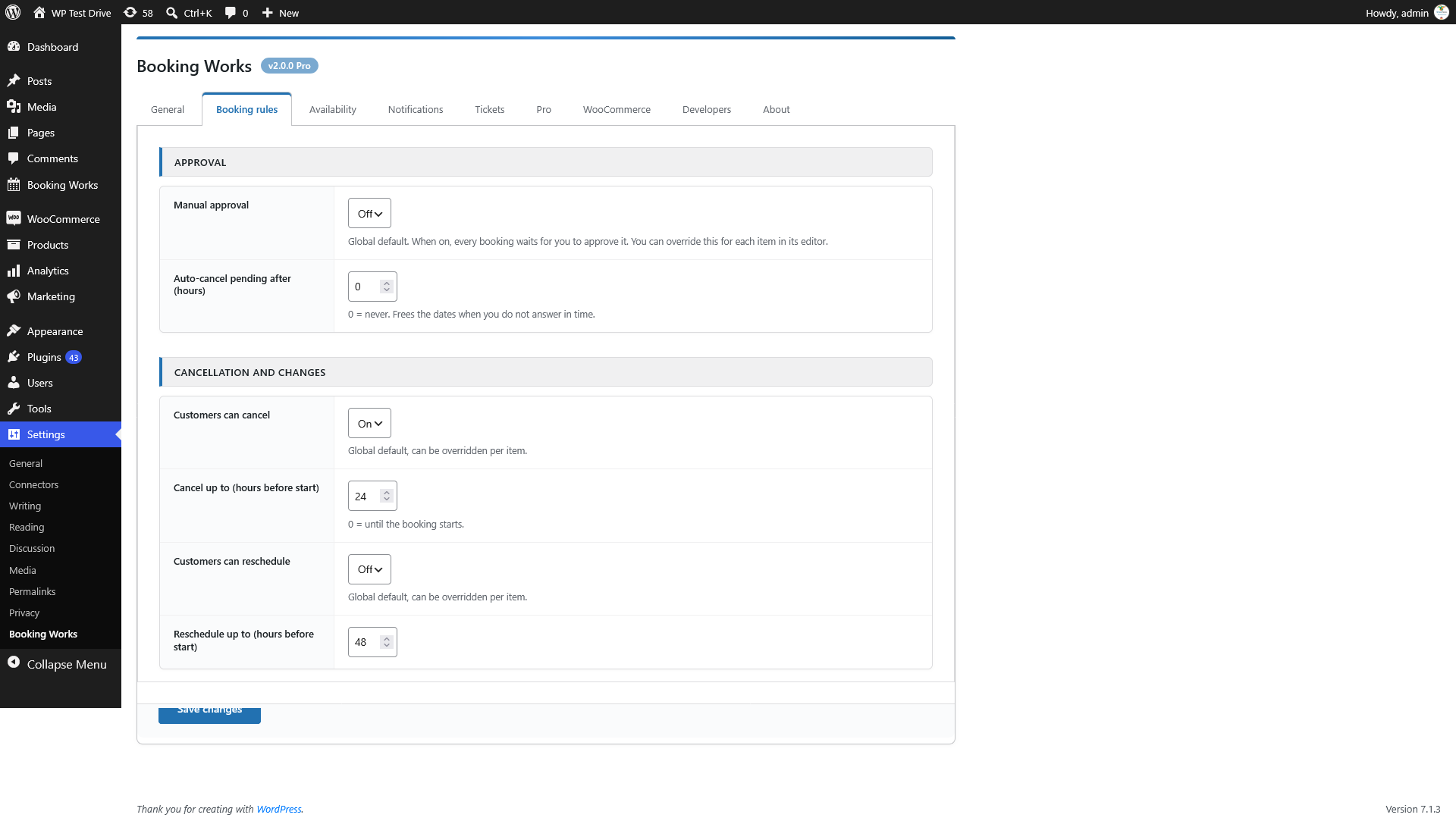
Settings › Booking rules – manual approval, cancellation and rescheduling windows.
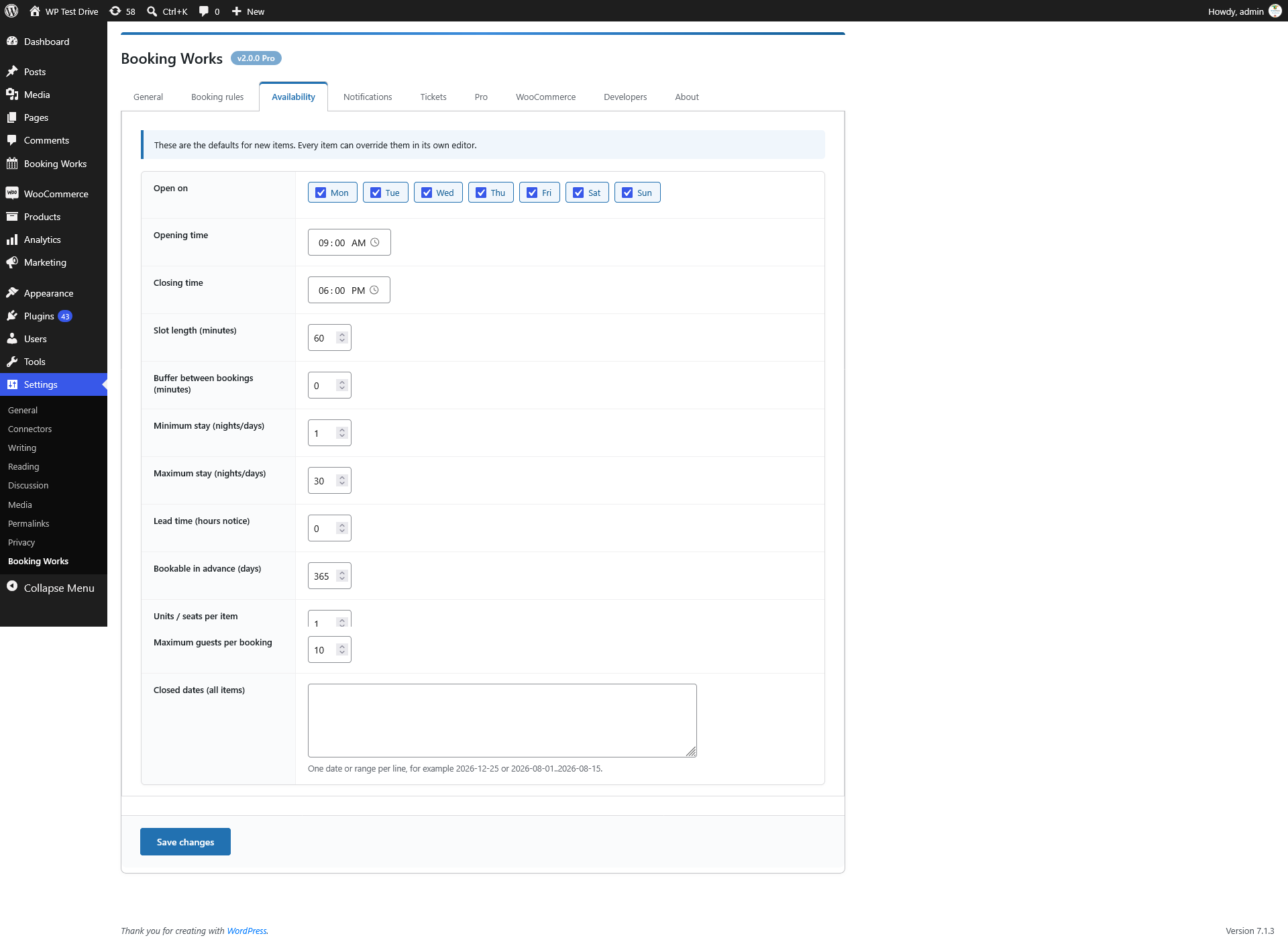
Settings › Availability – default hours, stay limits, capacity and closed dates.
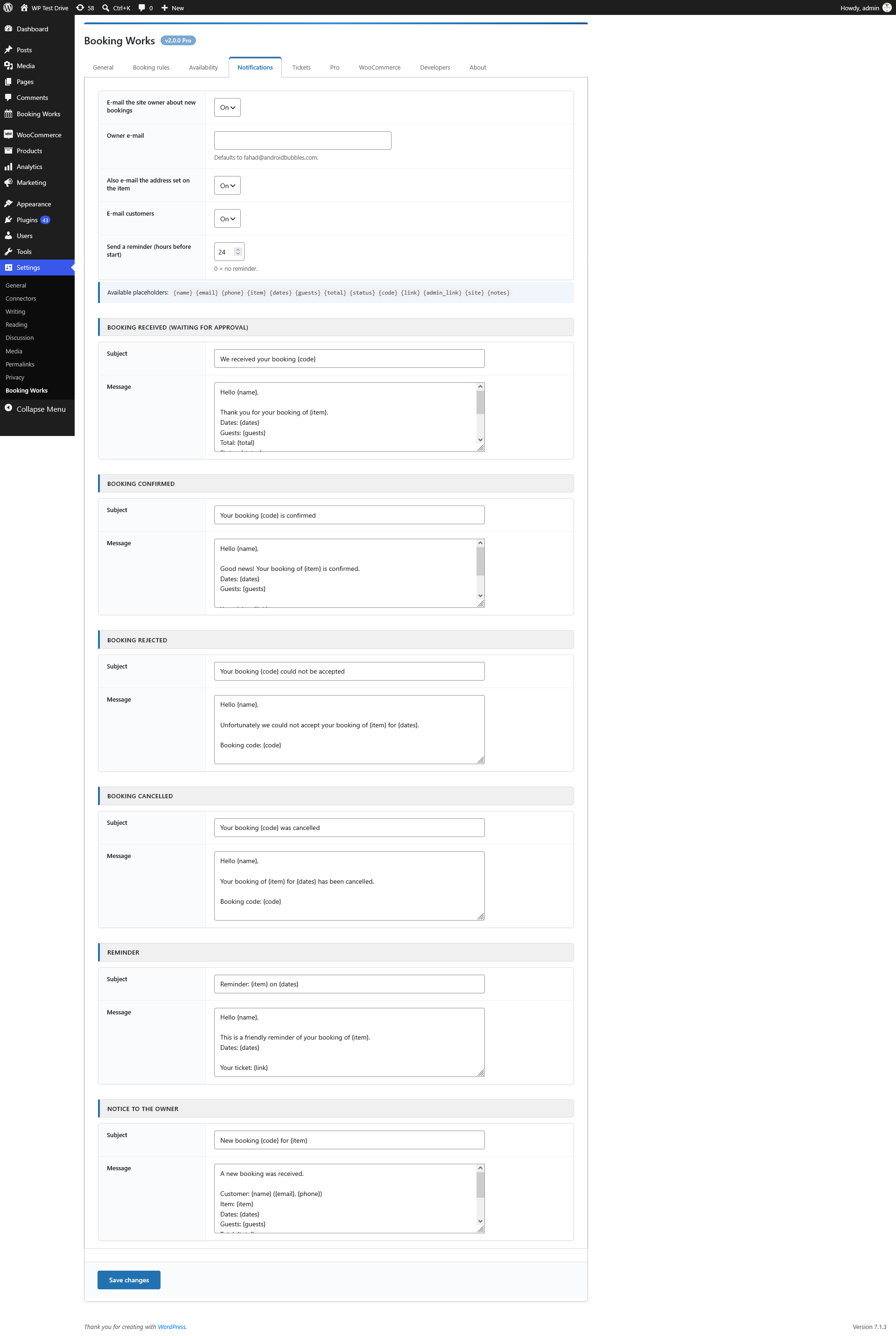
Settings › Notifications – owner/customer e-mails, reminders and editable templates.
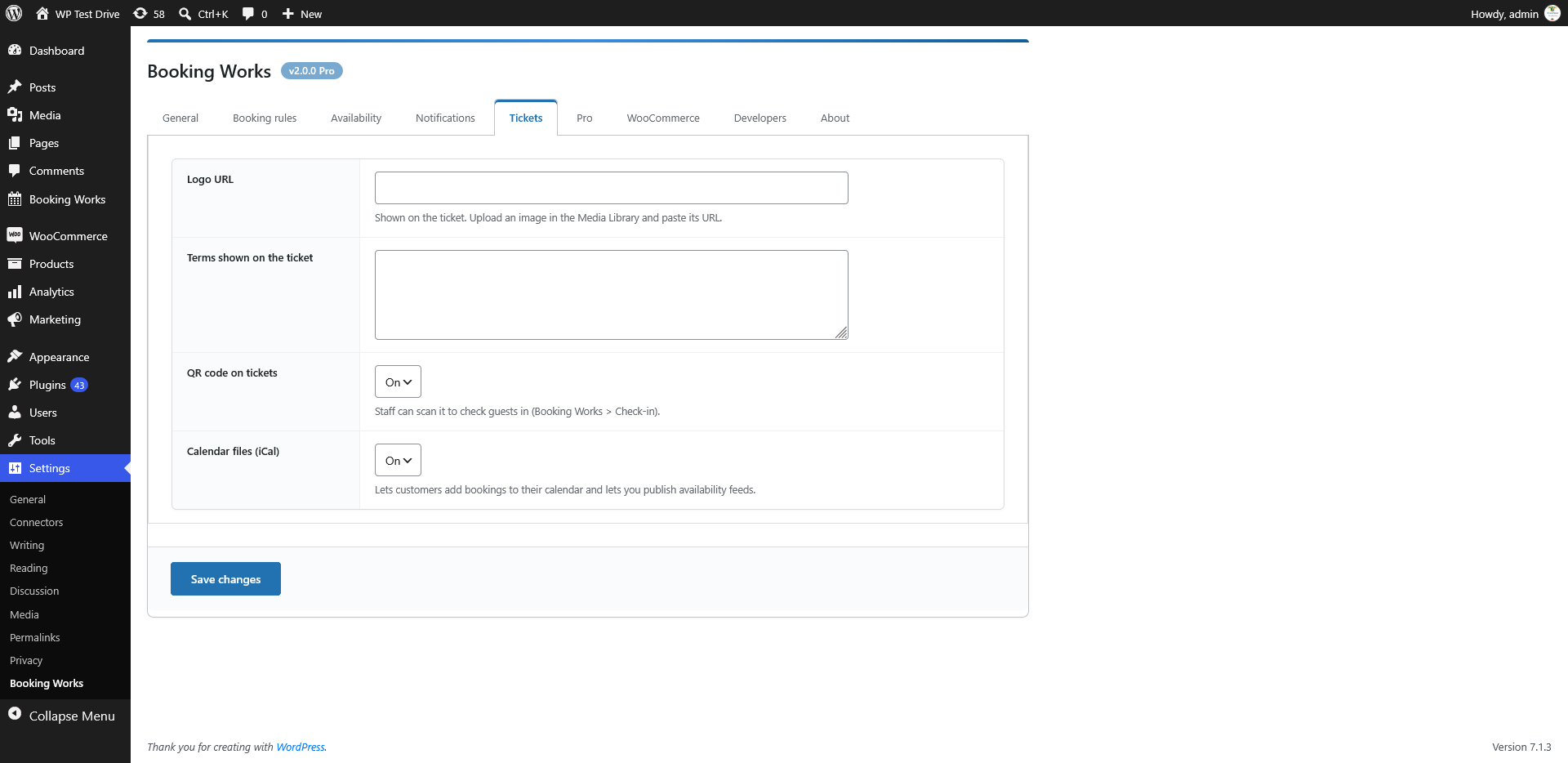
Settings › Tickets – logo, terms, QR codes and iCal calendar feeds.
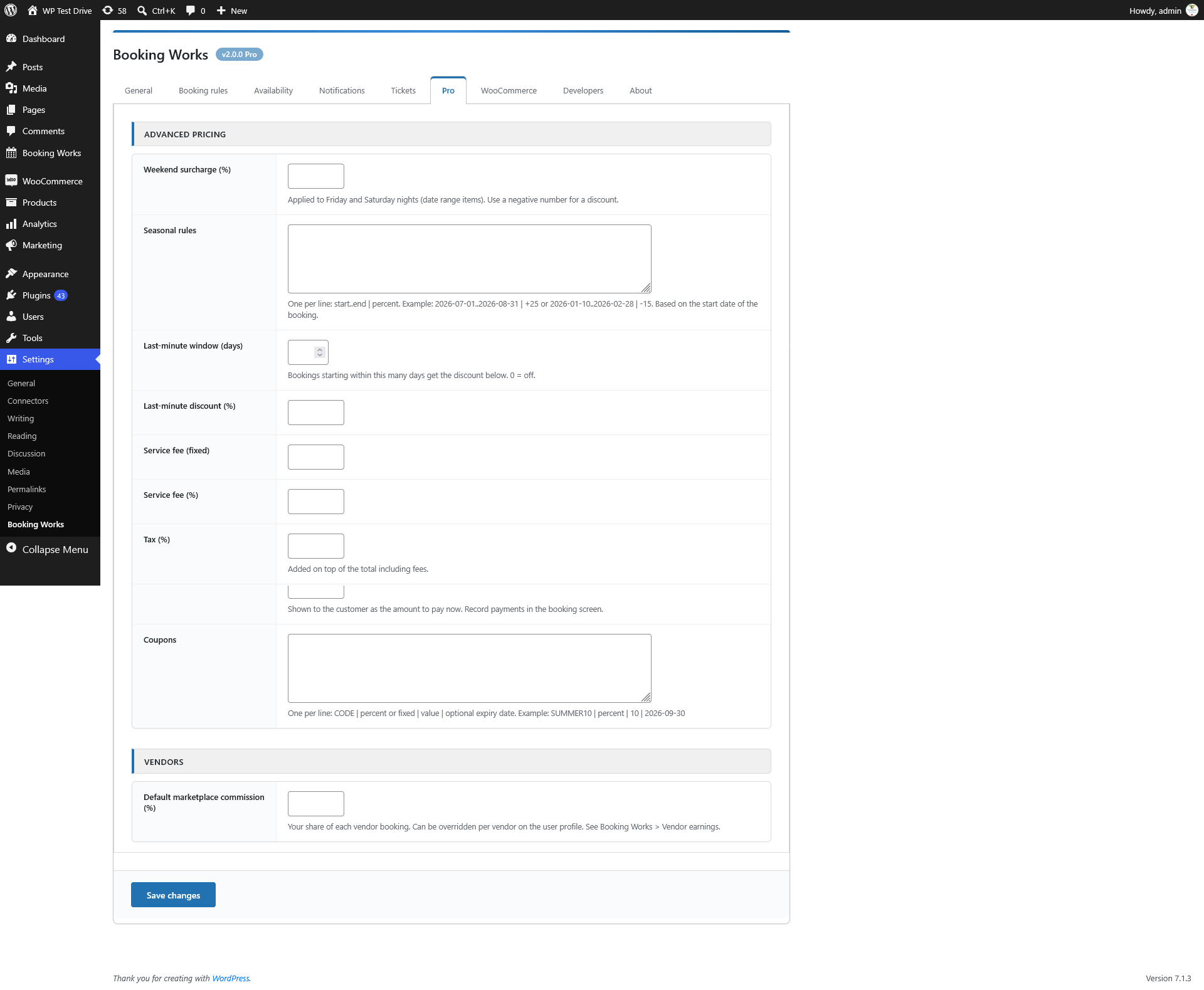
Settings › Pro – weekend rates, seasonal rules, fees, tax, deposits and coupons.
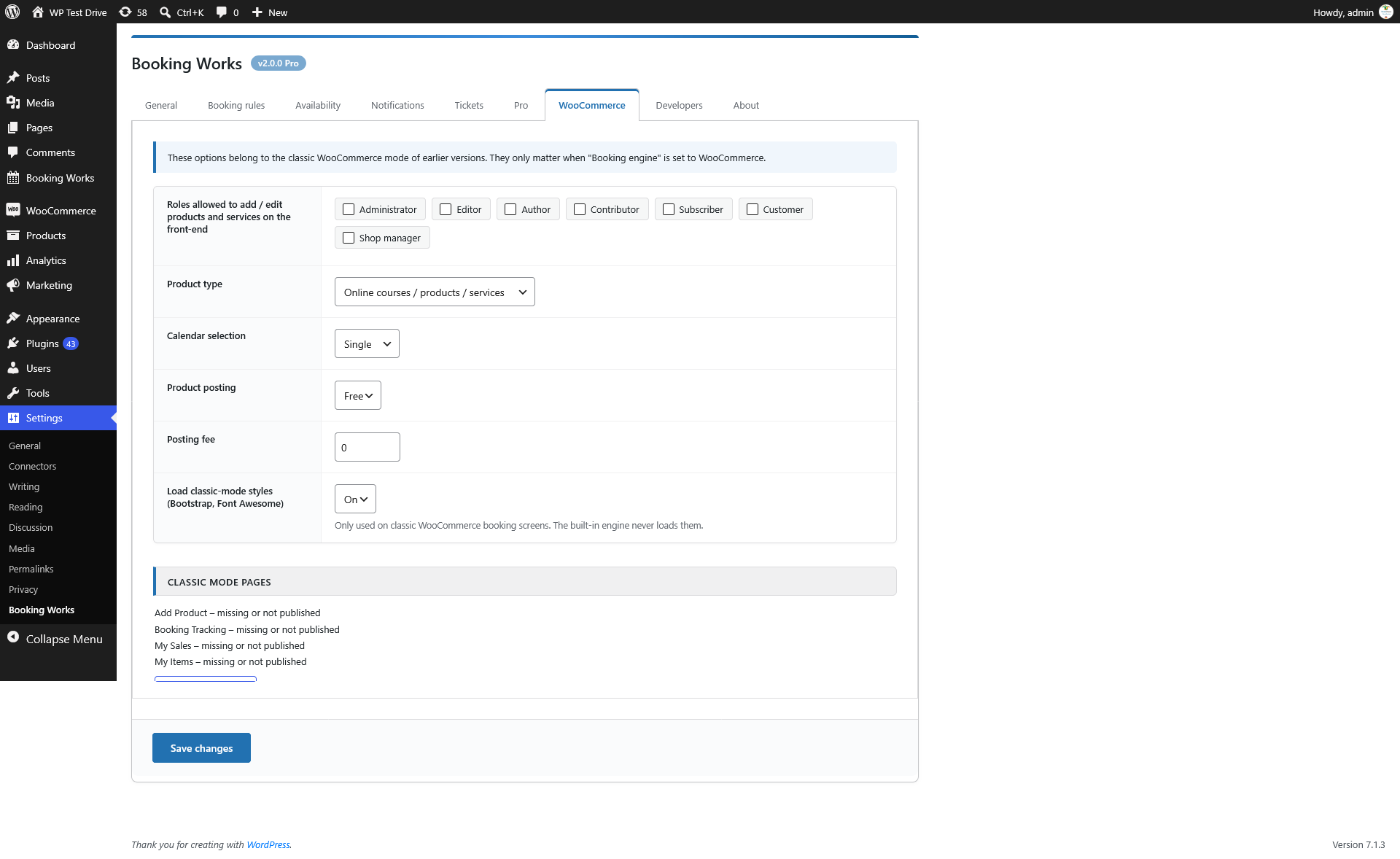
Settings › WooCommerce – classic mode roles, product type and legacy pages.

Settings › Developers – REST API, webhook, shortcodes and developer hooks.
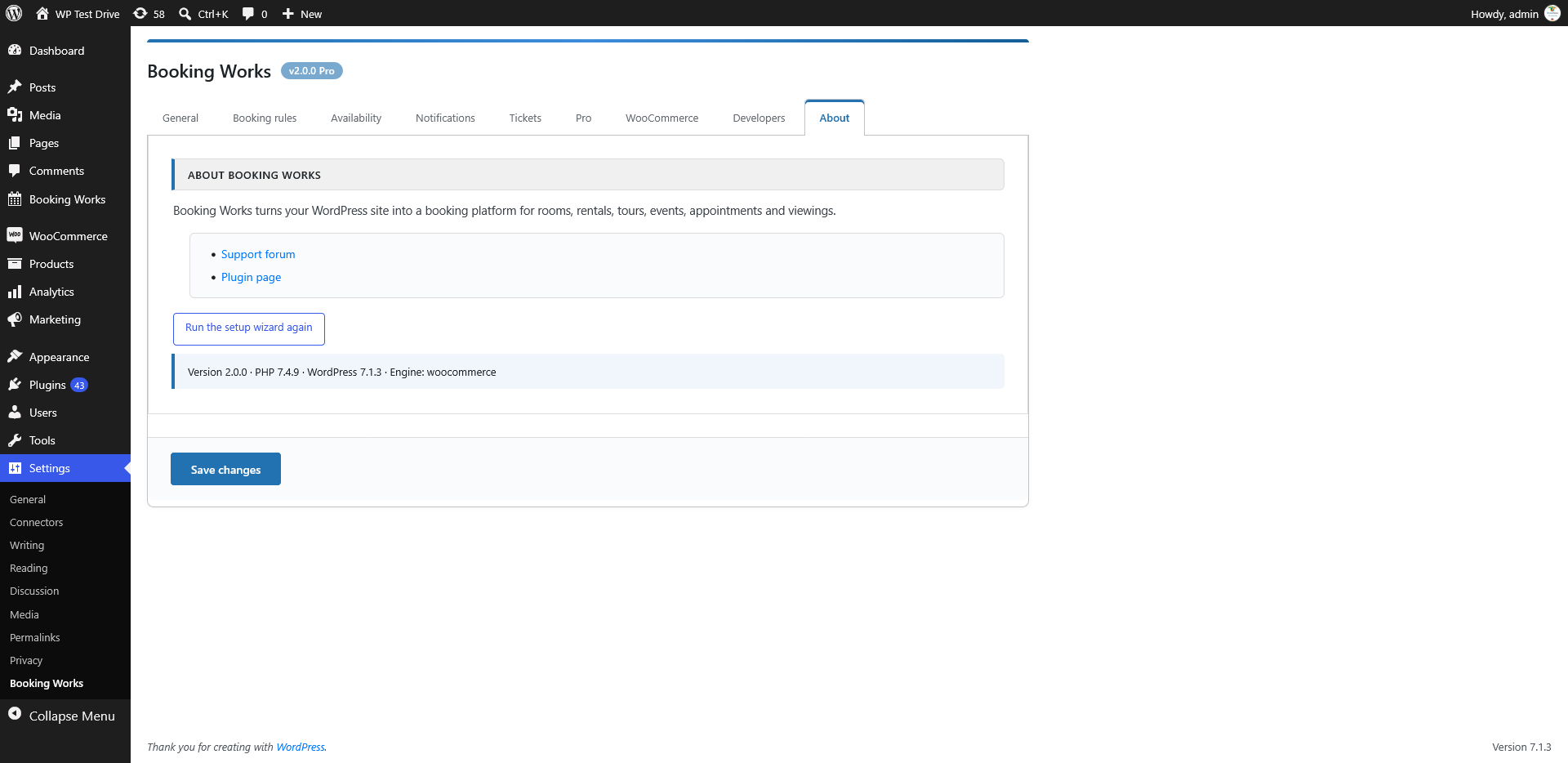
Settings › About – plugin info, support links and setup wizard.
Faq
No. The built-in engine works on its own. Payments are handled offline (pay on arrival / invoice) or by your own process. If you want to sell bookable WooCommerce products, choose classic mode in the settings.
They are kept. The database table is upgraded in place, WooCommerce sites stay in classic mode and nothing is deleted.
Settings > Booking Works > Booking rules > Manual approval. You can also switch it on or off for a single item in its editor.
Yes, with two switches (global and per item) and a time limit in hours before the booking starts.
Open Booking Works > Check-in and type the code or scan the QR code of the ticket.
Each item has an iCal availability feed (no personal data). Paste its URL into the other platform.
Allow the roles under Settings > WooCommerce (classic) or approve users from the Users screen (Vendor column), then give them a page with [ns-add-product].
In your own WordPress database. Nothing is sent to any external service unless you configure a webhook.
Reviews
Changelog
2.0.0
- New: built-in booking engine – WooCommerce is now optional.
- New: date range, time slot and event/tour booking types, selectable in settings.
- New: setup wizard, dashboard, bookings list with filters, bulk actions and CSV export.
- New: admin calendar with month / week / day views and drag and drop rescheduling.
- New: availability rules (weekdays, hours, buffer, min/max stay, lead time, closed dates, capacity).
- New: manual approval, customer cancellation and rescheduling toggles (global and per item).
- New: e-mail notifications with editable templates and reminders.
- New: tickets with QR codes, check-in screen, customer area (My Bookings).
- New: iCal export, REST API, webhook, Gutenberg blocks, GDPR exporter and eraser.
- New: front-end item form for approved vendors.
- Improved: classic WooCommerce mode hardened – prepared SQL statements, nonces on every AJAX action, HPOS compatible order queries, no deprecated PHP / WordPress functions.
- Improved: database upgraded to utf8mb4 with indexes (existing data is kept).
- Improved: Bootstrap and Font Awesome are loaded only on classic WooCommerce screens.
- Improved: settings no longer overwrite each other when saved.
- Requires WordPress 5.8+ and PHP 7.4+.
1.0.4
- Previous release.