Brand Assets
Brand Assets
Description
Brand Assets is a WordPress block plugin that allows you to easily display your company's brand assets on your website. Perfect for showcasing your brand identity, color schemes, and design guidelines.
Features:
- Color Scheme Display: Create beautiful color palette displays with customizable swatches
- Flexible Layout: Adjust swatch sizes, gaps, borders, and styling to match your brand
- CMYK Support: Optional CMYK color values for print-ready color information
- Responsive Design: Color schemes look great on all devices
- Easy to Use: Simple block editor interface with intuitive controls
- Logo Popover: Right-click on your site logo to show a customizable popover linking to your brand assets page
- Settings Page: Configure popover text, target page, and logo selector through WordPress admin
- Plugin Settings Link: Quick access to settings directly from the WordPress plugins page
Perfect for:
- Brand guidelines pages
- Design system documentation
- Marketing materials
- Portfolio websites
- Agency websites
- Corporate websites
The Brand Assets block makes it easy to maintain consistent brand representation across your WordPress site.
Download Links Feature:
The Brand Assets plugin includes a convenient feature for creating download links. When you add the ba-download class to a list item in Gutenberg, all links within that list item will automatically get the download attribute added to them.
How to Use Download Links:
- Create a List: In the WordPress editor, create a list (ordered or unordered)
- Add the Class: Select a list item and add the CSS class
ba-downloadin the Advanced settings - Add Links: Add your download links within that list item
- Automatic Processing: The plugin will automatically add the
downloadattribute to all links in that list item
Example:
<ul>
  <li class="ba-download">
    <a href="https://example.com/files/brand-guidelines.pdf">Brand Guidelines (PDF)</a>
  </li>
  <li class="ba-download">
    <a href="https://example.com/files/logo-pack.zip">Logo Pack (ZIP)</a>
  </li>
</ul>
The plugin will automatically transform these links to include the download attribute, making them trigger downloads instead of navigation. This feature is particularly useful for brand asset pages where you want to provide downloadable files like logos, brand guidelines, or other resources.
Brand Page Pattern:
The Brand Assets plugin comes with a pre-built block pattern that provides a complete template for creating brand asset pages. This pattern includes:
Pattern Sections:
-
Logo Section:
- Two-column layout for logo and icon display
- Download links for SVG, EPS, and PNG formats
- Uses the
ba-downloadclass for automatic download attributes
-
Brand Colors Section:
- Pre-configured Brand Assets block with sample colors
- Includes CMYK values for print-ready color information
- Responsive color swatches with customizable styling
-
Typography Section:
- Complete heading hierarchy (H1-H6)
- Text formatting examples (normal, bold, italic)
- Table example for comprehensive typography showcase
How to Use the Pattern:
- Create a New Page: In WordPress admin, create a new page for your brand assets
- Add the Pattern: In the block editor, click the "+" button and go to the Patterns tab
- Find the Pattern: Look for "Brand Assets" in the available patterns
- Insert and Customize: Click to insert the pattern, then customize it with your actual:
- Logo and icon images
- Brand colors (replace the sample colors in the Brand Assets block)
- Download links for your actual files
- Typography information
Pattern Benefits:
- Quick Setup: Get a professional brand assets page in minutes
- Best Practices: Follows design patterns proven to work well for brand guidelines
- Download Integration: Automatically includes the download links feature
- Responsive Design: Works perfectly on all devices
- Customizable: Easy to modify and adapt to your specific brand needs
Installation
- Upload the plugin files to the
/wp-content/plugins/brand-assetsdirectory, or install the plugin through the WordPress plugins screen directly. - Activate the plugin through the 'Plugins' screen in WordPress
- Start using the Brand Assets block in the block editor
Using the Color Palette Block:
- In the WordPress editor, click the "+" button to add a new block
- Search for "Color Palette - Brand Assets" or find it in the Design category
- Add your color values using hex codes (e.g., #FF5733)
- Customize the appearance using the block settings panel
- Adjust swatch sizes, gaps, borders, and other styling options as needed
Configuring the Logo Popover:
- Go to Settings → Brand Assets in your WordPress admin (or click the "Settings" link on the plugins page)
- Select Brand Assets Page: Choose the page where users will be taken when they click the popover link
- Customize Text: Set the popover heading, first text line, second text line, and link text
- Logo Selector: Specify the CSS selector for your logo element (default:
.wp-block-site-logo) - CSS Loading Mode: Choose how CSS should be loaded for the popover:
- Load the default CSS (recommended)
- Load no CSS (for advanced users who want to provide custom CSS via their theme)
- Click Save Changes
Note: If you need custom CSS for the popover, you can use the brand_assets_frontend_css_path filter hook in your theme to point to a custom CSS file.
The popover will only appear if you have selected a brand assets page in the settings.
Screenshots
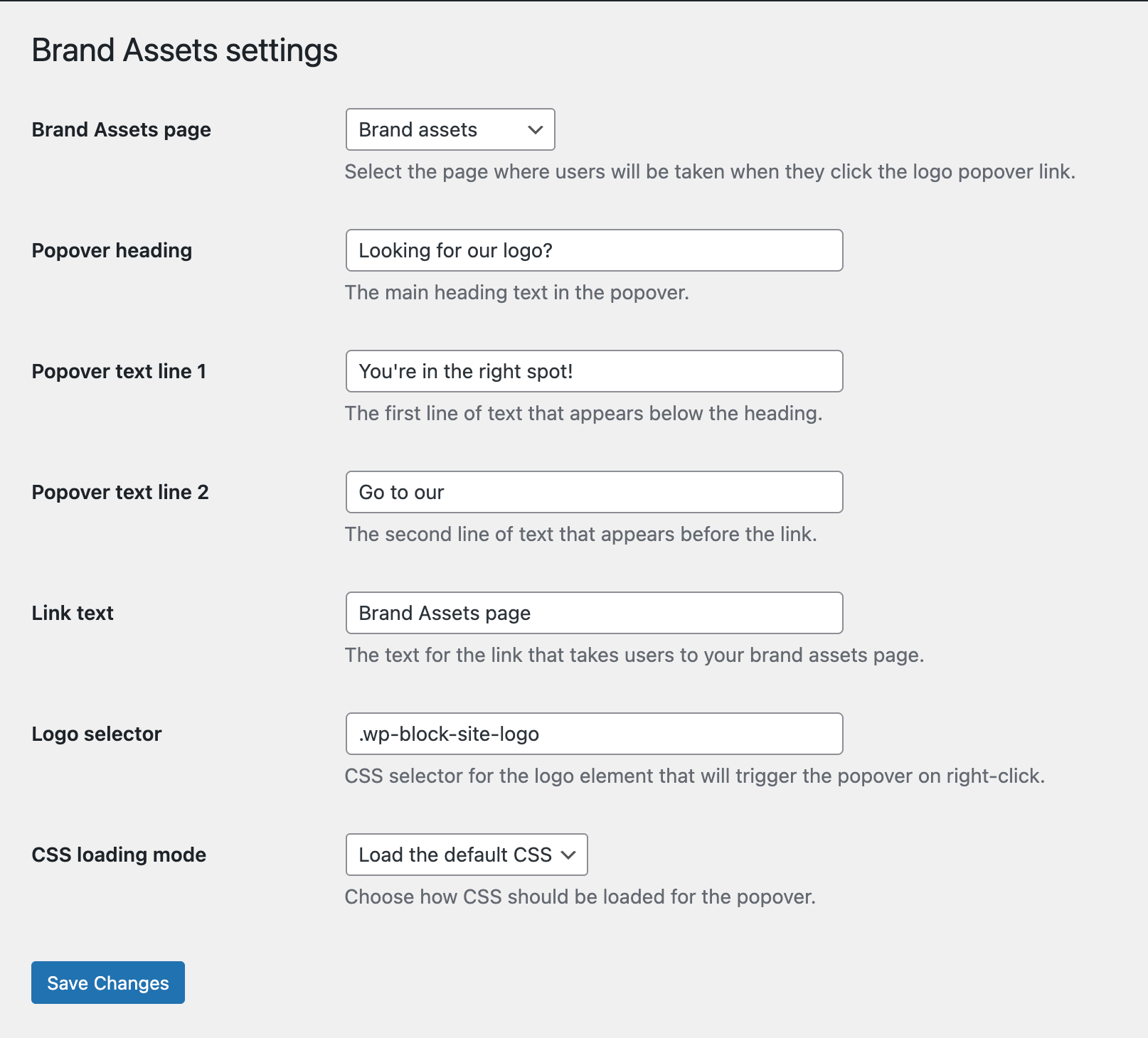
Admin page.
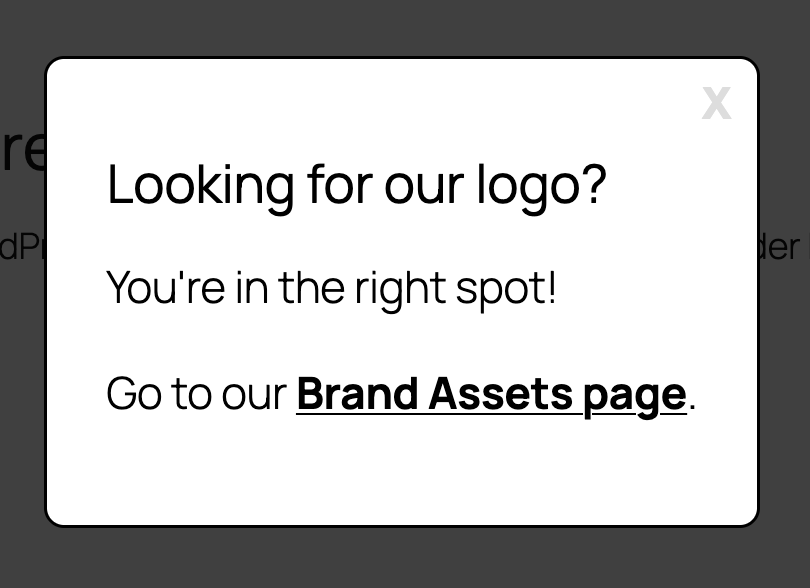
Popover that appears on right clicking the logo.
Faq
How do I add colors to my brand assets block?
Simply add hex color codes (like #FF5733) in the block settings. You can add as many colors as you need for your brand palette.
Can I customize the appearance of the color swatches?
Yes! You can adjust swatch width, height, gaps between swatches, border width, border radius, and border color to match your brand's aesthetic.
What is the CMYK option for?
The CMYK option displays print-ready color values alongside your hex codes, which is useful for designers who need to work with both digital and print materials.
Does this work with all WordPress themes?
Yes, the Brand Assets block is designed to work with any WordPress theme. The styling is self-contained and won't interfere with your theme's design.
How do I access the Brand Assets settings?
You can access the settings in two ways: 1) Go to Settings → Brand Assets in your WordPress admin, or 2) Click the "Settings" link that appears next to the Brand Assets plugin on the Plugins page.
Can I customize the logo popover text?
Yes! In the Brand Assets settings page, you can customize the popover heading, first text line, second text line, and link text to match your brand's voice and messaging.
How do I create download links?
You can create download links by adding the ba-download class to list items in Gutenberg. Simply create a list, select a list item, add the CSS class ba-download in the Advanced settings, and add your download links within that list item. The plugin will automatically add the download attribute to all links in that list item.
How do I use the brand page pattern?
The plugin includes a pre-built block pattern that provides a complete template for brand asset pages. To use it: 1) Create a new page in WordPress admin, 2) In the block editor, click the "+" button and go to the Patterns tab, 3) Look for "Brand Assets" in the available patterns, 4) Click to insert the pattern, then customize it with your actual logos, colors, and download links.
Changelog
1.0.0
- First stable release on FAIR.
0.1.0
- Initial release.