Burnpedia Pin Scheduler for Pinterest

Burnpedia Pin Scheduler for Pinterest
Description
This plugin is Pinterest automation for WordPress: it schedules Pinterest Pins for you, automatically, from the content you already publish. It connects your site to your Burnpedia account: when a post goes live, it builds a Pin from the post’s image, title and link, and Burnpedia publishes it to the board you picked, on a schedule, without you opening Pinterest.
How Burnpedia Pin Scheduler for Pinterest is different
It is built for Pinterest alone:
- Up to six Pins from one post, each from a different picture in it, a day apart.
- Your older posts too, spread over the days ahead, not in one burst.
- A free Pinterest check-up of every post, each one listed with a link to fix it.
- A plain reason for every post it skips, in the Activity log.
What it does
- Creates a Pin automatically when a post is published — or only for the posts you tick.
- Pins posts, pages, WooCommerce products and any other public post type you switch on.
- Uses the featured image, or the first image in the post when there is none.
- Makes up to six Pins from one post, each using a different photograph, a day apart.
- Designs a free cover from the post’s title when the post has no image.
- Sends the Pin to one fixed board, a board per category, or a board named after your site. A board that does not exist yet is created for you.
- Writes the Pin title and description from templates with
{title},{excerpt},{site}and{categories}tags — editable per post. - Adds UTM campaign tags to the link (
utm_source=pinterest…) so Pinterest traffic shows up in Google Analytics or whatever you use. - Schedules with a delay, so your caches and CDN are warm before Pinterest fetches the image.
- Retries by itself, and waits for the reset when the day’s allowance is used up.
- Bulk-pins the posts you published before installing, spread over safe best-time slots rather than sent in one burst.
- Runs a free Pinterest check-up — a Pinterest SEO check — of every post: which posts have no big, tall image for Pinterest, which are not optimized for Pinterest (a title Pinterest would cut, a description too short to be found, an image with no alt text) and which posts you have never pinned — each one listed with a link to open the post and fix it.
- Finds a tall picture further down a post whose featured image is wide, and uses it as the Pin picture in one click — one post or all of them, free.
- Shows how many of your posts are ready for Pinterest, and re-checks them by itself every week — inside WordPress, nothing sent.
- For any post you choose, can write a new Pin title and description and make a cover image with AI, using AI credit — shown as a preview first, and pinned only when you say so. Optional.
- Writes Pin titles and descriptions for many posts in one go with AI — price shown first, each one undoable. Optional.
- Writes alt text with AI for every picture a post’s Pins use — one post or many. Optional.
- Reports impressions, saves and link clicks for the Pins from this site — the site total on every plan, the per-post breakdown beside each post on the paid plans.
- Shows what happened, per post, in an Activity log — including the posts it skipped and why.
- Works in the block editor and the classic editor.
Works on the free plan
Nothing here is locked by the plugin: no trial, no time limit, no feature switched off until you pay us for the plugin. A free Burnpedia account publishes up to 3 Pins a day, and the whole publishing side works on it.
Paid plans add the per-post breakdown of how each post’s Pins are doing and a higher daily allowance. AI words, covers and alt text use AI credit: paid plans include some every day, and anyone can buy a one-time bundle, no plan needed. See burnpedia.app/pricing.
External services
This plugin is a client for Burnpedia, a Pinterest scheduling service at https://burnpedia.app. The plugin cannot work without it: WordPress has no way to publish to Pinterest on its own, and Burnpedia is what holds the Pinterest connection.
Nothing is sent until you take one of the steps below. With no key saved, a request leaves only after you press a button for it — the one-press connection below, or a bug report — open More plugins, or switch on the install count. Nothing happens on activation.
Connecting this site in one press (optional). On the Connection screen you can press Connect this site to Burnpedia instead of copying an API key by hand. When you press it:
- Your browser opens
https://burnpedia.app/connect/wordpress, carrying the address of this site and its title, so the approval screen can name the site. It also carries a random one-time request ID and a fingerprint of a secret that never leaves your server. - While you approve it there, this site asks
POST https://burnpedia.app/api/site-connect/claimevery few seconds (at most 100 times, about five minutes, only while the Connection screen is open), sending only that request ID and the secret. Once you approve, the answer is an API key, saved for you and never shown in your browser. - The request expires after fifteen minutes and its key can be collected only once. If you press Cancel, or the request expires, the asking stops and no key is created.
Once a key is saved, the plugin contacts https://burnpedia.app/api/v1 in these situations:
- When you open the plugin’s settings screen or press “Check connection” — a
GET /api/v1/merequest that returns your Burnpedia plan, the Pinterest accounts connected to it, how much of today’s Pin allowance you have used and when it resets, and, during a Pro trial, the days left and a short-lived checkout link. Sent: your API key. Other screens reuse it for five minutes. - When you press “Load my boards” — a
GET /api/v1/boardsrequest. Sent: your API key and the Pinterest account you picked (account), if any. - Whenever a Pin is sent (a post published with automatic pinning on, “Pin this post now”, “Send a test Pin”, “Run it now”, Pin older posts, held-back posts, retries) — a
POST /api/v1/pinsrequest. Sent: your API key, the Pin title, the Pin description, the post’s public permalink, the URL of the post’s image and that image’s alt text from your Media Library (if any), the board name or id, the Pinterest account you picked (account, if any), and the time the Pin should be published. With no image and “design a cover from its title” on, no image URL is sent; a flag asks Burnpedia to design the cover from the title. With “let Burnpedia generate one with AI” also on, the same flag asks for a generated photograph behind it, which spends AI points on your Burnpedia account; if it cannot be generated you get the free designed cover instead. Nothing extra about your site is transmitted for either. - When you open the “Pins from this site” tab —
GET /api/v1/pinsrequests (the list and its counts). Sent: your API key and this site’s address, so that Burnpedia returns only the Pins that link to this website rather than every Pin on your account. - When you open the “Pins from this site” tab, or the posts list in WordPress — a
GET /api/v1/analytics/siterequest. Sent: your API key and this site’s address. It returns the impressions, saves and clicks Burnpedia has already recorded for your Pins; it does not ask Pinterest anything. -
When you press “Make a preview” under “Try an AI cover” in the post editor — a
POST /api/v1/coversrequest. Sent: your API key, the Pin title, the post’s public permalink, and a flag asking for an AI photograph. It uses AI points (cost and balance shown first) and creates no Pin; the preview is shown straight from burnpedia.app, and the picture is pinned only if you press “Pin with this cover” (item 3). -
When you press “Scan all posts” on the Pinterest check-up tab —
POST /api/v1/pinned-statusrequests, up to 500 addresses each. Sent: your API key and the public addresses (permalinks) of your published posts that this plugin has not pinned yet. It returns, for each address, whether it was ever pinned by your Burnpedia account or is on your connected Pinterest account. Every other check-up result — picture size, alt text, title length, description — is worked out inside WordPress and is not sent anywhere. With no key saved, nothing is sent. - When you press “Make it with AI” on a post in the Pinterest check-up — a
POST /api/v1/copyrequest, then thePOST /api/v1/coversrequest described in item 6. Sent to/copy: your API key, the post’s title, its public permalink, and its excerpt (or its opening words). It returns a Pin title and description for that post and uses AI points (price shown first); nothing is pinned until you press “Pin with this cover”. “Write titles & descriptions” sends the same/copyrequest once per ticked post, without the cover; posts that already have their own words are skipped and nothing is sent for them. “Make cover previews for the ticked posts” sends both requests per ticked post; kept covers go out through item 3, one a day. - When you press “Write alt text with AI” (or “Write alt text for the ticked pictures”) in the check-up — a
POST /api/v1/alt-textrequest per picture. Sent: your API key, the public address of a picture that post’s Pins use, and the post’s title. Burnpedia fetches the picture to describe it and returns one sentence, saved as the picture’s alt text. It uses AI points. Nothing is sent for a picture that already has alt text.
An AI request Burnpedia cannot complete is not charged.
Choosing a tall picture, the readiness score, the “scan again” reminder and the weekly re-check of your posts all run inside WordPress and send nothing.
The Buy AI credit buttons are ordinary links to https://burnpedia.app/buy-credit, carrying the chosen bundle and, like every link to Burnpedia, this plugin’s name and version; the plugin itself sends nothing when you click one. Each also names its screen (utm_content); Design a Pin and Pin it again with a new picture add the post’s title, permalink and from.
Every API request carries headers naming the plugin and its version; a Pin request also carries a random one-time key, so a retry never makes a second Pin. Only while the install count below is on, each also says whether this site has used Pin older posts (see that paragraph).
Except the opt-in install count below (and the one yes/no it adds to these requests), no visitor data, no analytics, no usage statistics and no content beyond the fields above are transmitted, and the plugin has no telemetry of its own: it never reports your traffic, your other plugins, or anything about your visitors. Your site’s address is sent in items 3 to 9 above (as this site’s address, a post’s permalink or a picture’s address), in the Design a Pin and Pin it again with a new picture links, on the one-press connection screen if you use it, in a bug report if its box is ticked, and in the User-Agent of WordPress’s own More plugins request.
Your use of the service is covered by Burnpedia’s terms and privacy policy:
- Terms of service: https://burnpedia.app/terms
- Privacy policy: https://burnpedia.app/privacy
Pinterest itself is contacted by Burnpedia’s servers, not by your site; it downloads your image from your own site, so the image must be publicly reachable (the settings screen warns you when it is not).
The install count (optional, off by default). WordPress.org does not tell
plugin authors how many sites run their plugin. If you switch this on under
Burnpedia Connection, this site sends a short report:
POST https://burnpedia.app/api/plugin-insights— once when you switch it on,
then at most once a week while an administrator is using wp-admin, once if you
deactivate the plugin, and once if you delete it. Sends exactly nine things: a
random ID generated on this site, which plugin and which version, which of
those four events it is, your WordPress version, your PHP version, your site
language, whether this is a multisite network, and whether an API key is saved
(true or false — never the key). Receives: nothing your site uses.- One more answer, only while the count is on and an API key is saved: this
site’s requests to Burnpedia carry a header saying whether you have used Pin
older posts (usedorunused, never which posts or how many), so its tip
email goes only to sites that have not. Switch the count off and the header stops; Burnpedia forgets the answer the next time this site talks to it.
No install-count report carries your website address, not even in the
User-Agent header: the plugin sends its own. Switch the setting off and the ID is deleted, so counting
stops and a later change of mind cannot be joined to it. Nothing about any reader
or logged-in user is in it.
Report a bug and More plugins (only when you use them). Pressing Send report on Burnpedia Report a bug sends POST https://burnpedia.app/api/plugin-bug-report: your description, an optional reply email, the plugin, WordPress and PHP versions, theme, language, whether it is multisite and whether a key is saved (never the key) — and your site’s address only if you tick “Include this site’s address” (it starts unticked). Opening Burnpedia More plugins asks WordPress.org (https://api.wordpress.org/plugins/info/) for our plugin list via WordPress’s plugins_api(), as Plugins Add New does. That request is WordPress’s own, so it carries WordPress’s usual User-Agent, which names this site.
Installation
- Install and activate the plugin.
- Go to Burnpedia Connection and press Connect this site to Burnpedia. Approve it in the tab that opens — a free account takes a moment to make if you do not have one — and this site collects its own key. There is nothing to copy or paste. You are then asked one question, “create a Pin when I publish?”, and that is the setup.
Publish a post to try it. The Activity tab shows what happened.
Connecting by hand instead. If your site cannot reach the internet, or you would rather do it yourself:
- Create a free account at burnpedia.app and connect your Pinterest account there (this happens on Pinterest’s own login screen).
- In Burnpedia, open Dashboard API and create an API key. It is shown once — copy it.
- In WordPress, go to Burnpedia Connection, paste the key and save.
- Open the Automation tab, turn on “Create a Pin automatically when a post is published”, choose your board, and save.
Screenshots
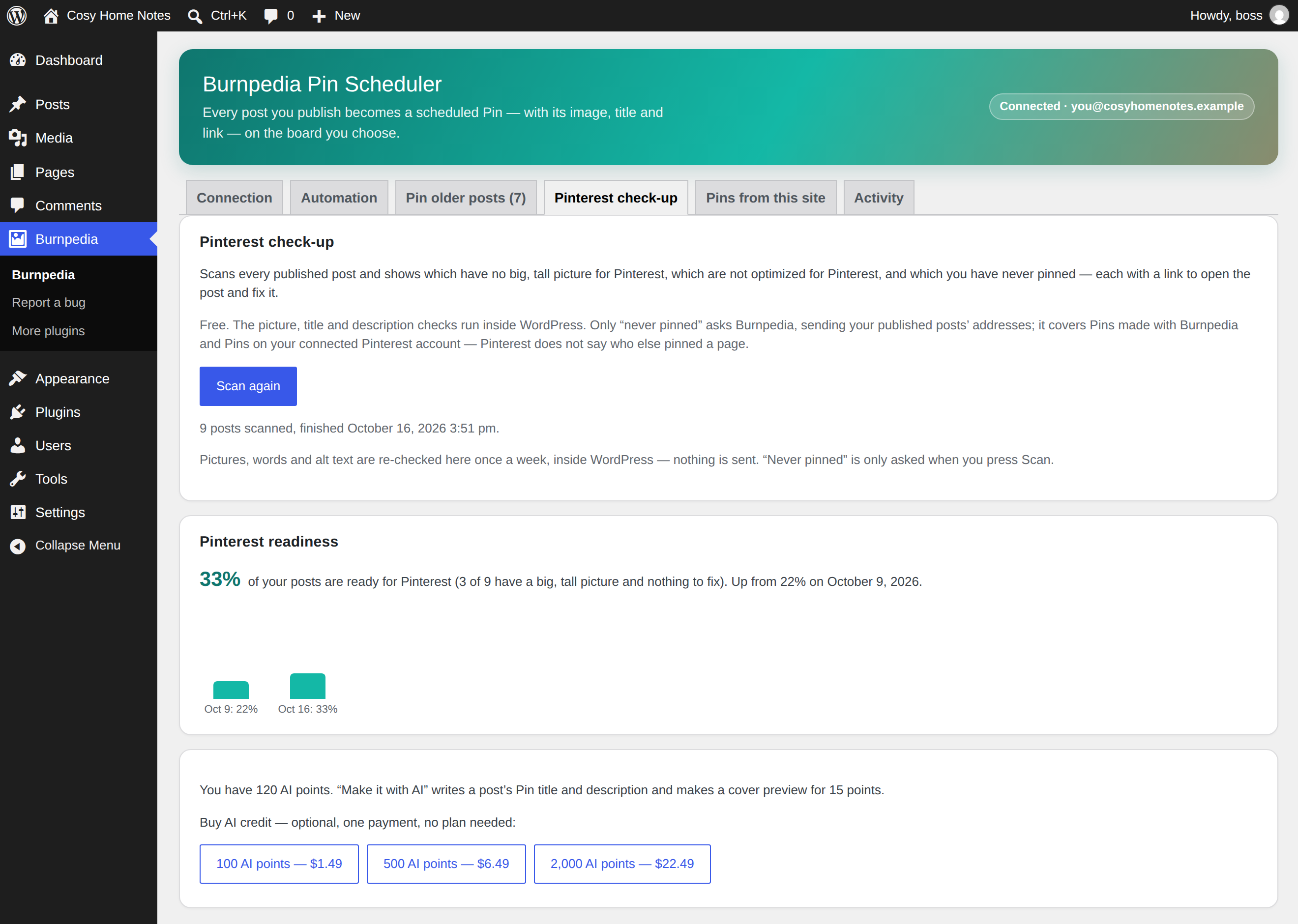
The Pinterest check-up: how many posts are ready for Pinterest, which have no big Pinterest image, which are not optimized for Pinterest, and which you have never pinned — each finding with a "Fix it" link.
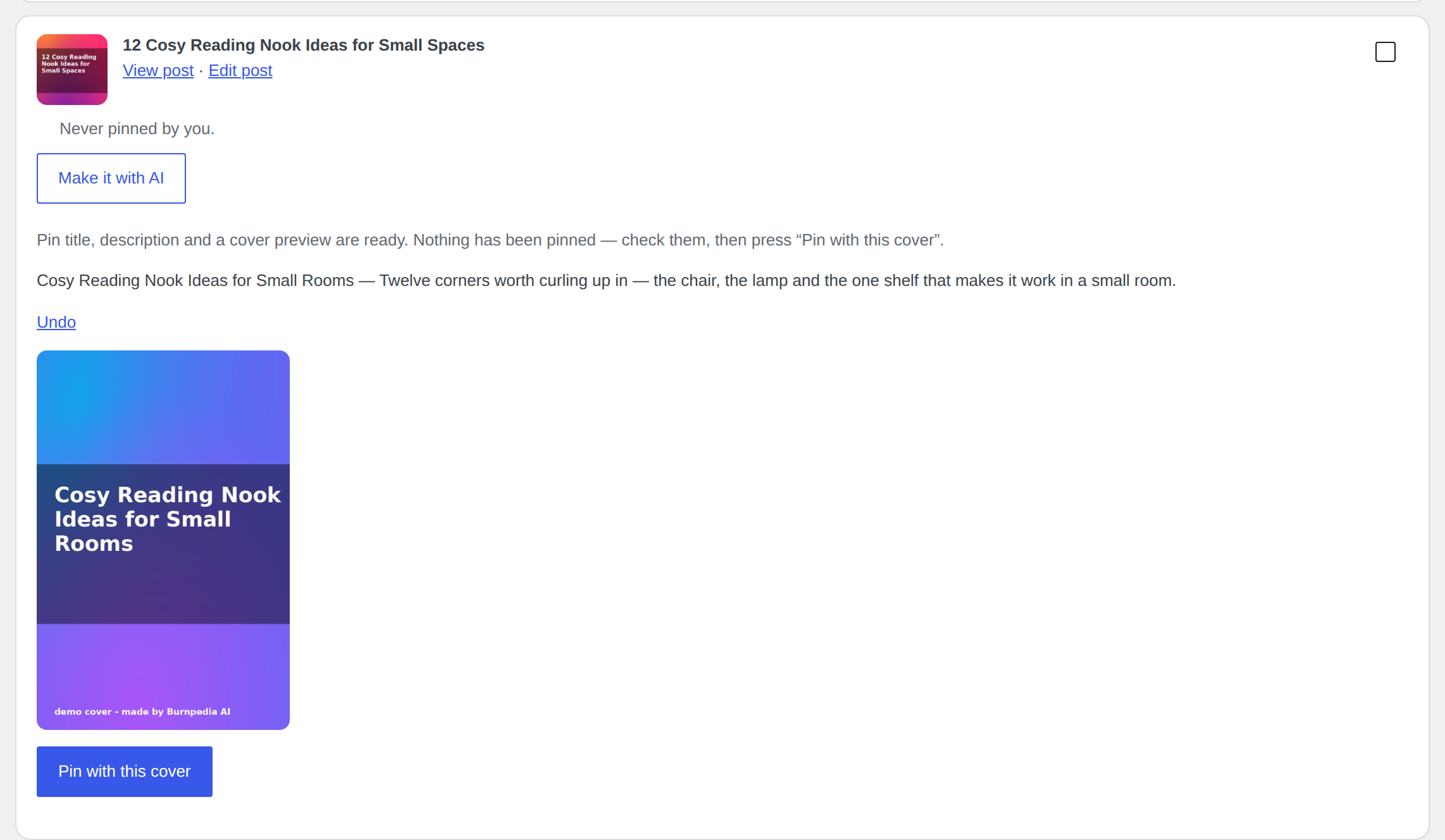
"Make it with AI" on one post: a Pin title, a description and a cover preview. Nothing is pinned until you choose it.
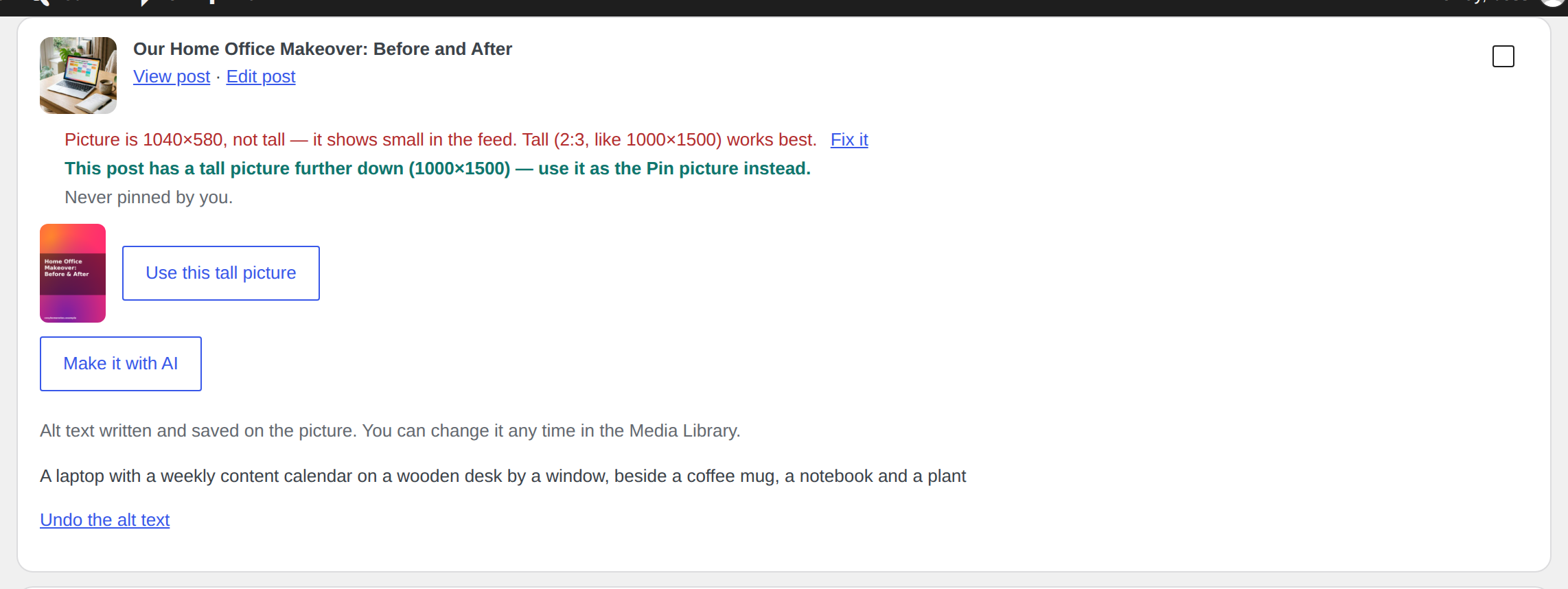
A tall picture found further down a post, offered as its Pin picture, and the picture's alt text written with AI.
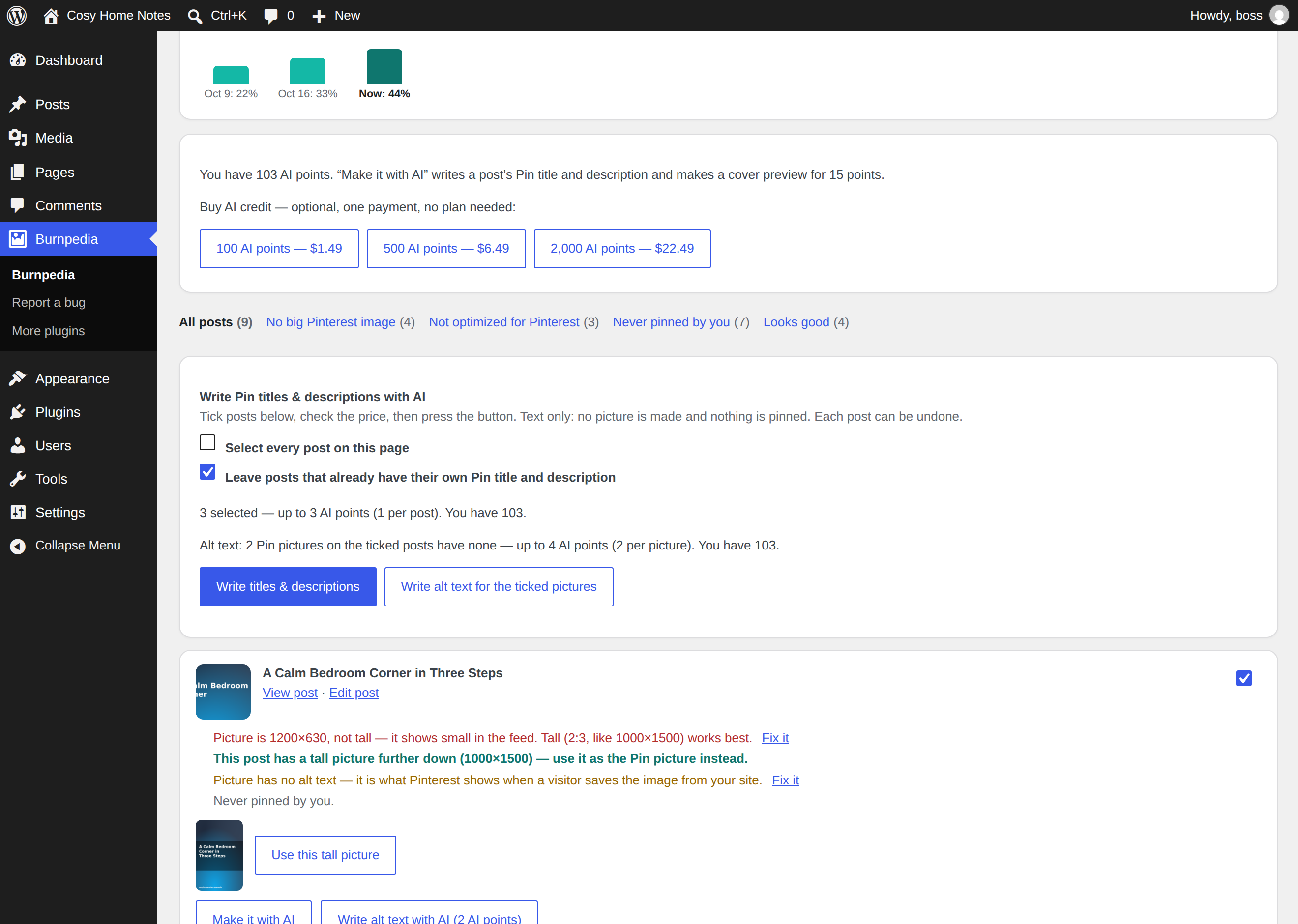
Pin titles and descriptions for several posts at once, with the price for the whole selection shown first.
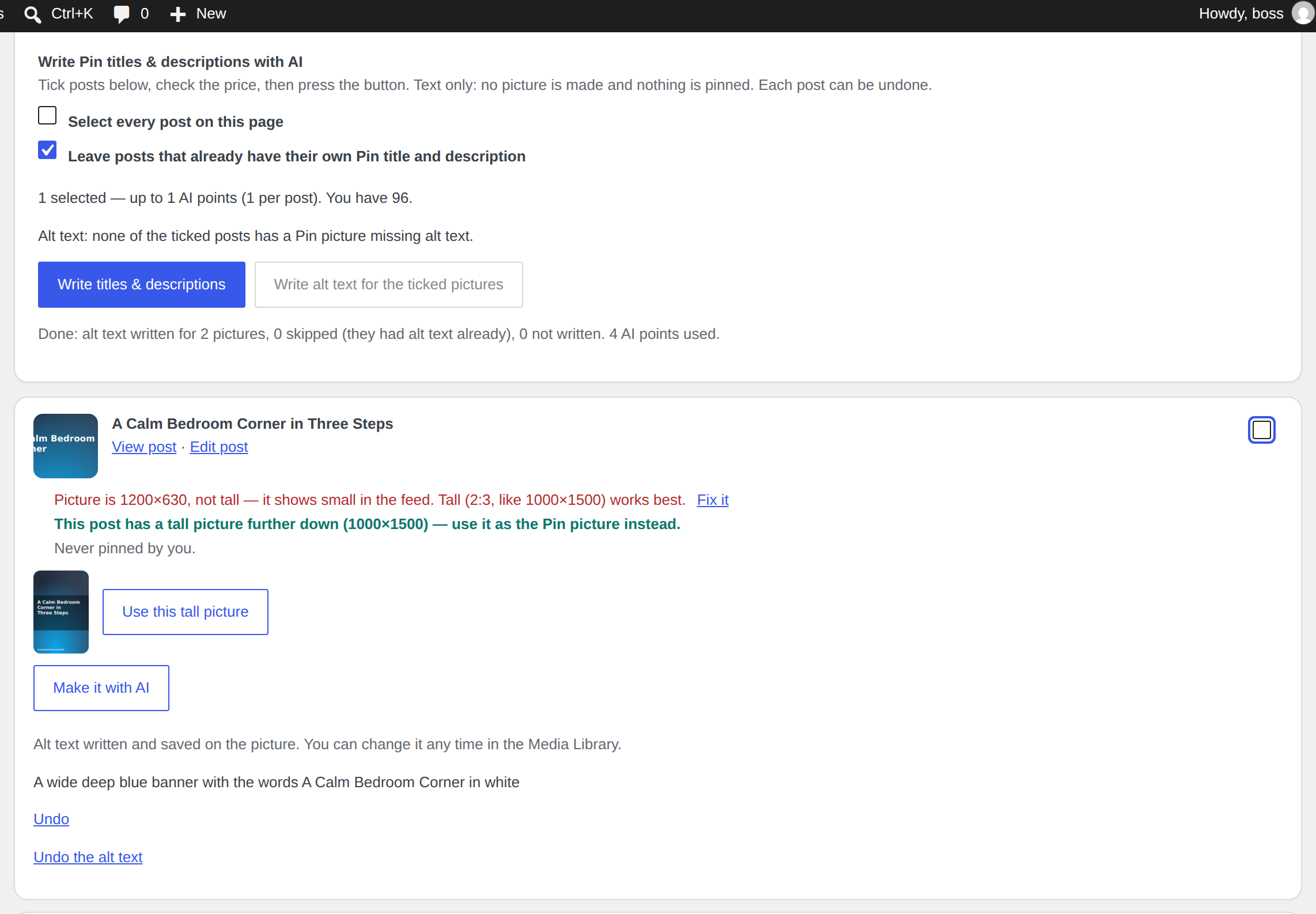
Alt text for the ticked pictures, written with AI one after another — priced first, each post with its own Undo.
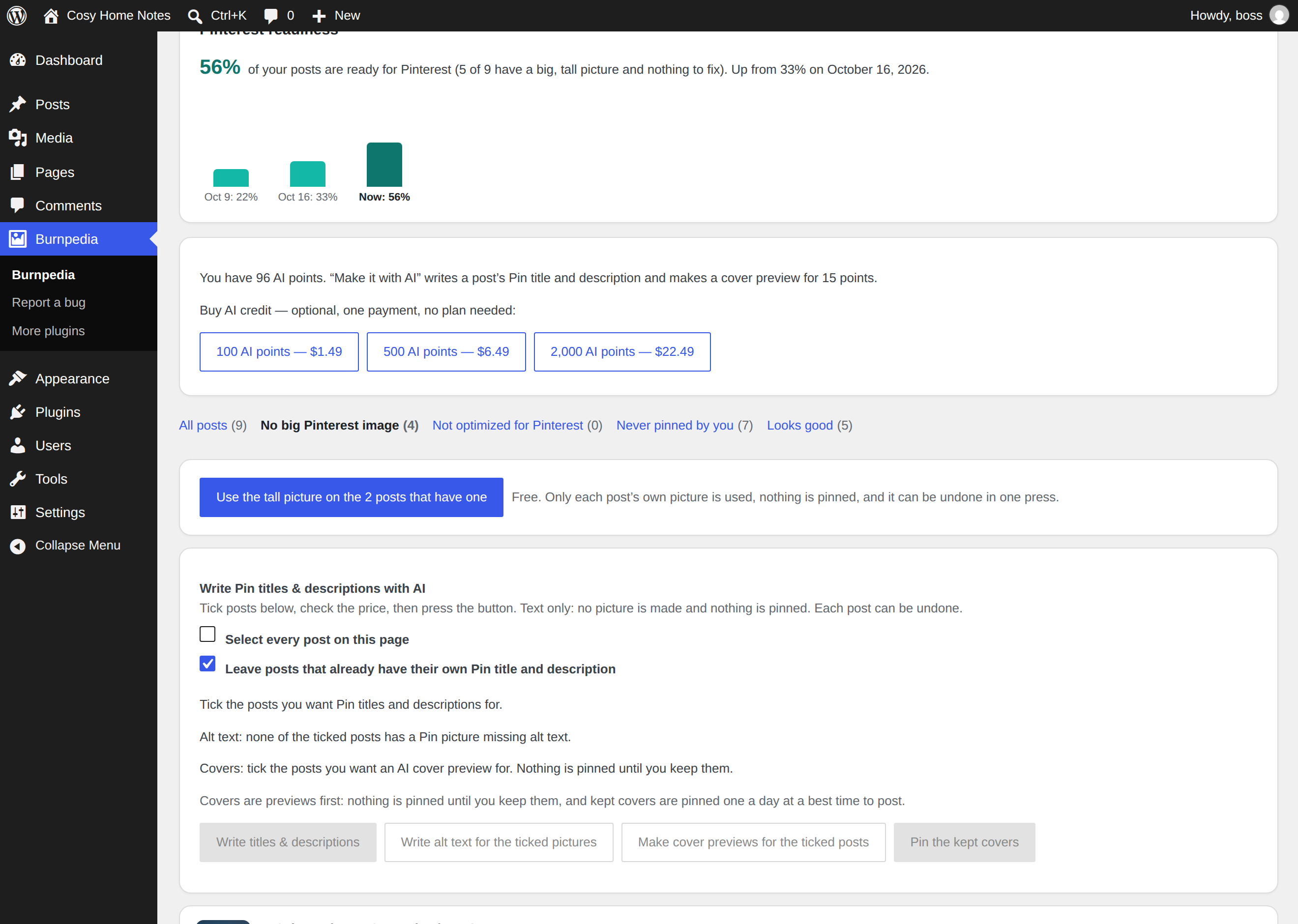
One button uses the tall picture on every post that has one, and says how many first.
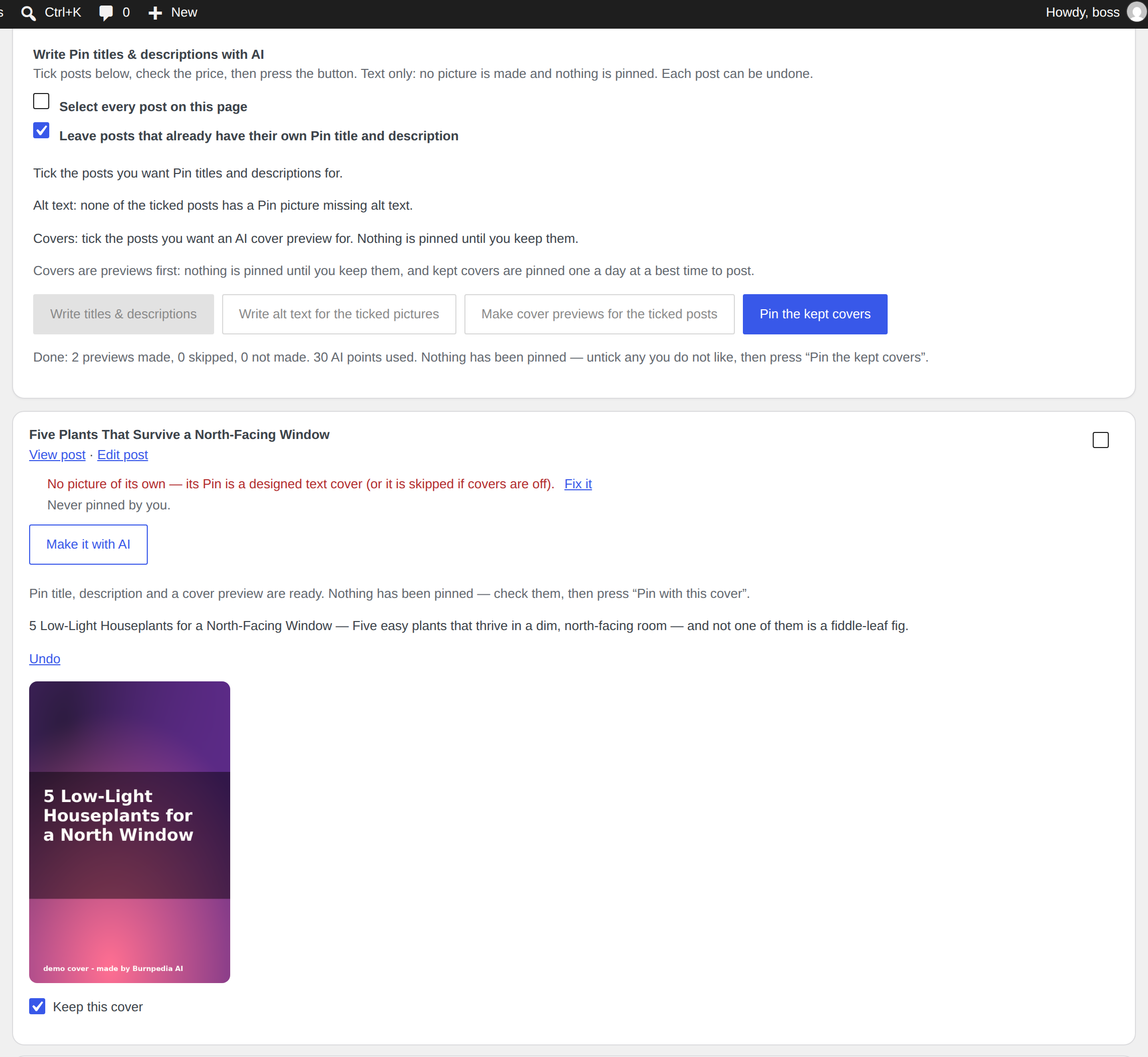
AI cover previews for the ticked posts. Nothing is pinned until you keep them, and kept covers are pinned one a day.
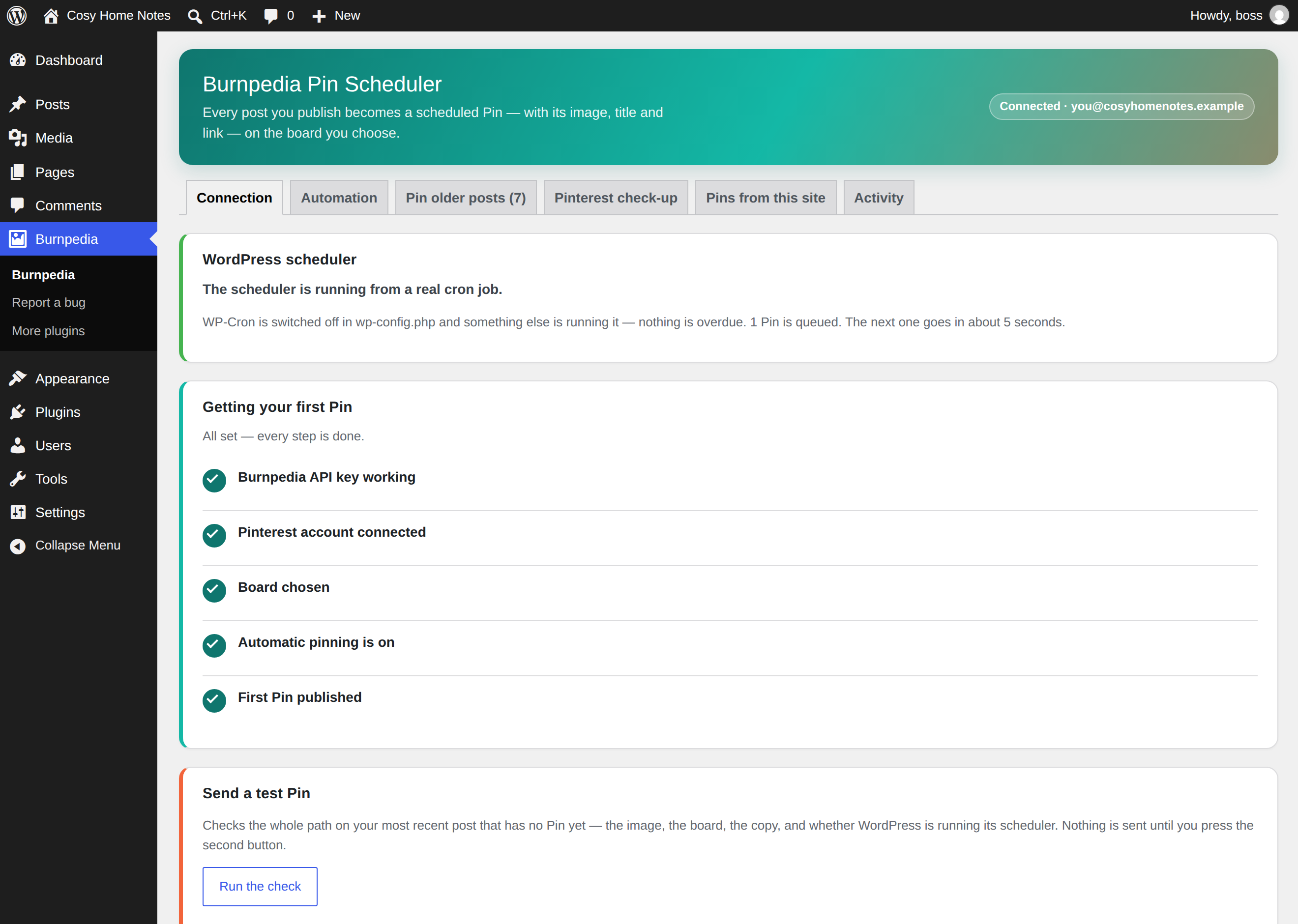
The settings screen: connection status, plan, and today's Pin allowance.
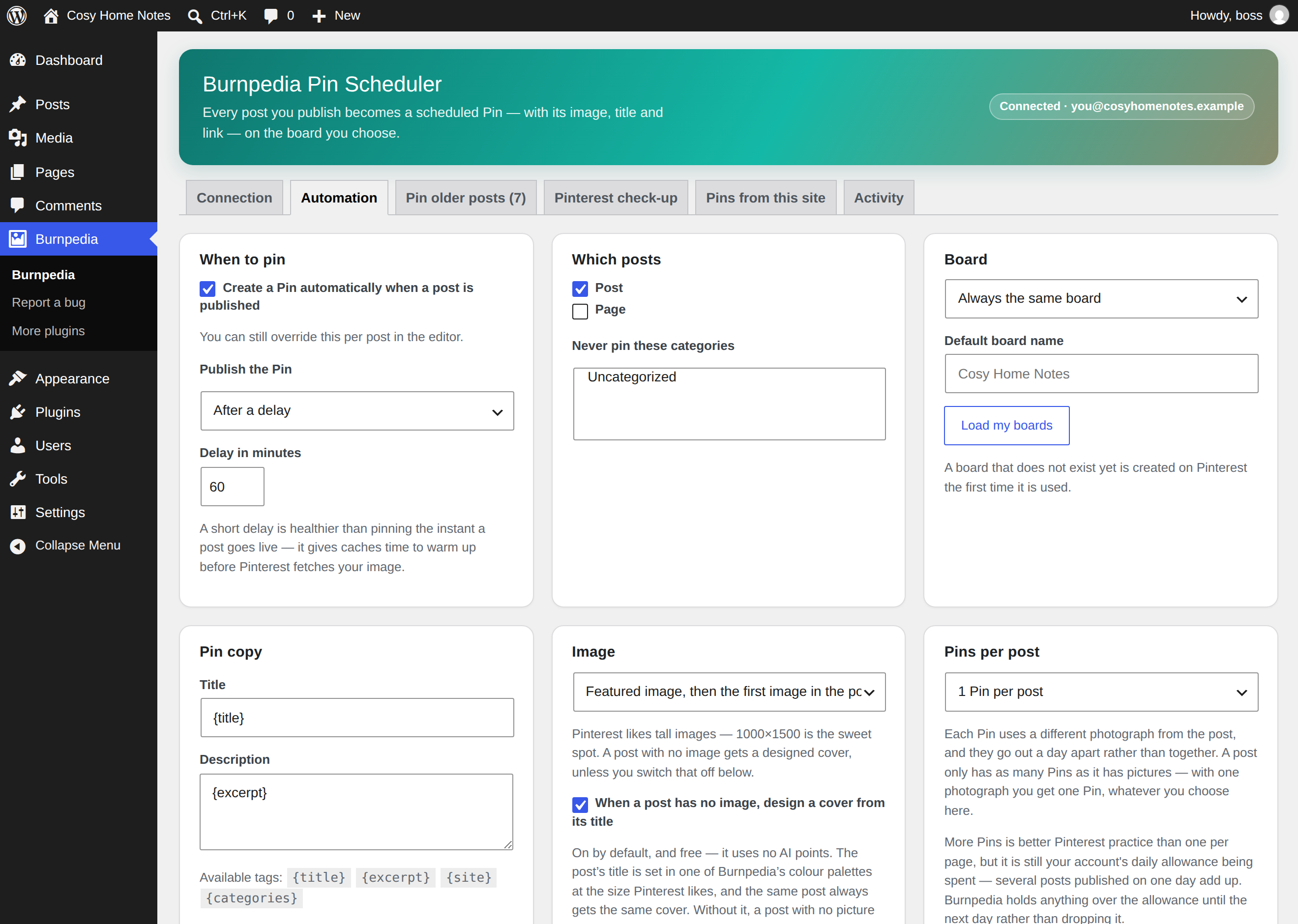
Automation settings — when to pin, which posts, which board.
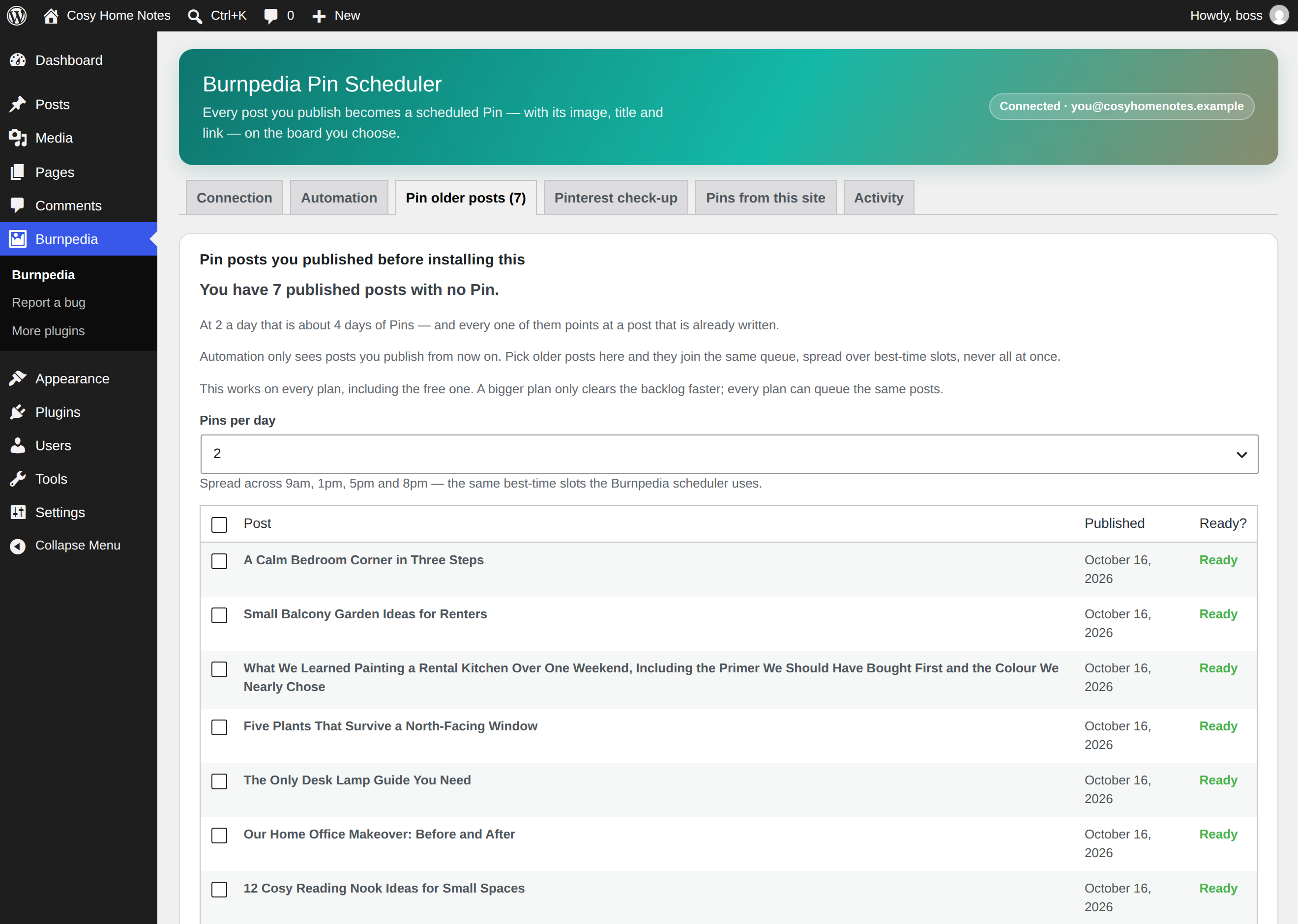
Pin older posts: queue the archive you published before installing, spread over safe posting times.
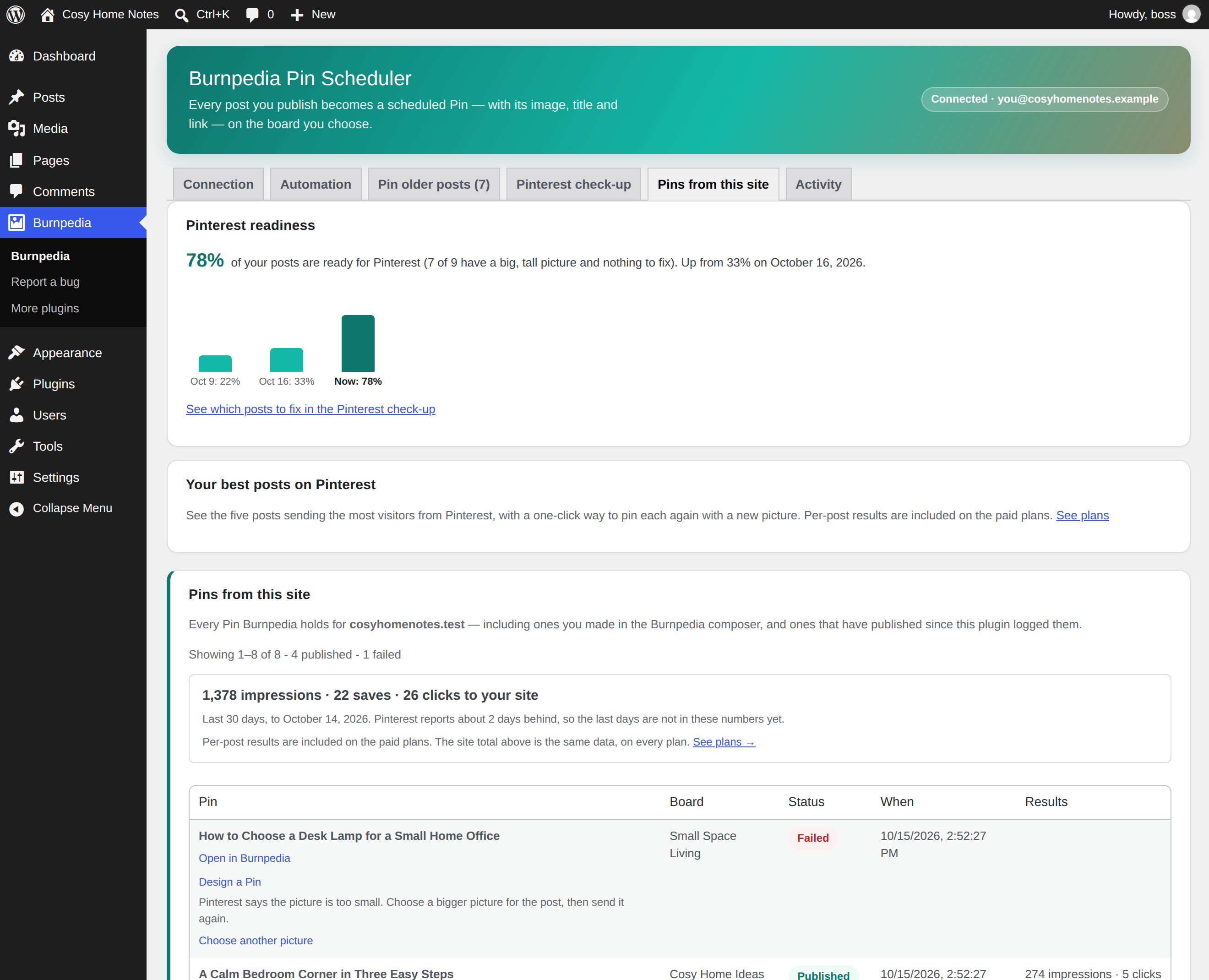
Pins from this site: the readiness score, and impressions, saves and clicks for this website's Pins.
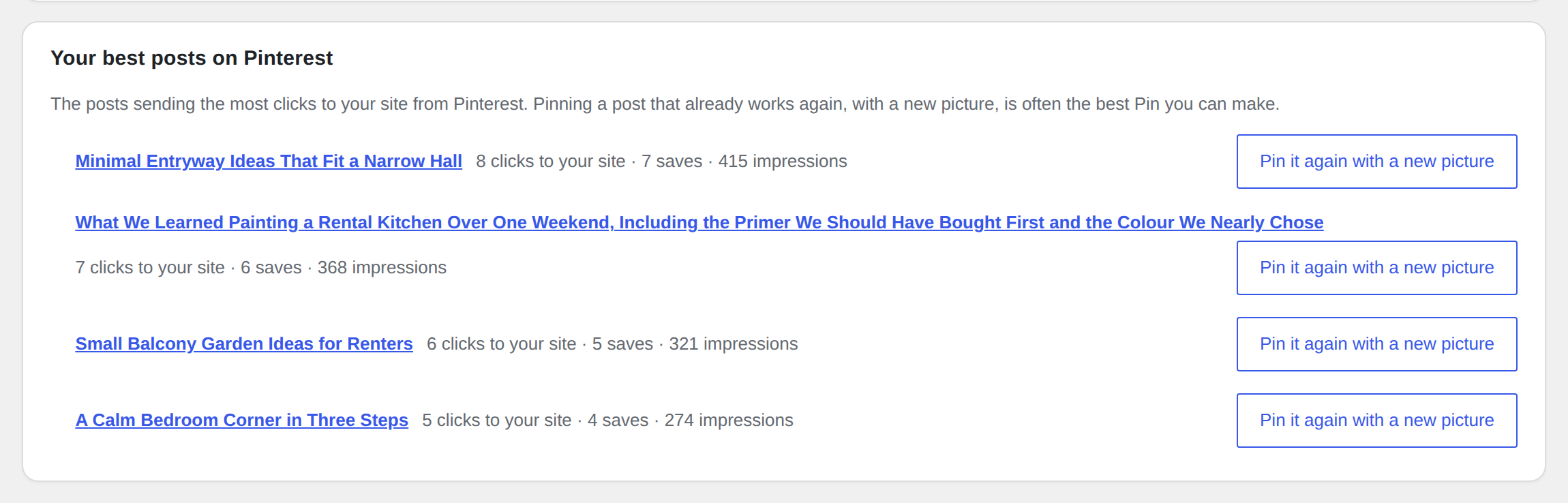
Your best posts on Pinterest (paid plans): the posts sending the most clicks to your site, each with "Pin it again with a new picture".
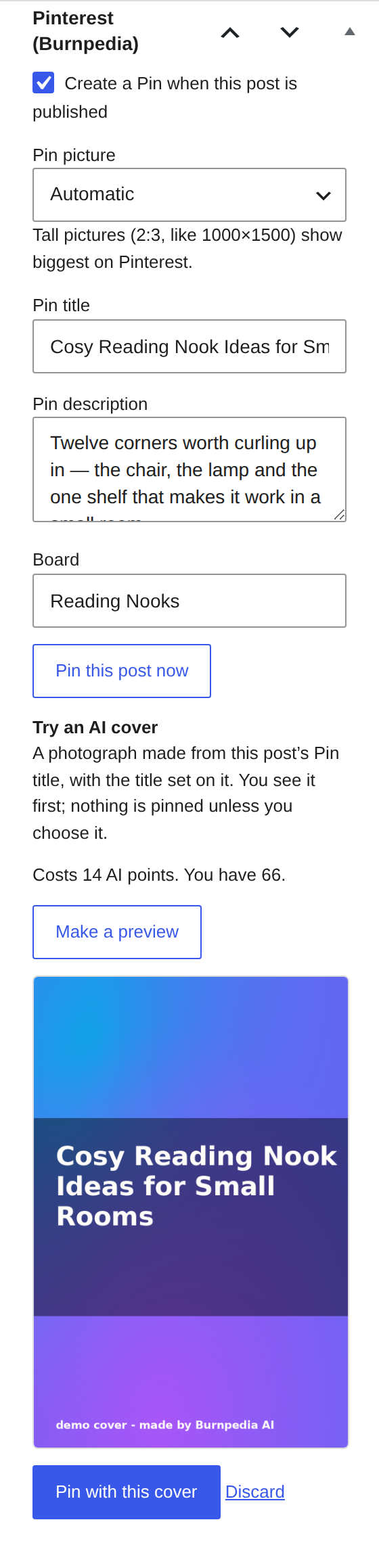
The Pinterest box in the post editor: the Pin picture, title, description and board for one post.
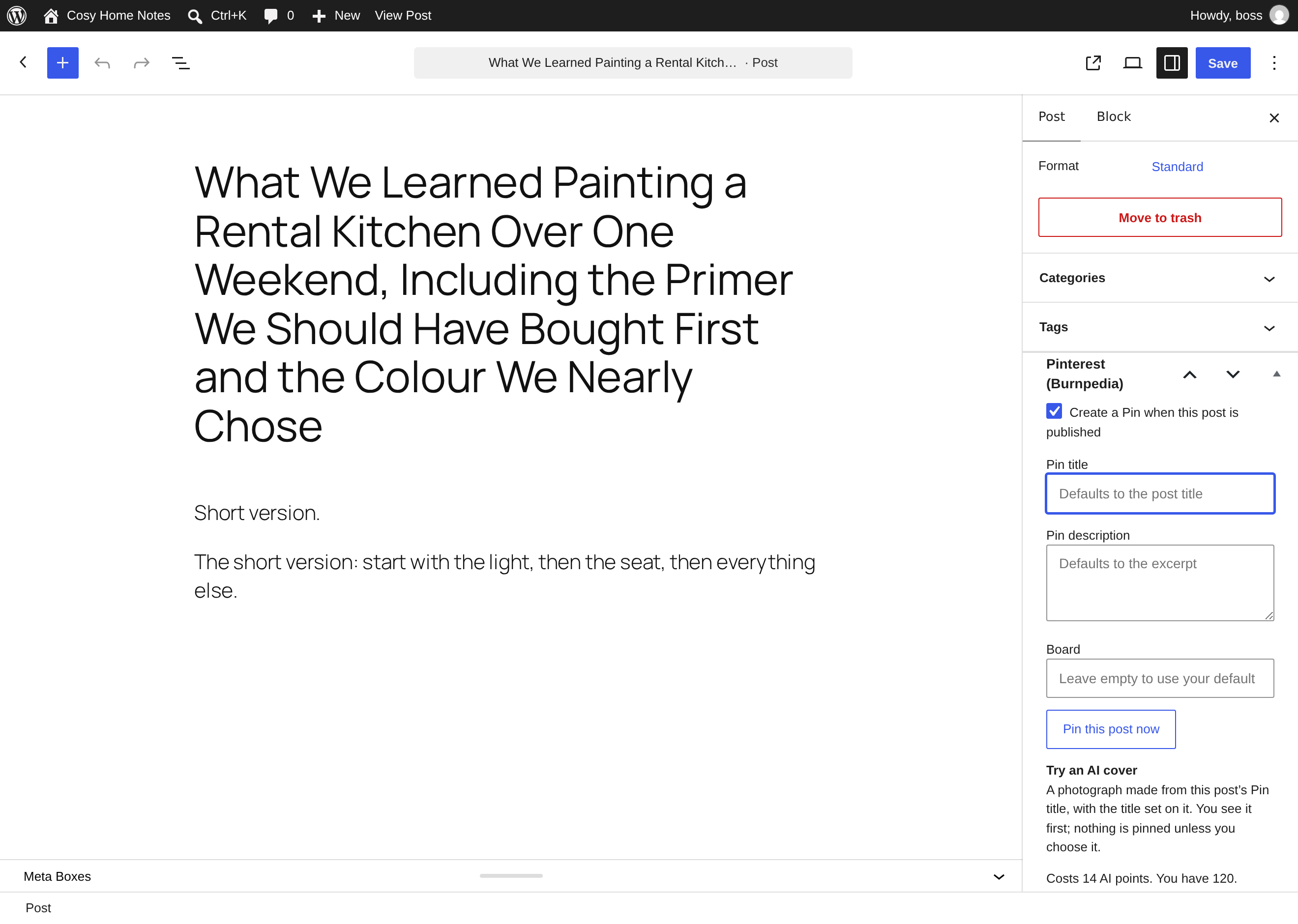
"Fix it" from the check-up opens the post with the field to change already selected.
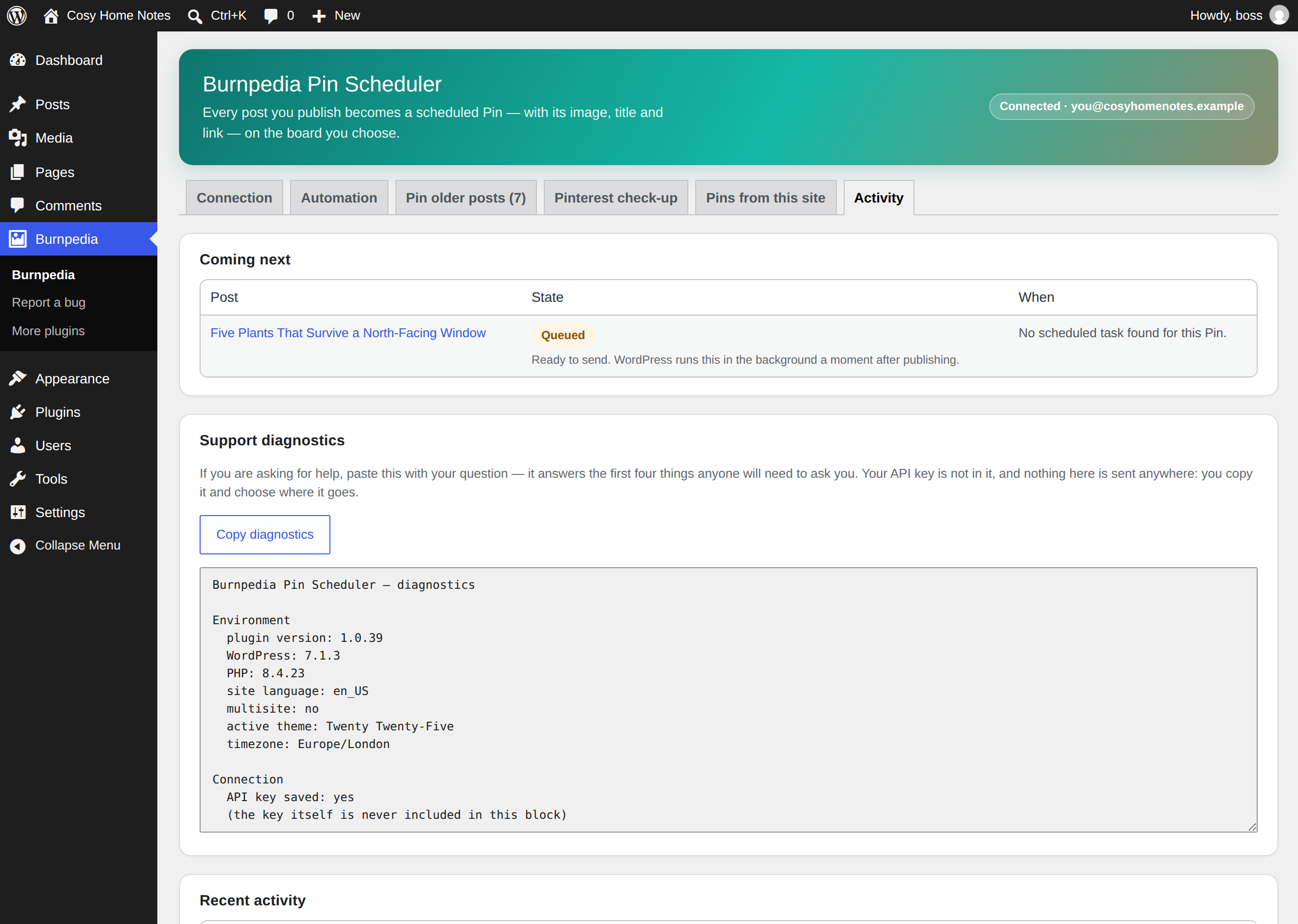
The Activity log: what was pinned, what was skipped, and why.
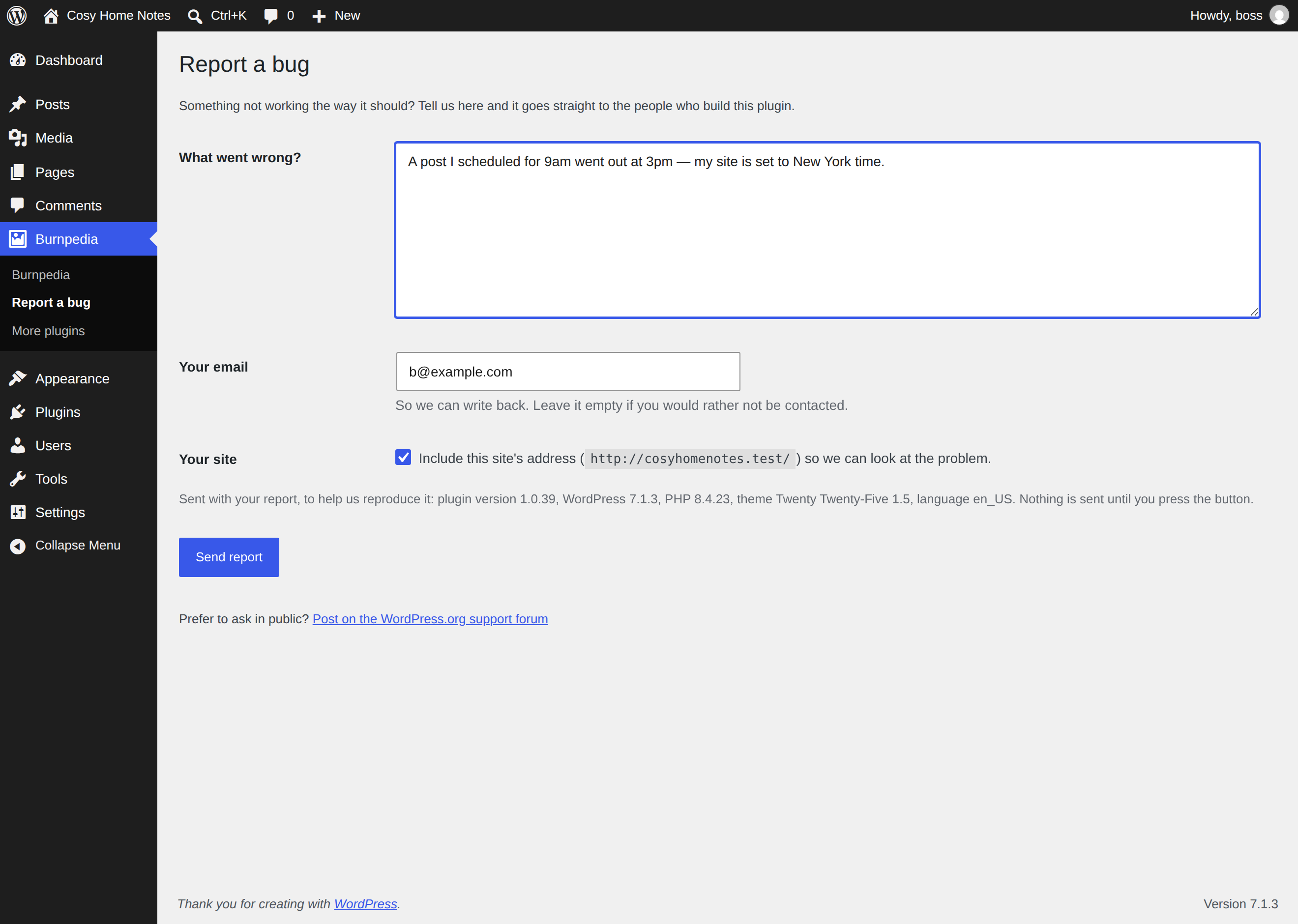
Report a bug from inside WordPress: it goes straight to the people who build the plugin, and nothing is sent until you press Send.
Faq
Yes. This plugin is a client for Burnpedia, and it cannot publish to Pinterest without one — WordPress has no way to post to Pinterest on its own. Creating one is free, takes a moment, and needs no card. Pinterest itself is connected inside Burnpedia, on Pinterest’s own login screen.
Yes — that is the whole point. Turn on automatic pinning under Automation, and every post you publish becomes a scheduled Pin. You can also pin a single post by hand from the post editor, including old ones.
It is built for Pinterest alone: see How Burnpedia Pin Scheduler for Pinterest is different in the Description above.
Yes. Pins are scheduled by default, with a delay you choose, so your caches and CDN are warm before Pinterest fetches the image. Straight-away publishing is one setting away.
No. A free Burnpedia account publishes up to 3 Pins a day, and the whole publishing side works on it. Nothing in the plugin is locked; what Burnpedia meters is the daily allowance, the per-post breakdown on Pins from this site, and AI credit.
Nothing is lost. The post waits in line, and after the daily allowance resets the waiting posts go out one at a time, in order, at the day’s best posting times — never all at once, and no retry is used up. The Activity tab shows the line and when the next one goes, in your site’s own timezone.
A Pinterest account that is new to Burnpedia starts slowly: at most 5 Pins a day in its first week and 10 in its second, then the usual pace. A young account that suddenly sends many Pins is what Pinterest blocks. Nothing is lost: the other posts wait in line, and the Activity tab says why they wait.
No, and it never asks for one. Pinterest is connected inside Burnpedia through Pinterest’s official OAuth login, on Pinterest’s own domain.
The Activity tab gives the reason for every post it skipped. The usual ones are: the post is password protected, its category is excluded, or the day’s Pin allowance is used up (in which case it waits in line and goes out after the reset). A post with no image is no longer one of them by default — it gets a designed cover instead.
The Pins from this site tab says why beside every failed Pin, in one plain sentence, with a button for the one thing to do: reconnect Pinterest, choose another picture or board for the post, or open the Automation settings. Then send the post again.
It gets a cover designed from its title: the headline set in one of Burnpedia’s colour palettes, at 1000×1500. It is free, uses no AI points, and the same post always gets the same cover. Switch it off under Automation Image and such posts are skipped and logged, as they were before.
Pinterest fetches the image from your server, so the image URL must be reachable from the public internet. Local development sites, sites behind HTTP authentication, and private networks cannot work — the settings screen shows a warning when it detects one.
A picture too small for Pinterest (under 77 pixels on its shorter side) is caught before the Pin is made. The post’s next picture is used instead, at the same time; with none left, the post gets a cover designed from its title, or, with covers off, the Activity tab says why it was skipped.
Pinterest has blocked links to your website’s address — it is about the address, not the Pin. Burnpedia stops sending Pins to that site from your Pinterest account at once, keeps the others waiting with nothing lost, and tries one Pin again after 7 days (longer if it is still blocked). The Activity and Results tabs say so in plain words, with a link to ask Pinterest to unblock the site.
Yes, one at a time or in bulk. Open a single post and use Pin this post now in the Pinterest box; to work through an archive, the Pin older posts tab lists every published post that has no Pin yet and queues the ones you tick, spread over safe posting slots rather than sent in one burst.
Yes. Any public post type can be pinned — WooCommerce products, pages, portfolios, recipes, or any custom post type your theme or plugins register. You choose which ones under Automation; attachments are excluded on purpose.
Both. The per-post Pinterest panel appears in the block editor sidebar and in the classic editor, and the image is read from the featured image or from the images in the post content either way.
No — this plugin does Pinterest only, and does it properly. If you need other networks, use a separate plugin for them alongside this one.
Yes. The Pins from this site tab is a Pinterest analytics screen for the Pins
this website published: impressions, saves, and clicks through to your site. The
site-wide total is on every plan, free included; the per-post breakdown is on the
paid plans. The numbers come from Burnpedia’s own copy of Pinterest’s data, so
opening the screen never spends your Pinterest rate limit.
Yes. The Pins from this site tab shows impressions, saves and clicks through to your site. That site-wide total is on every plan, free included.
The per-post breakdown — the same numbers beside each post in the posts list, which answers which post Pinterest is sending people to — is on the paid plans. Either way the numbers come from Burnpedia’s own copy of the data, so opening those screens never uses up your Pinterest rate limit. Pinterest reports about two days behind, and the screen says so.
Yes — all three are in the Pinterest box in the post editor and override the site-wide templates.
No. A post is pinned once. Re-publishing an already-pinned post does nothing; use “Pin this post now” if you want another Pin.
Any public post type on your site — choose them under Automation. Attachments are excluded on purpose.
It reads the featured image and the post content, so anything that stores those normally works. The burnpedia_pin_image_url and burnpedia_pin_payload filters let you supply your own values.
The plugin sends no personal data about your visitors anywhere. It sends only what is listed under “External services”, for example the Pin fields once you save an API key, and a bug report only if you send one. Settings Privacy offers a suggested paragraph for your privacy policy that says what goes to Burnpedia.
Open the Pinterest check-up tab and press Scan all posts. It lists every published post with no big, tall image for Pinterest (none at all, narrower than 1000 pixels, or less than a quarter taller than it is wide), every post that is not optimized for Pinterest (a Pin title over 100 characters, which Pinterest cuts off; a description too short to be found; an image with no alt text; pinning switched off) and every post you have never pinned. Each post has a link to view it and to edit it, and each finding a Fix it link that opens the post with the field to change already selected — the Pin title, the Pin description, the Pin picture, or the picture’s alt text. The scan is free and the picture and text checks never leave your site.
It checks the things that decide whether a Pin can be found on Pinterest: a Pin title short enough that Pinterest does not cut it, a description long enough to be searched, alt text on the picture, and a big, tall image. The Pinterest check-up lists every post that misses one, and Fix it opens the field to change. It does not do keyword research, and it does not change your site’s own search engine settings.
The check-up’s Never pinned by you list. It counts Pins this plugin made, Pins made in your Burnpedia account, and Pins on your connected Pinterest account, including ones you pinned by hand. Pinterest does not tell anyone whether somebody else pinned your page, so the list means never pinned by you. From there, the Pin older posts tab queues them.
On a paid Burnpedia plan, the “Pins from this site” tab shows Your best posts on Pinterest: the five posts sending the most clicks to your site from Pinterest, each with Pin it again with a new picture, which opens Burnpedia’s Pin maker on that post so the new picture is made from your own post’s pictures. On the free plan the tab says the ranking exists and links to the plans; the site’s totals stay free.
No. The scan, the lists and the links are free on every plan. AI is optional: “Make it with AI” writes a post’s Pin title and description and makes a cover preview, using AI points from your Burnpedia account. On the “No big Pinterest image” list you can tick many posts and make their cover previews in one go — the price is shown first, nothing is pinned until you keep them, and kept covers are pinned one a day. If older posts are already being pinned in bulk, the kept covers are added behind that run instead of being refused, and Cancel stops both. Paid plans include AI points every day, and anyone can buy a one-time bundle of AI credit — no plan needed; the tab shows each bundle and its price, as set by Burnpedia.
Yes. A wide featured image is pinned as a short Pin that shows small in the Pinterest feed. When the check-up finds a tall picture further down the same post, it says so and offers Use this tall picture; the post’s Pin then uses it, and Use the automatic picture puts it back. On the “No big Pinterest image” list, Use the tall picture on the posts that have one does every post at once, and one press puts them all back. In the post editor, the Pinterest panel’s Pin picture menu lists every picture in the post with its size and marks the tallest. Only the post’s own pictures can be chosen. It is free and nothing is sent anywhere.
Yes. On the check-up tab, tick the posts (or every post on the page) and press Write titles & descriptions. The price for the whole selection is shown before you press, posts that already have their own Pin title and description are left alone by default, and each post can be undone. It writes text only: no picture is made and nothing is pinned. It uses AI points from your Burnpedia account.
Yes, for every picture a post’s Pins use. If a post becomes several Pins, each from a different picture, the check-up says how many of those pictures have no alt text and the price covers all of them. The check-up flags pictures with no alt text; Write alt text with AI looks at the picture and writes one plain sentence describing it, saved in your Media Library where you can edit it. To do many at once, tick posts and press Write alt text for the ticked pictures: the price is shown first, they are written one at a time, and each can be undone. Alt text is what a screen reader reads instead of the picture, and what Pinterest offers as the description when a visitor saves the picture from your site. A picture that already has alt text is never changed.
After a check-up, the tab and the Pins from this site tab show a readiness score — for example “63% of your posts are ready for Pinterest” — and whether it went up or down since the scan before. Once a week the plugin re-checks your posts’ pictures, Pin words and alt text by itself, so the score keeps up with what you publish and fix; that weekly re-check runs inside WordPress and sends nothing. Whether a post was ever pinned is only asked when you press Scan, and the tab says when that was last checked. When 30 or more posts have been published since your last scan, the check-up tab suggests scanning again. It never shows a notice anywhere else in WordPress.
Yes, if your Burnpedia account has enough AI points. In the post editor the Pinterest panel shows “Try an AI cover” with its price and your balance. “Make a preview” makes a photograph from the Pin title, with the title set on it, and shows it to you. Nothing is pinned unless you press “Pin with this cover”, and “Discard” throws the preview away. If the picture cannot be made you are not charged, and your post’s own photo is never changed. Without enough points the option is not shown.
Open Burnpedia Report a bug, say what happened and press Send report. It goes straight to the people who build this plugin, with the version numbers we need to reproduce it; add your email if you would like an answer. The WordPress.org support forum works too.
Yes. Burnpedia More plugins lists our other free plugins, and each one installs in one click through WordPress’s own installer.
Reviews
Changelog
1.0.45
- Fixed: the parts this plugin shares with Burnpedia’s other plugins (the
connection, the install count, Report a bug and More plugins) now load under
new names, so an older copy inside another Burnpedia plugin on the same site
can no longer be used in their place. - Fixed: this page and the suggested privacy paragraph now say that the More
plugins list is fetched by WordPress itself, with WordPress’s own User-Agent,
which names your site, and that the Design a Pin links carry the post’s
address. The Description has a section on how this plugin is different.
1.0.44
- New: while the optional install count is on, this site’s requests to Burnpedia
also say whether you have used Pin older posts (yes or no, never which
posts), so its tip email goes only to sites that have not tried it. Switch the
count off and Burnpedia forgets the answer the next time this site talks to it. - Changed: the settings screen says in one line how this plugin is different.
- Changed: the Pro trial’s days left are counted the way your language counts.
- Fixed: the readme, the suggested privacy paragraph and the FAQ now name every
time your site’s address is sent, everything the install count carries, and
the one part of the check-up that asks Burnpedia.
1.0.43
- Fixed: ticking “Create a Pin when this post is published” while publishing a
post for the first time now pins it. Before, that first tick could be missed. - Fixed: after the plugin is switched off and on again, posts that were waiting
for their Pin and an unfinished Pin older posts run carry on by themselves. - Fixed: posts published at the same moment are sent a minute apart, each in
its own turn, so one slow send cannot delay the rest. - Fixed: when a post’s first picture is too small, its next picture now takes
that exact time, also when it already had a later turn. - Fixed: “First Pin published” and the next-step card wait for a Pin that
really reached Pinterest. A designed cover or a test shows as information. - Fixed: the server cron line on the Connection tab also works when your site’s
address has a%in it, or when the site sendshttpon tohttps. - Changed: the setup notice on the Plugins screen stays hidden once you close
it, and the next-step cards have a Hide link. - Changed: Report a bug no longer fills in your email or ticks “Include this
site’s address” for you. - New: a suggested paragraph for your privacy policy, under Settings
Privacy. - Many messages were corrected where they could say something untrue, and
plural words and prices can now be translated.
1.0.42
- New: when your Pins older than a week have had few views, Pins from this
site says what is normal for new Pins, then compares your own Pins: tall
and wide pictures, titles with the post’s main words, and boards, only where
each group has at least 5 Pins. A button opens the free check-up.
1.0.41
- Fixed: on Pin older posts, “Pins per day” is now the most Pins the run
sends on any day, also with several Pins per post. Before, 1 a day with 3 Pins
per post sent 3 Pins a day. The “about N days” estimate now gives the run’s
real last day. - New: a Pinterest account that is new to Burnpedia starts slowly: 5 Pins a day
in its first week, 10 in its second, then the usual pace. The Activity tab
says why the other posts wait. - New: a picture too small for Pinterest is caught before the Pin is made. The
post’s next picture takes its place at the same time; with none left, the
post gets a cover designed from its title, or the Activity tab says why it was
skipped, with a button to choose another picture.
1.0.40
- Fixed: the server cron line on the Connection tab now calls your site’s plain
wp-cron.php address, quoted for the shell. The old line ended in
?doing_wp_cron=1, which WordPress ignores, so it never ran anything. If you
added it to your server, replace it with the new one; the tab says so too. - New: once your first Pin is out, Pins from this site and the Connection
tab name one next step: turn on automatic Pins, choose a board, or queue your
older posts one a day. Pin older posts opens at 1 a day from that link. - Changed: the one-time “How is it going?” card now also shows on the Connection
tab, once your Pins have been seen on Pinterest, and pressing either of its
links counts as your answer, so it is not shown again. Nothing is offered in
return. - The changes for 1.0.0 to 1.0.20 moved to
changelog.txtin the plugin’s folder.
1.0.39
- New: a Pin that failed now says why on the Pins from this site tab, in one
plain sentence, with a button for the one thing to do — reconnect Pinterest,
choose another picture or board for the post, or open the Automation settings. - New: in the last days of a Burnpedia Pro trial, and the week after it ends,
Pin older posts and Pins from this site show what the trial did for
this site — its Pins, their views and the clicks to your site — and how long
your posts with no Pin take at the free plan’s pace. - Changed: the plugin’s links to burnpedia.app (sign up, the API key page, terms,
privacy, a Pin on Burnpedia) now carry the plugin’s name and version, as its
other links to Burnpedia already did. They travel only when you click one; the
plugin sends nothing new. - Changed: switching the optional install count off now sends nothing at all. It
used to send one last report so Burnpedia would stop counting the site. - Fixed: every request to Burnpedia now carries its own User-Agent, so
WordPress no longer adds your site’s address to install-count and bug reports. - Fixed: Pins sent from Pin older posts no longer carry a header saying which
screen sent them, and the weekly install count (if you allowed it) is sent only
while an administrator is on a wp-admin page.
1.0.38
- Fixed: when the day’s Pin allowance is used up, the waiting posts now go out
one at a time, in order, at the day’s best posting times after the reset —
never all at once — and waiting never uses up one of a post’s retries. - New: if Pinterest blocks your website’s links as possible spam, the Activity
log and the Results tab say so in plain words — which site, that it is about
the address and not the Pin, and the day one Pin is tried again — with a link
to ask Pinterest to unblock the site. Nothing else is sent to that site until
then, which protects your Pinterest account.
1.0.37
- New: when a newer version of the plugin is out, the plugin’s own screen says so
with an Update now button and a link to what is new. It reads only what
WordPress already checked, sends nothing, is shown only to people who may
update plugins, and Not now hides it until the next version. - New: after the weekly re-check, the Pinterest check-up says in one line what
changed — for example “3 posts became ready and 2 new posts need a picture”. - Fixed: picking older posts to pin while a bulk run is already going no longer
replaces that run. The new posts are added behind it, and posts or kept covers
already waiting keep their place. - Fixed: after a fix on the check-up, the list counts and the readiness score
update at once, without a reload. Nothing extra is sent.
1.0.36
- Corrected the “Is it GDPR-relevant?” answer: besides the Pin fields sent once
an API key is saved, a bug report is sent only if you send one. No code changed.
1.0.35
- New: Report a bug in the Burnpedia menu. Describe a problem and it reaches us
directly, with the plugin, WordPress and PHP versions we need to reproduce it.
Your site’s address is included only if you leave its box ticked, and nothing
is sent until you press Send. - New: More plugins in the Burnpedia menu lists our other free plugins, each
installed in one click through WordPress’s own installer from WordPress.org.
1.0.34
- New: the Pinterest check-up re-checks your posts by itself once a week —
pictures, Pin words and alt text — so the readiness score keeps up with what
you publish and fix. It runs inside WordPress and sends nothing; “never
pinned” is still only asked when you press Scan, and the tab says when each
was last checked. - New: alt text for every picture a post’s Pins use. On a site that makes
several Pins per post, the check-up says how many of a post’s Pin pictures
have no alt text, and Write alt text with AI writes them one picture at a
time, priced for all of them first. Undo the alt text puts back each
picture nobody has edited since. Optional. - Changed: Pin the kept covers no longer refuses while older posts are being
pinned in bulk. The covers are added behind that run, one a day at a best
time to post, and Cancel on the bulk tab stops both. - Fixed: after AI writes a post’s Pin words or alt text, that post’s row on the
check-up stops listing what was just fixed, and the AI points shown at the top
follow what the run has spent. No reload needed; nothing extra is sent. - The listing now says in plain words that the check-up is a Pinterest SEO
check (title length, description, alt text, image shape).
1.0.33
- New: Write alt text for the ticked pictures — tick posts on the
Pinterest check-up and AI writes alt text for every ticked post whose Pin
picture has none, one after another, with the price shown first, a Stop
button and Undo the alt text on each post. A picture that has alt text is
never sent. Optional. - New: on the check-up’s “No big Pinterest image” list, one button uses the tall
picture on every post that has one, showing how many first. One press puts
them all back; a post you changed since is left as you set it. Free; nothing
is sent. - New: Make cover previews for the ticked posts on the Pinterest check-up’s
“No big Pinterest image” list — AI words and a cover for each ticked post, one
at a time, priced first. Nothing is pinned until you keep them; Pin the kept
covers queues them one a day at a best time to post. Optional. - New: Fix it beside each Pinterest check-up finding opens the post with the
field to change already selected — Pin title, description, Pin picture or alt
text. Free; nothing is sent. - New: Your best posts on Pinterest on the “Pins from this site” tab (paid
plans): the five posts sending the most clicks to your site, each with
Pin it again with a new picture. Built from numbers already loaded; it
sends nothing new. - New: a Pin now carries its picture’s alt text from your Media Library, which
Pinterest uses for accessibility and search. Nothing is sent for a picture
with no alt text (see External services, item 3).
1.0.32
- New: the Pinterest check-up finds a tall picture further down a post whose
Pin picture is wide, and Use this tall picture makes it the Pin picture. The
post editor’s Pinterest panel gains a Pin picture menu listing the post’s
own pictures with their sizes, the tallest marked. Free; nothing is sent. - New: Write titles & descriptions — tick posts on the check-up and AI writes
their Pin titles and descriptions one after another, with the price for the
whole selection shown first, posts with their own words skipped by default, a
Stop button, and Undo on each post. Text only; nothing is pinned. Optional. - New: Write alt text with AI on a check-up post whose Pin picture has no
alt text. Burnpedia looks at the picture and writes one sentence, saved in
your Media Library. Optional; nothing is charged if it cannot be written. - New: a Pinterest readiness score on the check-up and “Pins from this site”
tabs — how many posts are ready for Pinterest, and how that changed since the
scan before. - New: the check-up tab suggests scanning again once 30 posts have been
published since the last scan. Inside the tab only — never a dashboard notice.
1.0.31
- New: the Pinterest check-up tab. One press scans every published post and
lists the ones with no big, tall image for Pinterest, the ones not optimized
for Pinterest (a title Pinterest would cut, a description too short, an image
with no alt text, pinning switched off) and the ones you have never pinned,
each with a link to view and edit the post. Free; the picture and text checks
run inside WordPress. Large sites scan in steps you can continue. - New: “Make it with AI” on any post in the check-up writes its Pin title and
description and makes a cover preview, using AI credit. Nothing is pinned
until you press “Pin with this cover”. Optional. - New: the check-up shows your AI points and Burnpedia’s AI credit bundles with
their prices. Buying credit is optional and needs no plan.
1.0.30
- Fixed: if the connection to Burnpedia dropped after a Pin had been created but
before the answer reached your site, the automatic retry could create the same
Pin a second time — and, for an AI cover, use AI points twice. Each Pin is now
sent with a one-time key, and a retry of that Pin gets back the Pin that was
already made instead of a new one.
1.0.29
- New: “Try an AI cover” in the post editor’s Pinterest panel. On a post that
already has a photo, you can use AI points from your Burnpedia account on a
cover made for it: a photograph made from the Pin title, with the title set on
it. You see a preview first, with the cost and your balance, and it is pinned
only if you press “Pin with this cover”. It is shown only when your account has
enough AI points. - If a preview cannot be made you are not charged, and your post’s own photo is
never changed.
1.0.28
- Fixed: with automatic pinning switched off, which is how the plugin starts,
“Pin older posts” marked posts in a category you had excluded as ready, and
could queue them. Excluded categories are now respected whether automatic
pinning is on or off. - Every queued post is now checked again just before it is sent. A post you
exclude or switch off after it was queued — including one an earlier version
had already queued — is skipped, and the Activity log says why. - “Send a test Pin” no longer picks a post from an excluded category, or a post
you switched off. - Fixed: the Activity log showed every post queued by “Pin older posts” as an
error. It now says queued. - Fixed: when a post has no picture and AI images are on, the plugin now waits
long enough for Burnpedia to finish making the image. Before, a slow image
could make the plugin give up and try again, which could create a second Pin
and use AI points twice. - Fixed: if Burnpedia briefly cannot make a free designed cover, the post is now
tried again later instead of being marked as failed for good. An AI cover is
not retried automatically, because each attempt would use AI points again.
1.0.27
- Fixed the site totals on “Pins from this site”. They were adding up only your
200 most recent Pins, which on a site with more than that showed a number far
smaller than the truth — and because the newest Pins are the ones Pinterest has
had least time to show, the figure could read as almost nothing while the Pins
were in fact doing fine. The totals now cover every Pin for the site. - The table still lists your most recent Pins, and now says so in one line when
there are more Pins than it shows. - Your Pin count on that screen is now the real number of Pins for the site,
rather than however many fitted in the table.
1.0.26
- Names the Pinterest analytics this plugin has shown since 1.0.10. The feature
is unchanged; the listing simply never used the words people search for, so
nobody looking for “Pinterest analytics” in WordPress could find it. - The new entry states the same free/paid split as the rest of the page: the
site-wide total on every plan, the per-post breakdown on the paid plans. - No code change.
1.0.25
- Corrected the listing: the per-post breakdown of how each post’s Pins are
doing is on the paid plans, and this page said it was free. The site-wide
total is on every plan, free included, and always was. Everything on the
publishing side – automatic pinning, boards, templates, UTM tags, scheduling,
retries, the backlog run and the Activity log – is unchanged and still free. - No code change.
1.0.24
- New: Copy diagnostics on the Activity tab. One button gives you a
paste-able summary of everything a support answer normally has to ask for
first – WordPress and PHP versions, whether the scheduler is running, your
settings, and the last ten log entries. - Your API key is never in it, and nothing is sent anywhere: the block is built
on your own site and you choose where to paste it.
1.0.23
- The plugin’s WordPress.org listing now describes what it already does in the
words people actually search for: pinning pages and WooCommerce products as
well as posts, working through an archive of older posts in bulk, the Pinterest
impressions, saves and clicks it reports, and the UTM tags it adds for Google
Analytics. - Seven new questions answered on the listing, including the two that matter most
before you install: yes, a free Burnpedia account is required, and no, hitting
the daily Pin allowance does not lose a Pin – it waits for the reset. - No functional change. Nothing in the plugin itself behaves differently.
1.0.22
- Once your site has been publishing Pins for a couple of weeks and they are
being seen on Pinterest, the Pins tab asks — once — how it is going. - Two links, side by side: tell us something is wrong, or leave a review.
Nothing is offered in return, and “No thanks” means it never comes back.
1.0.21
- During a Pro trial the Connection screen now says how many days are left and
gives you one button to keep it, instead of describing your plan as Starter. - The button opens checkout with the plan already chosen — the link is created
by Burnpedia, expires within a day, and never appears if no trial is running.
1.0.20 and earlier
- See
changelog.txtin the plugin’s folder.