Business Bloomer Advanced Manual Orders for WooCommerce
Business Bloomer Advanced Manual Orders for WooCommerce
Description
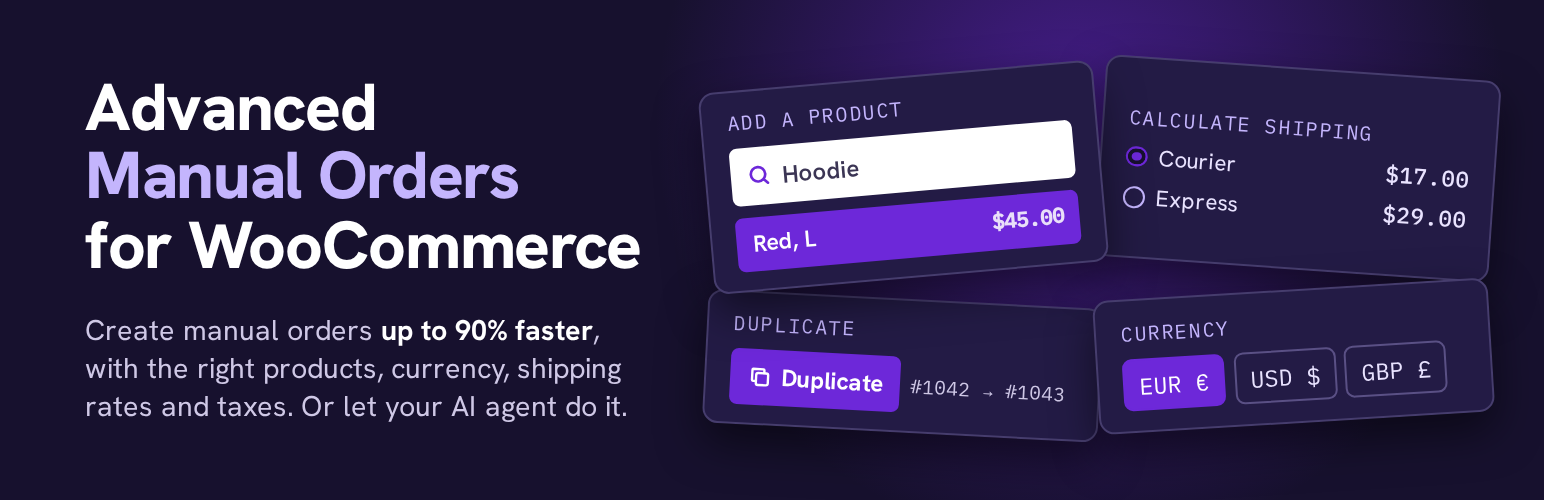
Creating a manual order from the WooCommerce admin is slow. The customer search misses phone numbers typed a different way and never lists past guests. Adding a product means a popup and a search with no prices. Shipping costs are typed by hand, and taxes only update when you click Recalculate. Advanced Manual Orders fixes the order screen you already use.
What it adds
- New order form: click “Add order”, on the orders list or on an order. Start from a past order (pick from your latest 10 or search by name, email or number) and repeat it whole, or copy its products for a customer and currency you choose. Saved addresses are filled in.
- Find any customer, fast: search by name, email, phone, company or address (billing or shipping: street, city, postcode), on the new order form and in the order’s Customer field. Registered customers and past guests are both listed, and phone numbers match however they were typed (“0915550101” finds “091-555-0101”). Pick one and their billing and shipping addresses are filled in on the spot. Pick a guest and the order stays a guest order.
- Add products in one click: an “Add a product” box always sits above the order items. Best sellers come first, or type a name or SKU. Each pick adds one, pick it again for more. Every variation is listed on its own, “Any” attributes included, so there’s nothing else to pick. Pick a product that’s already on the order and its quantity goes up.
- Currency per order: turn on the currency selector (one click, or in the settings) and pick any currency for a manual order, on the form or on the order screen while the order is unpaid. The currencies your store sells in come first, read from WooPayments, WPML, Aelia, CURCY, FOX, YayCurrency, TIV.NET, Price Based on Country and Booster.
- Real shipping rates: “Calculate shipping”, next to Recalculate, shows the rates of your shipping zones for these items and this address, the same ones checkout would show. Pick one and it’s added with its tax.
- Taxes that update on their own: add or remove items, change quantities or the address, and taxes and totals are recalculated. No more Recalculate button.
- Duplicate order: one click from the orders list, the order preview or the order screen. An exact copy, same customer, items, prices, shipping, fees and coupons, saved as a new order (Pending payment by default, you choose the status in the settings) and no emails are sent. Payment details, invoices, license keys and order notes stay with the original. To copy a hidden field too, like a VAT number, pick it in the settings.
- Tips where you need them: WooCommerce’s own buttons (Add item, Add fee, Add tax, Recalculate) get a short tip on what the plugin now does for you, like percentage fees and automatic taxes.
- New order for this customer: a fresh order with the same customer and addresses.
- New order with these products: the same products and quantities at today’s prices.
- Payment link that works: customers pay without logging in or confirming their email, and the pay page runs in the order’s currency. Under the order status, “Order Pay link: Copy” copies it and “Save & email” saves your changes and sends it to the customer with WooCommerce’s own invoice email.
- Ready for AI agents: AI assistants connected to your store (through the Abilities API and MCP) can find a customer, create the order with shipping and taxes, email the payment link, check shipping rates and duplicate orders. “Make Mario an order for 2 red hoodies with the cheapest shipping and send him the pay link” just works. Only users who can edit orders can use them, and customer names, emails, phones and addresses are never sent to the AI service.
New orders open as drafts with WooCommerce’s own “Create” button, exactly like a normal new order. Drafts you never create are cleaned up by WooCommerce after a few days.
Settings
WooCommerce > Settings > Advanced > Advanced Manual Orders.
Advanced Manual Orders Pro
Advanced Manual Orders Pro adds:
- Pay at your real checkout: the payment link fills the customer’s cart, so they can add their address, use a coupon and pay with any payment method.
- Payment link options: choose which payment methods it offers, make it expire, and send reminders until the order is paid. Customers can also change their address and shipping before they pay.
- Order as a customer or guest: build the order on your shop, as they would, then record a payment taken over the phone with a staff-only payment method and its transaction reference.
- Notes about each customer: shown on all their orders, with a reminder to confirm a detail with the caller.
- Price lock: prices you set by hand stay as they are when you add a coupon or change quantities.
Installation
- Install and activate the plugin from Plugins > Add New, or upload the zip.
- Open any order, or click “Add order” on the orders list.
- Optional: review the settings under WooCommerce > Settings > Advanced > Advanced Manual Orders.
Screenshots
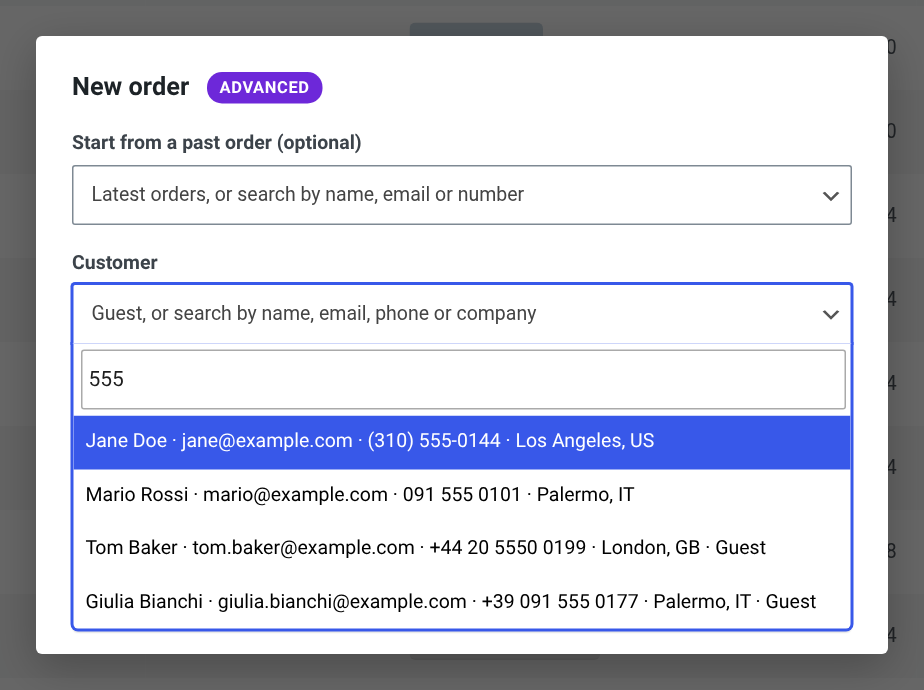
"Add order" asks for the customer first: registered customers and past guests, found by name, email, phone or company.
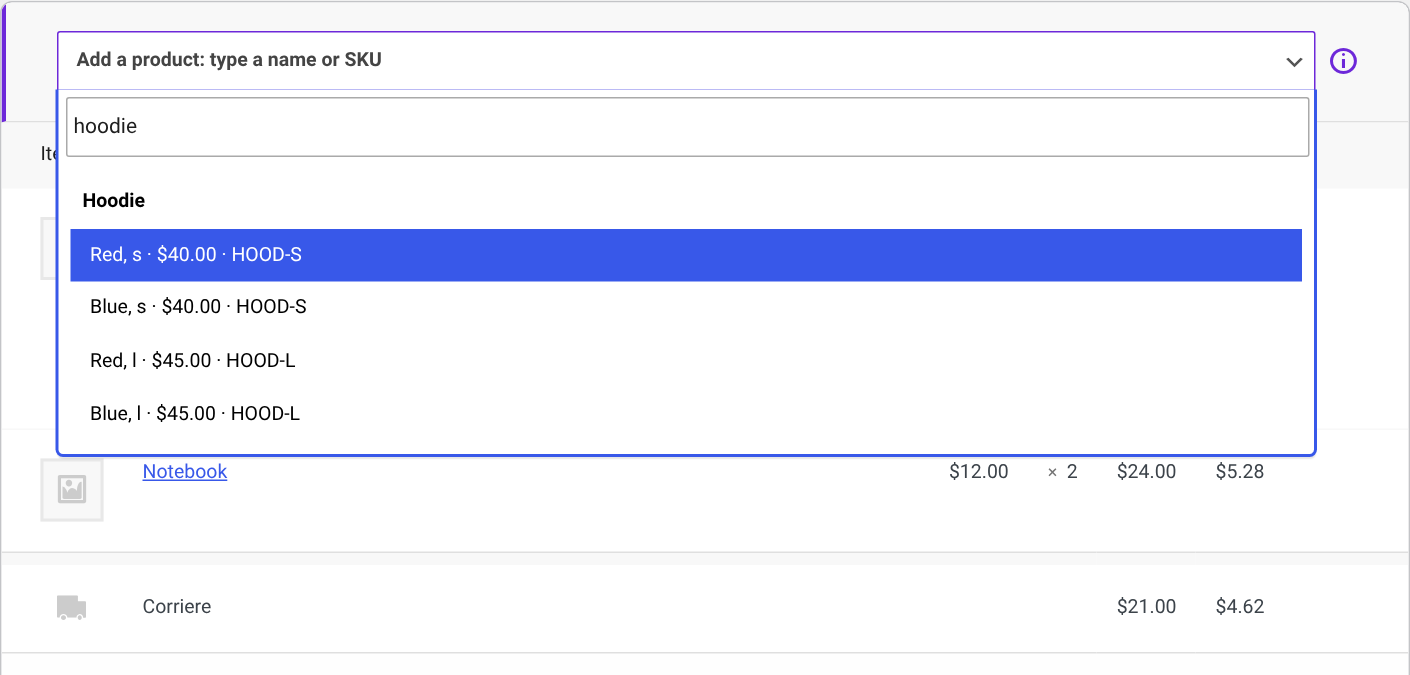
The "Add a product" box: best sellers first, every variation listed on its own, one click to add.
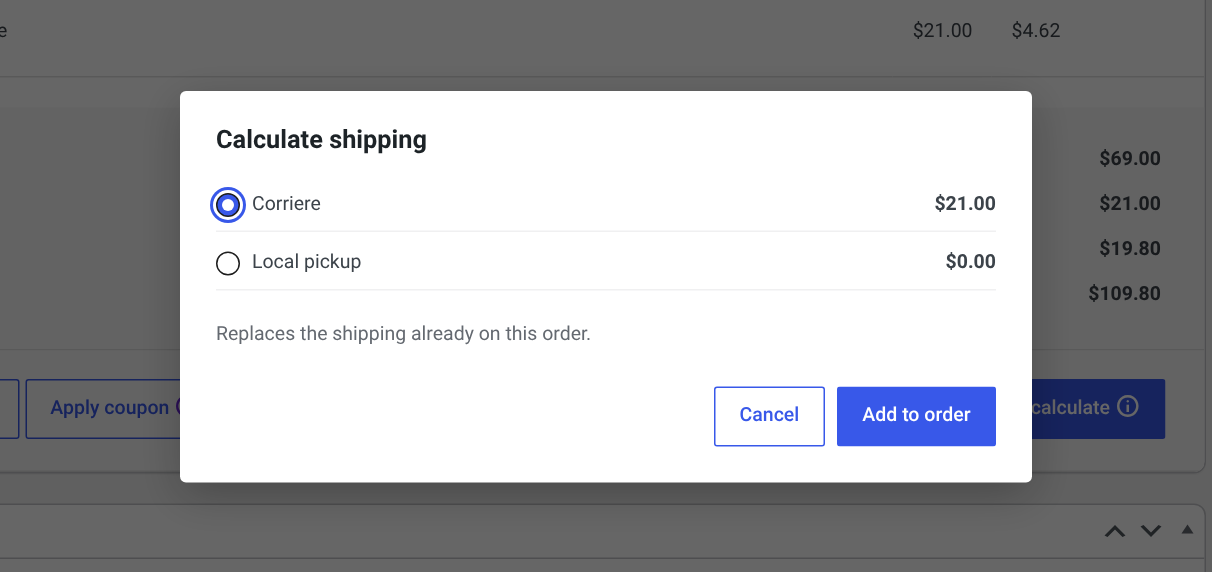
"Calculate shipping" shows the real rates of your shipping zones for these items and this address.
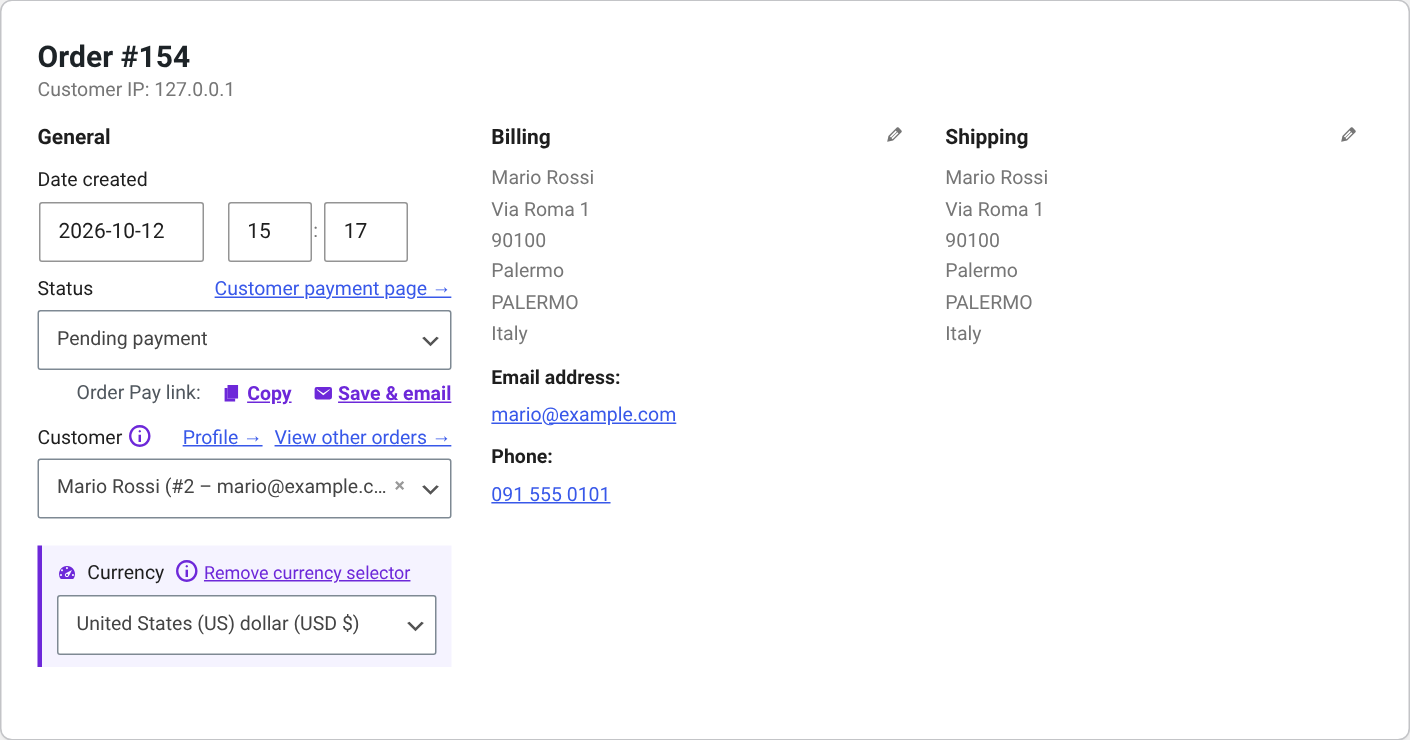
Under the order status: copy the payment link, or save the order and email it, and pick the order currency.
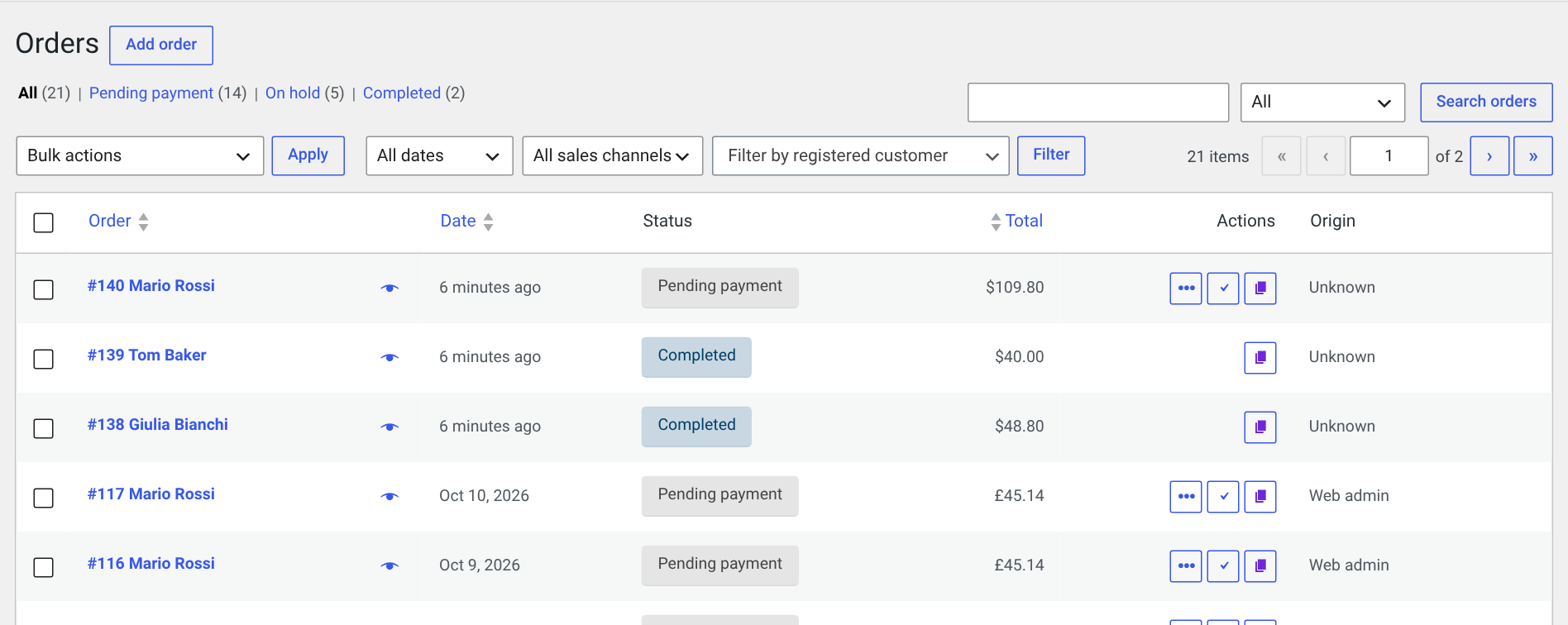
Duplicate any order from the orders list, the preview or the order screen.
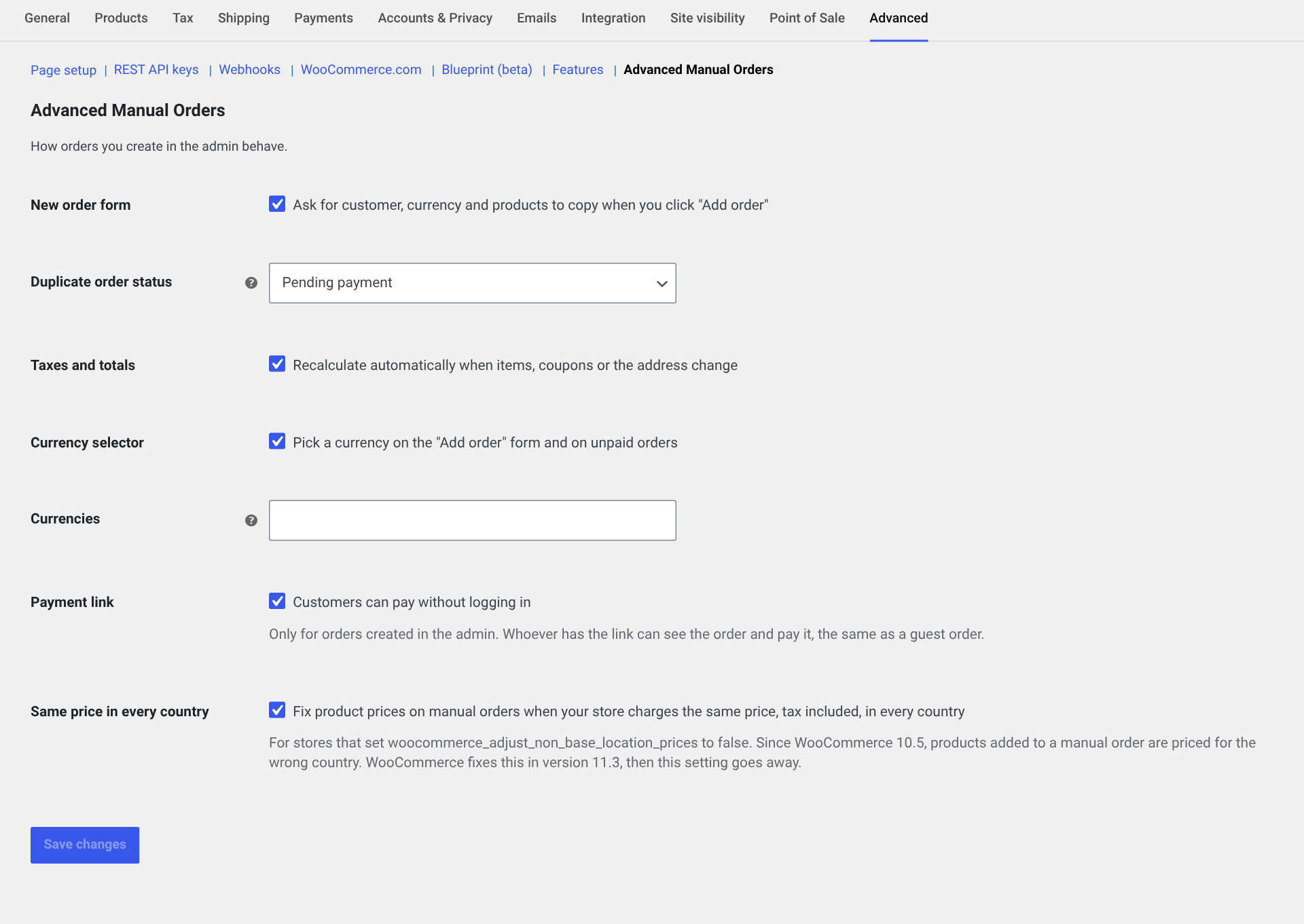
The settings, under WooCommerce > Settings > Advanced > Advanced Manual Orders.
Faq
No. The currency is changed and prices stay as entered, so type the prices you agreed with the customer.
Any method that works at checkout: flat rate, free shipping (including minimum amounts and free shipping coupons), local pickup and shipping plugins. Rates are calculated from the items saved on the order and the shipping address on screen (or the billing one when shipping is empty).
It only applies to orders created in the admin, and only with the full payment link, which contains a secret key. Anyone with the link can see that order and pay it, the same as a guest order. You can switch it off in the settings.
If you set woocommerce_adjust_non_base_location_prices to false, WooCommerce 10.5 to 11.2 price products added to a manual order for the wrong country (issue 63701). The plugin fixes it until WooCommerce 11.3 ships the official fix. You can switch it off in the settings.
Everything that belongs to the original’s payment and processing: payment method, transaction ID, paid and completed dates, stock changes, order notes, and hidden data added by other plugins, such as invoice numbers, license keys and tracking numbers. Visible custom fields and line item details, like variation attributes, product options or an engraving text, are copied. To copy hidden fields too, like a VAT number, pick them in “Also copy these fields” in the settings. Developers can also use the amowc_copy_meta filter.
WooCommerce’s own “Order details” customer invoice email, with your email template and settings, the same one as Order actions > Send order details to customer. The order is saved first, so the email has your latest changes, then it goes to the billing email and a note is added to the order.
Six: find-customers, create-order, get-shipping-rates, set-shipping, email-pay-link and duplicate-order, under business-bloomer-advanced-manual-orders/. They run the same code as the order screen. Results refer to customers by ID only: names, emails, phone numbers and addresses stay on your site.
Yes, with both order storage types.
Add its currencies in the settings and they show at the top of the list. Developers can use the amowc_store_currencies filter.
Reviews
A real time (and errors) saver
By 
If you run a store, creating manual orders are a pretty common task.
But it's so frustrating! It takes a lot of clicks and it's so easy to make a mistake ("oh, VAT was not applied!" anyone?).
This plugin is a time saver, and even more important avoid annoying errors.
Changelog
1.0.3
- New: “Also copy these fields” in the settings. Pick hidden order fields, like a VAT number, and they are copied when you duplicate or repeat an order, or start a new order for the same customer.
- The settings page is now split into sections: New orders, Order edit page, Currency and Payment link.
1.0.2
- The settings page and the Plugins screen now show what Advanced Manual Orders Pro adds. Both are hidden when Pro is active.
1.0.1
- The customer search now also finds people by their shipping name, company, address, city or postcode, and by their billing address, city or postcode. This works for registered customers and past guests.
- When a customer’s orders ship to a different person or address, the search result shows it.
- The customer search is faster.
- For developers: a new amowc_customers filter lets you change the search results.
1.0.0
- First release.