BytNexo SEO Manager

BytNexo SEO Manager
Description
BytNexo SEO Manager is a professional WordPress SEO plugin that provides essential SEO features without unnecessary bloat. Designed for speed and simplicity, it offers complete SEO control while maintaining optimal website performance.
Core Features:
✓ Complete Meta Management – Custom titles and meta descriptions
✓ Open Graph Integration – Control social sharing previews for platforms like Facebook, LinkedIn, and WhatsApp
✓ Twitter Cards – Optimized Twitter sharing with large image cards
✓ Schema.org Markup – JSON-LD structured data for better search visibility
✓ Social Image Management – Default images with featured image priority
✓ Canonical URLs – Prevent duplicate content issues
✓ Robots Meta Control – Set noindex, nofollow directives
✓ Quick Edit Support – Edit SEO from post listings
✓ Custom Post Types – Enable SEO for any content type
✓ Live Previews – See Google and Facebook previews instantly
✓ Admin Columns – Quick SEO status overview
Why Choose BytNexo SEO Manager?
- Lightweight & Fast: Minimal code, maximum performance – won’t slow down your site
- Classic Editor Optimized: Seamless integration with WordPress Classic Editor
- Essential SEO Features: Only essential features, no unnecessary addons or upsells
- Professional Interface: Clean, tabbed metabox with intuitive design
- Social Media Ready: Full Open Graph and Twitter Cards implementation
- Structured Data: Automatic Schema.org JSON-LD markup following Google guidelines
- Secure: WordPress coding standards and proper data sanitization
- Easy Setup: Configure in minutes, works out of the box
Perfect For:
- WordPress Site Owners wanting professional SEO without complexity
- Developers who need clean, maintainable SEO code
- Content Creators needing social media optimization
- Agencies managing multiple client websites
- Anyone using Classic Editor who wants seamless integration
Getting Started
Step 1: Configure Settings
- Go to “BytNexo SEO” in your WordPress admin menu
- General Configuration:
- Select post types where SEO Manager should appear
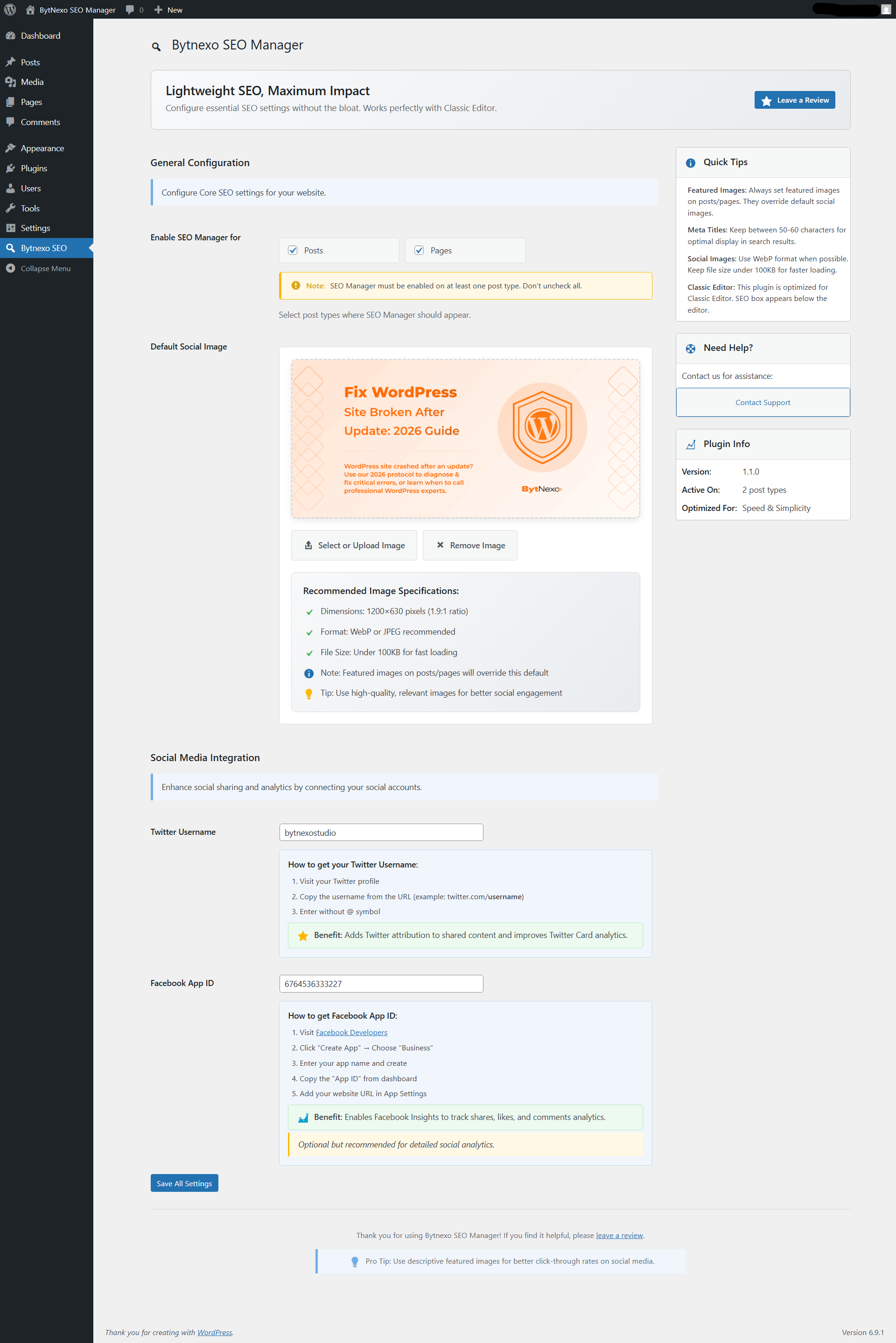
- Upload a default social image (recommended: 1200×630 pixels)
- Social Media Integration (Optional):
- Add Twitter username for Twitter Card attribution
- Add Facebook App ID for Facebook Insights
Step 2: Set Up Individual Posts/Pages
- Edit any post or page in Classic Editor
- Find the “BytNexo SEO Manager” metabox below the content editor
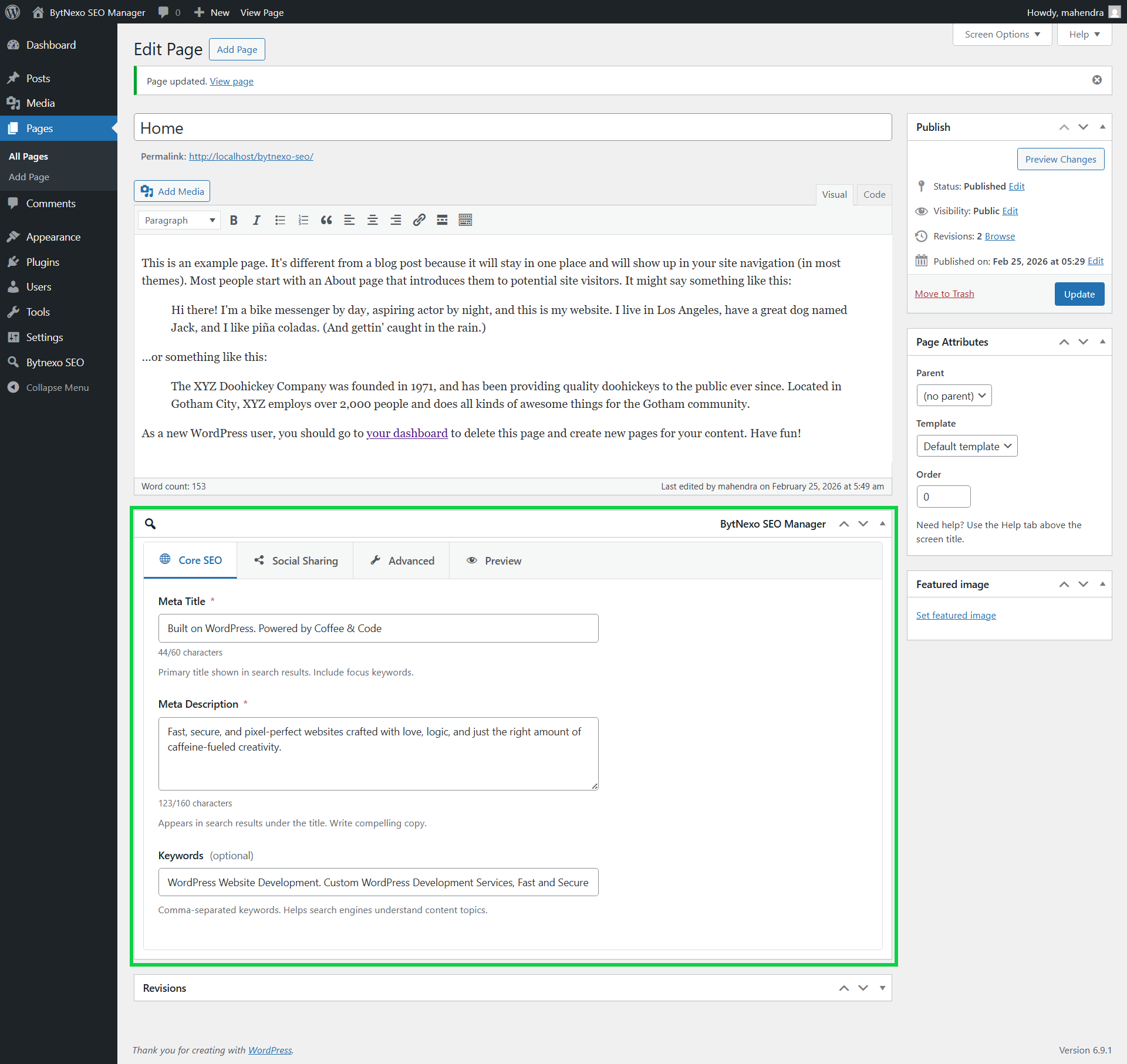
- Core SEO Tab:
- Meta Title (50-60 characters optimal)
- Meta Description (150-160 characters optimal)
- Keywords (optional)
- Social Sharing Tab:
- Open Graph titles and descriptions
- Twitter Card titles and descriptions
- Social image preview (featured images take priority)
- Advanced Tab:
- Canonical URL override
- Robots meta directives
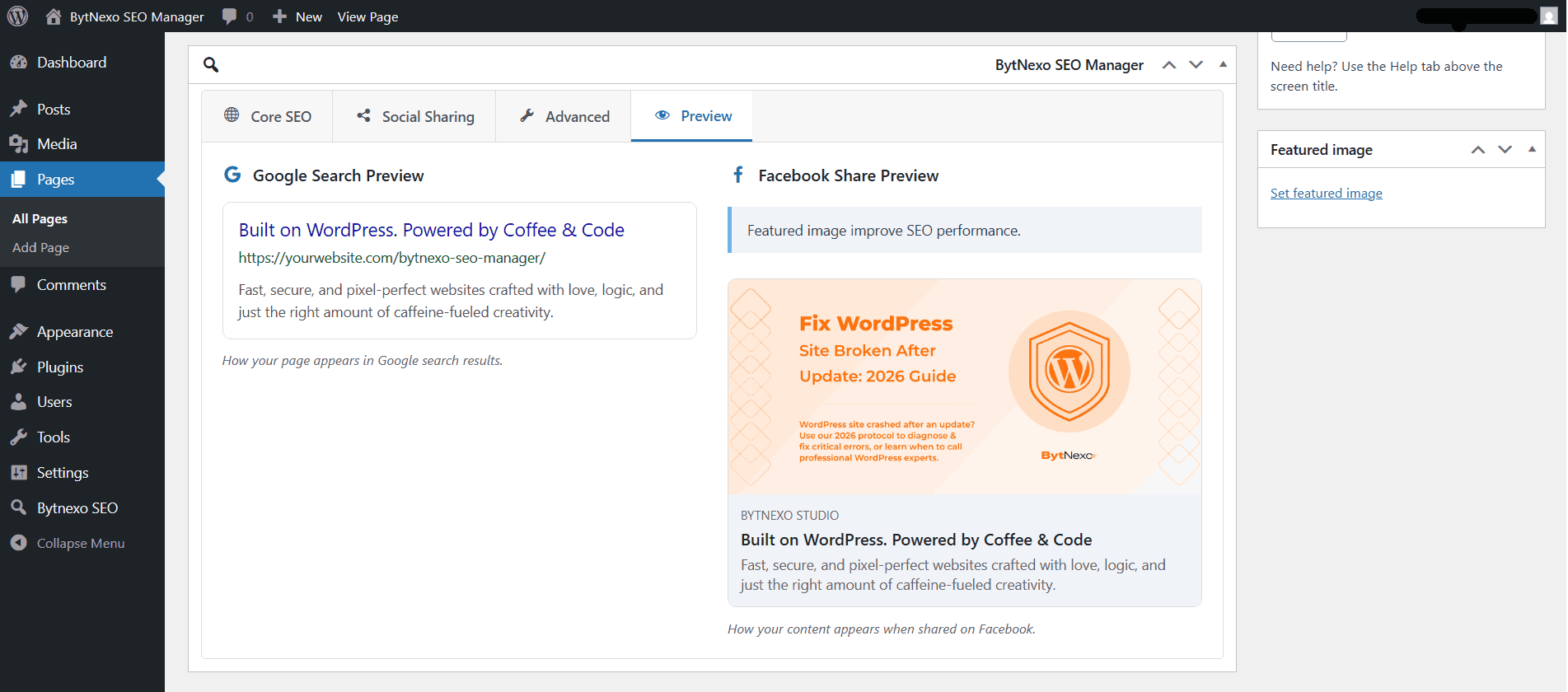
- Preview Tab:
- See Google search preview
- See Facebook share preview
Step 3: Quick Editing
- Go to Posts All Posts or Pages All Pages
- Use “Quick Edit” to update SEO titles and descriptions in bulk
- The SEO column shows which posts have custom SEO configured
Privacy & Security
BytNexo SEO Manager follows strict WordPress security standards:
- No Data Collection: Does not collect, store, or send user data to external servers
- Data Sanitization: All user input is sanitized using WordPress security functions
- Capability Checks: Proper user capability verification before any action
- Nonce Protection: Security nonces for all form submissions to prevent CSRF attacks
- Escaped Output: All frontend meta tags use proper escaping functions
- WordPress Standards: Follows WordPress coding standards and security guidelines
- Clean Uninstall: Completely removes all plugin data when uninstalled
- Session Security: Uses WordPress authentication system securely
Developer Documentation
BytNexo SEO Manager is built with extensibility in mind. Developers can customize functionality using WordPress filters and actions.
Requires basic knowledge of WordPress hooks.
Filters
The following filters allow modification of SEO behavior and output.
// Filter enabled post types
apply_filters( 'bytnexo_seo_manager_enabled_post_types', $post_types );

// Add or remove SEO metabox fields
apply_filters( 'bytnexo_seo_manager_meta_fields', $meta_fields );

// Modify Schema.org JSON-LD structured data
apply_filters( 'bytnexo_seo_manager_schema_data', $schema, $post );

// Customize Open Graph meta tags
apply_filters( 'bytnexo_seo_manager_og_tags', $og_tags, $post );

// Customize Twitter Card meta tags
apply_filters( 'bytnexo_seo_manager_twitter_tags', $twitter_tags, $post );

// Change default social fallback image
apply_filters( 'bytnexo_seo_manager_fallback_image', $image_url );

// Modify archive page meta description
apply_filters( 'bytnexo_seo_manager_archive_description', $description );
Actions
The following actions allow execution of custom logic at specific points.
// Fires before SEO metabox output
do_action( 'bytnexo_seo_manager_before_metabox', $post );

// Fires after SEO metabox output
do_action( 'bytnexo_seo_manager_after_metabox', $post );

// Fires after settings are saved
do_action( 'bytnexo_seo_manager_settings_saved', $settings );

// Fires before frontend SEO tags output
do_action( 'bytnexo_seo_manager_frontend_output', $post );
Usage Examples
Below are practical examples demonstrating how to extend plugin functionality.
// Enable SEO for custom post types
add_filter( 'bytnexo_seo_manager_enabled_post_types', function( $post_types ) {
    $post_types[] = 'portfolio';
    $post_types[] = 'testimonial';
    return $post_types;
} );

// Modify schema data for WooCommerce products
add_filter( 'bytnexo_seo_manager_schema_data', function( $schema, $post ) {
    if ( is_singular( 'product' ) ) {
        $schema['@type'] = 'Product';
        $schema['brand'] = array(
            '@type' => 'Brand',
            'name'  => get_bloginfo( 'name' ),
        );
    }
    return $schema;
}, 10, 2 );

// Change default social image
add_filter( 'bytnexo_seo_manager_fallback_image', function( $image_url ) {
    return 'https://example.com/custom-default-image.jpg';
} );
Installation
Automatic Installation (Recommended)
- Go to Plugins Add New in your WordPress admin
- Search for “BytNexo SEO Manager”
- Click “Install Now” and then “Activate”
Manual Installation
- Download the plugin ZIP file from WordPress.org
- Upload the
bytnexo-seo-managerfolder to/wp-content/plugins/ - Go to Plugins Installed Plugins
- Find “BytNexo SEO Manager” and click “Activate”
FTP Installation
- Extract the plugin ZIP file on your computer
- Upload the
bytnexo-seo-managerfolder via FTP to/wp-content/plugins/ - In WordPress admin, go to Plugins
- Find “BytNexo SEO Manager” and click “Activate”
Screenshots
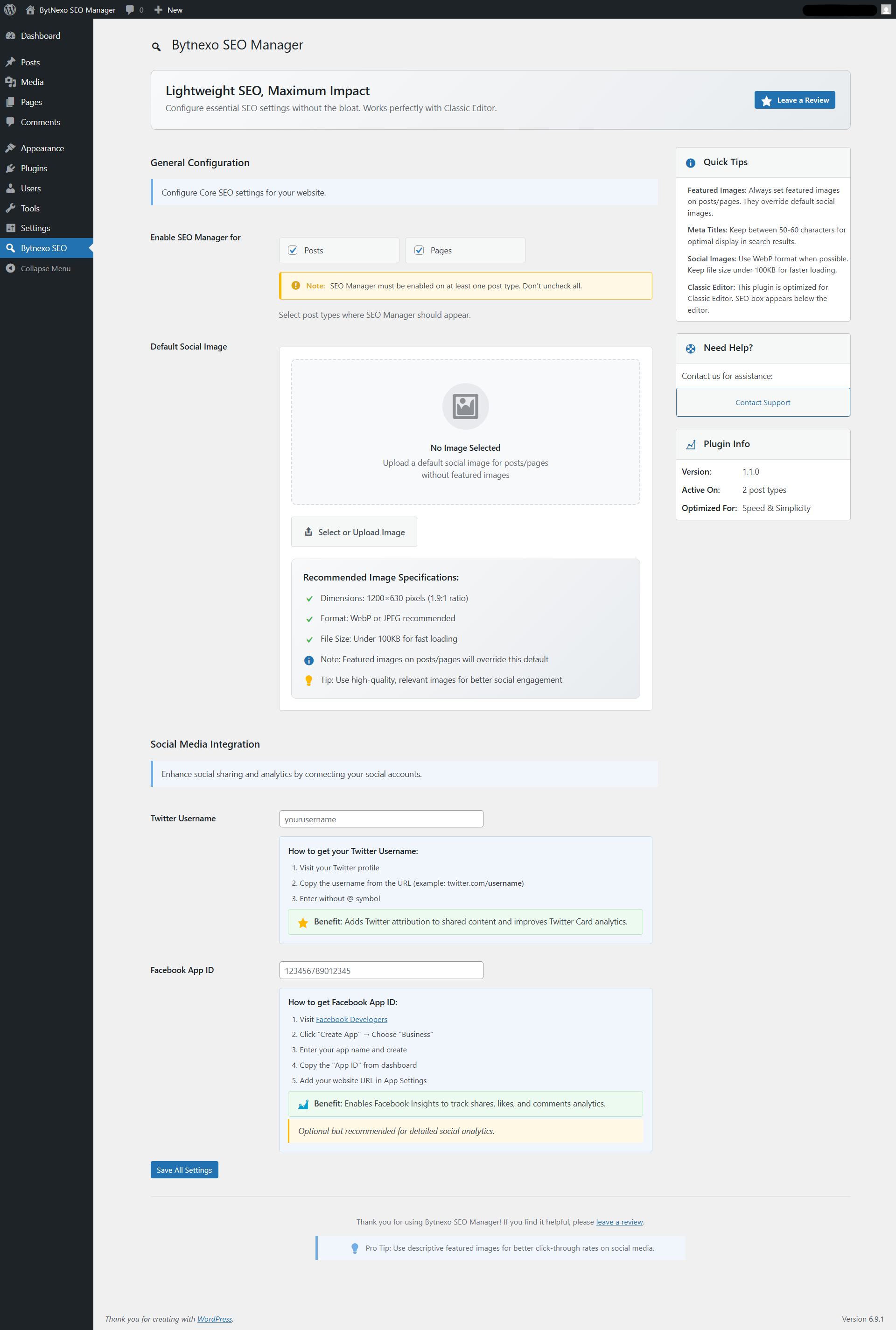
Settings Page - Configure default social image, enabled post types, and social accounts
SEO Metabox - Core SEO Tab - Meta title, description, and keywords with character counters
SEO Metabox - Social Sharing Tab - Open Graph and Twitter Card settings with image preview
SEO Metabox - Advanced Tab - Canonical URLs and robots meta control
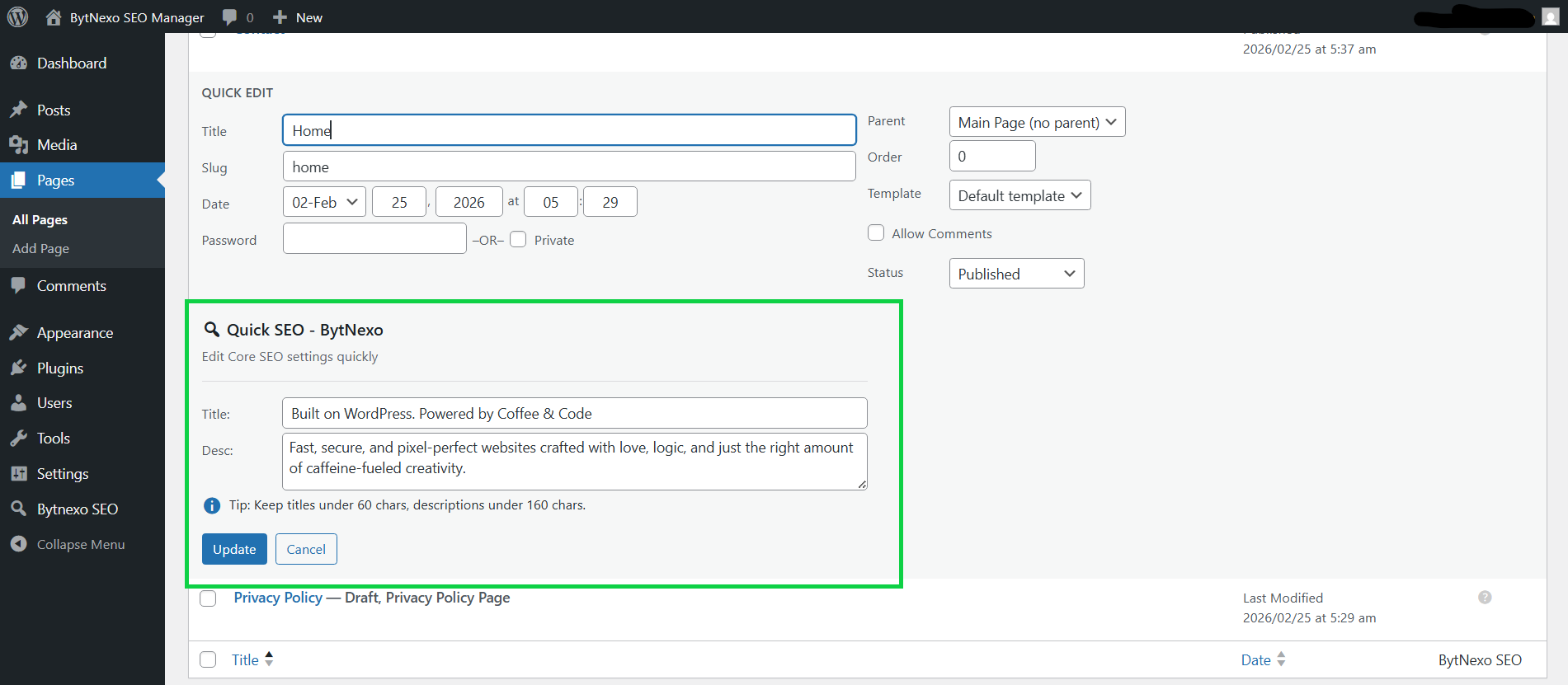
SEO Metabox - Preview Tab - Live Google search and Facebook share previews
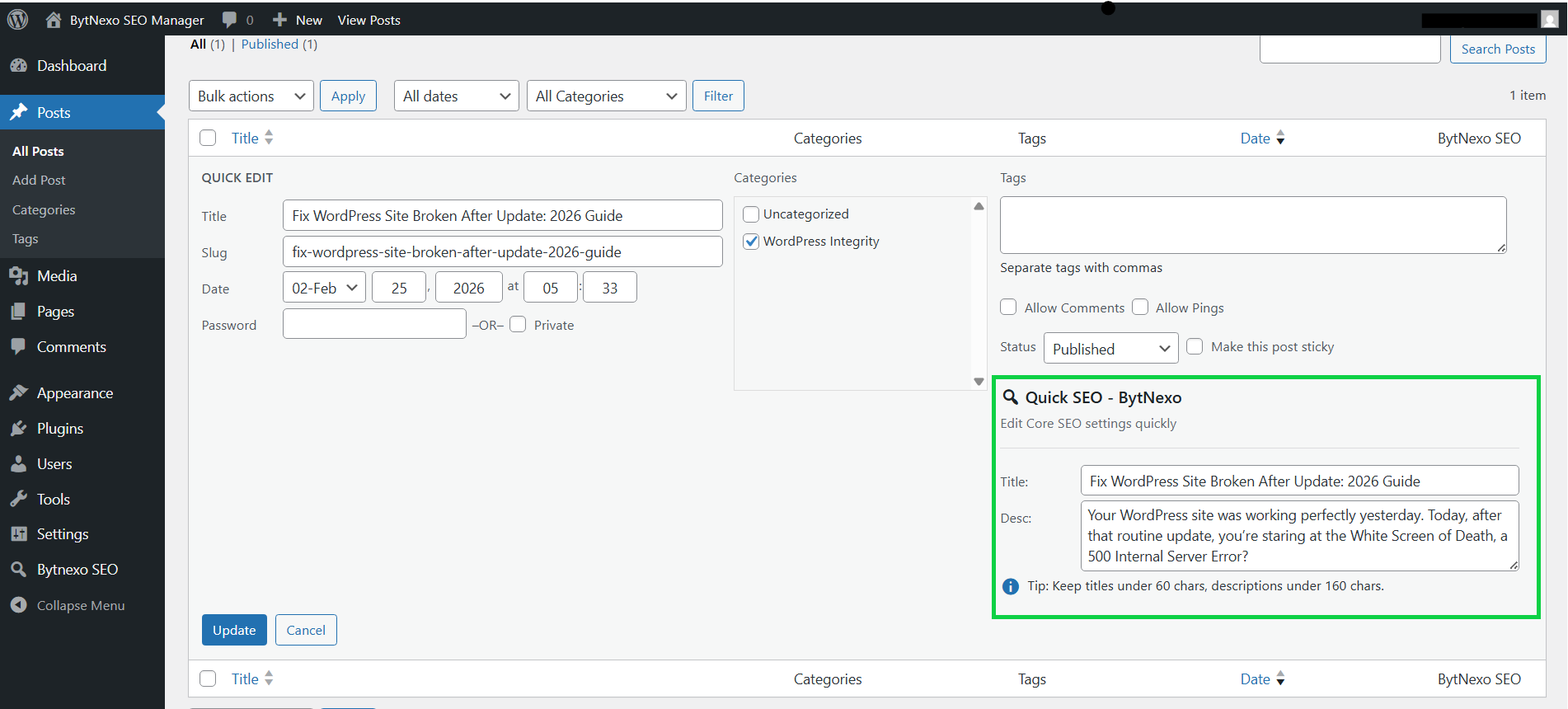
Quick Edit Interface - Bulk edit SEO from post listings
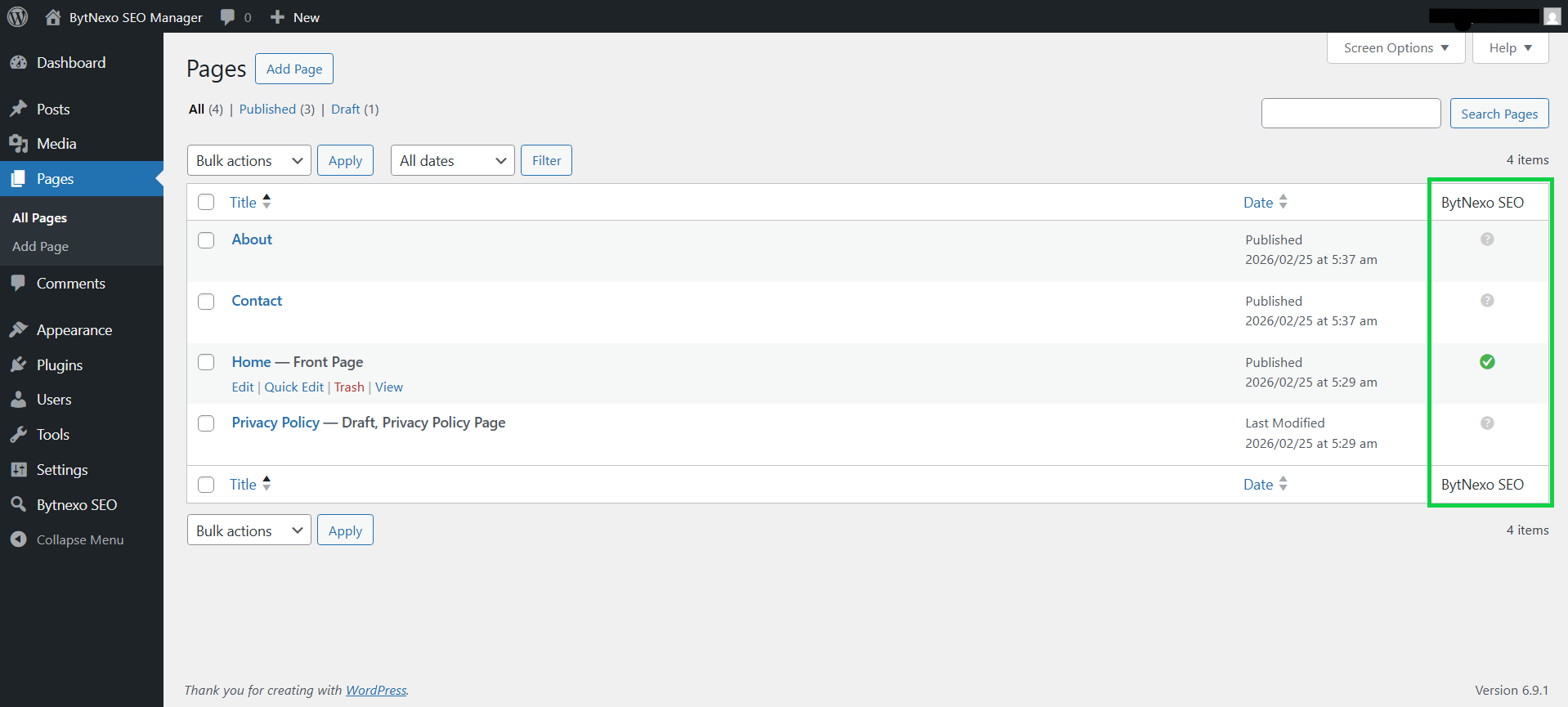
Admin Columns - SEO status indicator in post lists (green check for custom SEO)
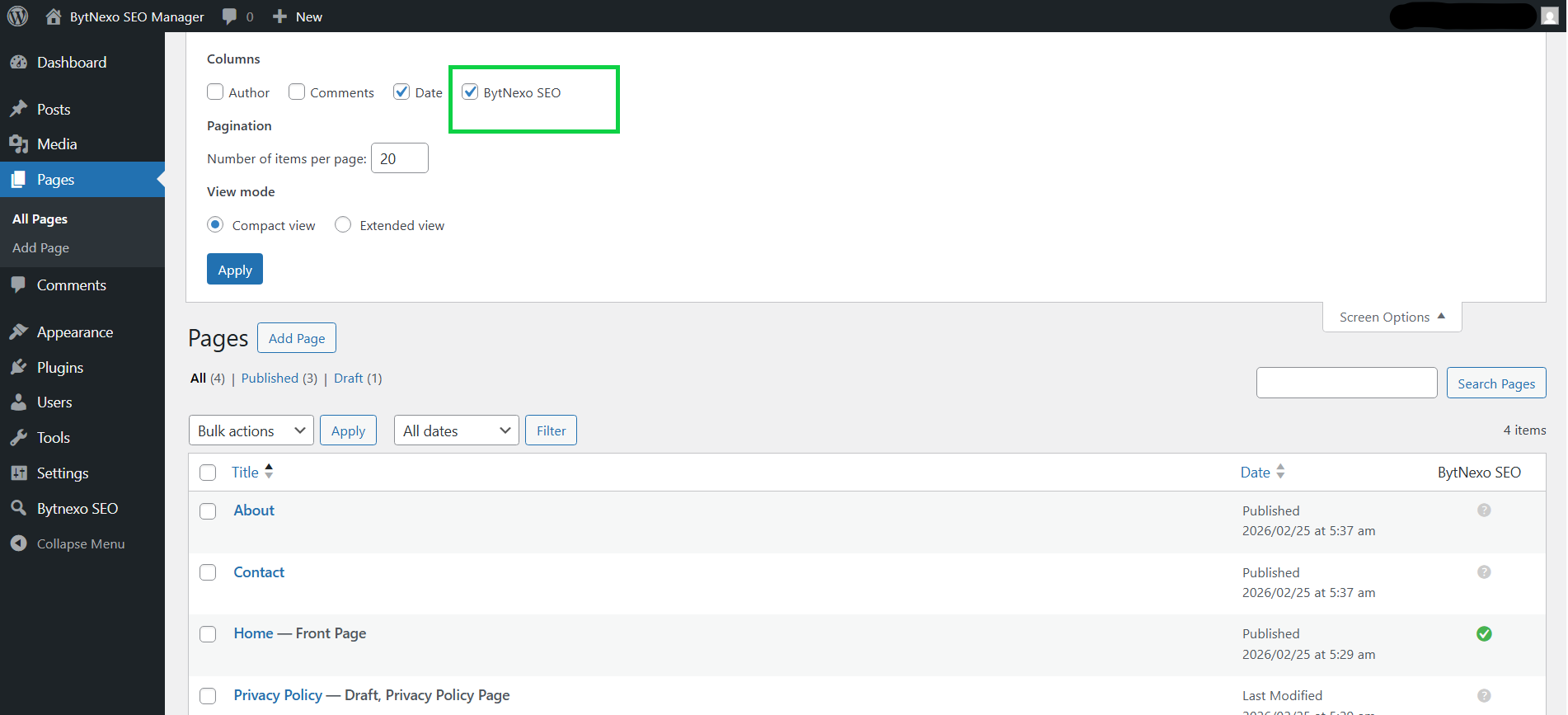
Image Upload Interface - Upload default social images with requirements guide
Faq
By default, Posts and Pages are enabled. You can enable SEO for any public post type in BytNexo SEO Settings Enable SEO Manager for. The plugin must be enabled on at least one post type.
Go to BytNexo SEO Settings Default Social Image. Click “Select or Upload Image” to choose an image. Recommended: 1200×630 pixels, WebP or JPEG format, under 100KB file size.
Yes. Featured images on posts/pages always take priority over the default social image. Set featured images for better social engagement and click-through rates.
Yes, BytNexo SEO Manager works with any theme and page builder that uses standard WordPress post editing. It’s optimized for Classic Editor but compatible with most editing environments.
Yes. The plugin automatically adds proper JSON-LD schema markup following Schema.org standards:
– Article for single posts
– WebPage for pages
– WebSite for homepage
– Includes publisher, author, images, and dates
Yes. In the Advanced tab of the SEO metabox, use the “Search Engine Directives” dropdown to set “noindex” or “nofollow” for individual pages.
Use Quick Edit from the posts/pages list. Click “Quick Edit” on any post, and you’ll see SEO fields to update titles and descriptions in bulk.
Yes. BytNexo SEO Manager outputs standard meta tags that work with all caching plugins. If you make major SEO changes, clear your cache to see updates immediately.
While technically possible, we recommend using only one SEO plugin at a time to avoid conflicts and duplicate meta tags.
Facebook App ID enables Facebook Insights to track shares, likes, and comments analytics. It’s optional but recommended for detailed social analytics. Get it from Facebook Developers.
- Dimensions: 1200×630 pixels (1.9:1 aspect ratio)
- Format: WebP or JPEG recommended
- File Size: Under 100KB for faster loading
- Content: High-quality, relevant to your content
Yes. The plugin automatically outputs optimized meta tags for:
– Homepage
– Category archives
– Tag archives
– Author archives
– Custom post type archives
Reviews
Changelog
1.1.1
- Improved developer documentation formatting
- Minor readme formatting corrections
- General stability improvements
1.1.0
- Initial public release
- Complete SEO management with meta tags
- Open Graph and Twitter Cards integration
- Schema.org JSON-LD structured data
- Social image management with featured image priority
- Custom post type support
- Quick edit functionality
- Admin column indicators
- Settings page with image uploader
- Twitter and Facebook social integration
- Live Google and Facebook previews
- Classic Editor optimization
- Full WordPress standards compliance
- Security and data sanitization
- Clean uninstall functionality