Caresort Accessibility Monitor
Caresort Accessibility Monitor
Description
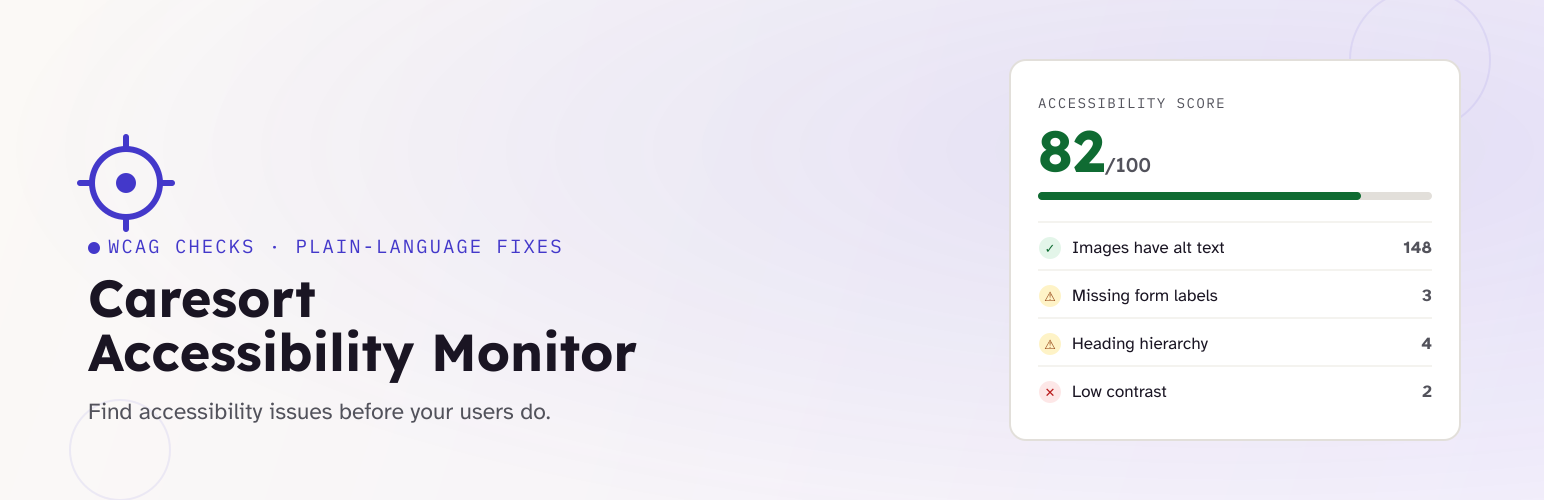
Caresort Accessibility Monitor scans your published posts and pages — the actual rendered HTML, not just the post editor content — and checks them against common accessibility problems. For every issue it finds, it explains why it matters and what to do about it, so you don’t need to already know WCAG to act on the results.
Detect Explain Fix Verify
Every issue in the report includes:
- Detect — exactly what was found, and where.
- Explain — why it matters for real users (in plain language, not just a WCAG citation).
- Recommended fix — the specific change to make.
- Verify — a one-click recheck that confirms whether your fix actually resolved it.
What gets checked
- Missing image alt text
- Missing page language attribute
- Form fields without labels
- Empty links and buttons (no accessible name)
- Heading structure (skipped levels, multiple H1s)
- Color contrast, where technically possible (see note below)
- Basic keyboard accessibility (non-interactive clickable elements, positive tabindex)
Features
- Site-wide accessibility health score
- Scans posts and pages
- Sortable, searchable, filterable issue report (Open / Ignored / Resolved / All)
- Manual “Scan Now” button
- Issue history — resolved issues are kept, not just deleted
- Dashboard widget with a live score summary
- Recheck / Ignore / Delete actions per issue, plus bulk actions
A note on the contrast check
The contrast check can only evaluate colors set directly via an inline style="" attribute on an element. It cannot see colors that come purely from your theme’s stylesheet, since that would require a full browser rendering engine. It’s a genuinely useful partial check, not a complete one — you can turn it off under Settings if you’d rather not see partial results.
Installation
- Upload the
caresort-accessibility-monitorfolder to/wp-content/plugins/, or upload the zip via Plugins Add New Upload Plugin. - Activate the plugin through the Plugins menu in WordPress.
- Go to Accessibility Settings to choose what to scan.
- Click Scan Now on the Accessibility report page to run your first scan.
Faq
The full rendered page. Many real accessibility issues live in the theme (header, footer, navigation), not in the content you typed in the editor, so the scanner fetches and checks the live page.
No. The plugin fetches your own pages directly and checks them locally on your server. No data is sent to Caresort or any third party, and there’s no tracking or telemetry.
No. Scans are triggered manually from wp-admin and run in the background of that request; they don’t run during a visitor’s page load.
No. Automated checks like this one can catch a meaningful set of common issues, but they can’t catch everything (things like meaningful reading order, or whether alt text is actually a good description, need a human). Think of it as a fast first pass, not a full audit.
Reviews
Changelog
1.1.1
- Fixed: two different elements that both trigger the same generic issue message (e.g. two empty links on one page) are now tracked as separate issues instead of the second silently overwriting the first in the database.
- Added: scanning a page now automatically marks any previously open issue as resolved if it’s no longer found, instead of only doing so when manually rechecked one at a time. Ignored and already-resolved issues are never affected.
- Fixed: “Image missing alt text” now shows the real filename, or the image’s type (e.g. “inline embedded image (image/svg+xml)”) for inline/embedded images, instead of a garbled fragment of encoded image data.
1.0.0
- Initial release.