Charming Portfolio

Charming Portfolio
Description
Charming Portfolio is a simple plugin that update the frontpage as portfolio landing page with user provided information. This plugin is very easy to use and user friendly.
Images
simplecharm-default-avater.jpg – https://www.flickr.com/photos/132795455@N08/24308979032
License: CCO https://creativecommons.org/publicdomain/zero/1.0/
coding placeholder icon: https://www.freepik.com/free-vector/gradient-data-logo-template_21252009.htm
License: https://www.freepik.com/legal/terms-of-use#nav-freepik-license
Design
Front Page Design
License: MIT License (Excluding Images)
The design for front-page, excluding images, is licensed under the MIT License.
design github: https://github.com/shahsagarm/sagarshah.dev
design figma: https://www.figma.com/community/file/1262992249991763120/Personal-Portfolio-Website-Template-%7C-Mobile-%26-Desktop
Icons
Most of The Icons Used From Dashicons.
https://developer.wordpress.org/resource/dashicons/
There Are Also Some Icons Used From Fontawesome Free and svgrepo.com
-License FA: CC BY 4.0 License
-License URI: https://fontawesome.com/license/free
-License svgrepo: GNU Public License
-License URI: https://www.svgrepo.com/page/licensing/#GPL
Library and Frameworks
TailwindCSS
-License: MIT License
-License URI: https://github.com/tailwindlabs/tailwindcss/blob/master/LICENSE
Usage
- Go to the Admin Dashboard.
- You WIll Find A Option of Portfolio in the Sidebar.
- With That You Can Configure Your Basic Information (name,social,contact,aboutme etc.) and Additional (skills,experience,project showcase etc.)
- First You Have to Switch Enable to Enable The Portfolio in Your Site HomePage From Portfolio->Customize Portfolio.
- After Filling Up The Information You Can See Your Portfolio in Frontpage With Your Informations.
Uncompiled Assets
The Uncompiled Assetes and The Configuration Files Will Be Found Here
Installation
- Upload the
charming-portfolioFolder to the/wp-content/plugins/directory. - Activate the plugin through the ‘Plugins’ menu in WordPress.
- Visit CPR from Admin Dashboard and add post types via creating new posts.
Screenshots
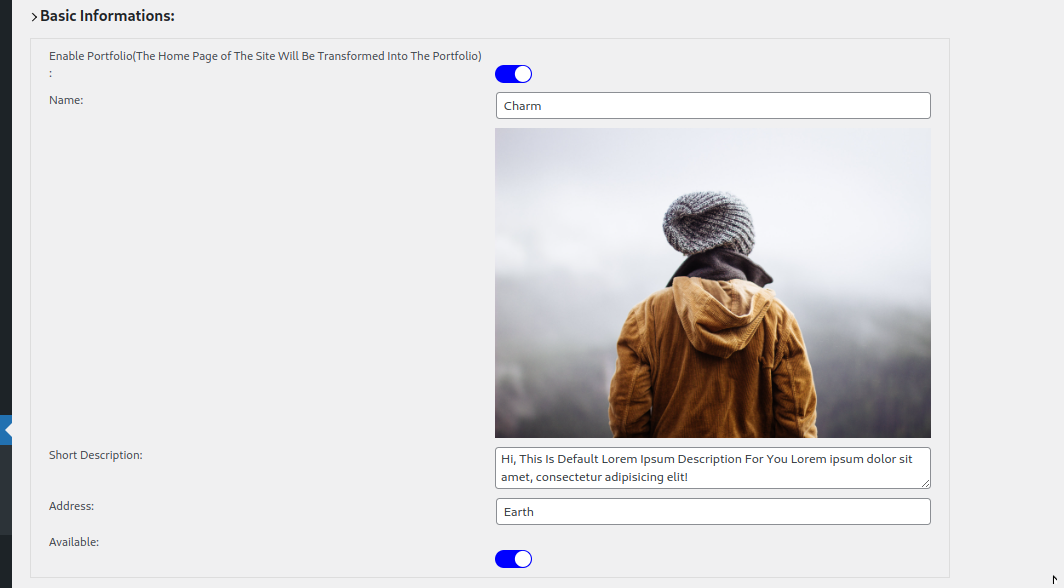
Basic Information Setting
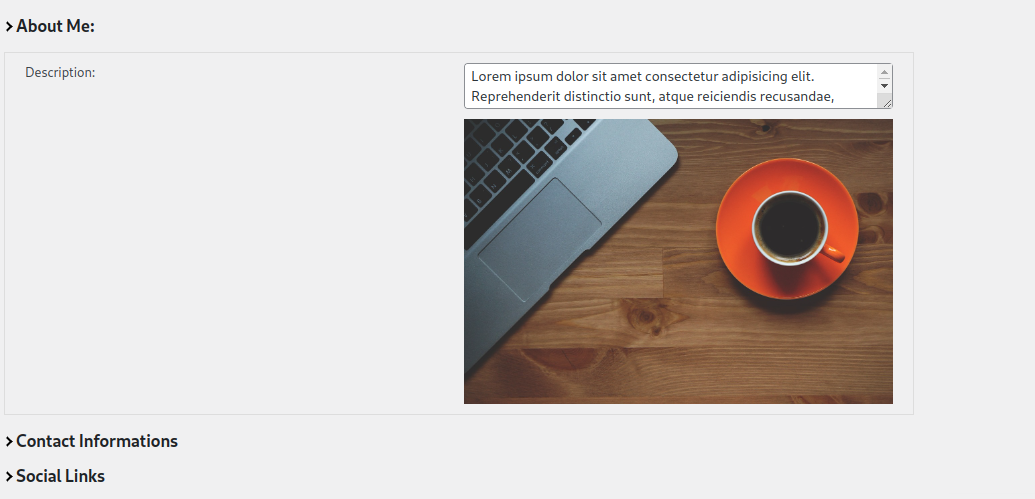
About Me Setting
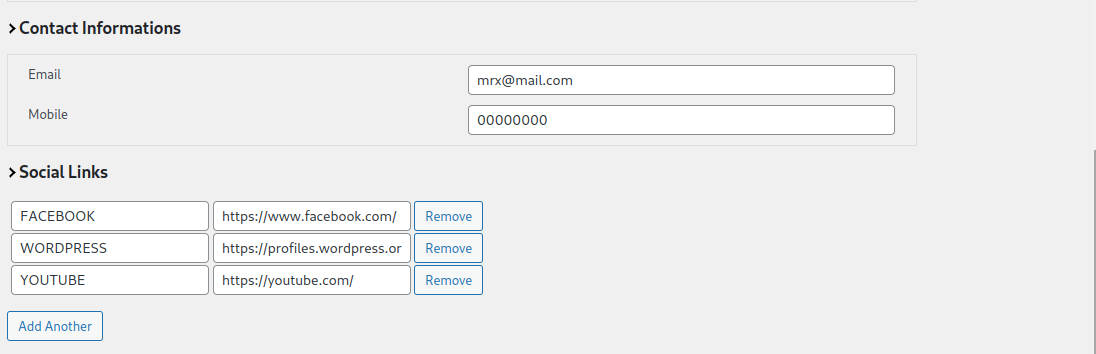
Contact and Social Media Setting
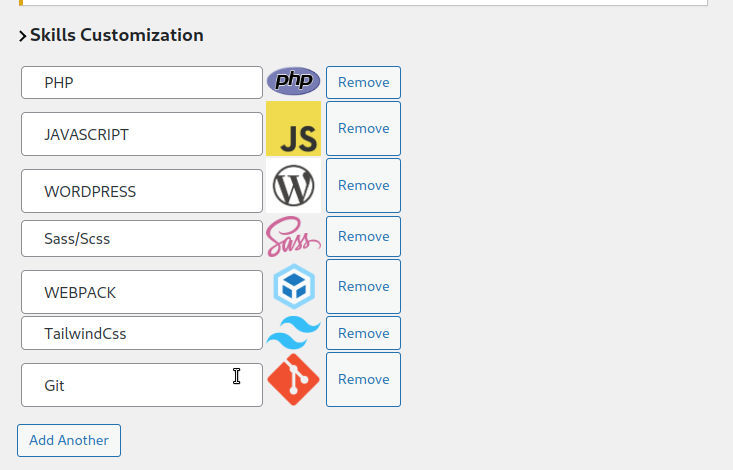
Skill Customization
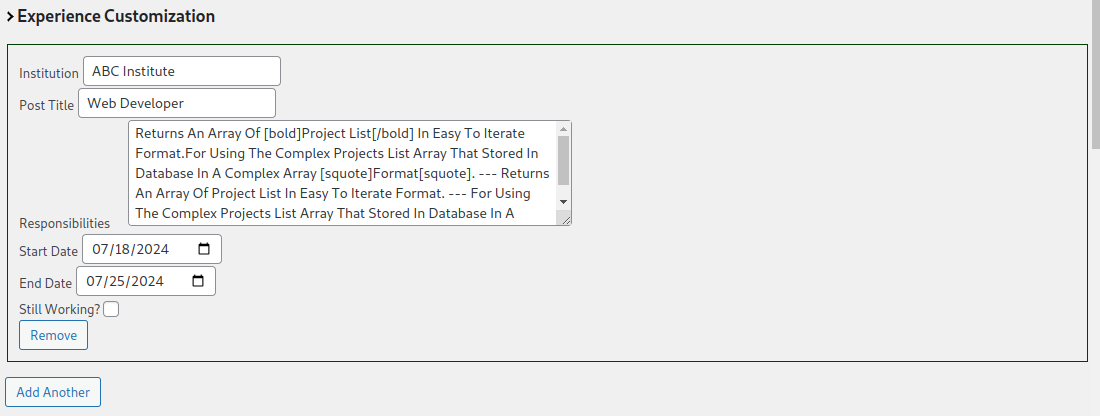
Experience Customization
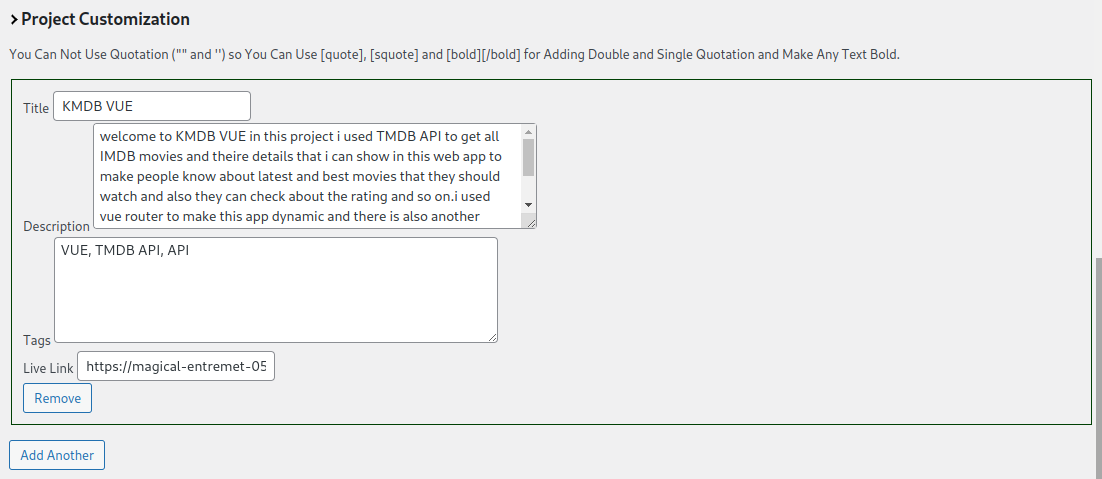
Projects Customization
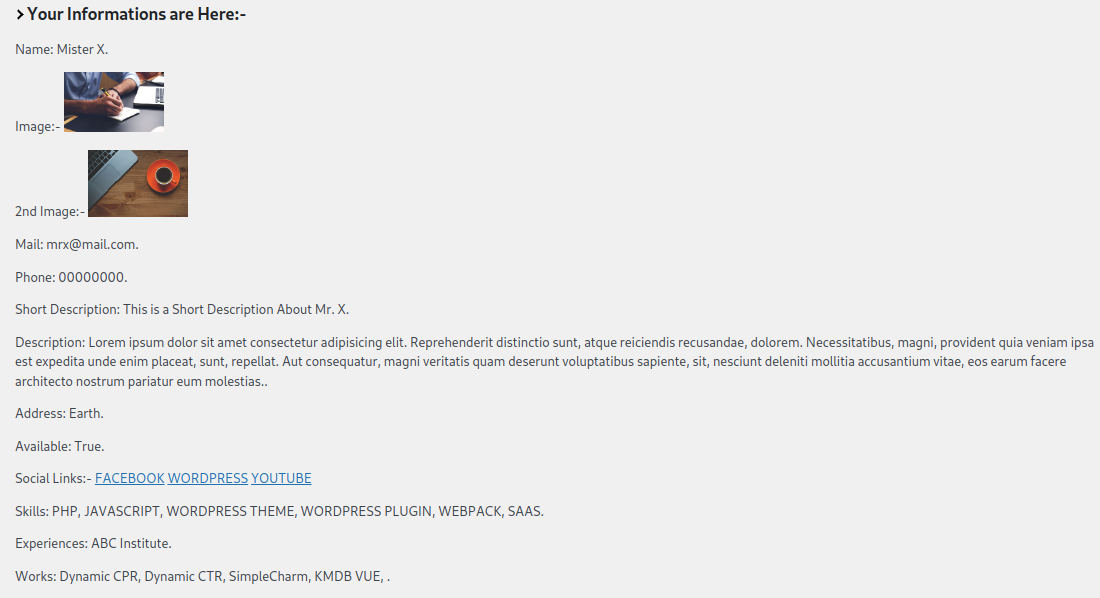
Information Preview
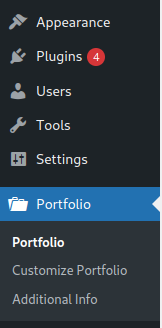
Portfolio Settings In Admin

Portfolio Frontpage Basic Information
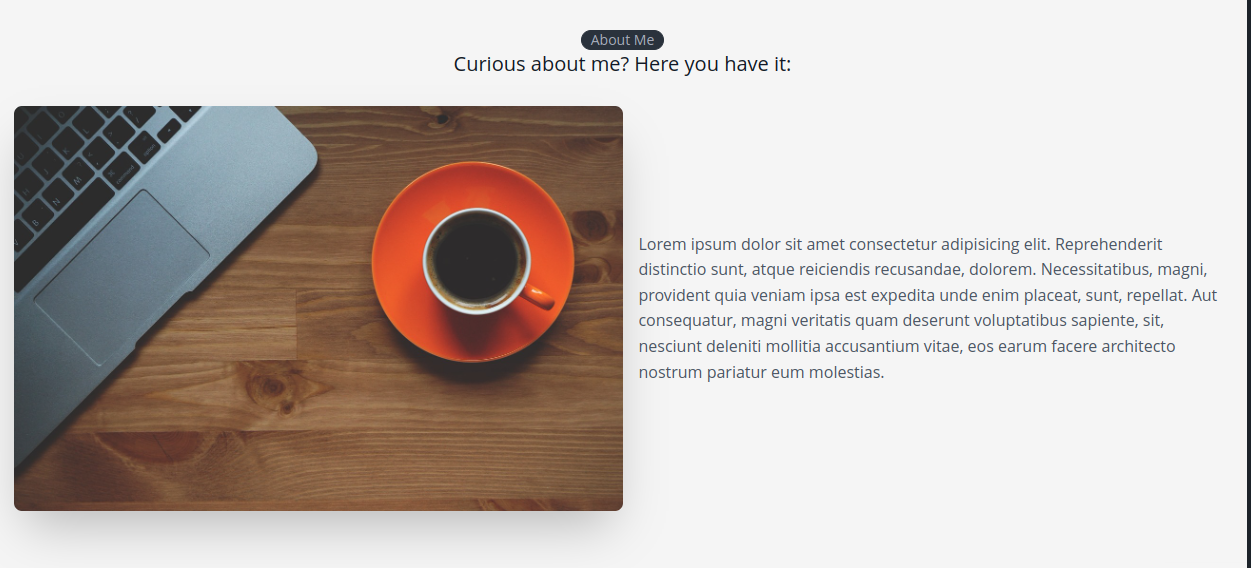
Portfolio Frontpage About Me
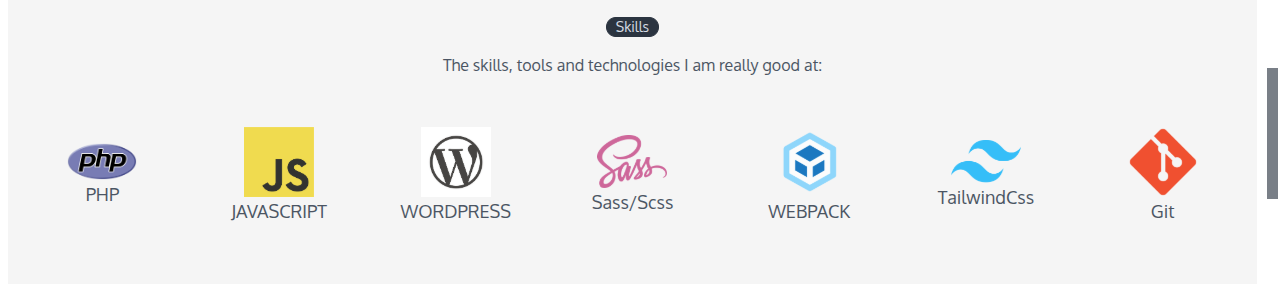
Portfolio Frontpage Skills Section
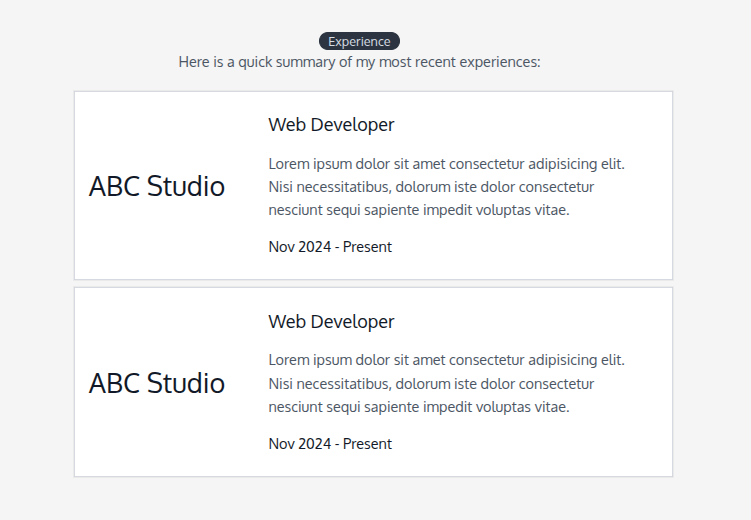
Exoerience Section
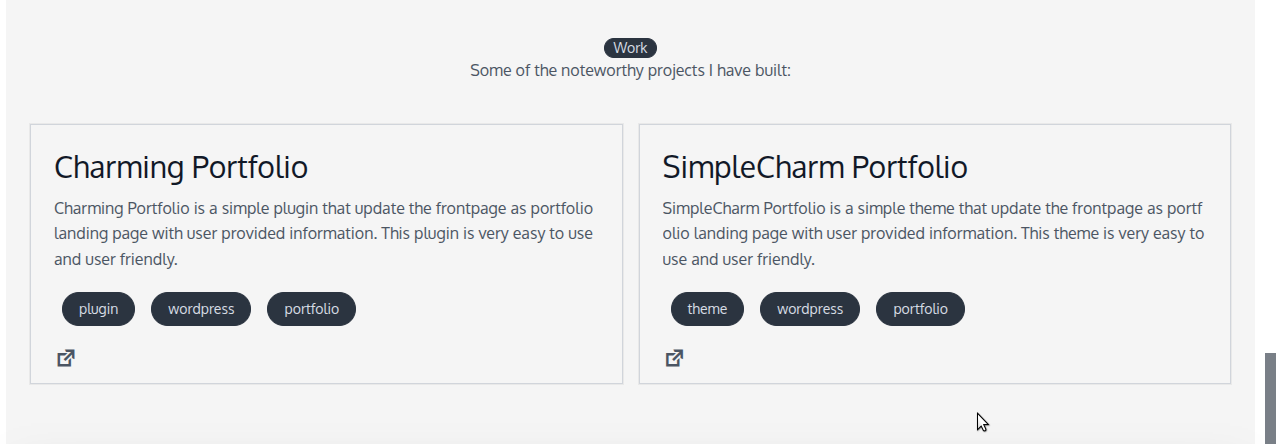
Project Section
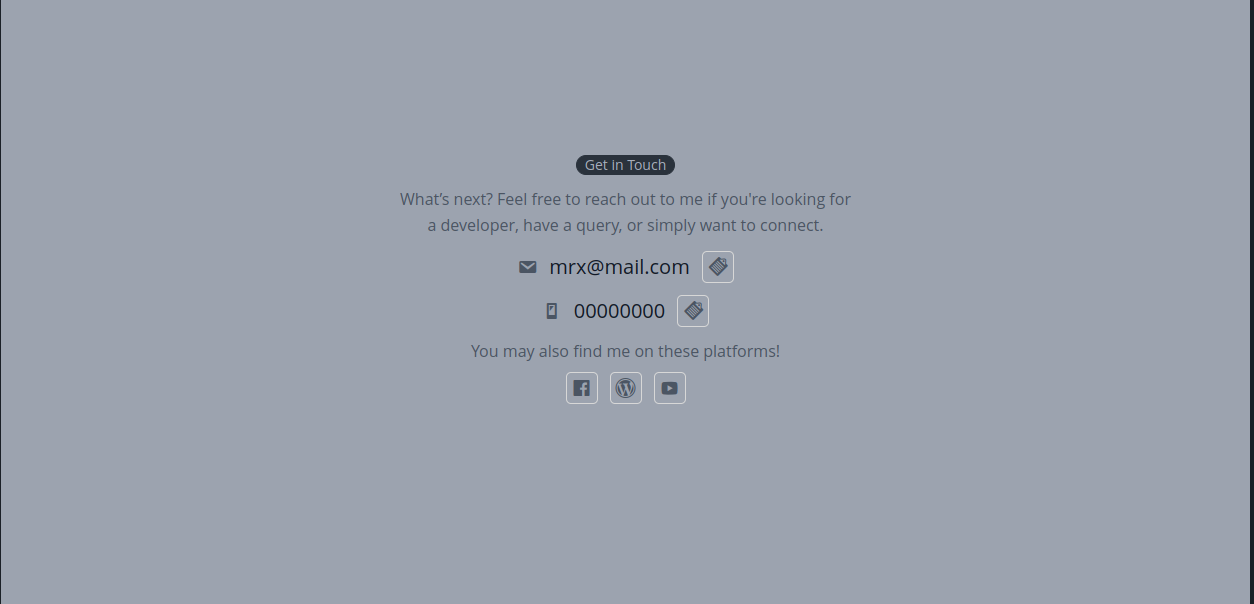
Porfolio Footer