Classic Menu in Navigation Block

Classic Menu in Navigation Block
Description
Extending WordPress Navigation block with functionality to display classic menus.
What problem does it solve?
❓ Do you experience problems making your website navigation multilingual when using block theme (FSE – full site editing)?
❓ Are you using a plugin that modifies classic menu but not Navigation block and you are using block theme?
Classic Menu in Navigation Block plugin lets you display classic menus in Navigation block so you can gain from using classic menu modification plugins and yet display the menu with accessibility, customization and responsive features of Navigation block.
This method is particularly useful when building a multilingual website and your multilingual plugin does not handle Navigation block very well. You can simply “revert” back to using classic menu, which multilingual plugins supports out of the box.
You can do changes to your classic menus and Navigation block will always display up to date version of the menu.
To speed things up the plugin also applies caching for your classic menus converted to blocks. This cache is updated every time you update your classic menu. If you are using a very dynamic classic menu modification plugin, you can even disable the cache.
Got a question or suggestion?
In case of any question or suggestion regarding this plugin, feel free to ask at support section, or at GitHub repository issues.
Installation
- Unzip the plugin download file and upload
classic-menu-in-navigation-blockfolder into the/wp-content/plugins/directory. - Activate the plugin through the “Plugins” menu in WordPress.
- Plugin works immediately after activation by adding a new settings options to WordPress native Navigation block in block and site editor. It also enables Appearance Menus admin screen for block themes (FSE – full site editing) and registers several menu locations.
Screenshots
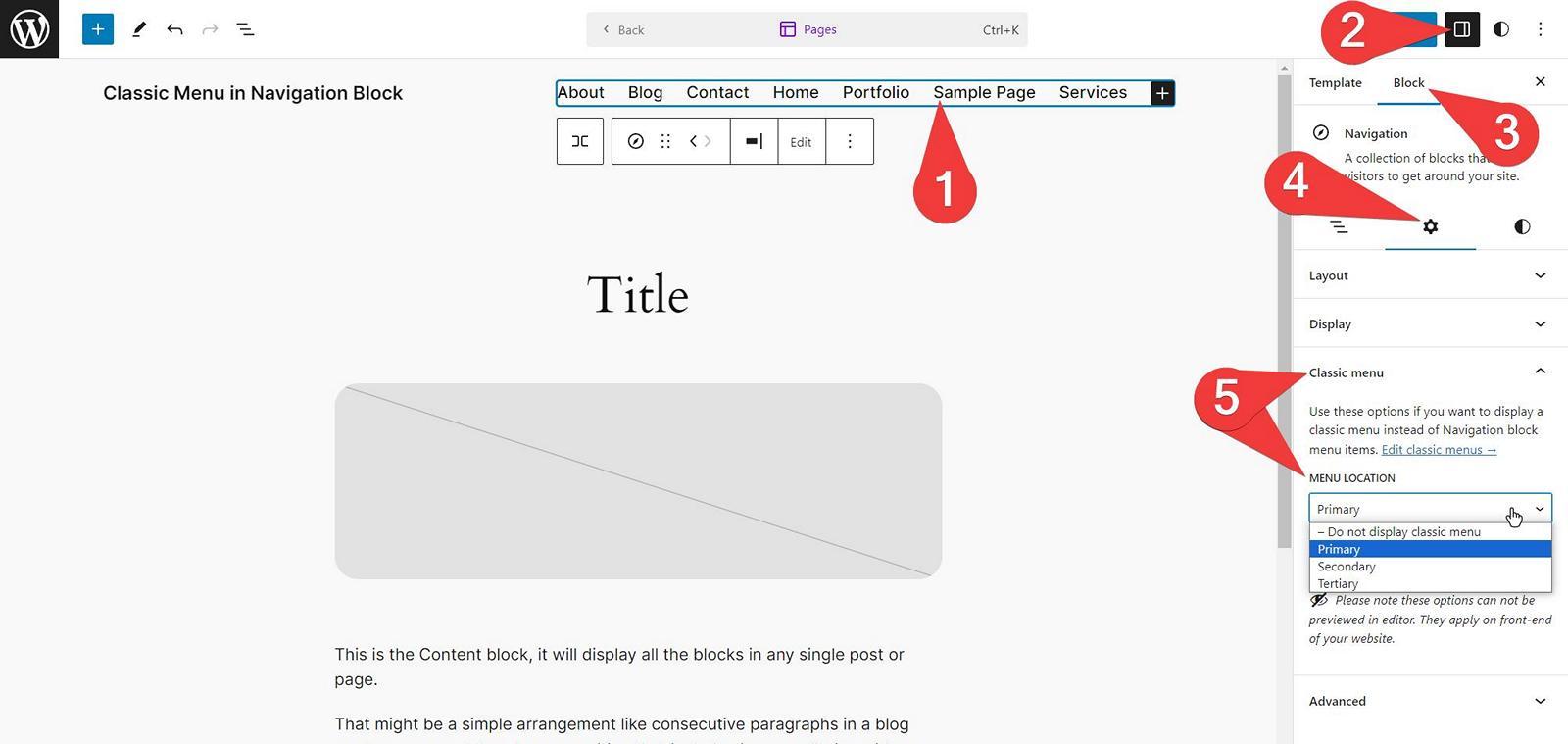
Setting up classic menu displaying in Navigation block
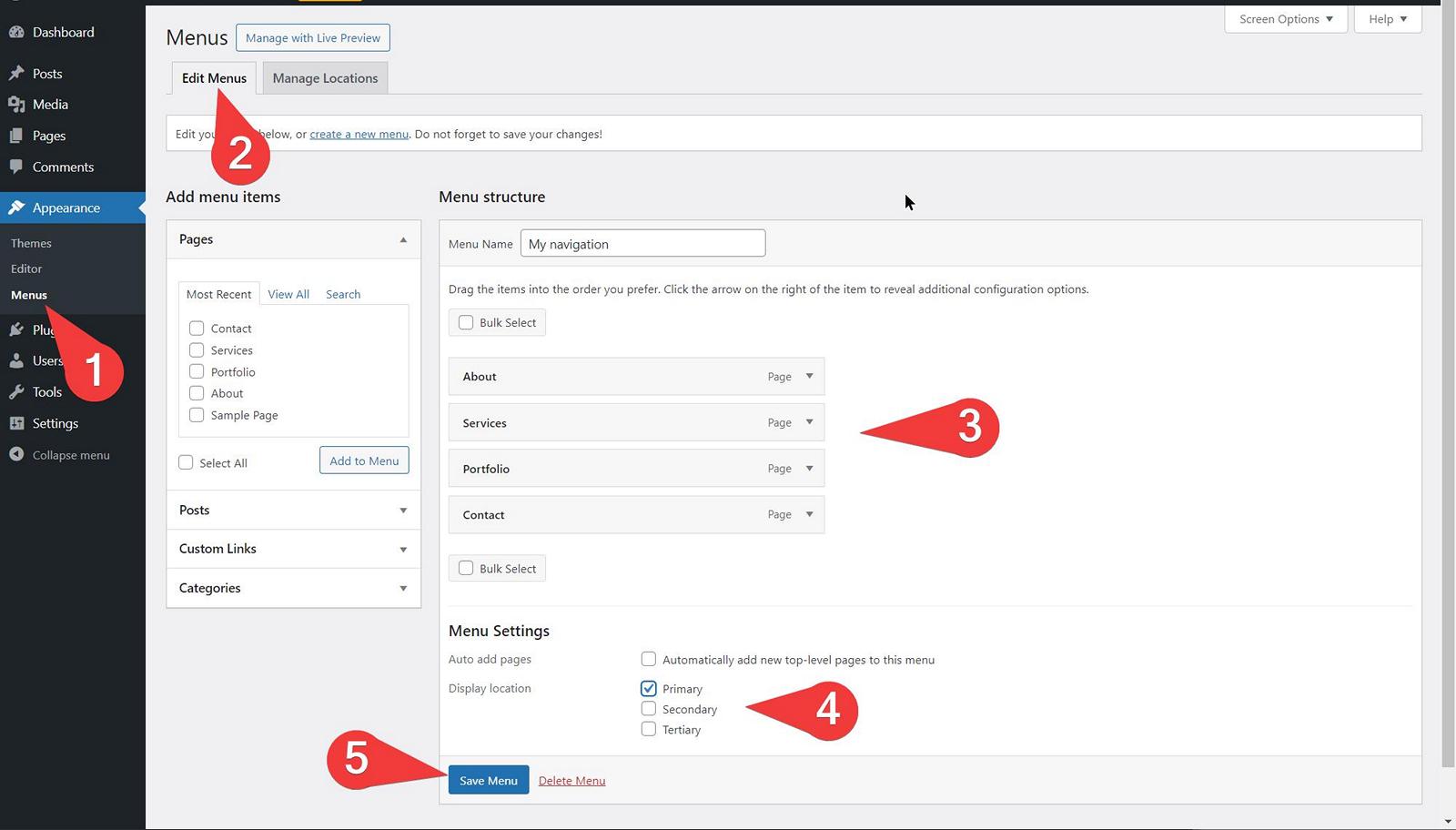
Creating a classic menu
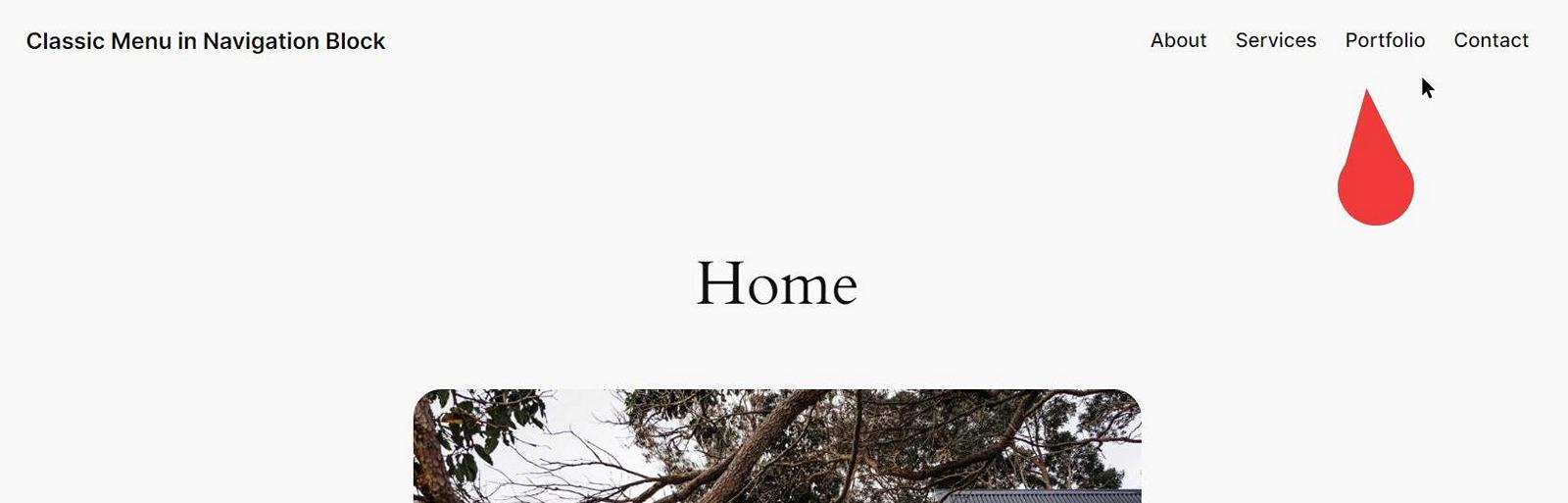
Preview of a classic menu rendered by Navigation block
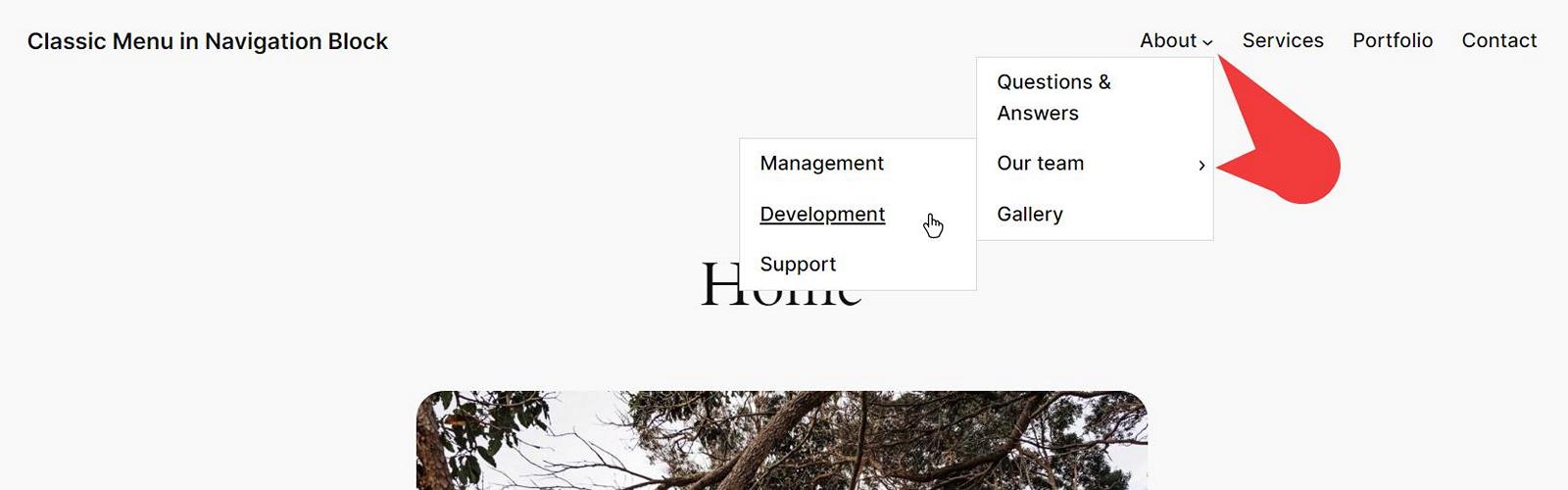
Functionality of Navigation block is kept
Faq
- In Appearance Menus create a classic menu and assign it to a desired menu display location, such as “Primary” location.
- Navigate to Appearance Editor Patterns All Template Parts and edit the template part that displays your navigation – most likely it is a “Header” template part.
- In the template part content find the Navigation block (you may use a list view for this) and edit the block options to display the “Primary” menu location (the menu location you’ve set in step #1).
- Save your changes and preview the results on the front-end of your website. Your Navigation block now displays your classic menu.
Depending on your multilingual plugin, you may experience some issues with your menus. Such as multiple current (active) menu items. To resolve these issues, try to disable block menu cache in Appearance Customize Menus Classic Menu in Navigation Block.
Yes, you can do so in Appearance Customize Menus Classic Menu in Navigation Block. This is helpful when your multilingual plugin renders classic menus dynamically.
Yes.
WPML can translate Site Editor and navigation block, so there is no need to use this plugin with WPML.
But if you decide to use Classic Menu in Navigation Block with WPML, make sure to disable the block menu cache (Appearance Customize Menus Classic Menu in Navigation Block “Block menu cache”), and translate the modified block theme templates and/or template parts (WPML Translation Management, or check the WPML documentation for more info).
You can find them at Appearance Customize Menus Classic Menu in Navigation Block.
Reviews
Worked like a dream
By 
Great to add that classic control when using an FSE theme.
Lets you spare your clients from Gutenberg
By 
I was hoping someone else had thought about forwarding classic menus into the Navigation Gutenberg block, and sure enough, there's a plugin for that.
I have a pretty fragile Gutenberg/block editor-based site that both my client and I would prefer I'm the only one who touches. At the same time, my client needs to add/remove menu items without involving me, and the classic menu editor is the perfect solution for that. With this plugin, everyone's happy.
The plugin's ergonimics are little awkward. I think a better design would've been to add an option near the existing "import classic menu" option in the Navigation block, but as long as it works, I'm satisfied.
Using menu in FSE theme
By 
A great extension for having real, functional menus in FSE themes.
The native block is… how should I put it…
Perfect!
By 
Thank you for this plugin. I'm ready for FSE, but my customers are not. 😊
This way they can manage the menu without risking deleting anything.
Exactly what needed
By 
Great job, maybe needed some polishing, but it provides exactly that is needed. Gives the Classic Menu Admin and ability to style.
It would be great to see the classic menu working on the edit mode when the menu is selected, otherwise it is a little confusing, is it selected or not.
Changelog
Please see the changelog.md file for details.