Bitcoin Invoice Form

Bitcoin Invoice Form
Description
Accept Bitcoin invoice payments on your own website—fast, simple, and professional
Are you a business owner, entrepreneur, shop operator, or contractor who sends lots of invoices—and increasingly hears, “Can I pay this in Bitcoin?”
With the Coinsnap Bitcoin Invoice Form you can add a “Pay with Bitcoin” link to any invoice and let customers settle in seconds, right on your site.
Here’s how it works: your customer opens the link, enters the invoice amount, the invoice number for matching, and an optional name/message, then clicks “Pay invoice with Bitcoin”. A payment screen with a QR code appears that can be paid via Bitcoin Lightning (or on-chain, if preferred).
That’s it—no redirects, no confusion.
Why merchants love it
- Frictionless invoice payments: A clean, trust-building form that lives on your domain.
- Lightning-fast checkout: Accept Lightning (ideal for small/medium invoices) and optionally on-chain for higher amounts.
- Fair, real-time pricing: Automatic rate lock at the moment of payment—no volatility guesswork.
- Works with your stack: Use with a Coinsnap account—or connect to your own BTCPay Server.
- Optional fiat settlement: Prefer EUR on your bank account? Pair Coinsnap with Bringin/DFX.
- Conversion booster: Offer an optional Bitcoin discount (e.g., 5%) to nudge faster payments.
Get started in minutes
- Install and activate the plugin.
- Connect to Coinsnap (or your BTCPay Server).
- Add the Invoice Form via shortcode to a page like /bitcoin.
- Put a “Pay with Bitcoin” link on your invoices.
Give your clients the modern payment option they’re asking for—and get paid faster with Bitcoin and Lightning, directly on your website.
More information:
- Demo Store: https://invoice.coinsnap.org/
- Product page: https://coinsnap.io/coinsnap-bitcoin-invoice-form-plugin/
- Installation Guide: https://coinsnap.io/coinsnap-bitcoin-invoice-form-installation-guide/
- GitHub: https://github.com/Coinsnap/Coinsnap-Bitcoin-Invoice-Form
Documentation:
Installation
Initial Setup
-
Access Settings
- Go to WordPress Admin Bitcoin Invoice Forms Settings
-
General Settings
- Default Payment Gateway: Choose between CoinSnap or BTCPay Server
- Default Amount: Set default invoice amount
- [Removed] Default Currency: Currency is now configured per form in each Invoice Form’s Payment settings.
Payment Gateway Setup
CoinSnap Configuration
-
Get API Key
- Sign up at CoinSnap.io
- Generate an API key from your dashboard
-
Configure in WordPress
- Go to Bitcoin Invoice Forms Settings
- Enter your CoinSnap API key
- Set webhook URL (automatically configured)
BTCPay Server Configuration
-
Set Up BTCPay Server
- Install BTCPay Server or use a hosted service
- Create a store and generate API credentials
-
Configure in WordPress
- Go to Bitcoin Invoice Forms Settings
- Enter BTCPay Server URL
- Add API key and store ID
- Configure webhook URL
Creating Invoice Forms
Basic Form Creation
-
Create New Form
- Go to Bitcoin Invoice Forms Invoice Forms
- Click “Add New”
-
Configure Form Fields
- Name Field: Customer name (required by default)
- Email Field: Customer email (required by default)
- Company Field: Company name (optional)
- Invoice Number Field: Invoice reference (required by default)
- Amount Field: Payment amount (required by default)
- Description Field: Additional notes (optional)
- Button Text: Set submit button text (default: “Pay with Bitcoin”)
-
Field Configuration Options
- Enabled: Toggle field visibility
- Required: Make field mandatory
- Label: Customize field label
- Order: Set field display order
Discounts
-
Enable Discounts
- Go to Bitcoin Invoice Forms Invoice Forms Add New (or edit an existing form)
- In the Fields metabox, open the “Discount” section
- Check “Enable Discount”
-
Choose Discount Type
- Fixed amount: subtracts an absolute value (e.g., 5.00) from the total
- Percentage: subtracts a percentage of the amount (e.g., 10%)
-
Set Discount Amount
- Enter a positive value for the selected type
- The plugin guarantees the total never goes below zero
-
Customer-facing Notice (Optional)
- Add your own message to be shown on the form when a discount is active
- If left empty, a friendly default message is auto-generated based on your type and amount
- The notice is sanitized and shown above the submit button
-
How It’s Applied
- The discount is applied server-side before creating the invoice with your payment provider (CoinSnap/BTCPay)
- Currency handling follows the form/default settings; fixed discounts are in the selected currency
Payment Settings
- Payment Configuration
- Payment Gateway: Override default gateway for this form
- Default Amount: Set default invoice amount
- Currency: Choose display currency
- Description: Default payment description
Email Settings
-
Email Configuration
- Admin Email: Email address for notifications
- Email Subject: Subject line for payment notifications
- Email Template: Customize notification content with placeholders
-
Available Placeholders
{invoice_number}: Invoice number{customer_name}: Customer name{customer_email}: Customer email{amount}: Payment amount{currency}: Currency{payment_status}: Payment status{transaction_id}: Transaction ID{payment_provider}: Payment provider{description}: Invoice description
Redirect Settings
- Redirect Configuration
- Success Page: Redirect after successful payment
- Error Page: Redirect on payment failure
- Thank You Message: Custom success message
Managing Transactions
Transaction Dashboard
-
Access Transactions
- Go to Bitcoin Invoice Forms Transactions
- View all invoice transactions
-
Transaction Information
- Transaction ID
- Form name
- Invoice number
- Customer details
- Payment status
- Amount and currency
- Payment date
-
Filtering Options
- Filter by form
- Filter by payment status (Paid/Unpaid/Failed/Refunded)
- Filter by date range
-
Transaction Actions
- View payment details
- Access payment provider transaction page
Screenshots
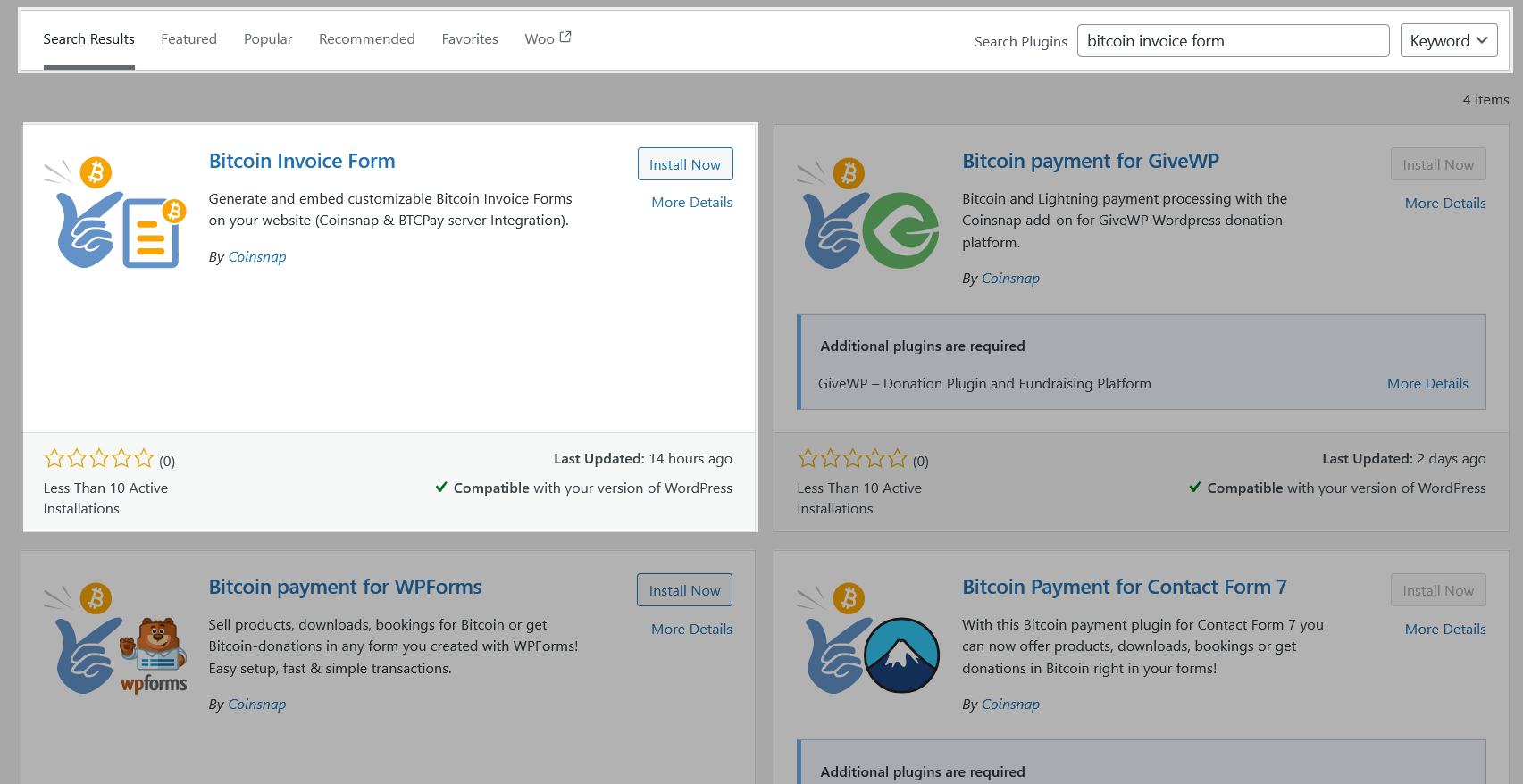
Coinsnap Bitcoin Invoice Form plugin with plugin search installation

Plugin settings for payment with Coinsnap payment gateway

Plugin settings for payment with BTCPay payment gateway
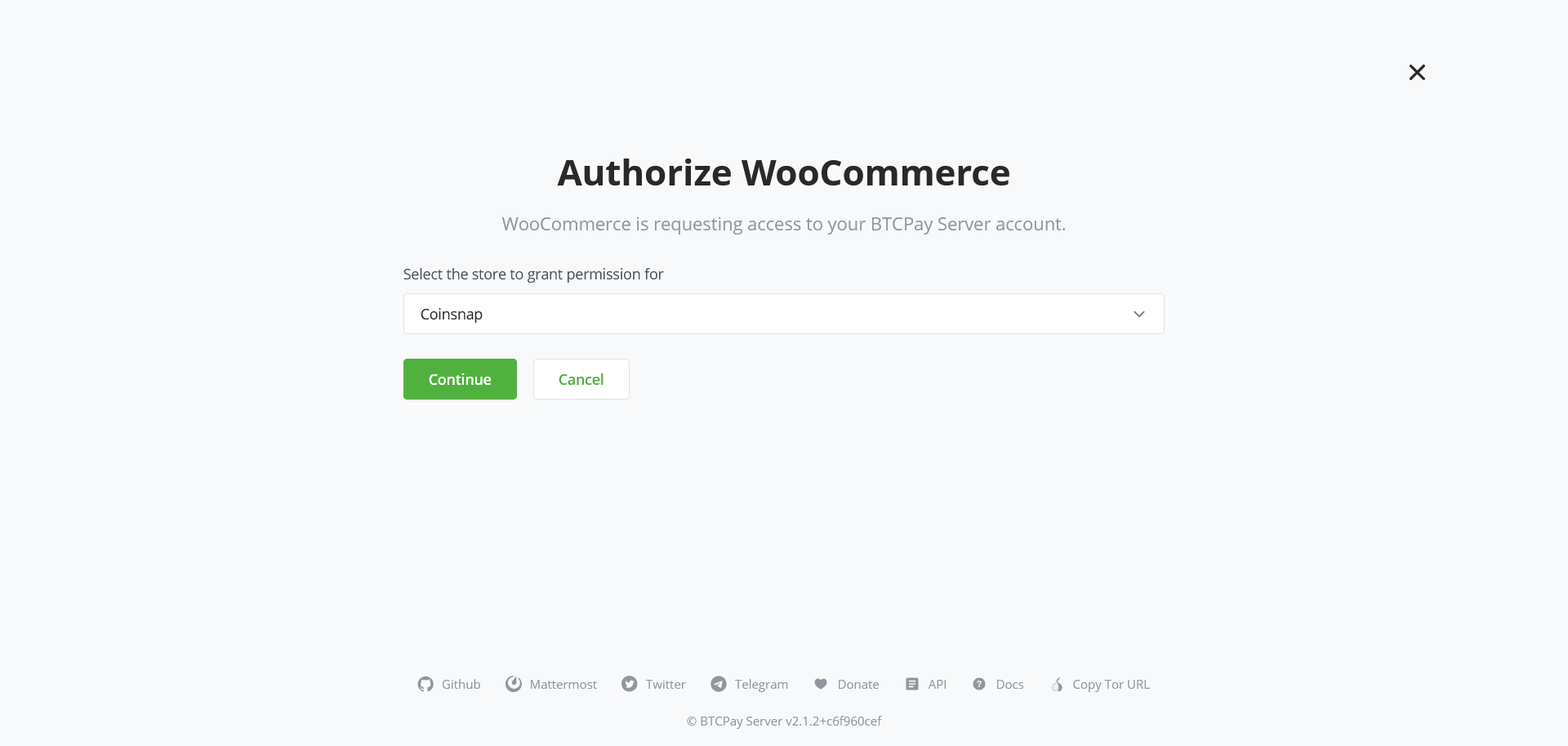
API key generation with Setup Wizard: store selection
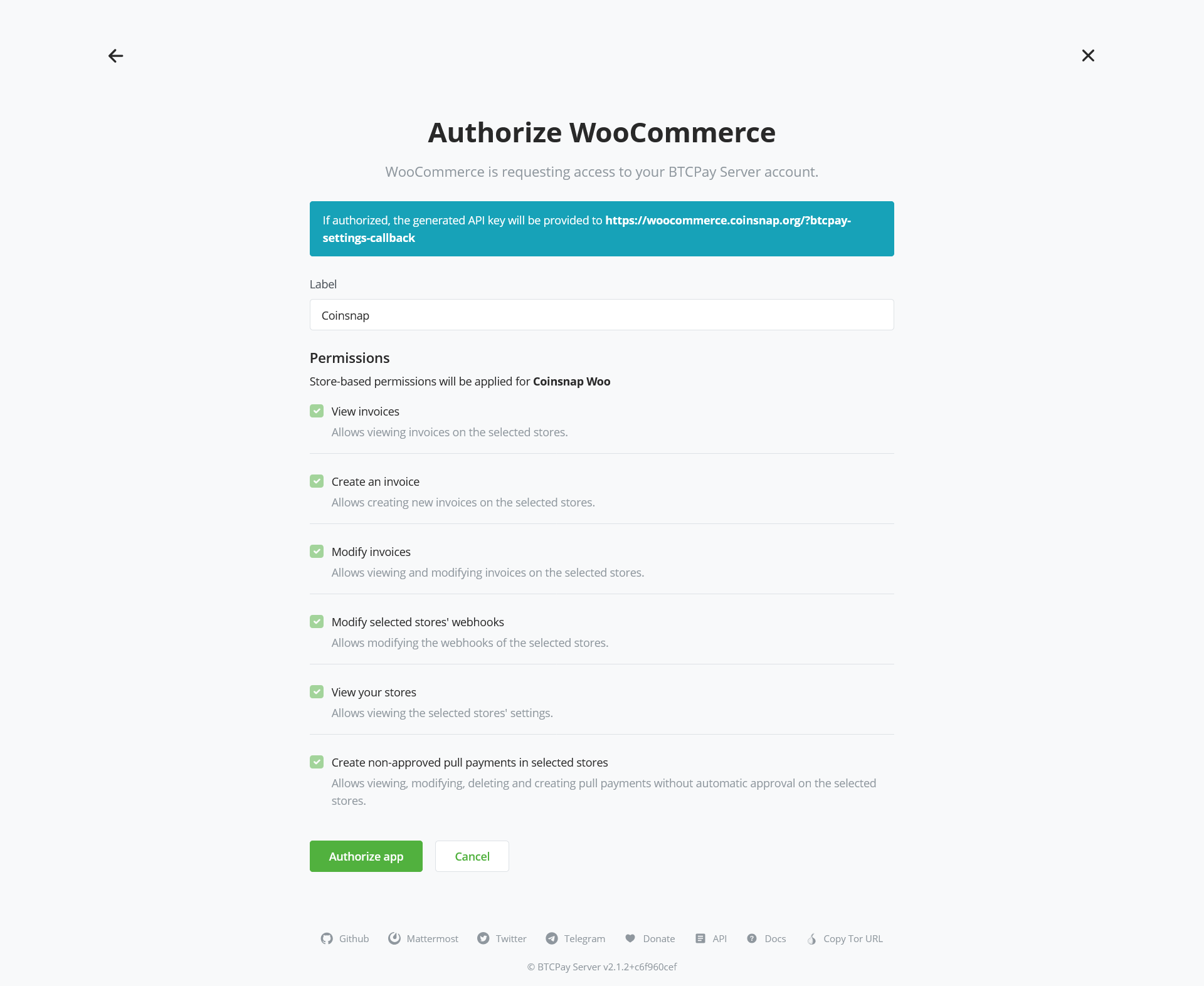
API key generation with Setup Wizard: label setting
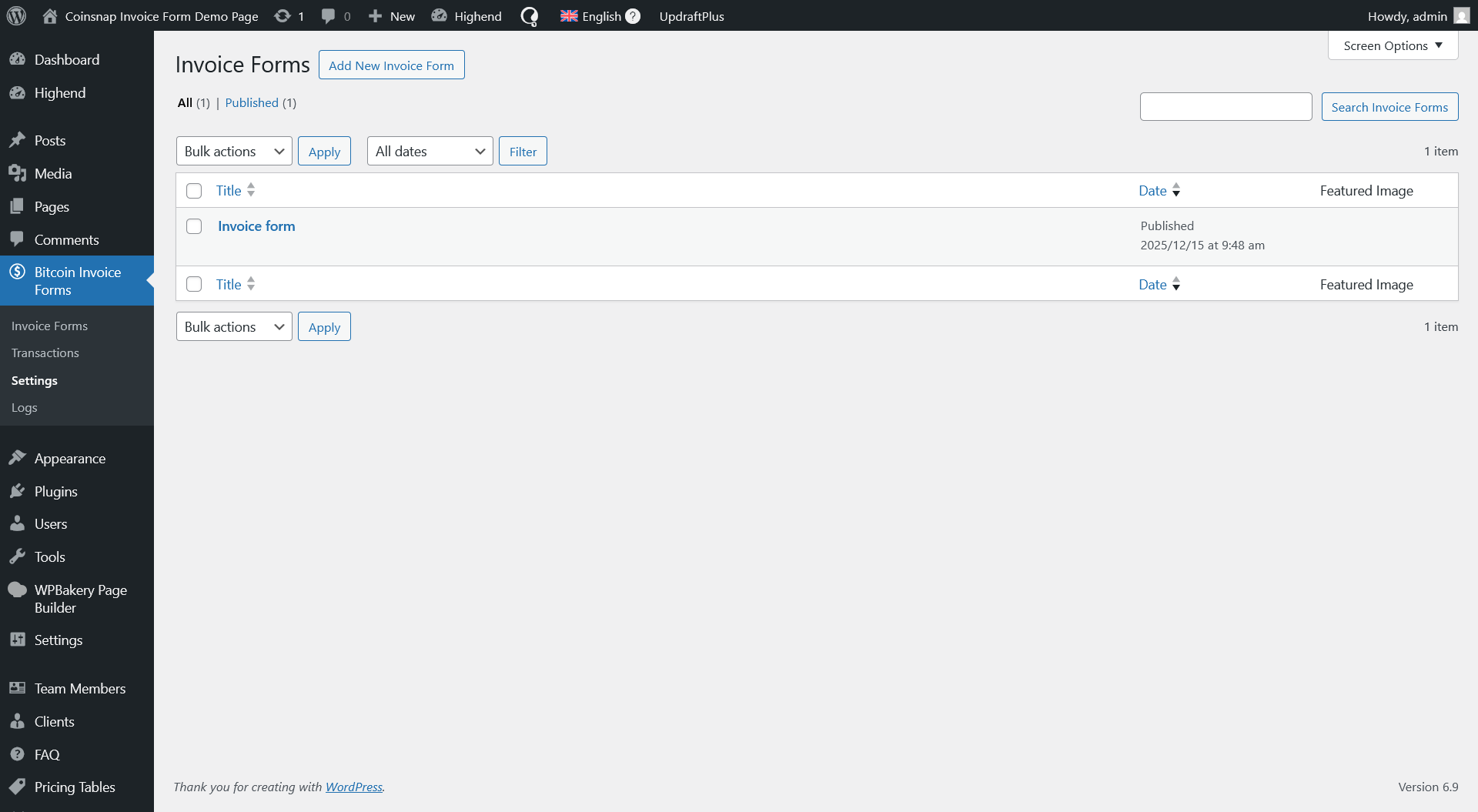
Bitcoin Invoice Forms list
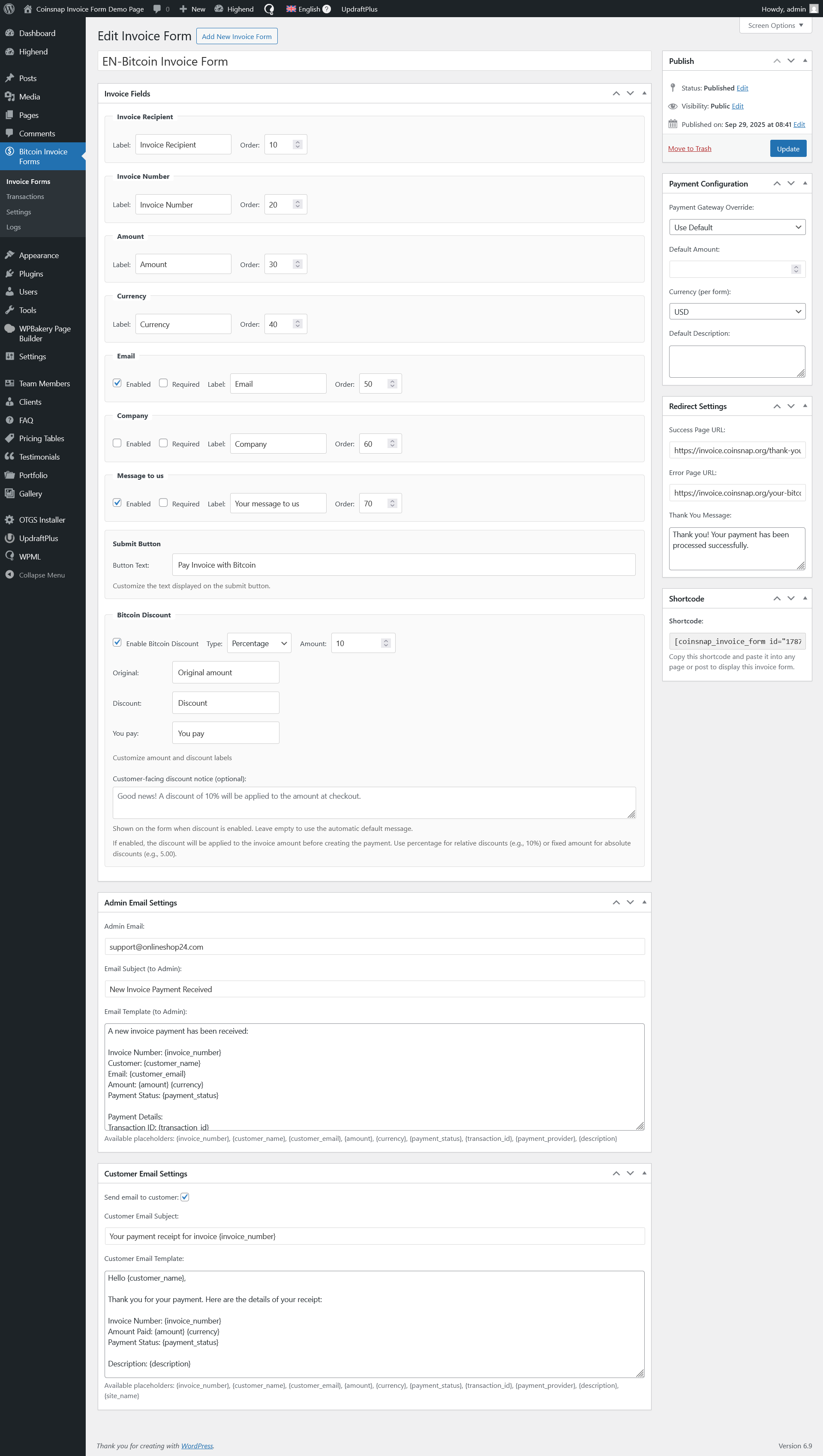
Bitcoin Invoice Forms settings form
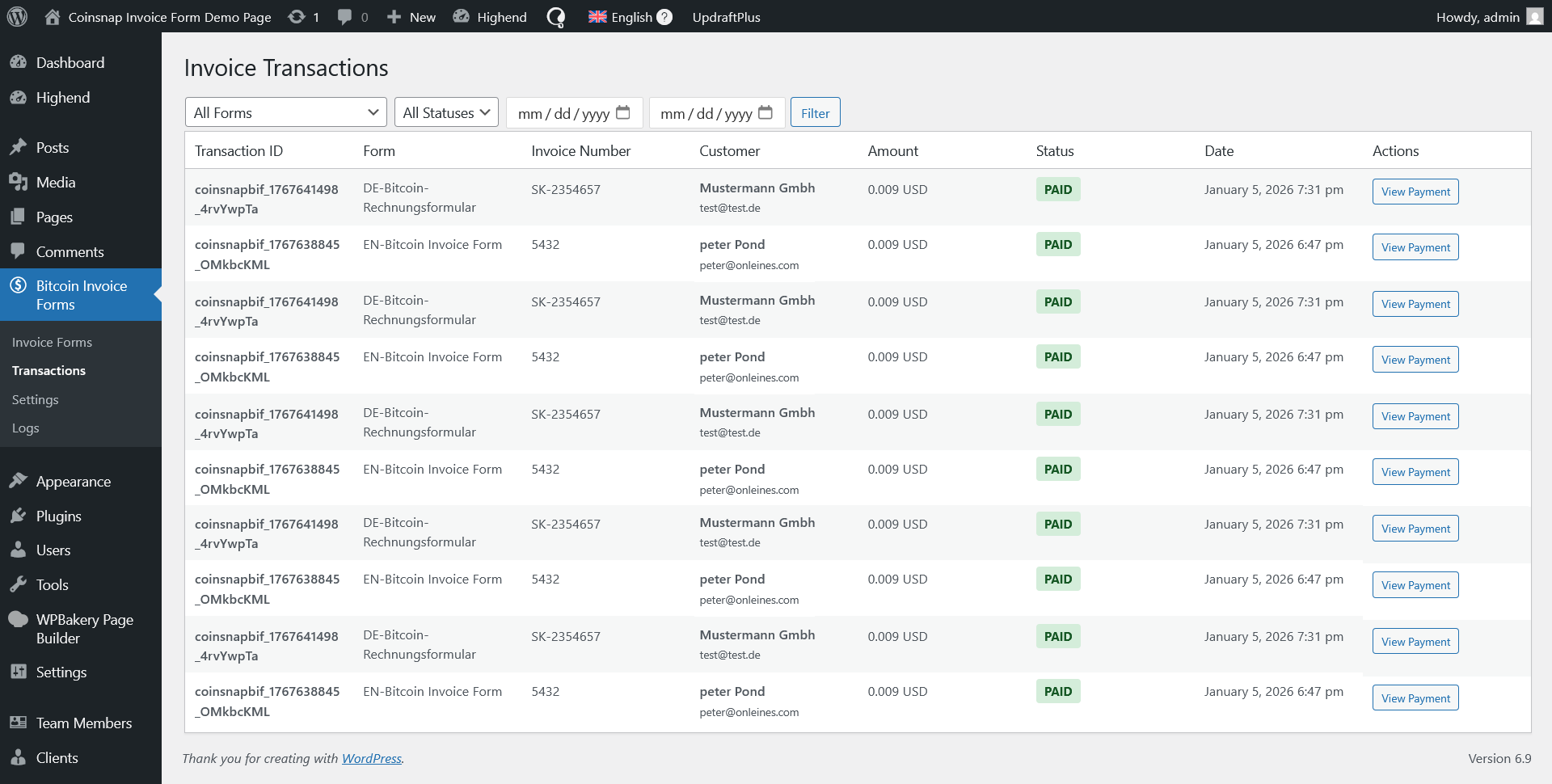
Transactions list
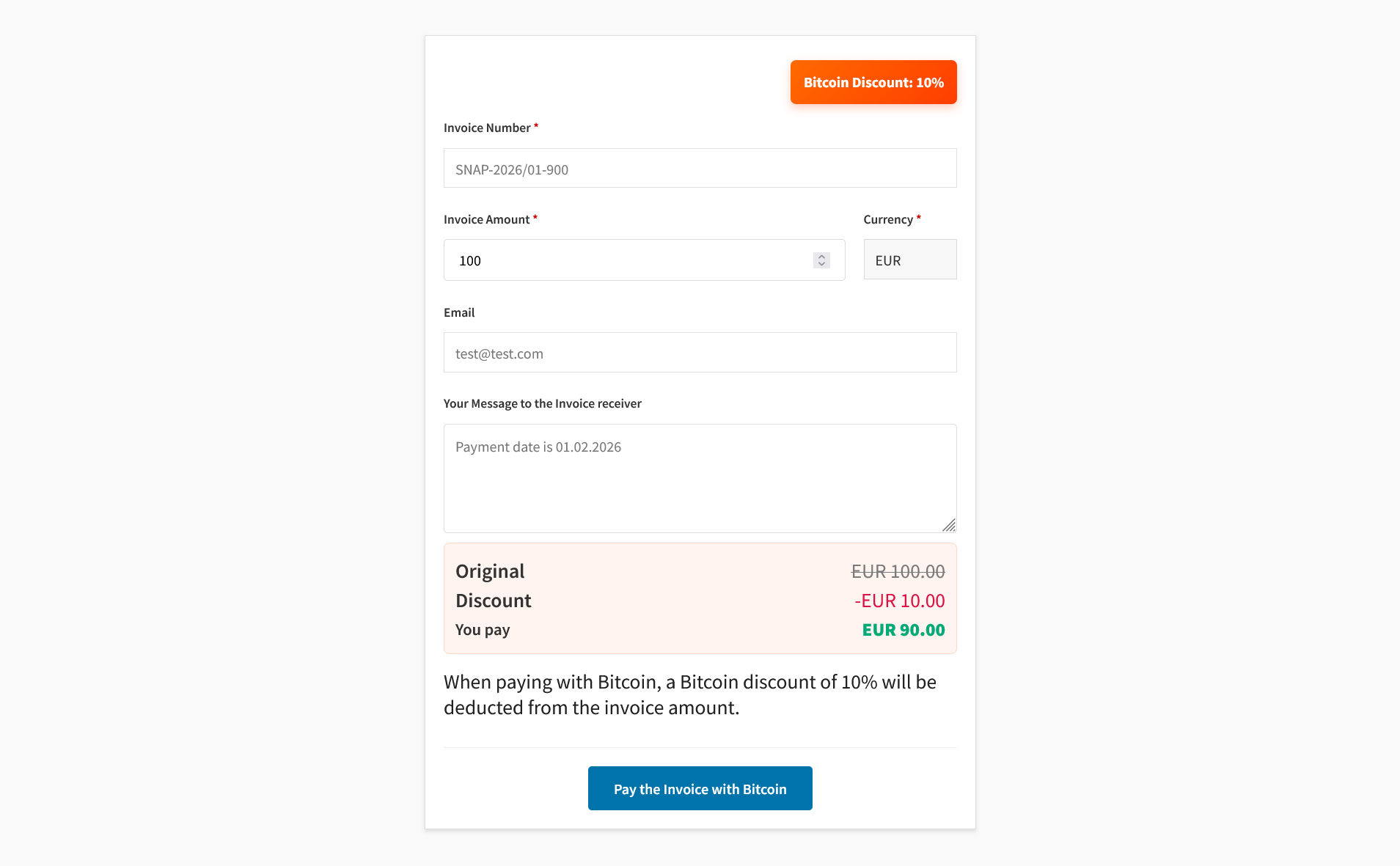
Bitcoin Invoice Forms
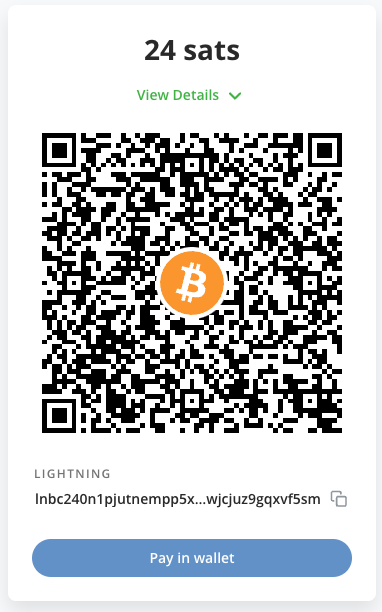
QR code

Registration in Coinsnap
Email address confirmation
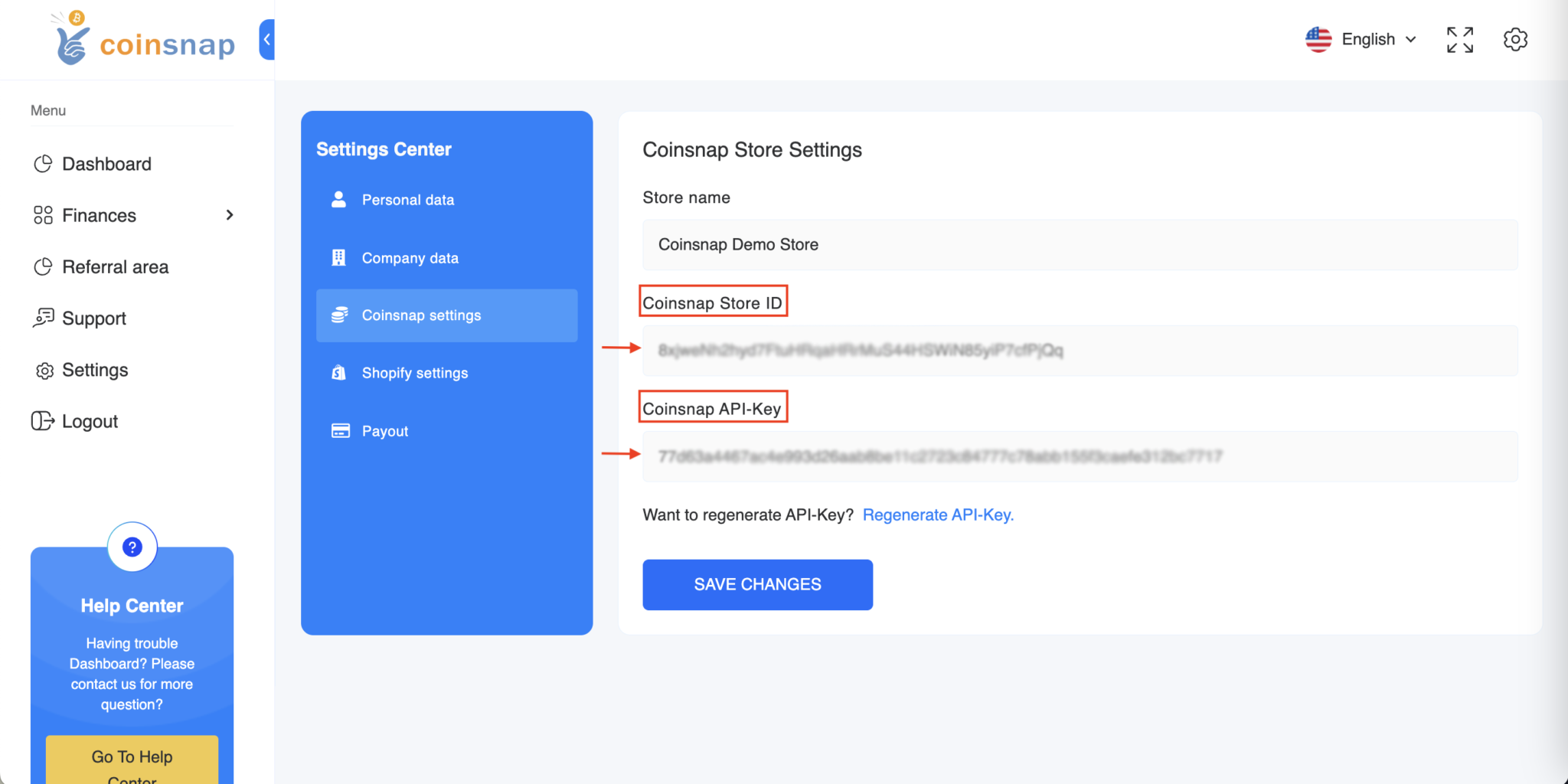
Setting up website at Coinsnap
Faq
Plugin’s page on Coinsnap website: https://coinsnap.io/coinsnap-bitcoin-invoice-form-plugin/
Reviews
Changelog
1.0.0 :: 2026-01-14
- Plugin is published in WordPress plugin directory.
1.0.1 :: 2026-01-23
- Update: added all the currencies supported by Coinsnap.
- Updated plugin URI.
- Updated default field labels for invoice form.
1.0.2 :: 2026-02-09
- Update: added Coinsnap and BTCPay server connection check in admin.
- Update: added webhook check and registration functionality.
- Fixed: payment provider override functionality for a specific form.
1.0.3 :: 2026-02-10
- Update: added Coinsnap and BTCPay server AJAX connection check in admin.
- Update: added webhook AJAX check and registration functionality.
1.0.3.1 :: 2026-02-10
- Fixed: form_id var in main class file
1.0.3.2 :: 2026-02-11
- Updated Coinsnap and BTCPay server errors handler
1.1.0 :: 2026-03-01
- Update: added BTCPay server connection wizard on Settings page
- Update: deleted setting Disable Webhook Verification