Connect CF7 to HubSpot – Contact Form 7 CRM Integration

Connect CF7 to HubSpot – Contact Form 7 CRM Integration
Description
Sends each Contact Form 7 submission to HubSpot. Your forms stay as they are.
One form can create several linked records. A quote request, for example, can create a contact, their company and a deal in the pipeline and stage you choose. A support form can open a ticket. You can also send a form to an existing HubSpot form, so HubSpot workflows and page tracking treat it like a HubSpot form.
Setup
- Create a HubSpot service key with the scopes from the FAQ and paste it into CF7 to HubSpot Settings.
- Open CF7 to HubSpot Forms and pick a form.
- Add the HubSpot objects, map the fields, turn Sync on.
Features
- Contact, Company, Deal and Ticket from one form, each with its own mapping, associated with each other.
- HubSpot form target, with the HubSpot tracking cookie and the page URL.
- Update the contact with the same email, or always create a new one.
- Deal pipeline and stage.
- Uploaded files attached to the records.
- Custom HubSpot properties.
- Consent check: a submission from an unsubscribed email is not sent.
- Logs with what HubSpot answered and which properties it rejected. Personal data is masked.
- Error emails. Repeats of the same error within an hour come as one summary.
- Optional background sending: the visitor does not wait for HubSpot, failed jobs are retried up to three times. Uses Action Scheduler when available, WordPress cron otherwise.
- UTM parameters and click ids (gclid, fbclid) to the properties you map them to.
- Optional HubSpot custom events: form submitted, synced, failed.
- Developer hooks, see the FAQ.
External services
This plugin sends Contact Form 7 submissions to HubSpot, a third-party service, when a form is submitted and synced. It sends the values of the mapped form fields, uploaded files that are mapped, and, when enabled, attribution values; for HubSpot form targets it also sends the visitor’s IP address, the HubSpot tracking cookie and the page the form was sent from. In the admin it reads your HubSpot properties, forms, pipelines and subscription types to fill the mapping screens.
The plugin sends requests to:
- https://api.hubapi.com
- https://api.hsforms.com
HubSpot Terms of Service: https://legal.hubspot.com/terms-of-service
HubSpot Privacy Policy: https://legal.hubspot.com/privacy-policy
Privacy
Attribution cookies are off by default. When you turn on “Attribution cookies” in the plugin settings, the site stores the campaign parameters (utm_source, utm_medium, utm_campaign, utm_term, utm_content) and ad click ids (gclid, fbclid) of the visitor’s landing page in first-party cookies named cf7hs_* for up to 30 days (some browsers shorten this). When a consent plugin supports the WP Consent API, the cookies are set only after marketing consent. The values are sent to HubSpot with a contact form the visitor submits. Marketing cookies may need visitor consent where the law requires it.
Installation
- Install and activate Contact Form 7 if your site does not have it yet.
- In WordPress go to Plugins Add New Plugin, search for “Connect CF7 to HubSpot”, then click Install Now and Activate.
- Go to CF7 to HubSpot Settings, paste your HubSpot service key (see the FAQ for how to create one) and click Connect.
- Go to CF7 to HubSpot Forms, open a form, add the HubSpot objects it should create, map the fields and turn Sync on.
WordPress Multisite: do not network-activate. Activate the plugin on each site that needs it; each site connects its own HubSpot account.
Screenshots
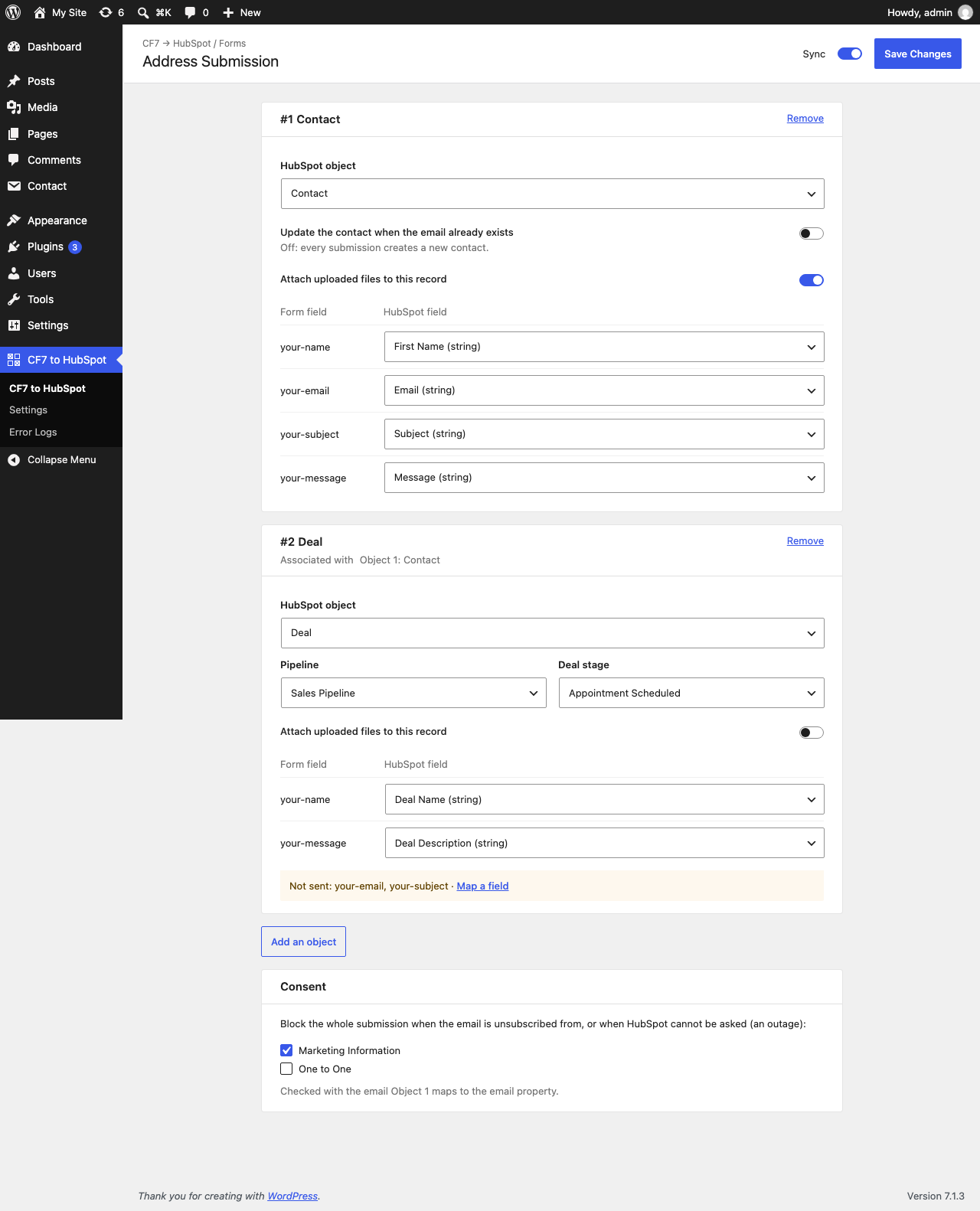
The mapping screen of a form: one card per HubSpot object ("#1 Contact", "#2 Deal"), each with its own field mapping, the association with the object above it, and the Sync switch with Save Changes at the top.
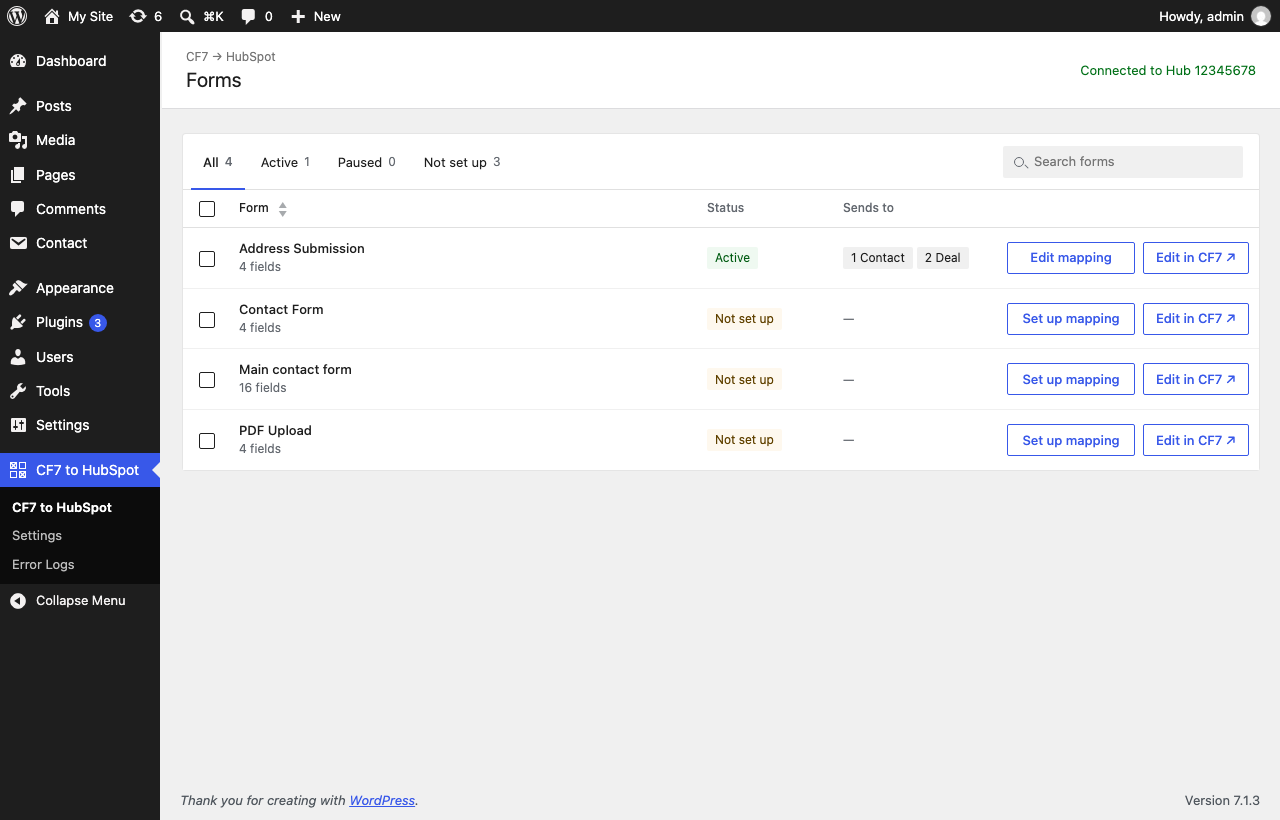
The forms list: every Contact Form 7 form with its sync status (Active, Paused, Not set up), the HubSpot objects it sends to, status tabs, search, and a button to set up or edit its mapping.
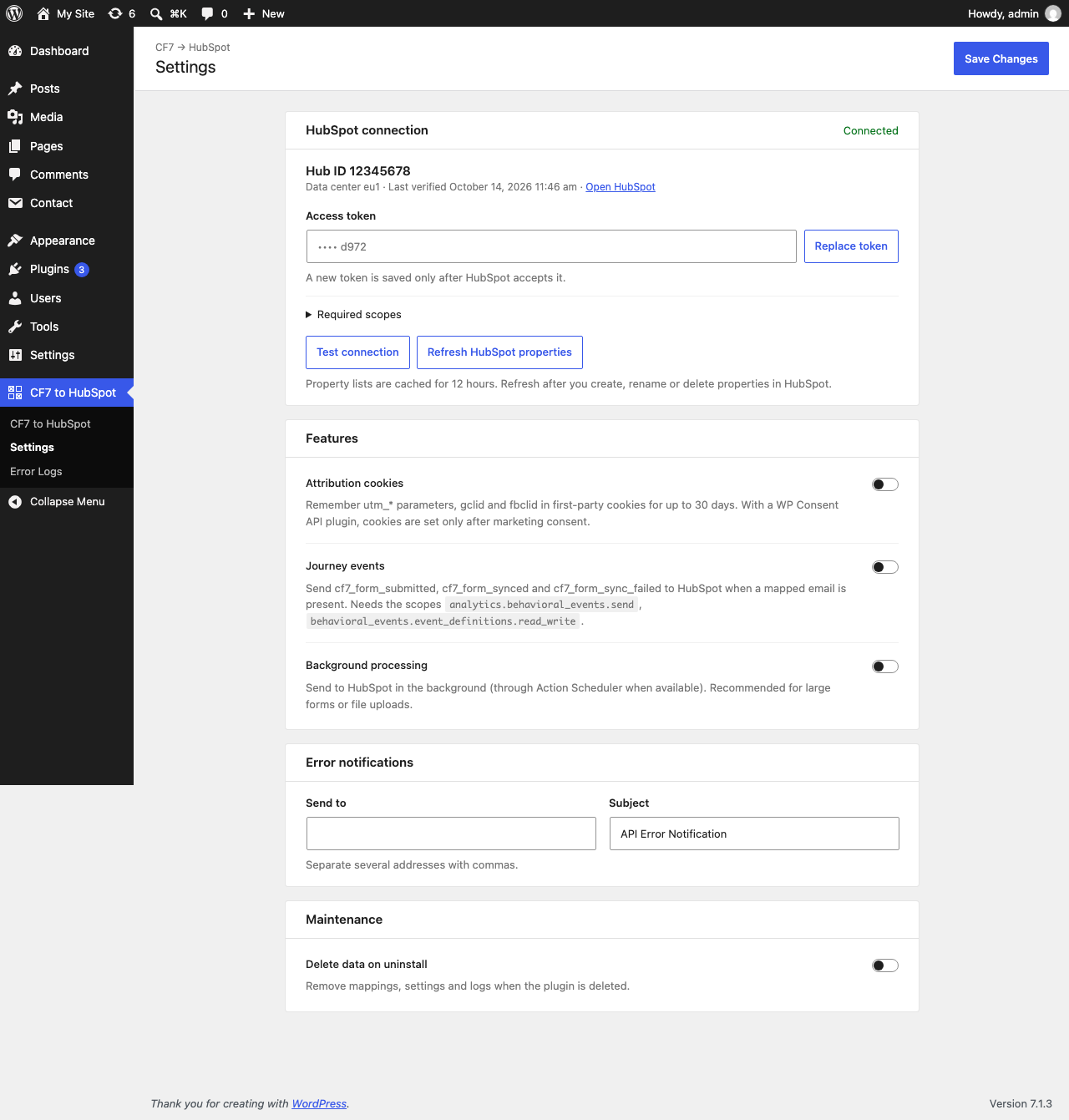
The Settings screen: connect HubSpot with an access token, choose background processing, attribution and journey events, and where error emails go.
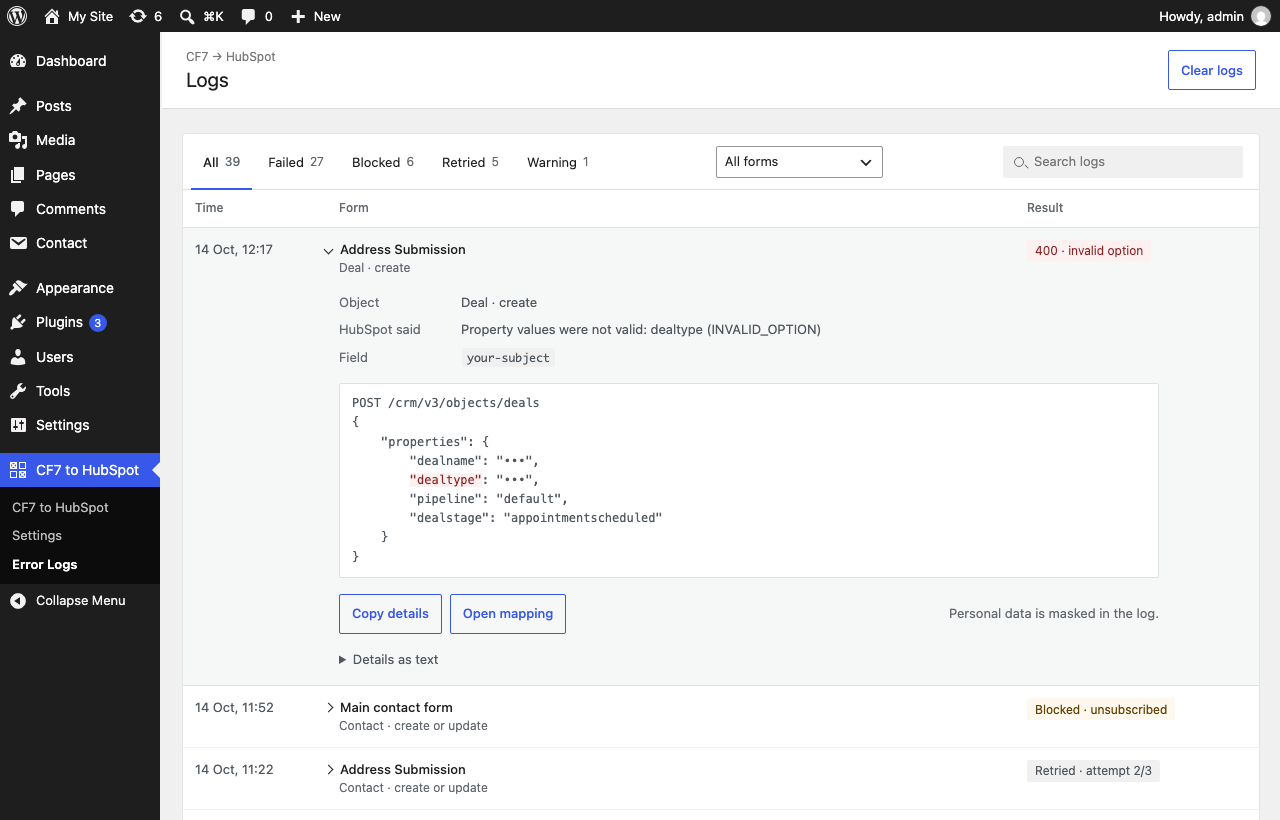
The Logs screen: failed, blocked and retried submissions with search, result tabs and a form filter; an entry opens under its row with the masked request and the properties HubSpot rejected.
Faq
HubSpot no longer lets you create new private apps (since 28 September 2026 for new accounts, and 26 October 2026 for existing ones). Use a service key instead; a token from an existing private app keeps working.
- Log in to HubSpot as a super admin and create a service key: https://developers.hubspot.com/docs/apps/developer-platform/build-apps/authentication/account-service-keys
- Give it these scopes: crm.objects.contacts.read and .write, crm.objects.companies.read and .write, crm.objects.deals.read and .write, crm.objects.tickets.read and .write, crm.schemas.contacts.read, crm.schemas.companies.read, crm.schemas.deals.read, forms, files.write and communication_preferences.read. (A private app token with the older
ticketsandfilesscopes keeps working.) - If you use journey (custom behavioral) events (cf7_form_submitted, cf7_form_synced, cf7_form_sync_failed), also add analytics.behavioral_events.send and behavioral_events.event_definitions.read_write, create matching custom event definitions in HubSpot, and enable Journey events in the plugin settings.
- Paste the key into CF7 to HubSpot Settings Access token and click Connect. The token is saved only after HubSpot accepts it.
Contacts, companies, deals, tickets and HubSpot forms use HubSpot’s standard CRM and Forms APIs. Journey events use HubSpot custom events, which are not part of every HubSpot plan; leave them off if your plan does not have them.
Yes. On the form’s mapping screen click “Add an object” and pick a Company, Deal or Ticket (or another Contact). Each object has its own field mapping and can be associated with an object above it.
A Contact object has a switch: update the contact with the same email, or always create a new one.
Yes. Add a Deal object to the form’s mapping and choose its pipeline and deal stage.
Reviews
Simple, great, no dumb limits
By 
I just wanted to integrate my simple CF7 form with my simple HubSpot. Is that too much to ask? But it is way too complicated to wrestle with the HS API. So this plugin is a lifesaver. Other WP HS plugins force a BOATLOAD of other, unrelated code on you. And worse, they come with frustrating limits, like not allowing the user of "custom fields". This plugin is simple, but fully powerful - and it gets the job done.
Also, to their credit, I found a small, cosmetic bug in the code, notified the devs, and they fixed it immediately.
Thank you Alex Khryplyvyi @ProCoders
Easy to install and works great!
By 
Data is porting over seamlessly, and their team is very responsive, which helped debug an issue in a matter of minutes.
Uncomplicated, and it works well!
By 
I love the simplicity of this plugin. Following the instructions for the integration was straightforward and with a few tweaks on the HubSpot Contacts table columns, I am able to see the captured form fields.
Changelog
1.4.2
- Readme rewritten: shorter description, setup steps, installation from the Plugins screen, and new FAQ answers (free HubSpot CRM, duplicate contacts, UTM and hidden fields, HubSpot form or objects). The plugin code is unchanged.
- Changelog entries before 1.4.0 moved to changelog.txt.
1.4.1
- Developer hooks:
cf7hs_object_payloadfilters the HubSpot properties of each object before it is written (contacts, companies, deals, tickets and HubSpot forms),cf7hs_object_syncedandcf7hs_object_sync_failedfire after each object, andcf7hs_submission_completedfires once per submission with its final outcome. They behave the same with and without asynchronous submissions. cf7hs_is_form( $form_id, $id_or_hash )matches a form by post id or by the hash in its shortcode.- A callback that throws an error is logged as a warning instead of breaking the submission or causing an asynchronous retry.
- Settings and the FAQ list the exact scopes a HubSpot service key needs: read and write for contacts, companies, deals and tickets, schema reads for contacts, companies and deals, forms, files.write and communication_preferences.read. A private app token with the older scopes keeps working.
- A deal’s pipeline and stage are never sent with any other HubSpot object, even if a form’s settings were saved outside the mapping screen.
- Fixed: a field mapped to “Attachments” was also sent to HubSpot as a property named
attachment_field. On a portal without such a property HubSpot rejected the whole record, so the contact (or deal, company, ticket) was not created. The upload is now only attached to the record.
1.4.0
- Send one form to several HubSpot objects: Contact, Company, Deal and Ticket, each with its own mapping and an association with an object above it. A HubSpot form target stays a single object.
- Contacts: one switch chooses between updating the contact whose email already exists and always creating a new one.
- Uploaded files are attached only to the objects whose mapping includes them, in sync and async mode.
- Consent is checked on the CRM path too: a CRM form can choose the subscription types it enforces, and a submission is blocked when the email is unsubscribed or HubSpot cannot be asked.
- Opt-in first-touch attribution cookies that wait for marketing consent through the WP Consent API.
- The access token is saved only after HubSpot accepts it.
- Logs move from debug.log to a database table with personal data masked, kept for 30 days. The Logs screen has search, result tabs, a form filter, and entries that open under their row.
- Error emails carry a masked summary and a link to the log entry; repeats of the same kind within an hour are counted and summarised instead of mailed one by one.
- Redesigned admin screens in the WordPress look: the forms list (status tabs, search, bulk pause and resume), the mapping screen and Logs, with layouts for phones.
- Uninstall (when “Delete data on uninstall” is on) also removes the log table and the email throttle data.
- Requires WordPress 5.9 or later (PHP 8.0 was already required).
Older releases: see changelog.txt in the plugin folder.