WPSyncSheets For Contact Form 7 – CF7 Google Sheets Connector & Save to Database
WPSyncSheets For Contact Form 7 – CF7 Google Sheets Connector & Save to Database
Description
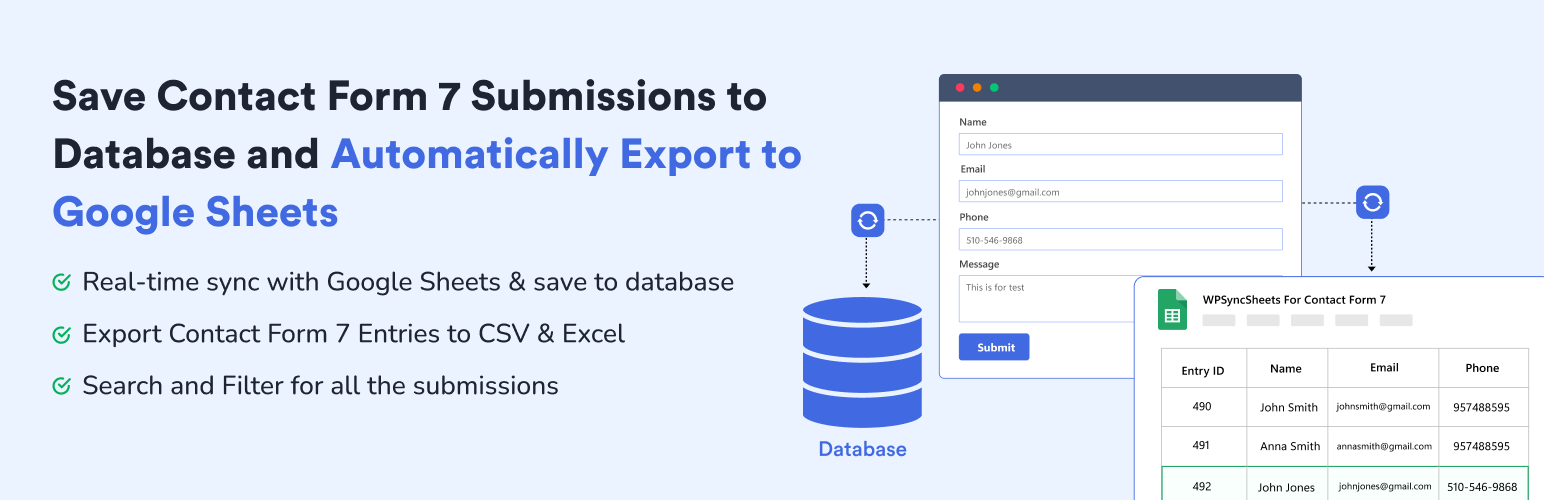
WPSyncSheets For Contact Form 7 automatically exports and syncs your Contact Form 7(CF7) submissions to a single Google Sheet while securely saving every entry in your WordPress database. Contact Form 7 Google Sheets Connector helps you to get real-time Google Sheets integration with built-in database storage to prevent data loss. Manage all your Contact Form 7 database(CFDB7) entries in one place with powerful, reliable, and easy-to-use features.
If you are looking for Google Sheets and Database Addon for Contact Form 7 this addon is the best choice. It lets you save and manage form submissions directly in your WordPress database and sync Contact Form 7 entries to Google Sheets.
Demo | Sample Sheets | Docs | Support | Pro
WPSyncSheets For Contact Form 7 Features
-
Contact Form 7 to Google Sheets Integration
Connect Contact Form 7 with Google Sheets and save form entries to database in real time. CF7 Google Sheets Connector is also create a new sheet or select an existing one, add new tabs automatically, and map which form fields to save. WPSyncSheets For Contact Form 7 acts as a secure connector and can store data like name, email, IP address, page URL, and submission date. Data is synced instantly using secure Google authentication, and no Google account or Drive data is stored by the plugin author. -
Save Form Submissions in Database
Database Addon for Contact Form 7 lets you save Contact Form 7 submissions to your WordPress database. It also stores all the form entries in a single optimized database table and Google Sheets. It has ability to displays the entry count for each form with search and filter options. Each contact form 7 submission has its own entry detail page to add notes, show submission date, shop page url and many more. -
Export Contact Form 7 Entries to Google Sheets, CSV & Excel
CF7 Google Sheet Connector is the bridge between WordPress plugin Contact Form 7 and Google Sheets. It can help you to export all your form submissions to Excel and CSV which has already stored within the WordPress database. WPSyncSheets For Contact Form 7 plugin has also ability to export entries with date filter (Today, Last 7 Days, This Month, Custom Range) option and form wise cf7 entries export. -
Modern & Elegant Dashboard for Easy CF7 Entry Management
WPSyncSheets For Contact Form 7 includes a clean dashboard inside WordPress admin that shows all Contact Form 7 forms and their connection status with Google Sheets or Save to Database. You can manage all integrations from CF7 Google Sheets or Database.
Upgrade to Pro Features
✅ Edit Sheet Headers – Rename spreadsheet columns from plugin settings
✅ Sort Sheet Headers – Reorder columns to match your desired field layout
✅ Payment Status Control – Sync entries only after PayPal or Stripe payment is successful
✅ Save File Uploads – Store uploaded files and add clickable links in the spreadsheet
You can check out the user guide to easily setup the plugin or watch the below video on How to Export Contact Form 7 Entries
Related Import-Export Google Sheets Plugins
WPSyncSheets connects WordPress and WooCommerce platforms with Google Sheets. Our mission is to help businesses automate data transfer, simplify operations, and reduce repetitive tasks through real-time, two-way data synchronization.
🔸 WPSyncSheets For WooCommerce: Import Export WooCommerce Orders, Products, Customers & Coupons.
🔸 WPSyncSheets For Gravity Forms: Send Gravity Forms submissions to Google Sheets in real-time.
🔸 WPSyncSheets For Core: Import, Export & Bulk Edit WordPress Posts and Pages via Google Sheets.
🔸 WPSyncSheets For Elementor: Map & Sync Elementor Form Entries to Google Sheets in Real Time.
🔸 WPSyncSheets For Document Library Pro: Sync Document Library Pro documents with Google Sheets.
🔸 WPSyncSheets For WPForms: Map & Sync WPForms Entries to Google Sheets.
🔸 WPSyncSheets For Ninja Forms: Automatically Sync Ninja Form Entries to Google Sheets.
🔸 WPSyncSheets For Fluent Forms: Sync Fluent Form Entries to Google Sheets in Real Time.
🔸 WPSyncSheets For Formidable Forms: Automatically Map and Sync Formidable Form Entries to Google Sheets.
Installation
- Upload the entire ‘contactsheets-lite’ folder to the ‘/wp-content/plugins/’ directory.
- Activate the plugin through the Plugins screen (Plugins > Installed Plugins).
You will find WPSyncSheets For Contact Form 7 menu in your WordPress admin screen.
For basic usage, have a look at the plugin’s Documentation.
Screenshots
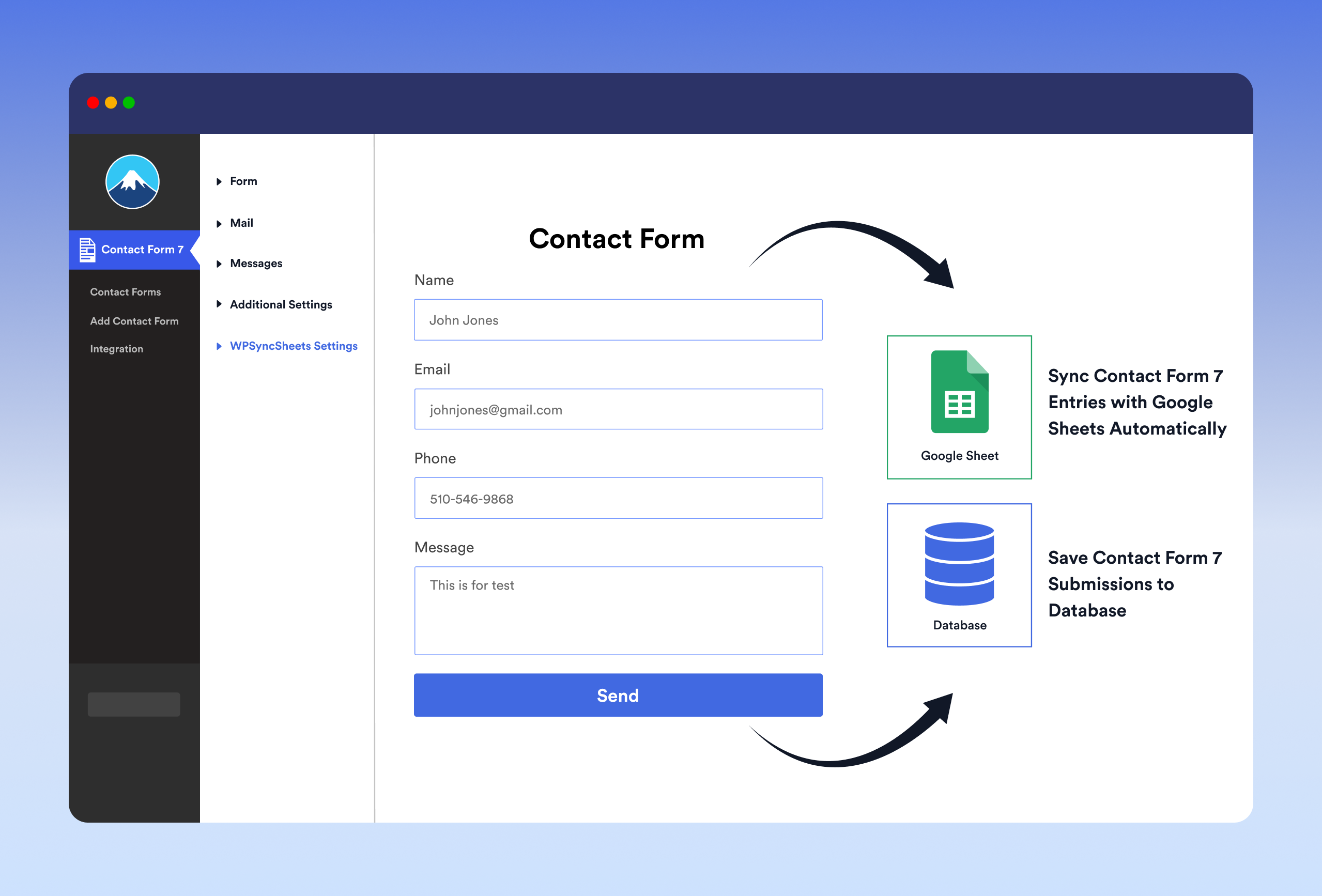
Connect Contact Form 7(CF7) to Google Sheets and save Contact Form 7 entries to database
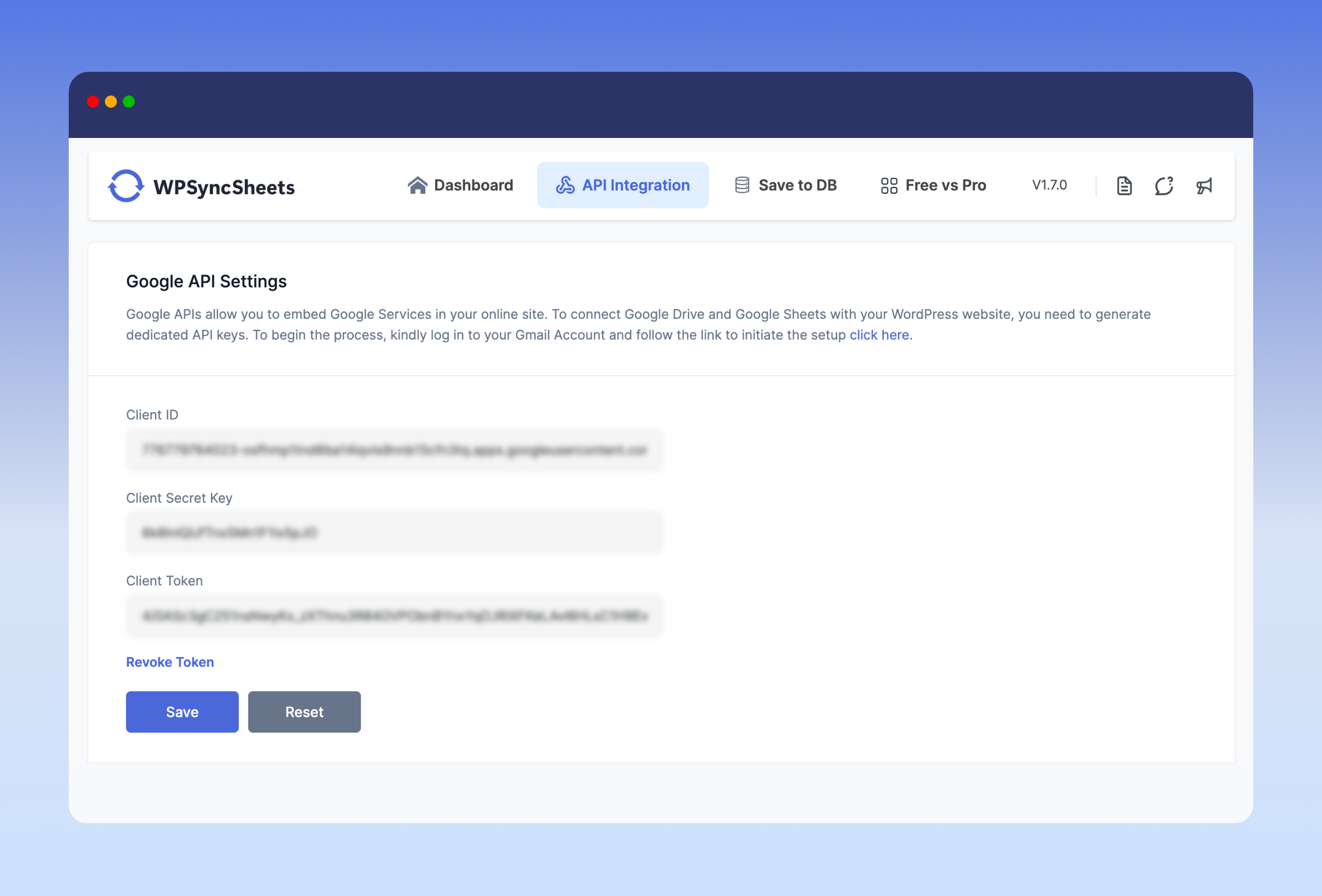
Contact Form 7(CF7) Google Sheets API settings configuration

WPSyncSheets For Contact Form 7 Settings - Contact Form 7 and Google Sheets integration
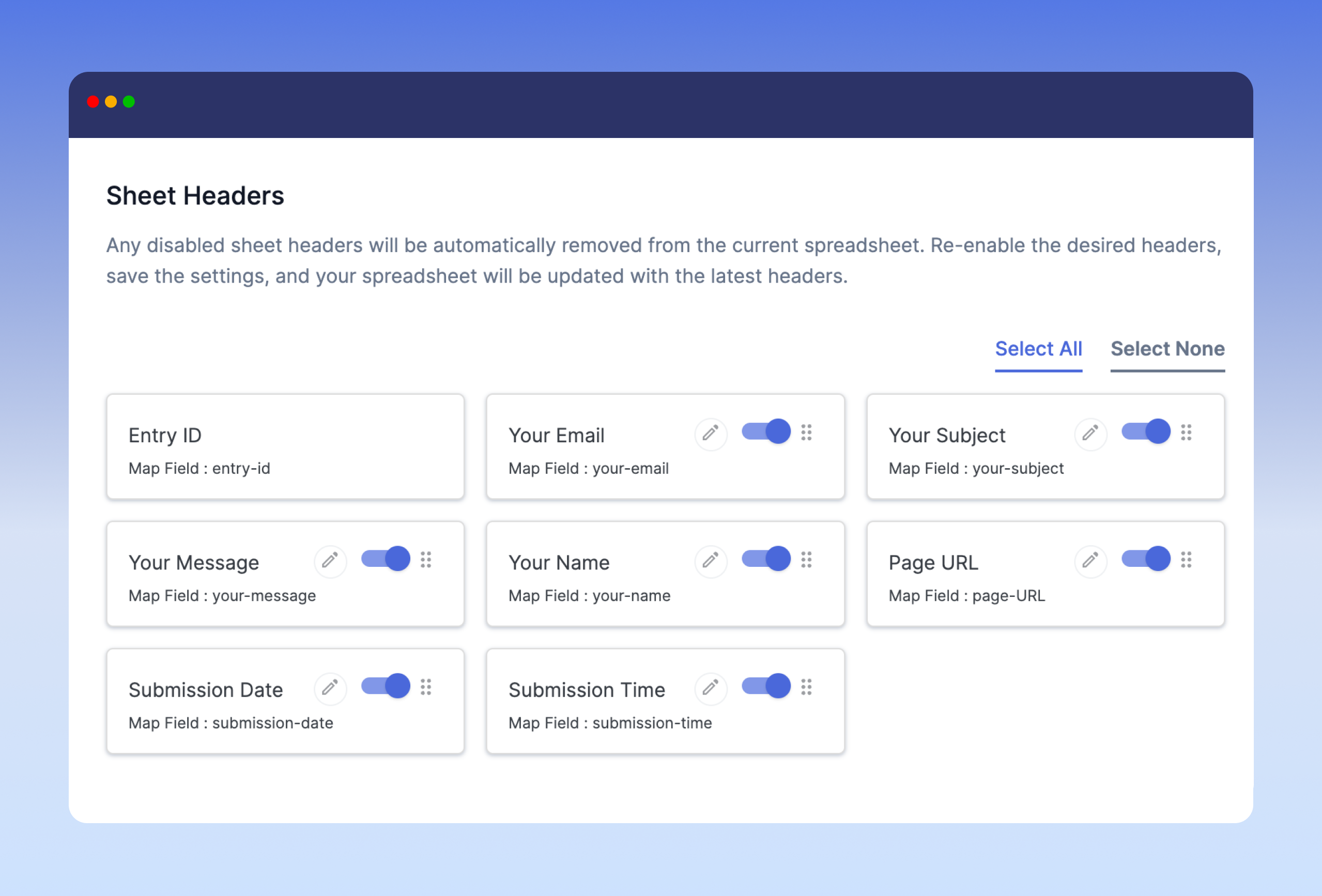
Map Contact Form 7 fields to Google Sheets columns
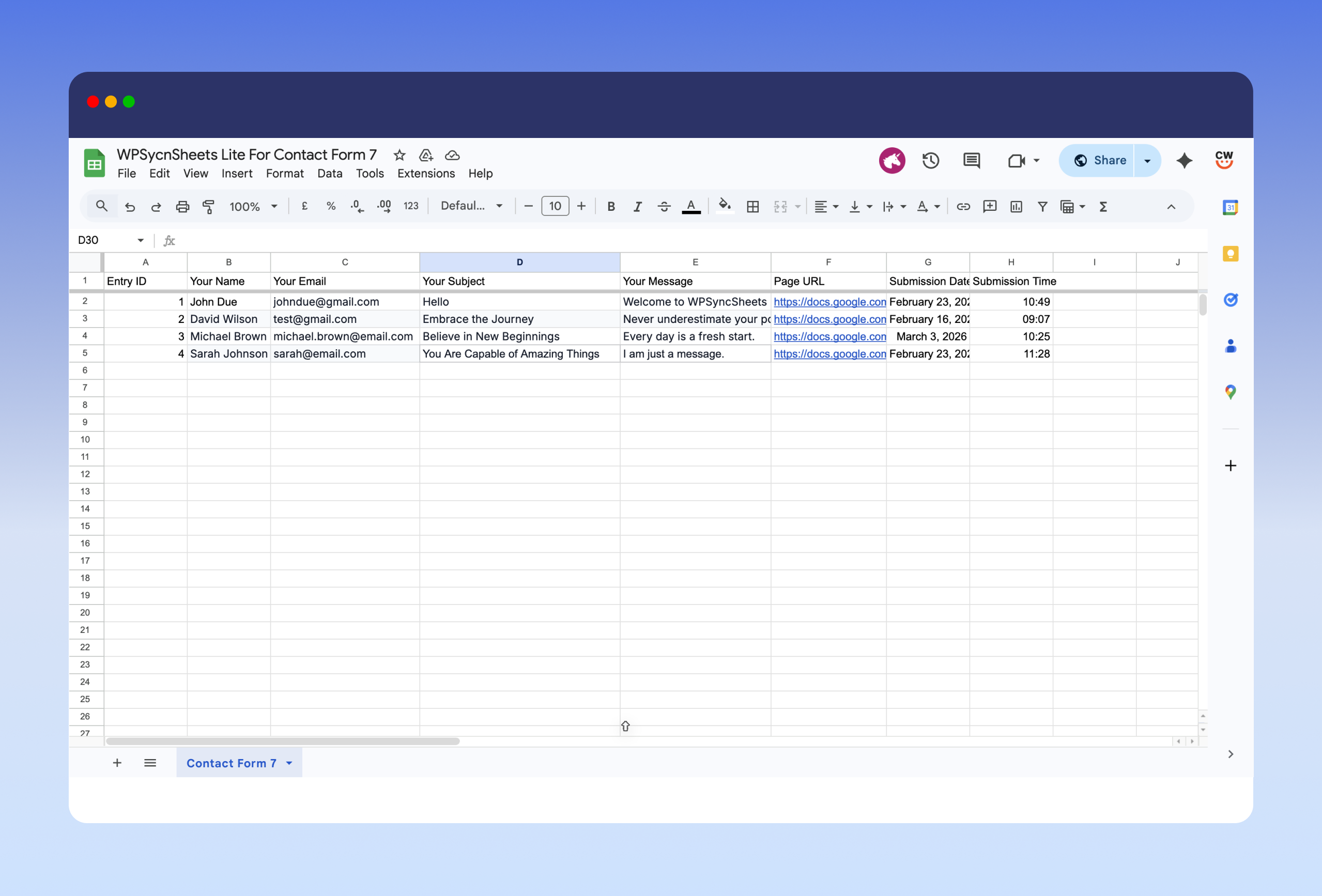
GSheetConnector for CF7 entries
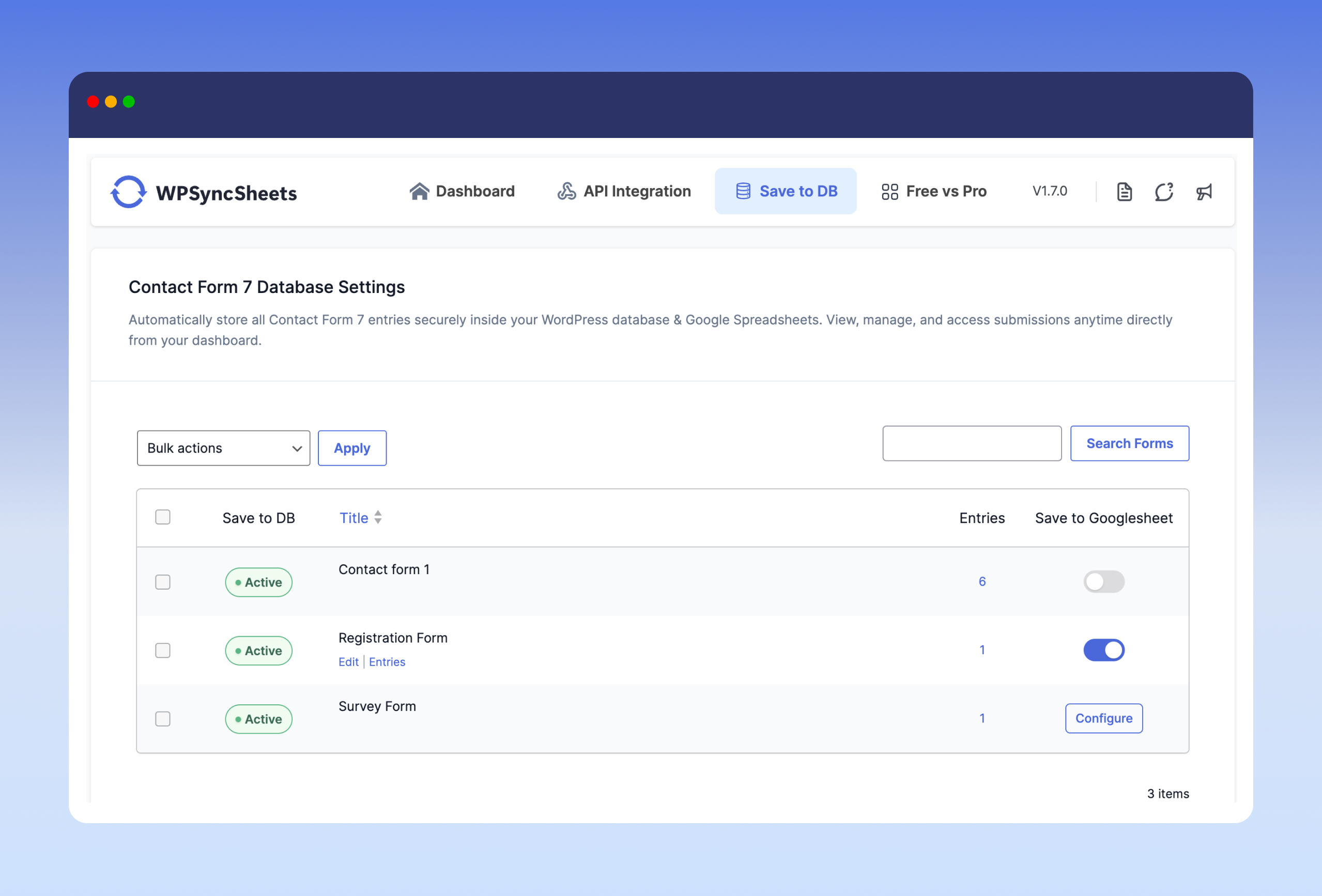
Save Contact Form 7 entries to WordPress Database
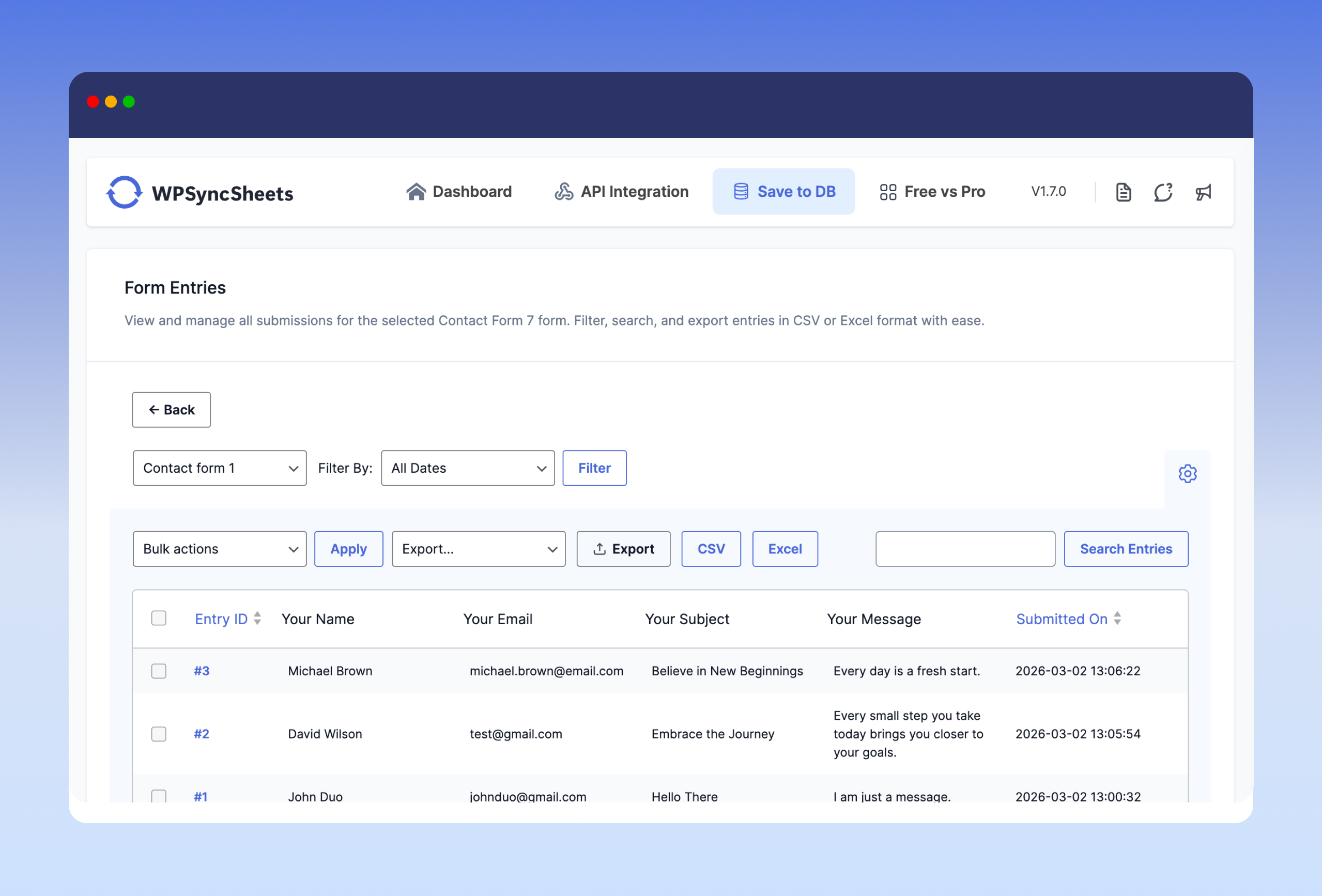
Export Contact Form 7 entries to CSV & Excel
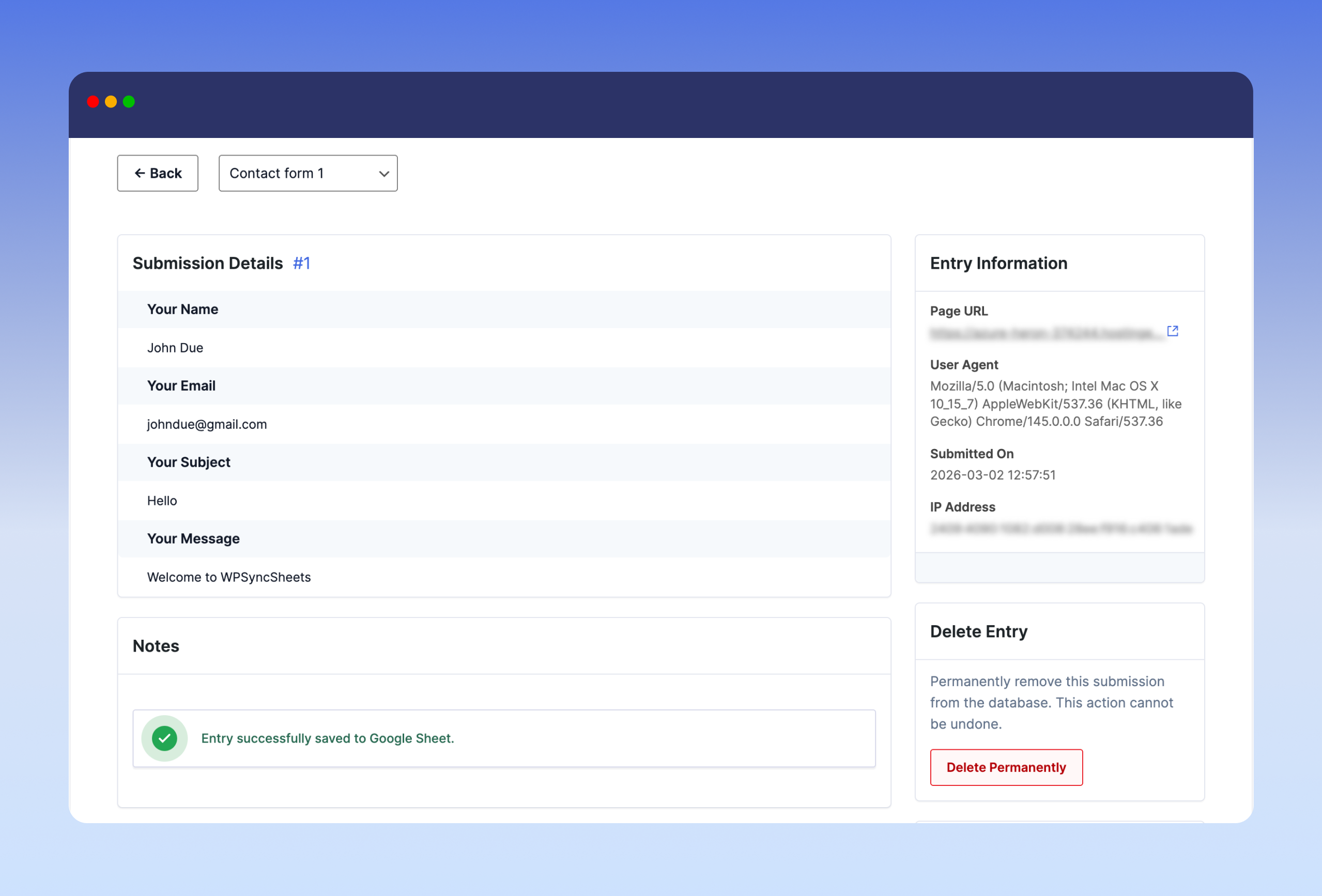
Contact Form 7 entry detail view
Faq
Yes, each form can be connected to a separate spreadsheet or sheet tab based on your settings.
Sometimes it will take some time to add data into the google spreadsheet but if data never show up then, there are following ways to resolved this error:
- Revoke token at WPSyncSheets Lite For Contact Form 7 Settings Page.
- Check the Google Sheets & Google Drive API must be Enable.
Save Contact Form 7 data to Google Sheet- Pro Version
Yes, the Pro version offers conditional syncing based on completed payment status.
You can enable the Submission Date & Time option to record when each form entry is submitted.
You can enable the Submission Date & Time option to automatically include the exact date and time with each entry in Google Sheets and the database.
Yes, the plugin automatically stores all Contact Form 7 entries securely in your WordPress database.
Yes, you can enable or disable database storage individually for each Contact Form 7 form.
All saved entries can be viewed directly from the WPSyncSheets For Contact Form 7 plugin dashboard. You can filter, search, and manage entries form-wise.
Yes, you can export entries in CSV or Excel format with search and date filtering options.
No, even if Google Sheets sync fails, your form submissions are still safely stored in your WordPress database (if database saving is enabled).
No, the plugin is user-friendly and designed for non-developers. All settings are managed via a simple interface.
Reviews
Nice support
By 
Good plugin and nice support
Thank you
Immediate and effective support
By 
The plugin support was better than I expected and resolved my issues within half an hour by updating the patched plugin.
Very Good Plugin with Excellent Features.
By 
Auto Sync is Feature is Very good in this. And Tech Support Person "Arpit G Shah" responded quickly and provided solution to me where I was blocked.
Very Good!
By 
Very Good Service , Arpit ji replied me within few minutes and supported me
Great
By 
Worst Plugin ever..!!!!
By 
Excellent and Super useful to connect my Contact Form 7 to google sheets! 🙂
By 
Great Plugin - Very useful
By 
Changelog
= 1.7.4 – Thursday, 16th July 2026
* Improved: Code optimizations.
1.7.3 – Tuesday, 23rd June 2026
- Fix: Hidden field type (CF7 [hidden] tag) is now detected and listed in the Sheet header mapping panel.
1.7.2 – Saturday, 30th May 2026
- Tested with WordPress 7.0.
1.7.1 – Tuesday, 18th March 2026
- Changed: Updated plugin text domain from wpssc to contactsheets-lite to match the plugin slug.
- Changed: Regenerated translation template (.pot) file.
1.7.0
- New: Added an option to enable or disable saving Contact Form 7 submissions to the WordPress database.
- New: Added a dedicated “Save to DB” tab in the admin panel.
- New: Introduced a separate form listing for forms with database storage enabled.
- New: Added a dedicated entries page to view submissions stored in the database.
- Improvement: Enhanced data reliability with optional dual storage (Google Sheets and Database).
1.6.9.7
- Fixed missing icons on the Form Settings page
- Introduced refreshed settings UI/UX with an improved configuration flow
- Code optimizations and performance improvements
1.6.9.6
- Optimized code
1.6.9.5
- Tested with Contact Form 6.1.4
- Tested with WordPress 6.9
1.6.9.4
- Add “Leave a Review” Functionality
1.6.9.3
- Fix: Resolved missing newly added headers in the settings panel.
1.6.9.2
- Optimized code
1.6.9.1
- Tested with Contact Form 7 6.1.1
- Tested with WordPress 6.8.2
1.6.9
- Fixed: PHP warnings for undefined variable
$wpsswp_statusand null array offset access in plugin.
1.6.8
- Add “Upgrade to Pro” link
1.6.7
- Add Dashboard Tab
1.6.6
- Add Feedback Form Popup
- UI & UX Changes
1.6.5
- Optimized code
1.6.4
- UI/UX changes
1.6.3
- Tested with WordPress 6.8
1.6.2
- Fixed: Resolved an issue with the refresh token.
1.6.1
- Performed user capability check for secure operation execution.
1.6
- Added nonce functionality for improved security in plugin operations.
1.5.4
- Add user capabilities for managing both main settings and form configurations.
1.5.3
- Tested with WordPress 6.7.1
- Updated & Tested with Guzzle Library 7.9.2
- Optimized code
1.5.2
- Optimized code
1.5.1
- New Designs integration
- Tested with WordPress 6.6.1
- Optimized code
1.5
- Optimized code
1.4
- Enable / Disable Sheet Headers
- Freeze Headers
- Submission Date
- Clear Spreadsheet Button
- Optimized code
1.3
- Optimized code
1.2
- Optimized code
- Coding Standards Improvement & Security Patch
1.1
- Optimized code
- Download Spreadsheet Button
- Load Library
1.0
- Initial Version