DABL Restaurant Reservations
DABL Restaurant Reservations
Description
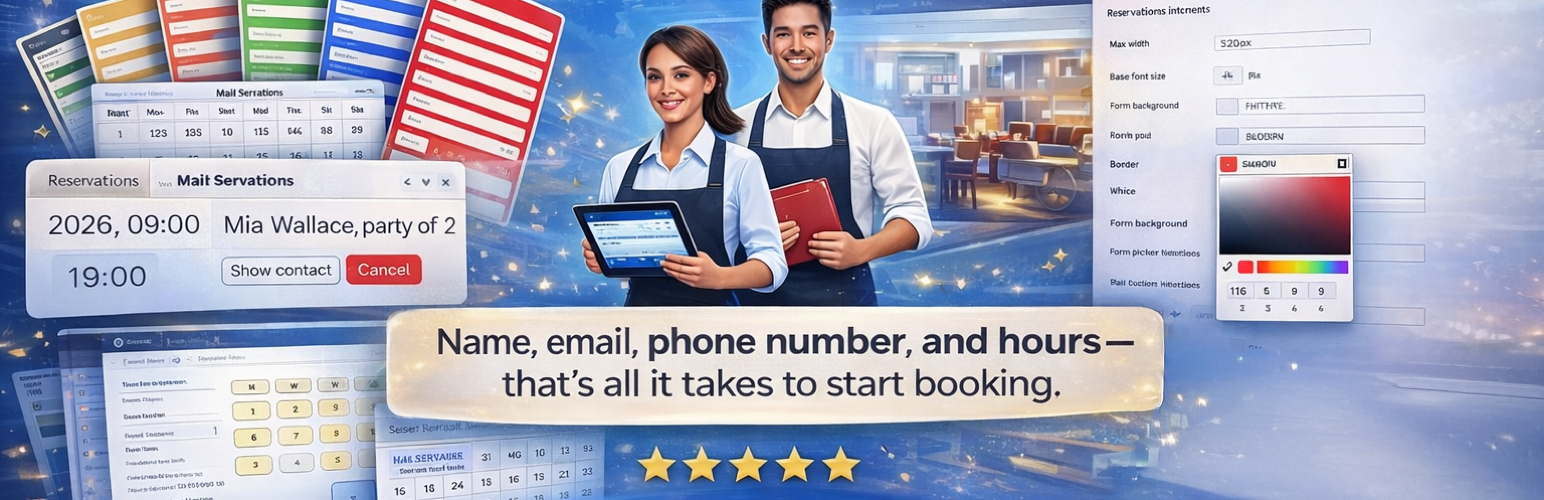
DABL Restaurant Reservations adds a booking form and a basic admin calendar so restaurants can receive reservation requests.
Simple Setup
- Set your opening hours
- Add a shortcode to any page
- Start receiving reservations
Features
- Clean, accessible reservation form (two layouts: tall or wide)
- Weekly hours of operation with per-day open/close times
- Manual confirmation workflow (new reservations are saved as pending)
- Email notification sent to the site admin when reservations are submitted
- Staff portal for viewing and managing reservations
- Month view calendar for administrators
- Custom “Restaurant Staff” user role for delegation
- Fully translatable with complete internationalization support
Shortcodes
[dabl_rr_form]– Public reservation form[dabl_rr_staff_login]– Staff login form[dabl_rr_portal]– Staff reservation list[dabl_rr_admin_calendar]– Admin month view calendar
Customization Options
- Restaurant name
- Form layout (tall/skinny or short/wide)
- Maximum party size
- Time slot intervals (5, 10, 15, 20, 30, or 60 minutes)
- Minimum notice required for bookings
- Maximum days in advance for bookings
- Default reservation duration
- Required fields (name, email, phone)
- Cancellation instructions
External services
This plugin includes a link to the DABL Software Solutions website on the plugin’s admin “Go Pro” page. This link directs administrators to information about the Pro version of the plugin.
- Service: DABL Software Solutions website
- URL: https://software.dabl.ca/restaurant-reservation-wordpress-plugin/
- Purpose: Provides information about the premium version of the plugin. The link is only displayed on the plugin’s admin settings pages and is never shown to site visitors.
- Data sent: No data is transmitted to DABL Software Solutions. The link is a standard outbound hyperlink that administrators can choose to click.
- Terms of use: https://software.dabl.ca/terms/
- Privacy policy: https://software.dabl.ca/privacy/
Privacy
This plugin stores customer data (name, email, phone, reservation details) in your WordPress database. This data is:
- Stored locally in your database
- Not shared with any third parties
- Only accessible to administrators and users with the Restaurant Staff role
- Subject to your site’s privacy policy
You should update your privacy policy to inform users about the data collected through reservation forms.
Installation
- Upload the plugin folder to the
/wp-content/plugins/directory, or install via the Plugins screen in WordPress. - Activate the plugin through the ‘Plugins’ screen in WordPress.
- Go to Reservations > Settings > Availability and set your opening hours.
- Go to Reservations > Setup to optionally create pages with the shortcodes.
- Add the
[dabl_rr_form]shortcode to any page or post.
Faq
Notification emails are sent to the WordPress site Admin Email Address (Settings > General).
The free version uses manual confirmation only. When a customer submits a reservation, it is saved as “pending” and an email is sent to the admin. Staff can then confirm or cancel the reservation from the portal.
The free version includes two fixed black and white layouts (tall and wide). Custom colors and styling are available in the Pro version.
Yes, you can add the [dabl_rr_form] shortcode to multiple pages. All reservations will appear in the same admin portal.
The plugin creates a “Restaurant Staff” user role. Users with this role can access the staff portal to view and manage reservations without having full admin access.
Yes, the plugin is fully internationalized and ready for translation. All user-facing strings use WordPress translation functions with the text domain ‘dabl-restaurant-reservations’.
Reviews
Changelog
1.0.0
- Initial release
- Reservation form with date picker
- Weekly hours of operation
- Email notifications to admin
- Staff portal for managing reservations
- Admin calendar month view
- Restaurant Staff user role