Darkstar File Manager

Darkstar File Manager
Description
Darkstar File Manager is a secure, easy-to-use plugin that creates a private document portal for each WordPress user. Perfect for accountants, lawyers, consultants, or any business that needs to securely exchange documents with clients.
Key Features
- Secure File Storage – Store files outside your web root for maximum security
- User Isolation – Each client can only access their own documents
- Two-Way File Sharing – Administrators can upload files for clients, and clients can upload files back
- Separate File Sections – Client view shows “Documents from Professional” and “Your Uploaded Documents” separately
- Simple Shortcode –
[dsfm_client_login]displays login form and document manager - File Type Validation – Configurable allowed file types (PDF, DOC, DOCX, XLS, XLSX, images, etc.)
- File Size Limits – Set maximum upload size (1-100 MB, default 50 MB)
- MIME Type Checking – Prevents malicious file uploads
- Bulk Operations – Delete multiple files at once from admin panel
- Translation Ready – Full internationalization support with Polylang integration
- Responsive Design – Works on desktop, tablet, and mobile devices
How It Works
- Create a Client Portal Page – Add the shortcode
[dsfm_client_login]to any page - Configure Settings – Set upload path (outside web root recommended), file types, and size limits
- Upload Files for Clients – Go to Users hover over user click “View Documents” to upload
- Clients Access Files – Clients log in and visit the portal page to view and upload documents
Security Features
- All files served through authenticated download handler (not direct file access)
- Path traversal protection with directory separator enforcement
- User authentication required
- Nonce verification on all forms and downloads
- CSRF protection on admin file downloads
- File type, MIME, and WordPress built-in type validation
- ZIP bomb protection (uncompressed content limit)
- Upload rate limiting (20 uploads per user per hour)
- Files stored outside web root by default
- Protective
.htaccessandindex.phpwritten to upload directory on activation - Each user can only access their own files
Note on File Storage
This plugin stores uploaded files outside the web root for security. Because of this requirement, files are moved using PHP’s move_uploaded_file() directly after passing validation through WordPress’s wp_check_filetype_and_ext(), our own MIME type check, extension allowlist, and size limits. Files cannot be stored through wp_handle_upload() without placing them inside the publicly accessible uploads directory, which would reduce security.
Perfect For
- Tax professionals sharing documents with clients
- Lawyers exchanging contracts and legal documents
- Consultants sharing reports
- Any business requiring secure client file exchange
Additional Information
Support
For support, please visit Darkstar Media or contact us through our website.
Privacy Policy
This plugin stores uploaded files on your server and metadata (filenames, timestamps, uploader) in JSON files. No data is sent to external servers.
Credits
Developed by Darkstar Media
Installation
Automatic Installation
- Log in to your WordPress admin panel
- Go to Plugins Add New
- Search for “Darkstar File Manager”
- Click “Install Now” and then “Activate”
Manual Installation
- Download the plugin zip file
- Log in to your WordPress admin panel
- Go to Plugins Add New Upload Plugin
- Choose the zip file and click “Install Now”
- Activate the plugin
After Installation
- Go to Settings Darkstar File Manager
- Configure the upload folder path (recommended: outside web root for security)
- Set allowed file types and maximum file size
- Create a new page (e.g., “Client Portal”)
- Add the shortcode:
[dsfm_client_login] - Publish the page
- Share the page URL with your clients
Screenshots
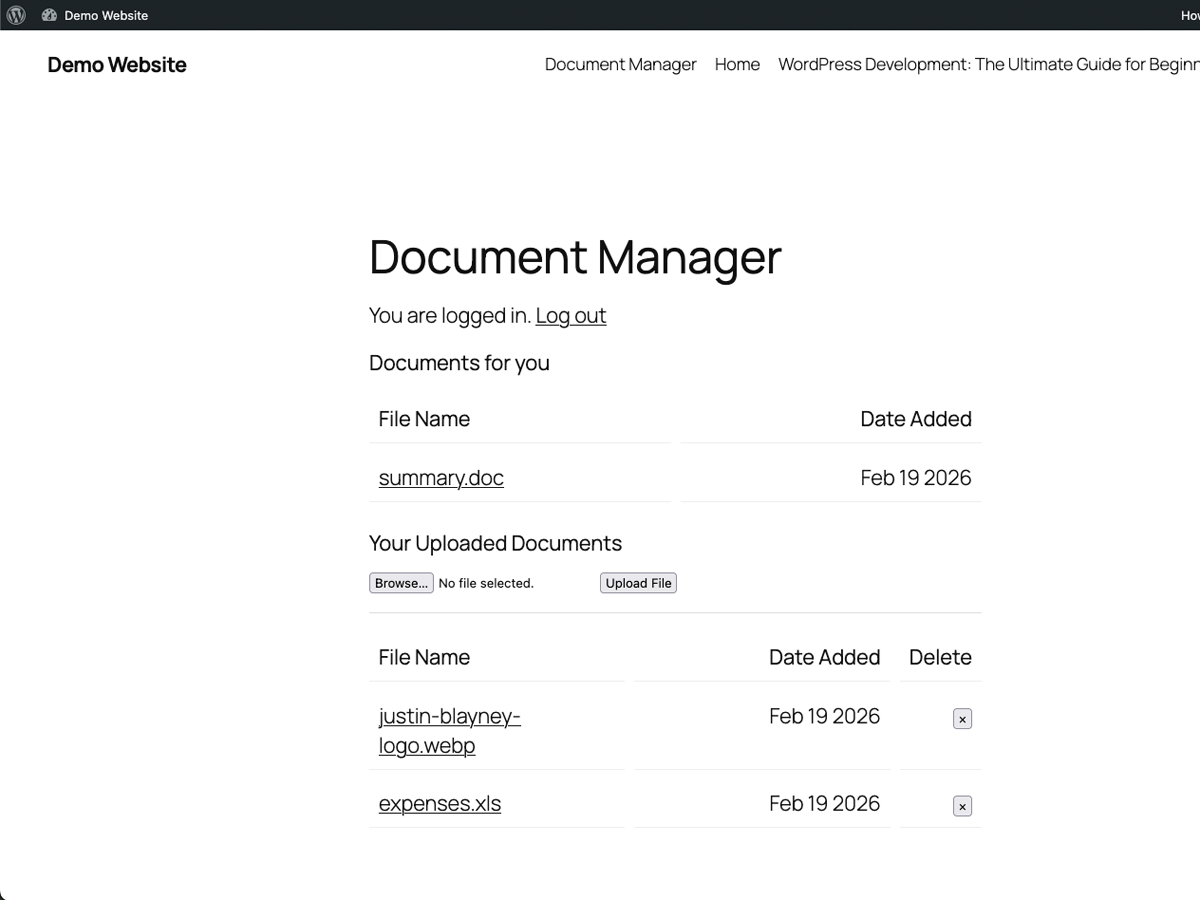
Client portal view showing documents from professional and client upload section
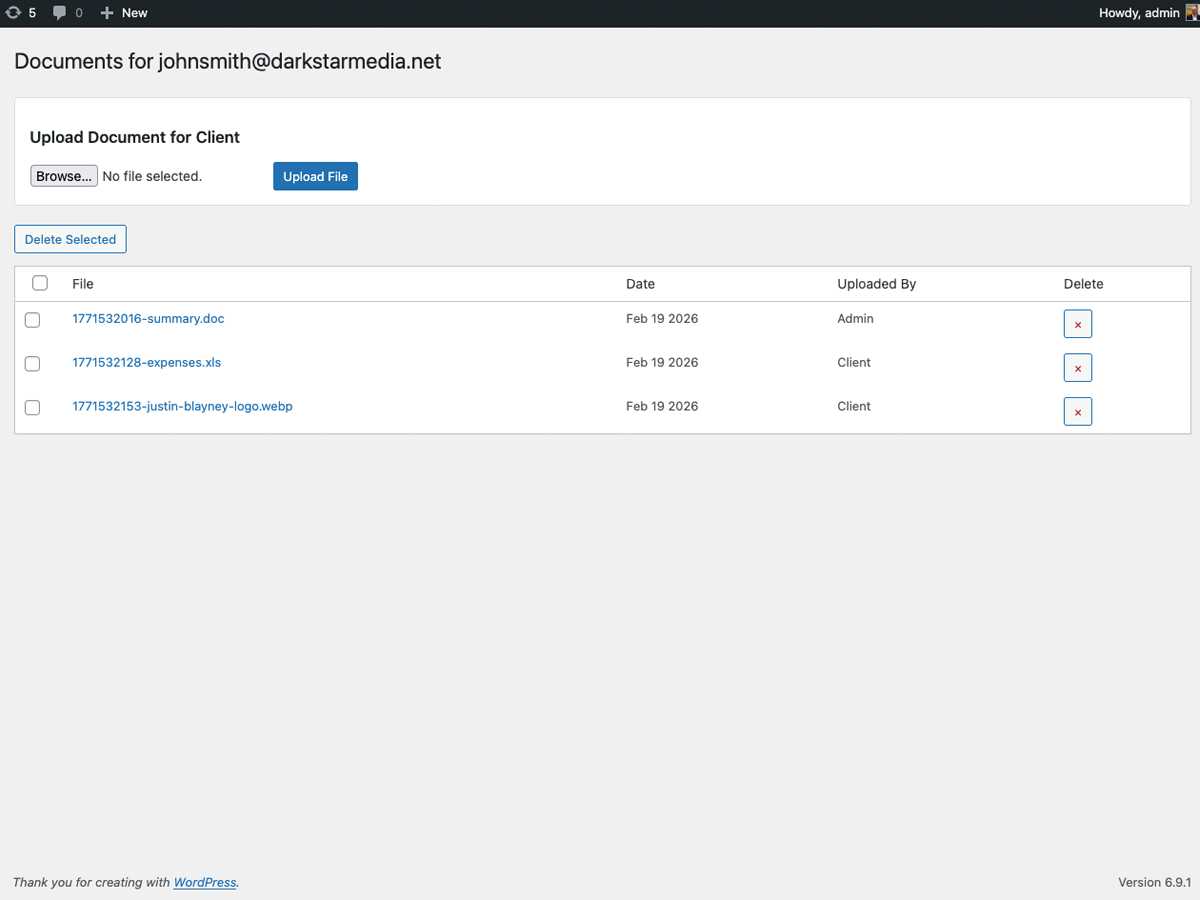
Admin interface for uploading files to specific clients
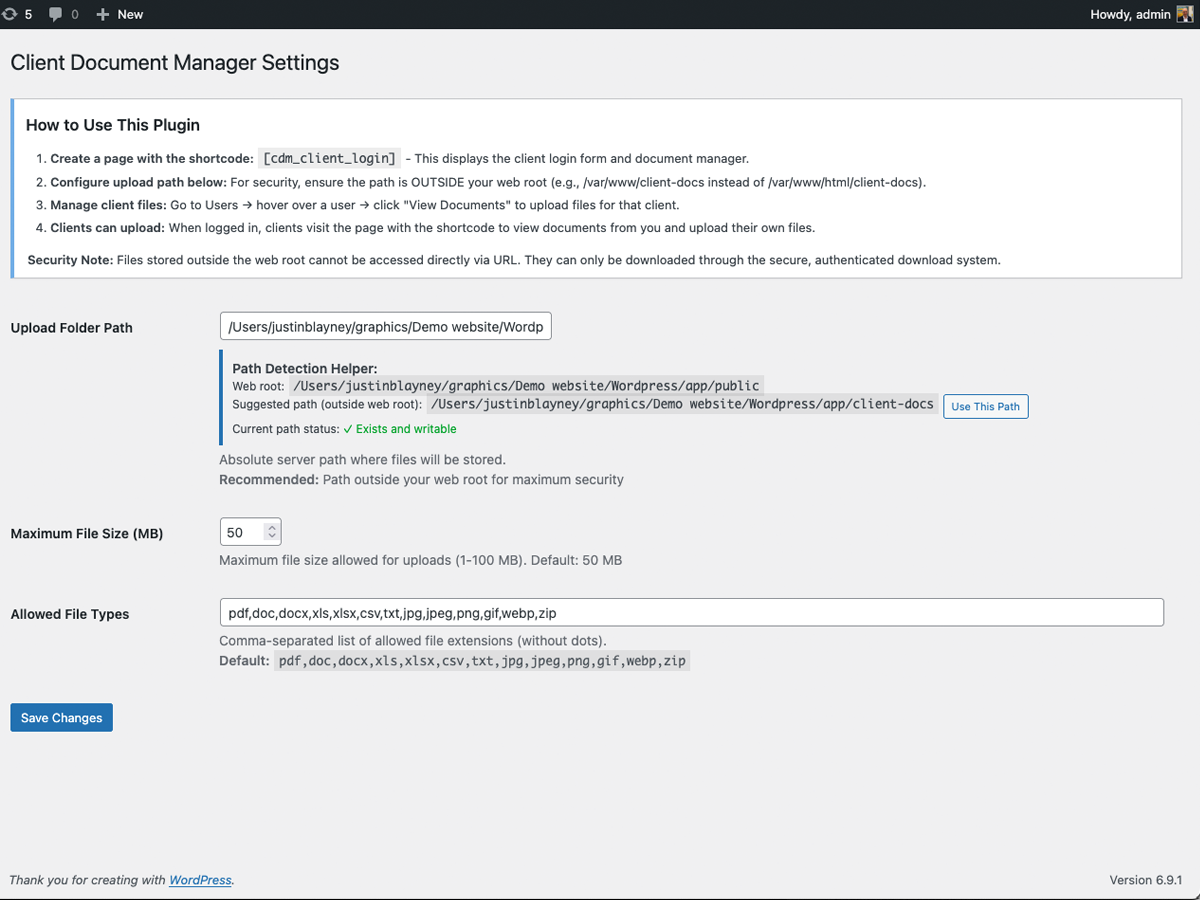
Settings page with configuration options and instructions
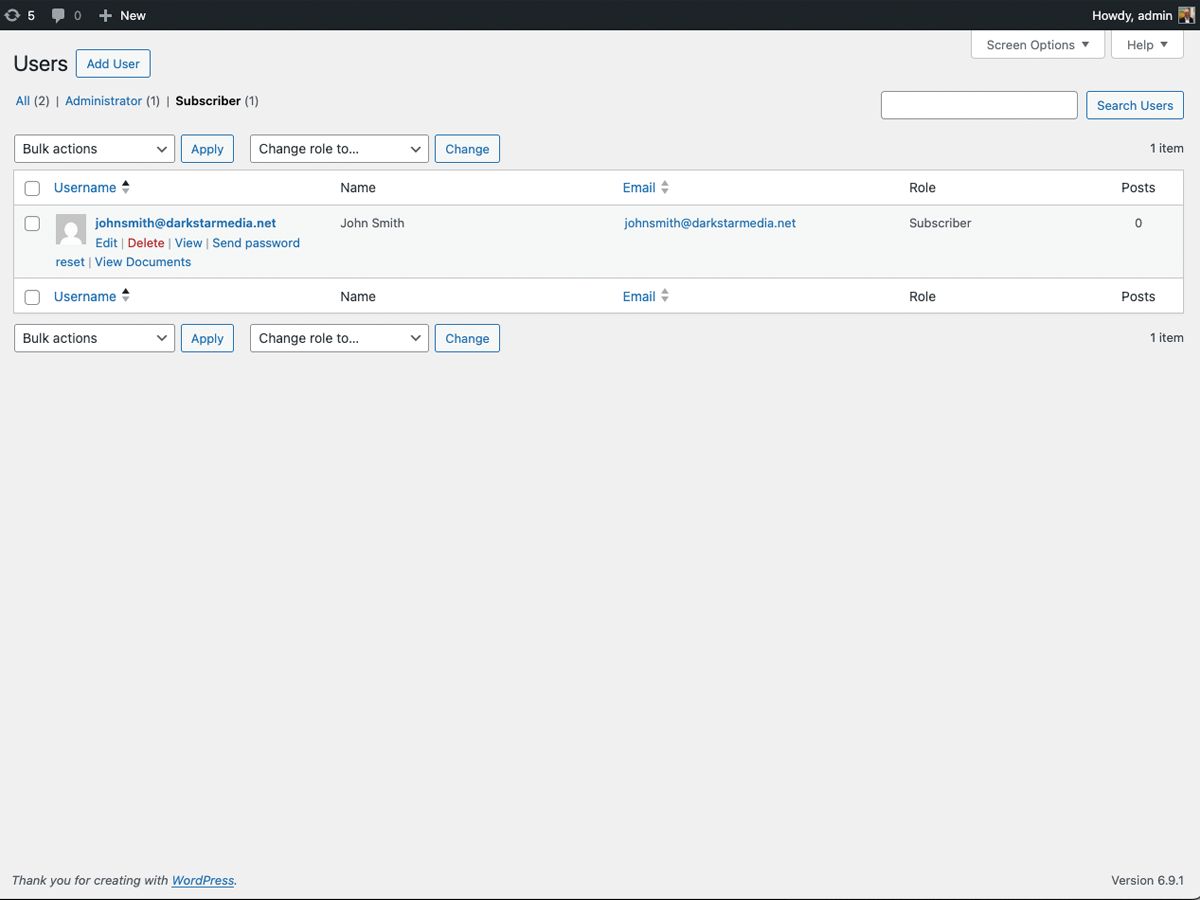
User list with "View Documents" action link
Faq
Go to Users in your WordPress admin panel. Hover over the user you want to upload files for, and click “View Documents”. You’ll see an upload form where you can select and upload files for that client.
Files are stored in the path you configure in Settings Darkstar File Manager. For maximum security, we recommend storing files outside your web root (e.g., /var/www/client-docs instead of /var/www/html/wp-content/client-docs).
No. Each client can only see and download files in their own folder. The plugin enforces strict user isolation.
By default: PDF, DOC, DOCX, XLS, XLSX, CSV, TXT, JPG, JPEG, PNG, GIF, WEBP, and ZIP files. You can customize this list in Settings Darkstar File Manager.
Go to Settings Darkstar File Manager and adjust the “Maximum File Size (MB)” setting. You can set it between 1 and 100 MB.
Yes! The plugin is fully internationalization-ready and includes Polylang integration for multilingual sites. Translation files are located in the /languages directory.
No. Files uploaded by administrators appear in a separate “Documents for you” section (read-only). Clients can only delete files they uploaded themselves.
Clients simply log in to your WordPress site and visit the page where you added the [dsfm_client_login] shortcode. After logging in, they’ll see all their documents and can upload new ones.
Yes! The plugin automatically detects and uses the custom login URL configured by security plugins like iThemes Security, Wordfence, or any other plugin that changes the WordPress login page. The login form on the shortcode page will work seamlessly with these security plugins.
Yes. The plugin implements multiple security layers:
– Files are served through an authenticated handler (not direct URLs)
– User authentication required
– Path traversal protection
– File type, MIME, and WordPress built-in type validation
– Nonce verification on all actions
– Files can be stored outside web root
Reviews
Changelog
1.0.2
- Renamed plugin to Darkstar File Manager with new slug darkstar-file-manager
- Updated all function, option, and constant prefixes from cdm_ to dsfm_
- Added wp_check_filetype_and_ext() to upload validation for WordPress-native file type checking
- Added justinblayney as contributor
1.0.0
- Initial release
- Secure file upload and download system
- Admin can upload files for clients via Users admin panel
- Clients can upload and download files via shortcode portal
- Separate sections for admin-uploaded vs client-uploaded files
- Configurable file types, size limits, and upload path
- File type, MIME type, and WordPress built-in type validation
- ZIP bomb protection (uncompressed size limit)
- Upload rate limiting (20 uploads per user per hour)
- CSRF protection on all forms and file downloads
- Path traversal protection with directory separator enforcement
- Protective
.htaccessandindex.phpauto-written to upload directory - Upload directory defaults to outside web root for security
- Bulk delete functionality for admins
- Privacy policy content registered with WordPress
- Clean uninstall removes all plugin options
- Translation ready with Polylang support
- Responsive design