Order Communication for WooCommerce – Order Chat & Customer Messages

Order Communication for WooCommerce – Order Chat & Customer Messages
Description
When a customer has a question about an order, it usually lands in your email inbox with no order number, gets forwarded around, and waits. You then search WooCommerce for the order, reply from your mail client, and hope the customer sees it.
This WooCommerce order communication plugin gives every WooCommerce order its own private order chat. The customer writes from My Account > Orders > View, right under the order details. Your team answers from a dedicated Inbox in the WordPress admin, or straight from the order edit screen, with the customer and the order beside the messages.
Customer messages stay with the order in your own database. There is no chat service to sign up for, no monthly fee and no widget loaded from another site. Want to see it first? Try the live demo.
Quick links
How the order chat works
- A customer opens an order in My Account and sends a message about it.
- Your team gets an email and the conversation moves to the top of the Inbox, with an unread count on the menu.
- You reply from the Inbox or the order screen. The customer gets an email with a button that opens the conversation.
- While the chat is open, new messages appear on both sides without reloading, and your own messages show a “Seen” tick once the other side has read them.
What the free plugin does
A private chat on every WooCommerce order
The conversation sits under the order details on the customer’s view order page in My Account, and in an Order Communication box on the WooCommerce order edit screen. Both show the same thread, so whoever on your team opens the order sees the full history.
- One conversation per order, for every order the customer placed.
- Live updates while the chat is open. You choose how often it checks for new messages.
- Read receipts on your own messages.
- Links in messages become clickable.
- Enter sends a message and Shift + Enter adds a new line.
Shared support Inbox for your team
The Inbox lists every order conversation in one place, newest first, so nobody has to dig through the orders list to find who is waiting.
- Search by customer name, email, order number or any word in a message.
- Filter by All, Awaiting Reply or Closed, with a count on each.
- The order panel beside the chat shows the customer’s contact details, order count, total spent, shipping address, items, payment method and order total.
- Close a conversation when the question is answered. The customer sees it is closed and can write again once you reopen it.
Email notifications for new customer messages
- The store gets an email when a customer writes, with the message quoted and a link to the conversation.
- The customer gets an email when you reply, with a button that opens the chat in My Account.
- Send store alerts to one or more email addresses.
- Edit the subject, heading and message of both emails, with placeholders for the customer name, order number, order total and more.
- The emails use your WooCommerce email template, header and footer.
Unread counts where your team already works
- An unread badge on the plugin menu and on the Inbox tab.
- A Messages column on the WooCommerce orders list, with an unread count.
- A Messages column in the customer’s My Account orders list showing new replies.
Settings and dashboard
- Choose which order statuses customers can message on. Your team can always reply.
- Match the chat bubbles and the Send button to your brand colors.
- A dashboard with messages received, store replies, active conversations, conversations awaiting a reply, a daily activity chart and the latest customer messages.
- A short setup wizard on first activation.
- Compatible with WooCommerce High-Performance Order Storage (HPOS).
Free vs Pro
The free plugin is a complete order chat. WooCommerce Order Communication Pro is for stores where answering customers takes real time every day. Inside the free plugin you can see each Pro feature where it would sit, marked PRO.
File sharing (Pro)
- Customers and staff attach photos and documents by picking, dragging or pasting them into the chat.
- Images, PDF, text and Word files, several files per message, with your own size limit.
- Files are checked by their real content, shown inline in the conversation and attached to the notification emails.
Faster replies (Pro)
- Saved replies: write your common answers once and insert them from the chat box, with the customer name, order number and total filled in.
- Private notes: notes on a conversation that only your team can see.
- Instant auto-reply, with an optional delay so a person can answer first.
- Order status messages: your own message for each order status, posted into the chat and emailed automatically.
More control (Pro)
- Business hours: online or away status in the chat, and what happens to messages sent while you are closed.
- Message limits: a daily cap per customer to stop spam and floods.
Records and reporting (Pro)
- Communications list: every conversation in a sortable table with filters and bulk actions.
- CSV export of conversations, and a printable transcript of any order conversation.
- Response analytics: average first response time, reply rate, a daily response time chart and the split of awaiting, answered and closed conversations.
External services
The plugin itself sends no data to any outside service. Messages are stored in your WordPress database, and notifications go out through the WooCommerce mailer. It contains no licence checks, no update checks and no telemetry.
1. Gravatar (avatar images)
- What it is: Gravatar, the avatar service operated by Automattic, used through WordPress core’s
get_avatar()andget_avatar_url(). - What it is used for: Showing customer and staff avatars in the chat, the Inbox and the plugin dashboard. This is standard WordPress behaviour.
- When data is sent: When one of those screens is viewed and avatars are enabled under Settings > Discussion. Turning avatars off there stops the requests.
- What data is sent: A hash of the person’s email address inside the image URL, plus the usual request data of the viewer’s browser such as IP address and user agent.
- Terms of Service: https://automattic.com/terms/
- Privacy Policy: https://automattic.com/privacy/
The bundled DevDiggers framework, which draws the admin screens, connects to the two services below. Both run only inside the WordPress admin.
2. DevDiggers extensions directory
- What it is: A read only API on devdiggers.com that returns the public list of DevDiggers extensions.
- What it is used for: Showing available DevDiggers extensions on the Extensions admin page.
- When data is sent: Only when a logged in administrator opens the Extensions admin page. The response is cached for 24 hours.
- What data is sent: A standard outbound HTTP request only, meaning your server’s IP address and a plugin user agent string. No personal data and no store data are sent. The page also loads each listed extension’s image from devdiggers.com in the administrator’s browser.
- Endpoint: https://devdiggers.com/wp-json/ddwcs/v1/plugins
3. Newsletter subscription (optional)
- What it is: A contact and newsletter endpoint on devdiggers.com.
- What it is used for: Adding your email address to the DevDiggers newsletter, only if you choose to subscribe.
- When data is sent: Only when an administrator submits the optional newsletter form in the plugin dashboard. Nothing is sent automatically.
- What data is sent: The email address you enter and your site URL.
- Endpoint: https://devdiggers.com/?fluentcrm=1&route=contact
The DevDiggers services are provided by DevDiggers. By using them you agree to the DevDiggers Terms and Conditions (https://devdiggers.com/terms-and-conditions/) and Privacy Policy (https://devdiggers.com/privacy-policy/).
Source code and build tools
The admin and storefront JavaScript and CSS in assets/ are compiled from the src/ folder with webpack and Babel. The complete, human readable source code, including all build configuration, is published in our public GitHub repository:
https://github.com/DevDiggers-Technologies/order-communication-for-woocommerce
To build the assets from source:
- Run
npm installto install the build dependencies listed inpackage.json. - Run
npm run buildto compile the production assets intoassets/jsandassets/css.
Two third party libraries used by the admin screens ship unmodified under the MIT licence inside devdiggers-framework/assets/js/: Chart.js (https://www.chartjs.org) and Select2 (https://select2.org).
Installation
Automatic installation
- In your WordPress admin go to Plugins > Add New Plugin.
- Search for “Order Communication for WooCommerce”.
- Click Install Now, then Activate.
Manual installation
- Download the plugin zip from WordPress.org.
- Go to Plugins > Add New Plugin > Upload Plugin and upload the zip.
- Activate the plugin.
After activating
The setup wizard opens. Turn on order conversations and choose which emails to send, and you are done. Everything can be changed later under Order Communication > Configuration.
Requirements
- WordPress 6.5 or later
- WooCommerce 9.0 or later
- PHP 7.4 or later
Screenshots

Inbox with every order conversation, the chat and the order details side by side.
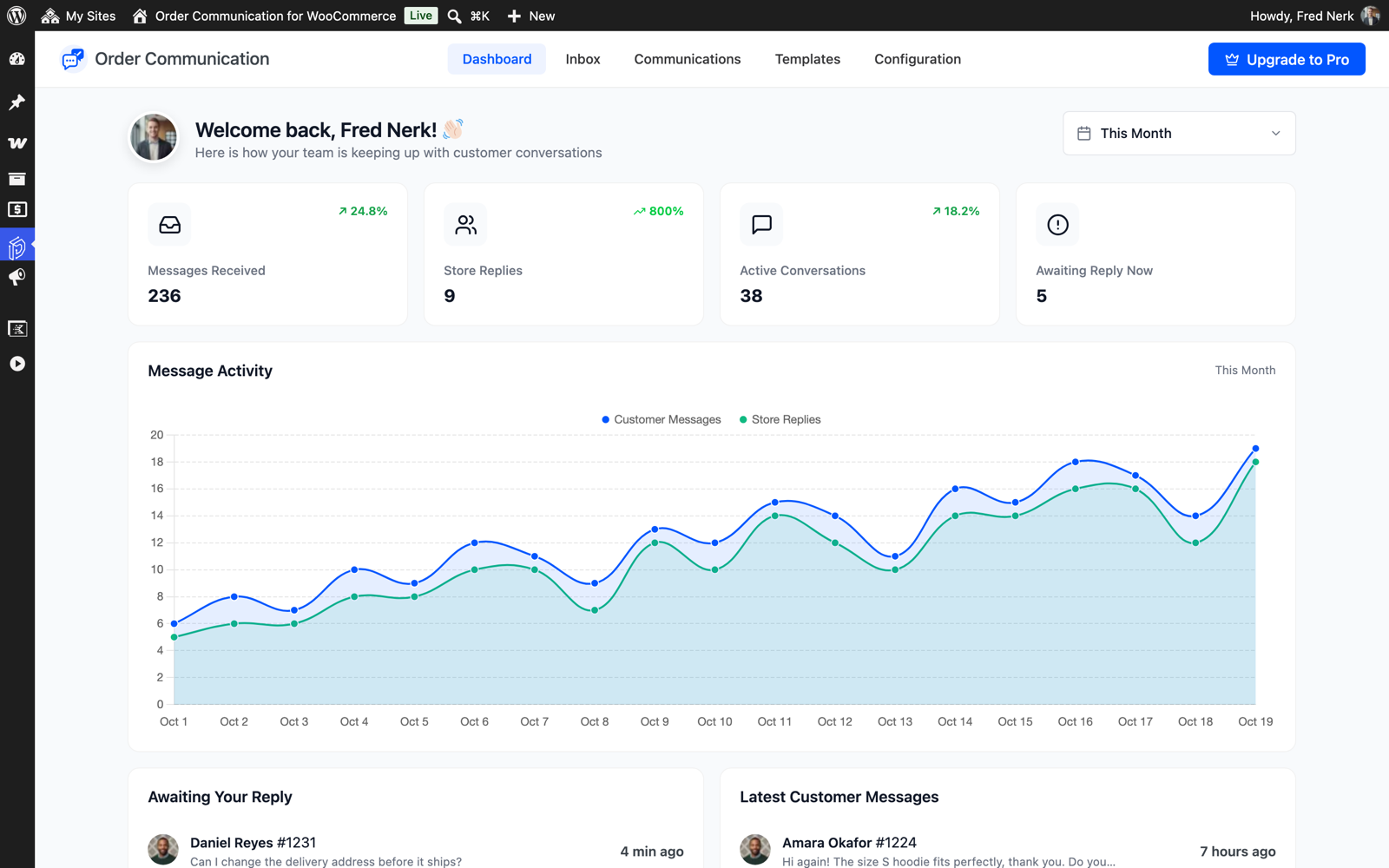
Dashboard with messages received, first response time and reply rate.
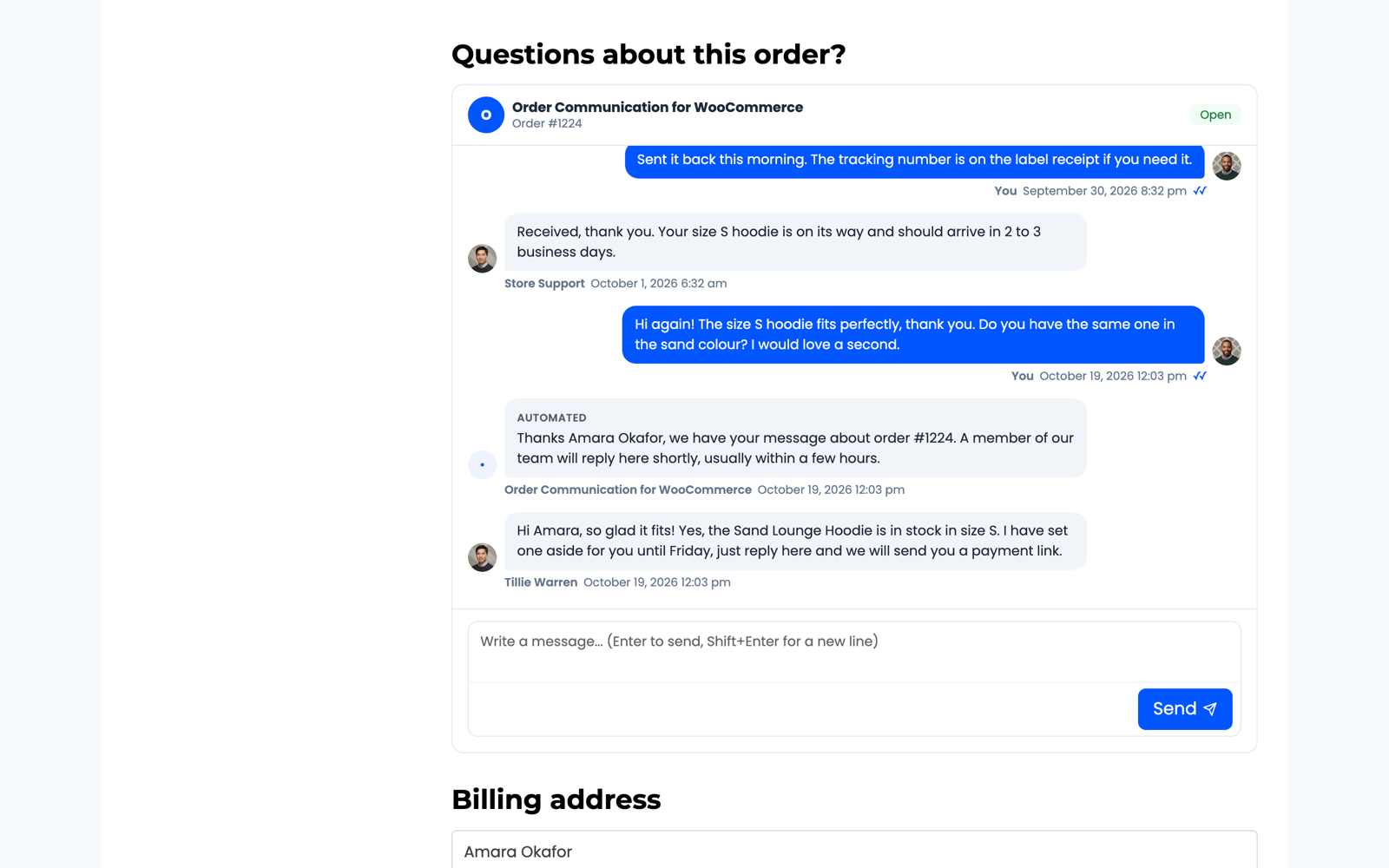
Customers chat about an order from the view order page in My Account.
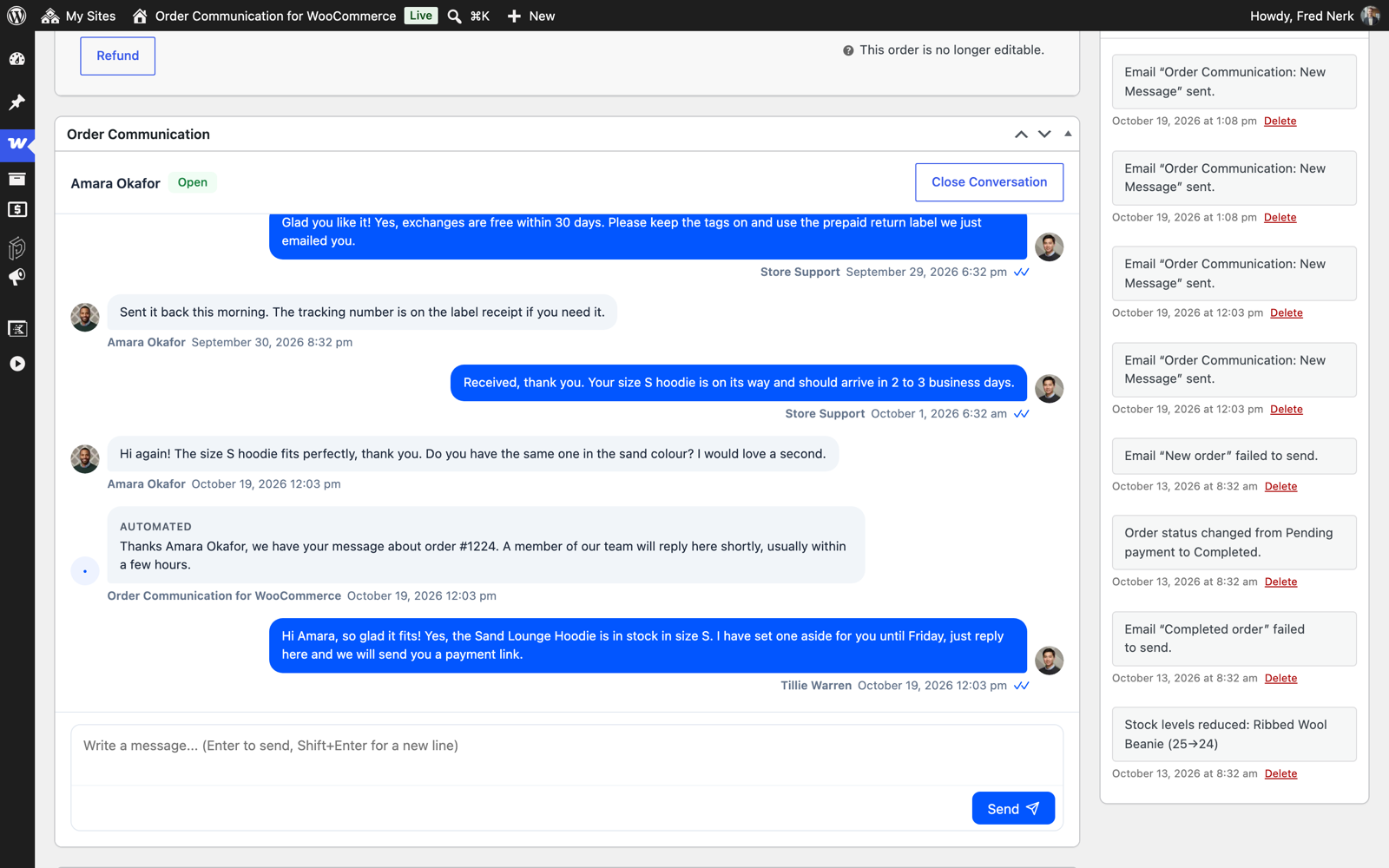
The conversation box on the WooCommerce order edit screen.
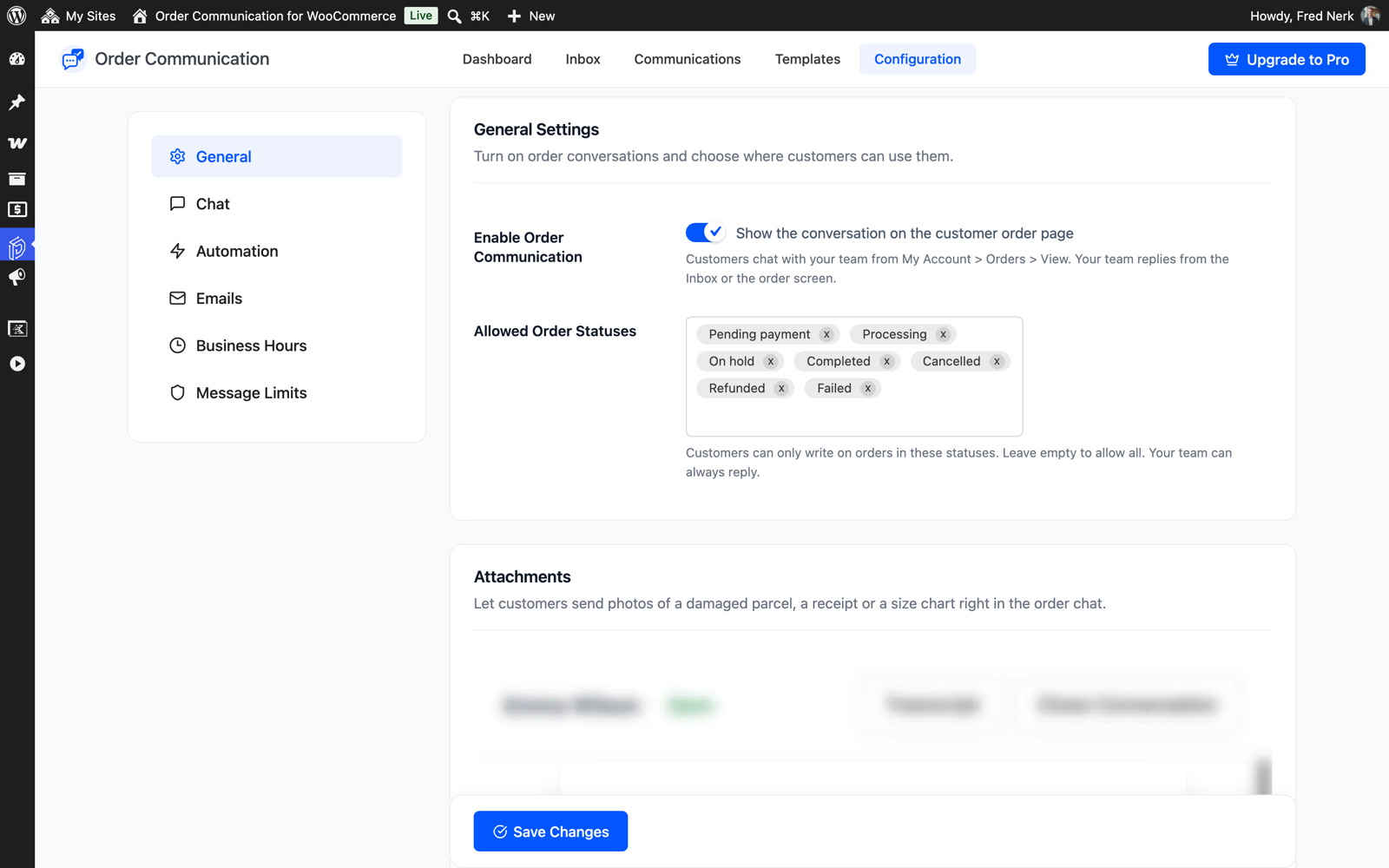
General settings for allowed order statuses and closing conversations.

Chat colors and live updates.
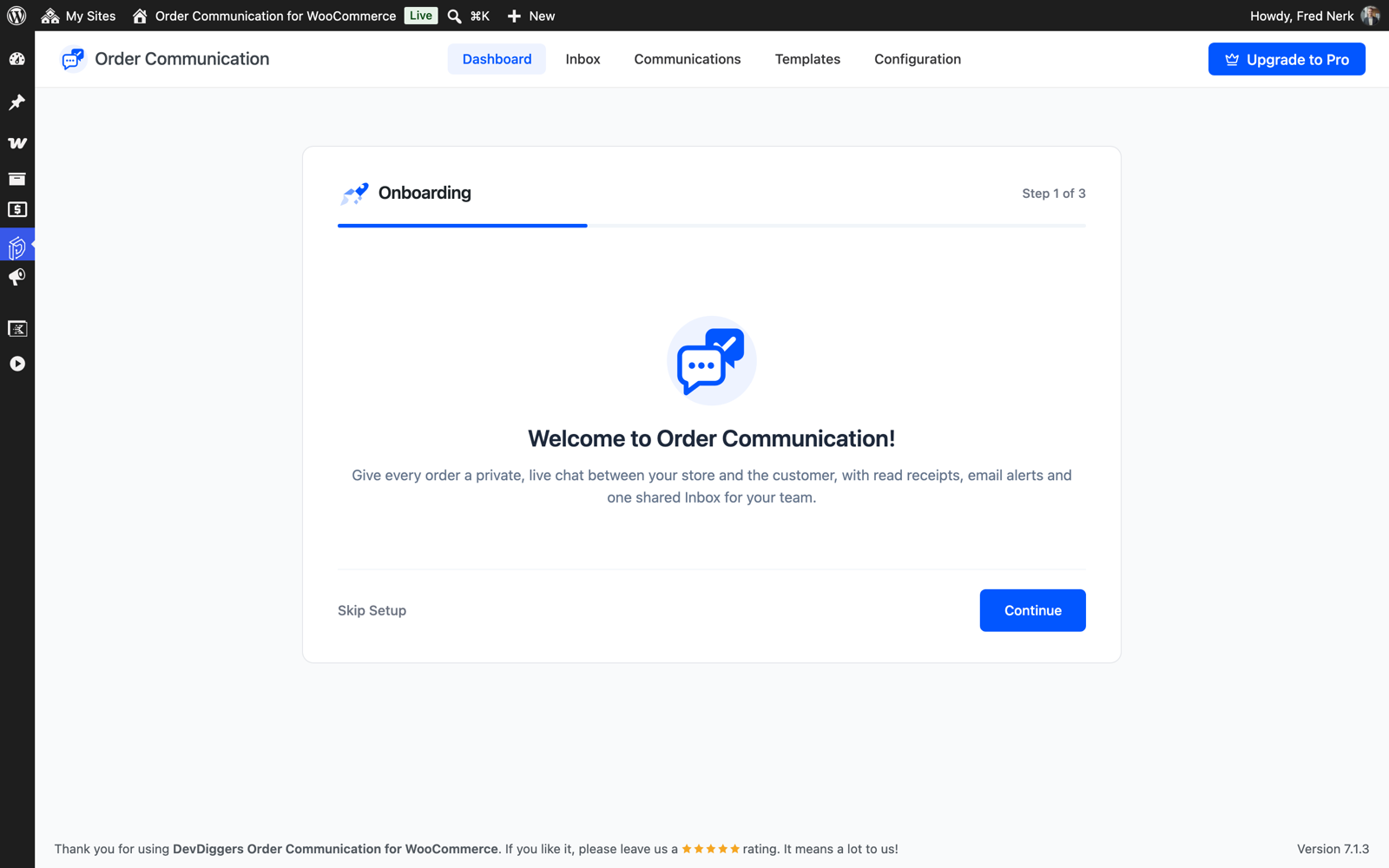
Setup wizard.
Faq
They open the order in My Account > Orders > View and write in the chat under the order details. The Messages column in their orders list also links to it.
In the Inbox under Order Communication, or in the Order Communication box on the WooCommerce order edit screen. Both show the same conversation.
No. The chat lives in My Account, so customers need to be logged in. If a guest later creates an account with the same email address and the order is linked to it, they can use the chat on that order.
File sharing is part of Pro. In the free plugin, messages are text only.
No. Each conversation belongs to one WooCommerce order, which keeps post-purchase support tied to the right order. For pre-sale questions on product pages you would still use a contact form or a site-wide chat.
No. Messages are stored in your own WordPress database and sent with the WooCommerce mailer. No third party chat service is involved.
Yes. An open chat checks for new messages every 15 seconds by default. You can change the interval under Configuration > Chat.
Yes. Under Configuration > General, choose the order statuses customers can write on. You can also close any single conversation from its header.
Yes. Under Configuration > Emails you can edit the subject, heading and message of the store and customer emails, use placeholders such as {customer_name} and {order_number}, and choose who receives the store alerts.
Yes. The plugin supports WooCommerce High-Performance Order Storage and the classic orders table.
Yes. Pro reads the same messages and settings. Activate Pro and the free plugin steps aside on its own.
Yes. All text is translation ready, and a .pot file is included in the i18n folder.
Reviews
Changelog
1.0.0
- First release.