DevLab Maintenance Mode

DevLab Maintenance Mode
Description
DevLab Maintenance Mode lets you display a beautiful “Under Maintenance” or “Coming Soon” page to your visitors while you work on your site behind the scenes. No coding required.
Whether you’re launching a new site, performing updates, or making major changes, this plugin ensures your visitors see a professional holding page instead of broken layouts or error messages.
Why Choose DevLab Maintenance Mode?
Zero Lock-Out Risk – Maintenance mode is OFF by default. You control when it activates. Logged-in administrators always have access.
10 Stunning Templates – Not just one boring page. Choose from 10 professionally designed templates that match any brand or style.
Multiple Bypass Options – Grant access via user roles, IP addresses, or shareable secret links. Perfect for clients, team members, or testers.
SEO Done Right – Returns proper 503 status codes with Retry-After headers. Search engines understand your site is temporarily unavailable, not gone forever.
Features
- One-Click Activation – Enable or disable maintenance mode instantly
- 10 Beautiful Templates – From minimal to animated, corporate to playful
- Live Countdown Timer – Show visitors when you’ll be back (Countdown template)
- Custom Messages – Write your own text with full HTML support
- Role-Based Bypass – Let editors, authors, or any role access the site
- IP Whitelist – Always allow specific IP addresses through
- Secret Access Links – Share
yoursite.com?mmbd_bypass=secretfor temporary access - Cookie-Based Sessions – Bypass visitors stay logged in for your configured duration
- Theme Override Support – Copy templates to your theme for complete customization
- Multisite Ready – Works perfectly on WordPress multisite networks
- Clean Uninstall – Removes all data when deleted, leaves no trace
Template Collection
Your maintenance page should look as good as your site. Choose from:
- Classic – Clean centered card with elegant purple gradient background
- Minimal Dark – Ultra-modern dark theme with subtle cyan accents
- Construction – Bold warning style with animated diagonal stripes
- Gradient Wave – Smooth animated wave effect for a dynamic feel
- Corporate – Professional business design with refined gold accents
- Playful – Fun and friendly with floating colorful shapes
- Neon – Cyberpunk-inspired with vibrant glow effects
- Nature – Calm organic design with gentle leaf elements
- Tech – Matrix-style digital aesthetic for tech brands
- Countdown – Includes live countdown timer to your launch date
Developer Friendly
- Override any template by copying it to
your-theme/devlab-maintenance-mode/ - Minimal footprint – single database query, lightweight hooks
- Clean, documented code following WordPress coding standards
- Filters and actions for extending functionality
Perfect For
- Site launches and “Coming Soon” pages
- Scheduled maintenance windows
- Major redesigns and migrations
- WooCommerce store updates
- Development and staging sites
- Client preview access during development
Installation
- Upload the
devlab-maintenance-modefolder to the/wp-content/plugins/directory - Activate the plugin through the ‘Plugins’ menu in WordPress
- Go to Settings > Maintenance Mode to configure
- Check the “Enable maintenance mode” checkbox and save
Screenshots
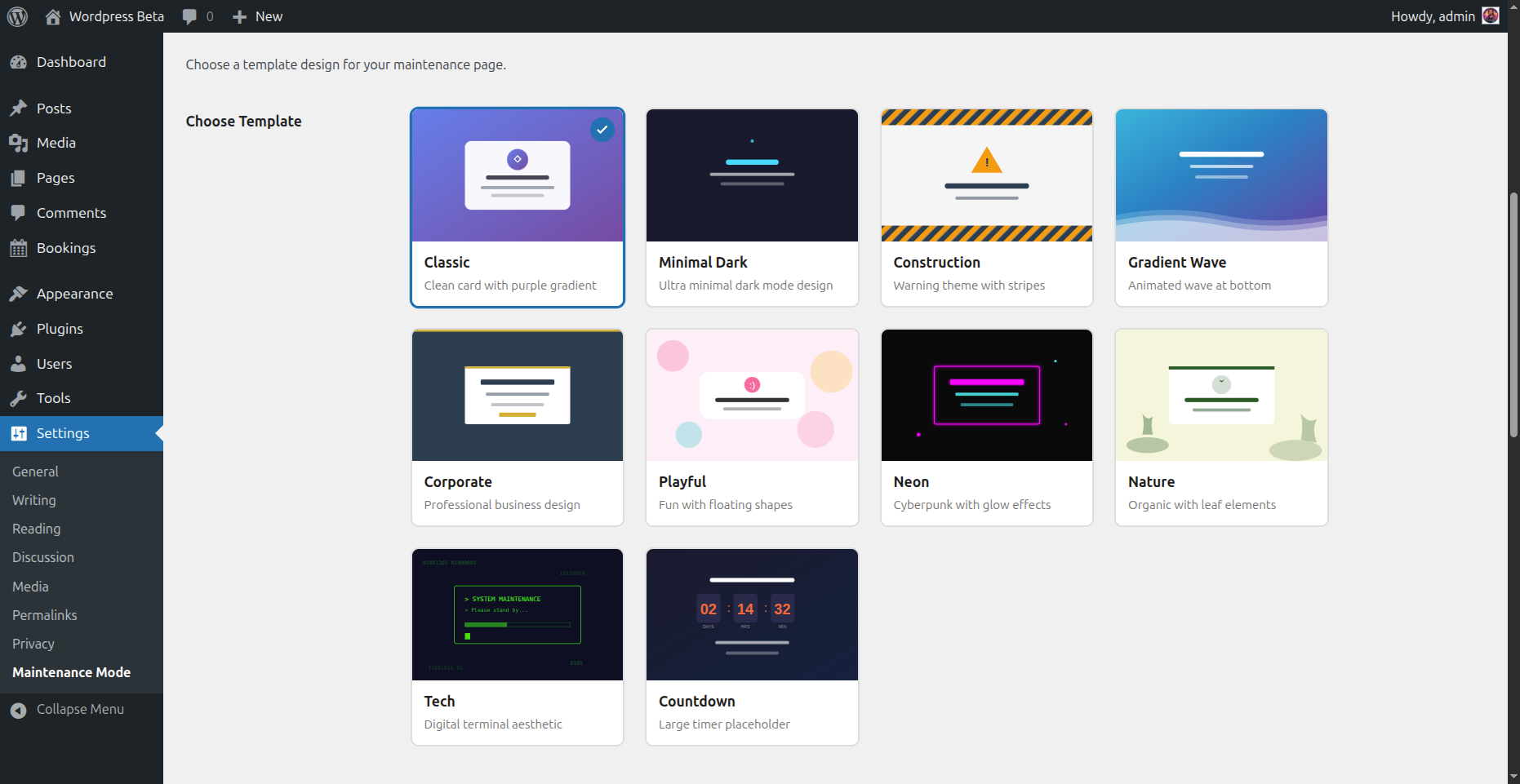
Template Selector - Visual grid showing all 10 template previews with thumbnails
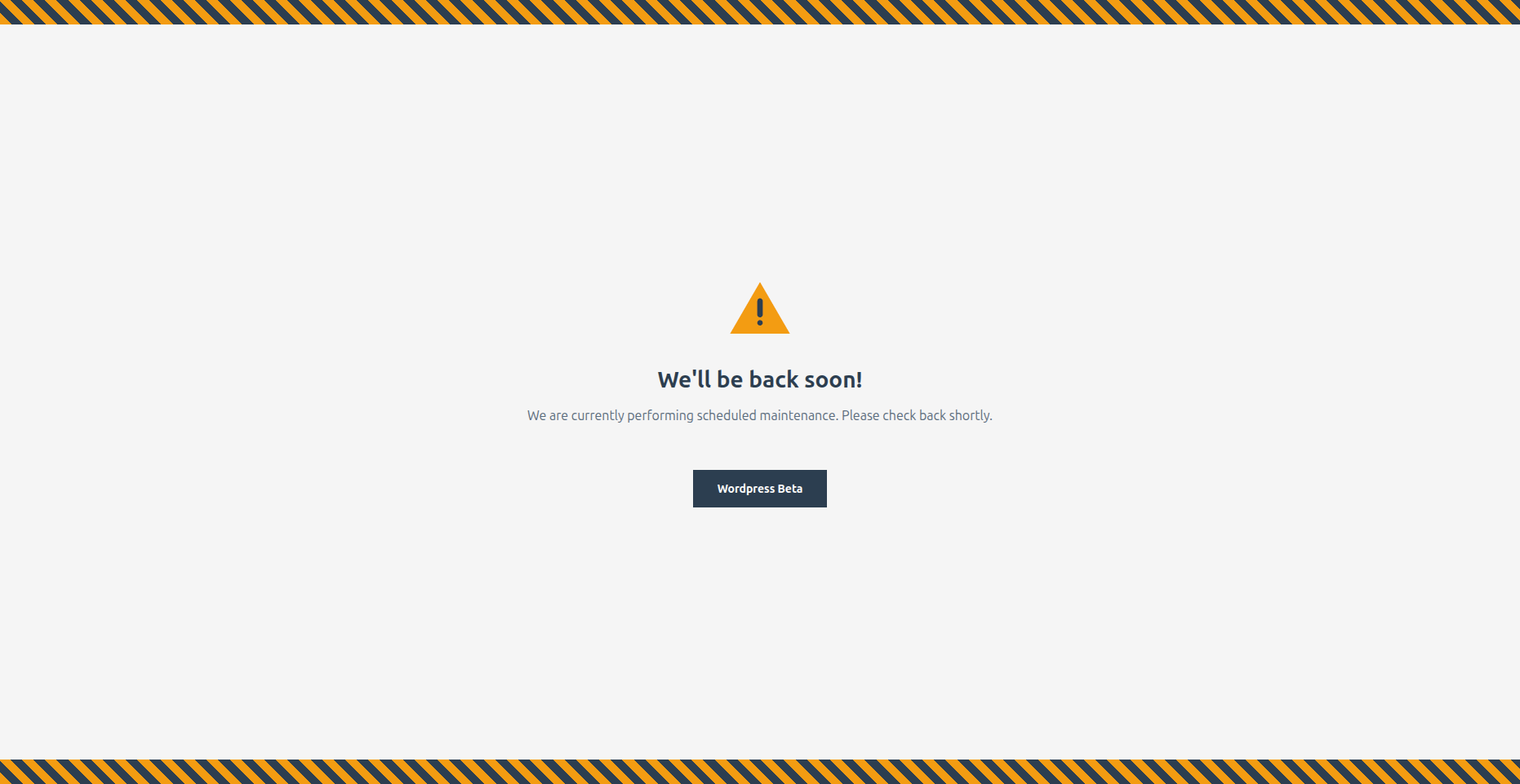
Construction Template - Warning style maintenance page with diagonal stripes

Countdown Template - Dark theme with live countdown timer showing days, hours, minutes, and seconds
Faq
No. Administrators are automatically allowed to bypass maintenance mode. The plugin is also disabled by default when you first activate it, so there’s no risk of accidental lockout. You can also configure additional roles, IP addresses, or a secret phrase for bypass access.
The plugin returns a proper 503 (Service Unavailable) status code with a Retry-After header, which tells search engines that the downtime is temporary and they should check back later. This is the SEO-recommended way to handle maintenance mode and won’t hurt your rankings.
Yes! You have several options:
- Choose a Template – Select from 10 built-in templates in Settings > Maintenance Mode
- Edit the Message – Write your own message with full HTML support
- Theme Override – Copy any template file to
your-theme/devlab-maintenance-mode/for complete control over the design
You have three options:
- Secret Link – Set a secret phrase and share
yoursite.com?mmbd_bypass=your-phrase - IP Whitelist – Add their IP address to the whitelist
- User Role – Create an account for them with a role that has bypass access
Select the “Countdown” template and set your target date/time in the settings. The template displays a live countdown showing days, hours, minutes, and seconds until your launch. When the countdown reaches zero, it displays “We’re Live!”
Absolutely! Many users install DevLab Maintenance Mode before launching a new site. Choose a template that fits your brand, customize the message to build anticipation, and use the countdown timer to show when you’ll launch.
Yes, but you may need to exclude the maintenance page from caching or clear your cache after enabling/disabling maintenance mode. Most caching plugins handle 503 responses correctly.
Yes. The plugin works with WooCommerce and any other WordPress plugin. When maintenance mode is active, all pages including shop, cart, and checkout show the maintenance page to non-bypassed visitors.
Simply deactivate and delete the plugin from your WordPress admin. The plugin includes a clean uninstall routine that removes all settings and data from your database automatically.
Reviews
Changelog
1.0.2
- Removed email subscription feature
- Fixed version consistency
- Code cleanup
1.0.1
- Added configurable countdown date picker
- Added Google Analytics integration
-
Added social media links (Facebook, Twitter/X, Instagram, LinkedIn)
-
Fixed template selection visual feedback
- Fixed countdown timer to use configured date
1.0.0
- Initial release
- 10 professionally designed templates
- Role-based bypass system
- IP whitelist functionality
- Secret phrase access links
- Custom message with HTML support
- SEO-friendly 503 status handling
- Theme template override support
- Multisite compatibility
- Clean uninstall