Dexdel Filterable Photo Gallery
Dexdel Filterable Photo Gallery
Description
Dexdel Filterable Photo Gallery lets you build image galleries that visitors can filter by category, with tabs and sub-tabs, a grid or masonry layout, a built-in lightbox and complete control over fonts, colours and spacing. It works with the block editor and with any page builder that supports shortcodes.
Use it for photography portfolios, product showcases, project galleries, team pages, event photos and any other image collection that needs sorting into categories.
Features
- Category tabs, with optional sub-tabs for sub-categories and an icon for each tab
- Categories per gallery: every gallery picks its own categories and assigns them to its own images
- Grid and masonry layouts, with a choice of aspect ratios or a custom one
- Bulk image upload and selection through the Media Library
- Drag-and-drop ordering, or sort by title, date or random, ascending or descending
- Title and caption, each switchable on and off, inside the overlay or below the image
- Overlay on hover or always visible: text at the bottom, the top or centred on a full overlay, solid or gradient, with an opacity slider
- Hover effects: zoom in, zoom out, slide, fade, lift or colour-on-hover
- Lightbox and link icons in the overlay, with their own colours
- Built-in lightbox with keyboard and swipe navigation
- A link for every image, with new-tab and nofollow options
- Pagination: page numbers, a load more button or previous/next arrows, inside or outside the grid container
- Responsive columns: separate column counts for desktop, tablet and mobile
- Spacing controls: padding, margin, column gap and row gap, in pixels or percent
- Styling: fonts, colours, borders and radius for tabs, text and pagination
- Custom CSS and JavaScript per gallery
- Shortcode and block, so it works in the block editor, the classic editor and page builders
Lightweight and private
The plugin loads no external files, makes no remote requests and collects no data. Scripts and styles load only on pages that contain a gallery.
Works with
- Block editor (Gutenberg) via the Dexdel Filterable Photo Gallery block
- Classic editor, Elementor, Divi, WPBakery and other page builders via the shortcode
- Any theme that follows WordPress standards
Shortcode
[fgal_gallery id="12"]
Replace 12 with the ID of your gallery, shown in the sidebar of the gallery edit screen.
Template function
<?php echo fgal_render_gallery( 12 ); ?>
Support
Please use the support forum on WordPress.org. You can also reach the developers at dexdel.com.
Installation
From your WordPress dashboard
- Go to Plugins > Add New and search for “Dexdel Filterable Photo Gallery”.
- Click Install Now, then Activate.
Manual upload
- Upload the plugin through Plugins > Add New > Upload Plugin, then activate it.
Creating your first gallery
- Go to Galleries > Add New, give the gallery a title and click “Add images”.
- Tick or add the categories of the gallery in the Gallery Categories box, then click the pencil on an image (or use the bulk action) to assign them.
- Choose the layout, columns, pagination and styling in the settings tabs.
- Publish the gallery.
- Paste the shortcode shown in the sidebar, for example
[fgal_gallery id="12"], into a page, or add the “Dexdel Filterable Photo Gallery” block.
Screenshots
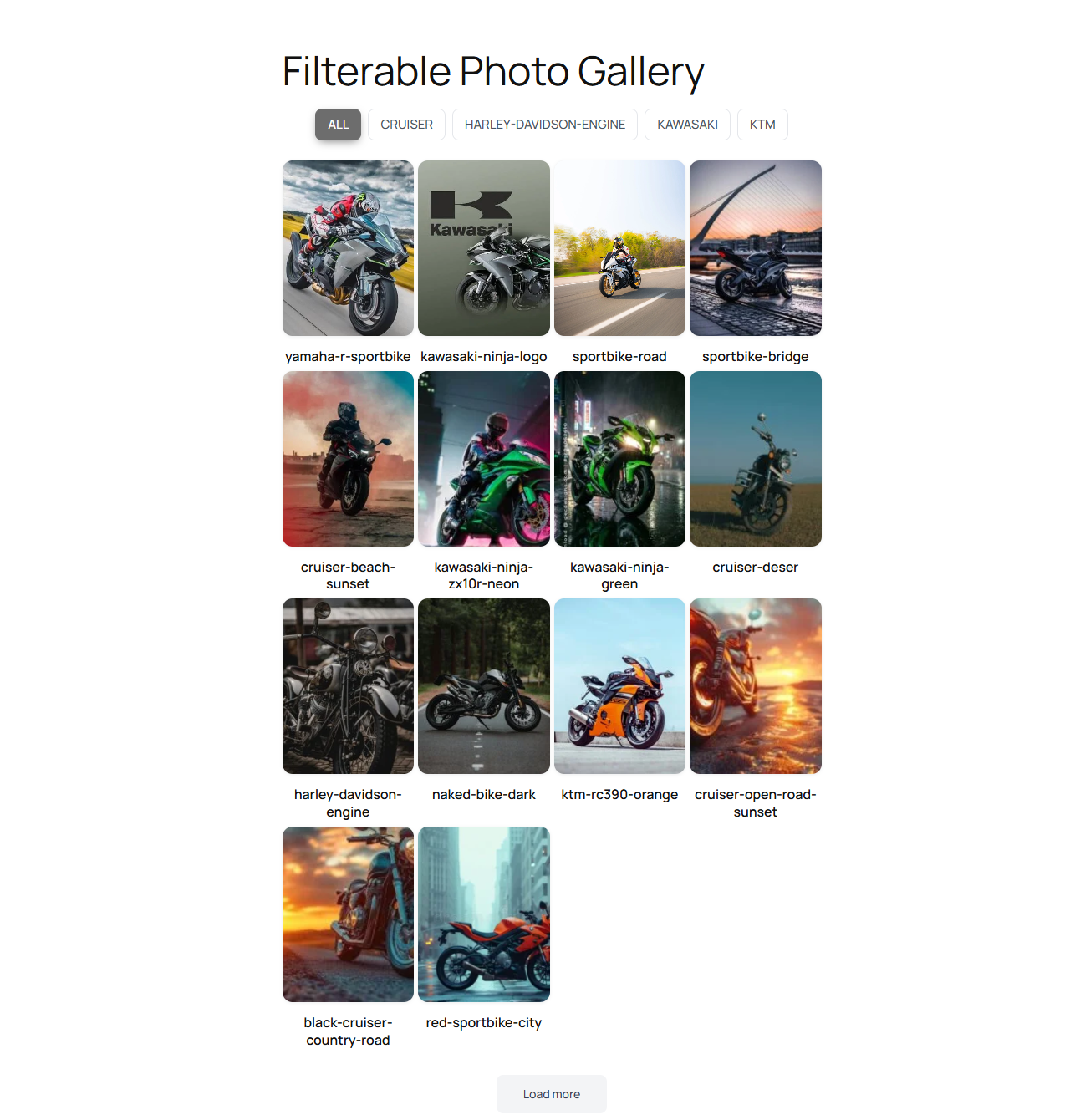
Grid layout on the front end with category filter tabs and a load more button.
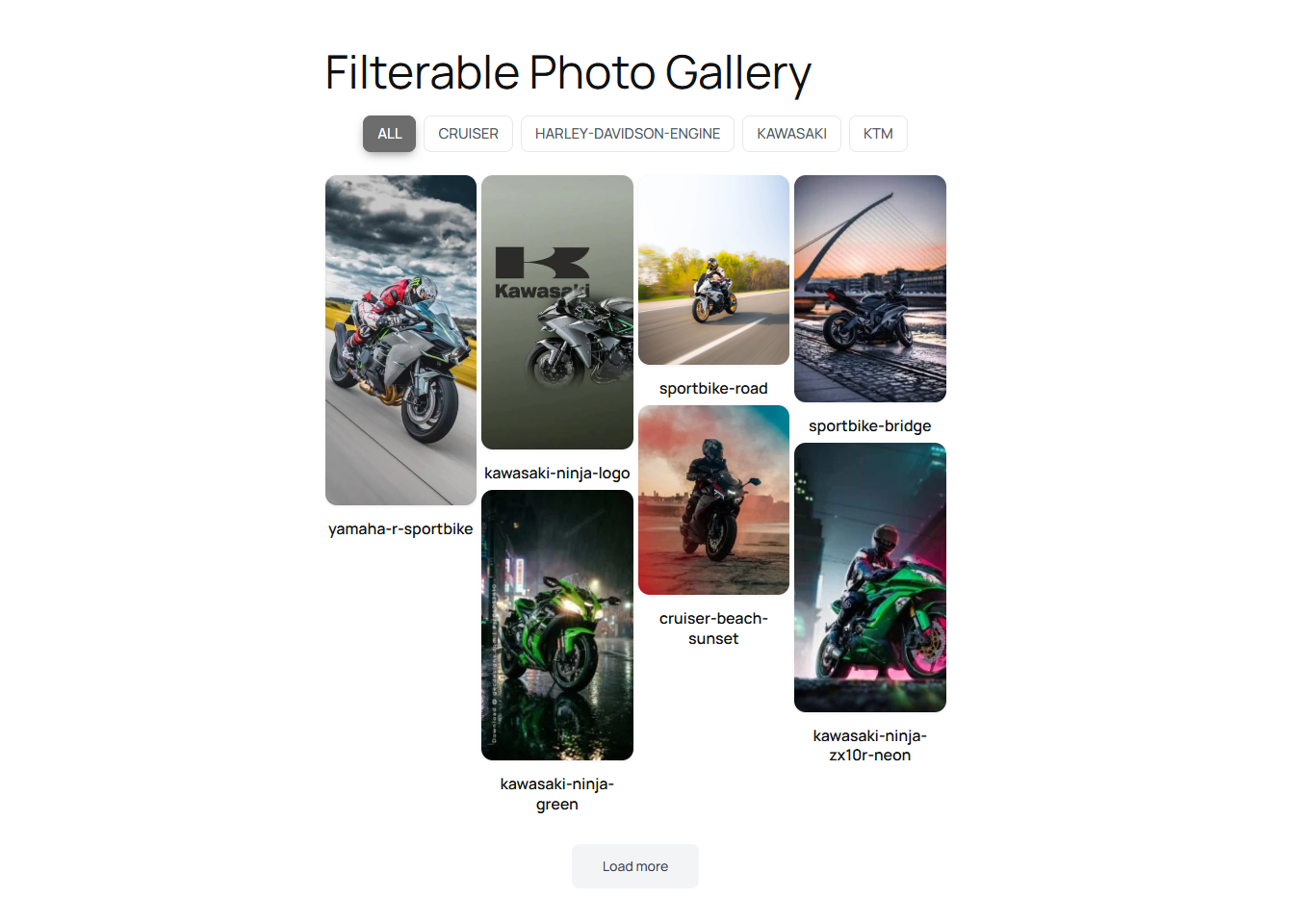
Masonry layout with images at their natural heights.
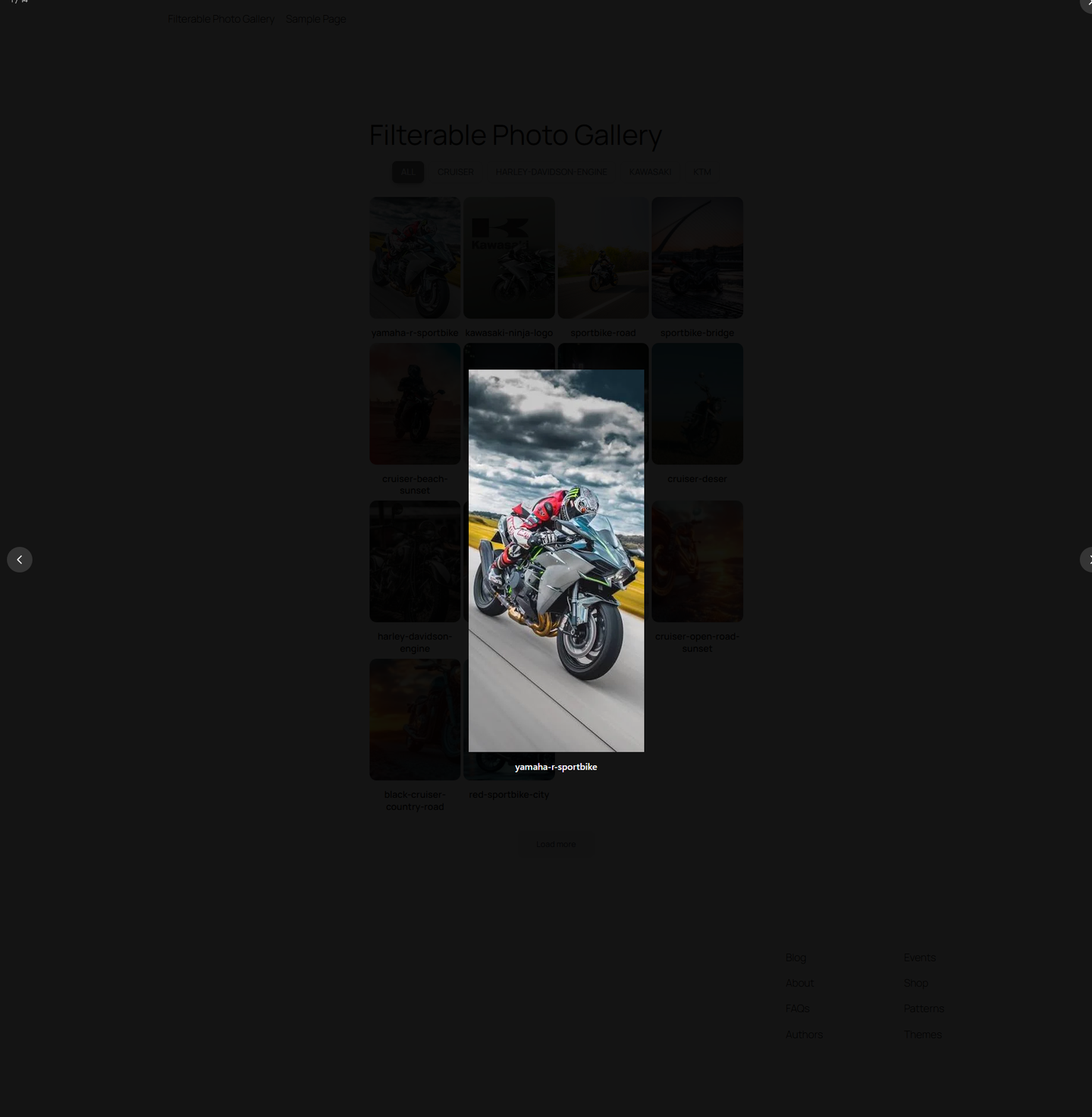
The built-in lightbox with previous/next navigation and image counter.
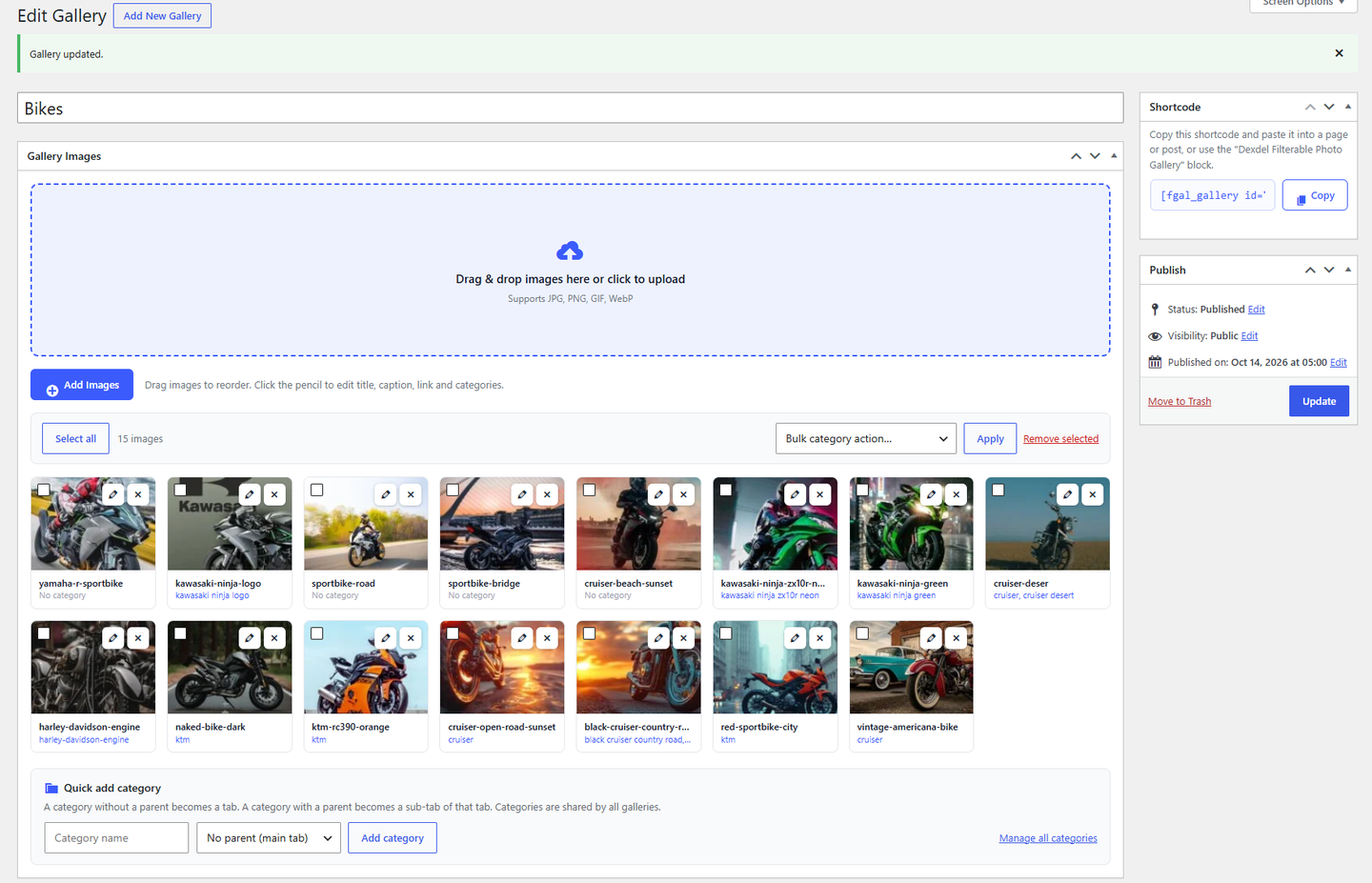
Gallery edit screen: drag-and-drop upload zone, image list and the Gallery Categories box.
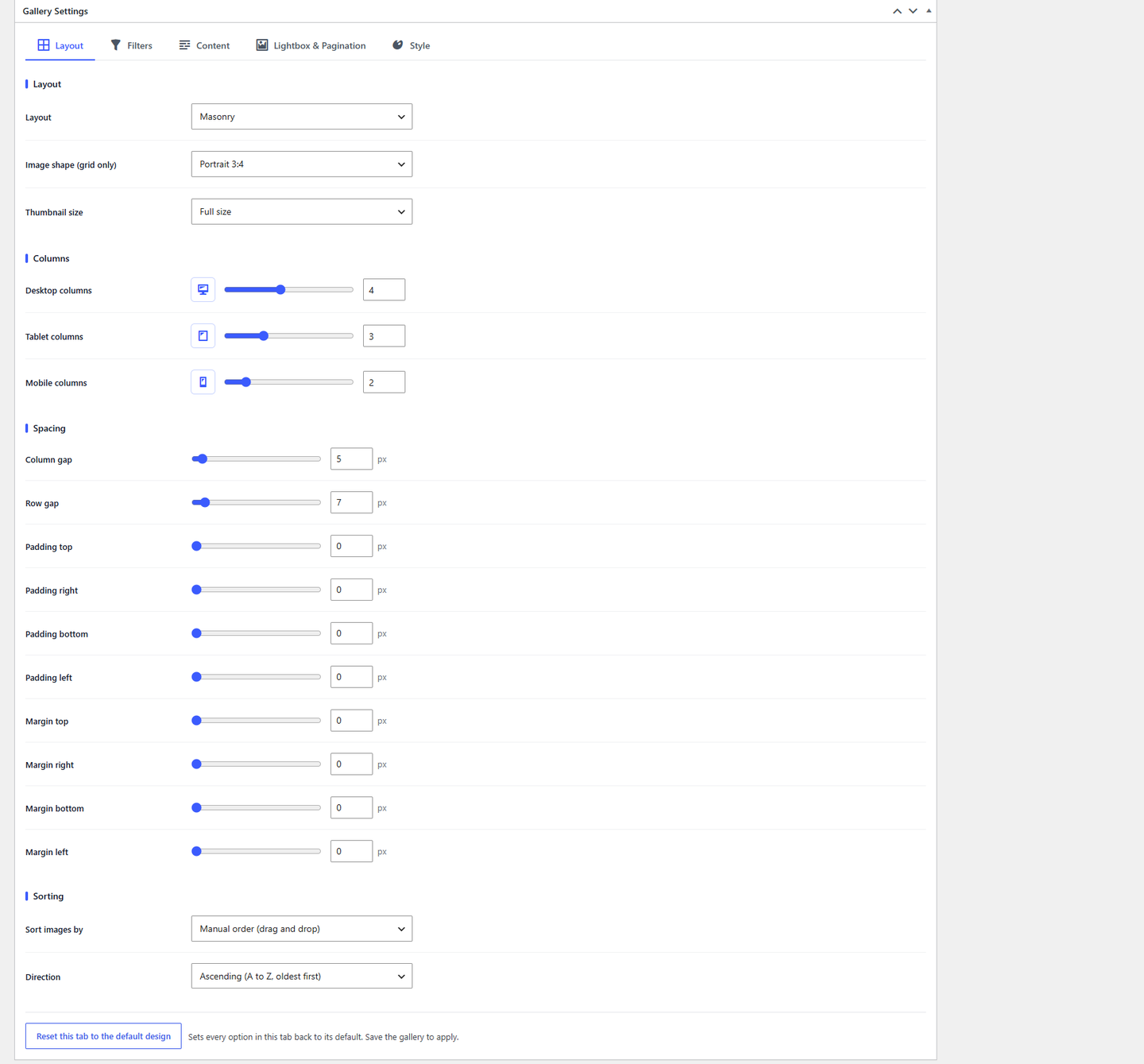
Layout settings: layout type, aspect ratio, columns per device, spacing in px or % and sorting.
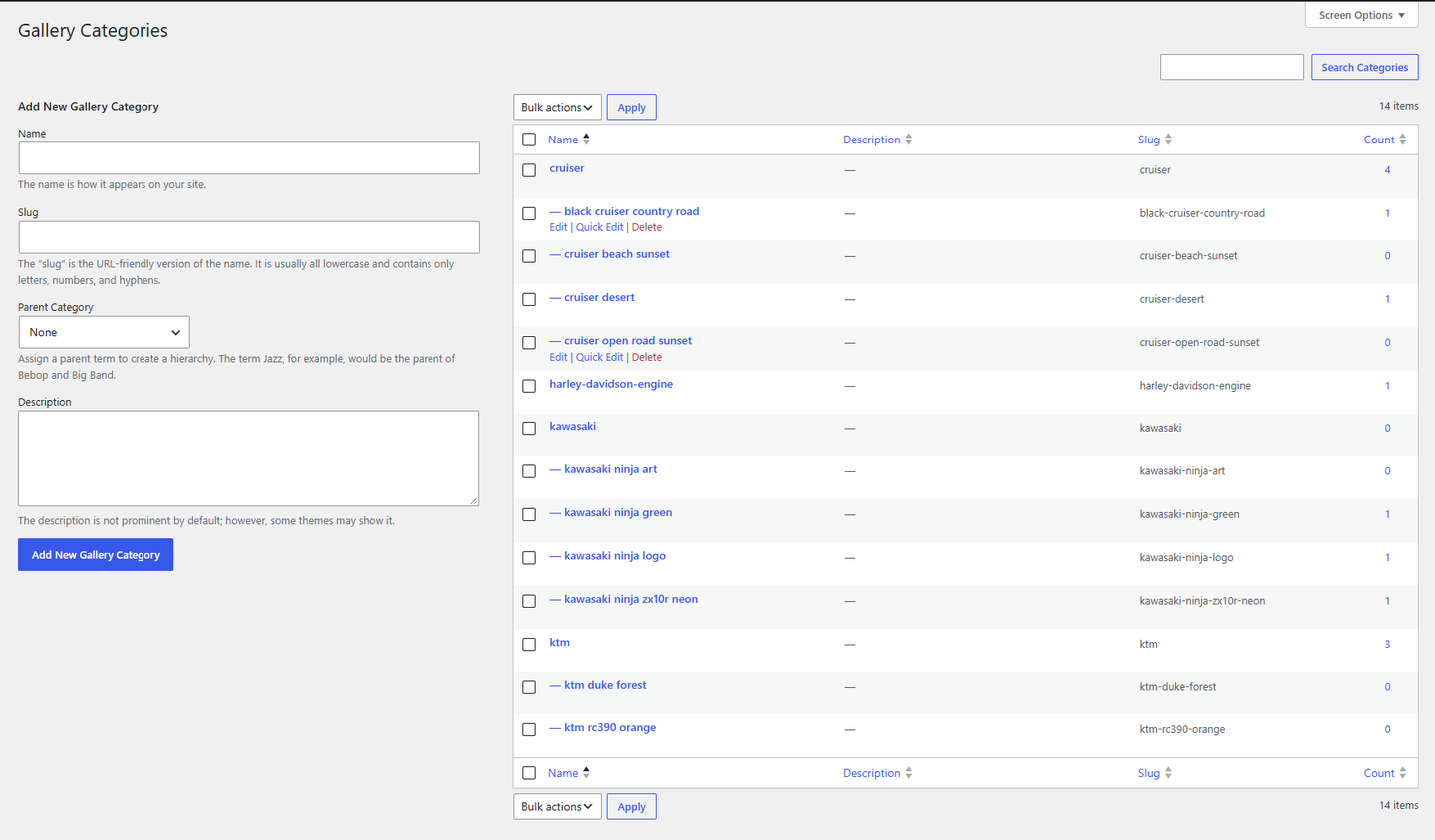
Gallery Categories screen with parent categories (tabs), child categories (sub-tabs) and tab icons.
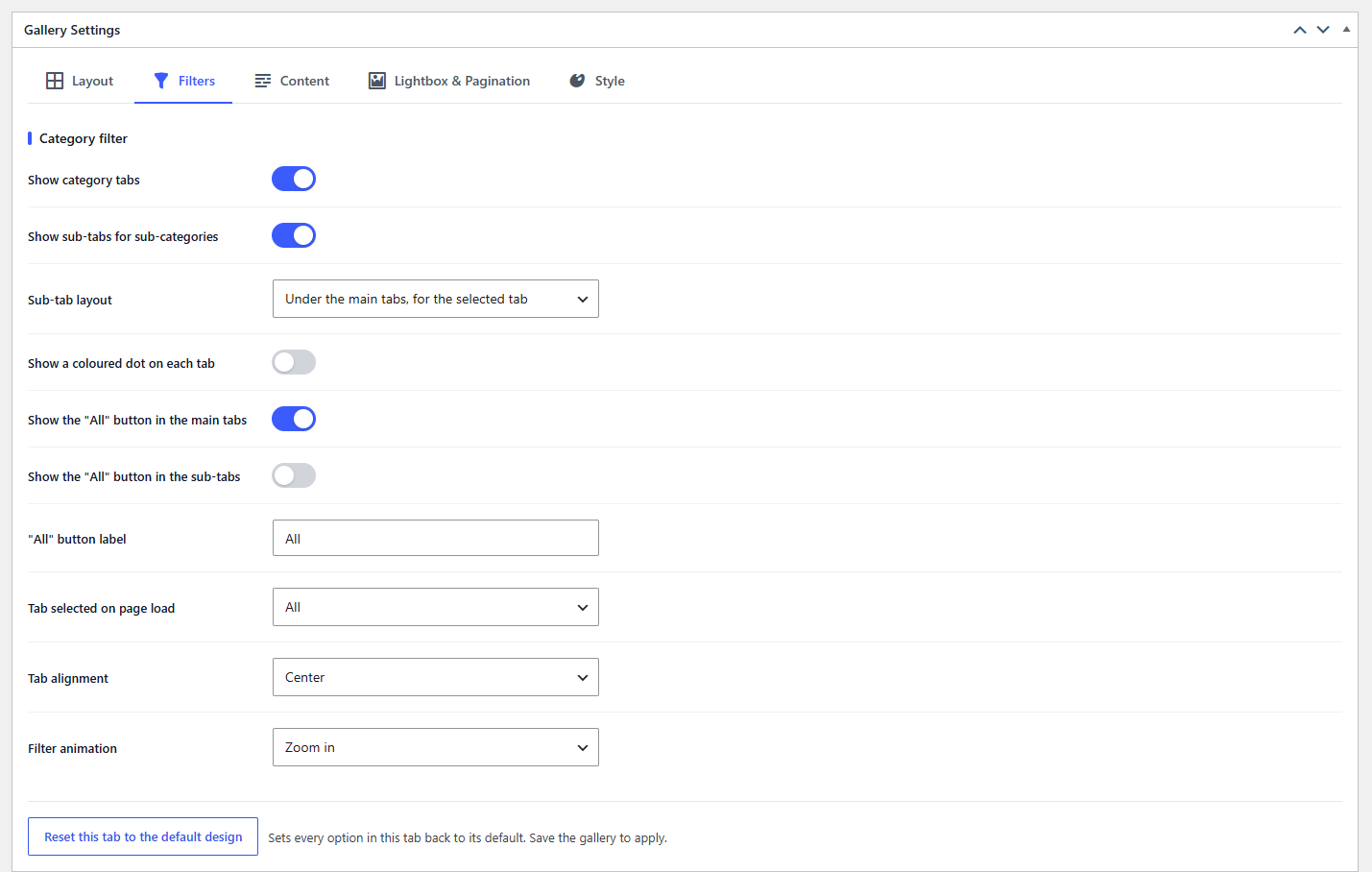
Filters settings: category tabs, sub-tab layout, "All" buttons, alignment and tab icons.
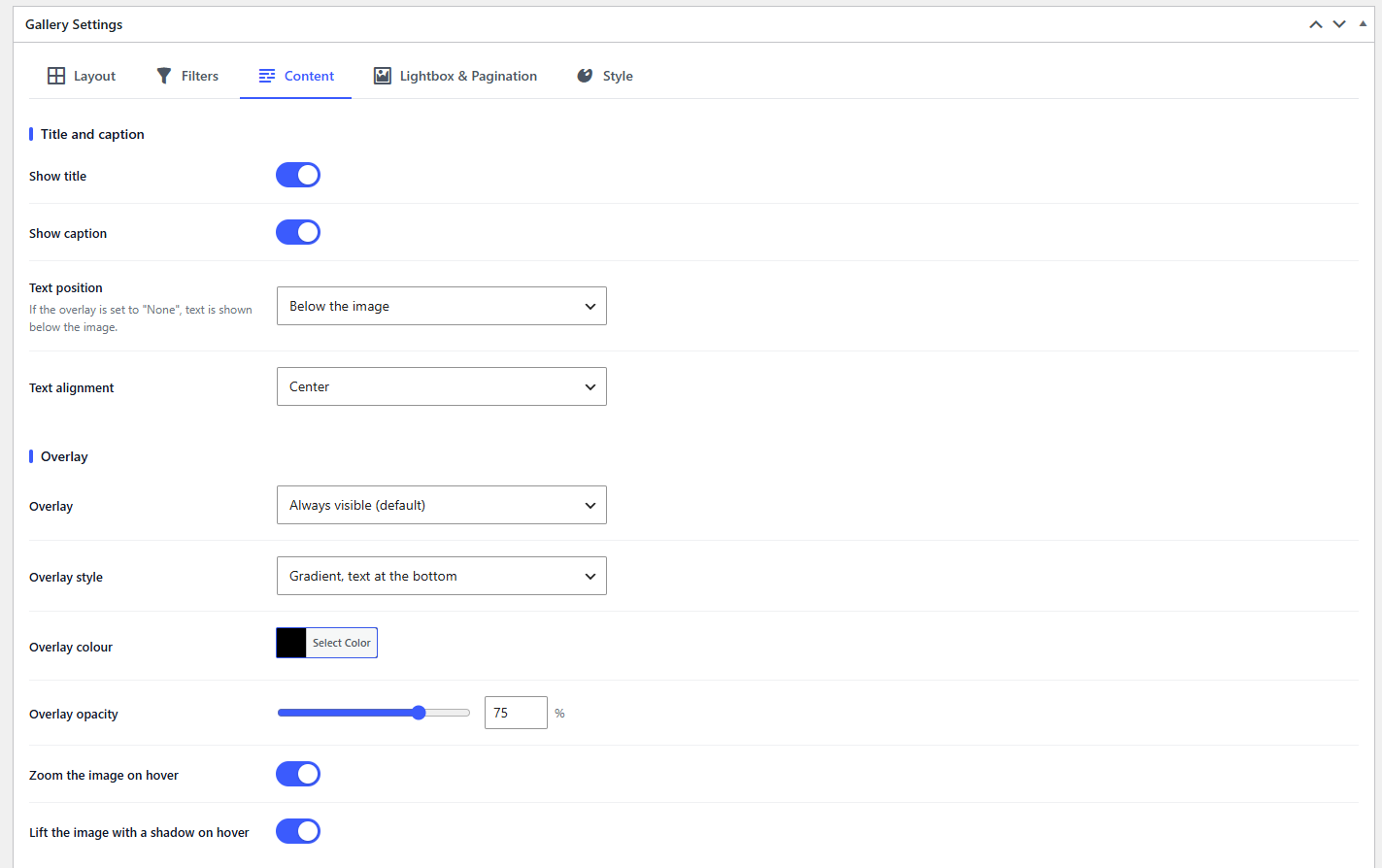
Content settings: title and caption, overlay layout and colour, hover effect, overlay icons and click action.
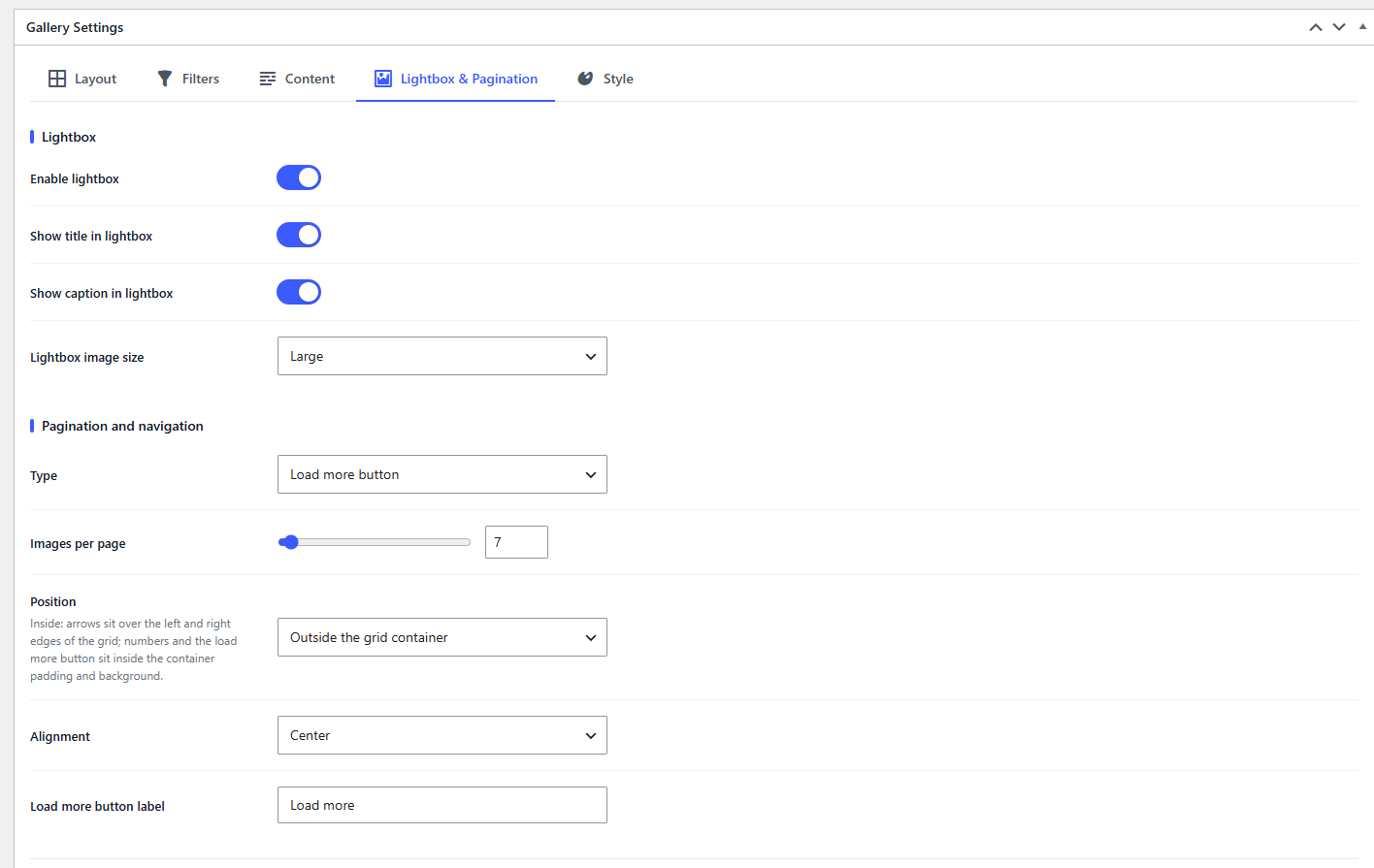
Lightbox and pagination settings: lightbox options, pagination type, position and labels.
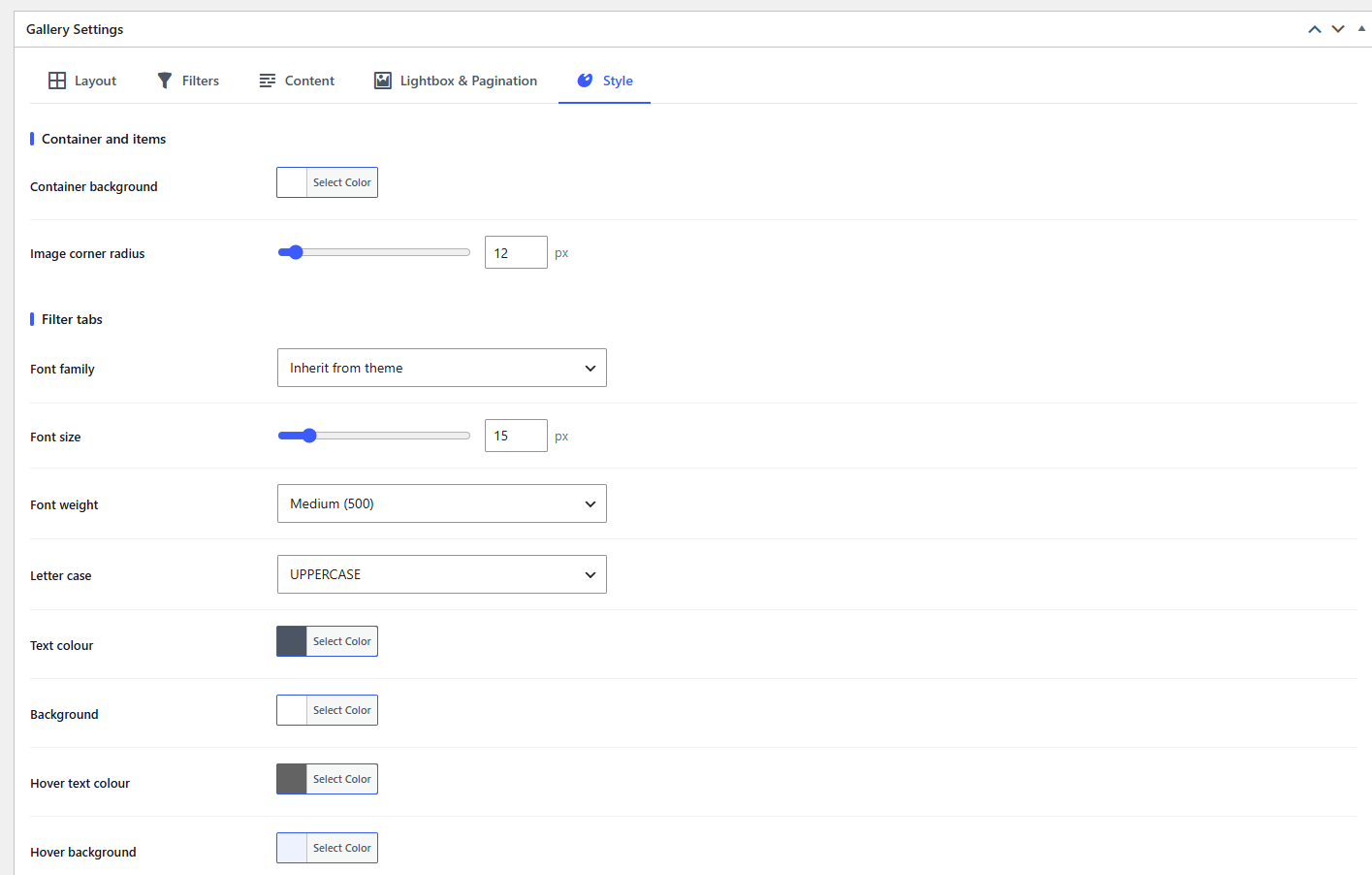
Style settings: container, filter tab fonts, colours, borders and radius.
Faq
Tabs come from Gallery Categories. A category without a parent is a tab. A category with a parent is a sub-tab of that tab. Turn on “Show sub-tabs for sub-categories” in the Filters tab of the gallery.
Yes. Category names are shared across the site (Galleries > Categories), but each gallery ticks the ones it uses and assigns them to its own images. The same image can be in “Nature” in one gallery and in “Portfolio” in another.
Yes: <?php echo fgal_render_gallery( 12 ); ?>
Yes. Add a shortcode widget or module and paste the gallery shortcode. In the block editor, use the Dexdel Filterable Photo Gallery block.
Yes. Images come from the Media Library, so one image can appear in any number of galleries. Its title, caption, link and categories are set per gallery.
Yes. The Layout tab has separate column counts for desktop, tablet and mobile.
No. The plugin loads no external files and only loads its own script and stylesheet on pages that contain a gallery.
Yes. In the Content tab, set “When an image is clicked” to “Go to the item link”. Turn on “Show lightbox / link icons in the overlay” to offer a zoom icon and a link icon on every image, or choose “Nothing” to make images not clickable at all.
Open the Gallery Categories box on the gallery edit screen and click the icon button next to a category, or edit the category under Galleries > Categories. Choose one of the WordPress Dashicons or upload your own image, then turn on “Show an icon with each tab title” in the Filters tab.
Yes. The Custom CSS/JS tab of every gallery takes CSS and plain JavaScript that only load on pages showing that gallery. JavaScript can be edited by administrators only.
No. The plugin makes no remote requests and stores nothing outside your own WordPress database.
Reviews
Changelog
1.3.0
- Categories are now per gallery: each gallery ticks the categories it uses in the new Gallery Categories box and assigns them to its own images. Existing galleries keep their categories.
- Tab icons: choose a Dashicon or upload an image for every category, with size, colour, hover and active colour settings.
- Overlay layouts (text at the bottom, the top or centred on a full overlay), solid or gradient, with an opacity slider on the colour picker.
- One hover effect setting: zoom in, zoom out, image up/down, fade in/out, lift or colour-on-hover.
- Lightbox and link icons can be shown in the overlay on any click action, with their own icon and background colours.
- Click action simplified to lightbox, link or nothing.
- Aspect ratio list extended (1:1, 4:3, 3:4, 16:9, 9:16, 3:2, 2:3, 21:9, original) plus a custom ratio.
- Spacing, gap, padding and margin accept pixels or percent.
- New Custom CSS/JS tab for each gallery.
- Compact settings screen: related options sit in one row, padding and margin side by side, columns with device icons, an Update button at the bottom and a reset per tab.
- Sort direction labels follow the sort key (A to Z, newest first, and so on).
- Fixed: the thumbnail size setting was ignored by the grid.
- Fixed: the filter animation did not run with pagination.
- Fixed: an image stayed in its hover state after its link opened in a new tab.
1.2.2
- Plugin renamed to Dexdel Filterable Photo Gallery. No functional changes.
1.1.1
- Sub-tabs now show under the main tabs by default.
- New option to hide the “All” button in the sub-tabs.
1.1.0
- Redesigned gallery edit screen: separate images and settings boxes, drop zone, sliders and switches.
- New tab design with inline sub-tabs and coloured dots.
1.0.1
- New default design: pill tabs, rounded images, gradient overlay, hover lift.
- Added overlay style option and a reset button on every settings tab.
1.0.0
- First release.