Display During Conditional Shortcode
Display During Conditional Shortcode
Description
Display content conditionally based on a schedule. Choose from three scheduling modes:
- Date Range – Show content between specific start and end dates
- Recurring – Show content on specific days of the week during a time window
- Custom – Use PHP strtotime expressions for flexible scheduling
Gutenberg Block
The Display During block provides a visual editor with:
- Sidebar controls for all three scheduling modes
- Date/time pickers for start and end dates
- Day-of-week checkboxes for recurring schedules
- Live status indicator (active/inactive)
- Optional fallback message when content is hidden
- Copy as Shortcode toolbar button
Shortcodes
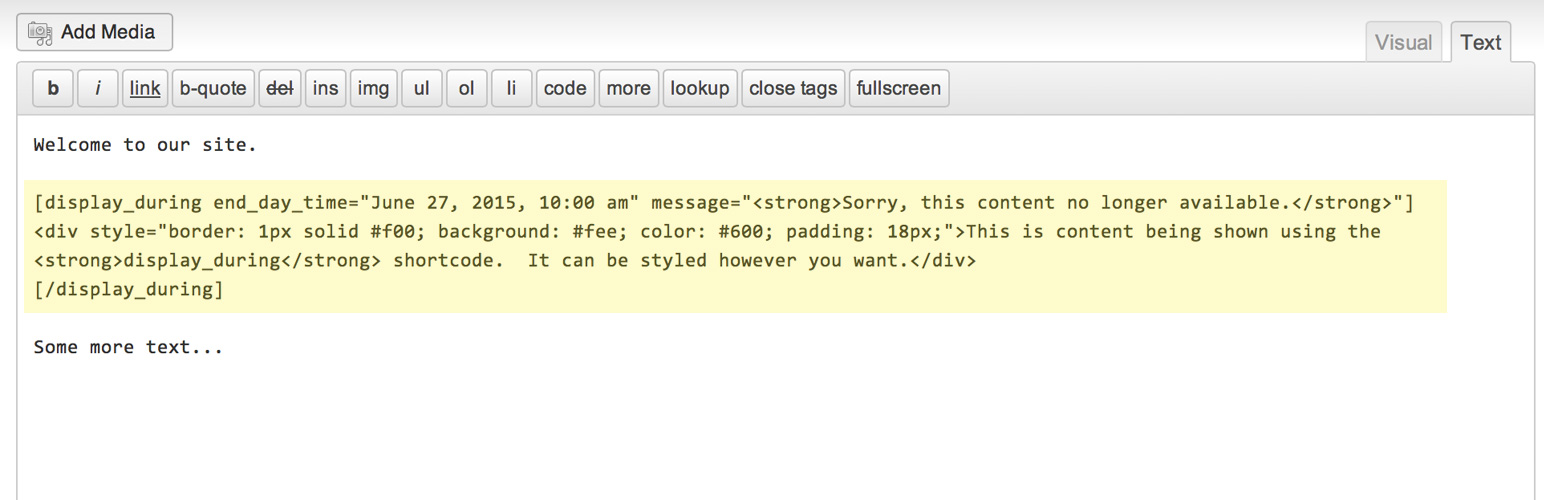
The [display_during] shortcode works in the Classic Editor and anywhere shortcodes are supported.
Date range:
[display_during start_day_time=”June 1, 2026 8:00 am” end_day_time=”December 31, 2026 11:59 pm”]Content here[/display_during]
Recurring schedule (new in 2.0):
[display_during days=”mon,wed,fri” start_time=”09:00″ end_time=”17:00″]Office hours content[/display_during]
Custom strtotime:
[display_during start_day_time=”Sun 8:00 am” end_day_time=”Mon 8:00 pm”]Weekend content[/display_during]
With fallback message:
[display_during end_day_time=”June 1, 2026″]Register now![display_during_message]Registration has closed.[/display_during_message][/display_during]
Shortcode Parameters
start_day_time– When to start showing content (strtotime string or date)end_day_time– When to stop showing contentdays– Comma-separated days for recurring mode (mon,tue,wed,thu,fri,sat,sun)start_time– Start time for recurring mode (HH:MM format)end_time– End time for recurring mode (HH:MM format)timezone_location– PHP timezone identifier (defaults to site timezone)message– Plain text fallback message (legacy; use nested shortcode for rich content)
Installation
Install via Plugins > Install New
- Search for “Display During Conditional Shortcode”
- Click the “Install Now” link
- Click “Activate Plugin”
Via ZIP / FTP
- Unzip the ZIP file and drop the folder straight into your wp-content/plugins directory.
- Activate the plugin through the ‘Plugins’ menu in WordPress.
Using the Block Editor
- Add a new block and search for “Display During”
- Configure the schedule in the sidebar
- Add content to the Content zone
- Optionally enable and add a fallback message
Using the Shortcode
- Insert
[display_during end_day_time="June 27, 2026 10:00 am"]Your content[/display_during] - Publish and view the post or page
Screenshots

Block Editor - Display During block with schedule sidebar

Block Editor - Recurring schedule with day checkboxes

Content shown during valid dates
Faq
Use the Recurring mode in the block sidebar, or the shortcode days parameter:
[display_during days="mon,wed,fri" start_time="09:00" end_time="17:00"]Weekday content[/display_during]
The plugin uses PHP’s strtotime() function. You can specify a specific date (e.g. “June 27, 2026 10:00 am”) or a relative expression (e.g. “Sun 8:00 am”, “Today 9am”).
Either start_day_time or end_day_time (or both) must be provided. If start_day_time is omitted, “now” is used. If end_day_time is omitted, content is shown permanently after the start time.
Yes! Use start_day_time without end_day_time:
[display_during start_day_time=”June 1, 2026 8:00 am” message=”Coming soon!”]Content[/display_during]
Yes! Use the nested [display_during_message] shortcode:
[display_during end_day_time=”June 1, 2026″]Main content[display_during_message]Sorry, this is no longer available.[/display_during_message][/display_during]
In the block editor, check “Show optional message when not displayed” to reveal the message zone.
Yes. The block saves a real shortcode in the post content, so it round-trips cleanly between the Block Editor and Classic Editor.
Yes. The plugin includes a shortcode-to-block transform. Existing [display_during] shortcodes can be converted using the “Convert to Blocks” feature.
Yes, use the contact form on the ShareThePractice.org website.
Reviews
Perfect!
By 
I use it for my event weather report
By 
Changelog
2.0
- New: Gutenberg block with visual schedule controls (Dates, Recurring, Custom modes)
- New: Recurring schedule mode – show content on specific days of the week during a time window
- New: Nested [display_during_message] shortcode for rich fallback content (HTML, shortcodes, media)
- New: Shortcode-to-block transform for converting existing shortcodes
- New: Copy as Shortcode toolbar button in block editor
- New: Live schedule status indicator in editor (active/inactive/unknown)
- New: Shared schedule evaluation engine used by both block and shortcode
- New: Full i18n support with .pot file for translations
- Improvement: Refactored shortcode handler to use shared evaluator
- Improvement: All date comparisons use integer timestamps (fixes microsecond comparison bug)
- Requires WordPress 6.1+ (for block editor support)
1.4
- Feature: Support start_day_time without end_day_time to show content permanently after a date
- end_day_time is no longer required when start_day_time is provided
1.3
- Security: Sanitize all shortcode attributes with sanitize_text_field() and wp_kses_post()
- Security: Validate timezone against timezone_identifiers_list() before use
- Improvement: Rewrite date handling using DateTime/DateTimeZone objects instead of date_default_timezone_set()
- Improvement: Add try/catch for invalid date/time strings in shortcode attributes
- Coding standards: Full PHPCS WordPress-Extra compliance
1.2
- Bug fix to reset timezone back to whatever it was before the shortcode runs
1.1
- Public release of plugin to WordPress repository
1.0
- Initial version of plugin, internal release only