GTM4WP – A Google Tag Manager (GTM) plugin for WordPress

GTM4WP – A Google Tag Manager (GTM) plugin for WordPress
Description
Google Tag Manager (GTM) is Google’s free tool for everyone to manage and deploy analytics and marketing tags as well as other code snippets
using an intuitive web UI. To learn more about this tool, visit the official website.
This plugin places the GTM container code snippets onto your WordPress website so that you do not need to add them manually.
Multiple containers are also supported, and each container can have its own environment parameters, custom domain and custom path.
The plugin complements your GTM setup by pushing page meta data and user information into the so-called data layer.
Google’s official help pages include more details about the data layer.
PHP 8.0 and WordPress 6.3 are required to use this plugin.
GTM container code placement
The original GTM container code is divided into two parts:
The first part is a javascript code snippet that is added to the <head> section of every page of the website.
This part is critical to enable all features of GTM, and this plugin helps to place this part
correctly on your site.
The second part is an iframe snippet that acts as a failsafe/fallback should users’ JavaScript be disabled.
Google recommends – for best performance – to place this code snippet directly after the opening <body> tag on each page.
Albeit not ideal, it will work when placed lower in the code. This plugin provides a code placement option for the second code snippet.
If your WordPress theme is compatible with the additions of WordPress 5.2, then this plugin will place this second snippet in the right place.
Users of the Genesis theme, GeneratePress theme, Elementor, Oxygen Builder and Beaver Builder Theme will also have it placed correctly.
To utilize this, set the compatibility mode in the plugin options to off.
All other users can place this second code snippet using custom PHP code (the “Manually coded” option), or select the so-called “Footer” option
to add the code lower on the page (this is not the recommended way, but it will work).
Basic data included
- post/page titles
- post/page dates
- post/page category slugs
- post/page tag slugs
- post/page author ID and name
- post/page ID
- post types
- post format
- post count on the current page + in the current category/tag/taxonomy
- custom terms associated with any post type
- logged in status
- logged in user role
- logged in user ID (to track cross device behavior in Google Analytics)
- logged in user email address (both unhashed and SHA256 hashed values to be used with tracking)
- logged in user creation date
- site search data
- site name and id (for WordPress multisite instances)
- IP address of the visitor (please obtain the visitor’s explicit consent before using this)
- post author data from PublishPress Authors, including co-authors and guest authors
Content & engagement data
Optional page variables that help with behavior tracking and Google Analytics 4 content grouping:
- content word count and estimated reading time
- last modified date and content age in days
- comment count and comment status
- page template, featured image presence, page hierarchy and sticky flag
- primary category, detected from Yoast SEO or Rank Math
- page language, detected from WPML or Polylang
Browser / OS / Device data
- browser data (name, version, engine)
- OS data (name, version)
- device data (type, manufacturer, model)
Data is collected in the browser using User-Agent Client Hints and pushed as a gtm4wp.deviceData event.
Note that Safari and Firefox expose less detail than Chromium based browsers.
Media player events
Track users’ interactions with any embedded media:
- YouTube
- Vimeo
- Soundcloud
- HTML5 audio and video
- Dailymotion
- Mixcloud
- Cloudflare Stream
- Wistia
- JW Player
- VideoPress
- Spotify
- Twitch
You can choose to fire data layer events when the media player loads, when the media is played, when it is paused or stopped,
and optionally when the user reaches 10, 20, 30, …, 90, 100% of the media duration. Each event also populates Google Tag
Manager’s built-in Video variables (Video Status, Video URL, Video Title, Video Provider, Video Duration, Video Current Time,
Video Percent, Video Visible).
Tracking is supported for embedded media using the built-in oEmbed feature of WordPress, as well as most other media plugins
and copy/pasted embed codes. Players inserted into the page after it has loaded (for example in a popup, a lightbox or via
AJAX) can also be tracked by turning on the optional “Track dynamically inserted players” setting.
Tag restrictions: allowlist & blocklist Tag Manager tags, triggers and variables
To increase website security, you have the option to allowlist or blocklist tags, triggers and variables.
You can prevent specific tags from firing, or prevent the use of certain variable types, regardless of your GTM setup.
If the Google account associated with your GTM account is compromised, an attacker could easily
execute malware on your website without accessing its code on your hosting server. By blocklisting custom HTML tags,
custom JavaScript variables and sandboxed scripts (custom tag and variable templates), you can secure the Tag Manager container.
Integration
Google Tag Manager for WordPress integrates with several popular plugins. More integrations to come!
- Contact Form 7: fire an event when a form is submitted with any result (mail sent, mail failed, spam detected, invalid input, submission aborted or terms not accepted). Optionally push the Google Analytics 4 recommended form events (form_start, form_submit, generate_lead) as well
- WooCommerce:
- Implementation of GA4 E-commerce
- Support for the Cart, Checkout, Mini-Cart, Product Collection and cross-sell blocks, not only the classic shortcode based pages
- Enhanced Conversions user data on the purchase event for Google Ads
- Compatibility with High Performance Order Storage (HPOS)
- Does not support promotions, since WooCommerce does not have such a feature (yet)
- Does not support refunds
- CheckoutWC: optional support for its multi step checkout template
- PublishPress Authors: co-author and guest author data in the page variables
- AMP: load your AMP container on the AMP version of your pages
- Google Consent Mode v2: fire the “default” command with specific consent flags to integrate with non-certified Consent Management Platforms (CMPs) and plugins
- Cookiebot: use automatic cookie blocking mode if needed
- Axeptio: load the Axeptio SDK and push every consent change into the data layer
- CookieYes: push a data layer event whenever the visitor’s consent changes
Server side containers
If you are using a server side container,
you can enter your custom domain name and custom path to load gtm.js from there. Both can be set per container, so you can mix
server side and standard containers on the same site.
Cache-safe data layer
(experimental, off by default)
On sites using a full page cache (LiteSpeed, WP Rocket, Varnish, Cloudflare APO), the HTML generated for one visitor is served
to everyone else as well. Any visitor specific value written into the data layer would therefore leak to other visitors – the
classic example being a page cached while an editor was logged in, then served to anonymous visitors with that editor’s email
address and role still in the data layer.
When this option is enabled, no visitor or session data is written into cacheable HTML at all. Those values are delivered in the
browser instead, under the same data layer variable names, so your existing Google Tag Manager setup keeps working.
Export & import your settings
You can export all plugin settings into a JSON file and import them on another site, which makes it easy to roll out the same
configuration across several websites. Imported files are treated as untrusted and every value is validated before it is stored.
Exclude specific user roles from being tracked
You can set which user roles need to be excluded from tracking when a user with that role visits the frontend. This will completely disable the container code for that user.
Staging and development sites
The container can be limited to production environments only, so a cloned or staging copy of your site does not send data into
your production Google Tag Manager container. This relies on the WP_ENVIRONMENT_TYPE setting of WordPress.
For developers
Version 2.0 is a complete object oriented rewrite. Every feature is a module, and third party plugins can register their own
modules through the gtm4wp_register_modules action. All public template functions, filter and action names, wp-config constants
and the option storage key of the 1.x versions are unchanged, so existing integrations keep working.
Installation
- Upload
duracelltomi-google-tag-manager-for-wordpressto the/wp-content/plugins/directory - Activate the plugin through the ‘Plugins’ menu in WordPress
- Go to Settings / Google Tag Manager and enter your Google Tag Manager container ID and set additional options
Screenshots

Admin panel
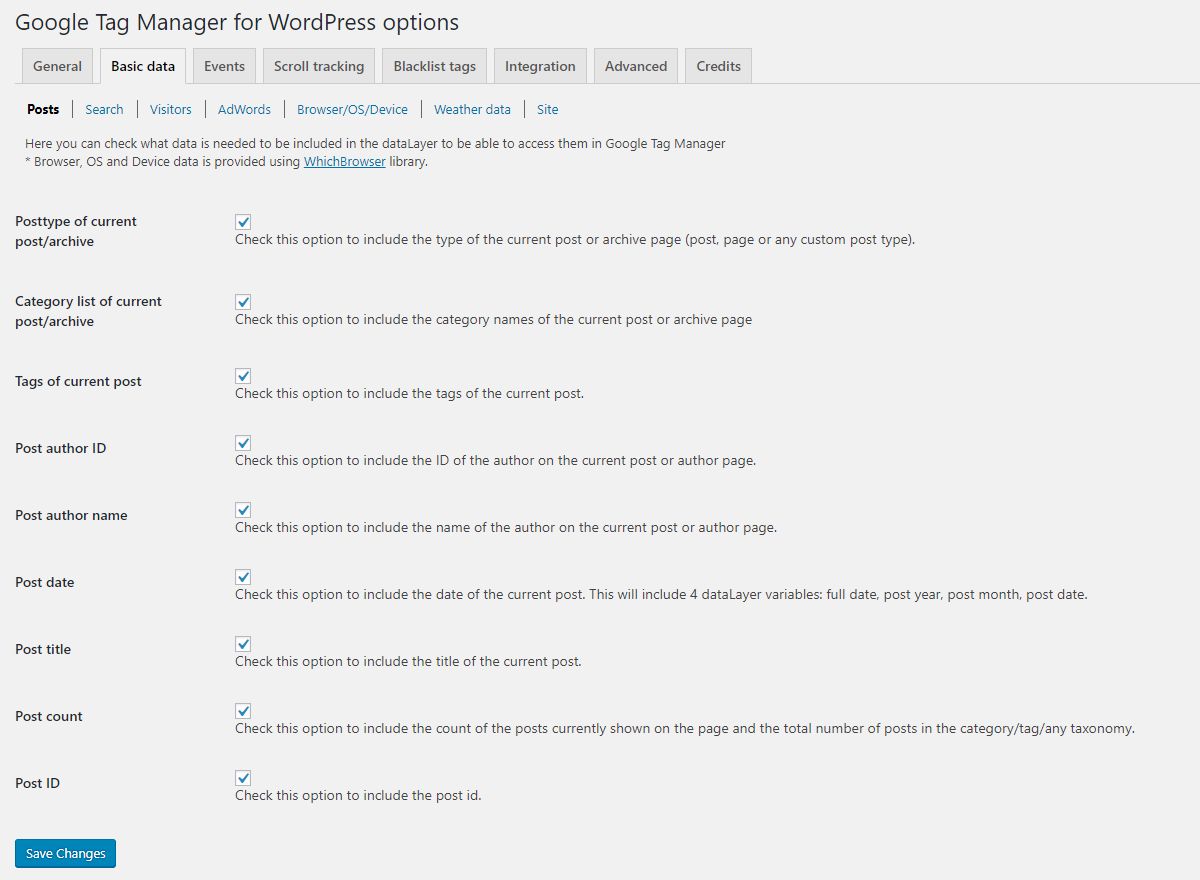
Basic settings

Events
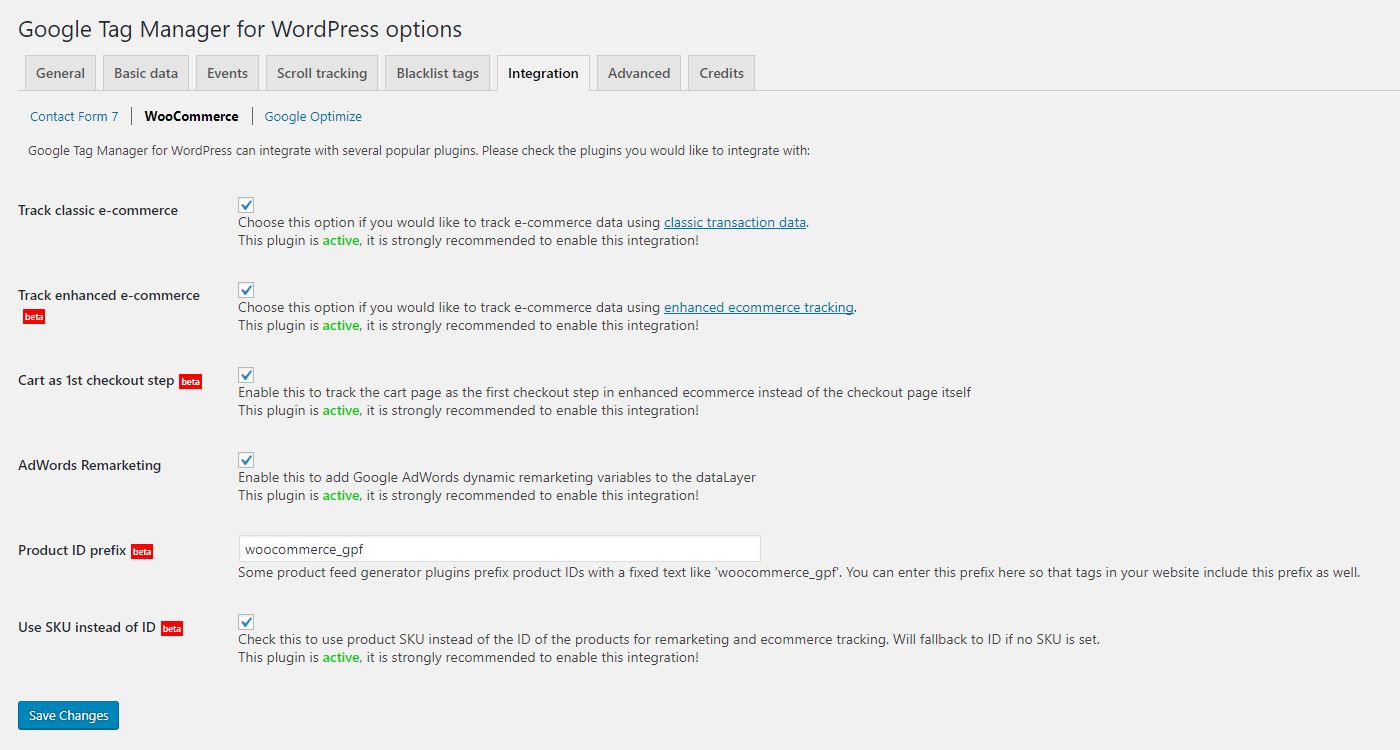
Integration panel
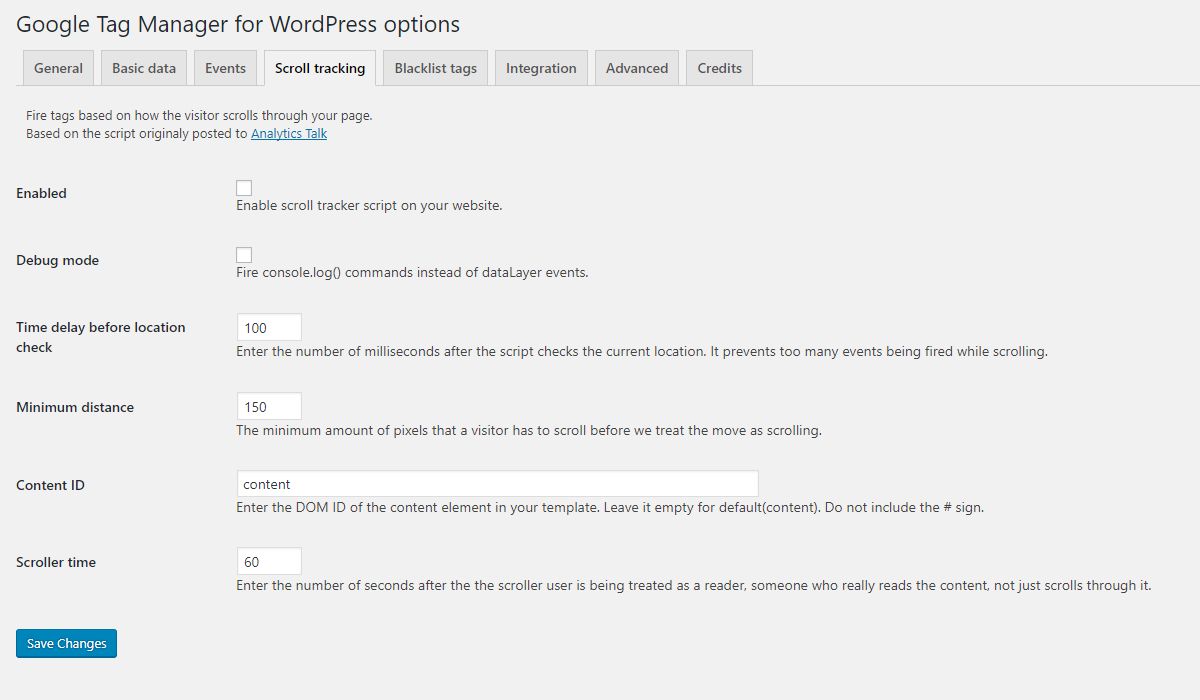
Advanced settings
Faq
Tutorials for various Google Tag Manager settings and implementation are available on the plugin’s website:
https://gtm4wp.com/setup-gtm4wp-features
PayPal and some other 3rd party payment gateways do not redirect users back to your website after a successful transaction by default.
They offer a route back for your customer, but it can happen that users close the browser before arriving at your thank you page
(also known as the order received page). This means that neither Google Analytics tags nor any other tags have a chance to fire.
Enable auto-return in your payment gateway settings. This will instruct the gateway to show a quick info page after payment
and redirect the user back to your site. This will improve the accuracy and frequency of tracked transactions.
This can happen if you are using a 3rd party plugin that alters the default order received page in a way that does not use
WooCommerce’s integration hooks. Either stop using that plugin, or ask its authors to mimic the behavior of the default order
received page more closely by supporting the woocommerce is_order_received_page function and the woocommerce_thankyou action.
Since version 2.0 the plugin also offers two settings that work around this without changing the 3rd party plugin: “Custom order
received (thank-you) page” fires the purchase event on a bespoke confirmation page, and “Reliable purchase tracking” emits a
missed purchase event on the next page the customer views in the same browser session. Both are de-duplicated, so an order is
never counted twice.
Although Google recommends blocklisting tags and variables using classes, people struggle to know
which tags and variables get affected. Therefore I opted for individual tags and variables rather than classes
on the tag restriction tabs.
Regarding variables: ensure they are not part of any critical tags, as blocklisting such variables will render those tags useless.
Google Tag Manager supports basic scroll depth tracking based on percentage or pixels natively. Add a Scroll Depth
trigger in your container and use it to fire your Google Analytics 4 and/or Google Ads remarketing/conversion tags.
(The plugin’s own scroll tracking feature was removed in 2.0 in favor of this built-in GTM functionality.)
Yes, this is a real risk with any full page cache, and it is not specific to this plugin: the HTML generated for one visitor is
stored and served to everyone else. If visitor specific values (email address, user role, IP address) are written into the data
layer, the cached copy will contain the values of whoever happened to trigger the caching.
Turn on the “Cache-safe data layer” option to avoid this. With it enabled, no visitor or session data is written into cacheable
HTML; those values are delivered in the browser instead, under the same data layer variable names.
Each tracking feature (WooCommerce, each media player, Contact Form 7, device data, etc.) is its own small
JavaScript file, and the plugin loads only the files a page actually needs – the YouTube tracker, for instance,
loads only on pages that embed a YouTube video, and with the “defer” strategy so it never blocks rendering.
Those files are already minified by the plugin’s build.
Merging several files into one is intentionally left to a caching / performance plugin (WP Rocket, Autoptimize,
LiteSpeed Cache, etc.), which can combine scripts across your whole site and in a way that suits your hosting and
HTTP setup. On modern HTTP/2 hosting, many small conditionally-loaded files usually perform as well as one combined
file. (1.x combined its own scripts; 2.0 delegates this.)
Reviews
Seems good
By 
I like the option to add multiple containers.
A GTM power tool!
By 
We've been using GTM4WP for all of our clients websites and it's been super reliable. The eCommerce tracking integration has been a huge time saver for us.
Huge thank you for this plugin Thomas Geiger!
Critical Warning: Failed on All Core Function
By 
I am writing this review to save other developers and site owners the immense amount of time I have just lost. I needed to implement standard GA4 e-commerce tracking on a professional WordPress/WooCommerce site. Based on its popularity and countless recommendations, I chose GTM4WP as the solution to generate the required dataLayer.
Unfortunately, after days of intensive, professional-level debugging, I discovered that the plugin was completely non-functional in my specific—yet very common—environment.
The plugin failed at its two most essential tasks:
- GTM Snippet Injection: The plugin's most basic feature—injecting the GTM container script into the website's <head> and <body>—did not work at all. The script was simply not present. I had to bypass this functionality entirely and inject the code manually using another method (Code Snippets) just to get our GTM container to load.
- E-commerce dataLayer Generation (The Deal-Breaker): This is the primary reason anyone uses this plugin. After successfully loading our GTM container manually, I ran a full test purchase. By analyzing the GTM debug mode and the site's dataLayer object, I can confirm that GTM4WP completely failed to generate the purchase event and its corresponding ecommerce object on the WooCommerce order confirmation page. It produced absolutely nothing.
My Technical Environment (Please read this before you install):
To help others, here is the stack where the plugin failed. This is likely the source of the conflict:
- CMS: WordPress
- E-commerce: WooCommerce
- Theme: Hello Elementor (using a child theme)
- Page Builder: Elementor Pro
- Key Detail: I am using Elementor Pro to customize the WooCommerce page templates, including the "Thank You" / "Order Received" page.
Conclusion:
My conclusion is that GTM4WP is fundamentally incompatible with themes or page builders that override default WooCommerce templates—a standard practice for virtually any custom-designed website today. Because it cannot handle this common scenario, the plugin proved to be entirely useless for my project.
While it may work on simple sites with basic, unmodified themes, it is not a reliable solution for professional, customized builds. The time and effort wasted diagnosing this incompatibility were substantial. I cannot recommend this plugin and strongly advise users with a similar tech stack to seek a manual implementation from the start.
Thought this was beginner friendly. Is not.
By 
Thought this was beginner friendly. Is not.
Plugin com problema
By 
Em vários sites que o plugin está instalado, após alguma atualização, o menu mobile de alguns sites não abre.
Poor Support Experience
By 
I’m disappointed with the support for this plugin. I submitted a question over a week ago, but I have yet to receive any response from the support team.
While the plugin itself may work fine, having reliable support is critical, especially when issues arise. Unfortunately, the lack of responsiveness has made it difficult to trust this plugin for long-term use.
I hope the team improves their support response time in the future.
GTM has stopped pushing data to contact form 7 version 6.0
By 
Hi Thomas , I have noticed that gtm4wp.contactForm7Submitted is not getting the data when I updated the contact form 7 to version 6.0, I reverted the version back to 5.9.7 and it started working again!, will this helpfull?
I was trying to make GTM work with Litespeed cache plugin for hours
By 
I was stuck for hours trying to tweak the litespeed cache plugin so it'd work with Google Tag Manager. The solution was simple: use gtm4wp.
For some reason, this plugin avoids the conflicts with litespeed cache (allowing your tags to fire). I'm so happy this works because my site really needs the performance boost from litespeed while being able to track results.
A huge thank you to the developper!
Works well. Needs UI improvements
By 
Good plugin to integrate GTM. The UI can use some polishing up.
no support and breaks page
By 
Support is nonexistent, enabling tracking post pages will break your site if it's not a post not woocommerce page. Excluding administrator from tracking doesn't work neither.
Changelog
2.0.6
- Fixed: visitors browsing in the in-app browser of an Android app such as Facebook or Instagram got no WooCommerce data layer, so their
purchaseand other e-commerce events were missing. Thanks to @sw33tr for the report (#477). - Fixed: on the classic cart page, re-adding a removed product with “Undo” now sends
add_to_cart. WooCommerce restores it in the background and discarded the page part that carried the event. - Fixed: with “Clear ecommerce object before new event” on, the e-commerce events GTM4WP adds as the page loads (
view_item,view_cart,begin_checkout,purchase, the cart “Undo”add_to_cart) and the Quick Viewview_itemare now cleared before too, not only the events fired in the browser. - Fixed: the plugin conflict notice now calls Google Analytics for WooCommerce by its current name.
- Fixed: WooCommerce Mini-Cart tracking (
remove_from_cartfrom the Mini-Cart drawer) now loads only on pages that show the Mini-Cart block. Stores using the Cart or Checkout block no longer load the WordPress data scripts on every page, and stores with a classic cart now track removals from a Mini-Cart block too. - Fixed: a WooCommerce Product Bundles bundle reported
stockstatusasinstockin the e-commerce items even when one of its bundled products was out of stock and the bundle could not be bought; it now reportsoutofstock. Thanks to @KingWehsops for the report (#474). - Fixed: a
gtm4wp_overwrite_consent_mode_flagfilter callback returning the stringdeniedset that consent signal togranted; the filter now also acceptsgrantedanddenied. - Fixed: a WooCommerce checkout total that is not a finite number no longer breaks the inline checkout script;
gtm4wp_checkout_valueisnullthen. - Fixed: hardened how the plugin’s REST endpoints answer requests made from other pages.
- Changed:
siteSearchTermcarries the search term as typed; the classic data layer used to HTML-encode it while the cache-safe one did not. A GTM trigger matching the encoded form needs the plain text now. - Changed:
pageTitlecarries the title as the visitor reads it: WordPress’s encoding of ampersands, quotes and dashes is decoded. A GTM trigger matching the encoded form needs the plain text now. - Changed: the Contact Form 7 tracker script is no longer loaded while Contact Form 7 is not installed.
- Changed: for developers,
gtm4wp_datalayer_push()returnsfalsefor a non-string$js_before/$js_afterargument instead of printingArrayinto the page. - Fixed: thank-you pages that show the purchase are now kept out of page caches. The page set as “Custom order received page” is treated the same way WooCommerce treats its own order received page; a thank-you page built by a theme or page builder is excluded from page-cache plugins.
- Fixed: on a password-protected post, the post meta, word count and reading time variables are left out of the data layer for visitors who have not entered the password.
- Fixed: when the Contact Form 7 tracker’s settings do not reach the page (for example an optimisation plugin drops inline scripts), it no longer falls back to sending the submitted form values.
- Fixed: a PHP error when
woocommerce_thankyoufired with an id that is not an order, or on a product page whose product could not be loaded. - Updated: tested with WooCommerce 11.2.0.
2.0.5
- Fixed: the data layer initialisation block no longer contains the word
gtag. Since 2.0.3, a JavaScript delay plugin withgtagon its keyword list, such as Flying Scripts, delayed the whole block and the browser console showeddataLayer is not defined. The Google tag developer ID is still set. - Fixed: a page with no data layer variables to report no longer pushes an empty array into the data layer;
dataLayer_contentis then an empty object and is not pushed. Content that is pushed is always an object, never an array, which GTM would read as a command.
2.0.4
- Fixed: on the classic WooCommerce checkout, an error in the plugin’s checkout step tracking could stop the order from being submitted the normal way, so a gateway that adds card details in the browser, such as Stripe, rejected it. Tracking errors can no longer interrupt the checkout or a variation selection, and still show in the browser console. (#472)
2.0.3
- Fixed: on a store that displays prices including tax, every cart line in view_cart, begin_checkout and the cart content carried a discount equal to the line’s tax, with no coupon or sale involved, so GA4 reported a share of the revenue as a discount on every order. The total side of the discount calculation read a key WooCommerce never writes on a cart item, so only the subtotal side gained the tax. An undiscounted line carries no discount again. Stores displaying prices excluding tax were never affected, and neither was the purchase event.
- Fixed: on a store whose product page runs the newer WooCommerce blocks (built on the WordPress Interactivity API), an add to cart the store refused could still be reported when a related-products or grid add was clicked within the next ten seconds, so add_to_cart fired twice for a single item. A list add now supersedes whatever the product form still had waiting.
- Fixed: on the same stores, a cart read over the Store API that came back with something other than a cart could report every item as removed; it is now treated as no reading at all.
- Fixed: a purchase was never reported when the customer reached the order received page while the order was still Pending payment, and “Reliable purchase tracking” did not recover it. This happens with a payment provider that confirms the payment through a webhook, such as the WooCommerce Stripe Gateway with webhooks enabled: the customer is redirected back a moment before the confirmation arrives, so the plugin sees a status that is not in “Order statuses that trigger the purchase event” and withholds the event, and the later change to Processing happens in a request the plugin cannot connect to the customer’s browser. With “Reliable purchase tracking” on, such an order is now remembered in the customer’s session and checked again on the pages they view next; the purchase is reported once, as soon as the status has become one of the tracked statuses, and the order is flagged as tracked at that moment. The wait ends by itself when the order is cancelled, refunded or fails, or once the order is older than the “Maximum order age” (30 minutes by default). Pending payment itself is still not counted as a sale, and every existing duplicate guard applies unchanged.
- Fixed: with a custom data layer variable name, the Google Consent Mode default block pushed its defaults to dataLayer instead of the configured variable, so the container never received them and the consent defaults did not apply. The block now uses the configured name and stays out of WP Rocket’s combined JavaScript.
- Fixed: on a subdomain multisite, or any site defining COOKIE_DOMAIN, the cache-safe data layer could not clear its event cookie after a one-shot event was delivered, so every later page view made a needless request. The cookie is now host-only.
- Fixed: a login or registration event was lost when the visitor’s next request was a REST call (the WooCommerce Store API, a headless front end) rather than a page view.
- Fixed: a user account created by a logged-in administrator through the REST API or an admin app fired gtm4wp.userRegistered in the administrator’s own browser instead of nowhere.
- Fixed: the form interaction and Contact Form 7 events reported a hidden action field instead of the form’s URL when the form contained a field named action, id or target.
- Fixed: the browser, OS and device data script reported all three signals when a page optimiser removed its inline configuration, ignoring which of them were enabled. It now reports nothing in that case.
- Fixed: with the cache-safe data layer, a logged-in visitor served a cached page kept requesting their visitor data on every page view after WordPress refused the page’s nonce. When WordPress itself reports the rejected nonce, the data is requested once more anonymously and that page stops asking.
- Updated: tested with WooCommerce 11.1.2.
- Added: the data layer initialisation block carries the plugin’s Google tag developer ID, gtag(‘set’, ‘developer_id.dNGJiYT’, true), so Google can tell which platform installed the tag. It identifies GTM4WP only and adds nothing about the site or its visitors.
2.0.2
- Updated: tested with WooCommerce 11.1.
- Fixed: a product category or brand name containing an ampersand reached the data layer as “Shirts & Ties” rather than “Shirts & Ties”, which is what GA4 then reported. WordPress encodes term names when they are saved, and the plugin now decodes that once when it reads the name.
-
Fixed: item_id, sku and the dynamic remarketing id are now always strings. A product with no SKU falls back to its numeric id, and that fallback was written into the data layer as a number while the same fields are strings on every product that has a SKU. Check your GTM setup if a trigger or variable compares one of those fields against a number.
-
Fixed: the begin_checkout event was missing on stores where WooCommerce reports the checkout page as the cart page as well, which happens when a plugin or a theme forces that decision or when a cart shortcode is left in the checkout page content. Such a checkout page pushed view_cart and begin_checkout never fired anywhere. The checkout is now decided first, so a page reported as both is treated as the checkout page. The order-received page is recognized ahead of both on both halves as well: on such a store the thank-you page used to be taken for the cart page by the block tracker, which loaded there in its cart context in place of the regular tracker.
- Fixed: add_to_cart and remove_from_cart never fired on a store whose product and cart blocks are built on the WordPress Interactivity API, the newer form of the WooCommerce blocks. Product pages now report the add once WooCommerce confirms that the item reached the cart, and cart changes made anywhere else are read back from the WooCommerce Store API and reported the same way as on a store using the older blocks. Variable products are covered as well: the interactive form publishes no variation data the plugin could read, so the event is completed from the cart line the add creates, which carries the data of the variation itself.
- Fixed: a GTM4WP_HARDCODED_* value in wp-config.php that ends in a newline character – typically an untrimmed file read feeding the define() – is now rejected and named in the existing admin notice, like any other malformed value. Previously a gtm_auth/gtm_preview value with a trailing newline passed validation, the newline reached the container loader script and broke the whole block, so the container silently did not load with nothing pointing at wp-config. A container ID with a trailing newline used to be silently repaired and kept working; it is now reported the same way instead – remove the stray newline from the define() and the override applies again.
- Fixed: a page whose author cannot be resolved no longer takes the whole page down with a critical error when PublishPress Authors is active. PublishPress reports such an author as no author at all, which happens when the author’s user account has been deleted, and the plugin passed that straight into the code reading the author name and ID, where it ended in a fatal error. The WooCommerce My Account page is the one most likely to hit it, since it is often the page nobody keeps an author on. An author that cannot be resolved is now skipped, so the page renders and the author variables are simply left out of the data layer, and a post that has one real author next to an unresolvable one is treated as having a single author.
2.0.1
- Fixed: on a block-based store, opening the Cart page pushed add_shipping_info and add_payment_info into the data layer with no interaction, and both events then fired again on the Checkout page. The block tracker told the two pages apart by the presence of the WooCommerce payment data store, which WooCommerce registers on the Cart page as well; the Cart and Checkout pages now each receive their own context and the checkout-step events fire only on the Checkout page.
- Fixed: a blank settings screen no longer stays silent about why it is blank. Some ad and privacy blocker filter lists block everything under the plugin folder, including the file that builds the settings screen in the browser, which left the settings page empty with no explanation. A static notice now appears after a few seconds whenever the settings app could not start, explaining the most likely cause and the workaround (pause the blocker for the admin area of the site, or add an exception for it).
2.0.0
Major rewrite of the plugin. Please read the announcement post on gtm4wp.com before upgrading. This section is a summary; wordpress.org truncates a changelog after 5,000 words, so the complete list of 2.0.0 changes with every detail lives in the full changelog: https://gtm4wp.com/changelog
- Changed: complete object-oriented rewrite. Every feature is a module that third-party plugins can extend. All public template functions, filter and action names, wp-config constants and the options storage key are unchanged, so existing integrations keep working.
- Changed: minimum requirements raised to PHP 8.0 and WordPress 6.3.
- Added: modern React-based settings screen with left pane navigation, tabbed option groups, option search, inline validation, a help link on every option, bookmarkable addresses and settings export and import.
- Added: every Google Tag Manager container ID has its own environment parameters, custom domain and custom path; a production-only kill switch for staging copies; validation of the hard-coded wp-config constants with a warning that names the wrong one.
- Changed: the tag restriction list is written under the documented
gtm.allowlist/gtm.blocklistkeys, the entity list is refreshed from Google’s documentation, and blocklist mode no longer blocks every tag. - Added: cache-safe data layer mode for sites behind a full page cache, with the visitor specific values fetched separately.
- Changed: GA4 e-commerce tracking reworked for WooCommerce: reliable purchase tracking, custom order received page, order statuses that trigger the purchase event, list attribution across the funnel, block cart and checkout support, Store API data for the block trackers, and numeric-looking text values no longer turned into numbers.
- Added: an Axeptio consent management platform integration and a CookieYes consent bridge; the WebToffee v2.x integration is deprecated. Media events cover more embedded players, and a player’s script is requested only on pages that contain one of its embeds.
- Removed: the weather and geo data features and the scroll tracking feature (use the built-in Scroll Depth trigger of Google Tag Manager instead). Browser, OS and device data is now collected in the browser with User-Agent Client Hints, which replaces the bundled WhichBrowser library.
- Deprecated: the “YouTube video events” option (Google Tag Manager ships a native YouTube Video trigger) and the
$gtp4wp_plugin_url,$gtp4wp_plugin_basenameand$gtp4wp_script_pathglobal variables, which will be removed in 2.1.
1.22.5
A maintenance release for the 1.x line. 1.22.4 was intended to be the last one before GTM4WP 2.0; this release exists because the fixes below are worth shipping to 1.x users rather than holding for 2.0.
- Fixed (security): hardened how the hidden product-data attribute is built for WooCommerce product lists and cart remove links, so that no product field value can affect the surrounding HTML. Certain values were not guaranteed to stay inside the attribute.
- Fixed: when a custom X-Forwarded-For header is configured as the visitor IP source, all entries of the header are now evaluated. Only the first entry was ever considered, because the remaining ones were not trimmed of the space that follows each comma and therefore failed IP validation.
- Fixed: the custom visitor IP header name is now validated in full. The check accepted any value that contained at least one valid character, so an invalid header name passed validation and was then simply never found. Setups with a working header name are unaffected.
1.22.4
- Fixed: hardened how values are encoded into the data layer and into inline script blocks. Script blocks are no longer HTML entity decoded after sanitization, and every value written into a script context is now JSON encoded with the full set of hex escaping flags. Thanks cyn
- Fixed: nonce attribute should not be sanitized. Thanks oxyc
- Fixed: avoid warnings when saving settings. Thanks mircobabini
- Fixed: only float number is returned in JavaScript processing. Thanks gkipouros
- Updated: only load plugin files on frontend or on admin when the admin user has sufficient permissions.
- Updated: WooCommerce 10.4+ compatibility – the checkout inline script no longer uses the deprecated wc_enqueue_js() function. The old function is still used as a fallback on setups where the tracker script is loaded in the page head.
- Updated: WordPress and WooCommerce compatibility.
- Deprecated: geo data (ipstack.com) and weather data (OpenWeatherMap) integrations. They still work in this version but will be removed in GTM4WP 2.0. There is no direct replacement: collect this data in Google Tag Manager or with a dedicated service instead.
- Deprecated: scroll tracking. It still works in this version but will be removed in GTM4WP 2.0. Use the Scroll Depth trigger built into Google Tag Manager instead.
- Deprecated: the “Custom tag/variable templates” blacklist option, plus the Universal Analytics and Mouseflow entries of the tag blacklist. These will be removed in GTM4WP 2.0.
- Added: a dismissable admin notice announcing the upcoming GTM4WP 2.0 release. If your site uses one of the deprecated features above, the notice names it.
1.22.3
- Fixed: when timeout for the select_item event with WooCommerce is set to 0, plugin does not halt the browser from loading the product page
- Fixed: properly reading timeout for select_item eventCallback
1.22.2
- Fixed: purchase event was not fired when is_order_received_page() WooCommerce tag was not supported by the template and the fallback method had to activate.
1.22.1
- Fixed: yet another fix to the purchase tracking. Thanks Khnaz35
Older releases are listed in the full changelog: https://gtm4wp.com/changelog/1-x