Easy-Peasy.AI Chatbot
Easy-Peasy.AI Chatbot
Description
Easy-Peasy.AI Chatbot puts your Easy-Peasy.AI agent on every page of your WordPress site as a chat bubble. Visitors ask a question and get an answer in seconds, written from your own pages, documents and Q&A, in the language they write in.
You build and train the agent in Easy-Peasy.AI, then paste its Agent ID into this plugin. No code, no theme editing.
What your agent can do
- Answer questions about your services, prices, opening hours and policies, from your website and documents.
- Show buttons that send visitors to your booking, pricing or checkout pages.
- Collect names, emails and other details, and save them to Leads.
- Check when you’re free and book meetings in your Google Calendar.
- Reply in each visitor’s own language.
- Talk out loud: on Unlimited 200 and higher, visitors can talk to your agent by voice right in the chat.
The chat works on every plan, including Free. Buttons, lead collection and bookings are actions, which need a paid plan.
Make it yours
Pick where the bubble sits (a corner, or a tab on the side of the page), its size, icon, color and label, write the greeting that pops up next to it, and style the chat window. It’s all saved with your agent in Easy-Peasy.AI, and your site updates within about a minute, with nothing to change in WordPress.
Light on your site
The plugin adds one script. The bubble shows as soon as the page loads, and the chat itself loads in the background once the page has settled, or as soon as a visitor points at or taps the bubble.
One inbox for every channel
Read every conversation in Easy-Peasy.AI and see what visitors ask most in Analytics. The same agent can also answer on WhatsApp, Messenger, Telegram, LINE, Slack, by email and over the phone.
Get started
- Create a free account at Easy-Peasy.AI, create an agent and train it on your website.
- Install and activate this plugin.
- In Easy-Peasy.AI, open your agent, go to Channels, click Manage on Chat bubble and copy Your Agent ID.
- In WordPress, go to Settings > Easy-Peasy.AI Chatbot, paste the ID and click Save Settings.
The setup guide has every step with pictures.
External services
This plugin connects your site to Easy-Peasy.AI, the service that runs your agent. Nothing is sent until you save an Agent ID.
- The chat. Every front-end page of your site loads the chat script from
https://bots.easy-peasy.ai/chat.min.js. Your visitors’ browsers then load the bubble’s look from bots.easy-peasy.ai and, when a visitor opens the chat, the chat window. What visitors type, and any file or voice message they choose to send, goes to Easy-Peasy.AI to be answered and is saved in your agent’s conversations. - The agent check. When you save the settings, and when you open the settings page (at most once an hour), your site asks bots.easy-peasy.ai for the agent’s public details: its name, and whether its Allowed Domains include your site. The request carries the Agent ID and your site’s address.
Easy-Peasy.AI’s terms of use and privacy policy apply.
Installation
- In your WordPress admin, go to Plugins > Add Plugin, search for Easy-Peasy.AI Chatbot, click Install Now and then Activate.
- Go to Settings > Easy-Peasy.AI Chatbot.
- Paste your Agent ID and click Save Settings.
To install from a zip file instead, go to Plugins > Add Plugin > Upload Plugin, choose the file and click Install Now.
Screenshots
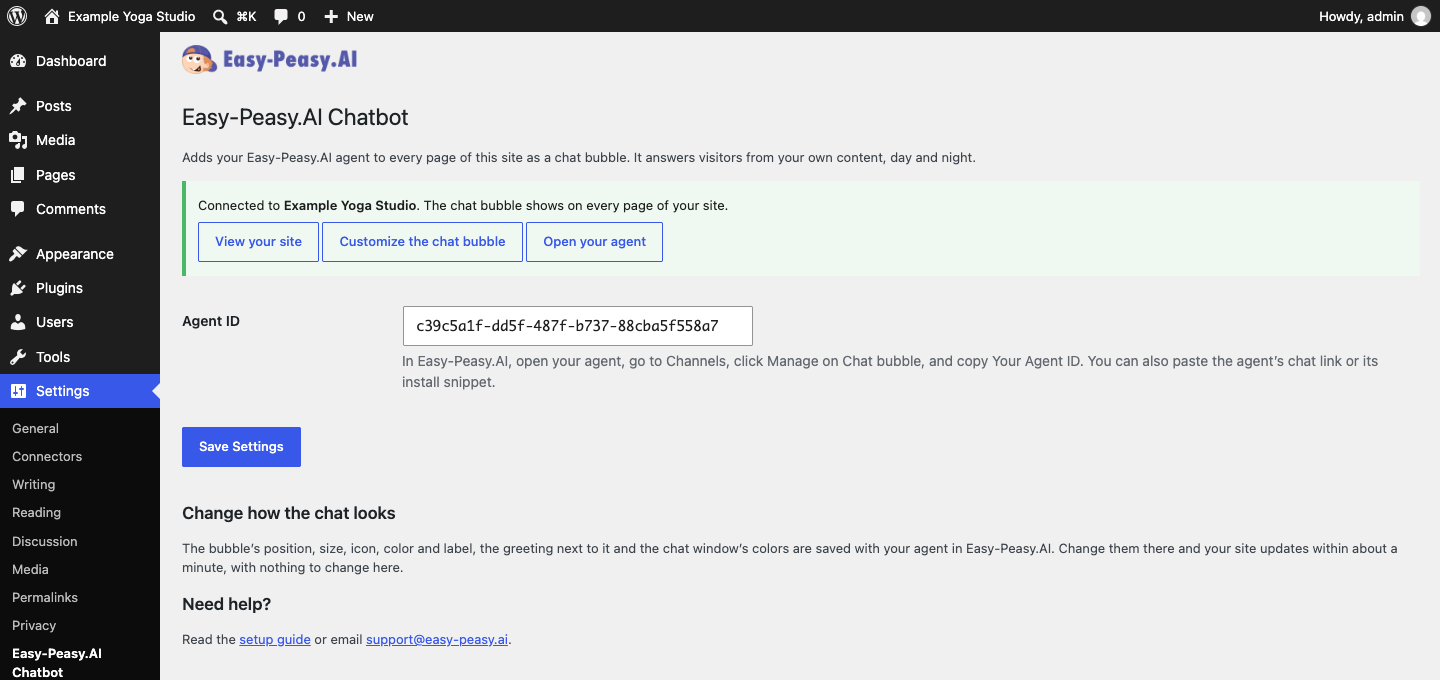
The plugin's settings, connected to an agent.

The chat bubble and its greeting on a WordPress site.
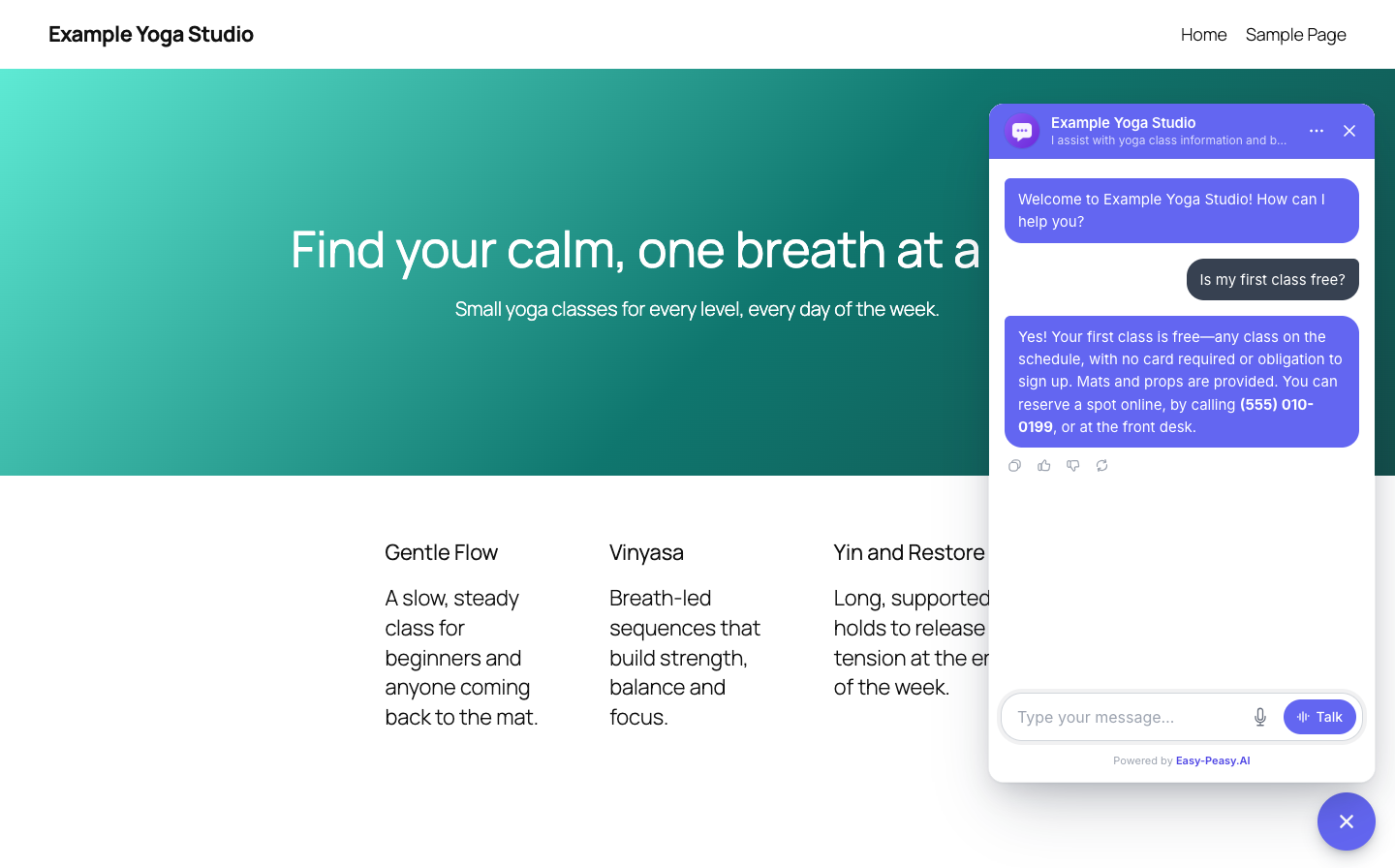
The agent answering a visitor in the chat.
Faq
Yes. The plugin shows an agent that you build in Easy-Peasy.AI. Creating one is free, and the chat works on the Free plan.
In Easy-Peasy.AI, open your agent, go to Channels, click Manage on Chat bubble and scroll down to Your Agent ID. You can also paste the agent’s chat link or its whole install snippet into the plugin, and it finds the ID.
In Easy-Peasy.AI, open your agent’s Playground, then Appearance > Chat bubble. Your site picks up the change within about a minute. The settings page of this plugin has a Customize the chat bubble button that opens it.
Yes, with one line of code in your theme’s functions.php or a code snippets plugin. This one leaves it off the page with the slug “checkout”:
add_filter( 'epai_chatbot_enabled', function () { return ! is_page( 'checkout' ); } );
Yes, on WordPress.com plans that allow plugins. On other plans, you can put the chat inside a page with a Custom HTML block and the iframe code from your agent’s Channels > Chat bubble page.
Yes. After you install or set up the plugin, clear your cache so visitors get pages with the chat. If the bubble disappears after you turn on an option that combines or delays JavaScript, exclude bots.easy-peasy.ai/chat.min.js from it.
- Check the box at the top of Settings > Easy-Peasy.AI Chatbot. It says whether the agent is connected.
- Clear your site’s cache and reload the page.
- In the agent’s Settings in Easy-Peasy.AI, Is agent publicly available? must be on, and if you set Allowed Domains, your site’s domain must be in the list.
- If your site sends a Content Security Policy, allow
https://bots.easy-peasy.aifor scripts, frames and connections.
The chat leaves your site. Deleting the plugin also removes its settings. Your agent, its knowledge and its conversations stay in Easy-Peasy.AI.
Reviews
Chatbot with easy setup
By 
Easy Setup: Installation was a breeze, and the clear instructions made setup quick and simple.
It’s easy to use and customizable. I got this chatbot for free!
Changelog
1.1.1
- The plugin’s screens are translated into 12 languages, plus formal German.
- Installation steps use the current WordPress menu name, Plugins > Add Plugin.
1.1.0
- Tested with WordPress 7.1.
- The chat bubble follows the look saved with your agent in Easy-Peasy.AI, including side tabs, sizes and a label. The plugin no longer sends its own default color, which used to replace your agent’s color.
- Paste the Agent ID, the agent’s chat link or its whole install snippet: the plugin finds the ID.
- The settings page checks the ID with Easy-Peasy.AI, shows which agent is connected, and warns when the agent’s Allowed Domains leave out your site.
- Settings > Easy-Peasy.AI Chatbot (was Easy-Peasy.AI Bot) has links to customize the bubble and to open your agent.
- Settings and Setup guide links on the Plugins screen, and a reminder there until the Agent ID is saved.
- Fixed: before an Agent ID was saved, every page loaded a chat script with no agent.
- Cloudflare Rocket Loader no longer rewrites the chat script.
- Deleting the plugin removes its settings.
- For developers: the
epai_chatbot_enabledandepai_chatbot_script_attributesfilters.
1.0.0
- First version.