Ethora AI Chatbot – AI Chat Assistant for Your Website

Ethora AI Chatbot – AI Chat Assistant for Your Website
Description
Add an AI chatbot and live chat widget to WordPress, trained on your own website and documents. Ethora AI Chatbot is a WordPress chat plugin that answers visitor questions around the clock, and when a question needs a person, the conversation can be handed to a human agent. It is an AI chatbot for WordPress that needs no coding.
You create the AI agent in Ethora (there is a free plan, no credit card needed): add your website so the agent can index your pages, upload documents such as FAQs, price lists or manuals, and write the agent’s instructions. Then paste the agent’s Bot ID into this plugin and the chatbot appears on your site. No coding is needed.
The widget JavaScript is bundled with the plugin and served from your own site (it is not loaded from a remote CDN). To deliver real-time chat and AI answers, the widget connects at runtime to the Ethora chat service and a small number of other third-party services. These are listed in full in the External services section below.
What you can use it for
- Customer support chatbot: answer common support questions at any hour, using your own pages and documents as the source (RAG, retrieval-augmented generation).
- Pre-sales and product questions: help visitors on business, SaaS and WooCommerce store pages find the right product, plan or page.
- Knowledge base assistant: let customers, students, patients or members search your help centre, docs or policies by asking a question in plain language.
- FAQ bot: replace a long FAQ page with a chat that answers the question the visitor actually asked.
Features
- Answers from your content: the Ethora dashboard indexes your website pages and uploaded documents, and the AI agent answers from them.
- Quick setup: paste the Bot ID, save, and the chat widget is live.
- Customizable chat widget: primary and secondary colors, icon color, message bubble colors, input background, font family or any Google Font, left or right position, width and height.
- Your own bot identity: set the bot name, bot avatar and chat button icon.
- Greeting message: the assistant opens with a starter message, so the chat never starts empty.
- Fullscreen mode: visitors can expand the chat from the header.
- Follows your site language: the chat interface uses your WordPress site language.
- Mobile friendly: the chat window adapts to phones, tablets and desktops.
- Works with your theme: classic and block themes; choose whether the script loads in the page header or footer.
- No remote script: the widget code ships inside the plugin and is served from your own site.
- Self-hosted option: point the plugin at your own Ethora server (AWS, private cloud or on-premises) when you need full data ownership, for example for HIPAA or GDPR requirements.
Who it is for
- Small business, agency and portfolio websites.
- WooCommerce and other online stores.
- SaaS products and documentation sites.
- Healthcare, clinics and insurance (self-hosted deployments available).
- Education, courses and membership sites.
- Customer support teams and help centres.
How it works
- Install and activate the plugin.
- Create a free account at https://app.chat.ethora.com and create an AI agent.
- Add your website and documents to the agent so it can answer from your content, then copy its Bot ID.
- In Settings > Ethora Chat Assistant, paste the Bot ID, optionally set colors, icon and position, and save. The AI chatbot is now live on your site.
More about the plugin: https://ethora.com/ai-sdk/wordpress-ai-agent-plugin/
External services
This plugin embeds the Ethora chat / AI assistant. Once you set a Bot ID and a visitor opens the chat, the widget connects to the following third-party services. No data is sent to these services until a visitor interacts with the chat widget.
1. Ethora chat & AI service (provided by Dappros Ltd, trading as Ethora)
– Purpose: deliver real-time messaging, authenticate the chat session, and return AI assistant responses.
– Data sent: chat messages, the configured Bot ID, session/authentication tokens, and basic profile data for signed-in users.
– When: while a visitor uses the chat widget.
– Service endpoints: Ethora REST API and XMPP real-time messaging servers on ethora.com domains.
– Provider: https://ethora.com
– Terms of Service: https://wiki.ethora.com/wiki/Info:Privacy_policy#Terms_of_Service
– Privacy Policy: https://wiki.ethora.com/wiki/Info:Privacy_policy
2. Google Sign-In (Google Firebase Authentication / Google OAuth 2.0)
– Purpose: optional “Sign in with Google” login for chat users.
– Data sent: email address and basic Google profile information, only when a visitor chooses to sign in with Google.
– When: during the optional Google sign-in flow.
– Domains: identitytoolkit.googleapis.com, securetoken.googleapis.com, accounts.google.com.
– Terms of Service: https://policies.google.com/terms
– Privacy Policy: https://policies.google.com/privacy
3. LinkPreview (linkpreview.net)
– Purpose: generate preview cards for URLs shared inside chat messages.
– Data sent: URLs contained in chat messages.
– When: when a message contains a link.
– Provider & Privacy Policy: https://www.linkpreview.net
Profile images for signed-in users may be displayed directly from Google’s user-content servers (lh3.googleusercontent.com).
Website refresh (optional, only with a refresh key set)
– Purpose: tell Ethora which of your pages changed, so the AI agent’s knowledge is updated right away.
– Data sent: the public addresses (permalinks) of posts and pages when they are published, updated, unpublished or trashed, and the refresh key. No post content, user or visitor data is sent; Ethora fetches the public page itself.
– When: when an editor saves such a change, and when an administrator presses “Refresh website knowledge now”.
– Service endpoint: the Ethora REST API (the configured API URL), path /v2/sources/refresh-hook.
Source code
The chat widget bundled with this plugin is built from Ethora’s open-source code.
- Plugin source: https://github.com/dappros/ethora-wp-plugin
- Chat widget source: https://github.com/dappros/ethora (Ethora SDK monorepo; the embeddable widget is built with Vite)
- The non-minified, human-readable build of the widget is shipped alongside the plugin as
assets/js/ethora_assistant.js.
The widget is produced with a standard npm install + Vite build from the source repository above; no build step is required to run the plugin.
Installation
- Upload the
ethora-chat-assistantfolder to/wp-content/plugins/, or install the plugin through the WordPress Plugins screen. - Activate the plugin through the Plugins menu in WordPress.
- Go to Settings > Ethora Chat Assistant to configure your Bot ID and position.
- Enter your Ethora Bot ID, choose script position (header or footer), and click Save Settings.
Screenshots
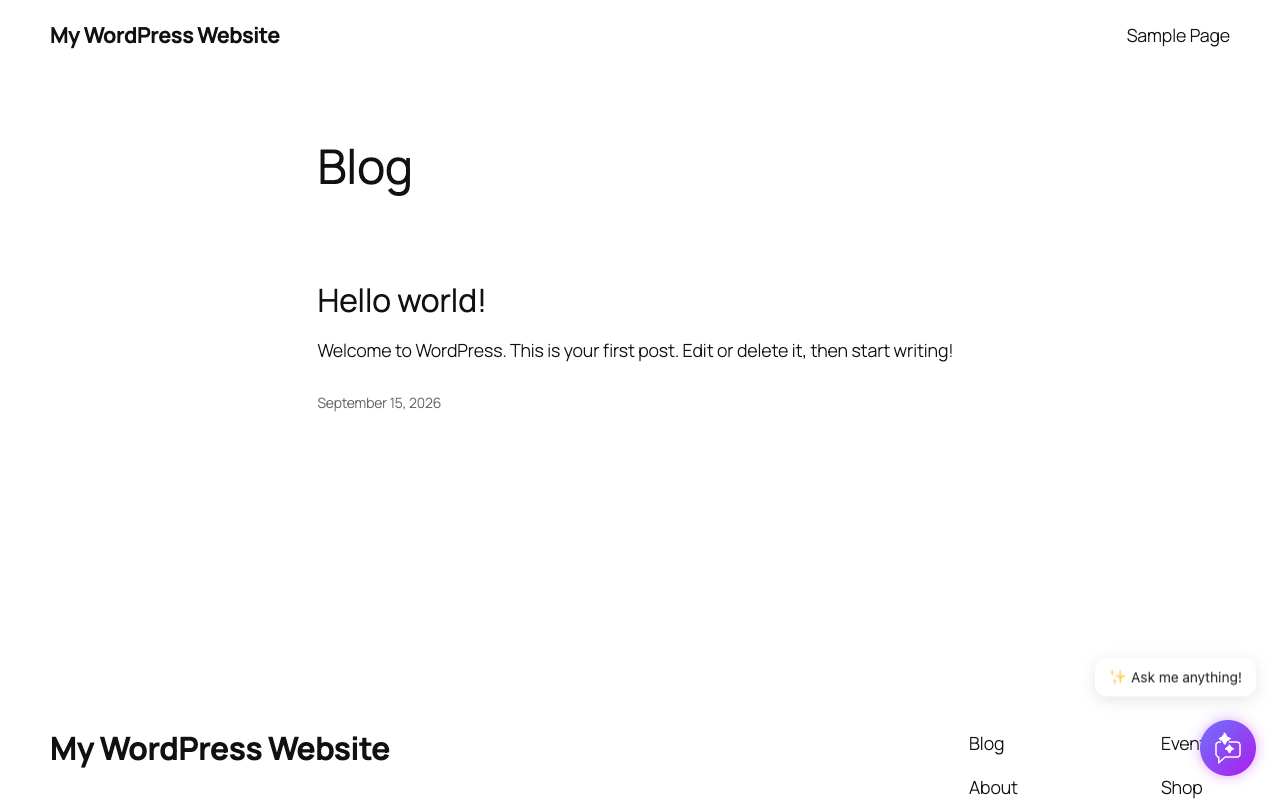
The chat button on a WordPress page. Visitors open the chat with one click.

The chat open on a WordPress page, answering a visitor's question.

Plugin setup: paste your Ethora Bot ID and choose where the script loads.
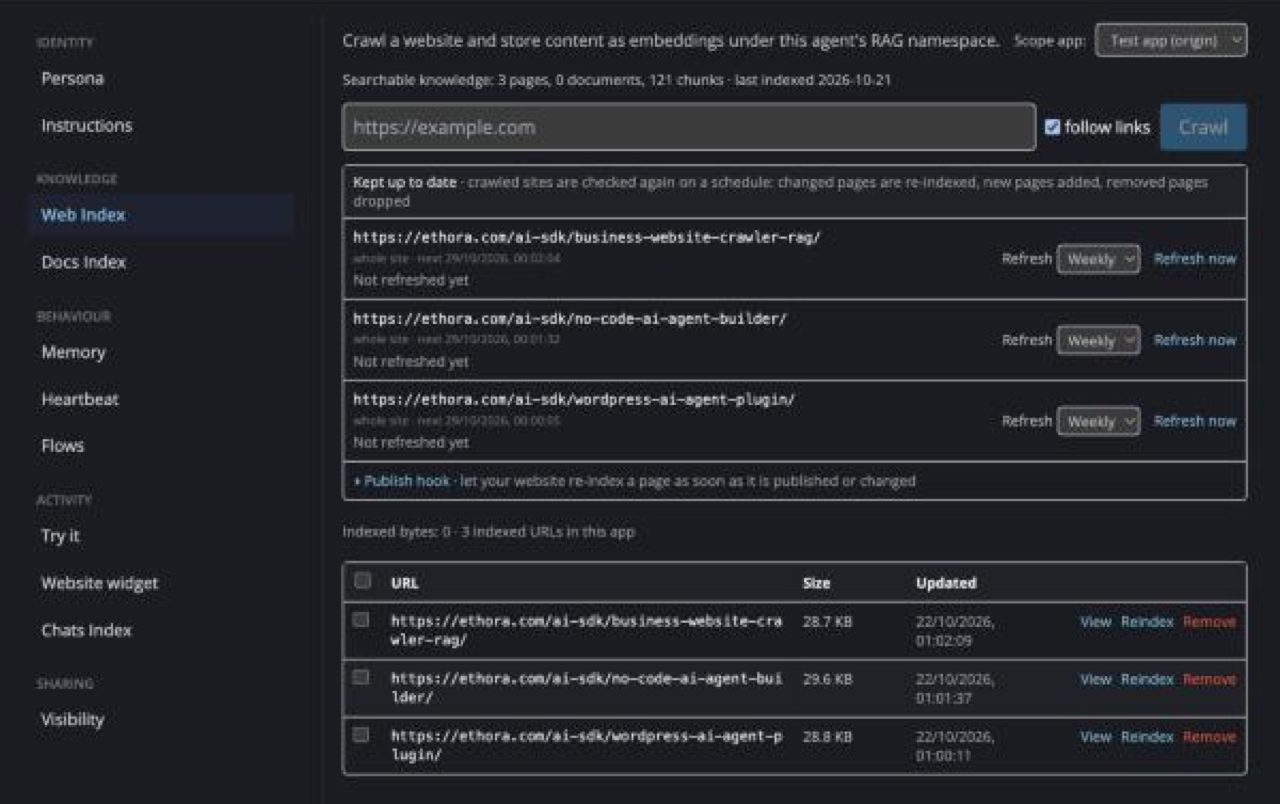
Knowledge base crawl: in the Ethora dashboard, the AI agent's Web Index lists the pages of a website that were crawled and indexed, so the agent can answer from them.
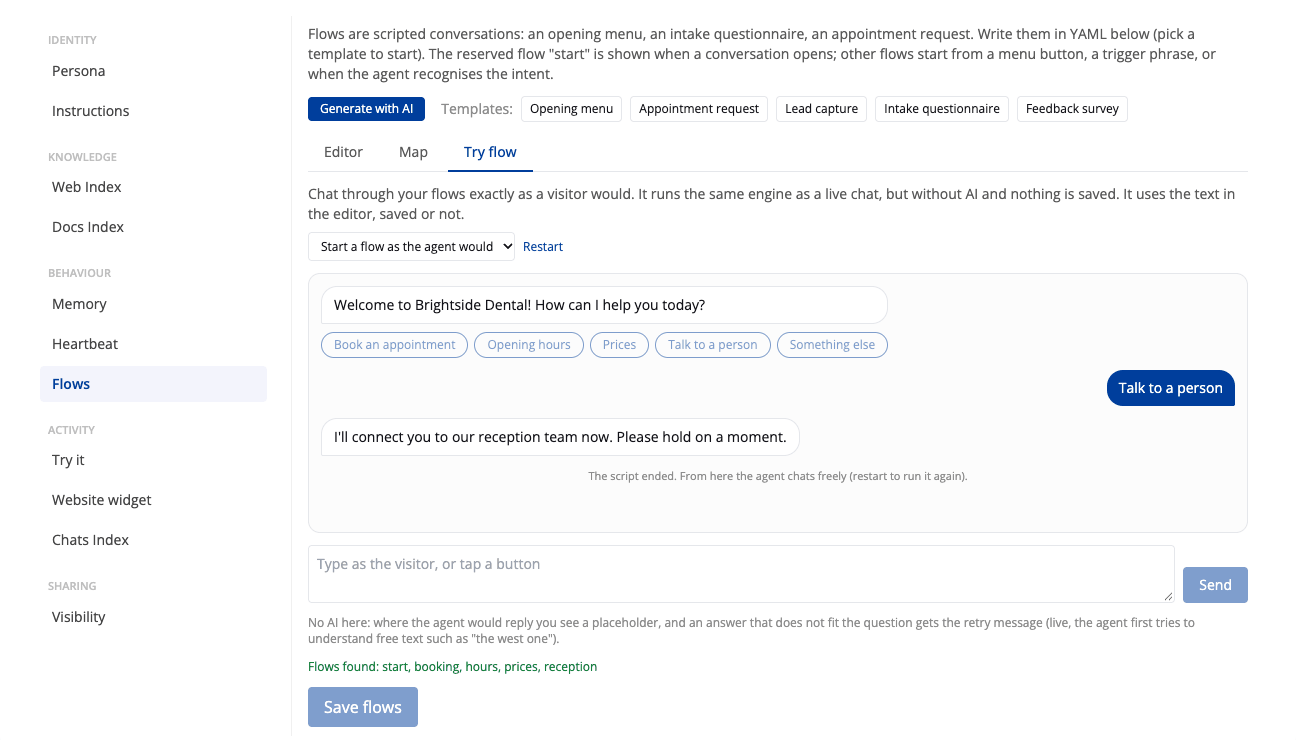
Handing over to a person: the Try flow preview in the Ethora dashboard, where a visitor taps "Talk to a person" and the scripted flow replies that the reception team is being connected. This is the scripted preview of the flow, not a live conversation.
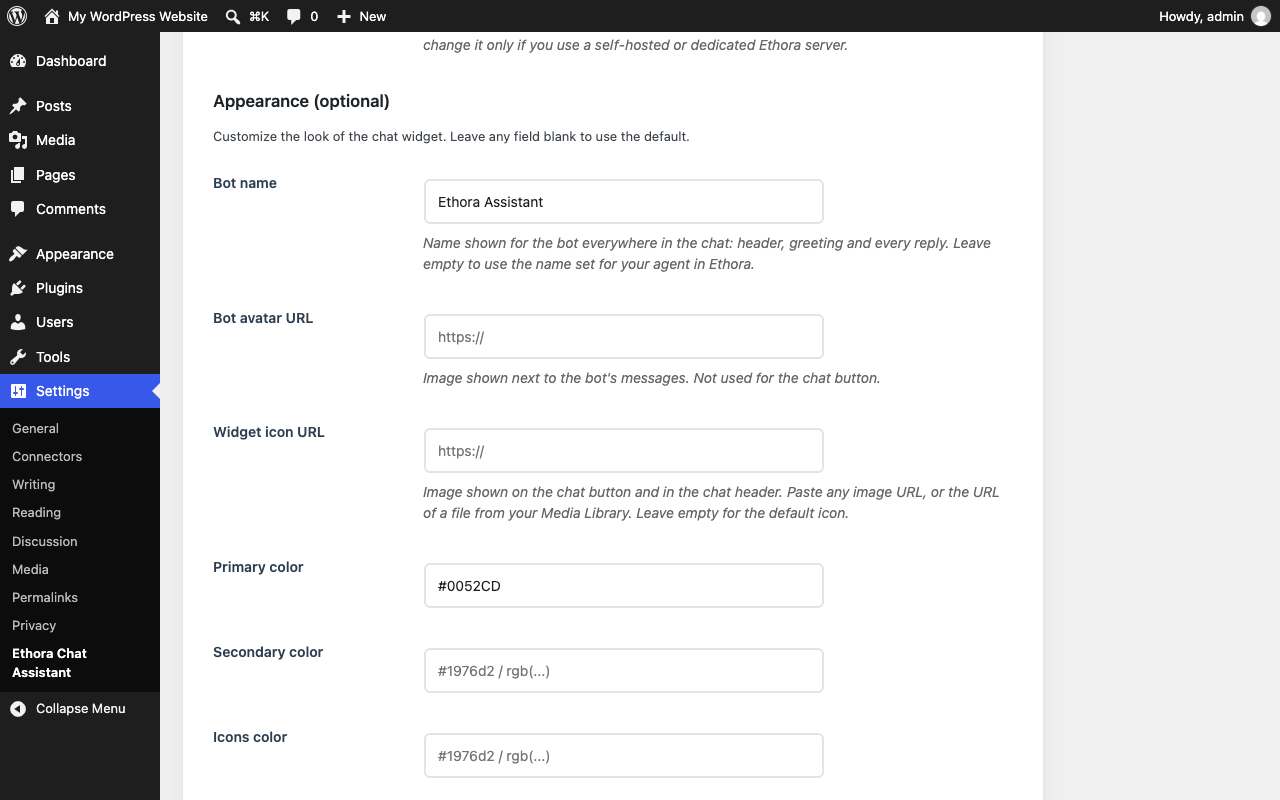
Appearance: bot name, colors, icon, font, position and size, with no code.
Faq
Yes. It works with most modern WordPress themes and page builders.
Yes. Add your website and upload your documents, such as a knowledge base, FAQs, price lists or manuals, in the Ethora dashboard at https://app.chat.ethora.com. The agent then answers visitors from that content.
Yes. The chat widget loads on WooCommerce shop and product pages. Add your product pages or product documents to the agent so it can answer product questions.
Ethora handles user data in line with GDPR. If you need full control of your data, run your own Ethora server and point the plugin at it (see the question about a self-hosted server below). The External services section lists exactly what the widget sends and where.
Yes. The chatbot can be trained and configured for multilingual conversations. The chat interface follows your WordPress site language, and the language the agent answers in is set in its instructions in the Ethora dashboard.
Yes. Ethora supports integrations with popular CRM systems and marketing tools. Check the Ethora dashboard for the integrations available on your plan.
The agent is trained to give context-aware answers from your content. When a question needs more information, the conversation can be escalated to a human agent.
Yes. Setup is no-code: paste the Bot ID into the settings screen, save, and the chat appears on your site.
Yes. The widget connects to Ethora only after a visitor opens the chat, so it does not slow down page loading.
Reviews
Changelog
1.8.0
- Updated: bundled widget rebuilt from widget release v26.10.1.
- Updated the WordPress.org listing: a clearer description, a new FAQ and screenshots.
- New: optional website refresh key. Published, updated, unpublished and trashed posts and pages are re-indexed in the AI agent’s knowledge right away instead of at the next scheduled refresh.
- New: “Refresh website knowledge now” button on the settings page.
1.7.3
- Changed: the chat no longer creates a visitor account and conversation when a page merely loads. It does so the first time someone hovers over or opens the chat launcher, and a returning visitor resumes their earlier conversation. Pages crawled by search engines and link previews no longer leave empty accounts behind.
- Changed: the conversation records the page it was started on, so operators can see where a visitor was when they wrote.
- Updated: bundled widget rebuilt from the current Ethora widget source (October 2026); PDF attachments are shown with a viewer shipped under assets/js/pdfjs/.
1.7.2
- Tested with WordPress 7.1.
- Fixed: the bot’s avatar was used as the chat button and header icon. The widget icon is now its own setting (Widget icon URL); without it the default icon is shown.
- Fixed: clicking the bot’s avatar next to a message opened an empty profile. It now does nothing.
- Fixed: the bot could appear under two different names in one conversation, one in the header and greeting and another on its replies. One name is now used everywhere, and it can be set with the new Bot name setting.
- Fixed: after saving the settings page with Width and Height left empty, the chat opened as an invisible 0x0 panel. Empty sizes are no longer saved as 0, and a stored 0 from an earlier version is ignored, so affected sites are repaired by the update without re-saving.
- New settings under Appearance: Bot name, Bot avatar URL, Widget icon URL.
1.7.1
- Fixed: the “Ask me anything!” teaser bubble above the chat launcher could stay invisible indefinitely (a CSS opacity animation that never advances in a backgrounded or inactive browser tab).
1.7.0
- New: starter message from the assistant (“Hi, how can I help you?” by default, or the Agent’s own greeting) – the chat never opens blank
- New: fullscreen toggle in the chat header
- New: larger, screen-adaptive default panel size for desktop
- Changed: text-only composer by default (no attach/mic – the AI cannot use uploads); re-enable via data-disable-media=”false”
- Changed: interface language now follows the site language
- Fixed: chat stuck on “Connecting” for returning visitors
- Fixed: bot stopped responding after a network reconnect
1.6.2
- Added a “Settings” link to the plugin row on the Plugins screen.
1.6.1
- Reworded the readme description to remove promotional phrasing.
- Hardened the script-position setting sanitization (strict whitelist comparison).
- Clarified the External services disclosure with separate Terms of Service and Privacy Policy links.
1.6.0
- Corrected the External services disclosure to accurately list every third-party service the chat widget contacts (Ethora chat/AI, Google Sign-In, LinkPreview), with the data sent and the relevant terms and privacy policies.
- Removed inaccurate “no external dependencies / no remote resource loading” statements from the readme and admin screen.
- Replaced the previous placeholder source file with the actual non-minified widget build to comply with the human-readable code guideline.
- Corrected the documentation link for obtaining a Bot ID (now app.chat.ethora.com).
1.2.0
- Added frontend and admin Ethora branding.
- Improved admin interface styling.
1.1.0
- Added option to choose between head or footer injection.
- Enhanced settings page layout.
1.0.0
- Initial release with Bot ID setting and script injection.