Faurya
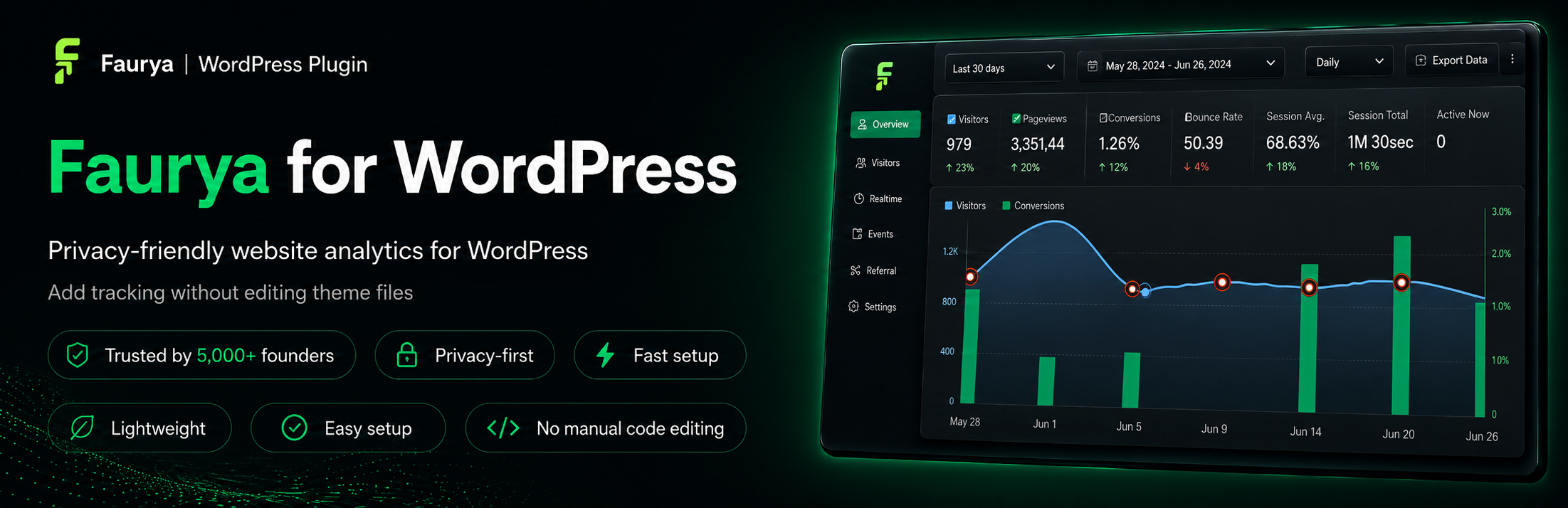
Faurya
Description
Faurya is a lightweight, privacy-friendly website analytics plugin for WordPress. It helps site owners add Faurya analytics to their WordPress site without manually editing theme files, so setup stays simple and tracking can be managed from one place.
After you connect your site with your Faurya website/project ID or API key, the plugin adds the Faurya tracking script to your public WordPress pages using WordPress’ standard script loading system. The plugin is built for modern website tracking while keeping the WordPress integration clean, fast, and easy to maintain.
This plugin acts as a connector for the Faurya analytics service. A Faurya account and website/project are required to use the tracking features.
Learn more about the WordPress integration at https://www.faurya.com/integrations/wordpress.
Features
- Lightweight WordPress integration for Faurya analytics.
- Adds the Faurya tracking script without manual theme editing.
- Easy setup with your Faurya website/project ID or API key.
- Connection status shown directly in WordPress admin.
- Refresh and disconnect actions from the plugin settings screen.
- Remote disconnect support from Faurya when available.
- Keeps visitor analytics out of the WordPress database.
- Clean uninstall removes stored Faurya connection settings.
How it works
- Create or open your website/project in Faurya.
- Copy the Faurya website/project ID or API key provided for your site.
- Open Settings -> Faurya in WordPress.
- Paste the key and connect the site.
- Faurya tracking is added to your public WordPress pages.
Useful links
- WordPress integration: https://www.faurya.com/integrations/wordpress
- Privacy Policy: https://www.faurya.com/privacy-policy
- Terms of Service: https://www.faurya.com/terms-of-services
- Data Processing Agreement: https://www.faurya.com/data-processing-agreement
Privacy
This plugin connects your WordPress site to the external Faurya analytics service at https://www.faurya.com. No connection request is made until a site administrator enters Faurya connection details and submits the settings form.
During setup and status checks, the plugin may send your WordPress site URL, Faurya API key or project identifier, and plugin version to Faurya. After connection, the Faurya tracking script may collect website analytics according to your Faurya account configuration and the Faurya service terms.
Please review the Faurya Privacy Policy, Terms of Service, and Data Processing Agreement for details about how Faurya handles data.
Support
For plugin support, use the WordPress.org support forum for Faurya. For questions about your Faurya account, website/project setup, or analytics data, contact Faurya directly.
Installation
- In WordPress admin, go to Plugins -> Add New.
- Search for “Faurya” and click Install Now, or upload the plugin ZIP file.
- Activate the plugin.
- Go to Settings -> Faurya.
- Enter your Faurya website/project ID or API key.
- Click Connect.
- Confirm that the connection status shows as connected.
Screenshots

Faurya plugin settings screen where users add their Faurya website/project ID.

Faurya connection or setup confirmation screen.

Faurya dashboard/analytics preview showing website insights.

Faurya tracking added to a WordPress website.
Faq
Yes. This plugin connects WordPress to the Faurya analytics service. You need a Faurya account and a website/project in Faurya before tracking can be enabled.
Log in to Faurya, open the website/project you want to connect, and copy the ID or API key from the integration or site settings area.
No. The Faurya tracking script is added through WordPress’ script loading system. Your theme files are not modified.
No. The plugin stores connection settings needed to add the tracking script, but it does not store visitor analytics reports in your WordPress database.
Tracking starts after a site administrator enters valid Faurya connection details and the plugin receives a tracking script URL from Faurya.
Yes. You can disconnect from the WordPress settings page. When supported by your Faurya setup, Faurya can also send a secure remote disconnect request to disable tracking.
Deactivation disables the tracking script while keeping the saved connection settings. If you reactivate the plugin, tracking can resume without re-entering the key.
Uninstalling deletes the stored Faurya API key, site ID, domain, tracking script URL, remote token, and connection state from WordPress.
The tracking script is loaded through standard WordPress frontend script loading and should work with typical WordPress caching setups. If you use full-page caching, clear your cache after connecting or disconnecting.
Reviews
Changelog
1.0.0
- Initial release.
- Connect WordPress to Faurya analytics.
- Add Faurya tracking script to public WordPress pages.
- Show connection status in WordPress admin.
- Refresh and disconnect from the settings page.
- Support secure remote disconnect.
- Remove stored connection data on uninstall.