File Media Renamer for SEO

File Media Renamer for SEO
Description
File Media Renamer for SEO is a lightweight and fast WordPress plugin designed to improve your website’s SEO by allowing you to rename media files directly from the WordPress Media Library.
The plugin automatically updates all references to renamed files throughout your website, ensuring no broken links or missing images.
The plugin focuses on safe renaming, performance, and SEO best practices, with features to keep your media metadata aligned with new filenames and preserve search equity via 301 redirects.
Features
Individual File Renaming
- Rename any media file directly from the WordPress Media Library
- Convert file names to SEO-optimized formats automatically
- Update all references to the renamed file across your website
- Rename all thumbnail sizes along with the main file
- Built-in rename history with quick undo
Bulk Renaming
- Rename multiple files at once via Media Library bulk actions
- Sequential naming (e.g., new-name-1, new-name-2) for consistent batches
- Real-time progress and batch processing up to 50 files
AI Renaming with OpenAI, Claude or Gemini for Bulk and Individual
- Rename multiple files at once via Media Library bulk actions with AI button
- Rename any media file directly from the WordPress Media Library with AI
Automatic Content Updates
- Updates references in posts, pages, custom post types, and metadata
- Handles serialized data structures
- Efficient background processing via WordPress cron
- Automatic cache clearing after operations
SEO Enhancements
- Optionally update media titles to match the new file name
- Automatically update alt text attributes for better accessibility and SEO
- Converts hyphens/underscores to readable titles
Redirect Management
- Creates 301 redirects from old file URLs to new ones
- Stores redirects in a dedicated database table for performance
- Handles redirects for all thumbnail sizes
Advanced Features
- Prevents filename conflicts by generating unique names
- Validates files before renaming for safety
Usage
Individual File Renaming
- Go to Media Library.
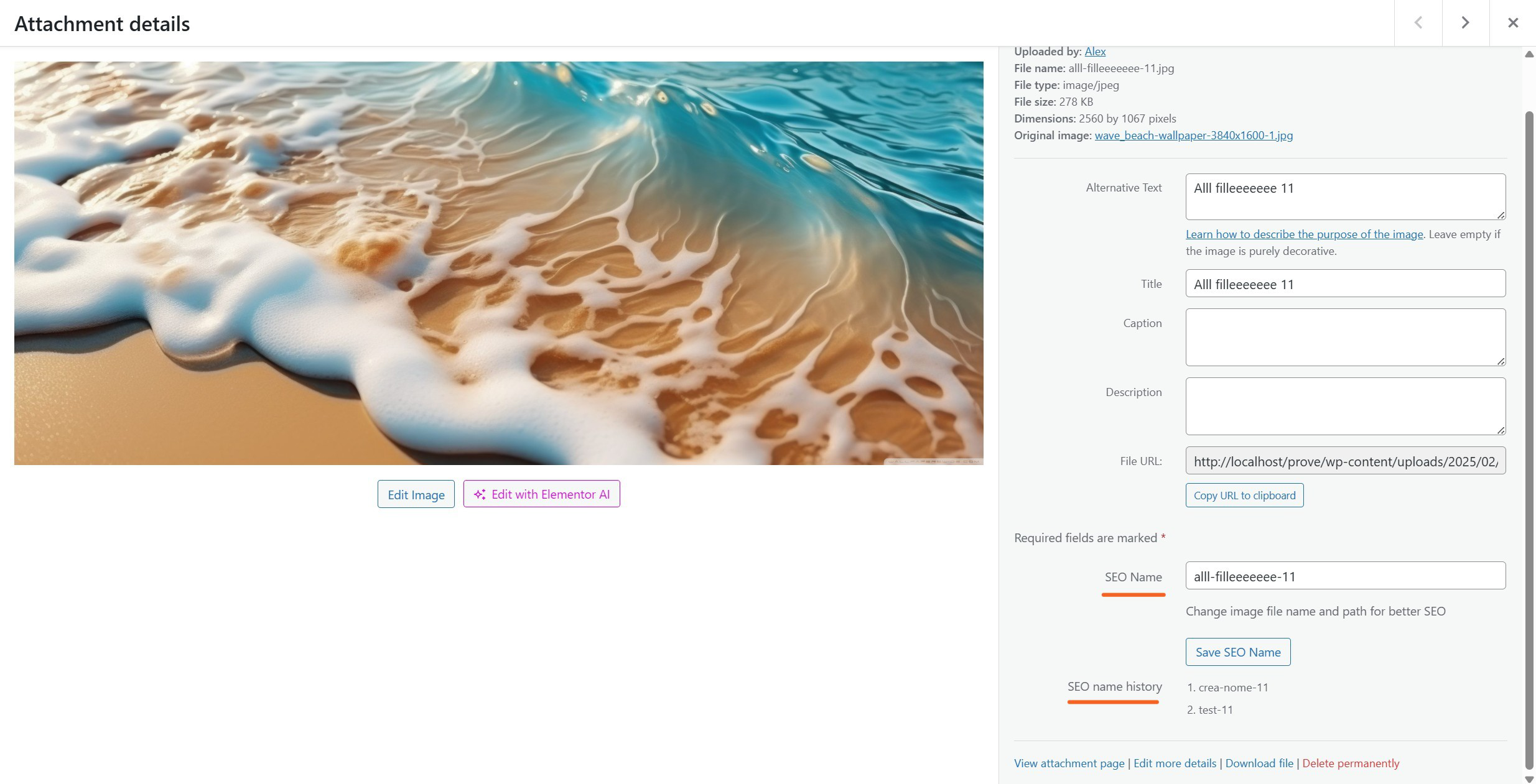
- Click on a file to open the attachment details.
- Enter the new SEO name in the SEO Name field.
- Click Save SEO Name — all references will update automatically.
Bulk Renaming
- Switch the Media Library to List view.
- Select multiple files and choose Rename from Bulk actions.
- Enter a base name and click Start Rename to process all selected files.
History and Undo
- View the rename history for any file in the attachment details.
- Click any previous name to revert instantly (last 2 versions kept).
Settings
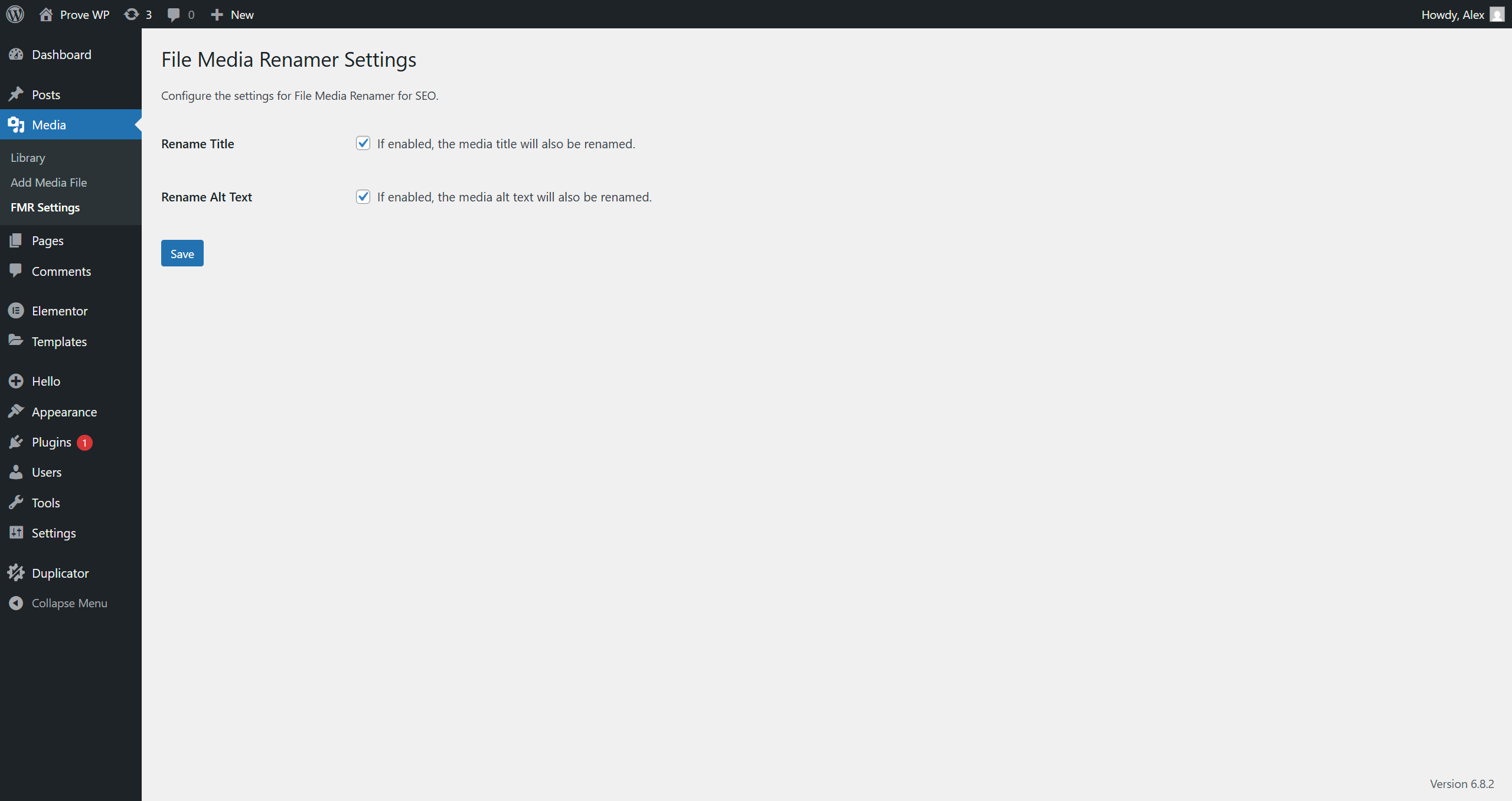
Find settings under Media FMR Settings:
- Rename Title — Automatically update the media title when renaming files
- Rename Alt Text — Automatically update the alt text attribute when renaming files
Technical Details
- Custom table:
wp_fmrseo_redirectsfor redirect mappings - Background processing for large operations (WordPress cron)
- File validation and conflict prevention
- Optimized database queries and cache management
Requirements
- WordPress 4.0 or higher
- PHP 7.0 or higher
- Write permissions for the uploads directory
Installation
- Download the plugin as a ZIP file.
- Go to Plugins Add New in your WordPress dashboard.
- Click Upload Plugin and select the ZIP file.
- Click Install Now and then Activate.
- The plugin will automatically create the necessary database tables.
Screenshots
Rename media files directly from the library
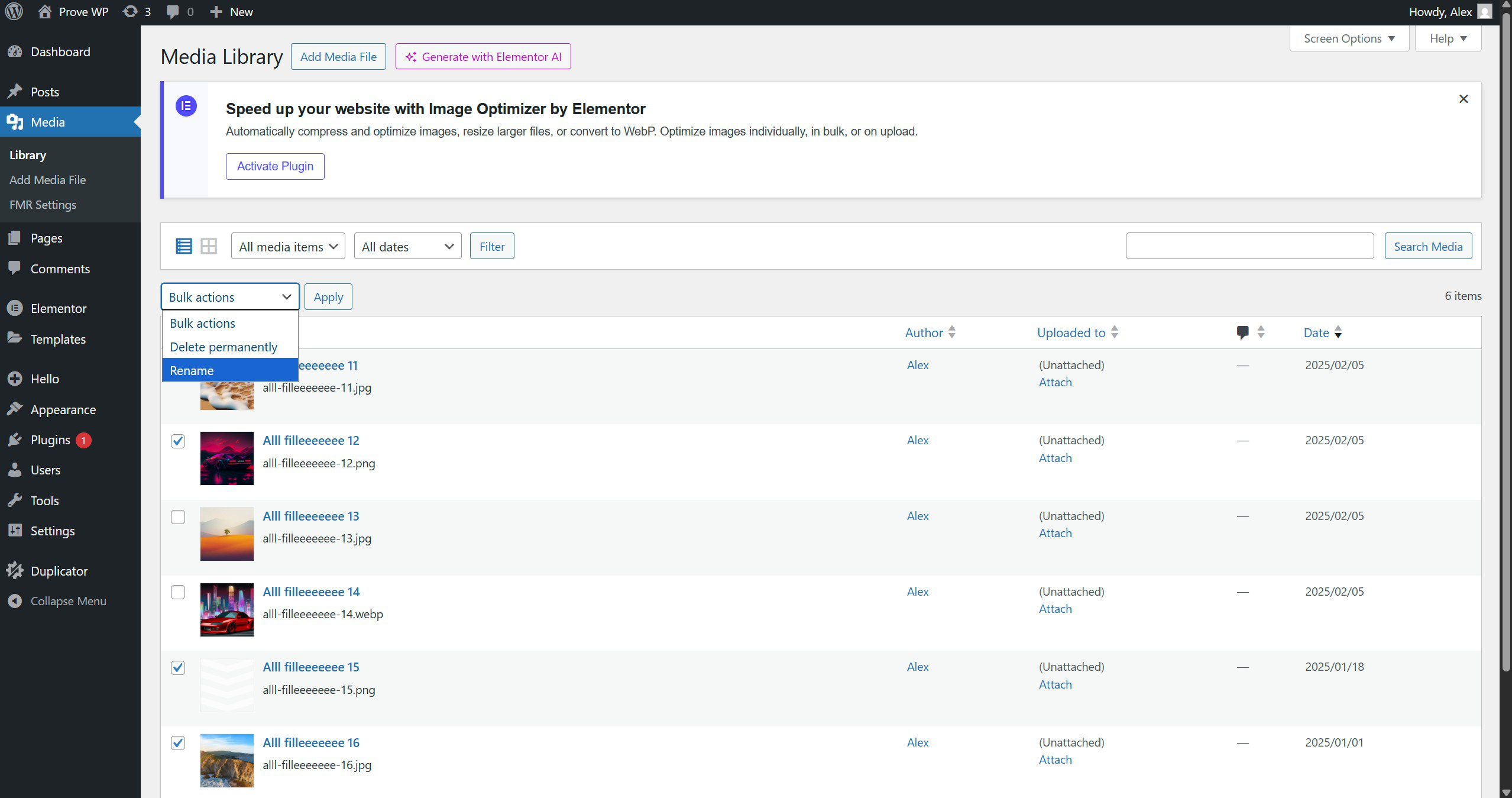
Bulk rename interface with progress indicator
SEO settings panel
Faq
No. The plugin updates all references site-wide and creates 301 redirects from old URLs to new ones.
Yes. Each file maintains a short rename history so you can revert quickly.
Yes. All image sizes are renamed and redirected together with the main file.
301 redirects preserve SEO value and help search engines understand the change.
On very large batches, an individual AI request can occasionally take longer than your hosting’s PHP max_execution_time (often 30s on shared hosting) or the AI provider’s own response time under load, causing that single step to time out. When this happens the affected file(s) are marked as failed instead of the whole batch silently freezing, and you can click Retry failed to resume just those files without restarting the entire batch. If you run large batches regularly, consider asking your host to raise max_execution_time to 60-120 seconds, and keep the browser tab active/in the foreground while a large batch runs (backgrounded tabs can be throttled by the browser).
Reviews
Renames Images
By 
Just like I want it to.
Nice and simple
By 
Works great, really useful!
Changelog
1.0.0
- Initial public release
1.0.1
- Fix redirect generation
1.2
- Add Claude (Anthropic) and Gemini (Google) as AI Rename providers, alongside OpenAI
- Fix a bug where thumbnail sizes sharing an identical physical file (common with page builders that register many crop/breakpoint sizes) could be left pointing at the old filename after a rename, breaking
srcset - Fix a bug where a batch or multi-thumbnail rename could silently skip updating the title, slug (post_name) and alt text for some files, because a background scheduling check ignored the specific file being processed
- Title, slug and alt text are now updated immediately when a file is renamed, instead of depending on WordPress cron
- Add a “Retry failed” button to Batch AI Rename so files that failed (rate limits, provider errors, timeouts) can be retried without restarting the whole batch
- Add clearer, provider-specific error messages for AI rename failures (e.g. when a model runs out of output tokens on internal reasoning, or is rate-limited)
- Increase the AI response token budget to avoid failures on models that use “thinking”/reasoning tokens (Gemini 2.5+/3.x, Claude Sonnet)
- Add a client-side timeout to Batch/AI rename requests so a hung request now fails gracefully instead of freezing the whole batch indefinitely
- Fix plugin JS/CSS assets not updating in the browser after a plugin update (automatic cache-busting)
- General sanitization and code cleanliness pass
- Add support for OpenAI’s reasoning models (o1/o3, GPT-5.x, GPT-5.6 Sol/Terra/Luna, GPT-6 Astra and future versions under these families) by sending a low
reasoningeffort automatically – keeps filename generation fast and cheap instead of using the model’s default (often “medium”) reasoning depth - Classic, non-reasoning OpenAI models (e.g. gpt-4o, gpt-4.1-mini) are unaffected – the request payload is unchanged for them
- Update the default OpenAI model for new installs to
gpt-5.6-luna; existing saved model settings are not changed - Add a clear, logged error message if a selected OpenAI model rejects the reasoning effort parameter, instead of a generic failure