FormThrottle Logger

FormThrottle Logger
Description
FormThrottle Logger helps reduce spam and repeated form abuse by limiting how many submissions a single IP address can make within a chosen time period for Gravity Forms and Contact Form 7.
Features:
* Monitors submissions by IP address for Gravity Forms and Contact Form 7
* Blocks repeat offenders once the configured threshold is reached
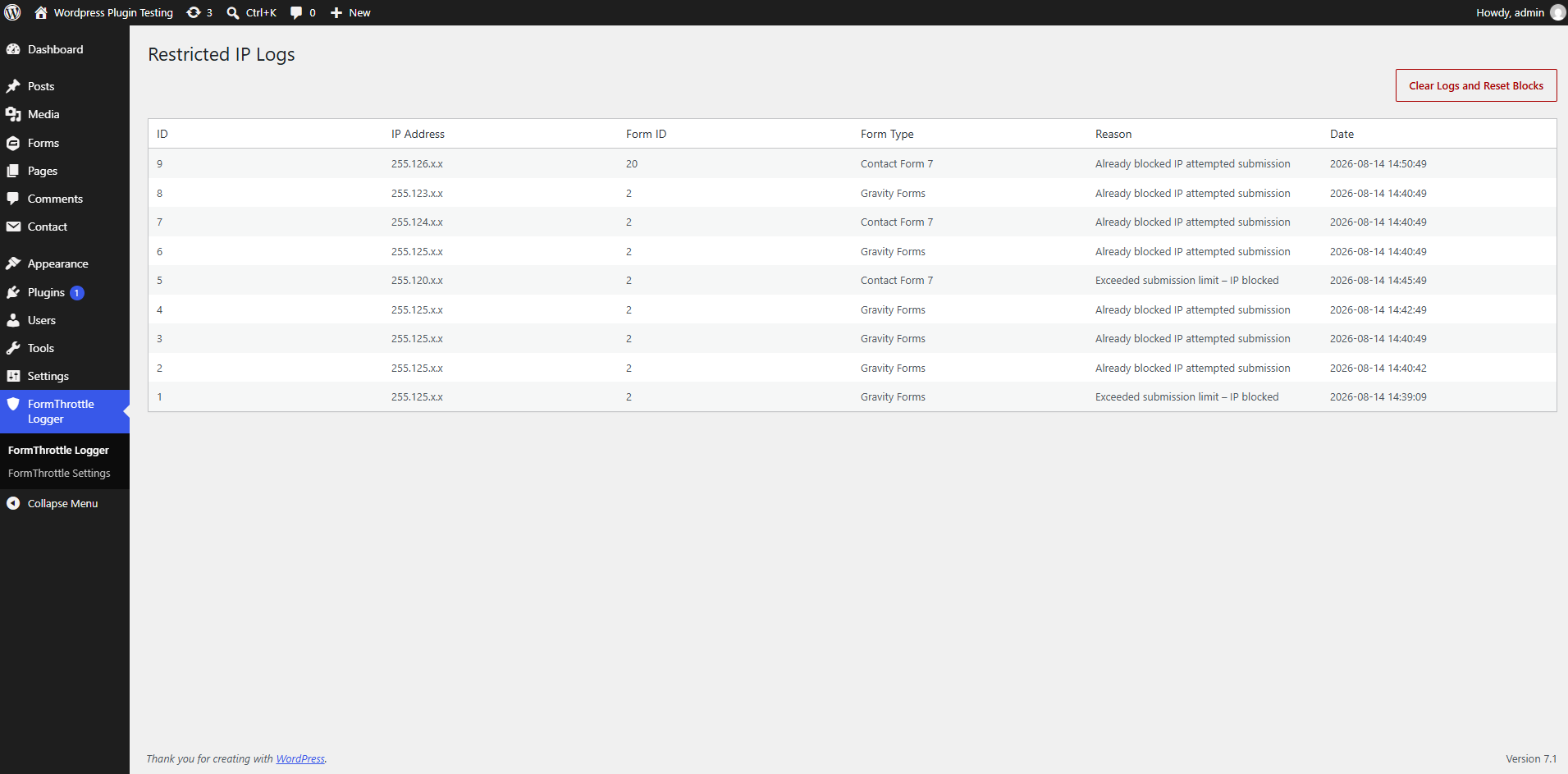
* Logs the IP address, form ID, source type, reason, and timestamp
* Adds a log screen in the plugin admin menu for reviewing blocked attempts
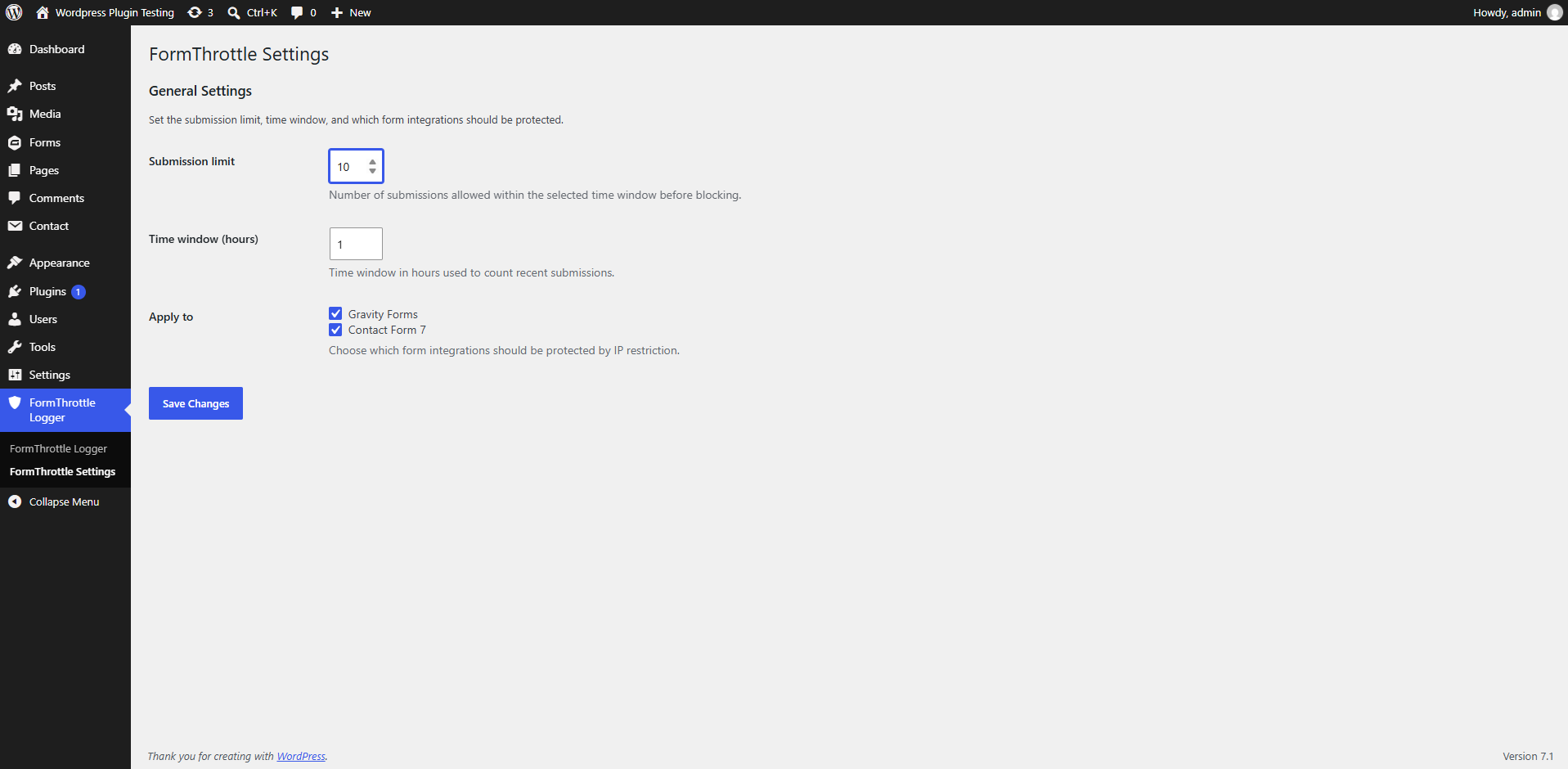
* Lets you choose which integrations are protected and configure the threshold and time window
Configuration
By default, the plugin allows 10 submissions within a 1-hour window. Both Gravity Forms and Contact Form 7 are enabled by default in the “Apply to” settings.
To change this:
- Open the FormThrottle Logger Settings page from the admin menu.
- Set the submission limit and the time window in hours.
- Select which integrations should be protected.
- Save your changes.
Installation
- Upload the plugin files to the /wp-content/plugins/formthrottle-logger/ directory, or install it directly through the WordPress plugins screen.
- Activate the plugin through the ‘Plugins’ screen in WordPress.
- Make sure Gravity Forms or Contact Form 7 is installed and active.
- Open the FormThrottle Logger menu in the WordPress admin area.
- Review the “Restricted IP Logs” page or open Settings to adjust the submission limit and time window.
Screenshots
Faq
Yes. This plugin supports Gravity Forms and Contact Form 7 and works when at least one of these plugins is installed and activated.
The submission is rejected and the event is recorded in the plugin log with the IP address, form ID, source type, reason, and timestamp.
Yes. You can configure the threshold and time window from the FormThrottle Logger Settings page.
Open the FormThrottle Logger admin menu and select “Restricted IP Logs”.
Reviews
Changelog
1.1
- Added a Settings link in the plugin listing for quicker access.
- Added whitelist IP support in settings with comma-separated values.
- Added aggregated Restricted IP Logs with request counts per IP.
- Added row-wise Delete actions and confirmation prompts.
- Added Clear Logs confirmation prompt.
1.0
- Initial release.