Fraud and Scam Detection For WooCommerce
Fraud and Scam Detection For WooCommerce
Description
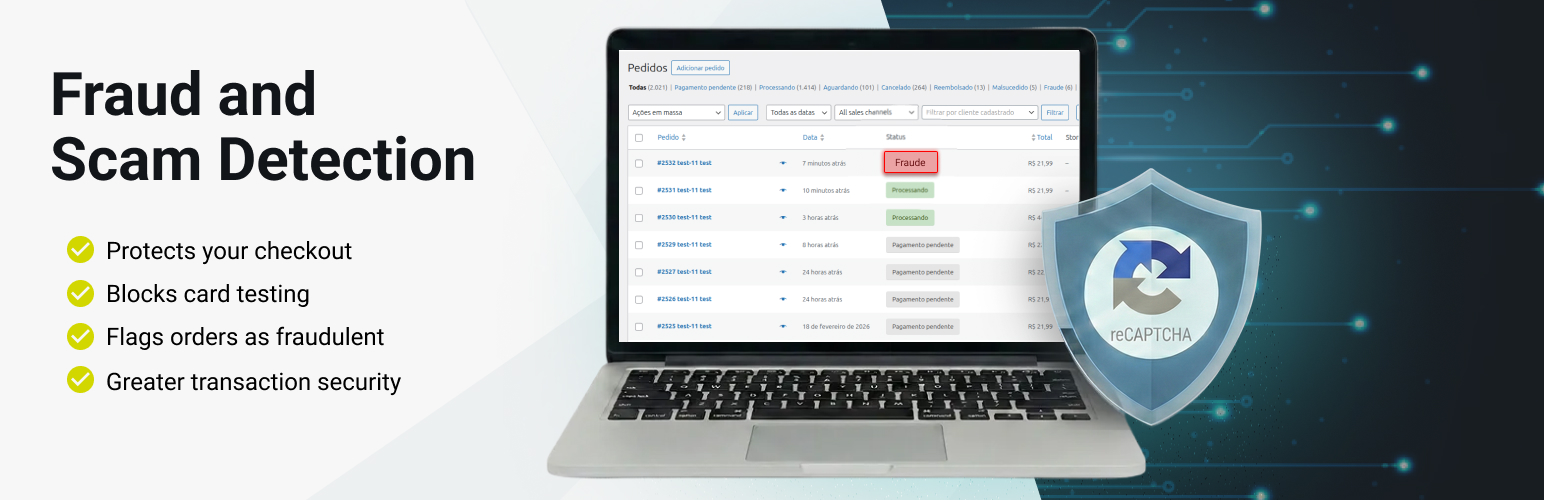
The Fraud and Scam Detection For WooCommerce plugin helps protect your online store by adding a verification layer to the WooCommerce checkout.
Using Google reCAPTCHA or Cloudflare Turnstile, the plugin automatically analyzes user interactions and blocks suspicious checkout attempts, reducing fraudulent transactions and ensuring safer payments.
Main Features:
– Integration with Google reCAPTCHA v3;
– Integration with Cloudflare Turnstile;
– Protects WooCommerce checkout against automated bots and fraudulent activity;
– Configurable minimum score threshold for human-like behavior detection (reCAPTCHA);
– Configurable antifraud behavior — choose whether to block the order, mark it as fraud, add an internal note, or any combination of these actions;
– Advanced IP banning — ban IPs for a defined duration (hours, days, weeks, months, years) or permanently, with automatic expiration for temporary bans;
– IP lookup and order filtering by IP directly from the order detail page;
– Data-based blocking — block orders by email address, email domain, phone number, country, or device fingerprint;
– Lightweight and optimized for performance.
Dependencies
This plugin requires WooCommerce to be installed and active.
For Google reCAPTCHA, you also need valid Google reCAPTCHA API keys.
For Cloudflare Turnstile, you need valid Cloudflare Turnstile site and secret keys.
User instructions
-
Go to WordPress admin panel > WooCommerce > Settings > Anti-Fraud;
-
Enable the antifraud option and choose between Google reCAPTCHA or Cloudflare Turnstile;
-
Enter the corresponding Site Key and Secret Key for the chosen service;
-
For reCAPTCHA: set the minimum score threshold (higher values = stricter validation);
-
Optionally enable IP check to ban specific IP addresses from checkout;
-
Optionally enable debug mode to log requests and responses;
-
Save the settings. From now on, the WooCommerce checkout will require security validation.
External services
This plugin integrates with Google reCAPTCHA v3 and Cloudflare Turnstile to provide fraud and bot protection for WooCommerce checkout processes.
Google reCAPTCHA v3
What the service is and what it is used for:
Google reCAPTCHA v3 is a security service that analyzes user behavior to determine if a user is likely human or bot. It’s used to protect the WooCommerce checkout process from automated fraud attempts and malicious activities.
What data is sent and when:
When a customer attempts to complete a checkout, the plugin sends the following data to Google reCAPTCHA servers:
– User’s IP address
– Browser and device information
– User interaction patterns during checkout
– reCAPTCHA response token
- Google reCAPTCHA Terms of Service: https://developers.google.com/recaptcha/docs/terms
- Google Privacy Policy: https://policies.google.com/privacy
Cloudflare Turnstile
What the service is and what it is used for:
Cloudflare Turnstile is a privacy-friendly CAPTCHA alternative that verifies users without tracking or invasive data collection. It’s used to protect the WooCommerce checkout from bots and fraudulent activity.
What data is sent and when:
When a customer attempts to complete a checkout, the plugin sends the Turnstile response token to Cloudflare servers for validation:
– Turnstile response token
– User’s IP address (handled by Cloudflare)
- Cloudflare Turnstile Terms of Service: https://www.cloudflare.com/terms/
- Cloudflare Privacy Policy: https://www.cloudflare.com/privacypolicy/
Installation
-
Look in the sidebar for the WordPress plugins area;
-
In installed plugins look for the option ‘add new’;
-
Click on the ‘send plugin’ option in the page title and upload the fraud-scam-detection-woocommerce.zip plugin;
-
Click on the ‘install now’ button and then activate the installed plugin;
-
Now go to WooCommerce settings > Anti-Fraud;
-
Enter your Google reCAPTCHA credentials, configure the minimum score, and save.
Screenshots


Faq
- This plugin is released under a GPL license.
- WooCommerce installed and active;
- Google reCAPTCHA API keys (if using reCAPTCHA);
- Cloudflare Turnstile site and secret keys (if using Turnstile).
- Google reCAPTCHA v3 assigns a score between 0.0 (likely a bot) and 1.0 (likely human).
You can configure the threshold in plugin settings to determine how strict the validation should be.
-
When fraud is detected, the plugin can perform one or more of the following actions — independently or combined:
- Block Order: prevents the order from being placed and returns an error to the customer;
- Mark Order as Fraud: changes the order status to the custom fraud status for manual review, without necessarily blocking the transaction;
- Add Note to Order Only: adds an internal note with detection details without blocking or changing the order status.
This lets store owners choose between a conservative approach (observe and log) or a strict one (block immediately).
- When the Ban IPs option is active, a ban/unban panel appears on each order detail page.
You can also manage the full list of banned IPs in WooCommerce > Settings > Anti-Fraud > Banned IPs.
The improved ban system supports temporary bans with a configurable duration (hours, days, weeks, months, or years) that expire automatically, as well as permanent bans by selecting the “Forever” unit.
Any customer attempting to checkout from a banned IP within the active ban period will be blocked and the configured antifraud behavior will be applied.
Reviews
Plugin necessário!!!
By 
O plugin traz segurança e reduz possíveis fraudes, nota 10!!!
Changelog
1.3.1
- New option to ban by phone number via order notes.
1.3.0
- New data-based blocking system.
1.2.1
- Fix default state of checkboxes on the settings page.
1.2.0
- New security verification system with Cloudflare Turnstile.
- New IP banning system.
1.1.9/1.1.10
- New banners according to country.
1.1.8
- New layout for the plugin images.
1.1.7
- Fix the plugin URL.
1.1.6
- Change actions.
1.1.5
- Fix WordPress issues.
1.1.4
- Fix WordPress issues.
1.1.3
- Remove plugin updater.
1.1.2
- Change plugin title.
1.1.1
- Fix GitHub actions.
1.1.0
- Add compatibility with shortcode form.
1.0.0
- Plugin launch with Google reCAPTCHA integration for WooCommerce checkout.