GatePass — Secure Content Lock & Password Protection for WooCommerce, Pages, and Private Sites

GatePass — Secure Content Lock & Password Protection for WooCommerce, Pages, and Private Sites
Description
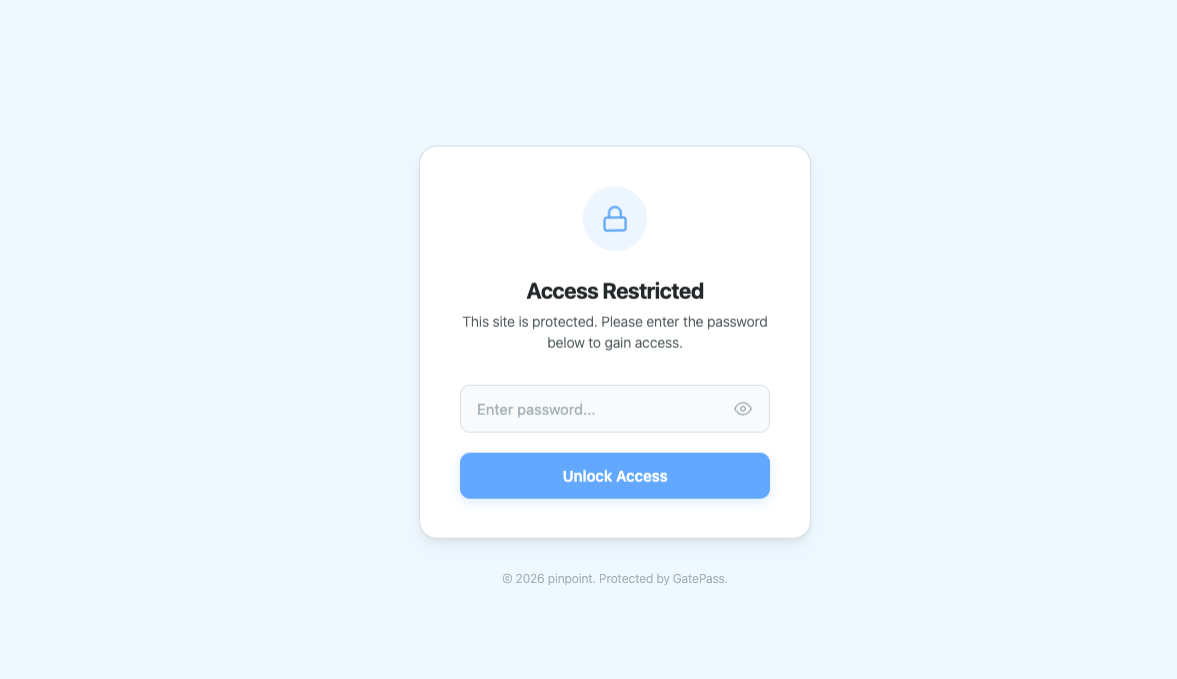
GatePass Password Protection is a secure, lightweight, and SEO-friendly WordPress plugin designed to lock your website or specific content behind a professional password gate.
Whether you need to hide a staging site from search engine crawlers, share private client drafts, restrict access to member-only content, set up an “under construction” page, or secure premium WooCommerce products, GatePass has you covered.
Unlike other bloated plugins, GatePass loads fast, uses clean WordPress standards, and allows you to manage all your passcodes from a central, modern settings page.
Full WooCommerce Integration:
GatePass fully supports WooCommerce store locking out-of-the-box. You can:
* Protect your entire shop or wholesale catalog from unauthorized visitors.
* Password-protect individual specific products (Pro) or all products globally (Free).
* Lock specific WooCommerce product categories, tags, or attributes dynamically (Pro).
Major Use Cases:
- Staging & Development Sites: Secure your development environment from public eyes and bots.
- Client Project Previews: Share draft pages, portfolios, or layouts with clients securely.
- WooCommerce Store Protection: Password-protect wholesale catalogs, custom products, or your entire store.
- Under Construction / Coming Soon: Lock your pages during updates while allowing administrators to bypass the lock screen.
- Private Portals: Create simple intranets, student sections, or member directories.
Free Features
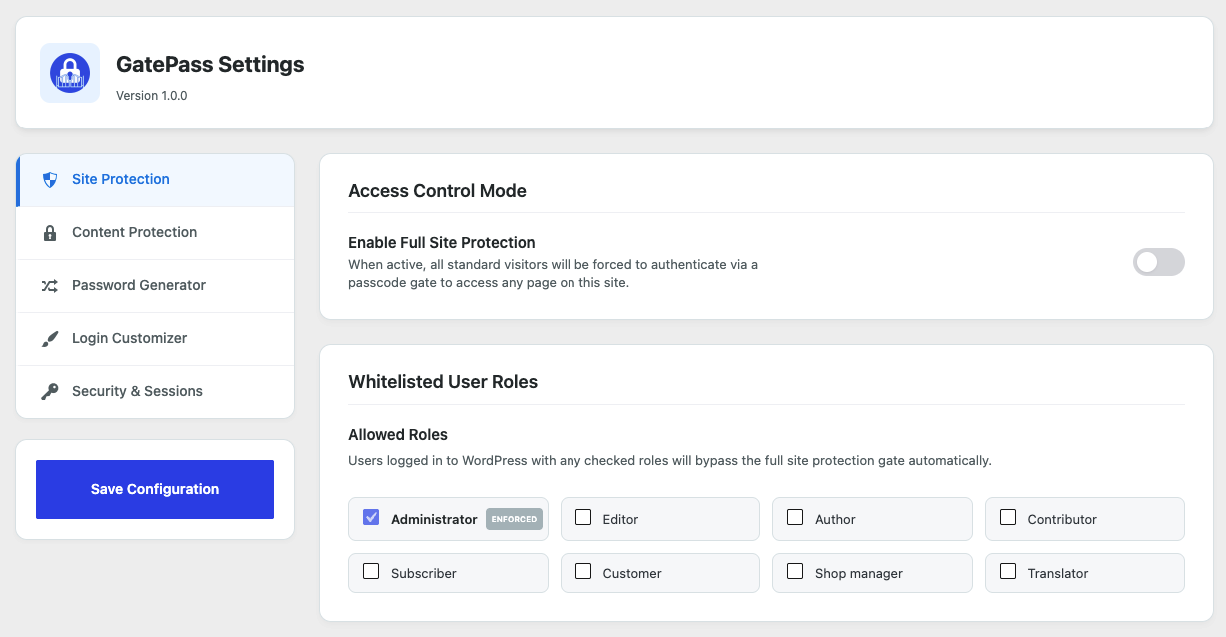
- Full Website Lock: Instantly secure your entire website behind a single passcode gate.
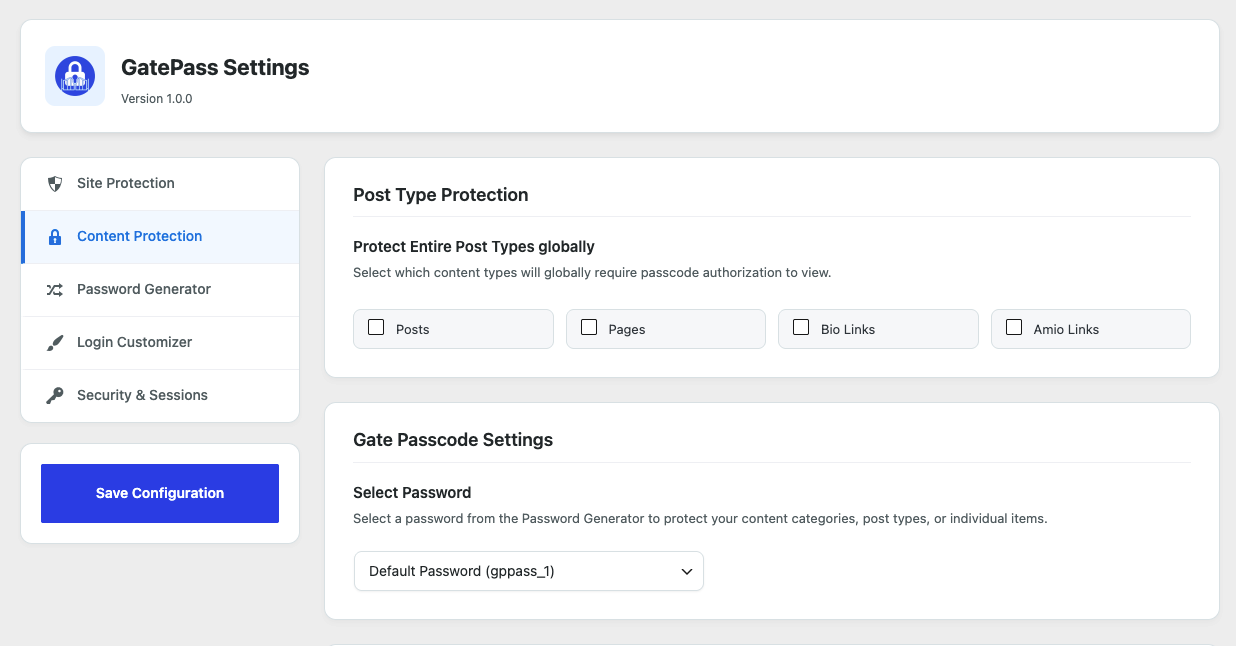
- Global Post Type Protection: Protect all standard posts, pages, or WooCommerce products globally in one click.
- Role-Based Bypass: Automatically whitelist logged-in user roles (like Administrators and Editors) to bypass the lock screen.
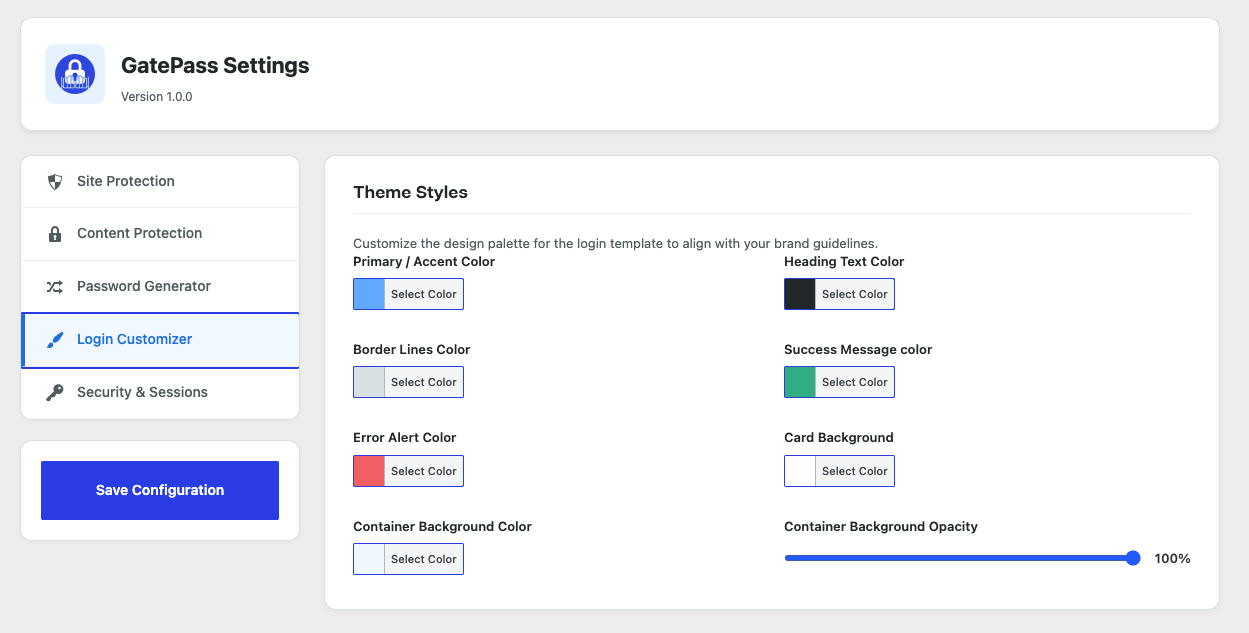
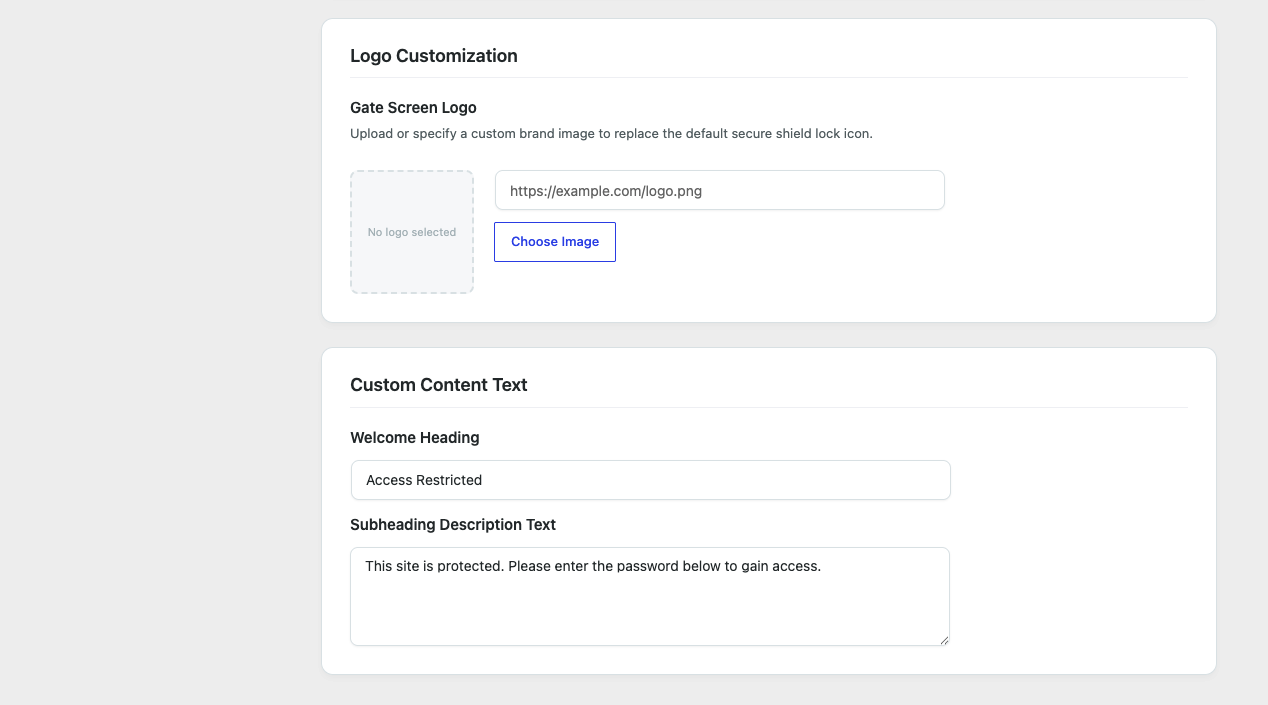
- Login Page Customizer: Upload your company logo, choose custom background & text colors, and write your own headings.
- Shortcode Block Generator: Wrap specific sections of your text using
[gatepass-password-protection]to lock partial page content. - 1 Magic Access Link: Generate one secure bypass URL (valid for up to 5 entries) to share instant access without requiring a password.
- Active Session Control: Configure passcode session cookie lifespans (e.g. keep users unlocked for 24 hours).
- SEO-Friendly crawling blocker: Employs header instructions to block search engine indexing of locked areas.
Pro Features
Upgrade to GatePass Pro to unlock ultimate content control and advanced client management options:
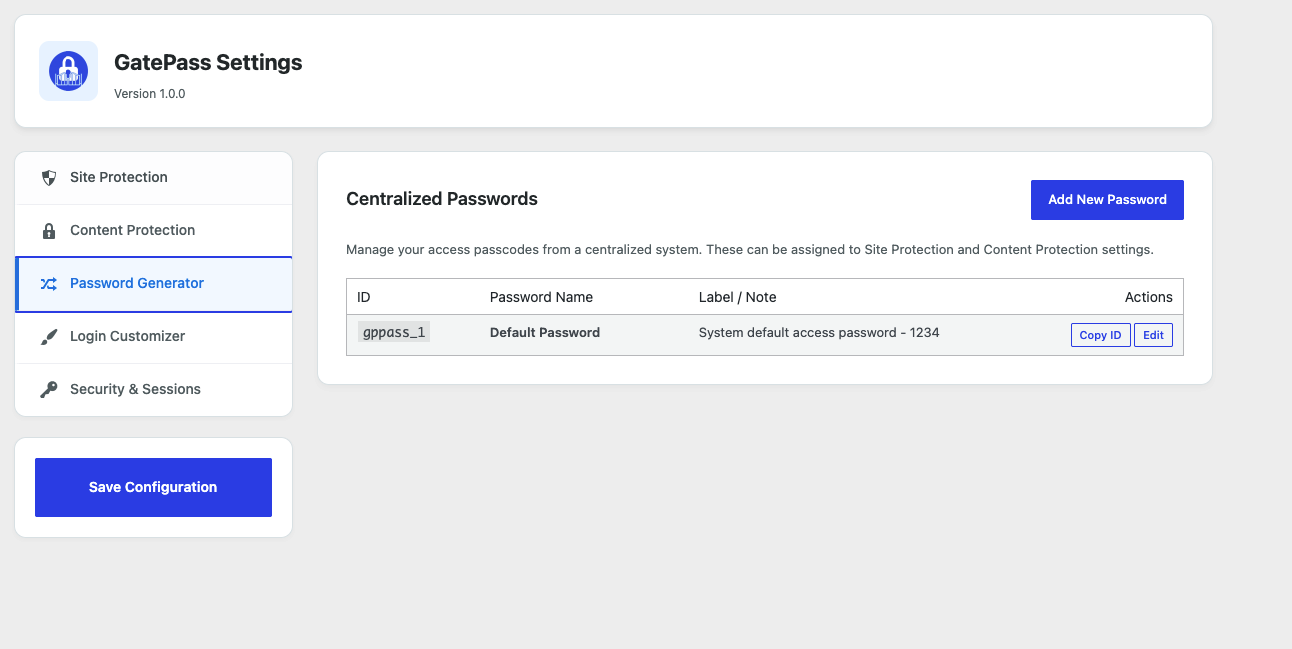
* Centralized Password Manager: Create and manage unlimited unique passwords from a single admin screen.
* Automatic Password Expiration: Set date and time rules to automatically expire access passcodes.
* Individual Content Protection: Protect specific page/post/product IDs instead of locking them globally.
* Granular Taxonomy & Category Protection: Password-protect entire categories, tags, or custom WooCommerce taxonomies.
* Teaser & Blur Effect: Display a beautiful blurred text preview behind the lock screen to build user curiosity.
* Public Bypass Exclusions: Keep specific landing pages, blogs, or contact forms public while locking the rest of your site.
* IP Whitelisting & CIDR Support: Let your office network or specific IP addresses bypass the password check.
* Geo-IP Location Protection: Restrict content access or block visitors based on their country.
* Anti-Spam CAPTCHA Protection: Stop brute-force bots using Google reCAPTCHA v2 or Cloudflare Turnstile.
* Passcode Access Requests Dashboard: Let visitors submit passcode requests directly from the lock screen. Review, approve, reject, or delete requests via AJAX, and send automatic custom email notifications to requestors.
* Global Session Invalidation: Instantly force-logout all active visitor sessions with one click.
External Services
This plugin can optionally connect to or load third-party external services to provide security, geolocation, and license management functionality. These services perform processing on external servers that cannot be done locally:
- Freemius SDK (For license activation, pricing checks, automatic updates, and billing support)
* Service Link: https://freemius.com
* Terms of Use: https://freemius.com/terms/
* Privacy Policy: https://freemius.com/privacy/
- Google reCAPTCHA (Optional anti-spam check for lock screen forms)
* Service Link: https://www.google.com/recaptcha
* Terms of Service: https://policies.google.com/terms
* Privacy Policy: https://policies.google.com/privacy
- Cloudflare Turnstile (Optional anti-spam check for lock screen forms)
* Service Link: https://www.cloudflare.com/products/turnstile/
* Terms of Use: https://www.cloudflare.com/website-terms/
* Privacy Policy: https://www.cloudflare.com/privacypolicy/
- IP-API.com (Optional Geo IP lookup fallback for country restrictions)
* Service Link: https://ip-api.com
* Terms of Use: https://ip-api.com/docs/terms
* Privacy Policy: https://ip-api.com/docs/privacy
- IPInfo.io (Optional Geo IP lookup fallback for country restrictions)
* Service Link: https://ipinfo.io
* Terms of Service: https://ipinfo.io/terms-of-service
* Privacy Policy: https://ipinfo.io/privacy-policy
- IPAPI.co (Optional Geo IP lookup fallback for country restrictions)
* Service Link: https://ipapi.co
* Terms of Service: https://ipapi.co/terms/
* Privacy Policy: https://ipapi.co/privacy/
Installation
- Upload the
gatepass-password-protectionfolder to your/wp-content/plugins/directory, or install it directly via the WordPress Admin dashboard. - Activate the plugin through the ‘Plugins’ menu in WordPress.
- Navigate to the GatePass menu in your WordPress sidebar to configure protection rules, customize design templates, and manage access passwords.
Screenshots
Faq
Yes! When active, the plugin automatically implements header instructions to prevent search crawlers (like Googlebot) from indexing password-protected pages. Pro version users can also use public exclusions to keep key SEO landing pages publicly visible.
In the Free version, you lock post types globally. In the Pro version, you can whitelist specific pages, posts, or templates using the “Bypass Exclusions” settings tab to keep them public.
Absolutely! Go to the “Login Customizer” tab in your settings. You can upload a custom logo, set custom background and text colors, and write your own headings or description.
Go to the “Security & Sessions” tab to change cookie lifespans. If you need to force-logout everyone immediately, click the “Invalidate Sessions” button.
Users logged into WordPress with any selected role in the “Whitelisted User Roles” setting will automatically bypass the full site protection screen. Administrators are always whitelisted.
Reviews
Changelog
1.0.1
- Improved: Shortcode generator with clearer usage instructions.
- Improved: Moved shortcode inline styles to the admin stylesheet.
- Improved: Enhanced sanitization and security validation.
- Added: Documentation for external services in the readme.
1.0.0
- Initial WordPress.org release featuring core passcode Site Protection, Design Customizer, Bypass Exclusions, and Session Lifespan controls.