GS YouTube Gallery – Video Feed, Channel Playlist & YouTube Slider

GS YouTube Gallery – Video Feed, Channel Playlist & YouTube Slider
Description
GS YouTube Gallery is a magnificent WordPress plugin designed to showcase YouTube Channel or Playlist videos with style. It offers a clean and engaging gallery layout, supporting grid, slider, and popup views. The plugin is simple to use, allowing you to add videos anywhere on your site effortlessly.
With customizable settings for video count, sorting, and layout options, GS YouTube Gallery fits perfectly into any WordPress theme. It’s lightweight, developer-friendly, and ideal for creating a professional video gallery. Enhance user experience with flexible controls and easily display YouTube videos, driving better content engagement on your website.
🎬 Live Demo ⬆️ Upgrade to PRO 📚 Documentation 🙋♂️ Support
Why Choose the GS YouTube Gallery for Your WordPress Site?
You might be thinking, “Can’t I just embed YouTube videos directly?” While true, directly embedding videos often lacks the polished look, organization, and advanced functionality that can truly enhance user experience.
The GS YouTube Gallery fills this gap by offering:
- Professional Presentation: Move beyond simple embeds to create beautiful, responsive video galleries that complement your site’s design.
- Enhanced User Engagement: With organized layouts and easy navigation, visitors are more likely to watch multiple videos, increasing time spent on your site.
- Simplified Management: Easily add and manage videos from your YouTube channels or playlists without needing to touch a single line of code.
- Performance Optimization: Designed to be lightweight and efficient, it helps ensure your video galleries load quickly without bogging down your site.
- SEO Benefits: Well-structured content, including video galleries, can improve your site’s SEO, making it more discoverable.
- Fast and Lightweight: It is lightweight and swift, ensuring quick load times even with multiple videos, enhancing performance and user experience.
What Makes the GS YouTube Gallery Stand Out?
The GS YouTube Gallery plugin doesn’t just replicate basic video embedding. It stands out by offering various unique features that make it the ideal choice for displaying YouTube videos on WordPress websites.
Here’s what sets it apart:
- Automatic Thumbnails and Titles: Automatically fetches video thumbnails and titles from YouTube, saving you time and enhancing gallery appeal.
- Flexible Shortcodes: Place galleries anywhere on your site with customizable shortcodes for pages, posts, and sidebars.
- Custom CSS Support: Inject custom CSS to tailor gallery designs to your site’s branding for complete creative control.
- Playlist and Channel Integration: Easily import and display entire playlists or YouTube channels, keeping content up-to-date.
Who is This Plugin Most Useful For?
The GS YouTube Gallery is incredibly versatile and beneficial for a wide range of WordPress users:
- Content Creators & Vloggers: Showcase your latest videos, organize them by playlist, and attract more subscribers.
- Businesses & Marketers: Feature product demos, customer testimonials, explainer videos, and marketing campaigns.
- Educators & Trainers: Create organized libraries of instructional videos, tutorials, and course materials.
- Artists & Musicians: Present music videos, performance footage, or behind-the-scenes content in a visually appealing way.
- Podcasters & Interviewers: Display video versions of your podcasts or interviews.
- Portfolio Websites: Designers, photographers, and filmmakers can use it to display video elements of their work.
- Bloggers: Enhance blog posts with relevant video content to increase engagement and provide a richer experience for readers.
- Event Organizers: Showcase highlight reels, speaker sessions, or promotional videos from past and upcoming events.
Core Features of the GS YouTube Gallery Plugin:
- Responsive Design: Adapts to all screen sizes for a seamless experience.
- Customizable Layouts: Choose from grid, slider, or masonry formats.
- Automatic Video Thumbnails: Fetches thumbnails directly from YouTube.
- Automatic Video Titles: Pulls video titles from YouTube for easy setup.
- Shortcode Support: Add galleries anywhere using shortcodes.
- Multiple Shortcodes: Display multiple galleries on different pages or sidebars.
- Playlist Integration: Embed entire playlists in your gallery.
- Channel Integration: Import videos from a specific YouTube channel.
- Custom CSS: Customize the gallery with your CSS.
- Video Sorting: Sort videos by date, views, or custom order.
- Video Pagination: Break galleries into paginated pages.
- SEO-Friendly: Generates schema.org markup for better SEO.
- Lightweight and Fast: Optimized for quick page loading.
- Video Descriptions: Show descriptions alongside thumbnails.
- Video Category Filters: Filter videos by category.
- Customizable Thumbnails: Control thumbnail size.
- YouTube API Integration: Fetch live video data from YouTube’s API.
- Infinite Scroll: Infinite Scroll is for continuous video browsing.
- Hover Effects: Add interactive hover effects to thumbnails.
- RTL Support: Supports right-to-left languages.
- Mobile-Optimized: Mobile-friendly for smaller screens.
- Multiple Gallery Styles: Display galleries in grid, slider, or list.
- Customizable Popups: Choose popup styles for full-screen videos.
- Video Preview: Preview videos before adding them.
- Support for Multiple Galleries: Manage several galleries on your site.
- Embed YouTube Videos: Display individual videos within galleries.
- Video Lightbox: View videos in a lightbox for better visibility.
- Customizable Color Scheme: Adjust gallery colors to fit your site design.
Preference
Global Settings for GS YouTube Gallery Plugin
- API Key: Enter your YouTube API key to enable the plugin to fetch video data.
- Channel ID (Global): Enter the Channel ID to automatically display videos from that channel.
- Playlist ID (Global): Enter the Playlist ID to pull videos from a specific playlist.
- Custom CSS: Add any custom CSS that you’d like to apply to the gallery layout. This could be used to adjust the video thumbnails, buttons, or overall gallery design.
General Settings
Go to GS YouTube Gallery Shortcode to create or edit a shortcode. The General Settings allow you to configure the shortcode name, video source, theme, view type, video count, order, and sorting criteria for your YouTube gallery.
- Shortcode Name: Provide a unique name for the shortcode to identify it
- Source: Select the source of videos
- Chanel IDs (Global or Shortcode)
- Playlist IDs (Global or Shortcode)
- Video IDs
- Theme: Choose from 10 unique theme styles
- View Type: Select the view style for displaying videos (Grid & Slider).
- Count: Set the number of videos to display in the gallery.
- Order: Define the order of the videos (Ascending or Descending).
- Order By: Choose the criterion by which videos should be ordered (Date, ID & Random)
Style Settings
Go to GS YouTube Gallery Shortcode to create or edit a shortcode. The Style Settings allow you to configure the appearance of your YouTube gallery.
- Items Per Row: Set the number of items (videos) to display per row in the gallery
- Responsiveness: Configure for Desktop, Tablet, Large Mobile, and Mobile
- Font Size: Adjust the text size for titles, descriptions, etc.
- Font Weight: Choose from Normal, Bold, or Lighter options.
- Font Style: Select between Regular or Italic styles.
- Font Color: Set the color of the text to match your site’s design.
Visibility Settings
The Visibility Settings in the plugin allow you to control which video fields are visible across different devices.
- Video Fields: This section allows you to select which fields you want to display for each video in your gallery.
The checkboxes under different icons control the visibility of the Thumbnail field on Desktop, Tablet, Large Mobile, and Mobile screens.
GS YouTube Gallery’s shortcode usage
Basic Usage –
Choose a theme, view type, and other parameters to customize your display. The shortcode will be generated with an ID, like –
[gs_ytgal id=1]
Shortcode PHP Usage
<?php echo do_shortcode( '[gs_ytgal id=1]' ); ?>
Confused?
🎬 View live Demos »
📚 Documentation »
Development Source
The uncompiled source code is available here.
External Services
GS Youtube Gallery plugin connects to external services to provide video data, modal display functionality, and plugin information.
Google YouTube Data API
It sends the YouTube Video ID and administrator-configured API key to the Google YouTube Data API whenever a video is displayed or refreshed to retrieve video details (title, thumbnail, statistics).
Data API Service, Terms, Privacy Policy
YouTube Embed (via Magnific Popup)
This plugin uses the Magnific Popup library to display videos in a modal window and loads YouTube content through embedded iframes when a video is opened. Standard browser requests are made to YouTube when the iframe loads.
GS Plugins API
The plugin retrieves plugin metadata from a static JSON file hosted on GS Plugins when the admin page loads. No personal user data is transmitted.
🔥 More Essential Plugins You Want To Get From GS Plugins
⭐ Solid Testimonials – Showcase client reviews, recommendations, and quotes creatively across pages and widgets for maximum impact.
️ Logo Slider – Quick & easily manageable logo slideshow plugin to display partner, client, brand & sponsor’s Logos in appealing views.
💼 Filterable Portfolio – Showcase your work with clean, responsive layouts, including Grid, Slider, Filter, Masonry, and Popup.
👥 Team Members – Create attractive team sections highlighting members, roles, expertise, and professional strengths.
🎁 Project Showcase – Display projects as a portfolio with complete details, including URL, client reviews & ratings, gallery & videos.
📚 Books Showcase – Display books with authors, dates, reviews, ratings, galleries, and helpful details with 35+ designs.
👨🏫 Coaches – Showcase coaches’ skills, experience, certifications, reviews, ratings, and professional expertise clearly.
⊞ Posts Grid – Display recent WordPress posts in elegant 50+ styles for faster browsing and seamless navigation.
🎯 WooCommerce Plugins
🛒 WooCommerce Products Slider – Display WooCommerce products in smooth sliders, helping shoppers browse items more easily.
🛍️ WooCommerce Variation Swatches – Replace product dropdowns with attractive swatches for easier and faster variation selection.
💎 WooCommerce Brands – Add brand taxonomy for organizing, displaying, and filtering WooCommerce products efficiently.
📣 Social Plugins
📌 Pinterest Portfolio – Showcase Pinterest pins on WordPress, increasing engagement, visibility, and profile traffic.
🏆 Branding Plugin
⚡ PowerUp – Improve WordPress security and convenience with redirects, restrictions, admin controls and many more.
Installation
Install GS YouTube Gallery plugin as a regular WordPress plugin. Here is different ways to install GS YouTube Gallery plugin:
Install by Search Plugin
- In your Admin, go to menu Plugins > Add New
- Search – GS YouTube Gallery
- Click to install
- Activate the plugin
- GS YouTube Gallery will available under Posts.
Install by Upload Plugin
- Download the latest version of GS YouTube Gallery (.zip file)
- In your Admin, go to menu Plugins > Add New
- Select Upload Plugin
- Click on Choose File
- Select downloaded gs-yt-gallery.zip & click on Install Now button
- Activate the plugin
- GS YouTube Gallery will available under Posts.
Install Plugin using FTP
- Upload gs-yt-gallery.zip folder inside the /wp-content/plugins/ directory
- Go to WordPress dashboard > Plugins & Activate the GS YouTube Gallery plugin
- GS YouTube Gallery will available under Posts.
Display on the website:
- Use the
[gs_ytgal id=2]shortcode or select a different theme - Place the shortcode where you want to display it.
Screenshots
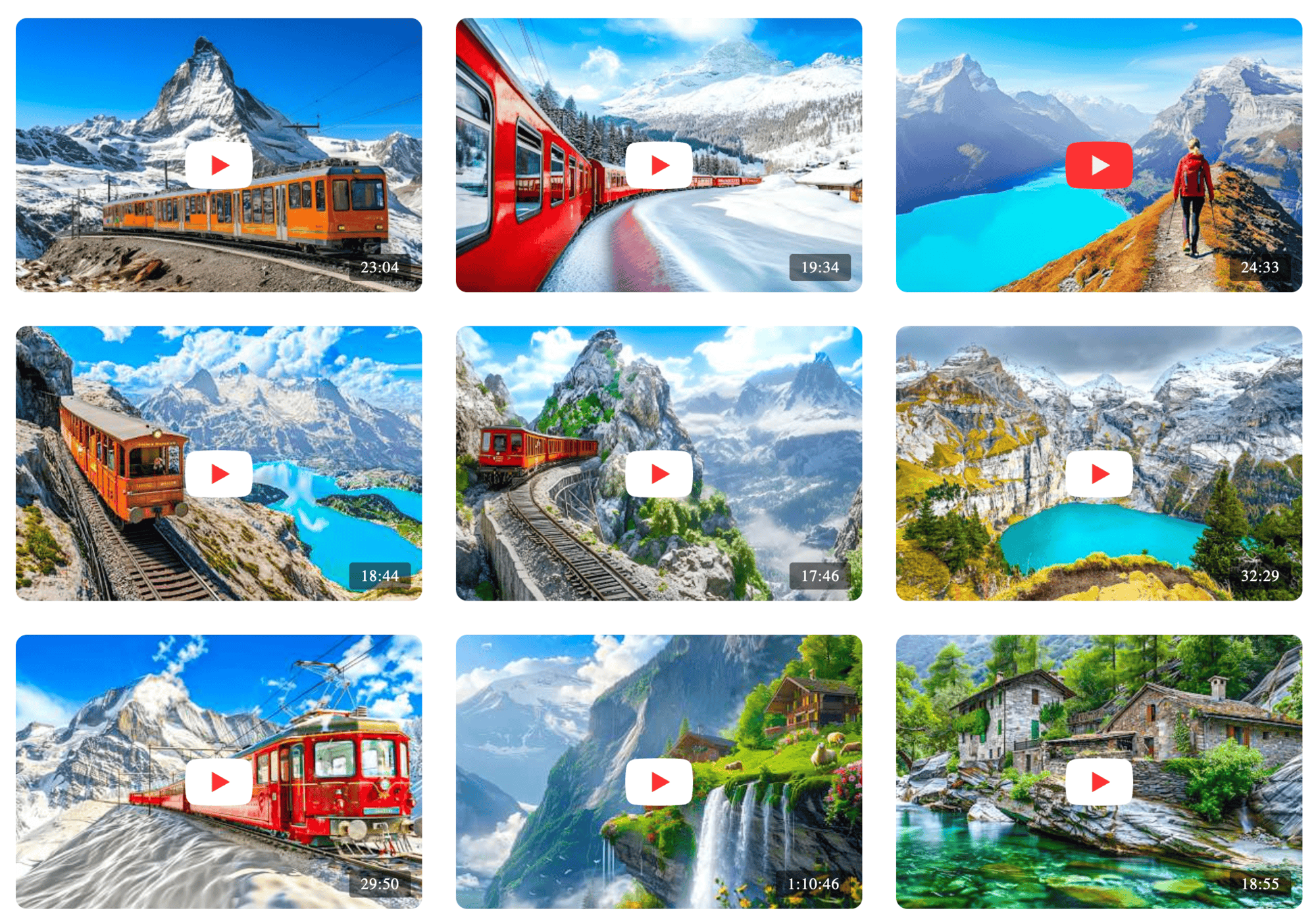
Grid View - Style 01: GS YouTube Gallery
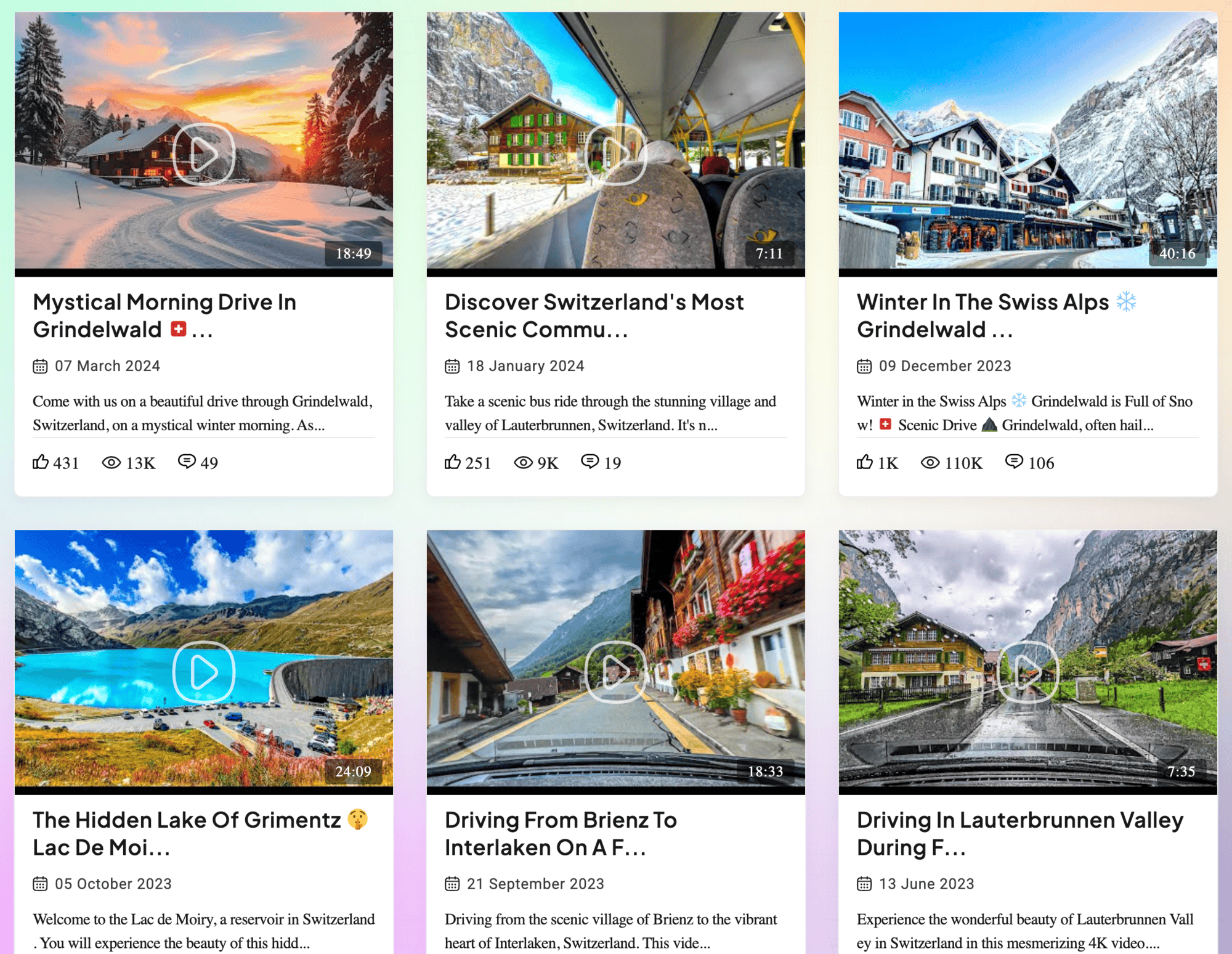
Grid View - Style 03: GS YouTube Gallery
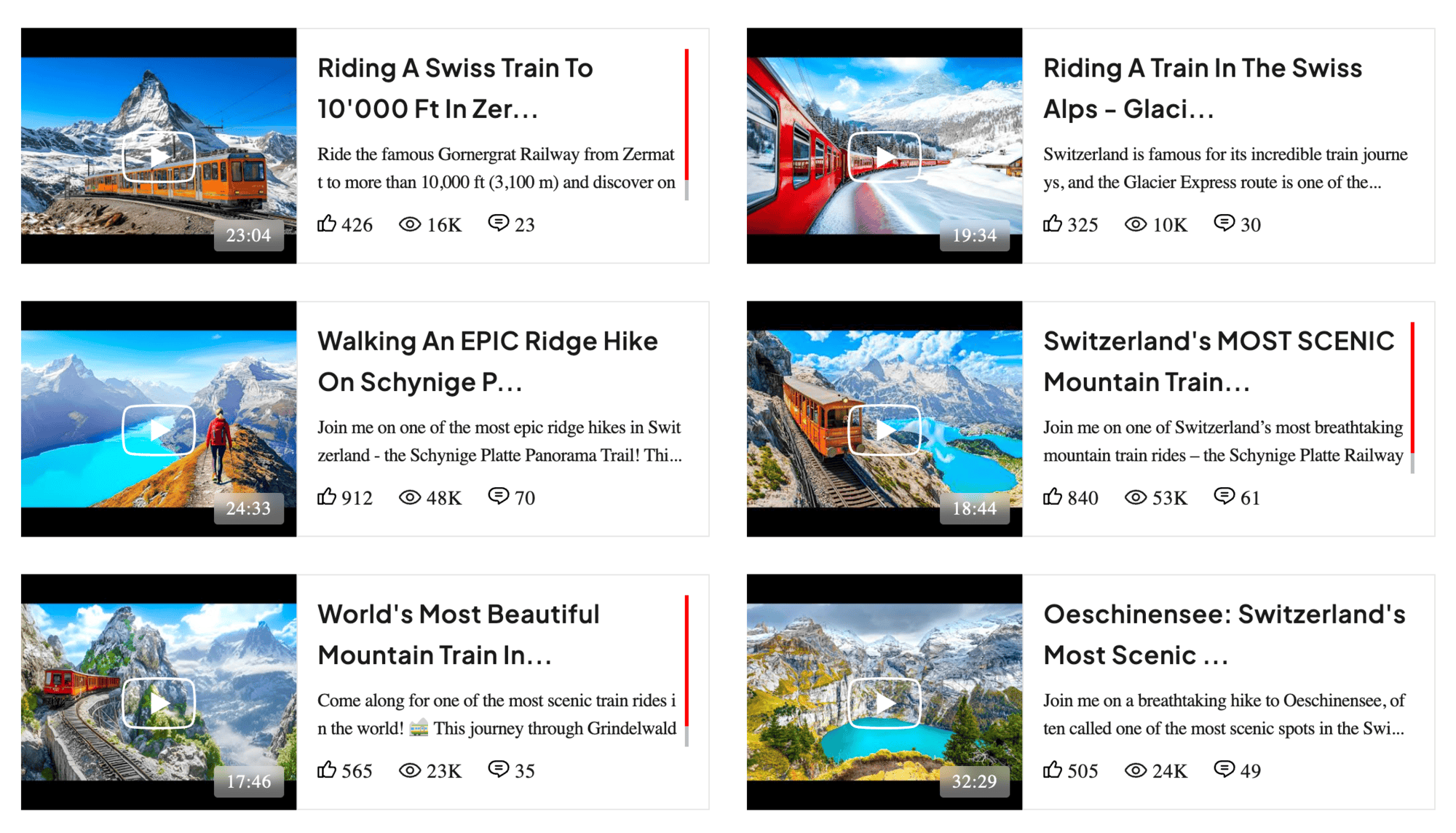
Horizontal View - Style 01: GS YouTube Gallery
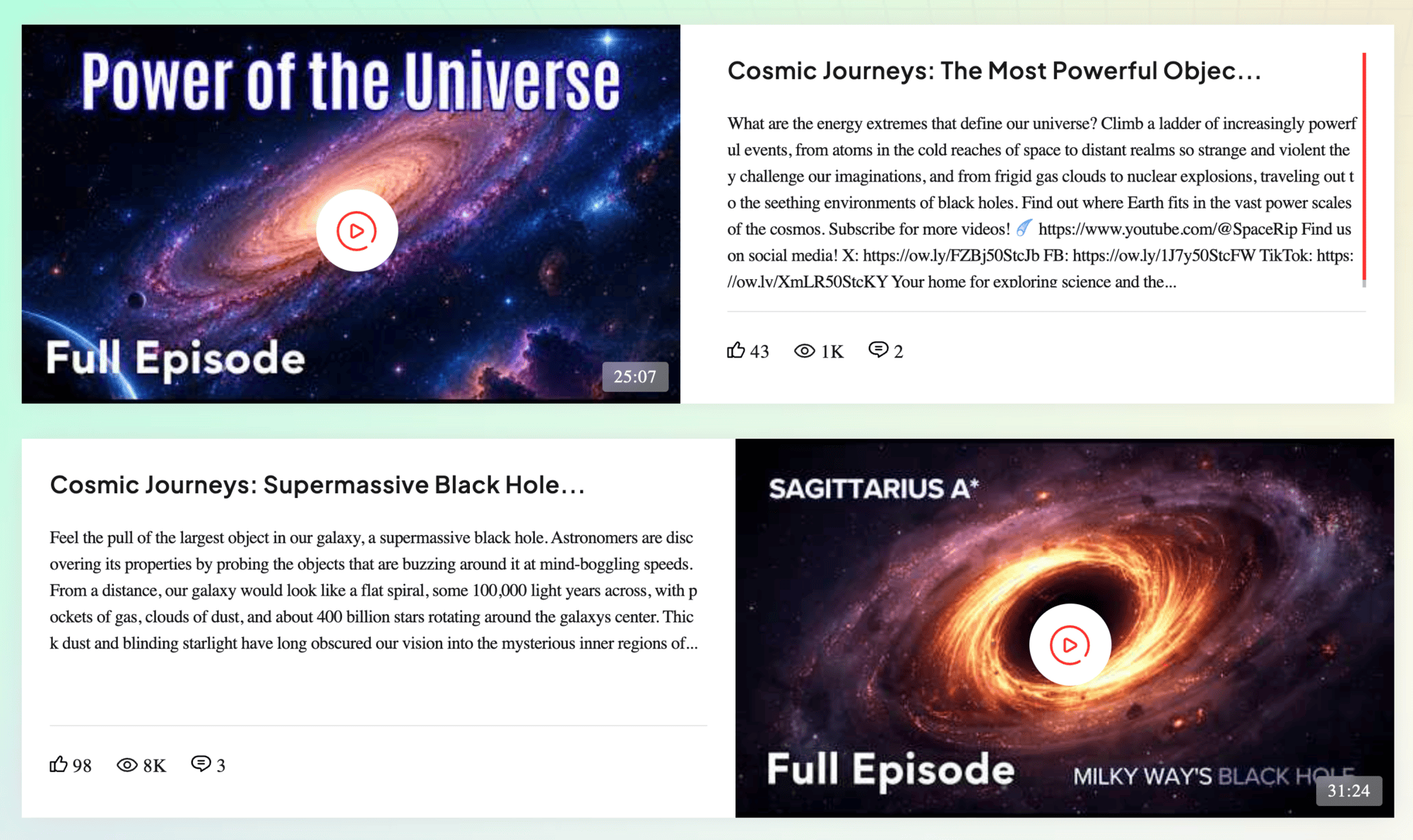
Horizontal View - Style 02: GS YouTube Gallery
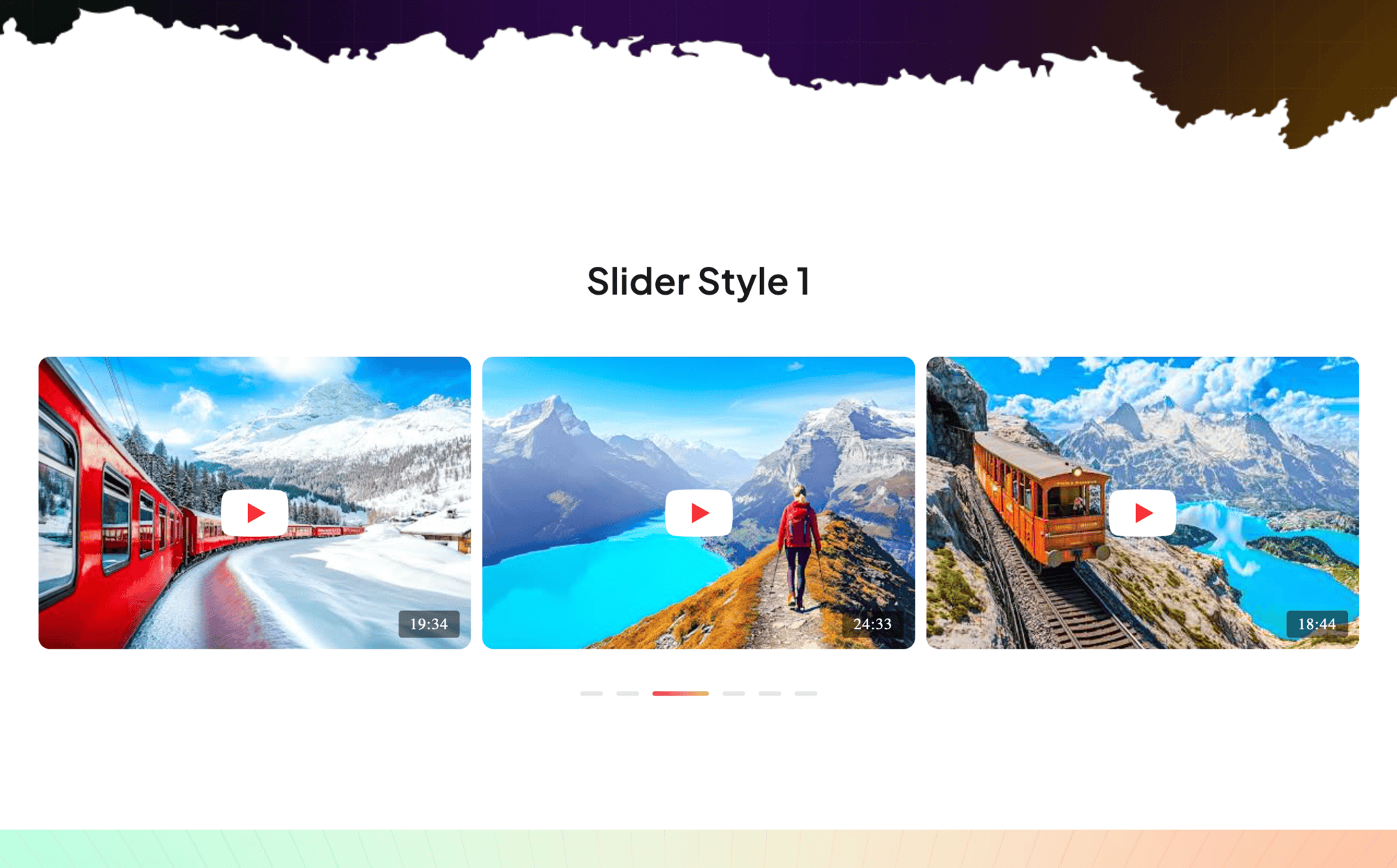
Slider - Style 01: GS YouTube Gallery
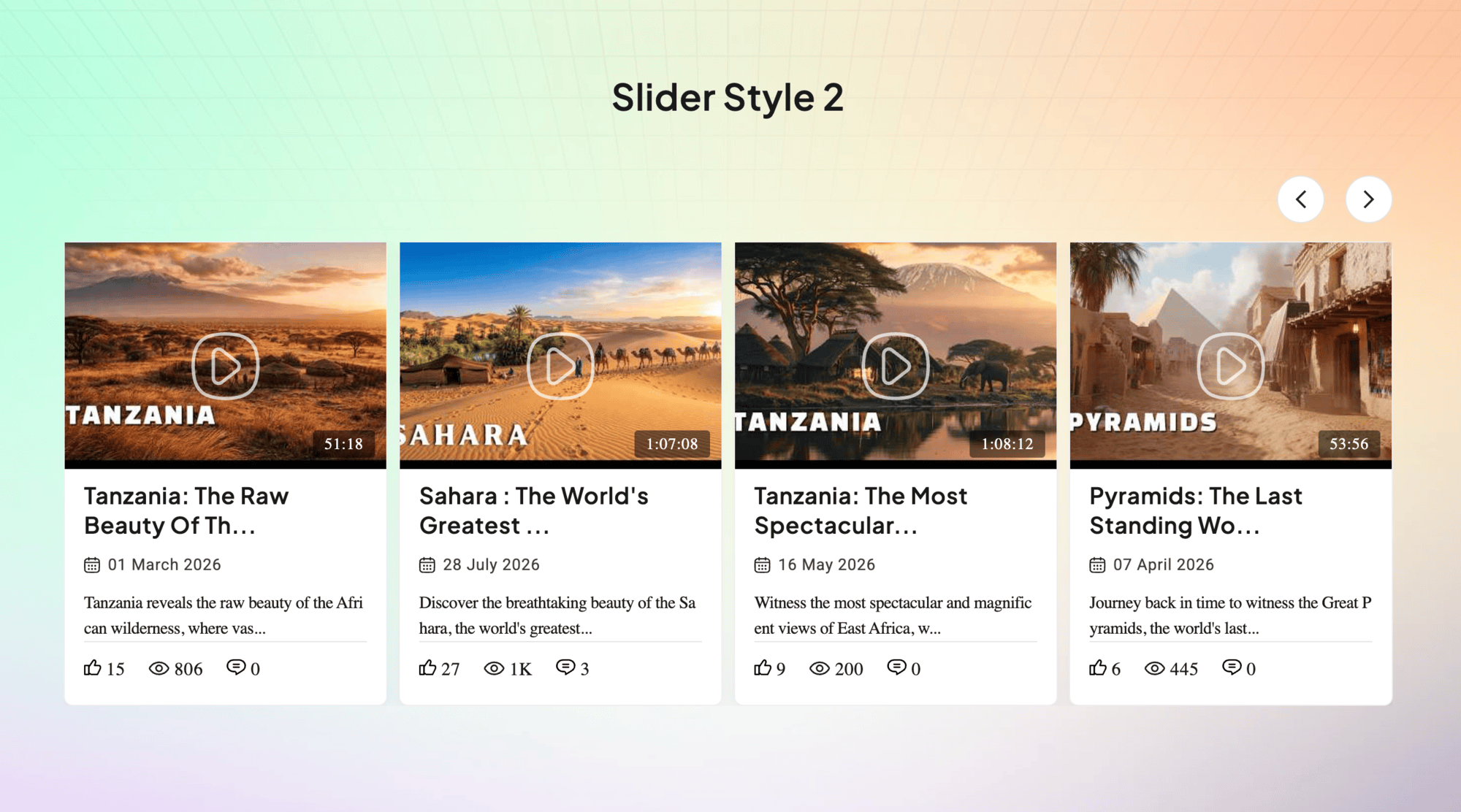
Slider - Style 02: GS YouTube Gallery
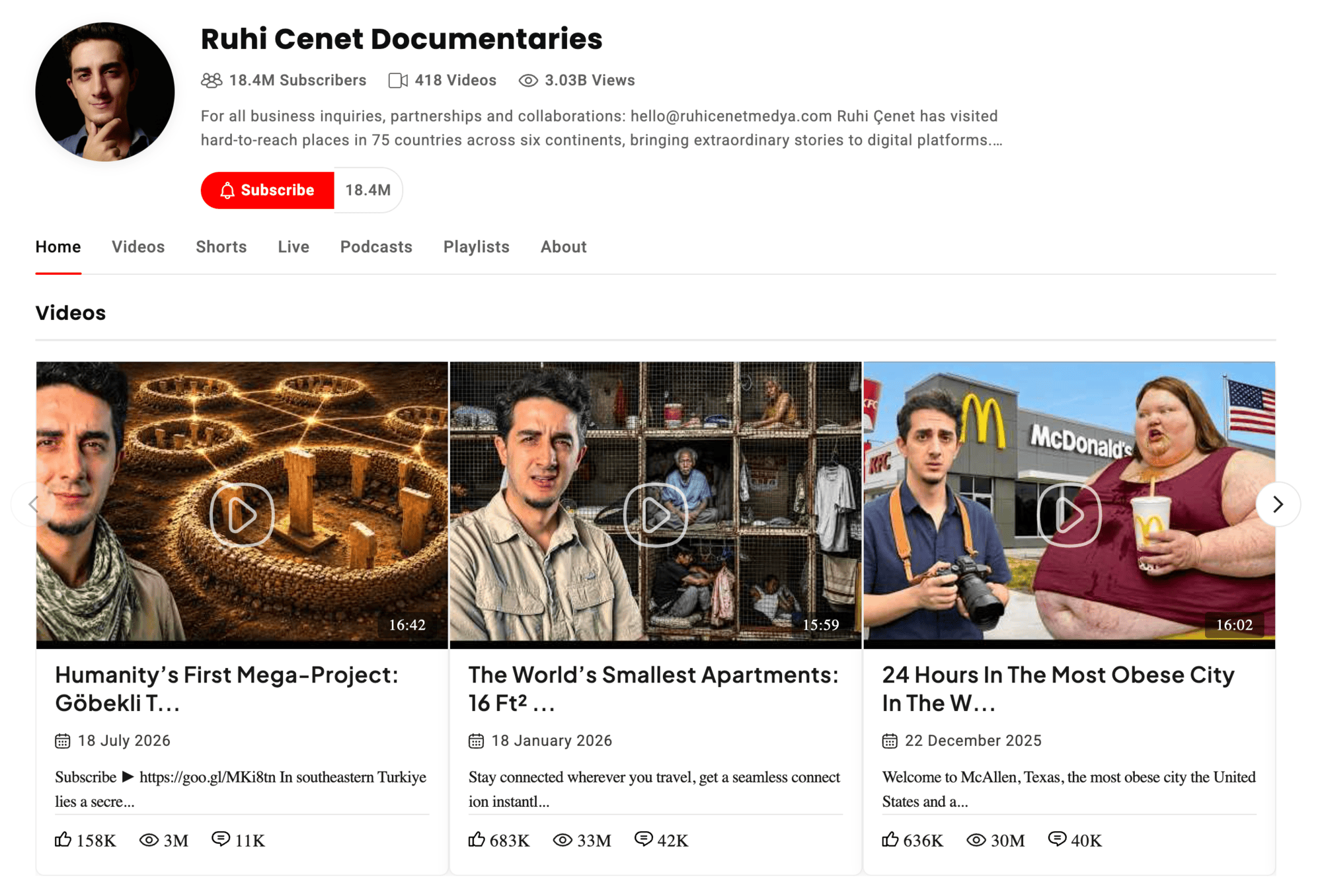
Channel - Style 02: GS YouTube Gallery
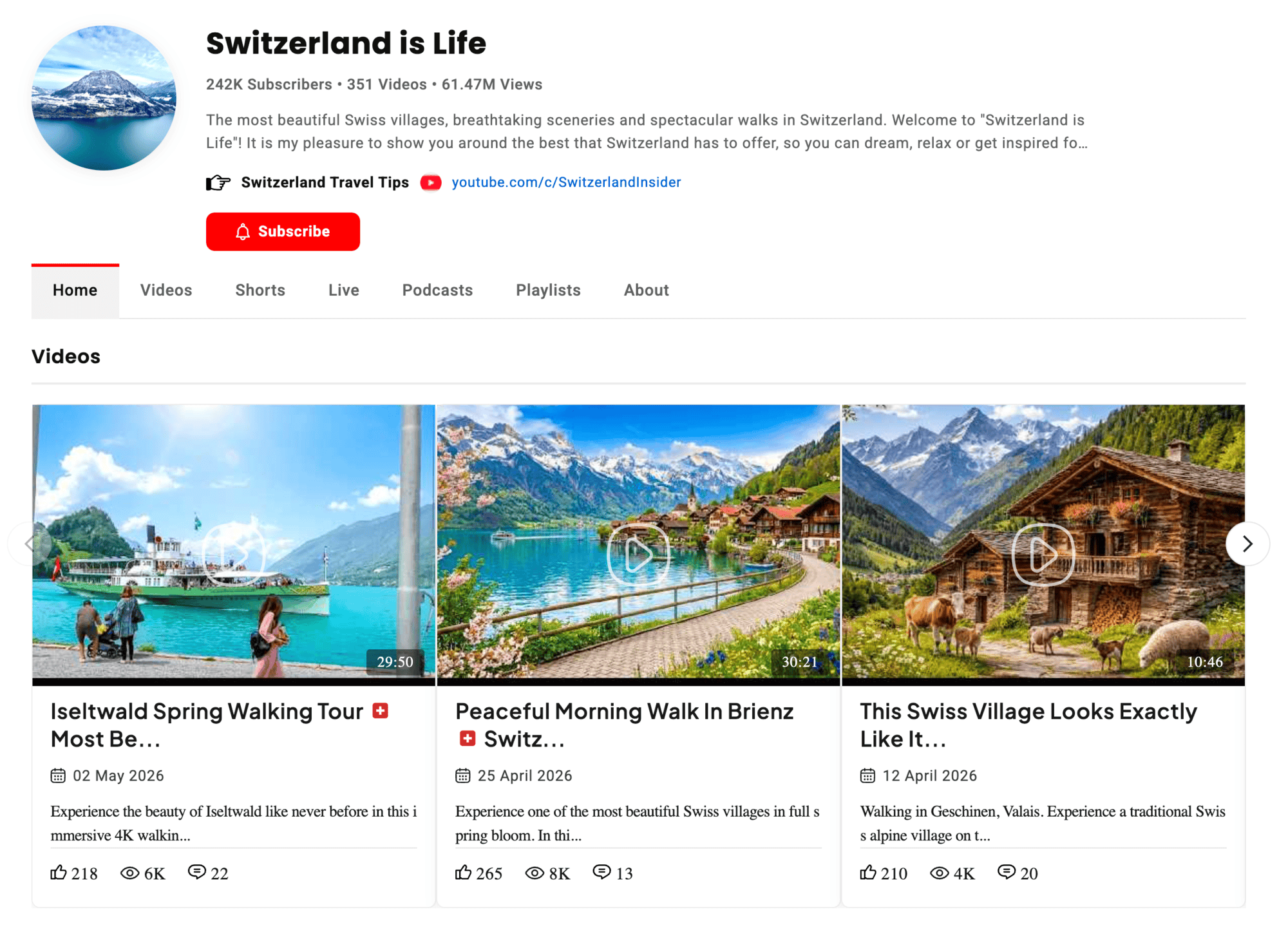
Channel - Style 05: GS YouTube Gallery
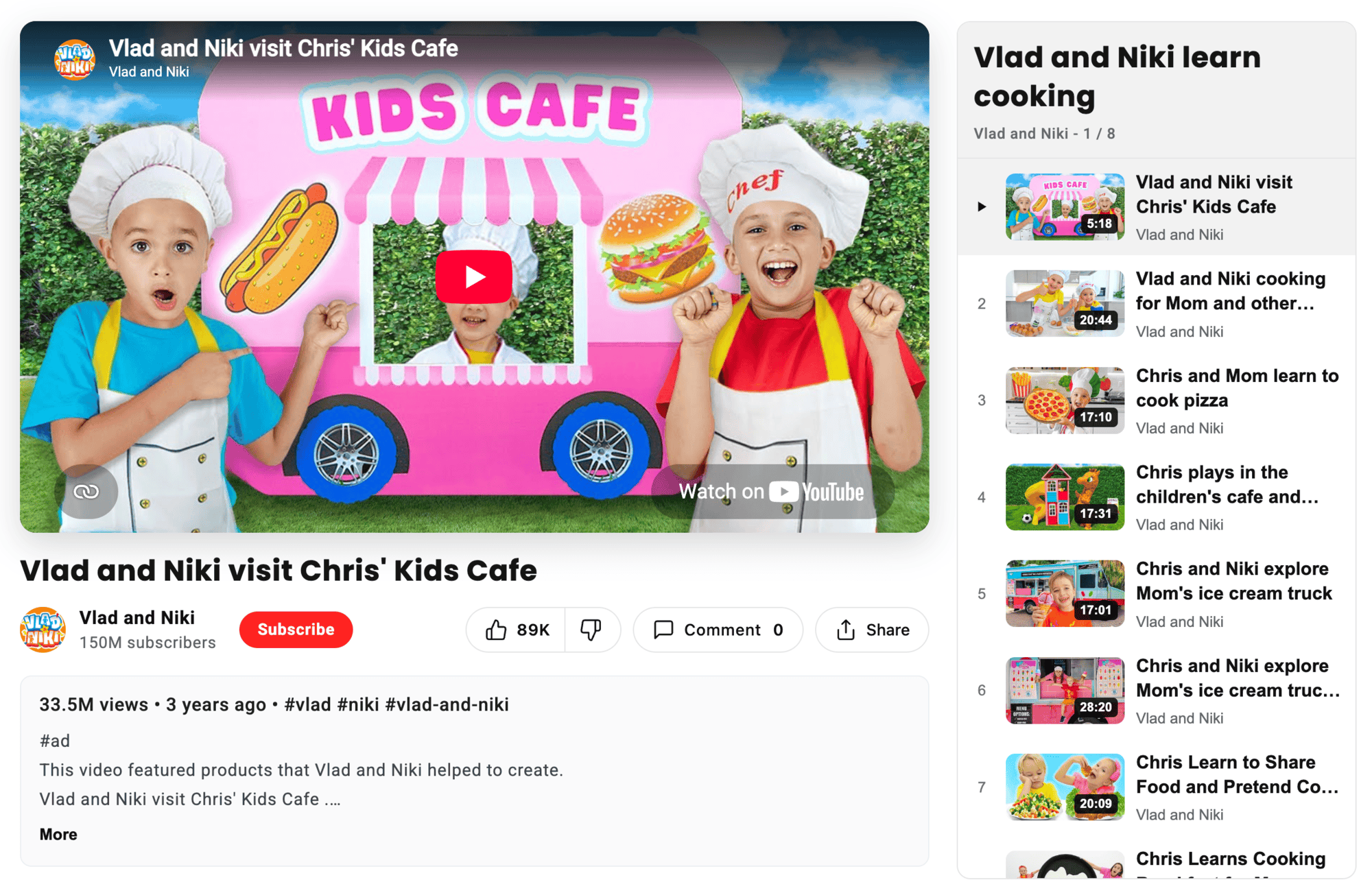
Playlist - Style 01: GS YouTube Gallery
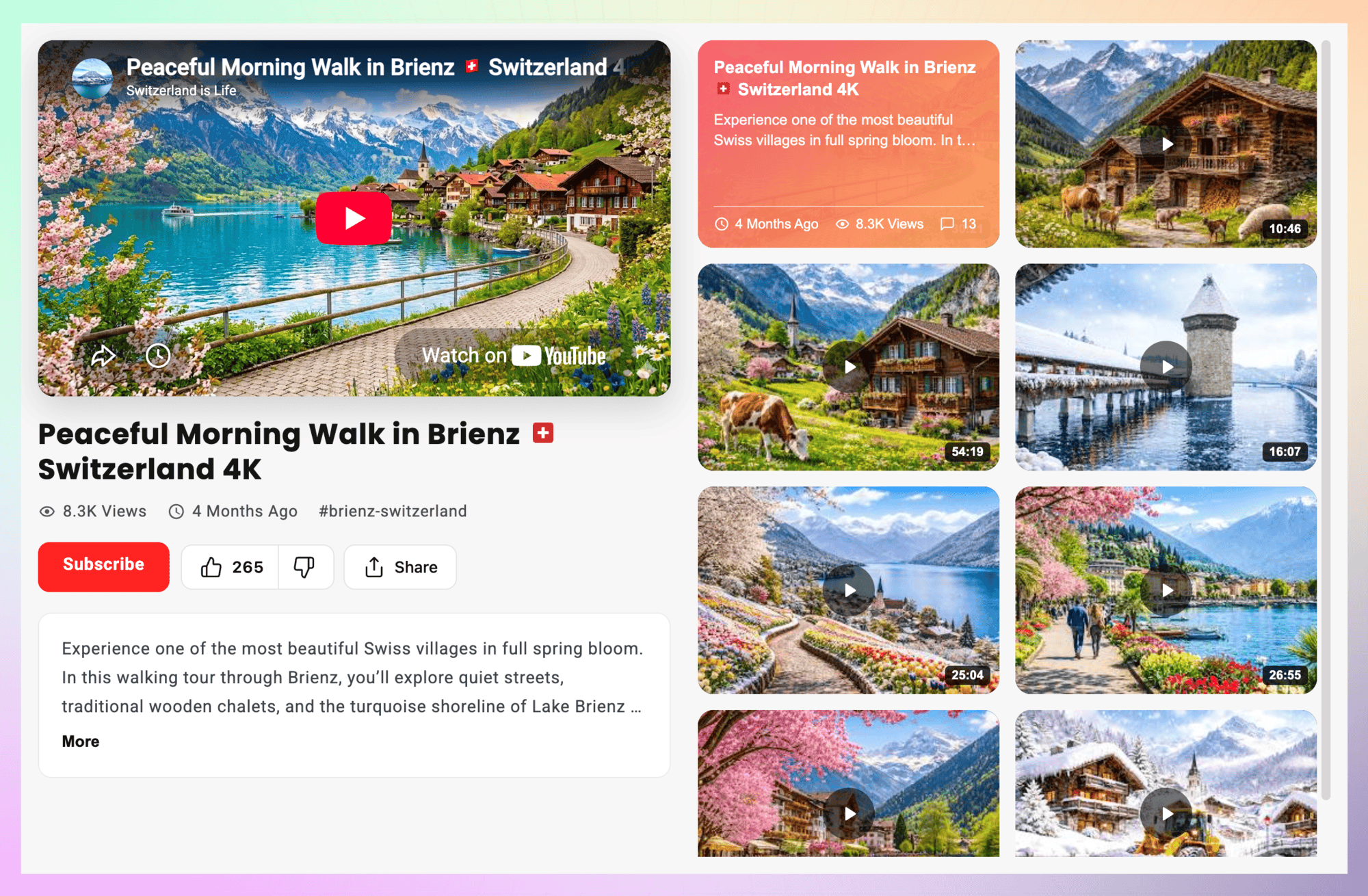
Playlist - Style 02: GS YouTube Gallery
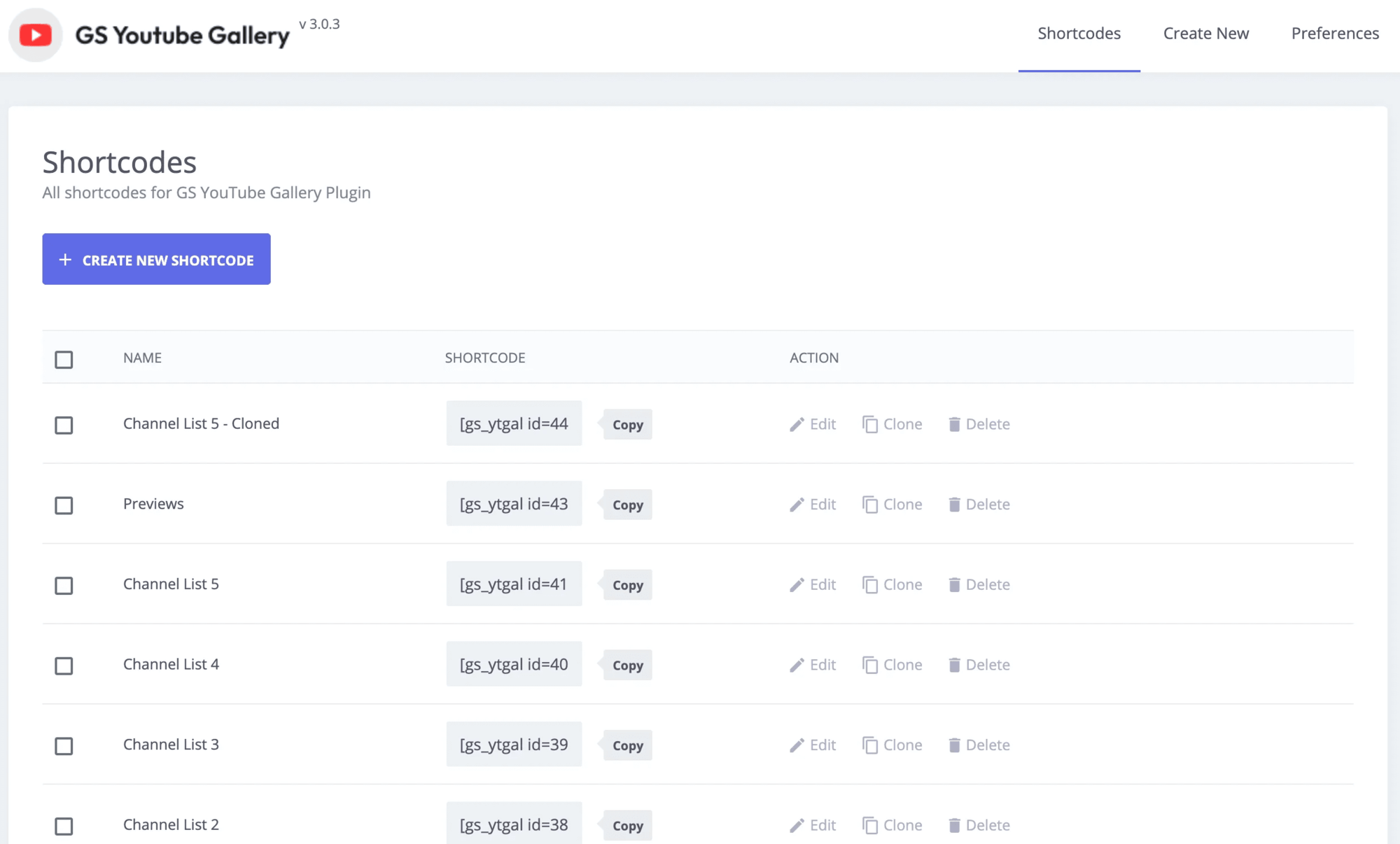
All created Shortcodes for the GS YouTube Gallery Plugin
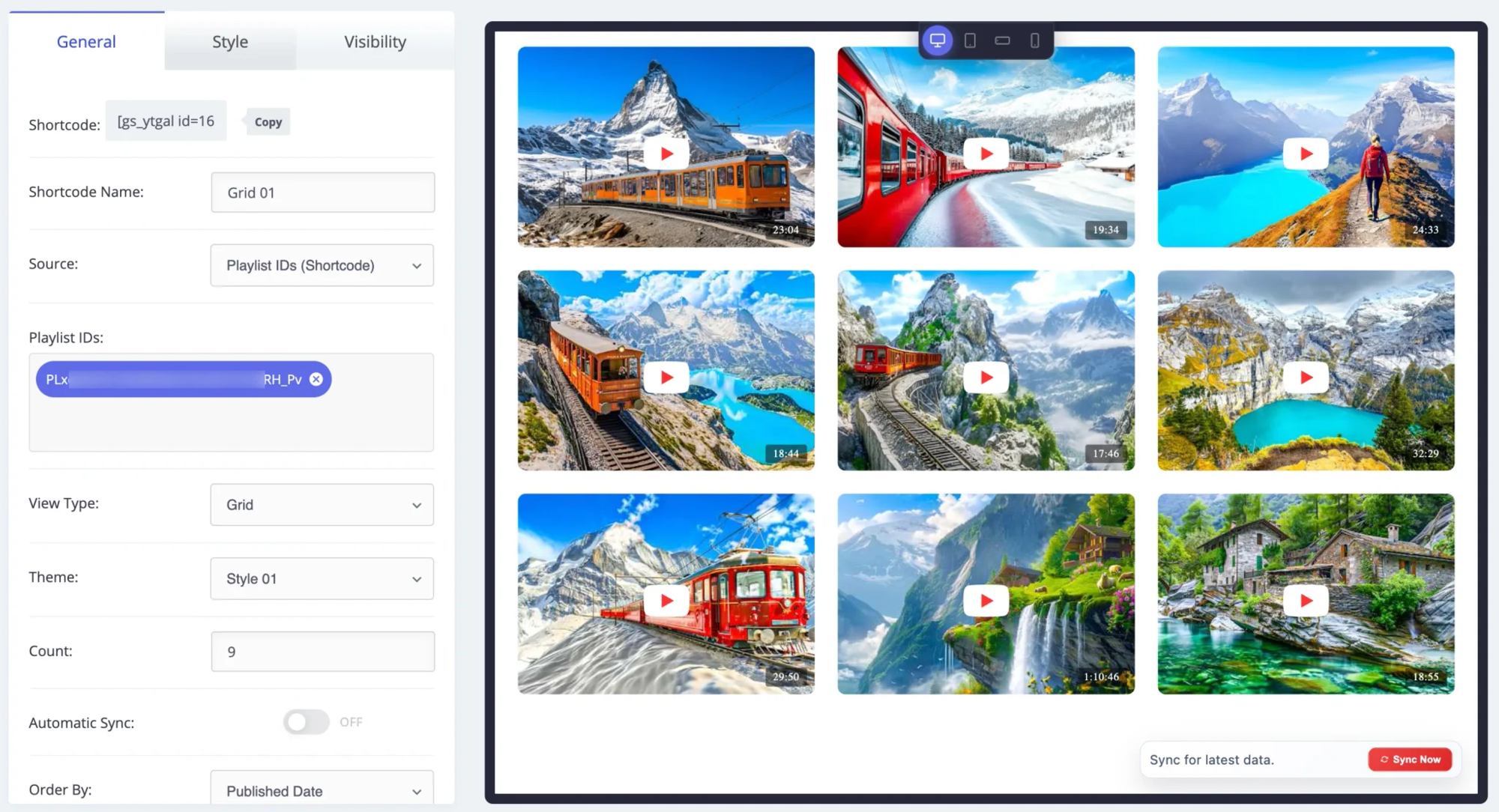
General Settings - GS YouTube Gallery
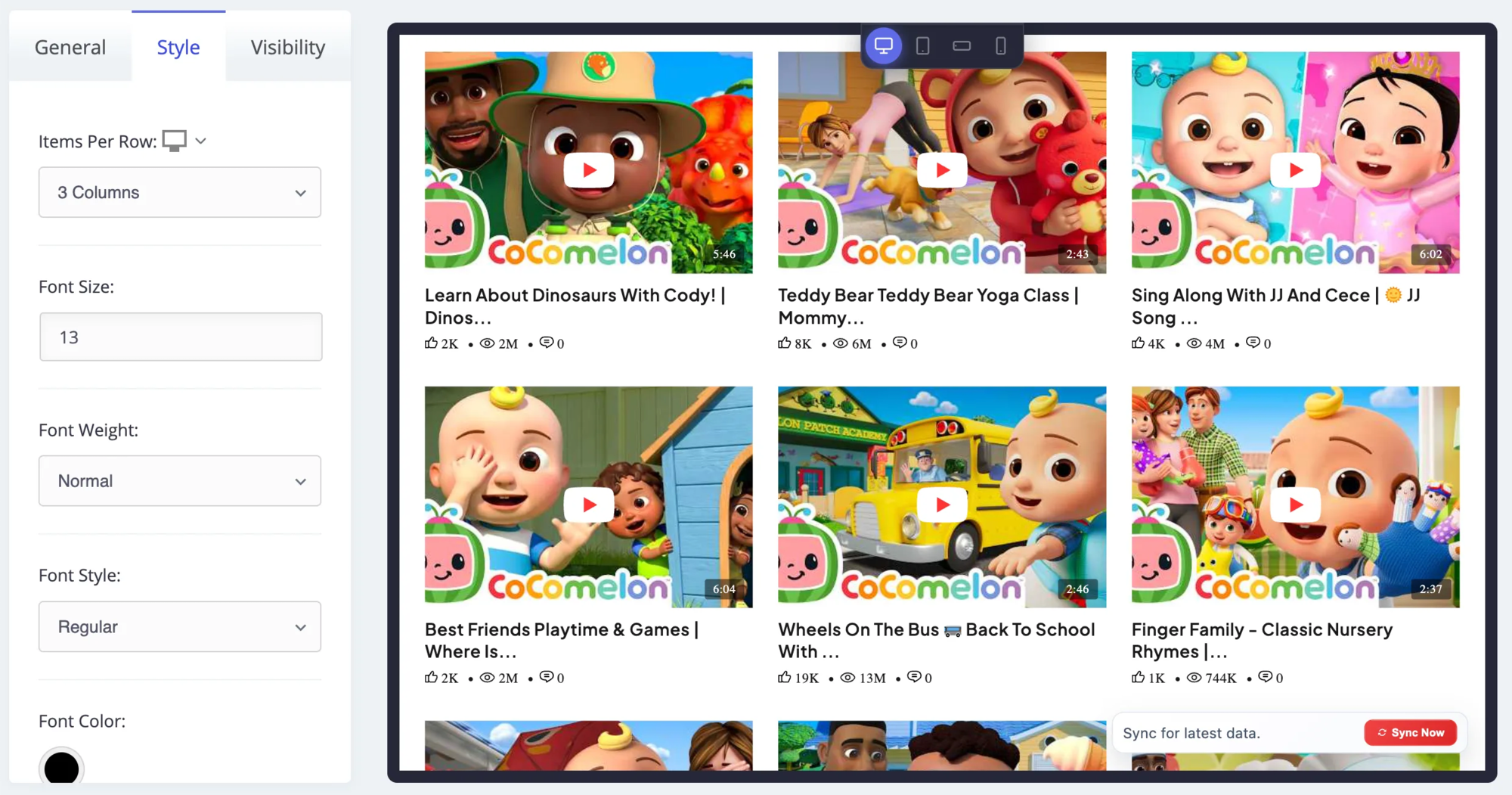
Style Settings - GS YouTube Gallery
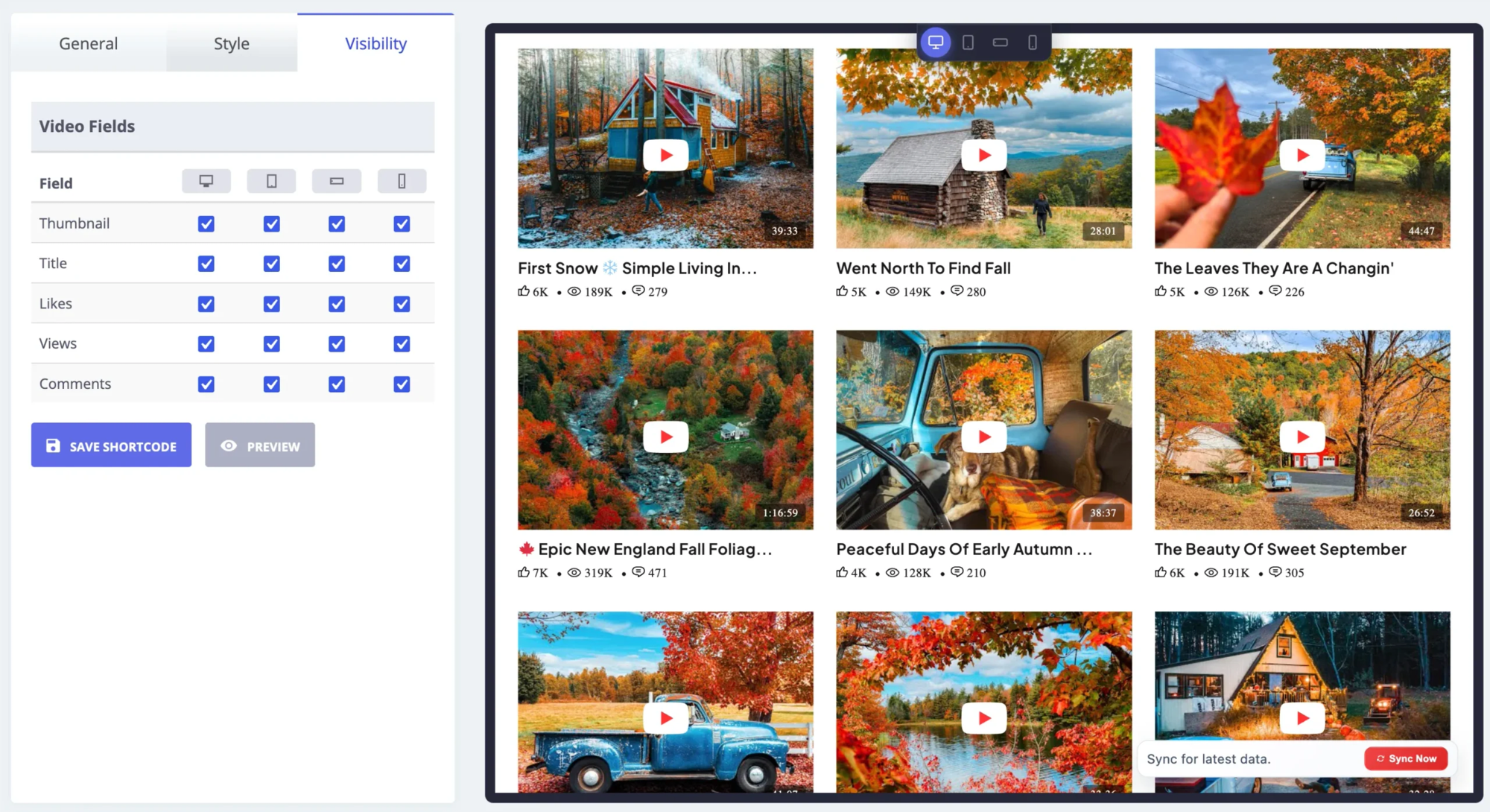
Visibility Settings - GS YouTube Gallery
![Preference [Global Settings] - GS YouTube Gallery](https://ps.w.org/gs-youtube-gallery/assets/screenshot-15.png?rev=3683412)
Preference [Global Settings] - GS YouTube Gallery
Faq
After successfully purchasing the PRO version, follow these steps:
- Go to your Purchase History
- Download the latest version of GS YouTube Video Gallery PRO
- Delete the existing PRO plugin from your WordPress site — your existing galleries and settings will not be lost
- Go to Plugins Add New Upload Plugin
- Upload and install the latest PRO ZIP file
- Activate the plugin
- Enter and activate your license key
The latest plugin ZIP file and your license key are available in your Purchase History.
To create a YouTube API key, follow these steps:
- Go to the Google Cloud Console
- Create a new project or select an existing project
- Open APIs & Services Library
- Search for YouTube Data API v3
- Enable the YouTube Data API v3
- Go to APIs & Services Credentials
- Click Create Credentials API Key
- Copy the generated API key
- Add the API key to the GS YouTube Video Gallery settings
For security, consider restricting the API key appropriately after creating it.
Follow the Getting The API Key documentation.
Yes. You normally need to configure your YouTube API key only once.
The same API connection can be used for multiple GS YouTube Video Gallery galleries on the same WordPress website, so you do not need to create a separate API key for every gallery.
To install and display your first YouTube gallery, follow these steps:
- Go to Plugins Add New from your WordPress dashboard
- Search for GS YouTube Video Gallery
- Click Install Now, then Activate
- Configure your YouTube API key and required gallery settings
- Create a gallery and configure its layout and display options
- Copy the generated shortcode, for example: [gs_ytgal id=2]
- Paste the shortcode into the page or post where you want to display the gallery
- Publish or update the page and check the gallery on the frontend
Once you have created a gallery, you can display it anywhere that supports WordPress shortcodes.
- Go to GS YouTube Gallery Shortcodes
- Create a new gallery or edit an existing one
- Configure the gallery settings
- Copy the generated shortcode, for example: [gs_ytgal id=2]
- Edit the page or post where you want to display the gallery
- Paste the shortcode into a Shortcode block or compatible page builder module
- Save or update the page
Each gallery has its own shortcode ID, allowing you to display different galleries on different pages.
A YouTube Channel ID is the unique identifier associated with a YouTube channel.
To find and use it:
- Open the YouTube channel
- Find its Channel ID from the channel URL or account information
- A Channel ID usually looks like: UCB0SU0JDMMECS9BGJtD7lzg
- Copy the Channel ID
- Paste it into the Channel ID field in GS YouTube Gallery
- Save your settings and sync the videos if required
Note: If both a Channel ID and Playlist ID are configured for a gallery, the selected playlist settings may determine which videos are displayed.
The Playlist ID is included in the URL of a YouTube playlist.
For example:
youtube.com/playlist?list=PLDIoUOhQQPlXqz5QZ3dx-lh_p6RcPeKjv
In this example, the Playlist ID is
PLDIoUOhQQPlXqz5QZ3dx-lh_p6RcPeKjv
To use it:
- Save the settings and sync the playlist if required.
- Open the playlist on YouTube
- Look for list= in the browser URL
- Copy everything after list=
- Paste it into the Playlist ID field in GS YouTube Gallery
WordPress provides the do_shortcode() function for rendering shortcodes inside PHP theme files.
Add the following code where you want the gallery to appear:
<?php echo do_shortcode( '[gs_ytgal id=2]' ); ?>
Replace 2 with the ID of the gallery you want to display.
Important: Use a child theme or another update-safe customization method when editing theme files so your changes are not lost after a theme update.
Yes. You can create different galleries for different pages, topics, playlists, channels, or sections of your website.
New content may take a little time to appear because of YouTube API availability or cached gallery data. Refreshing or updating the gallery data usually brings the latest videos into the display.
Yes. You can create separate galleries for different content sources, making it easy to organize videos by channel, playlist, topic, or section of your website.
A private, removed, or otherwise unavailable video can no longer be retrieved normally from YouTube. Updating the gallery data helps ensure unavailable content is no longer presented as active content.
Yes. The GS YouTube Gallery is designed to adapt to different screen sizes so your videos remain easy to browse and watch across desktop, tablet, and mobile devices.
Yes. You can update your gallery settings whenever needed. Changes to the gallery configuration can be reflected without rebuilding the entire page.
Reviews
5
By 
Great plugin and awesome support team behind it.
Perfectly great for my blog site
By 
Very good plugin
By 
Only pro version may work
By 
Plugin au top
By 
Beautiful, easy to use & great support!
By 
Changelog
Version 3.0.4 [16th Sep 2026]
- [Added]: Typography settings and font family support.
- [Fixed]: Random ordering issue.
- [Improved]: Video count handling and saving.
- [Improved]: Fetching videos when count increases.
- [Improved]: Video ordering and orderby accuracy.
- [Improved]: Live typography preview.
- [Improved]: Compiled preview script.
- [Removed]: Unused style options.
Version 3.0.3 [23rd Aug 2026]
- [Added]: Automatic syncing controls for YouTube content.
- [Added]: Option to reset cached YouTube data.
- [Added]: Visibility settings for channel tabs.
- [Added]: Channel About information caching.
- [Added]: Podcast fetching and caching.
- [Fixed]: Popup next/previous video loading.
- [Fixed]: Preview sync functionality.
- [Fixed]: Resync and cache refresh issues.
- [Improved]: Shorts fetching and caching.
- [Improved]: Video query count handling for non-Shorts content.
- [Improved]: Horizontal slider behavior with single-slide support.
- [Improved]: Default title and description lengths for cleaner cards.
- [Improved]: Sync notices and admin UI styling.
- [Improved]: Channel data structure and internal caching.
Version 3.0.2 [12th Apr 2026]
- [Added]: Source lock functionality for better control.
- [Improved]: Codebase with latest merge updates.
Version 3.0.1 [26th Feb 2026]
- [Added]: Source references for minified assets.
- [Added]: Minor admin UI adjustments.
- [Fixed]: Internationalization and text domain issues.
- [Improved]: WordPress.org compliance.
- [Improved]: Escaping and security hardening.
- [Updated]: Documented external services.
Version 3.0.0 [24th Feb 2026]
[Updated]: Rewritten the plugin.
Version 1.2.1 [21st Mar 2023]
- [Added]: Menu Icon.
- [Fixed]: Page Redirection on the Plugin Activation.
- [Fixed]: Free Pro Conflicts.
- [Updated]: Menu Name.
Version 1.2.0 [28th Feb 2023]
- [Updated]: Free, Pro Plugins Pages & Help Page.
- [Updated]: Appsero SDK
- [Removed]: All Admin Notices From the Youtube plugin pages.
version 1.1.6 [23rd May 2021]
- [Fixed]: PHP 7.3 Compatibility.
- [Fixed]: Deprecated Function Warning.
version 1.1.5 [19th Dec 2020]
- [Updated]: AppSero Client.
- [Updated]: With WordPress version 5.6
Version 1.1.4 [14th Aug 20]
- [Updated]: With WordPress latest version.
Version 1.1.3 [11th July 20]
- [Added]: Appsero client.
Version 1.1.2 [25th Jun 20]
- [Updated]: Bootstrap 4 Grid.
- [Updated]: With WordPress latest version.
Version 1.1.1 [22nd Oct 19]
- [Fixed]: Domain name changed & fixed all urls.
- [Fixed]: Admin CSS.
- [Added]: New Contributors.
- [Added]: Review system.
version 1.1
- Initial release