GURUALPHA Bulk Product Images Changer for WooCommerce

GURUALPHA Bulk Product Images Changer for WooCommerce
Description
GURUALPHA Bulk Product Images Changer makes it effortless to update product images across your entire WooCommerce store — no more one-by-one editing.
Key Features:
- Drag & Drop Uploader — Drop images directly or click to browse.
- CSV Import — Import images from a spreadsheet with external URLs.
- Smart Auto-Matching — Match by Product Title, SKU, or Product ID.
- Multiple Images Per Product — Upload main image + gallery images in one batch.
- Naming Convention Support —
SKU12345.jpgmain,SKU12345-gallery-1.jpggallery. - Variation Image Support — Set images for variable product variations by SKU or attribute matching.
- Preview Before Apply — See matched products with thumbnails before committing changes.
- Undo/Revert — One-click revert for the last batch upload.
- Image Compression — Auto-compress via TinyPNG or ShortPixel API.
- Category/Tag Filter — Only match products within specific categories or tags.
- Gallery Control — Choose main image, gallery, or both for each upload.
- Visual Progress Tracking — Real-time progress bar with status.
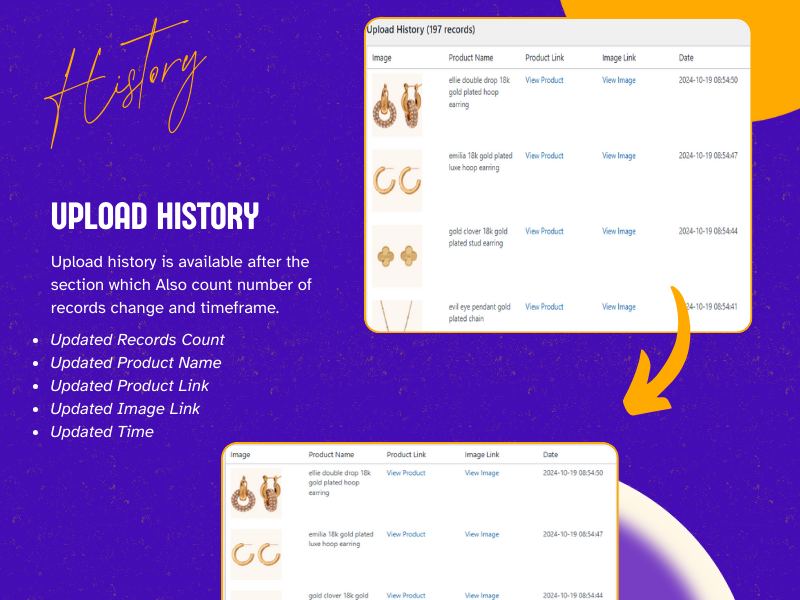
- Upload History — Full log with product and image links.
- Multisite Support — Network activation, per-site or network-wide settings, site-aware history.
- Multisite Support — Network activation, per-site or network-wide settings, site-aware history.
- HPOS Compatible — Works with WooCommerce High-Performance Order Storage.
Installation
Option 1: Install from WordPress Admin
- Go to Plugins > Add New in your WordPress admin.
- Search for “GURUALPHA Bulk Product Images Changer for WooCommerce“.
- Click Install Now, then Activate.
Option 2: Upload Manually
- Download the
.zipfile from WordPress.org. - Go to Plugins > Add New > Upload Plugin.
- Choose the file and click Install Now, then Activate.
Screenshots
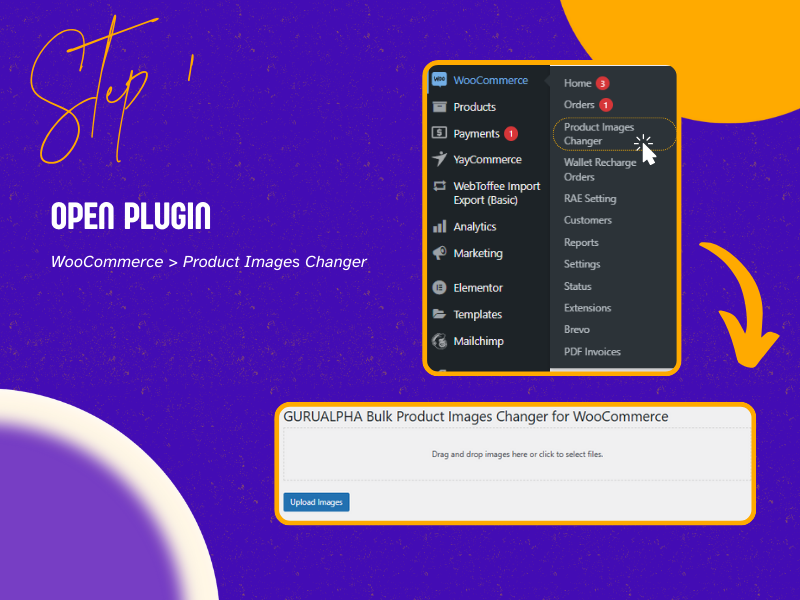
Drag & Drop Upload Zone — Simple drag-and-drop with settings panel.
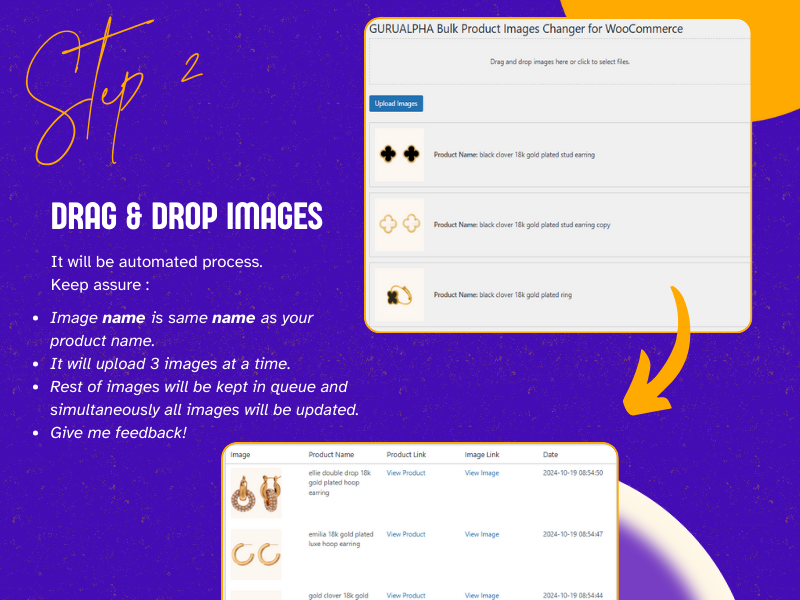
Preview Before Apply — Review matched products before committing.
Upload Progress — Real-time progress tracking.
Faq
Name your files using this convention:
* SKU12345.jpg Main product image
* SKU12345-gallery-1.jpg Gallery image
* SKU12345-gallery-2.jpg Gallery image
* Or upload multiple files with the same name and the plugin auto-assigns: first = main, rest = gallery.
- Name files using the variation SKU:
VAR-SKU-RED.jpg - Select SKU as the matching method
- The plugin will match the image to the specific variation
- Switch to the CSV Import tab
- Prepare a CSV with columns:
image_url,product_identifier,role(optional: main/gallery/both) - Drop the CSV or click to select
- Review the preview and click Import
Before uploading, click Upload Images to see a preview of all matched products. You can review each match and cancel if something looks wrong.
After an upload completes, click the Undo Last Batch button in the results section. This removes all images added in that batch and restores the previous images.
- Get a free API key from TinyPNG or ShortPixel
- The plugin will compress images automatically on upload (when enabled)
In the Upload Settings panel, select the categories or tags you want to filter by. Only products in those categories/tags will be matched.
JPG, PNG, GIF, and WebP.
Yes! The plugin can match images to specific variations by SKU or attribute combination.
Yes! The plugin fully supports WordPress Multisite networks:
- Network Activation — Activate the plugin once for all sites
- Per-Site Settings — Each site can have its own API key and compression settings
- Network-Wide Settings — Optionally share API keys and settings across all sites via Network Admin > Settings > Bulk Image Changer
- Site-Aware History — Upload history tracks which site each change was made on
- Site Table — Network Admin shows a table of all sites with plugin/WC/API status
- New Site Auto-Setup — When network settings are enabled, new sites automatically get the shared API key
- Go to Network Admin > Settings > Bulk Image Changer
- Check Enable network-wide settings
- Enter your API key and select compression service
- Optionally check Copy these settings to all existing sites
- Click Save Network Settings
Reviews
to basic
By 
I can not recommend exept you named your ONE image per product exact like the EAN or the Title of your product and NOT MORE. It does not work for gallery. I will build my own plugin, cause there i cant see any solution on the web actually.
Life Saver - Made my tasks simplified
By 
This plugin is really time saving and life saving. I was able to make bulk images changes and I found that this plugin now can auto matched with three options which is really great. I was curious to ask about that but now we have it. Use it and make your life easier.
Changelog
4.2.0
- WordPress Multisite support — Network activation, per-site or network-wide settings.
- Network Admin settings page — Manage API keys across all sites from Network Admin.
- Site-aware history — Upload history tracks which site each change was made on.
- New site auto-setup — Automatically propagate settings to newly created sites.
- Active sites table — Network Admin shows plugin/WC/API status for all sites.
- Updated capability checks for network admin.
4.0.0
- Variation image support — Set images for variable product variations by SKU or attribute matching.
- Preview before apply — Review matched products with thumbnails before committing changes.
- CSV import mode — Import images from a spreadsheet with external URLs.
- Undo/Revert last batch — One-click revert for the last upload batch.
- Image compression — Auto-compress via TinyPNG or ShortPixel API integration.
- Category/tag filter — Only match products within specific categories or tags.
- Mode tabs — Switch between Drag & Drop and CSV Import modes.
- Variation badges — Visual indicators for variation vs. parent product uploads.
- Sample CSV download — Download a template CSV for import.
- Improved naming convention detection — Better suffix stripping for multi-image sets.
3.0.0
- Complete rewrite with WooCommerce dependency check, SKU/ID matching, gallery control, WebP support, HPOS compatibility, and security improvements.
2.2.4
- Enhanced auto-matching algorithms, improved error handling, optimized performance.