Hera Pre-Written Emails for WooCommerce

Hera Pre-Written Emails for WooCommerce
Description
Hera Pre-Written Emails for WooCommerce lets your staff send a pre-written email to an order’s customer from the WooCommerce Orders screen, without leaving wp-admin.
This is an independent plugin, not affiliated with, endorsed by, or sponsored by WooCommerce or Automattic. WooCommerce is a trademark of Automattic Inc.
This is a manual tool for the messages a real person decides to send about a specific order. Some examples: asking a customer to confirm their delivery address, explaining a delay, requesting extra details before an order is processed, following up after delivery. It is not a marketing or newsletter tool, and it does not send anything automatically. Every email goes out because a staff member chose to send it, for a specific order.
Features
- Manage as many email templates as you need from a dedicated “Order Emails” admin menu. Each template has its own internal name (for your own reference only), Email Subject, Email Heading, Email Type (HTML / Plain text / Multipart), and a rich-text body.
- Placeholder tags such as
{order_number},{customer_full_name},{order_total},{order_view_url}are replaced with real order data when sending. Click a tag to insert it into the Subject, Heading or Body. - Preview any template in your browser, or send yourself a test copy with sample data, before it’s ever used on a real order. Works on Draft templates too.
- A “Send Email” button on each order in the Orders list, and a “Send Custom Email” button on the order screen, open a window that shows the address the email goes to and the templates the order already got, and lets you choose the template.
- A bulk action on the Orders list (“Send Custom Email: template name“) sends the same template to the selected orders, up to 20 per run by default, after you confirm, for example to remind a batch of stalled orders at once. If some of them already got that template, you can leave them out.
- Optionally attach one file to a template (a warranty card, a user guide, etc.). It goes out with every email sent from that template.
- A “Custom Email” column on the Orders list shows which templates each order got, or Not sent.
- Extra “Custom Email Sent / Custom Email Not Sent” filter links next to the existing order status filters, with the number of orders in each.
- A filter by template above the Orders list finds the orders a template was sent for, or the ones that have not had it yet, for example to send a follow-up only to the orders still waiting for it.
- Every send adds a private order note naming the template, and a line to the order’s history with the template, the time and the staff member who sent it.
- Tag values such as
{order_status}and{order_date}, and the text of the WooCommerce email design, use your site language, as in WooCommerce’s own emails to customers, even when your wp-admin profile uses another language. - Emails are sent through WooCommerce’s own mailer (
WC()->mailer()), so they use your store’s WooCommerce email styling and go out through whatever SMTP connection you already have configured (e.g. WP Mail SMTP). No separate mail configuration is needed. - Fully compatible with WooCommerce High-Performance Order Storage (HPOS / Custom Order Tables) as well as legacy order storage.
- Developers can add their own placeholder tags, act after each email sent and change the bulk limit, with the filters and actions described in the user guide.
Documentation
The user guide, with a page for every feature, is at herapress.com/docs.
Installation
- Upload the
hera-pre-written-emails-for-woocommercefolder to/wp-content/plugins/, or upload the zip via Plugins Add Plugin Upload Plugin (older WordPress versions call the menu item Add New Plugin). - Activate the plugin through the “Plugins” screen. WooCommerce 8.0 or later must be installed and active.
- Go to the new “Order Emails” menu and add at least one email template, then set it to Published.
- Open WooCommerce Orders and use the “Send Email” button/column to send a template to a customer, or select multiple orders and use the “Send Custom Email: template name” bulk action.
Screenshots
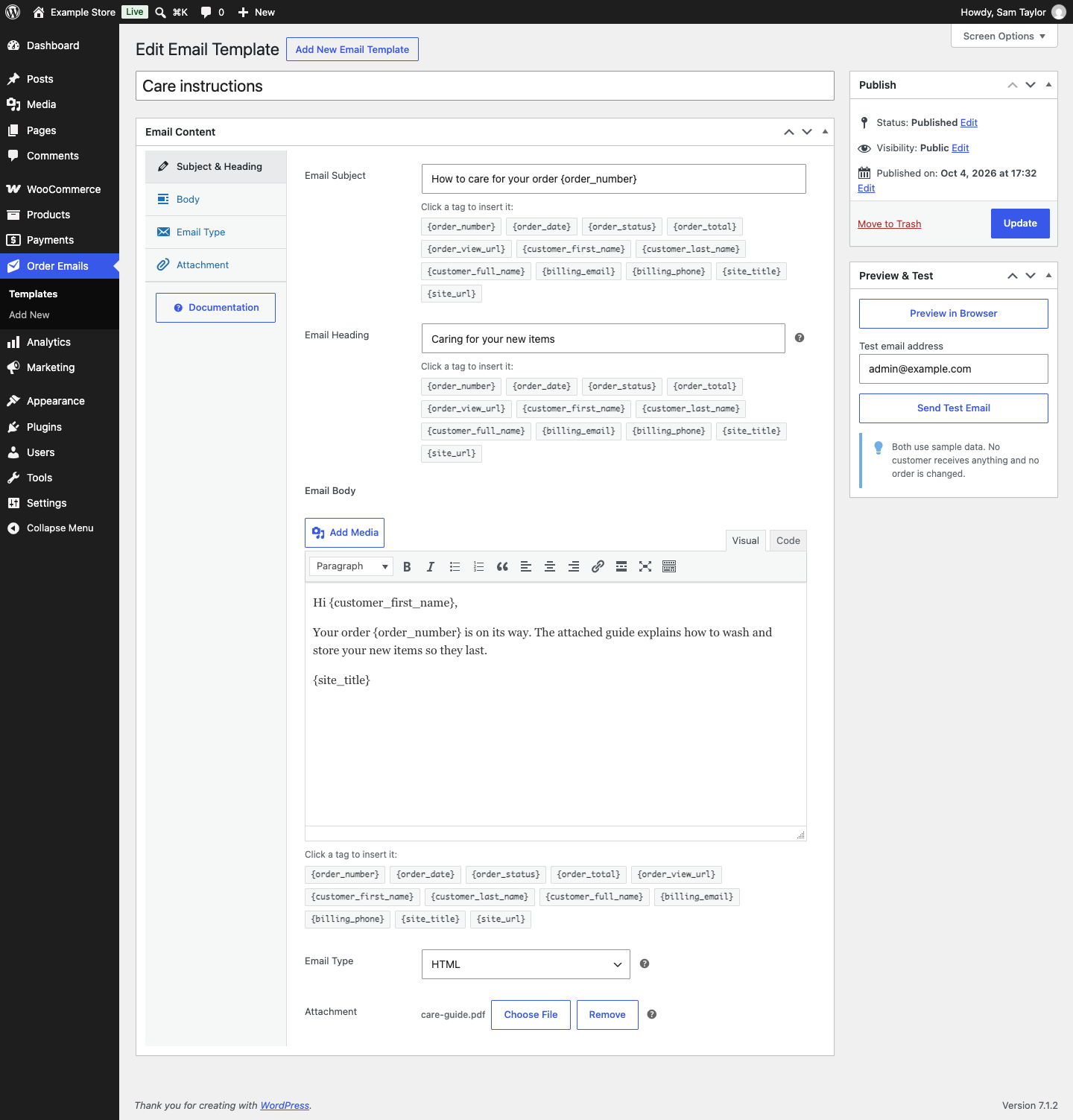
The template editor: subject, heading and body with tags to click in, the email type, a PDF attachment, and the Preview & Test box.
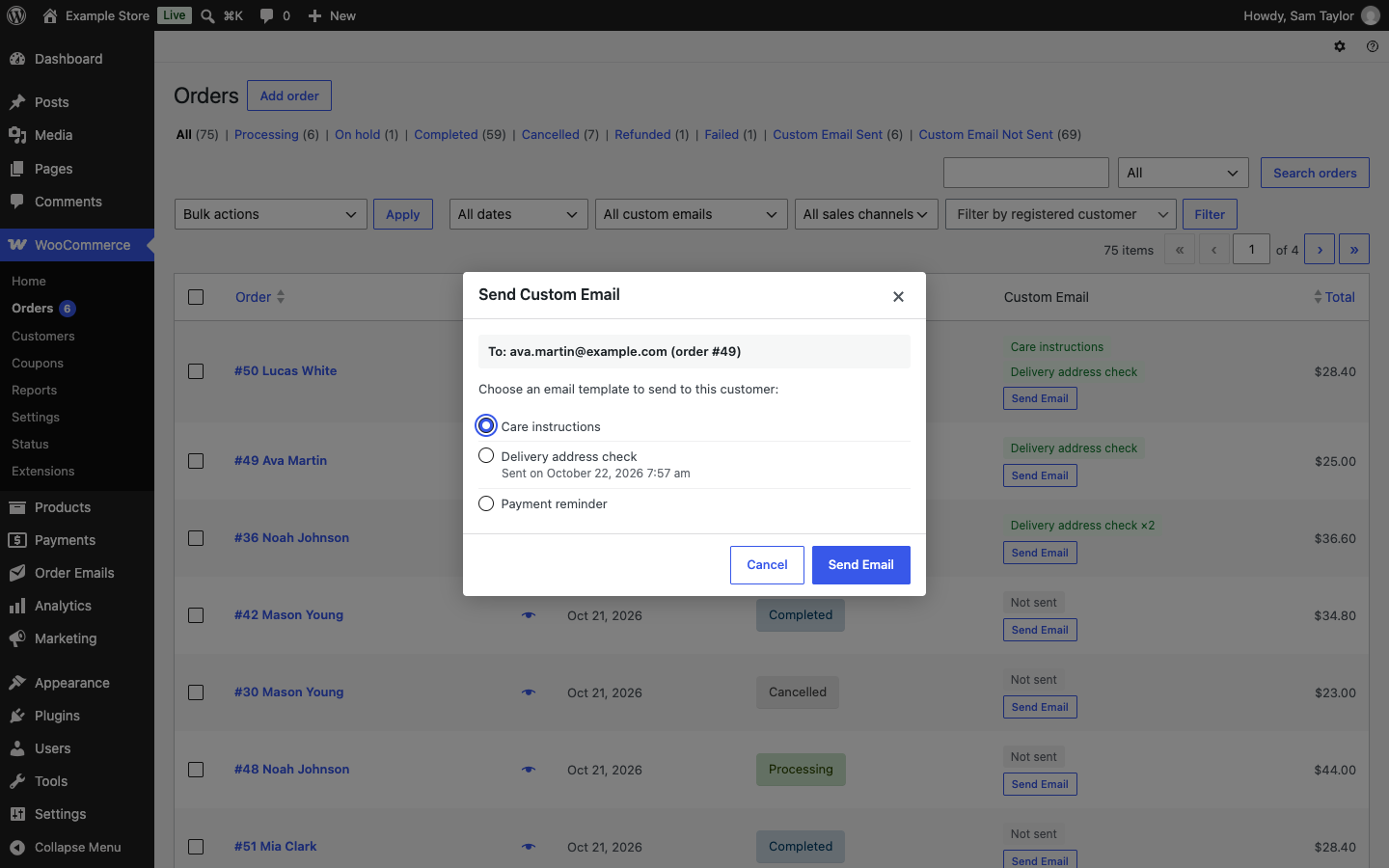
The Send Custom Email window on the WooCommerce Orders list, showing the address the email goes to and the template the order already got, with another template chosen.

The Orders list with the Custom Email column, the Custom Email Sent and Custom Email Not Sent links, and the filter by template.
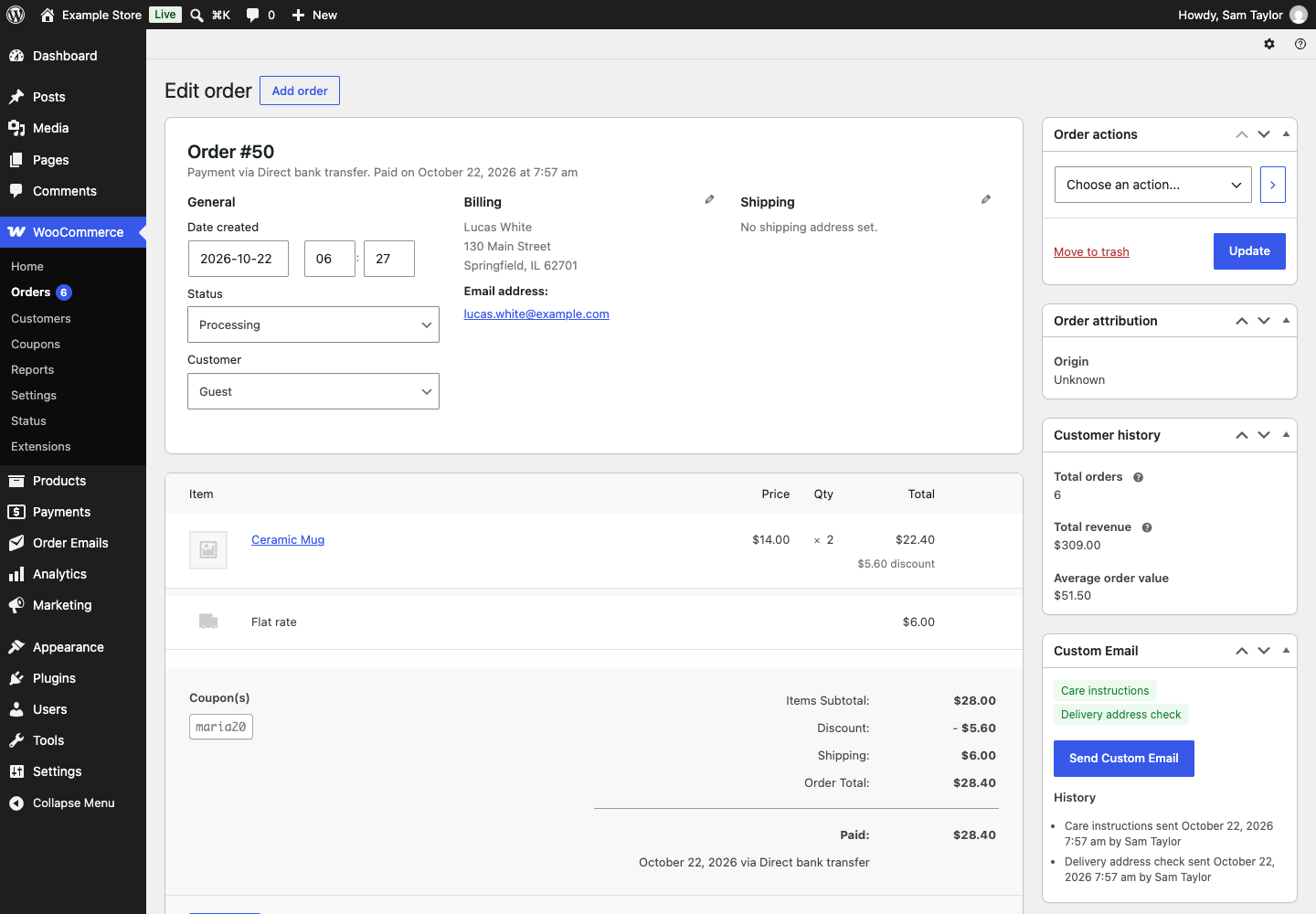
An order's Custom Email box, with the history of what was sent.
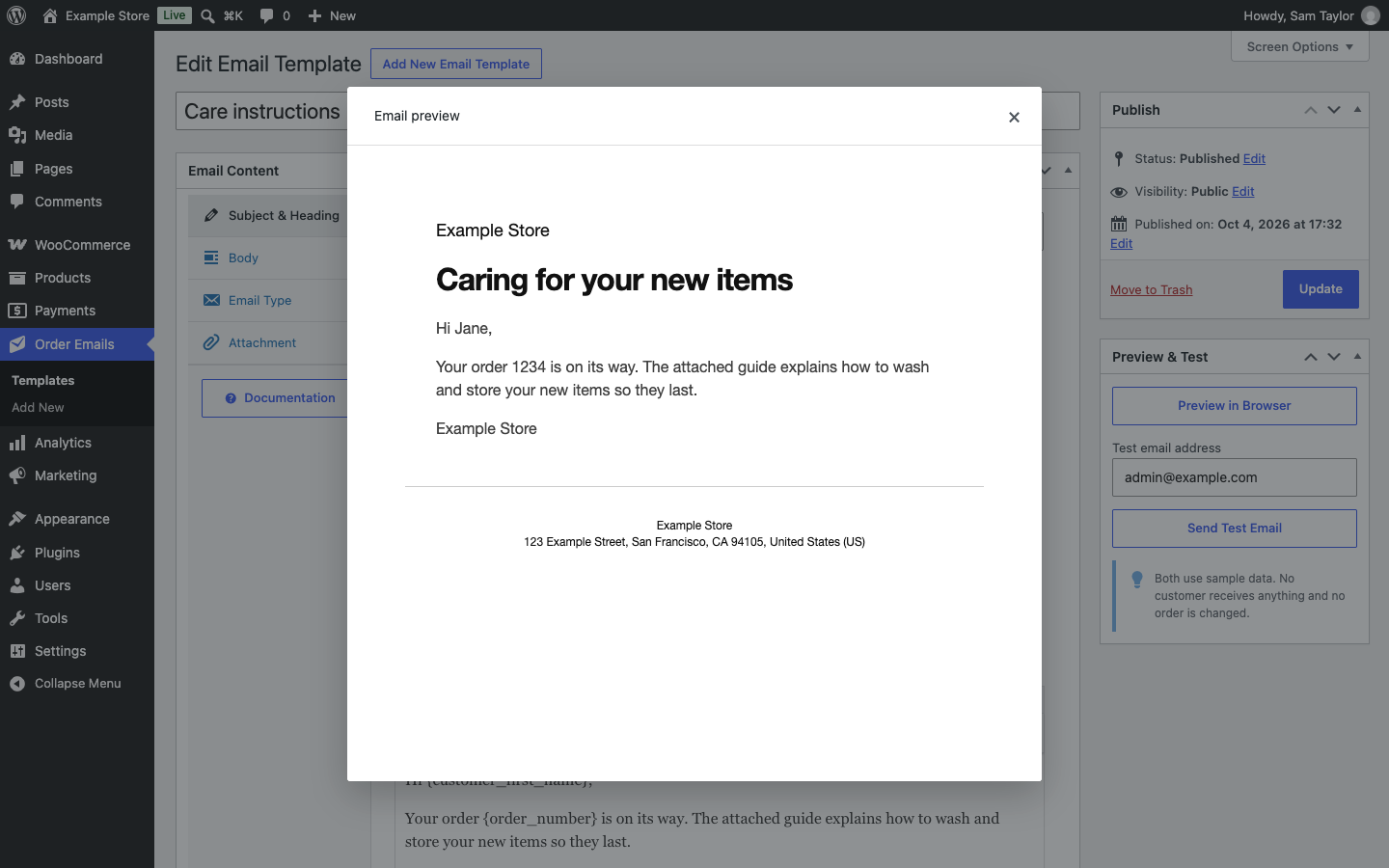
A template previewed in the browser, filled in with sample data.
Faq
The order’s billing email address.
The Name is for your staff, so you can tell templates apart. It appears in wp-admin: in the template list, the Send Custom Email window, the bulk actions, the Custom Email column and filter, and the order’s history. Customers never see it. The Subject is the actual email subject line the customer sees in their inbox. The Heading is the large heading at the top of an HTML or Multipart email, separate from the subject. Leave it blank to reuse the Subject as the Heading.
Yes. Each order keeps track of every template sent for it. Choose “template name: not sent” in the filter above the Orders list to see the orders that have not had that template yet, then select them and use its bulk action.
No. It’s meant for one-off, order-related communication a staff member actively chooses to send. There is no scheduling, automation, or trigger-based sending. Please don’t use it to send unsolicited bulk marketing.
Yes, up to 20 selected orders are processed per bulk-action run, which is one page of the Orders list at WooCommerce’s default page size. Each email can take a second or more with a remote mail server or a large attachment, and a run has to finish within the time the web server allows. Select the remaining orders and run the action again if you have more. A developer can change the number with the hpwe_bulk_send_limit filter.
Yes. The plugin sends through WooCommerce’s mailer, which uses WordPress’s wp_mail() under the hood, so it automatically goes through whatever SMTP connection WP Mail SMTP (or any other SMTP plugin) has configured. No extra setup is needed in this plugin. With Post SMTP, a Multipart template keeps its plain text version only when Post SMTP’s Mailer Type is PHPMailer and it sends over SMTP. With its default Mailer Type, or with one of its API mailers, the email goes out as HTML only.
Yes, the plugin declares compatibility and works with both HPOS and legacy order storage.
Reviews
Changelog
1.1.0
- The Custom Email column and the order’s Custom Email box show which templates each order got, not only Sent.
- New filter on the Orders list: orders that got, or have not got, a given template.
- The Send Custom Email window marks the templates already sent for that order.
- Before a bulk send, you can leave out the selected orders that already got that template.
- Tested with WooCommerce 11.2.
1.0.0
- Initial release.