Hide Menu Items by Role

Hide Menu Items by Role
Description
Hide Menu Items by Role lets you decide who sees each link in your WordPress navigation, item by item, without building a separate menu for every audience. Open Appearance > Menus, edit a menu item, and choose which user roles should see it and whether it belongs to logged-in users, logged-out visitors, or everyone.
It is a small, focused tool for client sites, membership and community sites, WooCommerce stores, and any site where guests and registered users need different navigation.
What you can do
- Show a menu item to everyone, ignoring role rules (“Show to all roles”, the default)
- Hide a menu item from the user roles you select
- Show a menu item only to the user roles you select
- Restrict items by user status: everyone, logged-in users only, or logged-out visitors only
- Combine role and user-status rules on the same item
- Tick as many roles as you need, including custom roles registered by other plugins
Why it stays out of the way
- No settings page to learn, because the options live in the menu item editor right where you need them
- No extra database tables, as every setting is stored as standard menu item meta
- Filtering runs through WordPress core menu filters, so no frontend JavaScript or CSS is added to your site
- Role checkboxes are disabled whenever a rule does not apply, which makes the panel hard to misconfigure by accident
Installation
- Upload the plugin files to the /wp-content/plugins/ directory, or install the plugin through the WordPress plugins screen directly.
- Activate the plugin through the ‘Plugins’ screen in WordPress.
- Create or edit a menu item, and configure the settings in the Audience panel:
- Set the user status (Everyone, Logged-in only, Logged-out only)
- Choose a role visibility mode: “Show to all roles” (default), “Hide for selected roles”, or “Show only to selected roles”
- Tick the user roles the rule should apply to
- Save your menu.
Screenshots
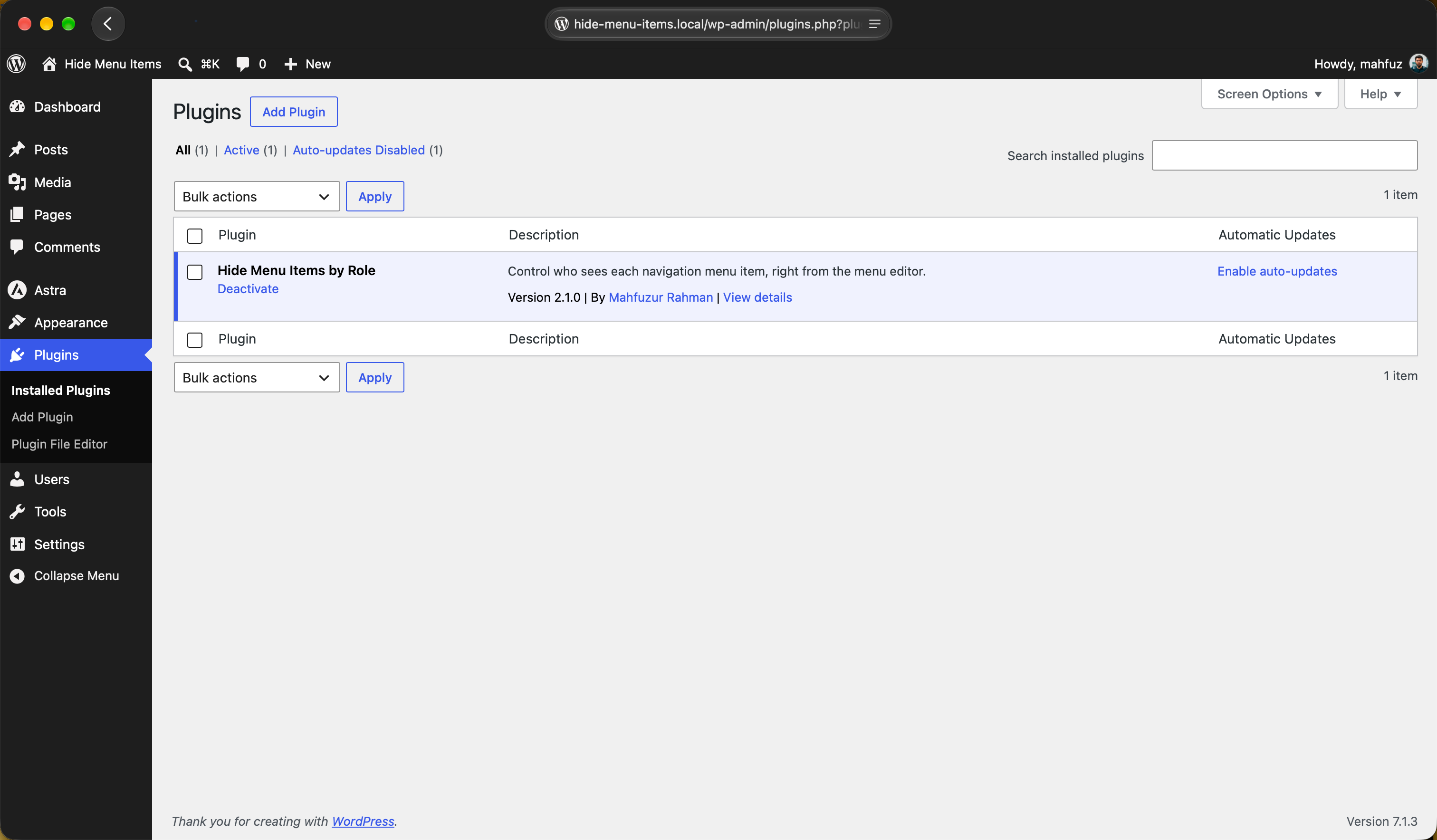
Plugin shown in plugins page.

Adding user roles and visibility settings in menus page.
Faq
Open Appearance > Menus and expand the menu item you want to edit. The Audience panel sits at the bottom of the item, where you can:
- Choose a user status: Everyone, Logged-out users only, or Logged-in users only
- Choose a role visibility mode: “Show to all roles” (default), “Hide for selected roles”, or “Show only to selected roles”
- Tick the user roles the rule should apply to
Save the menu when you are done.
- “Show to all roles” (default): the item is visible to everyone. Role rules are ignored and the role checkboxes are disabled.
- “Hide for selected roles”: the item is visible to everyone except the roles you tick.
- “Show only to selected roles”: the item is visible only to the roles you tick.
The item stays visible to everyone. A role rule only takes effect once at least one role is ticked, which keeps menu items from disappearing while you are still setting them up. The Audience panel shows a short hint reminding you of this until you tick a role.
Yes. Tick as many roles as you need on the same menu item. “Hide for selected roles” hides the item from all of them, and “Show only to selected roles” allows all of them.
Yes. The role list is built from every role registered on the site, so roles added by membership, e-commerce, or other plugins appear alongside the WordPress defaults.
The user status setting works independently of role-based rules:
- Everyone: no restriction based on login status
- Logged-out users only: the item is only visible to visitors who are not logged in
- Logged-in users only: the item is only visible to users who are logged in
With “Logged-out users only”, the item is hidden from anyone who is logged in and shown to every visitor without an account. Role rules are skipped for those visitors, which is why the role fields are disabled in the editor.
Reviews
Clean & Effective Role-Based Menu Control
By 
Exactly what I needed! This plugin makes it incredibly easy to show or hide menu items based on user roles, no coding required. The setup is straightforward, and it works flawlessly right out of the box. Perfect for managing different access levels in membership sites or multi-role dashboards. Highly recommend it to anyone who needs clean, granular control over their navigation menu without bloating their site with unnecessary custom code.
Changelog
2.1.0
- Added a “Show to all roles” mode, now the default for new menu items; role checkboxes are disabled while it is selected
- Rebuilt the menu item visibility settings as a collapsible Audience panel
- Renamed the settings to User Status, Role Visibility, “Hide for selected roles”, and “Show only to selected roles”
- Added a hint when a role rule is active but no roles are selected
- Fixed items set to “Logged-out users only” disappearing when combined with “Show only to selected roles”
- Widened the menu item settings panel so the longer field values fit
2.0.0
- Added login state visibility control (Everyone/Logged-out only/Logged-in only)
- Added show/hide mode toggle (Hide for selected roles / Show only to selected roles)
- Added UI enhancements: when login state is ‘Logged-out users only’, other fields are visually disabled
- Major feature update with enhanced visibility controls
1.0.1
- Updated for compatibility with WordPress 6.7.1
1.0.0
- Initial release with basic role-based hiding functionality.