Include Content By Shortcode

Include Content By Shortcode
Description
This plugin enables users to add the same content to multiple posts and pages using a shortcode. It functions similarly to PHP’s ‘include’ function.
Users can include HTML, CSS, and JavaScript in their content with a simple shortcode.
For example, if my brand’s tagline, “The Best Of Its Kind,” needs to be displayed on various pages and posts, I would add it to the Included Content section. The plugin will generate a shortcode for this content, which I can then place wherever I want the tagline to appear.
Additionally, CSS and JavaScript can be added alongside the HTML content, ensuring they are included wherever the shortcode is used.
In the future, if I change my tagline, I only need to update it in the Included Content section, and it will be updated everywhere the shortcode has been used.
Installation
- Upload “include-content-by-shortcode” to the “/wp-content/plugins/” directory.
- Activate the plugin through the “Plugins” menu in WordPress.
Screenshots

Add a content
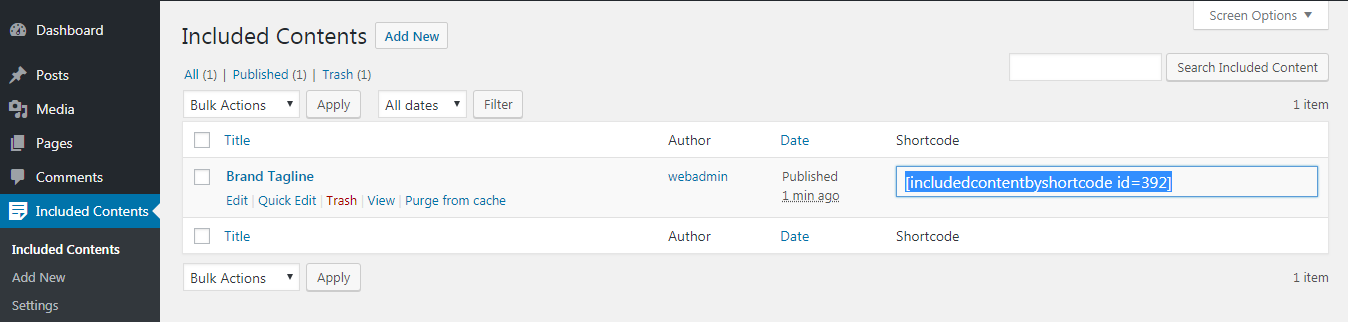
Copy the shortcode generated for that content

Paste the shortcode in any post or page

The included content will appear where the shortcode would be pasted
Faq
The default shortcode for this plugin is [includedcontentbyshortcode id=9999], where 9999 represents the unique ID of the Included Content. This ID is automatically generated when you create the content in the Included Contents section. You can simply copy the shortcode from the Included Contents page and paste it wherever you want the content to appear on your posts or pages. The ID in the shortcode will correspond to the specific piece of content you want to include.
Yes, instead of using the ID, you can use the Included Content’s slug in the shortcode. For example: [includedcontentbyshortcode slug=”MY_CONTENT_SLUG_HERE”] This allows you to reference the content by its slug rather than its numerical ID. You can easily find and copy the slug from the Included Contents page, and it works the same way as using the ID in the shortcode.
You can use apply_filters=”false” to avoid this issue. e.g. [includedcontentbyshortcode apply_filters=”false”]. Using this attribute will skip the_content filter.
If you don’t want to add the custom CSS written in Included Content on a specific page, you may pass the css parameter false in the shortcode like this: [includedcontentbyshortcode id=9999 css=false]. Similarly, if you don’t want to add the custom JS written in Included Content on a specific page, you may pass the js parameter false in the shortcode like this: [includedcontentbyshortcode id=9999 js=false].
Reviews
Update for a long time?
By 
Absolutely useful!
By 
Nice plugin
By 
very helpful
By 
Changelog
0.5
- Added attribute ‘apply_filters’ to the shortcode. If set to false, the content will skip the_content filter. Default is true.
- Enhanced compatability to the latest WordPress version 6.6.2
0.4.1
- Custom Meta Boxes Enabled
0.3.0
- Rich editor enable disable option added
0.2.1
- Slug parameter also added in shortcode
0.1
- CSS and JS options added.
- FAQs added to plugin directory page
0.0.9.6
- File-wise coded structure.
- Meta boxes for CSS and JS added.
0.0.9.3
- Updated readme files
- Installation instructions and screenshots added to plugin directory page.
0.0.9
- First Release