Jamie’s Header Effects
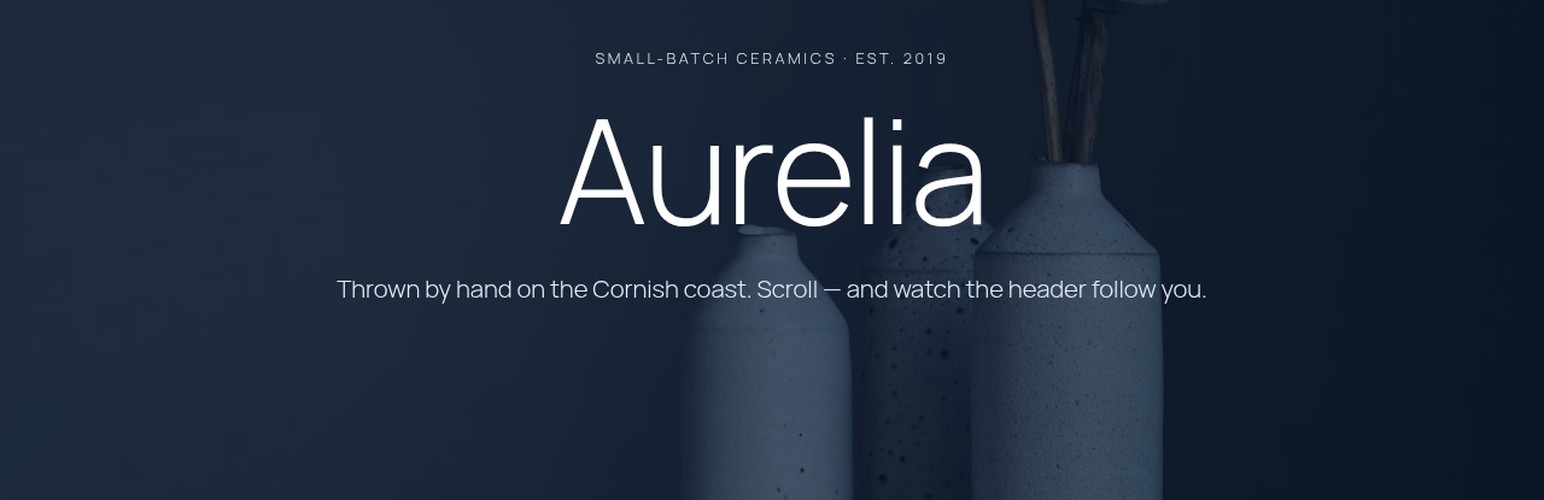
Jamie’s Header Effects
Description
Jamie’s Header Effects makes your block theme’s header feel alive. Turn it on, pick an effect, and your header follows the visitor down the page — gracefully.
Chameleon — the headline feature. As you scroll, the header samples the colour of the section underneath it and recolours itself to match, automatically switching its text between light and dark for contrast. Scroll from a navy hero into a cream section into a forest-green footer and the header changes with you. No configuration per section; it just works.
Frosted blur — a translucent, blurred header that lets the page show through, like frosted glass. Set the colour, opacity and blur amount.
Solid colour — a classic sticky header with your chosen colour and opacity, and a soft shadow when stuck.
Hide on scroll down, reveal on scroll up — the header slips away while you read and comes back the moment you scroll up. Tune the sensitivity and delay.
Transparent overlay header — float the header over your first section for the full-bleed hero look, with no layout jump.
Everything else you’d expect is here too: an automatic admin-bar offset, z-index control, a “push content down” option, a mobile breakpoint to disable the effect on small screens, and the ability to switch it off for particular post types or templates. Transitions respect prefers-reduced-motion.
It’s theme-agnostic (it finds your header automatically, with an override selector for unusual themes), accessible, and ships no jQuery.
Settings: Appearance Header Effects.
Installation
- Upload the
jamies-header-effectsfolder to/wp-content/plugins/, or install it from the Plugins screen. - Activate the plugin.
- Go to Appearance Header Effects, tick Enable sticky header, choose a background style (try Chameleon), and save.
Screenshots

Chameleon mode: the header takes on the colour of each section as you scroll.

Frosted-glass blur header over a photo.

The settings screen under Appearance → Header Effects.
Faq
Any block theme. By default it looks for the header template part (header.wp-block-template-part, then the first header inside the site wrapper). If your theme is unusual, enter your own CSS selector in the Header selector field.
As you scroll, it looks at the section directly beneath the header, finds that section’s background colour (including Cover blocks and their overlays), and applies it to the header at your chosen opacity. It then picks black or white text based on the colour’s brightness so the header stays readable. Sections with no solid background (an image-only section, say) make the header transparent.
Yes. Offset for admin bar (on by default) positions the sticky header just below the admin bar when you’re logged in.
Yes. Set a mobile breakpoint to disable it on small screens, and untick it for specific post types or templates (home, front page, blog, single, page, archive, 404, search) under Disable on.
“Push content down” adds space below the header so content starts beneath it. “Overlay page content” does the opposite: it floats the header over the first section, the classic transparent-hero look. If both are ticked, overlay wins.
Yes. If a visitor has asked their system to reduce motion, transitions are disabled and the hide-on-scroll animation is turned off.
Reviews
Changelog
1.0.0
- Initial release: Chameleon, frosted blur and solid sticky backgrounds; hide on scroll down / reveal on scroll up; transparent overlay and push-content-down layouts; admin-bar offset; mobile breakpoint; disable by post type or template; reduced-motion support.