KP Disable Admin Bar Based on User Roles
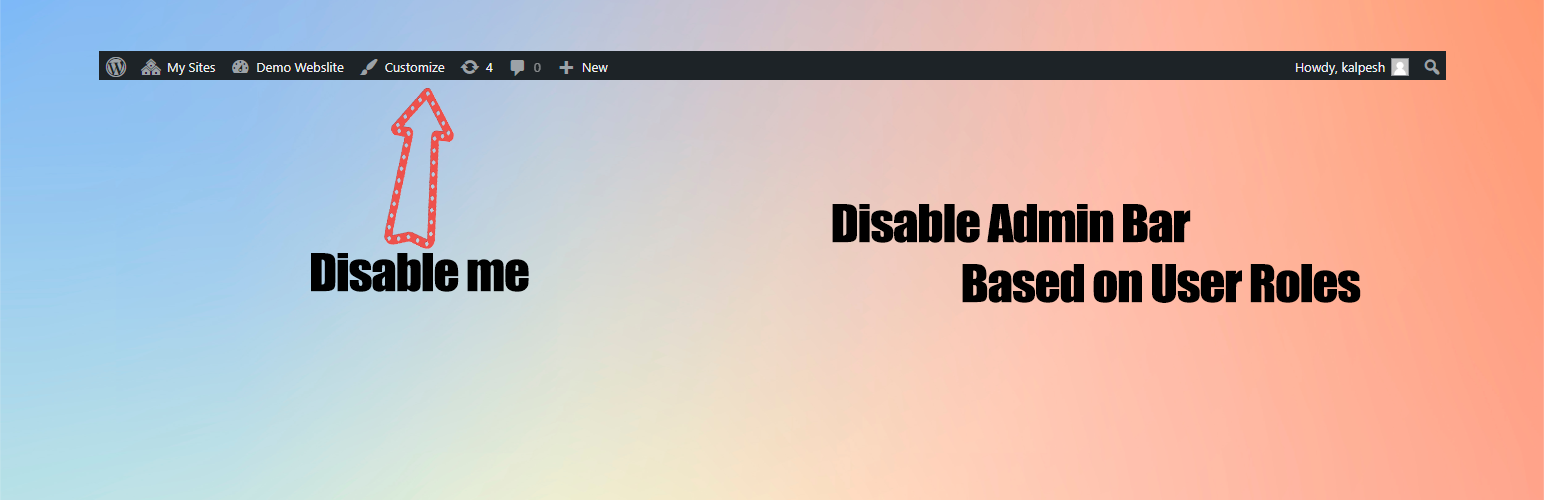
KP Disable Admin Bar Based on User Roles
Description
The KP Disable Admin Bar Based on User Roles plugin allows site administrators to selectively disable the admin bar for certain user roles. This helps improve the user experience for non-admin users by hiding the admin bar when unnecessary.
Features:
- Simple interface to configure roles.
- Disable admin bar for selected user roles.
- Fully compatible with WordPress coding standards.
- Lightweight and easy to use.
Installation
- Download the plugin zip file.
- Go to your WordPress admin dashboard.
- Navigate to “Plugins > Add New” and click “Upload Plugin.”
- Choose the downloaded zip file and click “Install Now.”
- Activate the plugin from the “Plugins” page.
- Go to “Settings > Disable Admin Bar” to configure the roles.
Screenshots

Settings Page: Select user roles to disable the admin bar.
Faq
Go to the “Settings > Disable Admin Bar” page, select the roles for which you want to disable the admin bar, and save the settings.
No, the plugin will only affect the roles you select in the settings page.
Reviews
Changelog
1.0.0
- Initial release of the plugin.
- Added functionality to disable the admin bar based on user roles.
- Created a user-friendly settings page.