Smart LazyLoad – Lazy Load Images, Videos and Iframes

Smart LazyLoad – Lazy Load Images, Videos and Iframes
Description
Smart LazyLoad is the best free lazy load plugin for WordPress. It helps lazy load images, videos, and iframes to improve website performance, page speed, and Core Web Vitals.
The plugin also supports responsive images, embedded players, HTML5 videos, and inline background images. It delays loading off-screen media until it enters the viewport, reducing unnecessary resource loading.
You can lazy load images in post content, widget text, post thumbnails, avatars, and smilies, or enable Full-Page Lazy Loading to apply lazy loading across your entire website.
You can also replace YouTube embeds with clickable thumbnails to further speed up the website loading speed, so the player loads only when a visitor chooses to watch.
No JavaScript libraries such as jQuery is used, and the script size is less than 10KB. Optimize speed of your WordPress website and improve Core Web Vitals scores.
Main Features
- Image support: images in posts, pages, excerpts, comments, and widgets; featured images; responsive
<picture>sources; and optional avatars and image-based smilies. - Embedded media: defer iframes, including YouTube and Vimeo embeds, and HTML5 video sources and posters.
- YouTube previews: replace embedded players with click-to-play thumbnails, using WebP with a fallback.
- Background images: process inline
background-imagedeclarations or manual data attributes, with optional support for retina, multi-layer, andimage-set()variants. - Loading engines: choose JavaScript-based Smart mode, Hybrid mode, or native browser loading.
- Important-image protection: skip the first image, first two images, or a custom number of images. Existing eager-loading and high-priority hints are respected for images.
- Loading controls: adjust the viewport threshold, use a custom scroll container, defer the script, and enable offscreen image cancellation or source restoration on errors.
- Dynamic content: detect eligible media added after page load, including AJAX and infinite-scroll content.
- Appearance options: use low-quality image previews or a placeholder color, plus optional fade-in and spinner effects that respect reduced-motion preferences.
- Exclusions: exclude elements by class or ID, match media source URL patterns, skip selected page types, or disable processing for logged-in users and mobile devices.
- Per-post controls: let individual posts and pages follow the site setting or select Enable or Disable.
- Full-page processing: optionally include media output directly by theme templates instead of processing content fragments only.
- Developer tools: filters for exclusions, placeholders, thresholds, and output; WP-CLI commands for image previews; and no-JavaScript fallbacks for deferred content.
The JavaScript engine uses vanilla-lazyload and does not require jQuery. Frontend assets are loaded according to the selected engine and enabled content types.
Performance considerations
Deferring offscreen media can reduce initial network activity, especially on image-heavy pages or pages with several video embeds. Keep above-the-fold images, particularly the Largest Contentful Paint (LCP) image, out of lazy loading.
Results depend on your theme, content, and other optimization settings. Lazy loading does not compress images or guarantee a particular PageSpeed or Core Web Vitals score. Preserve image dimensions or an aspect ratio to help reduce layout shifts.
Installation
- In WordPress, go to Plugins Add New Plugin and search for Smart LazyLoad.
- Click Install Now, then Activate.
- Open Settings Smart LazyLoad to review the options.
For manual installation, upload the extracted lazy-load-for-images folder to /wp-content/plugins/, then activate it from the Plugins screen.
Images, widget images, featured images, and responsive <picture> handling are enabled by default. Iframes, videos, YouTube previews, avatars, smilies, and background images are optional.
Screenshots
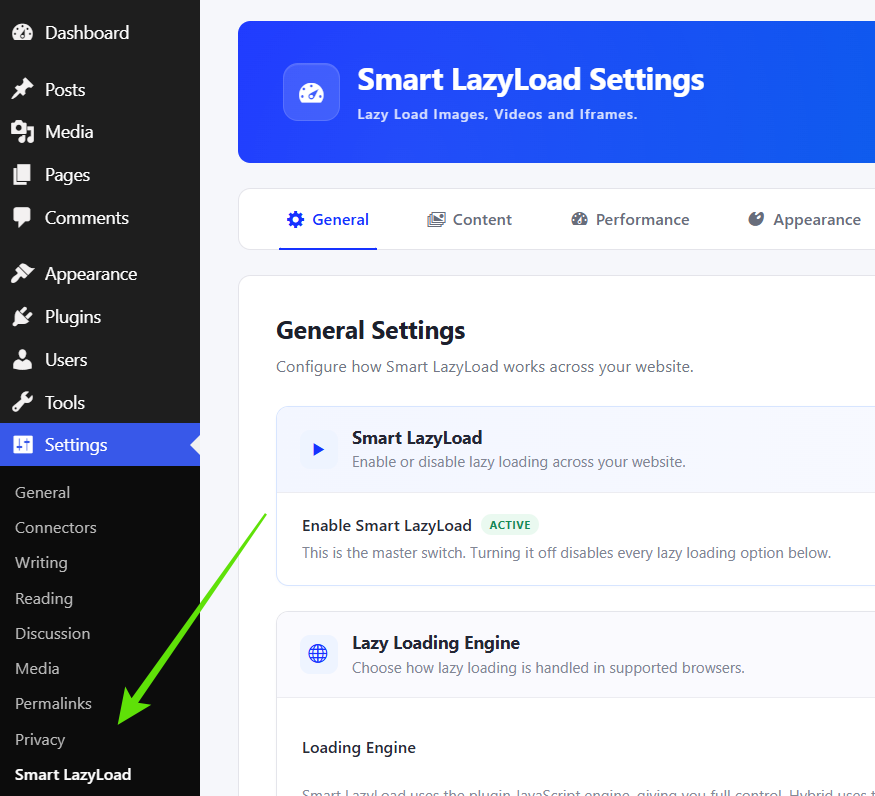
Smart LazyLoad settings menu in the WordPress admin.
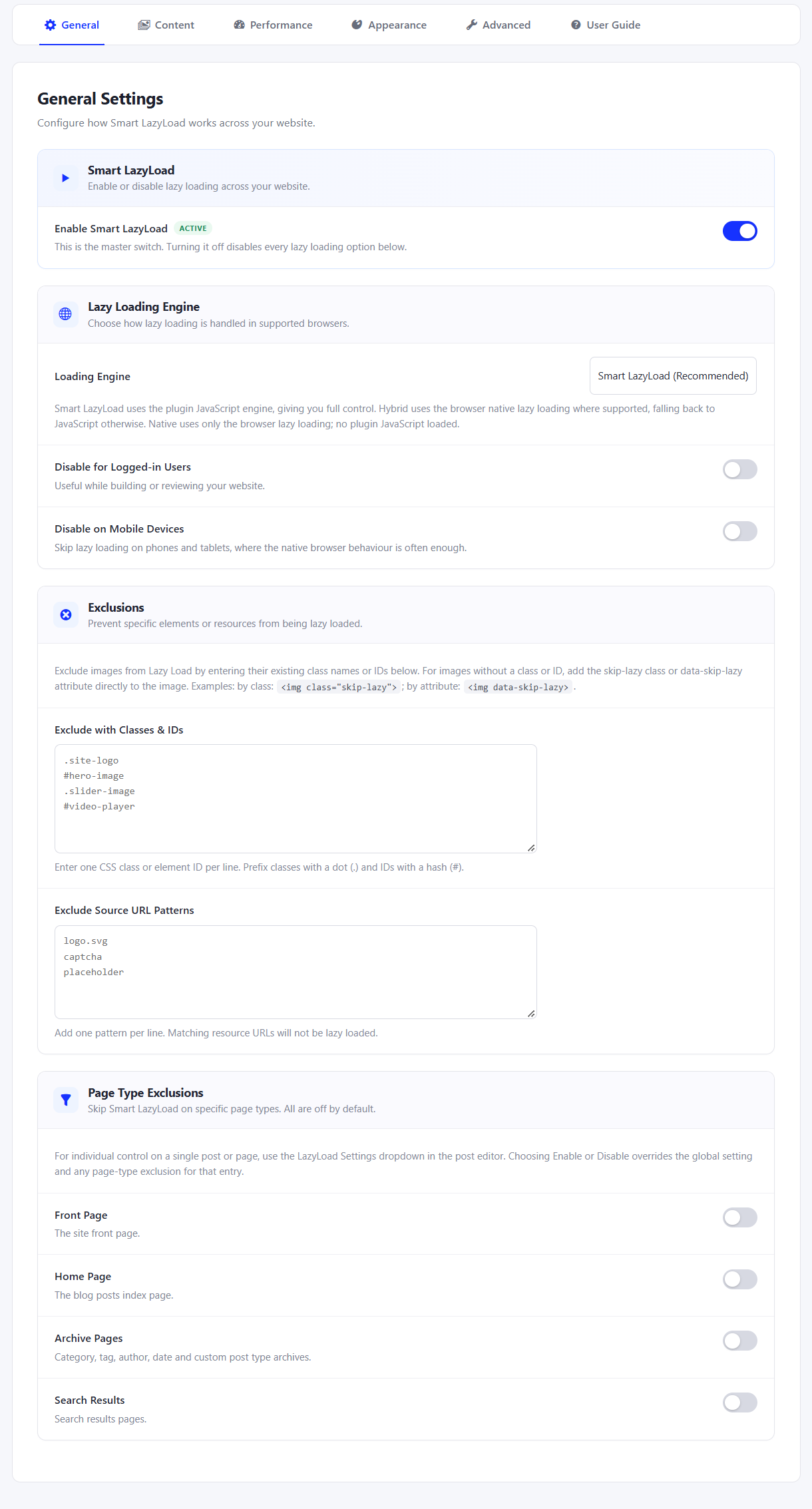
General settings for enabling lazy loading, engine and exclusions.
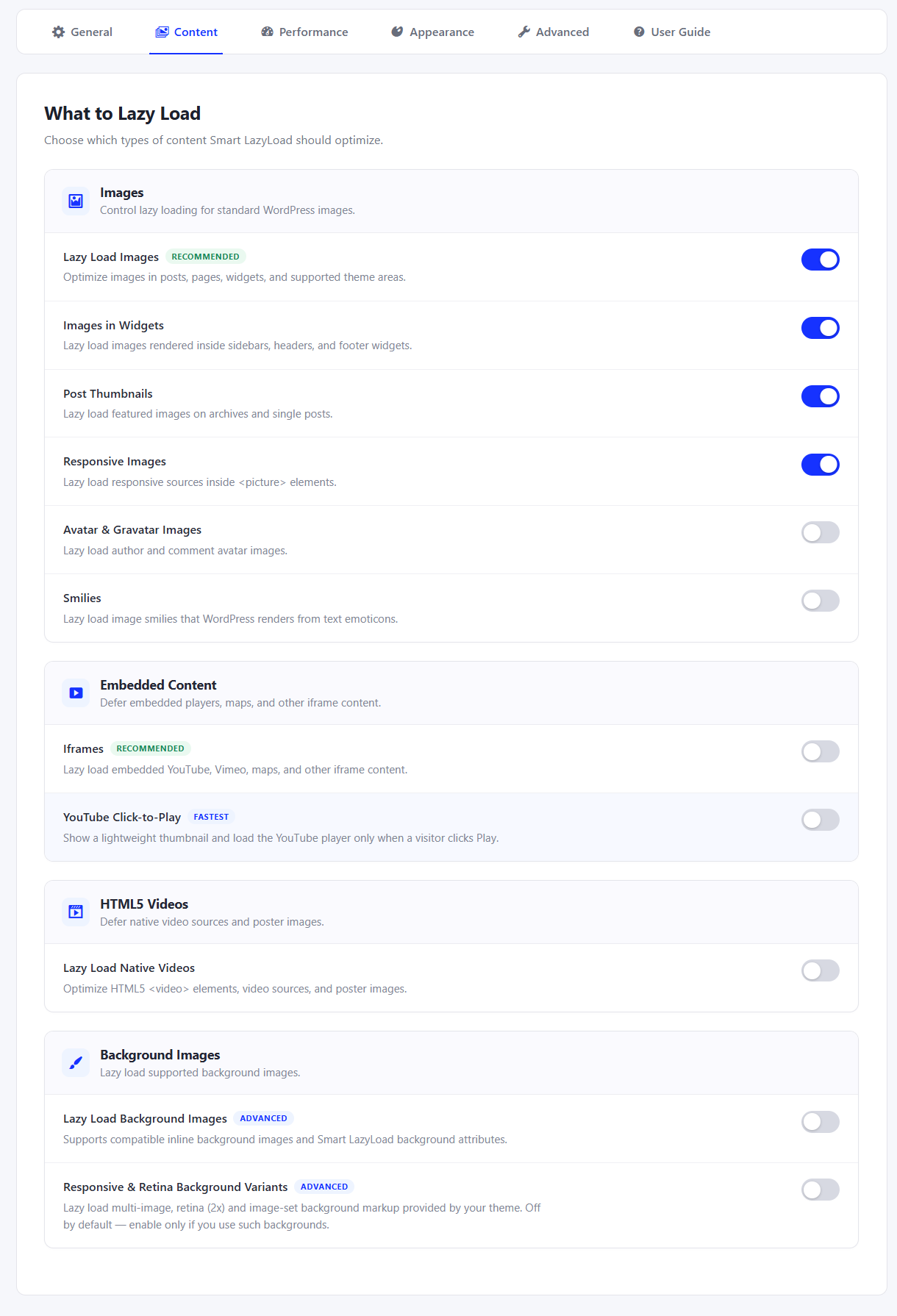
Control what to lazy load for images, videos, iframes, background images.
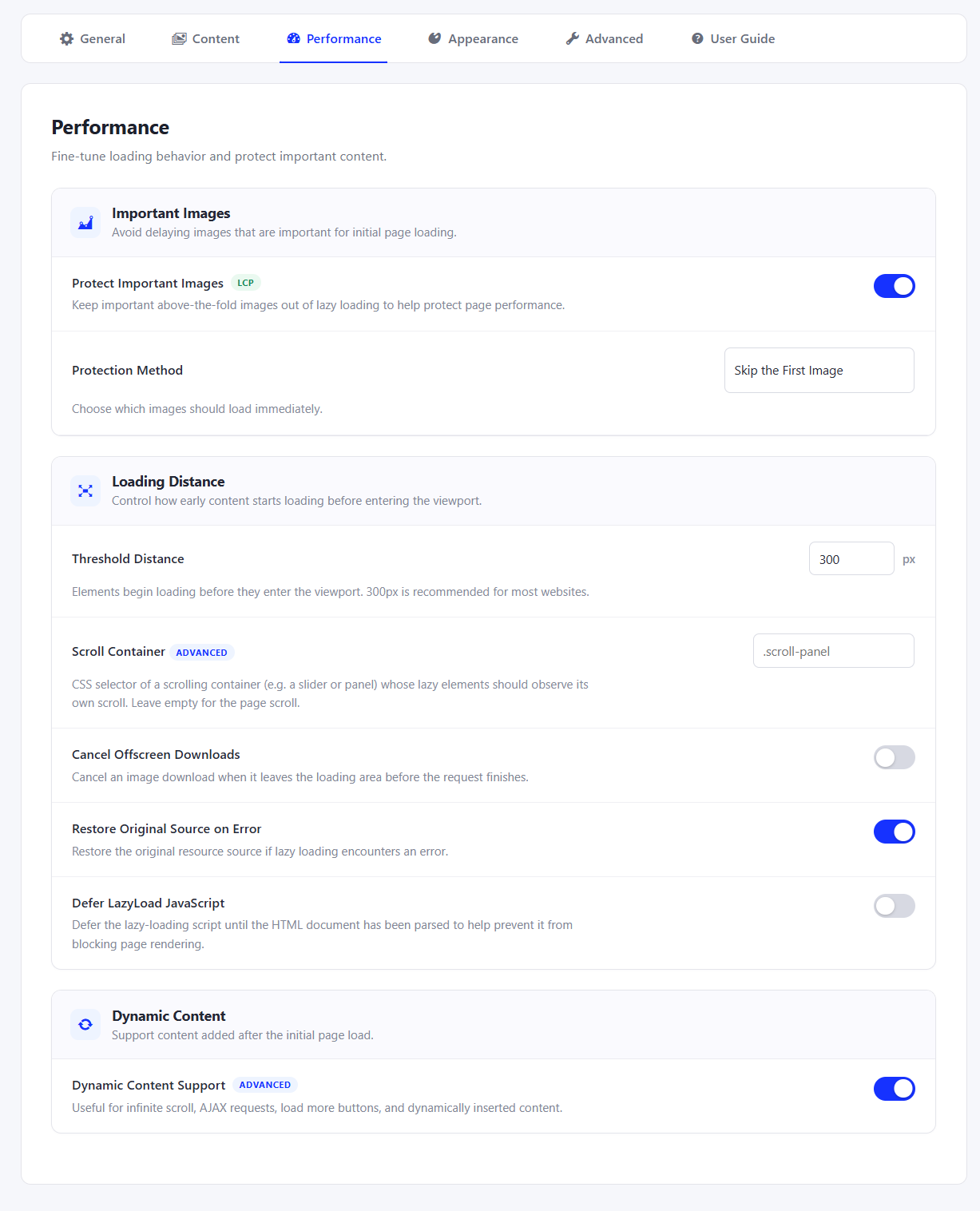
Performance settings for important images and loading behavior.
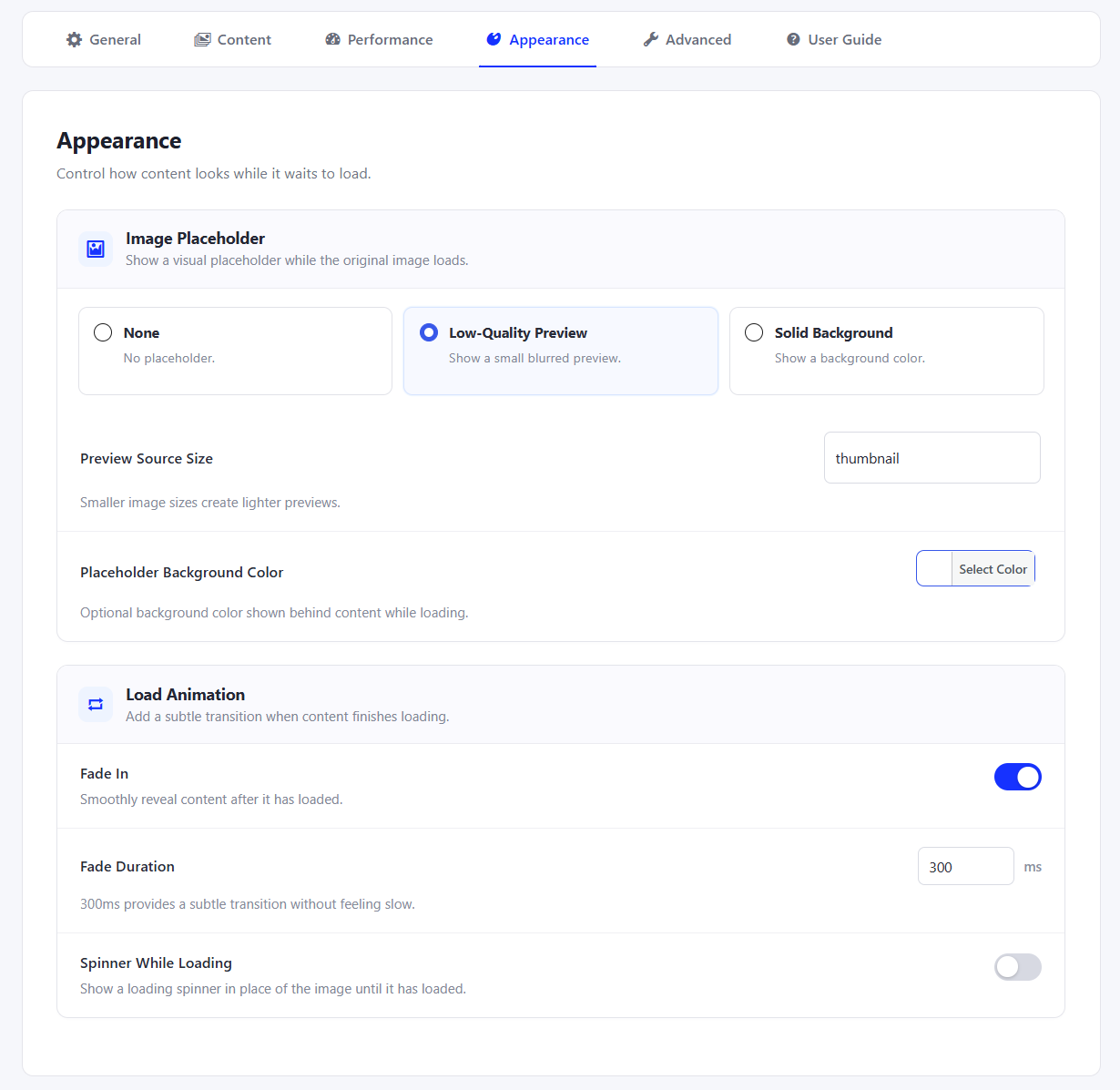
Appearance settings for placeholders, fade-in, and loading indicators.
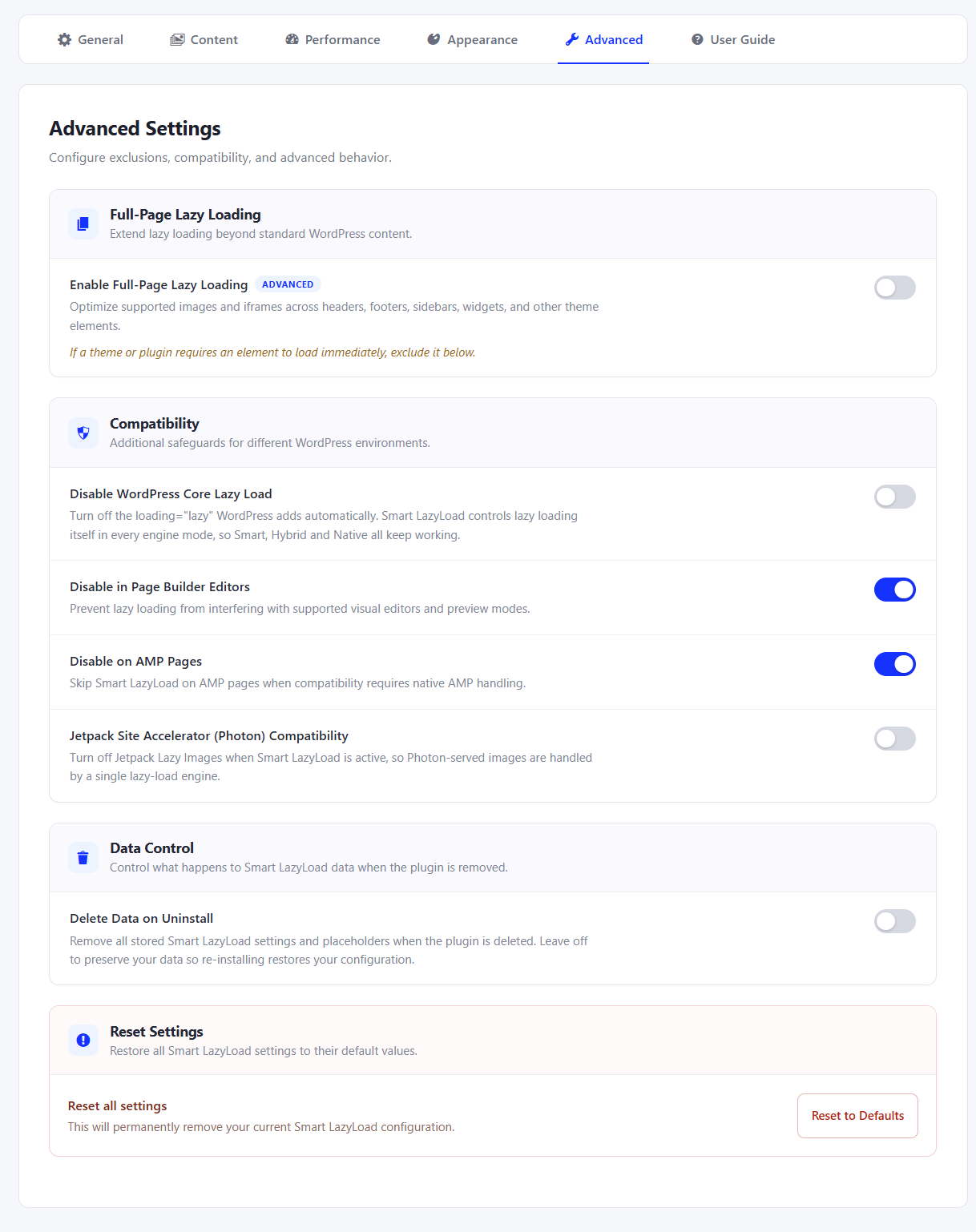
Advanced settings for full-page lazy loading, compatibility, and data cleanup.
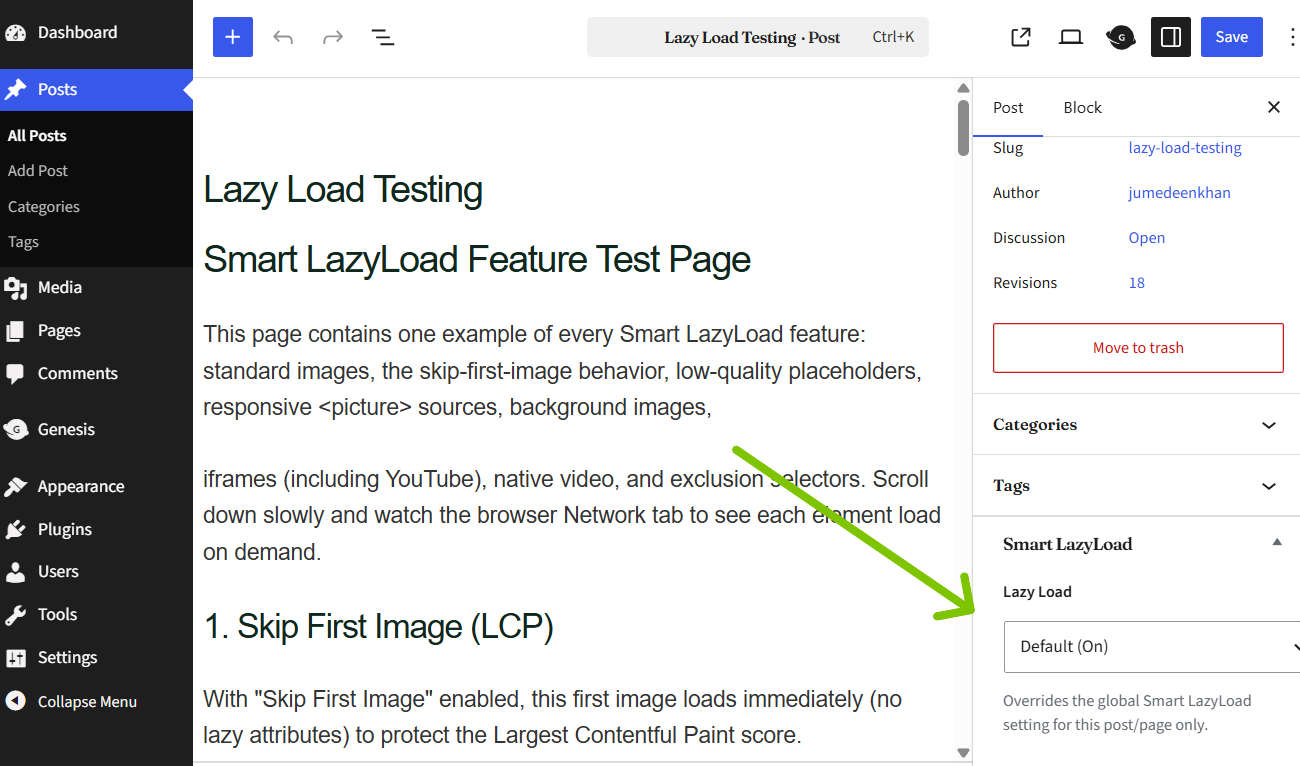
Per-post lazy-loading controls in the editor to override lazy loading.
Faq
Smart uses the JavaScript engine for viewport-based loading and the plugin’s loading controls. Hybrid uses native loading for supported images and iframes, with JavaScript handling other eligible media. Native leaves image and iframe loading to the browser without loading the main lazy-loading library.
Native mode does not defer background images. For HTML5 videos, it adds preload="none" when no preload value is set, rather than deferring sources and posters. Optional YouTube thumbnail replacement uses a separate click-to-play script. Thresholds and JavaScript loading effects do not control native browser loading.
Open the Performance tab and enable Protect Important Images. Choose the first image, first two images, or a custom count. In content-only mode, the count applies separately to each processed content fragment; in full-page mode, it applies to the page response.
For a specific image, use loading="eager", fetchpriority="high", or an exclusion marker. Check your page’s actual LCP image rather than relying on its position alone.
In General Exclusions, enter classes such as .site-logo or IDs such as #hero-image under Exclude with Classes & IDs. These are individual class or ID matches, not complex CSS selectors. Source URL exclusions match plain substrings of media URLs, not page URLs or regular expressions.
You can also add the skip-lazy class or a data-skip-lazy attribute directly to an image, video, iframe, or supported background element. Other recognized markers include no-lazyload, data-no-lazyload, and data-no-lazy.
Example: <img src="logo.png" alt="Site logo" class="skip-lazy">
Use General Page Type Exclusions to skip the front page, blog index, archives, or search results. For an individual post, page, or supported public custom post type, use the Smart LazyLoad editor panel:
- Default: follow the site-wide settings.
- Enable: allow processing for this entry, including when its page type is excluded.
- Disable: skip processing for this entry.
The master switch must remain on. A per-post Enable selection does not bypass the master switch or request-level exclusions, such as AMP protection or disabling processing for logged-in users. Turning off the master switch preserves your saved configuration.
By default, the plugin processes supported WordPress content fragments, such as post content, widgets, featured images, and comments. Enable Full-Page Lazy Loading in Advanced to process the complete HTML response, including eligible media printed directly by theme templates. Only one processing approach runs at a time.
Enable Background Images in the Content tab to process inline declarations such as <div style="background-image:url(photo.jpg)"></div>. Backgrounds declared only in external stylesheets are not detected automatically.
For manual markup, use <div class="smart-background" data-bg="photo.jpg"></div>. The data-bg value can be a plain image URL. Enable the background variants option for supported retina attributes, multi-layer expressions, and image-set() backgrounds. Gradient-only backgrounds are left unchanged.
Background processing requires Smart or Hybrid mode. The plugin adds fallback CSS for processed backgrounds when JavaScript is disabled.
A low-quality image placeholder (LQIP) is a small preview shown while the full image loads. Select it in Appearance and choose a registered image size as its source. Previews for eligible media-library images are generated in the background and cached; an unavailable preview uses the standard placeholder instead.
To prepare previews with WP-CLI, run wp smart-lazyload generate-lqip. Use --force to rebuild existing previews or --limit=100 to restrict the command to the first 100 matching attachments. The limit is not a pagination or resumable-batch option. Run wp smart-lazyload clear-lqip to remove cached previews.
Page-builder editor protection and AMP exclusions are enabled by default. The plugin detects supported editing contexts, including Elementor, Avada, Divi, Beaver Builder, WPBakery, and Oxygen, and skips processing there. AMP pages detected through the AMP plugin are also skipped. These controls are available in Advanced.
Feeds, previews, admin screens, and REST requests are not processed. Review the published frontend page when testing lazy loading.
Smart LazyLoad rewrites eligible frontend markup without modifying the original media files. Test it with your theme and caching or CDN setup, and clear cached pages after changing settings.
Avoid running multiple lazy-loading systems on the same media. The Advanced tab includes optional controls to disable WordPress core lazy loading for managed media and Jetpack Lazy Images processing. Enable these only when needed; the Jetpack option does not disable its image CDN.
JavaScript-deferred images, iframes, and videos include <noscript> fallbacks. Processed backgrounds use fallback CSS. Native mode keeps the media sources available and relies on the browser’s loading behavior.
Use smart_lazyload_enabled to control processing for a request. For example, add_filter( 'smart_lazyload_enabled', '__return_false' ); disables it. Defining DONOTLAZYLOAD as true also skips processing for the request.
Available filters include:
smart_lazyload_svg_placeholder— image placeholder value.smart_lazyload_placeholder— deferred iframe placeholder, normallyabout:blank.smart_lazyload_threshold— JavaScript loading distance in pixels.smart_lazyload_excluded_attributes— exclusion strings for image, video, and background markup.smart_lazyload_iframe_excluded_patterns— iframe markup exclusions.smart_lazyload_excluded_src— media source URL exclusions.smart_lazyload_youtube_resolution— thumbnail resolution; the default ishqdefault.smart_lazyload_exclude_youtube_thumbnail— YouTube embeds that should keep their iframe instead of a thumbnail.smart_lazyload_html— processed content output.smart_lazyload_iframe_html— individual JavaScript-deferred iframe output.smart_lazyload_youtube_html— YouTube thumbnail player output.smart_lazyload_bg_images_regex— single-URL inline background matching expression.
The legacy do_smart_lazyload and smll_threshold filters remain supported. The settings screen’s User Guide tab includes usage examples.
Check that the master switch and relevant content option are enabled. Then check the post override, important-image protection, element and URL exclusions, and page-type settings. If logged-in users are excluded, test in a logged-out browser session.
Clear page and browser caches, test the published frontend, and temporarily disable competing lazy-loading features. Media already marked up by another lazy-loading system may be left untouched. In native mode, the browser decides how early offscreen resources load.
Not by default. Enable Advanced Delete Data on Uninstall to remove the plugin’s settings, per-post overrides, and stored image previews when it is deleted. Otherwise, those settings remain available for a later reinstall. Deactivation does not remove your configuration.
Reviews
Absolutely amazing
By 
This need to be part of the core of all the modern websites
This plugin is working even better than my expectations
By 
This plugin is working even better than my expectations. I was really looking for a lightweight solution for pages with a lot of images, and this plugin fits perfectly. It does exactly what it promises. Thanks to the developer!
Works when others dont
By 
All others failed for my homepage, and archive pages, not this one, good plugin. Thanks!
Works very good
By 
💯 Excellent plugin, Improves Page Load time Instantly ⚡
By 
Changelog
3.1.0
- Added: Display a loading spinner/loader in place of the image until it has loaded.
- Added: Smart, Hybrid, and Native loading engine choices using vanilla-lazyload for JavaScript processing.
- Added: controls for important images, offscreen cancellation, source restoration on errors, and loading effects.
- Added: page-type exclusions, with a per-post Enable option that bypasses the page-type exclusion.
- Added: a reduced-motion-aware loading spinner, plus widget-image and featured-image controls.
- Added: optional WordPress core and Jetpack lazy-loading compatibility controls.
- Added: page-builder and AMP exclusions, and source URL exclusions.
- Added: a Delete Data on Uninstall option to make cleanup opt-in.
- Added: Exclusions now alo support IDs of images, videos and iframes.
- Added: Skip Smart LazyLoad on specific page types, such as Front page, Home page and archives.
- Added: Disable lazy loading on phones and tablets, where the native browser behaviour is often enough.
- Fixed: important-image counting now resets for each processed content fragment, including responsive picture groups.
- Fixed: Smart and Hybrid engines no longer claim another lazy-loading system’s media solely.
3.0.0
- Added: WebP YouTube thumbnails with fallback, thumbnail and output filters, and optional script deferral.
- Improved: conditional assets, loading observers, fade-in behavior, and reduced-motion support.
- Improved: standardized developer filters under the
smart_lazyload_prefix while retaining legacy names. - Fixed: handling of excluded, above-the-fold, broken, and responsive images.
- Fixed: background, video, iframe,
<picture>, AJAX-content, and YouTube embed edge cases. - Fixed: class exclusions, image previews, placeholders, and deactivation/uninstall handling.
2.9.5
- Fixed: native iframe loading, first-image selection, dot-prefixed class exclusions, and smilies in feeds.
- Improved: dimension-aware placeholders and background preview generation.
2.9.4
- Added: avatar controls and full-page processing for media in theme templates.
2.9.3
- Fixed: iframe loading and detection of additional YouTube URL formats.
- Improved: page-builder editor detection.
- Added: image-based smiley support.
2.9.0
- Improved: image and picture detection across HTML formats.
2.8.0
- Added: automatic AMP exclusions.
2.7.0
- Fixed: protection for script and noscript content.
- Added: known-placeholder exclusions.
2.6.0
- Added: retina background support and a WP-CLI command for image previews.
- Fixed: translation support for the YouTube play-button label.
2.5.0
- Changed: the YouTube play icon is served locally, and background images use a dedicated class.
2.4.1
- Added: per-post Enable/Disable controls.
- Fixed: initial settings-save behavior and spacing in background markup.
2.4.0
- Fixed: JavaScript errors, background fade-in, and inconsistent picture loading.
- Changed: redesigned the settings page.
2.3.0
- Fixed: lazy-loading class names, settings persistence, and a background-image handler error.
- Added: an option to load the script in the footer.
2.2.0
- Added: picture support and low-quality image placeholders.
2.1.0
- Added: video support, fade duration, placeholder color, exclusions, and Reset to Defaults.
2.0.2
- Fixed: settings saves resetting the threshold value.
2.0.1
- Added: uninstall cleanup.
- Verified: compatibility with WordPress 7.0.2 and PHP 8.
2.0.0
- Rebuilt the plugin with video, iframe, and background-image support, YouTube thumbnails, and a new settings screen.