Link Nacional File Browser

Link Nacional File Browser
Description
Link Nacional File Browser lets you create and manage a complete hierarchical file system within WordPress. It provides an admin interface to organize files into folders and a shortcode to display the file browser on the frontend.
Key Features:
- Hierarchical Folder System — Create nested folders organized like a file explorer
- Multiple File Uploads — Support for PDF, Word, Excel, PowerPoint, images, and more
- Search Interface — Quick file and folder search on the frontend
- Responsive Design — Grid or list layout, adaptable to mobile devices
- Breadcrumb Navigation — Intuitive folder browsing
- Flexible Shortcode — Multiple configuration options
Supported File Types:
* Documents: PDF, DOC, DOCX, XLS, XLSX, PPT, PPTX, TXT
* Images: JPG, JPEG, PNG, GIF
Technical Details
Database Structure:
* {prefix}linknacional_filebrowser_folders — Stores folder information
* {prefix}linknacional_filebrowser_files — Stores file information
Upload Directory:
Files are stored in /wp-content/uploads/linknacional-filebrowser/
Available Hooks:
* linknacional_filebrowser_before_upload — Fires before a file upload
* linknacional_filebrowser_after_upload — Fires after a file upload
* linknacional_filebrowser_before_delete — Fires before a file deletion
Support
For technical support, contact us:
* Email: contato@linknacional.com
* Website: https://www.linknacional.com.br
License
This plugin is licensed under GPL v2 or later.
Installation
- Upload the plugin to the
/wp-content/plugins/linknacional-file-browser/directory - Activate the plugin through the ‘Plugins’ menu in WordPress
- The plugin will automatically create the required database tables
- Go to ‘File Browser’ in the admin menu to start organizing your files
Screenshots
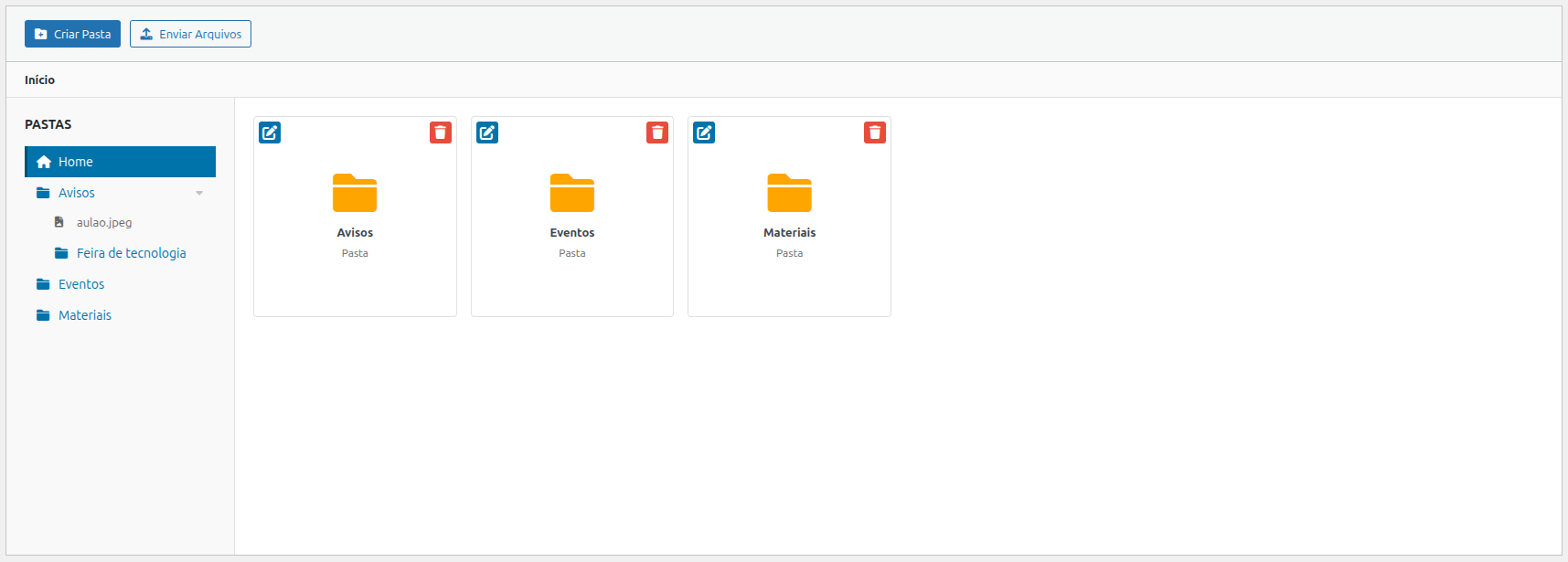
Admin interface — Main configuration page with folder tree and file grid
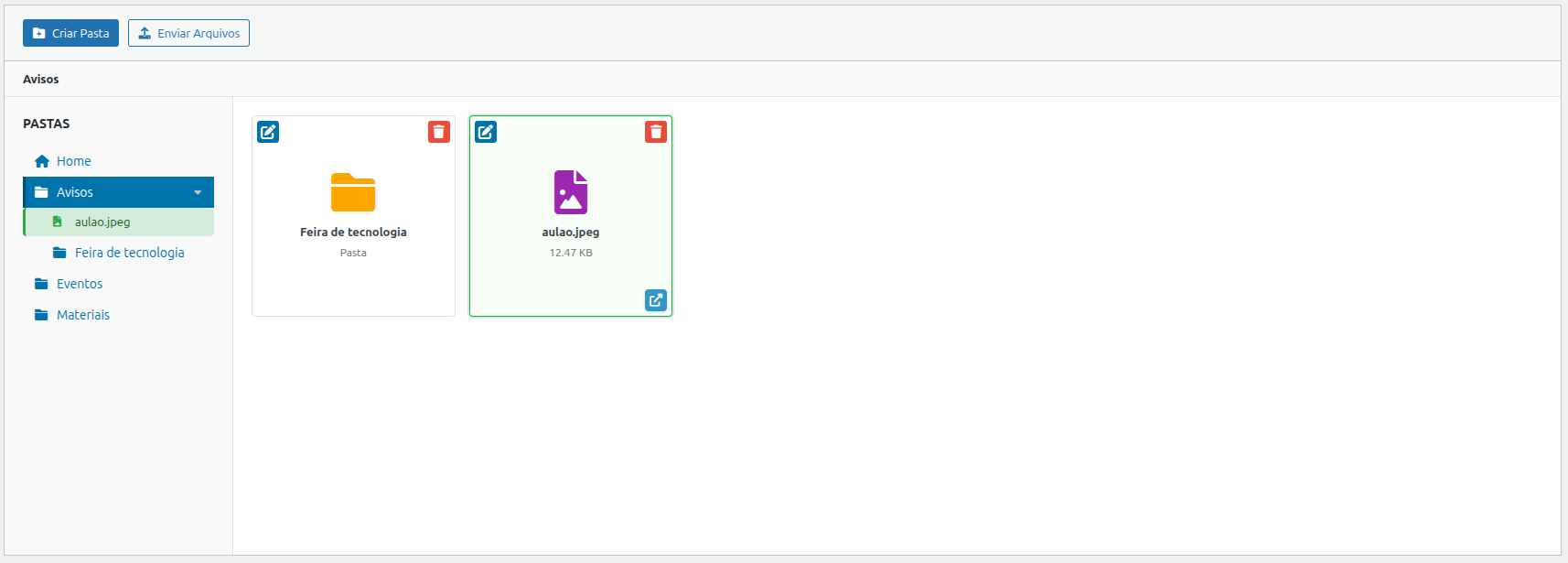
Admin interface — Selecting and managing files in a folder
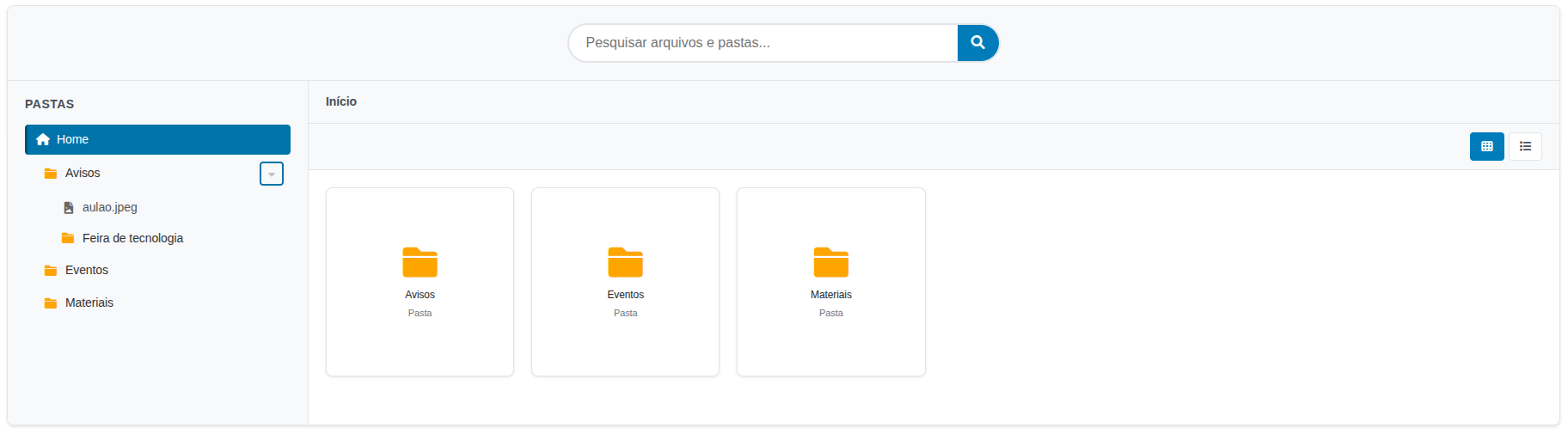
Frontend — File browser component displayed via shortcode
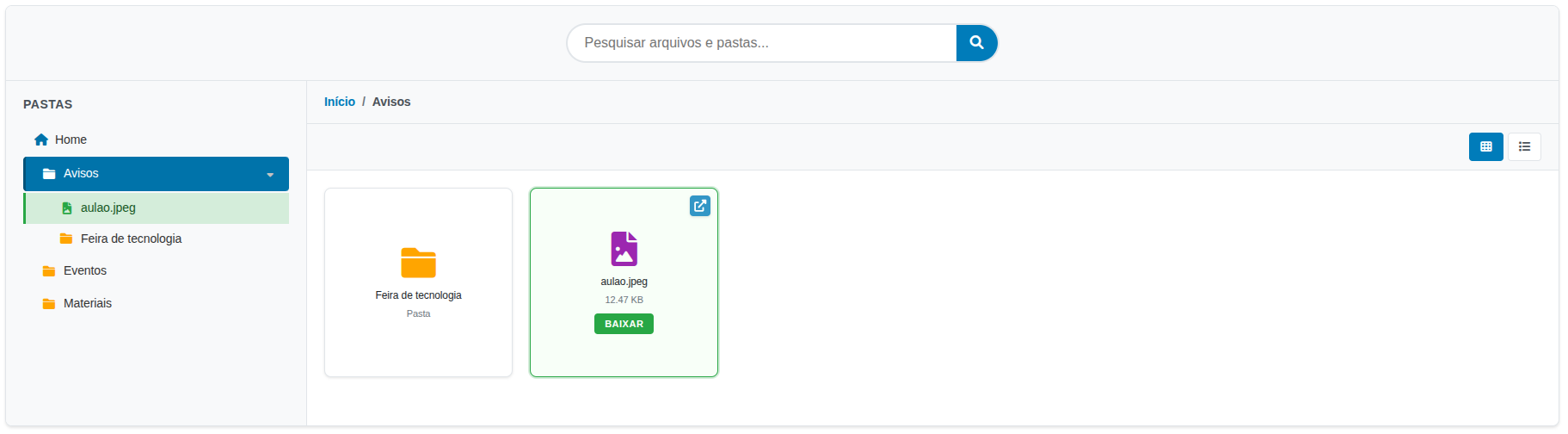
Frontend — Navigating and previewing files in grid layout
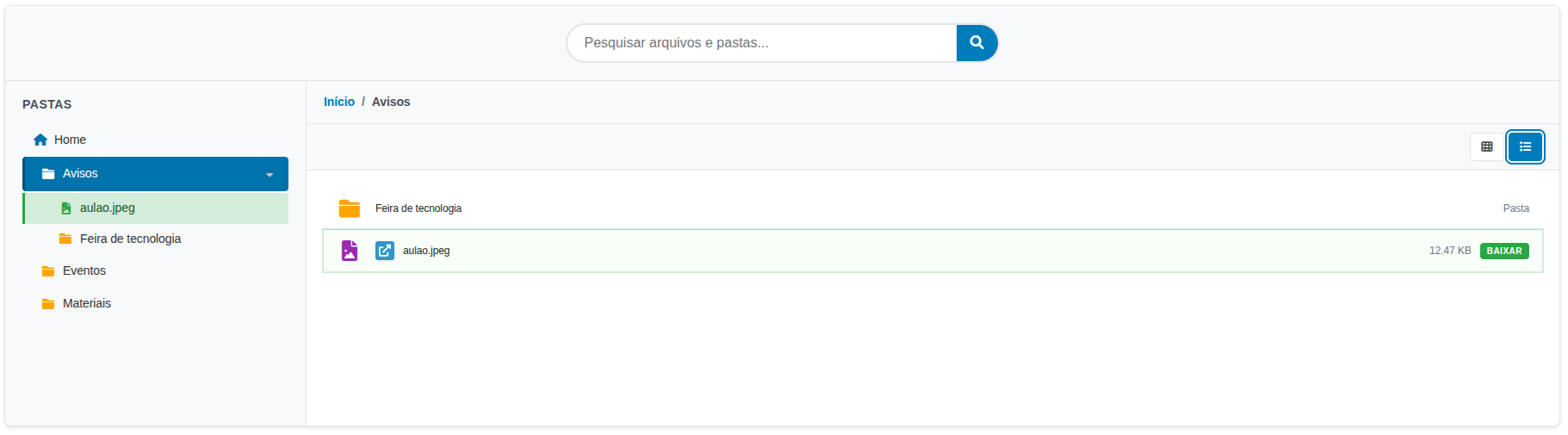
Frontend — File browser in list layout mode
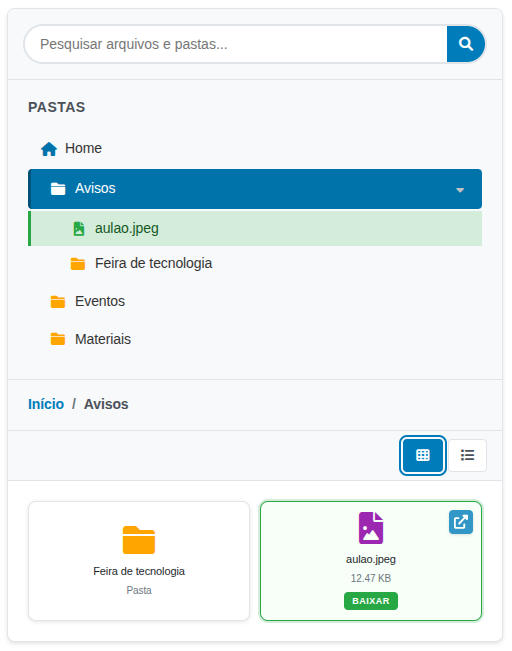
Frontend — Mobile responsive view
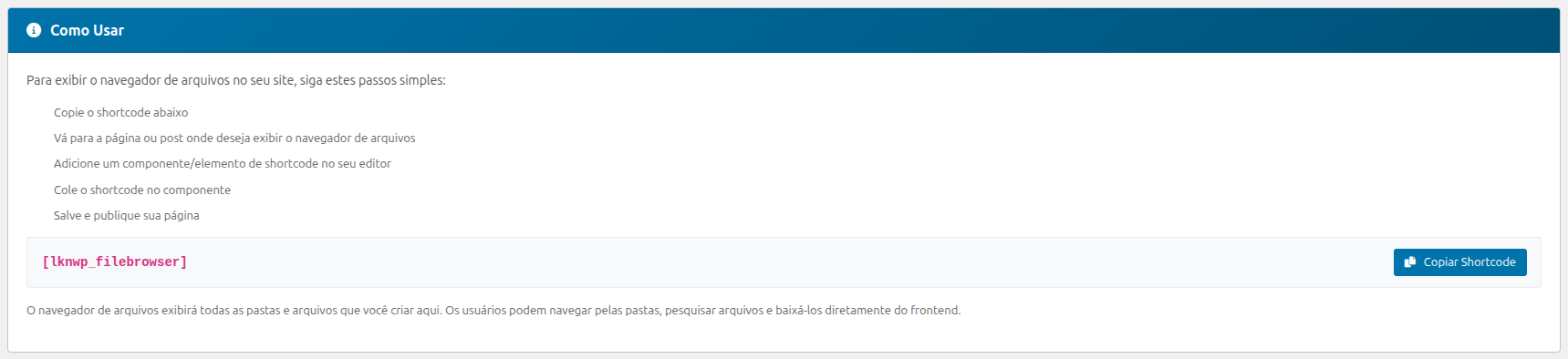
Admin interface — How to use the shortcode instructions panel
Faq
The plugin includes an instructions panel in the admin area with practical examples and copy buttons.
Go to ‘File Browser’ in the admin menu for complete usage instructions.
Basic usage:
[linkn_filebrowser]
Specific folder:
[linkn_filebrowser folder_id=”1″]
Different layout:
[linkn_filebrowser layout=”list”]
Available layouts: grid (default) and list
The plugin admin panel includes an instructions block with:
* Shortcode examples
* Copy shortcode buttons
* Usage tips
* Feature guide
- Go to ‘File Browser’ in the admin menu
- Read the instructions at the top of the page
- Click ‘Create Folder’ to create a new folder
- Navigate to the desired folder and click ‘Upload Files’
- Select multiple files for simultaneous upload
Users can:
* Navigate through folders by clicking on them
* Use the search bar to find specific files
* Download files by clicking on them
* Switch between grid and list views
Yes! The plugin is built with responsive design and automatically adapts to tablets and smartphones.
Reviews
Changelog
1.0.2 – 2026-08-03
- Bug: LiteSpeed adaptation loading.
1.0.1 – 2026-08-03
- Bug: Font Awesome script loading.
1.0.0 – 2026-07-27
- Initial release
- Complete hierarchical folder system
- Multiple file uploads
- Search interface
- Flexible shortcode with multiple options
- Responsive design
- Support for multiple file types