LMDM Styles for Open User Map
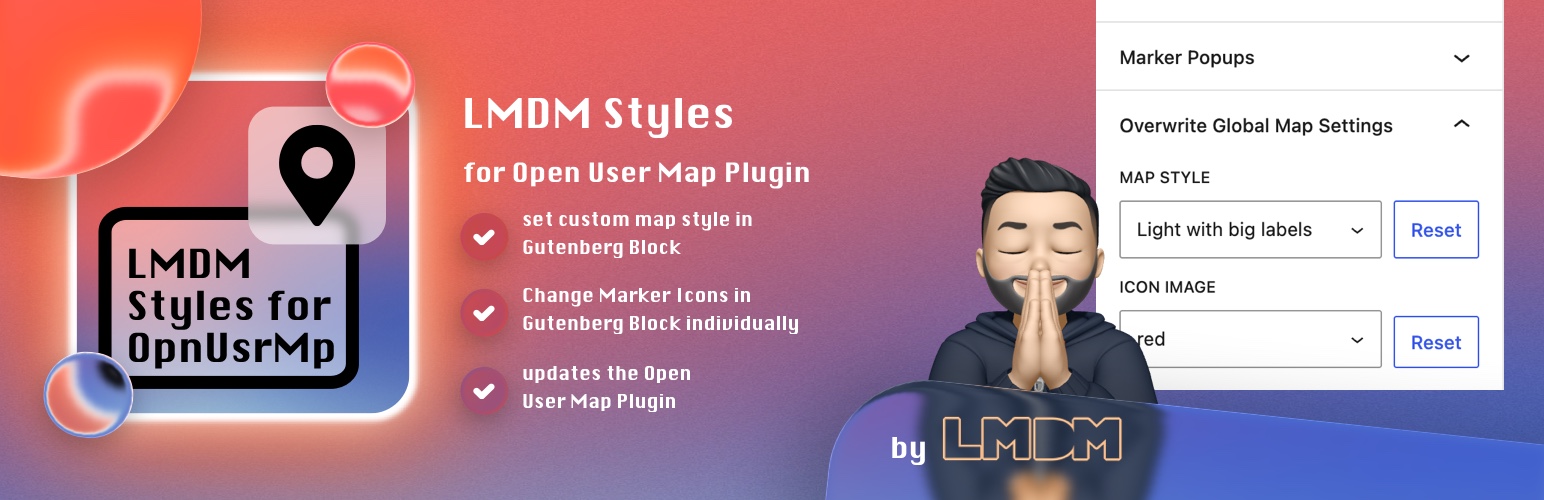
LMDM Styles for Open User Map
Description
The Open User Map plugin provides global settings for map style and marker icons. This plugin adds more control directly inside the Gutenberg block sidebar, so you can overwrite these global defaults for a single open-user-map/map block.
This is useful when one page needs a different tile style, another map should use a custom marker icon, or individual markers on the same map should use different icons.
Attention
You need to install and activate Open User Map first. Without it, this plugin has no map block to extend.
Plugin Features
✔ extends the existing open-user-map/map block and does not create a new block
✔ adds a map style dropdown to overwrite the global Open User Map style per block
✔ adds a marker icon dropdown to overwrite the global marker icon per block
✔ supports the default Open User Map marker icons
✔ supports custom PNG marker images from the WordPress media library
✔ adds an option to configure marker icons individually when multiple markers are shown
✔ lets you hide or show each individual marker in the frontend
✔ adds reset buttons to jump back to the global Open User Map defaults
✔ keeps the frontend lightweight and uses the existing Open User Map rendering logic
Installation
- Upload the plugin files to the
/wp-content/plugins/lmdm-styles-for-open-user-mapdirectory, or install the plugin through the WordPress plugins screen directly. - Activate the plugin through the Plugins screen in WordPress.
- Make sure Open User Map is installed and activated.
- Open a page or post in Gutenberg and insert the Open User Map block.
- Use the new Overwrite Global Map Settings panel in the block sidebar.
Screenshots

Map style and Marker override in the block sidebar

Marker icon override works like a repeater field

Custom build in marker icons

Custom PNG marker image selector from the media library
Faq
No, it just extends the existing open-user-map/map block.
No. The plugin only stores block-level overrides. Your global Open User Map settings stay untouched.
Yes. Choose custom image... in the icon dropdown and then select a PNG image from the media library.
PNG files support transparent backgrounds and are the most reliable choice for marker icons in this use case.
Yes, when the map contains multiple markers you can choose change individually... and assign icons marker by marker.
No additional frontend libraries are loaded. The plugin mainly extends the block editor UI and hooks into existing Open User Map data.
You can disable and delete the plugin without harmful effects. The Open User Map block will keep working with the global Open User Map settings.
The WordPress-User “nicmare” vibe coded it. Means he had the idea of the plugin and uses AI to craft the code.
Reviews
Changelog
1.2.6
- Keep visible markers working when another marker is hidden by removing only hidden records from the map JSON before browser initialization.
- Use the LMDM plugin’s filters without modifying Open User Map files or relying on a frontend event listener.
1.2.5
- Return an empty marker payload for individually hidden locations and remove it before Open User Map creates markers.
1.2.4
- Exclude hidden markers from the frontend map locations array after the
oum_location_datafilter.
1.2.3
- Remove hidden markers from the Open User Map locations array before frontend rendering.
1.2.2
- Remove hidden marker entries from
oum_all_locationsbefore map initialization.
1.2.1
- Preserve individual marker icon and visibility settings after saving the post.
- Apply each map block’s own marker overrides when rendering the frontend map.
1.2
- Add a per-marker visibility toggle to hide individual markers from the frontend map.
1.0
- first release of the plugin