Lockaire

Lockaire
Description
Lockaire is a WordPress password protection plugin that lets you create a custom password page instead of relying on the default WordPress password form.
Want to password protect a WordPress page or post while keeping control over its appearance? Lockaire lets you create a dedicated password page, add your password form using a shortcode, and configure which content requires a password.
Whether you want to protect private content, restrict access to a specific page, or create a branded password entry experience, Lockaire gives you a simple way to manage password-protected content from your WordPress dashboard.
Unlike a plain default password form, your custom password page can use your own page layout, text, images, and design.
Key Features
- Custom Password Page: Create your own password page instead of relying on the default WordPress password form.
- Password Protect Pages: Configure a specific WordPress page to require a password.
- Password Protect Posts: Configure a specific WordPress post to require a password.
- Custom Password Form Shortcode: Add the
[lkar_password_protector_form]shortcode to your custom password page. - Automatic Redirects: Send visitors to your custom password page when they access protected content.
- Return to Original Content: Redirect visitors back to the requested page or post after successful password verification.
- AJAX Password Validation: Validate password submissions without a full page reload.
- Password Visibility Toggle: Let users show or hide the password they enter.
- Dashboard Settings: Configure your password page, protected content, and password from the WordPress admin area.
- WordPress Nonce Checks: Use WordPress nonce verification for the plugin’s AJAX requests.
Why Choose Lockaire?
WordPress includes a built-in password protection feature, but its default password form offers limited control over the surrounding page design.
Lockaire gives you a different approach: create a dedicated page that matches your website’s branding and place the password form wherever you want within that page’s content.
Use Lockaire when you want to:
- Create a branded password entry page.
- Password protect selected WordPress content.
- Design a more personalized password form experience.
- Redirect visitors to protected content after they enter the correct password.
- Keep your password page consistent with the rest of your website.
How It Works
- Install and activate Lockaire.
- Create a WordPress page for your custom password form.
- Add
[lkar_password_protector_form]to that page. - Open the Lockaire settings in your WordPress dashboard.
- Select your password page, choose the page or post you want to protect, and configure the password.
- Save your settings.
- Visitors attempting to access the protected content are redirected to your password page.
- After entering the correct password, visitors are redirected back to the requested content.
Installation
- Upload the
lockairefolder to the/wp-content/plugins/directory, or install Lockaire through the WordPress Plugins screen if it is available in the plugin directory. - Activate Lockaire through the Plugins menu in WordPress.
- Create a new WordPress page for your password form.
- Add the
[lkar_password_protector_form]shortcode to the page content. - Open the Lockaire settings in your WordPress dashboard.
- Select the custom password page.
- Choose the page or post you want to protect and configure your password.
- Save your settings.
- Test the protected content in a private or incognito browser window.
Screenshots
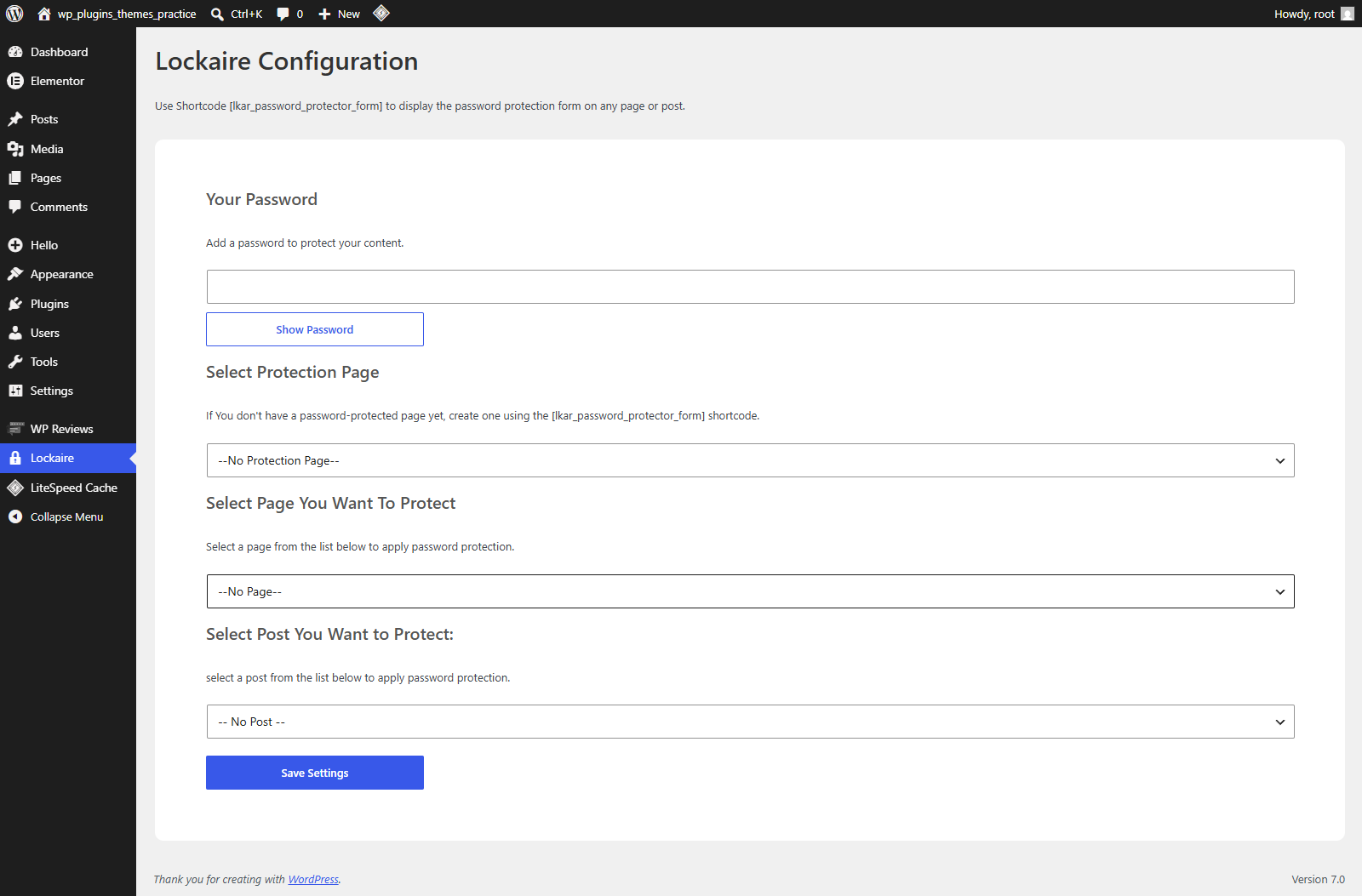
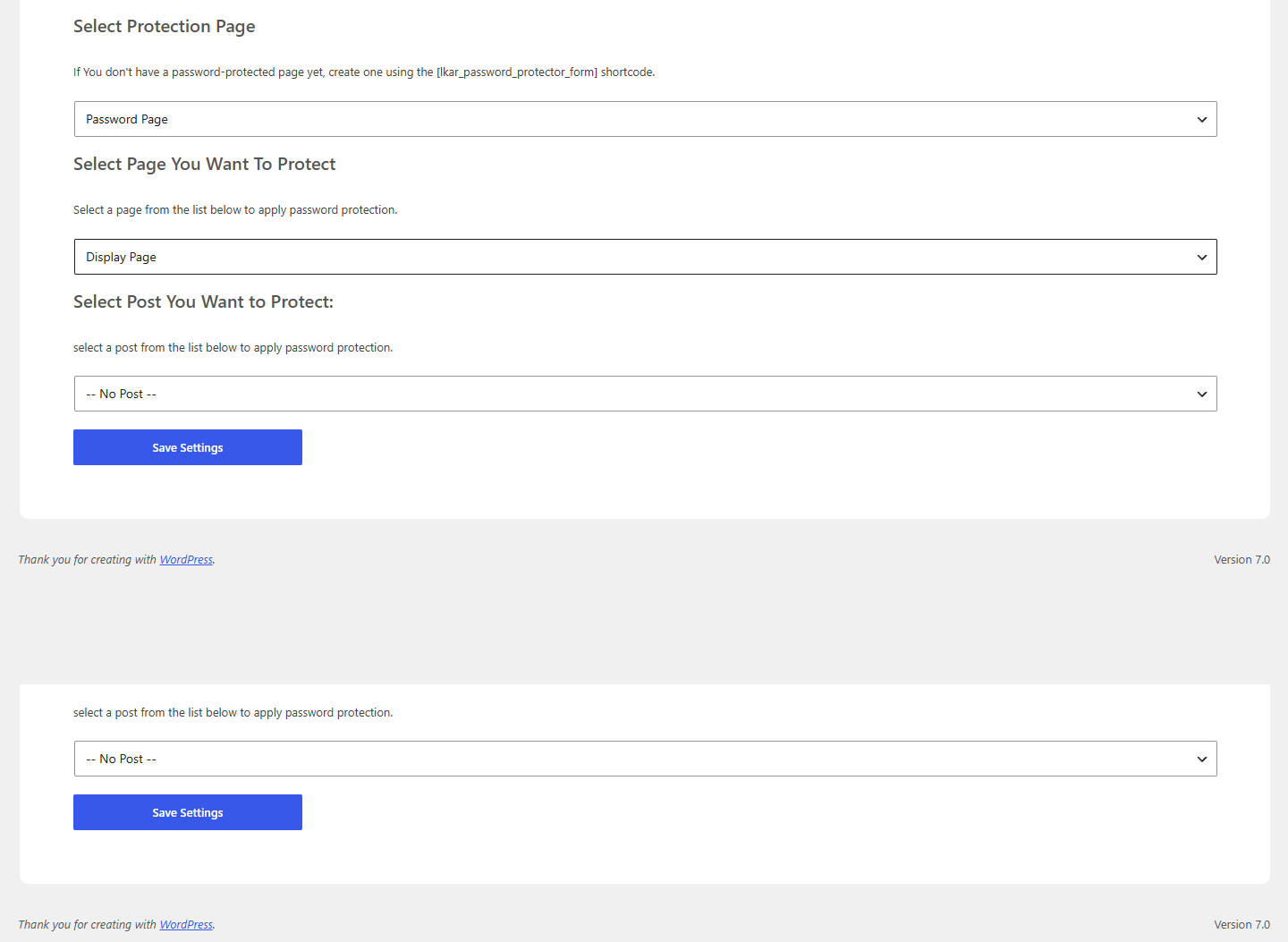
Faq
Lockaire is a WordPress password protection plugin that lets you create a custom password page and use it to control access to a selected page or post.
Create a new WordPress page and add the [lkar_password_protector_form] shortcode. You can design the surrounding page with your preferred content and layout.
Create your password page, open the Lockaire settings, select the password page, choose the page you want to protect, set the password, and save your settings.
Yes. Lockaire provides a setting for selecting a post to protect with your configured password.
Yes. You can customize the WordPress page containing the shortcode using your normal page content and design tools. The shortcode supplies the password form.
Lockaire redirects visitors to your configured custom password page, where you place its password form shortcode, instead of relying on the default password form for the protected-content flow.
Lockaire uses AJAX for password validation, allowing the form to submit without a full page reload.
After successful password verification, Lockaire returns the visitor to the protected page or post they originally requested.
Lockaire returns an error response indicating that the password is incorrect, allowing the visitor to try again.
You can use the shortcode in a page editor or page builder that supports WordPress shortcodes. The surrounding page design is controlled by your page editor.
The readme currently specifies WordPress 6.0 or later and PHP 7.4 or later. Check the tested version information above for the latest version against which compatibility has been verified.
Reviews
Best Plugin for custom password pages
By 
My client want fully custom password page i have'nt found any plugin tell this
Changelog
1.0.1
- Fixed WordPress Coding Standards warnings.
- Improved input handling and redirect validation.
- Added asset versioning for browser cache management.