Booking Engine by Lodgify

Booking Engine by Lodgify
Description
Lodgify is a vacation rental property management software (PMS) that simplifies the management and marketing of lodging businesses for independent hosts and property managers. With Lodgify, users can take advantage of property management (PM) modules, synchronize their calendars across top booking platforms (such as Airbnb, Vrbo, and Booking.com), and drive direct bookings through a direct booking site or direct booking widget.
Lodgify’s most popular features include:
- Channel manager
- Reservation system
- Website builder
- Embeddable booking widget
- Unified inbox
- Guest management tools
- Task management tools
- Automation & AI tools
- Reporting & analytics
- Payment processing
Lodgify’s vacation rental direct booking engine enables you to:
- Accept direct bookings directly through your existing vacation rental website.
- Process payments for your direct bookings via top payment gateways. You can accept Visa, MasterCard, and American Express the moment you launch the direct booking engine.
- Sync your direct booking calendar, reservations, and listings with the rest of your channels (such as Airbnb or Vrbo).
- Ensure seamless communication with your direct booking guests through automation and synchronization.
How the Lodgify direct booking engine works:
To start driving direct bookings for your business, simply paste the embeddable code Lodgify generates into your vacation rental site. You also have the option to customize the direct booking widget so that it fits seamlessly with your website’s look and feel via your Lodgify account.
Users can start making direct bookings through your site as soon as you install the plugin. When users click on the booking widget, they will be directed to the All Properties page, the Rental page, and finally the Checkout page, in that order:
- The All Properties page is the page where users can see all available rentals. Users can select dates and also see each rental’s location.
- The Rental page is the page where users see all the details for the selected property, including an overview, rates, reviews, amenities, and house rules.
- The Checkout page is where users complete their booking for the selected rental. They can fine-tune the final settings, such as contact details, and complete their transaction by choosing their preferred payment method.
Visit the Lodgify Knowledge Base to learn more about the Lodgify direct booking engine.
Read more about Lodgify’s terms and conditions and privacy policy.
Types of Booking Engine’s
- Search Box, in case you have several rentals, the Search Box will show a possibility to filter by location. If you only offer one rental, guests can search by available dates and number of guests.
How to start using it?
Simply signing or logging to Lodgify will be sufficient to begin the journey (You can also visit the Lodgify plugin in WordPress to see the next steps). Then the rentals hosted in Lodgify can be used on your website through this booking engine plugin.
The following must be done first to be able to use the plugin:
- You have a Lodgify subscription
- Have rentals at Lodgify. This is super easy, you can also automatically import your rentals through OTA’s.
- Now you can use the booking engine code snippet on your WordPress website
Screenshots
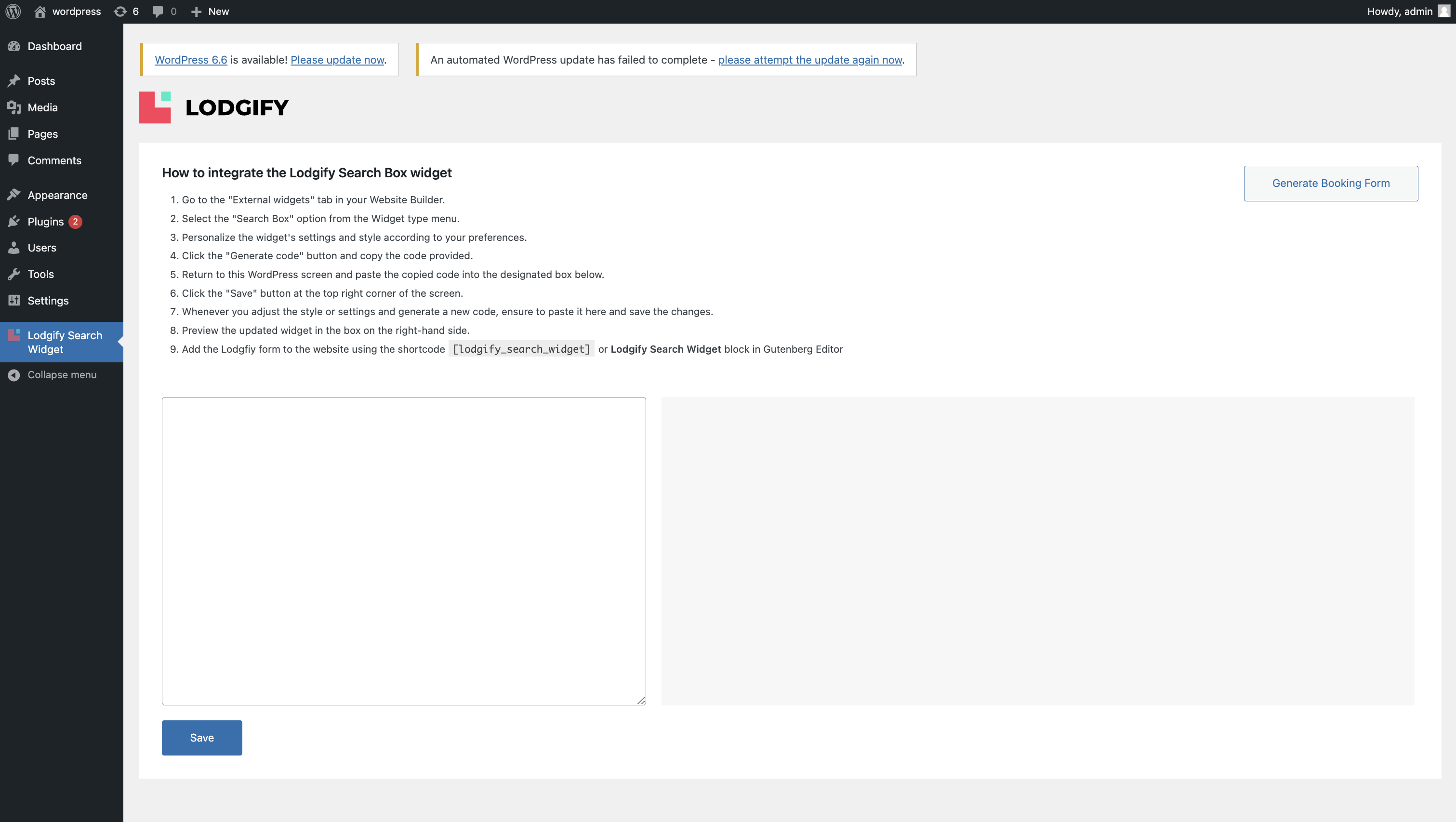
How the plugin looks like in WordPress plugin settings

The preview of the booking engine shown in the WordPress plugin settings

Settings of booking engine shown in Lodgify
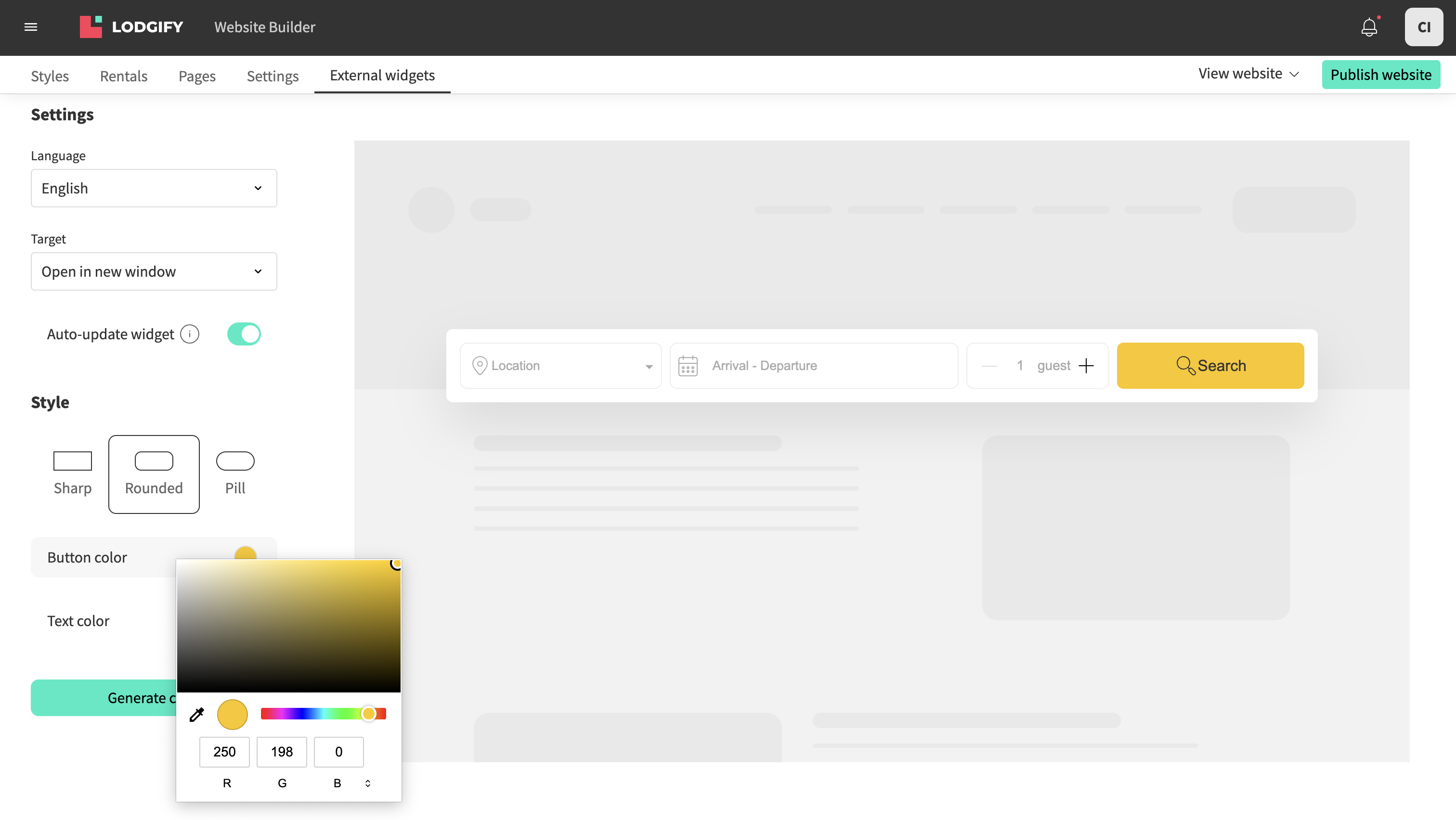
Styling options of booking engine shown in Lodgify

The All properties page of the booking engine

The Property page of the booking engine

Checkout flow step 1 of the booking engine
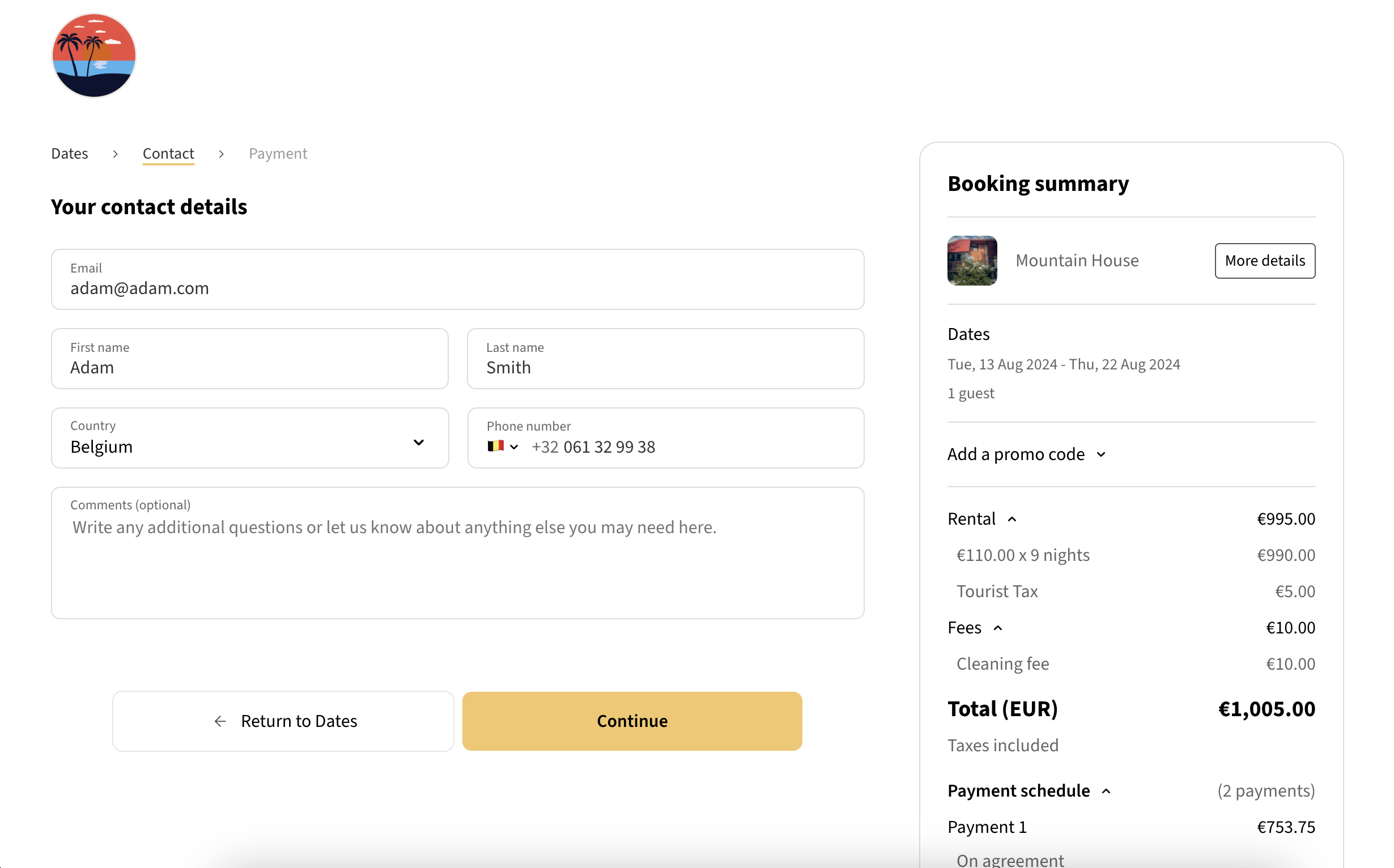
Checkout flow step 2 of the booking engine
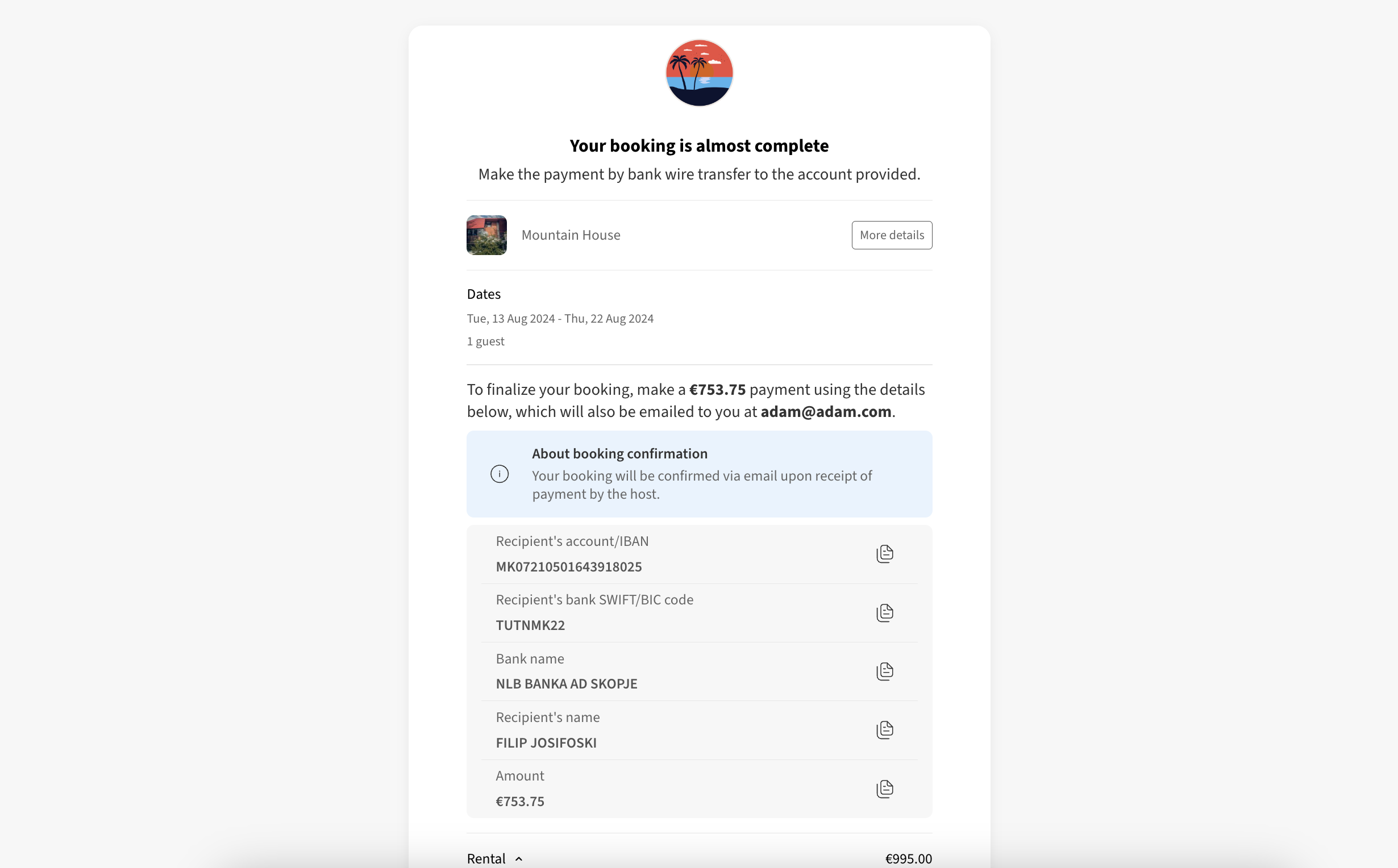
Thank you (purchase successful) page of the checkout flow
Faq
Yes, you’d need either a trial or a paid subscription to Lodgify to be able to use this widget. Check out the available plans and pricing here.
Yes, you can customize the booking widget through Lodgify, updating both the text and background color. However, the All Properties page, Rental pages, and Checkout page can’t be customized.
You need to list at least one rental on Lodgify to be able to use the direct booking engine. It is quite easy to import rentals from third-party booking sites or through manual creation.
Reviews
Doesn't work
By 
With the latest versions of WordPress.
When you copy the code from their site and paste it into the white box, you click save.
The code is truncated. Part of it is missing.
I asked where the code would be pasted (into which file) but received no response.
The only solution is to take the code (both scripts), put the first script, and then the second script on a dedicated page.
Then add links to this page.
After selecting dates, it will redirect to their site, which works perfectly for the rest of the booking process.
It's not ideal if you want to place the widget in multiple locations, but at least it works.
The support for the code is nonexistent; they don't receive replies from the developers.
Avec les dernières versions de wordpress.
Lorsque vous copier le code sur leur site et le coller dans la case blanche. vous appuyez sur save.
Le code est tronqué. Il manque une partie.
J'ai demandé a savoir où allait se coller le code (dans quel fichier) pas de réponse.
La seule solution est de prendre le code (les 2) mettre le script en premier ensuite le 2ème dans une page réservé à cela.
Ensuite mettre des liens vers cette page.
Après le choix des dates, Il dirigera ensuite vers leur site qui fonctionne très bien pour la suite des réservations.
Ce n'est pas l'idéal quand vous voulez mettre le widget à plusieurs endroit mais au moins ça fonctionne.
Le support pour la partie code est nul, ils ne reçoivent pas les réponses des développeurs.
elementor integrate
By 
Hello, can I use widgets with elementor?
Outstanding Booking Engine Plugin
By 
Lodgify’s plugin stands out for its ease of use and powerful features. Integrating it with my website was quick and simple, and it’s been smooth sailing ever since. Perfect for any vacation rental host
Best Booking Engine for Vacation Rental Hosts
By 
I've been using Lodgify for years, they have the best external website plugins that helps people like us to use their booking module's. It's so easy to plug the Lodgify's booking engine to my website using this plugin! Been waiting for this plugin for a while, well done Lodgify!
Changelog
= 1.0.0 – 23/04/2024
* Added: Code preview area to display the widget
* Improved: Security enhancement
= 1.0.1 – 15/08/2024
* Change the plugin name