Logicdigger Website Health Monitor

Logicdigger Website Health Monitor
Description
Logicdigger Website Health Monitor helps you keep your WordPress site healthy, secure, and up to date. It runs automated checks across updates, security, performance, server configuration, and popular plugin integrations — then presents everything in a clean admin dashboard with a health score, filterable results, and optional email reports.
Whether you manage one site or many client sites, Logicdigger Website Health Monitor gives you a single place to spot problems before they become outages.
Why Logicdigger Website Health Monitor?
- All-in-one dashboard — Health score, critical issues, and passed checks at a glance
- Standalone plugin — Fully self-contained; does not depend on or redirect to other plugins
- Email reports — Scheduled daily, weekly, or monthly reports to any admin email
- Critical alerts — Instant email when serious issues are detected (throttled to once per 24 hours)
- Security focus — Dedicated security page with login attempt monitoring
- Modern UI — Clean, responsive admin interface with filter tabs and animated score ring
- Debug export — Copy site configuration for support tickets (no passwords included)
- Plugin integrations — Optional status checks for AIOSEO, Jetpack, and Google Site Kit
Health Checks (35+ automated tests)
Updates
* WordPress core version and available updates
* Plugin updates available
* Theme updates available
* Automatic updates configuration
Security
* HTTPS / SSL status
* Debug mode (WP_DEBUG) warnings
* Inactive plugins and inactive themes audit
* XML-RPC enabled/disabled
* HTTP security headers (HSTS, X-Frame-Options, X-Content-Type-Options)
* Default admin username detection
* Theme/plugin file editor (DISALLOW_FILE_EDIT)
* Failed login attempt monitoring with security log
* Open registration role safety
* Search engine indexing status
* Temporary backup directory writable
* Disk space for updates
Performance
* WP-Cron status (disabled cron, overdue events, spawn failures)
* REST API availability
* Loopback request test (required for background tasks)
* Persistent object cache detection
* Page cache detection
* PHP required modules
* PHP timezone and PHP sessions
* SQL server version
* HTTP outbound requests
Server
* PHP version recommendations
* PHP memory limit
* Uploads directory write permissions
* Database connection health
WordPress
* WordPress version currency
Integrations
* All in One SEO (AIOSEO) install, active, and update status
* Jetpack install, connection, and update status
* Google Site Kit install and active status
Dashboard Features
- Logicdigger Website Health Monitor admin menu with full health report
- Dashboard widget on the WordPress home screen
- Filter tabs — View all, critical, recommended, or passed checks
- Security Report page with failed login log
- Settings page for email configuration and report history
- Debug Info page with one-click copy to clipboard
- Admin notices when critical issues are detected
Email Reports
Configure email recipients, frequency (daily / weekly / monthly), and critical issue alerts from Logicdigger Website Health Monitor Settings. Send a test report anytime to verify your mail configuration.
Who is this for?
- Website owners who want proactive health monitoring
- Freelancers and agencies managing client WordPress sites
- Developers who need a quick site status overview
- Anyone who wants email alerts when something goes wrong
Privacy & Data
Logicdigger Website Health Monitor stores health check results and failed login logs locally in your WordPress database. Failed login logs store username, IP address, and timestamp for up to 7 days (capped to 200 entries). Email reports are sent only to addresses you configure using your server’s wp_mail() function. There is no analytics or tracking built into this plugin.
External Services
This plugin may contact external or remote endpoints only when running specific health checks or update checks. No personal visitor data is collected or transmitted.
WordPress.org Update API (via WordPress core functions wp_version_check(), wp_update_plugins(), and wp_update_themes())
* Purpose: Check whether WordPress core, plugins, or themes have updates available.
* Data sent: Your site URL, WordPress version, PHP version, locale, and installed plugin/theme versions (standard WordPress update-check data).
* When: During update-related health checks and scheduled/manual health scans.
* Terms of Service: https://wordpress.org/about/privacy/
* Privacy Policy: https://wordpress.org/about/privacy/
Your own WordPress site (loopback, REST API, page cache, and HTTP request checks via wp_remote_get() / wp_remote_post())
* Purpose: Verify that background requests, the REST API, caching headers, and outbound HTTP work on your server.
* Data sent: Requests are made to your own site’s URLs (for example admin-ajax.php, wp-json/, and your homepage). Loopback checks use a short-lived one-time token stored in your database.
* When: Only while health checks are running (manual, scheduled, or on activation).
* Terms / Privacy: Governed by your own site and hosting policies; no third-party service is involved.
Email delivery (your server’s mail transport via wp_mail())
* Purpose: Send health reports and critical alerts to addresses you configure.
* Data sent: Report content and recipient addresses you enter in settings.
* When: On your configured schedule, when critical issues are detected (throttled), or when you send a test report.
* Terms / Privacy: Depends on your hosting provider and mail configuration; the plugin does not use a third-party email API.
Installation
Automatic installation
- Log in to your WordPress admin panel
- Go to Plugins Add New
- Search for Logicdigger Website Health Monitor
- Click Install Now, then Activate
Manual installation
- Download the
logicdigger-website-health-monitorplugin zip file - Go to Plugins Add New Upload Plugin
- Choose the zip file and click Install Now
- Activate Logicdigger Website Health Monitor
After activation
- Go to Logicdigger Website Health Monitor in the admin sidebar
- Click Run Checks Now to perform your first scan
- Visit Logicdigger Website Health Monitor Settings to configure email reports (optional)
- Check Logicdigger Website Health Monitor Security for security-specific results and login logs
Screenshots
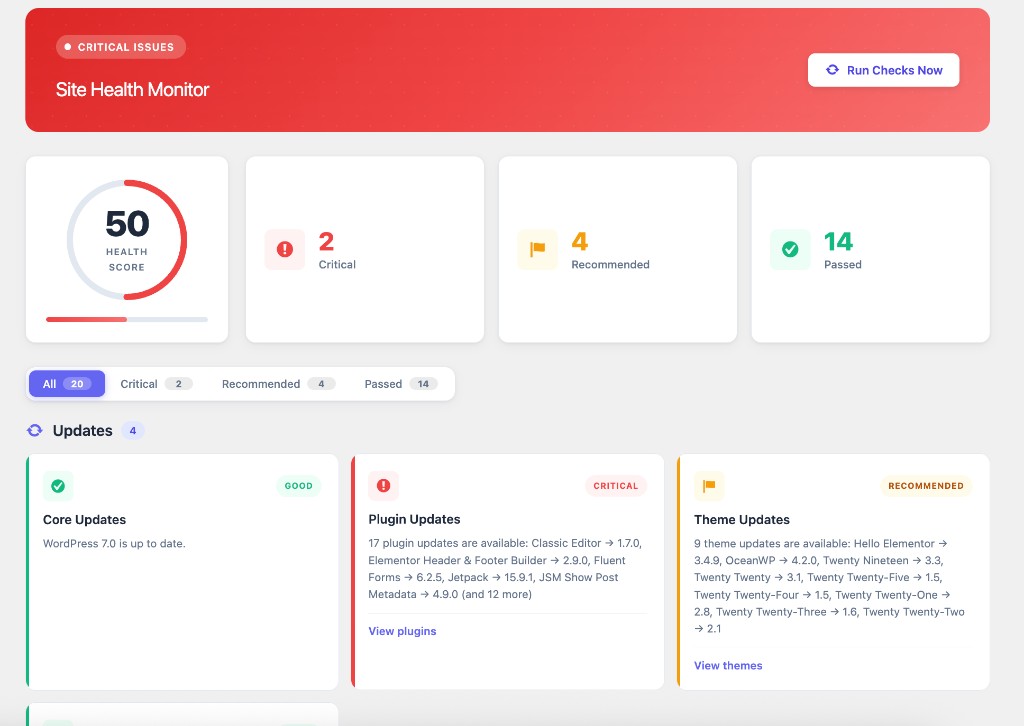
Logicdigger Website Health Monitor dashboard with health score, summaries, and filter tabs
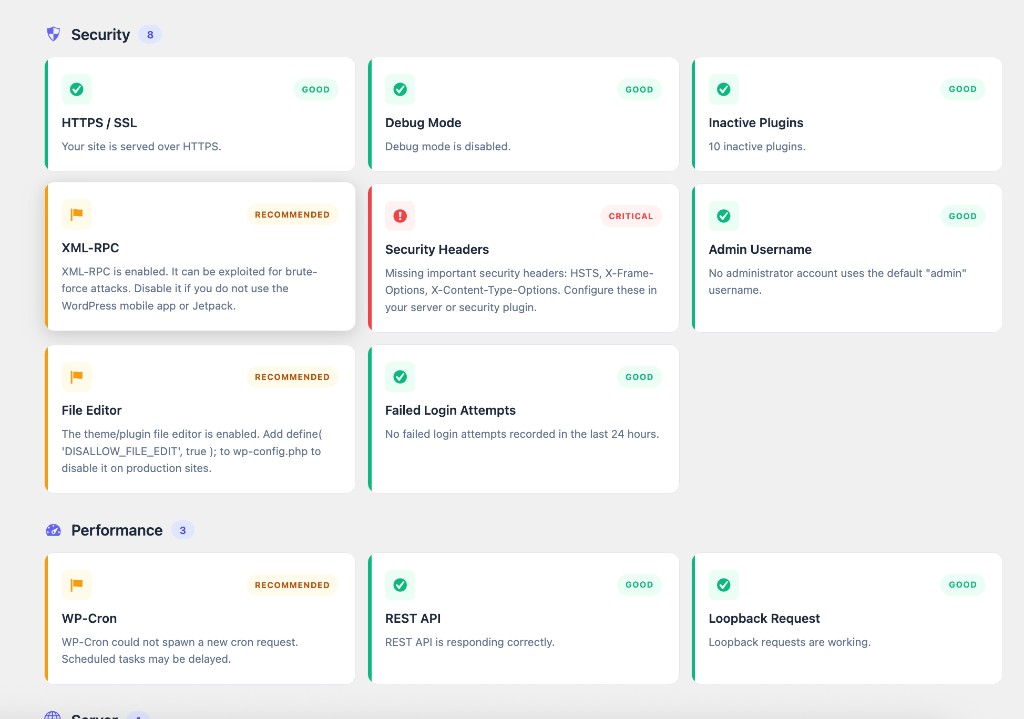
Health check cards grouped by category (Security and Performance sections)
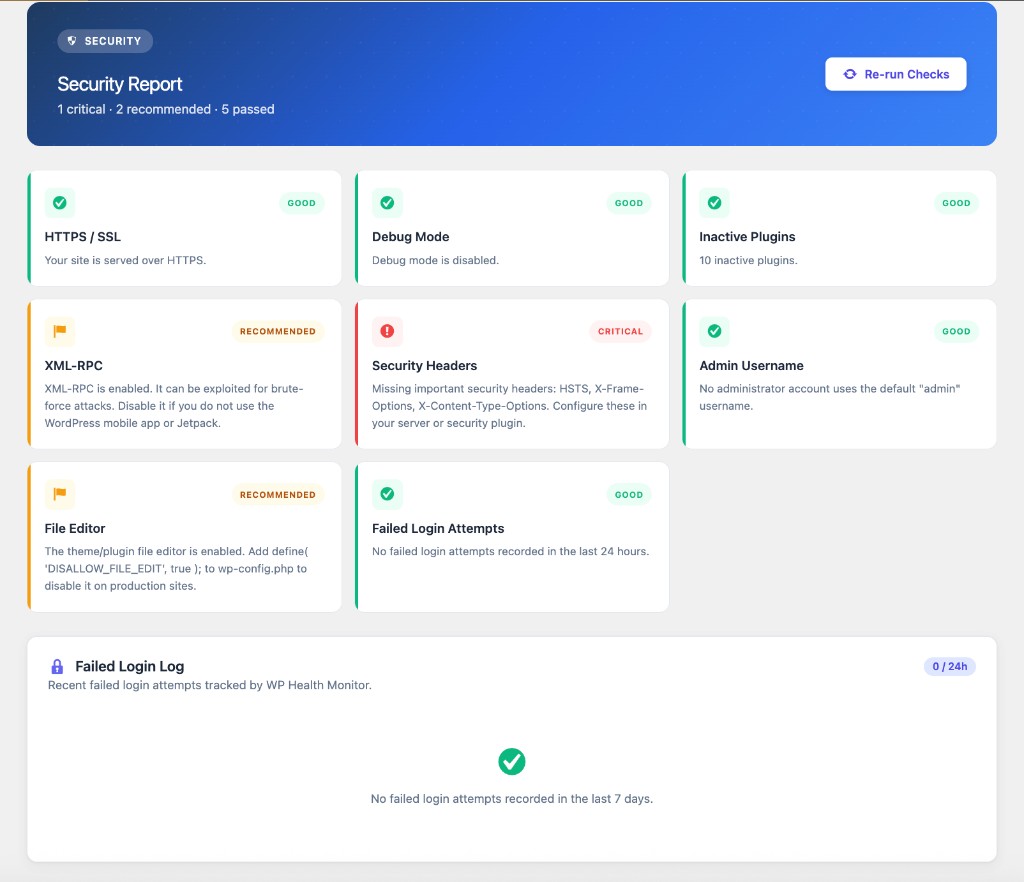
Security Report page with XML-RPC, headers, and failed login checks
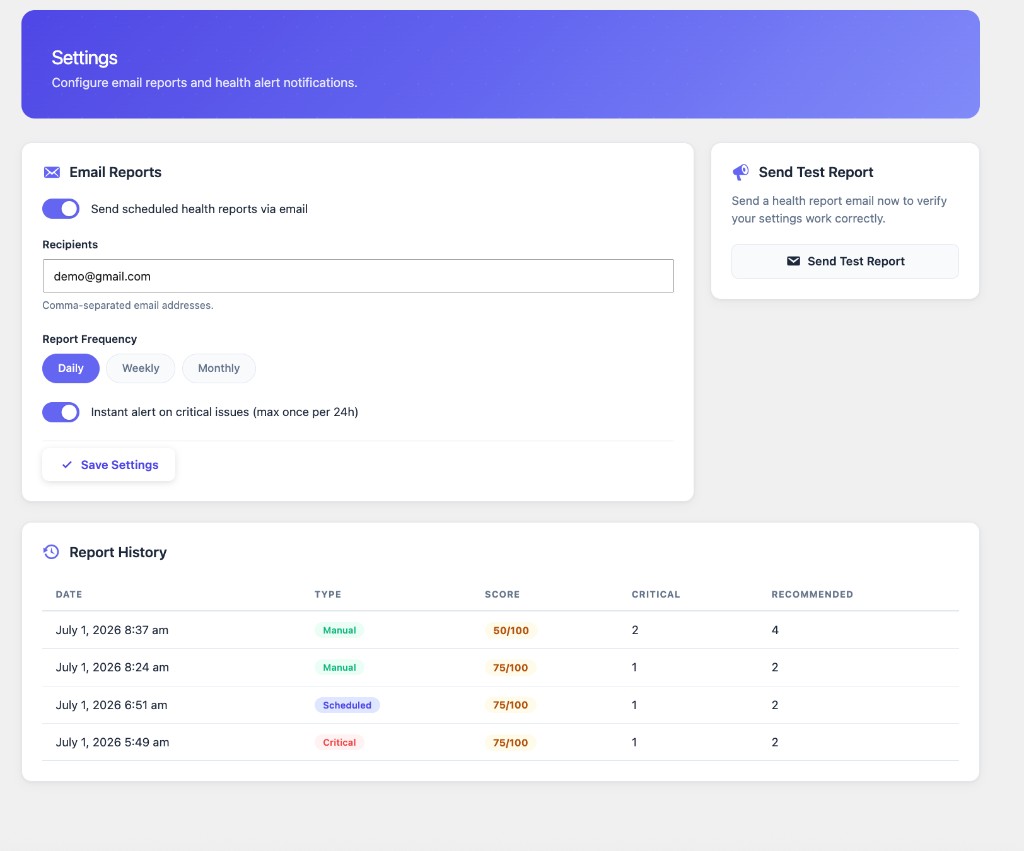
Settings page with email report controls, frequency pills, and report history
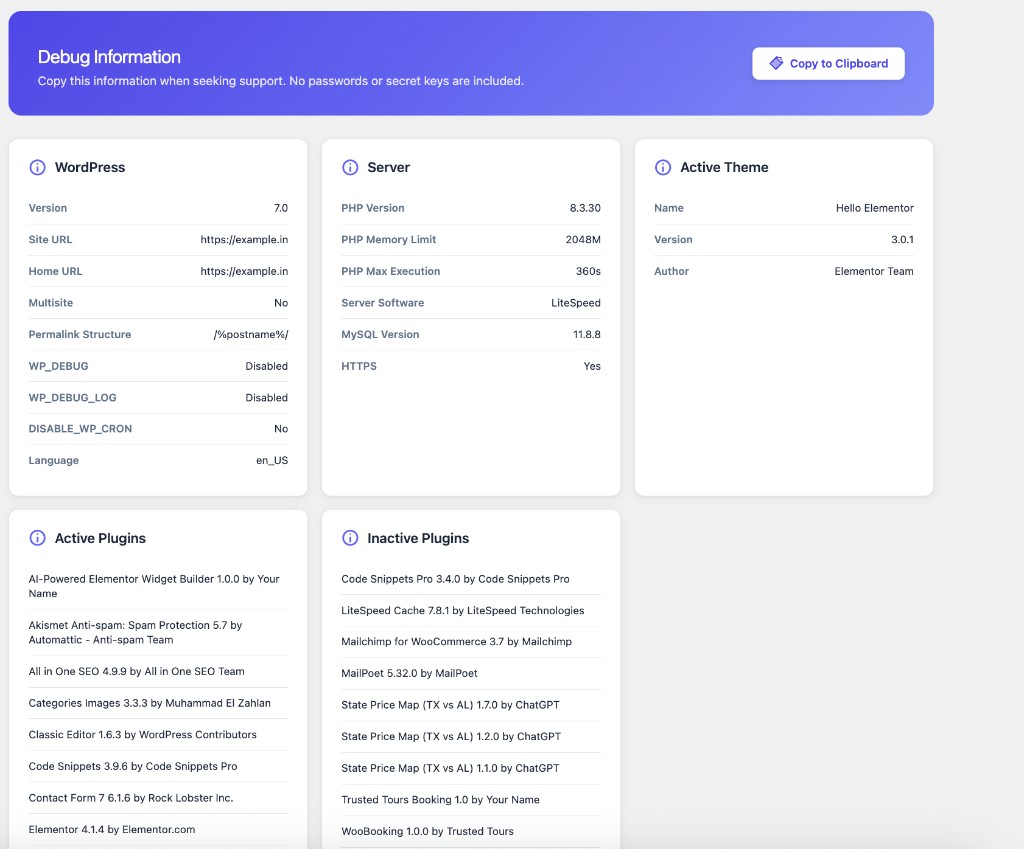
Debug Information page with copy-to-clipboard support
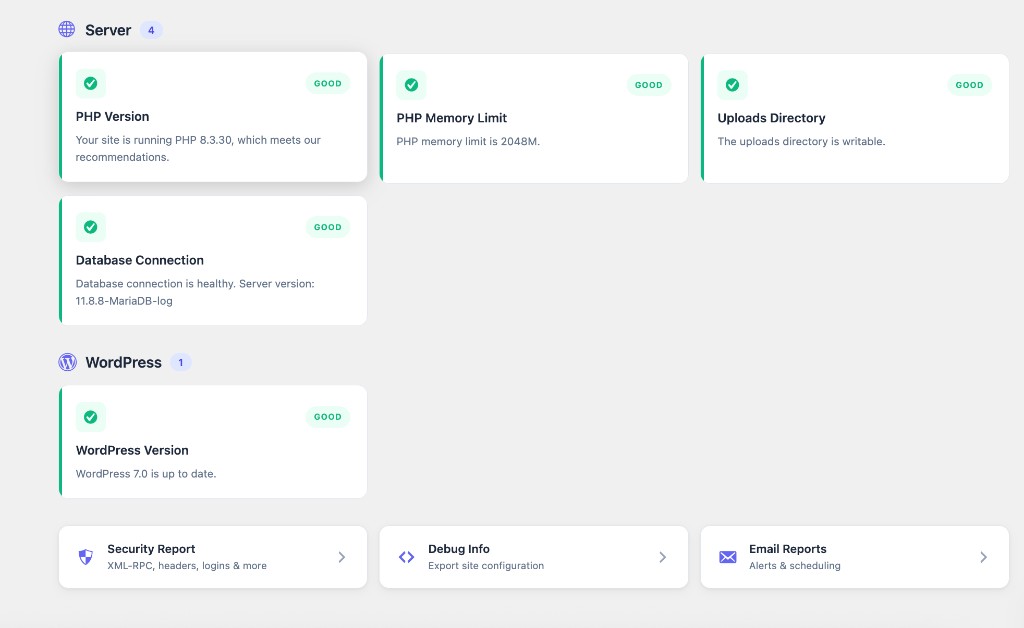
Dashboard overview showing Server, WordPress, and Integrations groups with quick links
Faq
No. Logicdigger Website Health Monitor is a standalone plugin with its own dashboard, security page, and email reporting. It does not require or link to WordPress core Site Health or any other health plugin.
The score starts at 100 and deducts points based on check results: critical issues reduce the score more than recommended ones. A score of 80+ generally indicates a healthy site.
After the plugin is activated, it records failed login attempts (username, IP address, and timestamp) using WordPress’s wp_login_failed hook. Data is stored locally for up to 7 days and displayed on the Security page. No external service is used.
Critical alert emails are limited to once per 24 hours to prevent inbox flooding. Scheduled reports follow the frequency you choose in settings.
Health checks run on a schedule (daily by default) and when you manually click Run Checks Now. They do not run on every front-end page load.
PHP 7.4 or higher is required. The plugin recommends PHP 8.0+ for optimal security and performance.
Yes. Enter comma-separated email addresses in Logicdigger Website Health Monitor Settings Recipients.
Health check results are stored locally. Some checks use WordPress core to contact the WordPress.org update API, and other checks make HTTP requests to your own site to verify loopback, REST API, and caching behavior. Email reports are sent only to addresses you configure via your server’s mail system. See External Services in the plugin description for details.
Please use the WordPress.org support forum for this plugin (once published), or contact Logicdigger via the plugin website.
Please report security issues responsibly through the plugin support channel. Do not post security vulnerabilities in public forums.
Reviews
Changelog
1.3.5
- Fixed text domain to match plugin slug (
logicdigger-website-health-monitor) for WordPress.org translation tools - Added nonce validation to the loopback ping AJAX endpoint alongside the existing single-use token check
1.3.4
- Changed text domain to
ldwhmfor all translatable strings
1.3.3
- Uses only the
ldwhm_prefix across classes, constants, options, hooks, AJAX actions, and admin assets
1.3.2
- Standardized all plugin identifiers on the
ldwhm_prefix per WordPress.org review guidance - Renamed internal classes, hooks, options, and admin assets to
LDWHM_*/ldwhm_* - Removed legacy
wphm,shm, andldwhmpublic prefixes while keeping data migration on upgrade
1.3.1
- Fixed WordPress.org review items: proper core file loading for update checks, per-email sanitization for settings, and external services documentation
1.3.0
- Rebranded plugin to Logicdigger Website Health Monitor
- Renamed plugin slug, folder, and text domain to
logicdigger-website-health-monitor - Updated readme and WordPress.org listing copy for the new brand
1.2.0
- Added integration layer checks for AIOSEO, Jetpack, and Google Site Kit
- Added broader core-like health checks (inactive themes, object cache, page cache, PHP modules/timezone/sessions, indexing, disk/backup, HTTP communication)
- Hardened remote health checks by removing insecure TLS bypasses
- Secured loopback ping endpoint with short-lived one-time token validation
- Renamed internal runtime prefix from
wphmtoshmwith backward compatibility - Refined admin UI behavior by suppressing third-party notice clutter on plugin pages
- Updated plugin screenshots for WordPress.org listing
1.1.0
- Added security checks: XML-RPC, security headers, default admin username, file editor, failed login monitoring
- Added dedicated Security admin page with failed login log
- Removed link to WordPress core Site Health — plugin is now fully standalone
- Modern admin UI redesign with hero banner, stat cards, and filter tabs
- Improved settings page with toggle switches and frequency pills
1.0.0
- Initial release
- 15+ automated health checks across updates, security, performance, and server
- Health score dashboard with grouped results
- WordPress dashboard widget
- Scheduled email reports (daily, weekly, monthly)
- Critical issue email alerts
- Debug info export page
- Admin notices for critical issues