Mad Cow Product Tabs for WooCommerce
Mad Cow Product Tabs for WooCommerce
Description
Mad Cow Product Tabs for WooCommerce gives you control over the tabs on your WooCommerce product pages.
Turn off the Description, Additional Information or Reviews tabs, change the order they appear in, and add as many custom tabs as you need. Each custom tab can be shown on every product, only on products in chosen categories, or only on products you pick individually.
Here is a quick overview:
Default tabs
- Disable Description, Additional Information or Reviews, site-wide or on individual products
- Reorder the default tabs by changing their priority
Custom tabs
- Add unlimited custom tabs
- Write content in the standard WordPress editor, with media uploads, HTML and shortcodes
- Set a numeric priority to place each tab among the defaults
- Choose where each tab appears: all products, selected categories, selected products, or nowhere while you work on it
- Override any tab on a single product from the product editor
Visibility options
- All Products – the tab appears on every product, and can still be switched off per product
- Specific Categories – the tab appears only on products in the categories you select
- Product Specific – the tab appears only on products where you enable it in the product editor
- None (Hidden) – the tab is saved but not displayed, useful while drafting content
Default tab priorities
Description is 10, Additional Information is 20, and Reviews is 30. Set a custom tab’s priority relative to those to control where it lands.
Requirements
WooCommerce 7.0 or later must be installed and active. The plugin is compatible with High-Performance Order Storage (HPOS).
Installation
- Upload the
mad-cow-product-tabs-for-woocommercefolder to/wp-content/plugins/, or install the plugin through the Plugins screen. - Activate the plugin through the Plugins screen.
- Go to WooCommerce > MCW Product Tabs to configure.
Screenshots
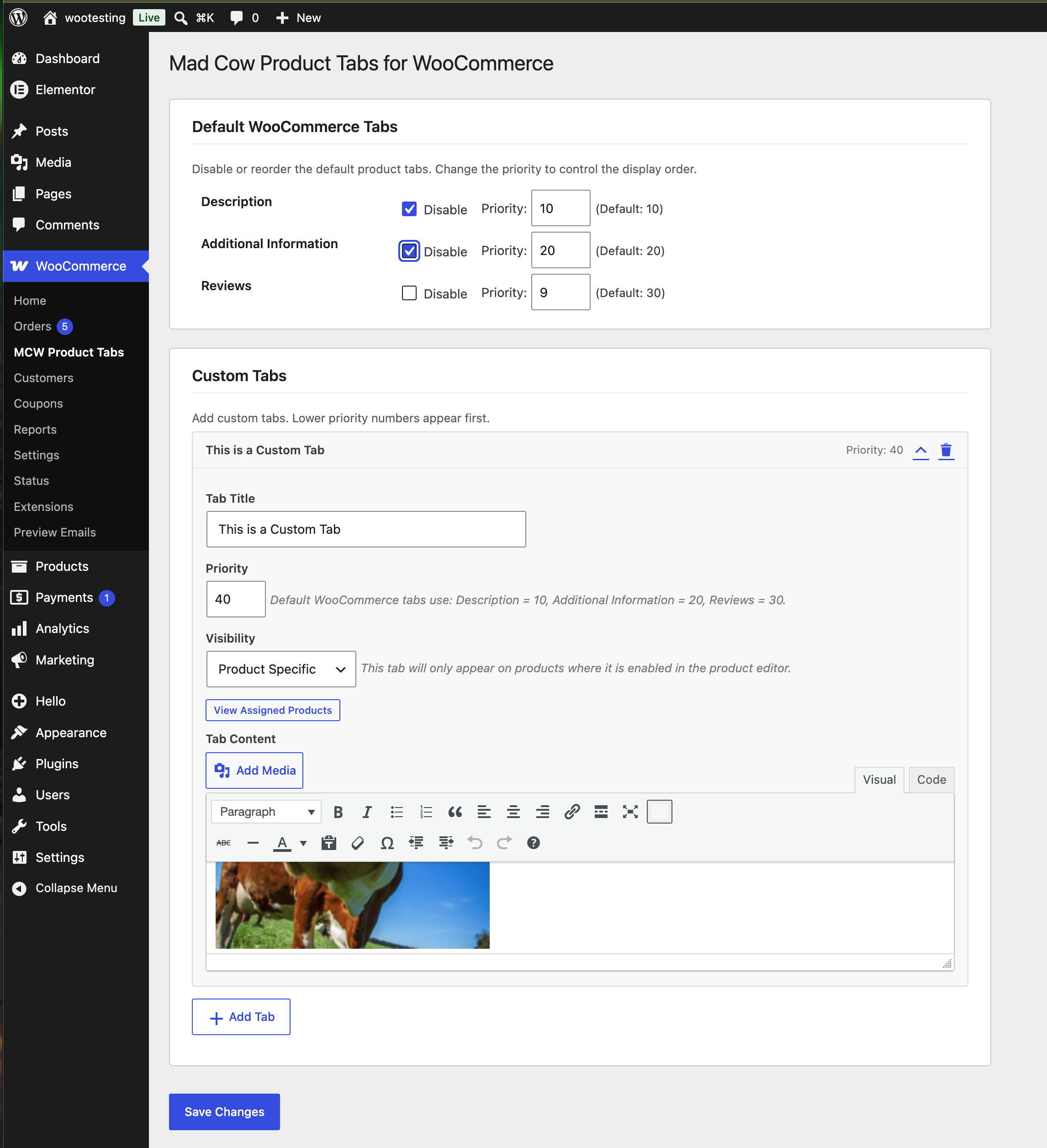
The settings screen: disable or reorder the default tabs, and add custom tabs with visibility targeting.
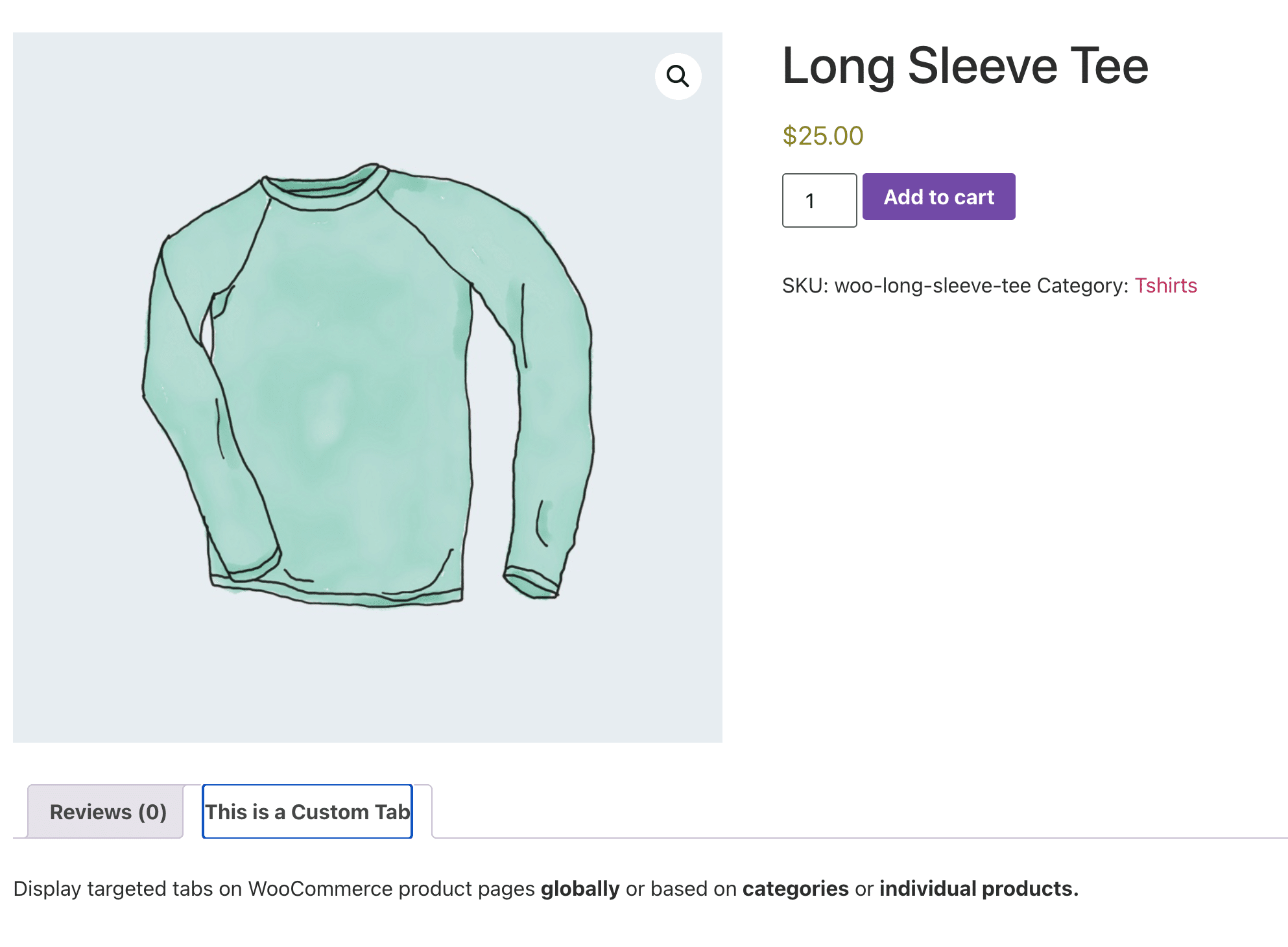
A custom tab on the front end of a product page.
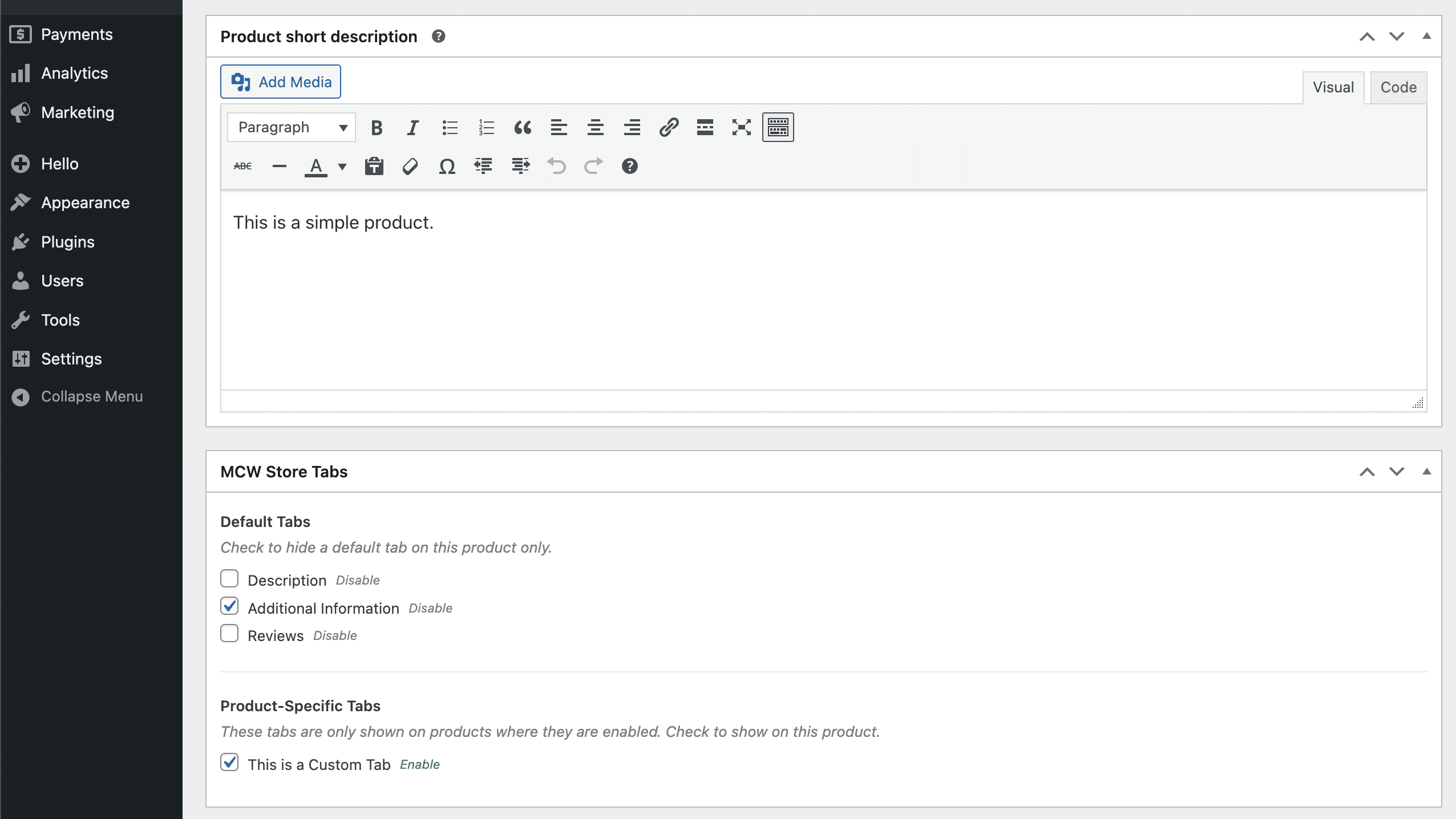
Per-product overrides in the product editor, for enabling or disabling any tab on a single product.
Faq
The plugin uses the standard woocommerce_product_tabs filter, which the classic product template uses. Product pages built entirely from blocks may not render the tabs area at all, in which case there is nothing for the plugin to modify.
Yes. Tab content runs through the same filters as post content, so shortcodes and embeds work.
Check its visibility setting. A tab set to Product Specific appears only on products where you have enabled it in the product editor, and a tab set to None (Hidden) never appears on the front end.
Yes. Edit the product and use the MCW Product Tabs meta box to enable or disable any default or custom tab for that product only.
No. Tab content is defined once in the settings; per-product control covers whether a tab appears, not what it contains.
Yes, mcwmst_custom_tab_content receives the content and the tab ID.
add_filter( 'mcwmst_custom_tab_content', 'my_tab_cta', 10, 2 );
function my_tab_cta( $content, $tab_id ) {
    return $content . '<p><a href="/contact/">Questions? Contact us.</a></p>';
}
Reviews
Changelog
1.0.6
- Hardening: admin settings markup no longer emits a conditional style attribute from an unescaped expression.
1.0.5
- Added: the
mcwmst_custom_tab_contentfilter is now implemented. It was described in the documentation but never present in the code; custom tab content now passes through it, receiving the rendered content and the tab ID. - Changed: removed the Plugin URI header while the page it pointed to is unpublished.
- Added:
Requires Plugins: woocommerceheader, so WordPress 6.5+ blocks activation until WooCommerce is active.
1.0.4
- Fixed: quotes and apostrophes in tab content gained a backslash each time the settings were saved.
- Changed: prepared for the WordPress.org plugin directory. Updates now come from WordPress.org.
- Changed: corrected the plugin description, which referred to drag-and-drop ordering. Tab order is set by numeric priority.
1.0.3
- Added: “View Assigned Products” on product-specific tabs, loaded on demand so it costs nothing on page load.
- Added: “None (Hidden)” visibility, so a tab can be saved without appearing on the front end.
- Changed: renamed the “Show On” label to “Visibility”.
- Fixed: hidden tabs are no longer listed in the product editor meta box.
1.0.2
- Added: the settings screen can show which products a product-specific tab is enabled on.
1.0.1
- Changed: standardised the plugin action links.
- Added: WC tested up to header, and PLUGIN_FILE and PLUGIN_BASENAME constants.
1.0.0
- Initial release.