Manage TinyMCE Editor

Manage TinyMCE Editor
Description
WordPress Manage TinyMCE Editor allows you to add buttons to WordPress TinyMCE editor.
Using the plugin you will be able to add the following buttons to the default WordPress visual editor:
Cut
Copy
Paste
Source code
Font family selector
Font size selector
Style selector
Background color
Empty document
Superscript
Subscript
Select the desired buttons in the plugin’s settings page and they will be available in TinyMCE.
Installation
Automatic installation
- Go to Plugins > Add New > Upload and select the .zip file from your hard disk
- Click the “Install now” button
- Activate the plugin through the ‘Plugins’ menu in WordPress
Manual installation
- Upload the plugin folder to the
/wp-content/plugins/directory via ftp - Activate the plugin through the ‘Plugins’ menu in WordPress
Screenshots
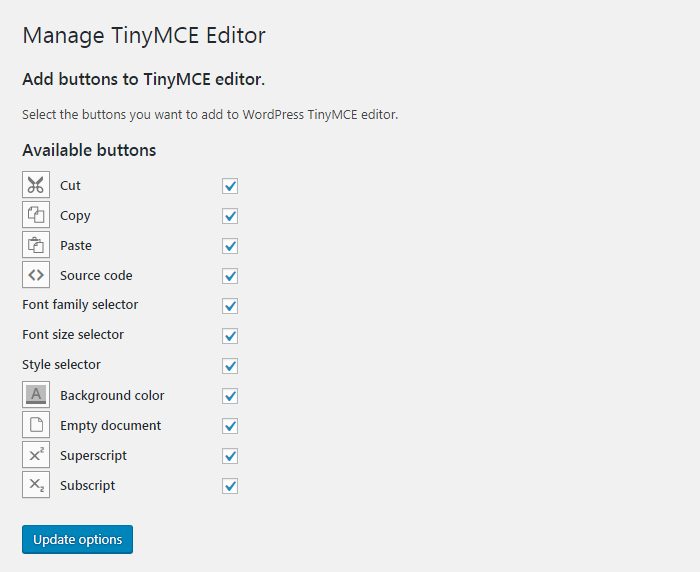
Add buttons to Worpress TinyMCE visual editor in the plugin's settings page.

WordPress TinyMCE editor with added buttons.
Faq
Installation Instructions
Automatic installation
- Go to Plugins > Add New > Upload and select the .zip file from your hard disk
- Click the “Install now” button
- Activate the plugin through the ‘Plugins’ menu in WordPress
Manual installation
- Upload the plugin folder to the
/wp-content/plugins/directory via ftp - Activate the plugin through the ‘Plugins’ menu in WordPress
How do I add buttons to WordPress TinyMCE visual editor?
Once the plugin is installed and activated, from your dashboard navigate to “Settings > Manage TinyMCE Editor”, check the buttons you want to add and save.
Reviews
Does what it says on the box
By 
...And has being doing so for 5 years, without upgrades!
Congrats!
Changelog
1.0.0
- First release