MariCDN by MariHost

MariCDN by MariHost
Description
MariCDN by MariHost connects your WordPress site to MariCDN, the content delivery network from MariHost. Your pages stay on your server; their images, stylesheets, scripts and fonts load from MariCDN, close to your visitors.
You need a MariCDN plan: start free with 3 GB a month, or choose a bigger one.
Safe to switch on
- Preview first. Until you go live, only you see the CDN. Visitors and page caches keep your site’s own URLs. A preview link lets you check from a phone or another browser for 24 hours, without logging in.
- Automatic fallback. Every 15 minutes the plugin checks that the CDN serves your site. If it stops answering, or your plan is paused or out of bandwidth, your site switches back to its own URLs by itself, and back to the CDN when it recovers. You can ask for an email when that happens.
- PHP files are never served from the CDN, whatever the settings.
Features
- Connect with the key from your MariCDN account, or with your CDN hostname alone.
- See your plan, its state and this month’s bandwidth under MariCDN Settings.
- See your CDN usage under MariCDN Stats: the last 7 days and 12 months, with bandwidth, requests, cache hit rate and errors, each month against your plan’s limit.
- Purge the CDN cache from the settings page, the admin bar or WP-CLI. Replaced, edited and deleted media is purged by itself, and so is everything after theme, plugin and WordPress updates.
- Rewrites https, http, protocol-relative and root-relative URLs, in srcset, CSS and JSON too. Subfolder installs keep their folder.
- Choose the file types, folders, exclusions and extra hosts.
- Works with Autoptimize, LiteSpeed Cache, W3 Total Cache, SiteGround Optimizer and WP Rocket: their combined files go through the CDN too.
- Clears the page caches of popular caching plugins whenever what visitors get changes.
- MariCDN Help: getting started, what it works with, Cloudflare tips, and how to contact MariCDN.
- A Site Health test, WP-CLI commands, and screens ready for translation.
External services
This plugin connects to two services, both run by MariHost for MariCDN customers.
The MariCDN API at maricdn.com (https://maricdn.com/wp-json/maricdn/v1)
- What it’s for: checking your plan, its state and its bandwidth, showing your CDN usage under MariCDN Stats, and purging the CDN cache.
- When: when you connect or save your connection key, switch to Preview or Live, or run the check; every hour while the CDN is on and there’s a key; when you open MariCDN Stats and the figures there are over 12 hours old or from before maricdn.com’s nightly update, or press Refresh; and when the cache is purged: from the settings page, the admin bar or WP-CLI, or by itself after media is replaced, edited or deleted, and after theme, plugin and WordPress updates (Advanced Updates turns that off).
- What’s sent: your connection key, your site’s address, the plugin and WordPress versions, and for a purge, the addresses of the files to purge. Nothing about your visitors or users is sent.
Your MariCDN hostname (for example yoursite.maricdn.net)
- What it’s for: checking that the CDN serves your site. In Preview, your browser, and anyone’s you give a preview link, loads your site’s images, CSS, JavaScript and fonts from it; once you go live, every visitor’s browser does, as with any CDN.
- When: every 15 minutes while the CDN is on; when you connect, switch to Preview or Live, or run the check; when MariCDN gives your site a new hostname; and once after updating from version 1.0.1 with the CDN on.
- What’s sent: a request for a small test file that comes with this plugin.
MariCDN’s Terms and Conditions and Privacy Policy apply to both.
Installation
- No plan yet? Start free at maricdn.com.
- In your dashboard, go to Plugins Add Plugin, search for “MariCDN”, then install and activate MariCDN by MariHost.
- In your dashboard’s menu, go to MariCDN Settings.
- Paste your connection key. It’s in your welcome email from MariCDN. No key? Make one in your MariCDN account: My Account Subscriptions your plan Generate key (or Regenerate key, which stops the old one).
- Run the check, turn on Preview and look around your site. When it looks right, go live.
Screenshots
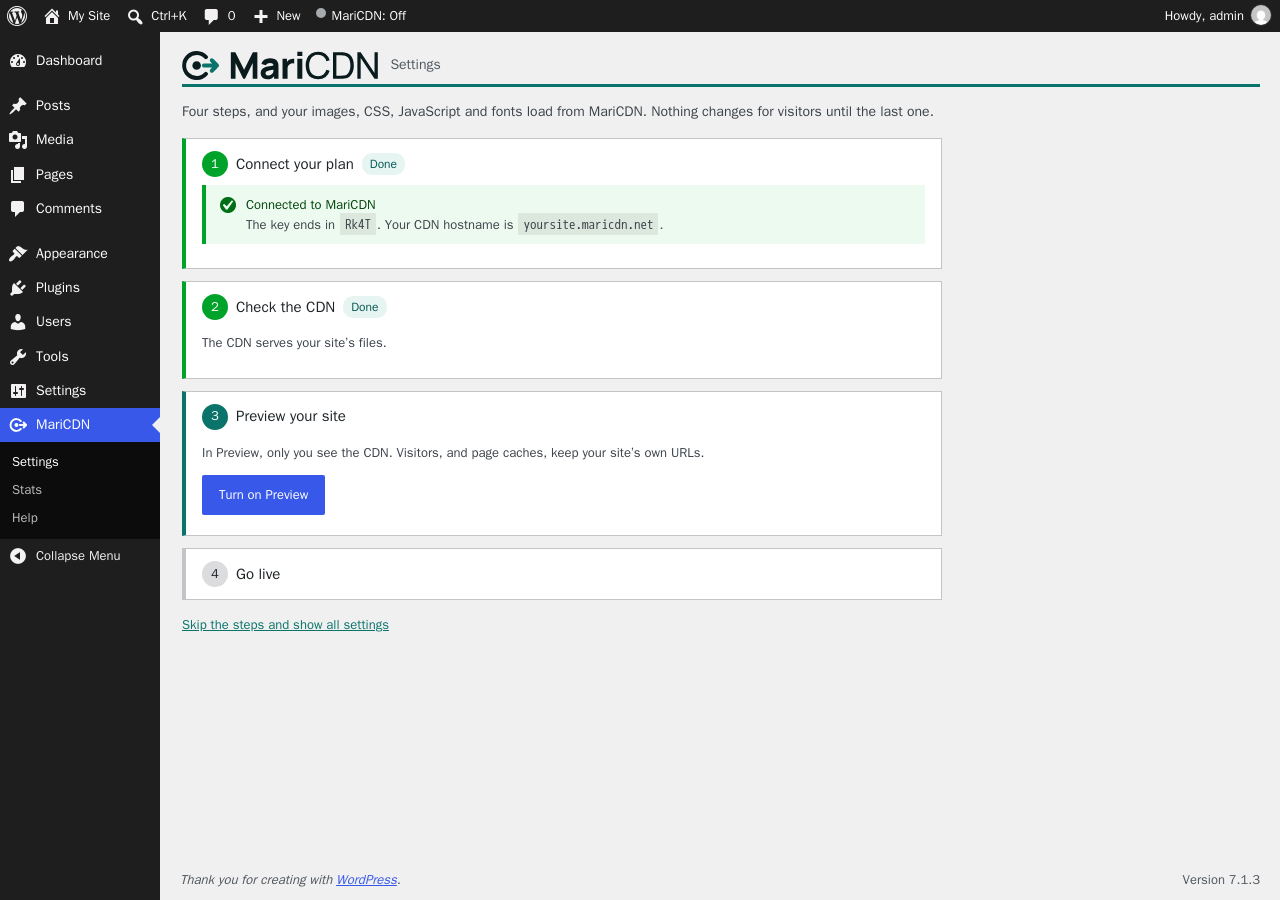
Four setup steps: connect your plan, check the CDN, preview your site, go live.
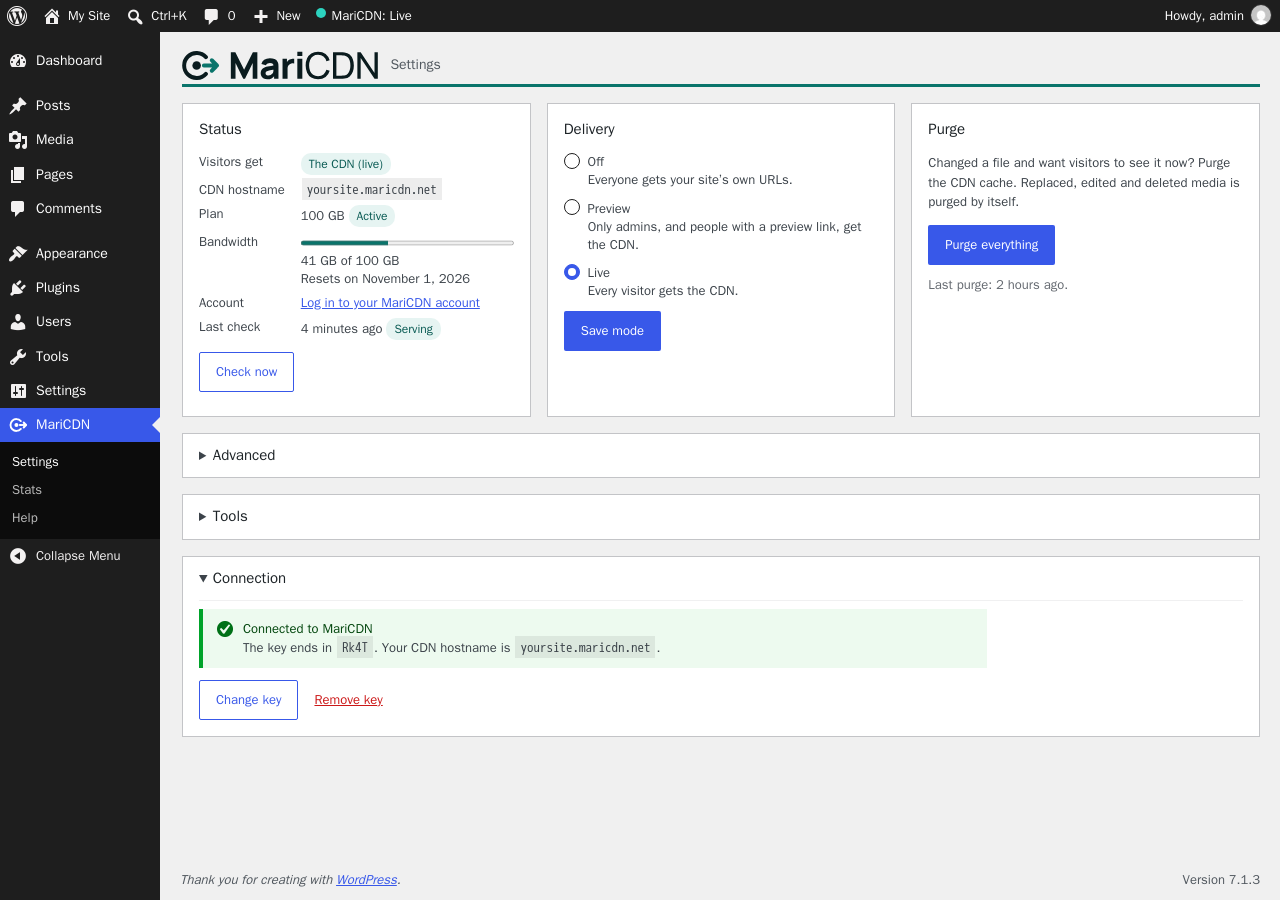
After setup: your plan and this month's bandwidth, the delivery mode, purge, and the connection.
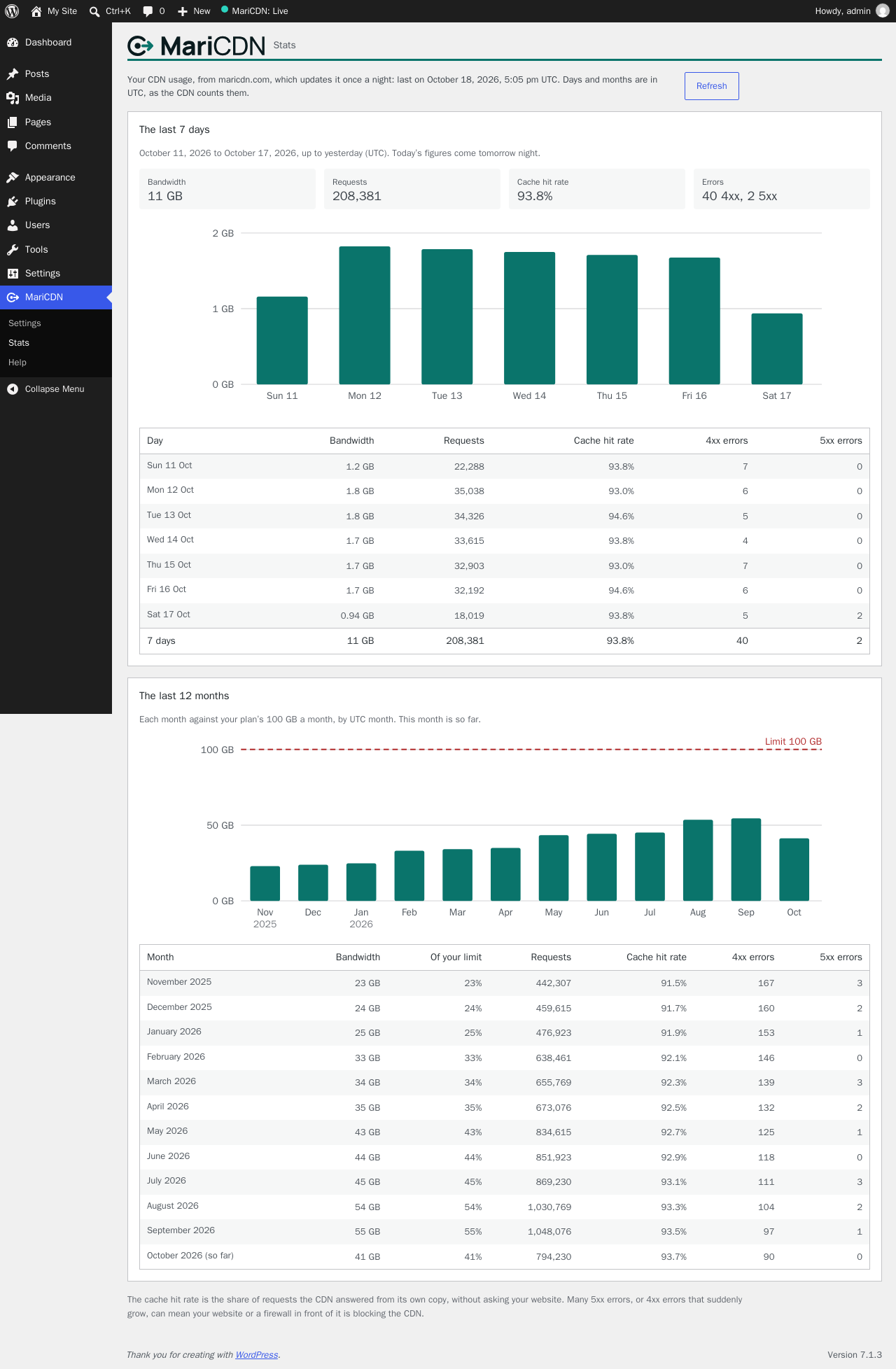
MariCDN → Stats: the last 7 days and 12 months, each month against your plan's limit.
Faq
Yes. Plans, including a free one, are at maricdn.com.
Yes: 3 GB of CDN bandwidth a month, free for as long as your site uses it. If a month’s 3 GB runs out, your site keeps working: it serves its own files until the next month starts, and you can move to a bigger plan at any time from your MariCDN account. See the plans at maricdn.com.
In your welcome email from MariCDN. It starts with mcdn_. A key is shown only once, so if you don’t have yours, make a new one in your MariCDN account: My Account Subscriptions your plan Generate key (or Regenerate key). The old key stops working at once.
Yes. Add define( 'MARICDN_KEY', 'mcdn_…' ); to wp-config.php. It’s used instead of a key saved on the settings page, and it stays out of database backups and out of copies of your database, such as a staging site. The settings page then says the key is set in wp-config.php, and you change or remove it there. On a multisite network it’s used by the main site only; the other sites keep their own keys. It’s also how to connect a site that turns off unfiltered HTML for administrators (DISALLOW_UNFILTERED_HTML, which some security plugins set): with the key in wp-config.php, any administrator can connect, and the CDN hostname comes from MariCDN.
Under MariCDN Settings for this month’s bandwidth, and MariCDN Stats for the last 7 days and 12 months, with requests, cache hit rate and errors. maricdn.com updates the figures once a night, so today’s traffic shows the next day. Both need your connection key.
Your site switches to its own URLs, so it keeps working, only without the CDN. That happens after two failed checks in a row (about 30 minutes), or at the next hourly plan check if your plan is paused or out of bandwidth. When the CDN answers again, or your allowance resets, the plugin switches back by itself.
No. In Preview only administrators, and anyone you give a preview link, see the CDN, and the plugin tells page caches not to store those pages.
Images, CSS, JavaScript and fonts in your wp-content and wp-includes folders, by default. You can add video, audio and PDF files, add folders, and exclude paths. JavaScript modules, and other files the browser must fetch with CORS, stay on your own server. PHP files never go through the CDN.
Yes. Optimization plugins keep combining and minifying your CSS and JavaScript, and their combined files go through the CDN too.
Tested end to end with every release:
- Autoptimize (combine CSS and JavaScript)
- LiteSpeed Cache (combine and minify; its page cache needs a LiteSpeed server)
- W3 Total Cache (minify)
- SiteGround Optimizer (combine CSS and JavaScript)
- Cache Enabler (page cache)
- WooCommerce, and the Twenty Twenty-Five and Twenty Twenty-One themes
Supported, not yet tested end to end: WP Rocket.
The full list, updated with each release, is at maricdn.com/works-with.
When you go live, leave Live, or the site falls back or recovers, the plugin also clears the page caches of WP Super Cache, W3 Total Cache, LiteSpeed Cache, WP Rocket, WP Fastest Cache, SiteGround Optimizer, Breeze, WP-Optimize and Cache Enabler.
Yes. Your MariCDN files come from their own maricdn.net address, so there’s nothing to add in Cloudflare, and its proxy (the orange cloud) can stay on for your own domain. Three things to know:
- Cloudflare’s “I’m Under Attack” mode, Bot Fight Mode, strict firewall rules or country blocks can stop MariCDN fetching your files. Relax them for
/wp-content/and/wp-includes/. The plugin’s check (MariCDN Settings Check now) shows when files don’t load. - After replacing a file under the same name, purge Cloudflare’s cache first, then MariCDN’s.
- If Cloudflare caches whole pages (APO, or a Cache Everything rule), purge Cloudflare’s cache after switching MariCDN on or off.
No. Your pages come from your own server, so changes show at once. Images, CSS and JavaScript that change get new addresses or are purged by the plugin: replaced media straight away, and everything after a theme, plugin or WordPress update. You can turn the update purge off under Advanced.
Yes. Enter your CDN hostname instead, and the plugin rewrites your URLs and falls back on its own. Your plan’s status, Stats and purging need the key.
Yes: wp maricdn status, wp maricdn check, wp maricdn purge [<url>...] and wp maricdn mode <off|preview|live>.
maricdn_rewrite_enabled(filter): return false to leave a page alone.maricdn_rewrite_url(filter): change or veto a single CDN URL.maricdn_allowed_extensions(filter): the file extensions that are rewritten.maricdn_preview_capability(filter): who sees Preview without a link (defaultmanage_options).maricdn_delivery_changed(action): fires when what visitors get changes.MARICDN_KEY(constant): the connection key, used instead of a saved one.MARICDN_API_URLandMARICDN_CDN_SCHEME(constants): for development, and used only on a site whose environment type is local or development.
Reviews
Changelog
2.0.0
A new version of MariCDN, rebuilt from the ground up. Needs WordPress 6.9 and PHP 7.4.
- New: connect with the connection key from your MariCDN account, and see your plan and this month’s bandwidth.
- New: MariCDN Stats shows your CDN usage for the last 7 days and 12 months.
- New: Preview replaces Test Mode, so you can check your site on the CDN before visitors see it.
- New: if the CDN ever stops answering, your site switches back to its own files by itself, and returns to the CDN when it recovers.
- New: purge the CDN cache from the admin bar or WP-CLI. Changed media, and everything after updates, is purged by itself.
- New: works with popular caching and optimization plugins.
- Improved: more of your site’s files load from the CDN.
- Changed: MariCDN has its own menu, and purging needs your connection key.
1.0.1 – 17 May 2025
- Minor bug fixes and improvements.
1.0.0 – 9 May 2025
- Initial release.