Markdown Editor
Markdown Editor
Description
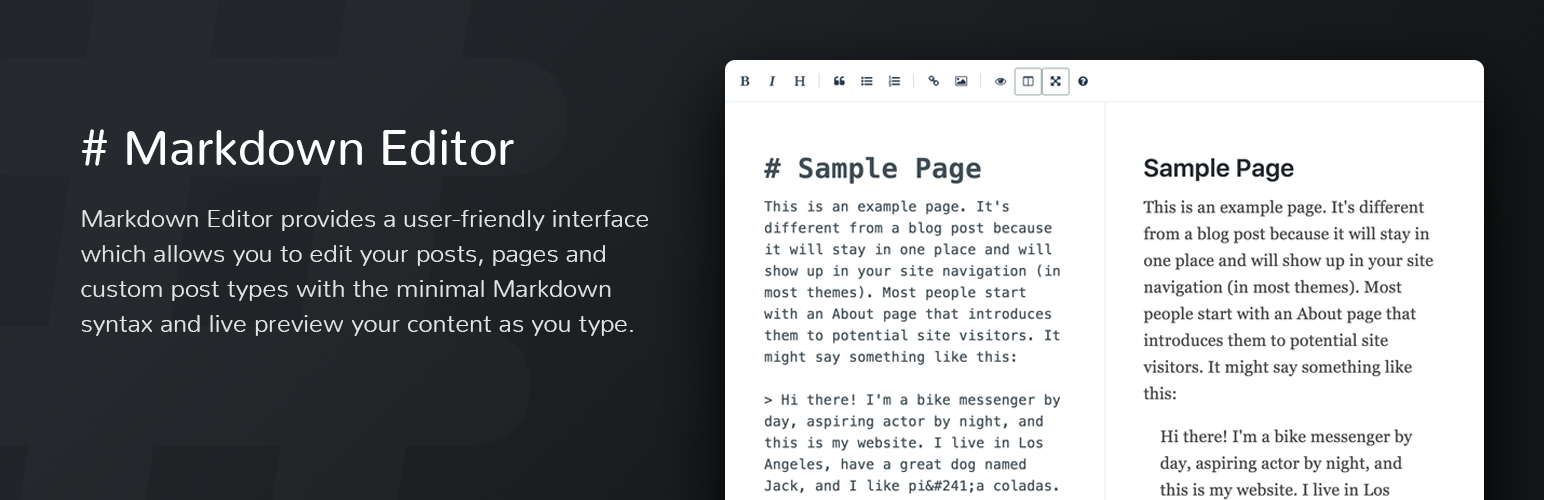
Markdown Editor replaces the default WordPress editor with a Markdown editor for your posts and pages. This plugin uses the Jetpack Markdown module for converting Markdown into HTML and plays nicely with Jetpack if both plugins are installed.
There are 4 editor layouts to choose from when writing posts: default, preview, full-screen and split screen. Changes are updated automatically allowing you to preview your content as you write.
By default Markdown Editor is only enabled on Posts, but you can enable it on pages and custom post types by adding post type support. For example to add Markdown support to Pages, add the following line of code to your theme’s functions.php file:
add_post_type_support( 'page', 'wpcom-markdown' );
To add Markdown support to a ‘Product’ custom post type, add this to your theme’s functions.php file:
add_post_type_support( 'product', 'wpcom-markdown' );
Syntax Highlighting
By default, Markdown Editor enables syntax highlighting for code blocks. This can be removed by adding the following line of code to your theme’s functions.php file:
add_filter( 'markdown_editor_highlight', '__return_false' );
The click to copy button can be removed with the following line:
add_filter( 'markdown_editor_clipboard', '__return_false' );
Installation
Automatic Plugin Installation
- Go to Plugins > Add New.
- Type in the name of the WordPress Plugin or descriptive keyword, author, or tag in Search Plugins box or click a tag link below the screen.
- Find the WordPress Plugin you wish to install.
- Click Details for more information about the Plugin and instructions you may wish to print or save to help setup the Plugin.
- Click Install Now to install the WordPress Plugin.
- The resulting installation screen will list the installation as successful or note any problems during the install.
- If successful, click Activate Plugin to activate it, or Return to Plugin Installer for further actions.
Manual Plugin Installation
- Download your WordPress Plugin to your desktop.
- If downloaded as a zip archive, extract the Plugin folder to your desktop.
- Read through the \”readme\” file thoroughly to ensure you follow the installation instructions.
- With your FTP program, upload the Plugin folder to the wp-content/plugins folder in your WordPress directory online.
- Go to Plugins screen and find the newly uploaded Plugin in the list.
- Click Activate to activate it.
Faq
Installation Instructions
Automatic Plugin Installation
- Go to Plugins > Add New.
- Type in the name of the WordPress Plugin or descriptive keyword, author, or tag in Search Plugins box or click a tag link below the screen.
- Find the WordPress Plugin you wish to install.
- Click Details for more information about the Plugin and instructions you may wish to print or save to help setup the Plugin.
- Click Install Now to install the WordPress Plugin.
- The resulting installation screen will list the installation as successful or note any problems during the install.
- If successful, click Activate Plugin to activate it, or Return to Plugin Installer for further actions.
Manual Plugin Installation
- Download your WordPress Plugin to your desktop.
- If downloaded as a zip archive, extract the Plugin folder to your desktop.
- Read through the \”readme\” file thoroughly to ensure you follow the installation instructions.
- With your FTP program, upload the Plugin folder to the wp-content/plugins folder in your WordPress directory online.
- Go to Plugins screen and find the newly uploaded Plugin in the list.
- Click Activate to activate it.
Reviews
良いエディター / Good Editor
By 
all text become one line after post
By 
Great editor, but...
By 
Kills WordPress
By 
The markdown editor I've been looking for
By 
Good basic markdown editor
By 
Changelog
2018/04/01 – 0.1.7
- Fix rich editor and custom field conflict.
2018/04/01 – 0.1.6
- Add line numbers for syntax highlighting.
2018/04/01 – 0.1.5
- Fix ‘The plugin does not have a valid header’ error.
2018/04/01 – 0.1.4
- Add syntax highlighting.
- Add click to copy for code blocks.
2017/08/27 – 0.1.3
- Fix
post_type_support– usewpcom-markdown.
2017/08/15 – 0.1.2
- Use
add_post_type_supportinstead of filter.
2017/08/01 – 0.1.0
- Initial release.