My Account navigation to menu

My Account navigation to menu
Description
By default, WooCommerce builds the My Account page navigation (Orders, Downloads, Addresses, Account details, Logout, etc.) from its own internal list, and customizing it normally means writing PHP filters.
This plugin registers a dedicated WordPress menu location called Account page menu. Once you assign a menu to that location, the plugin:
- Replaces the default My Account navigation items with the items from your menu (using the menu item’s title and URL).
- Rewrites WooCommerce’s internal endpoint URLs so they match the URLs defined in your menu.
This means you can manage the My Account navigation the same way you manage any other menu on your site — via Appearance Menus — including reordering items by drag-and-drop, renaming labels, and adding or removing entries.
If no menu is assigned to the Account page menu location, the plugin has no effect and WooCommerce’s default My Account navigation is used as-is.
Requirements
- WordPress 5.8 or later
- PHP 7.4 or later
- WooCommerce (active)
Installation
- Upload the plugin folder to
/wp-content/plugins/, or install the plugin zip via Plugins Add New Upload Plugin in your WordPress admin. - Activate the plugin through the Plugins screen in WordPress.
- Go to Appearance Menus.
- Create a new menu (or choose an existing one) and add the items you want to appear on the My Account page.
- Under Menu Settings, assign the menu to the Account page menu location, then save.
Screenshots
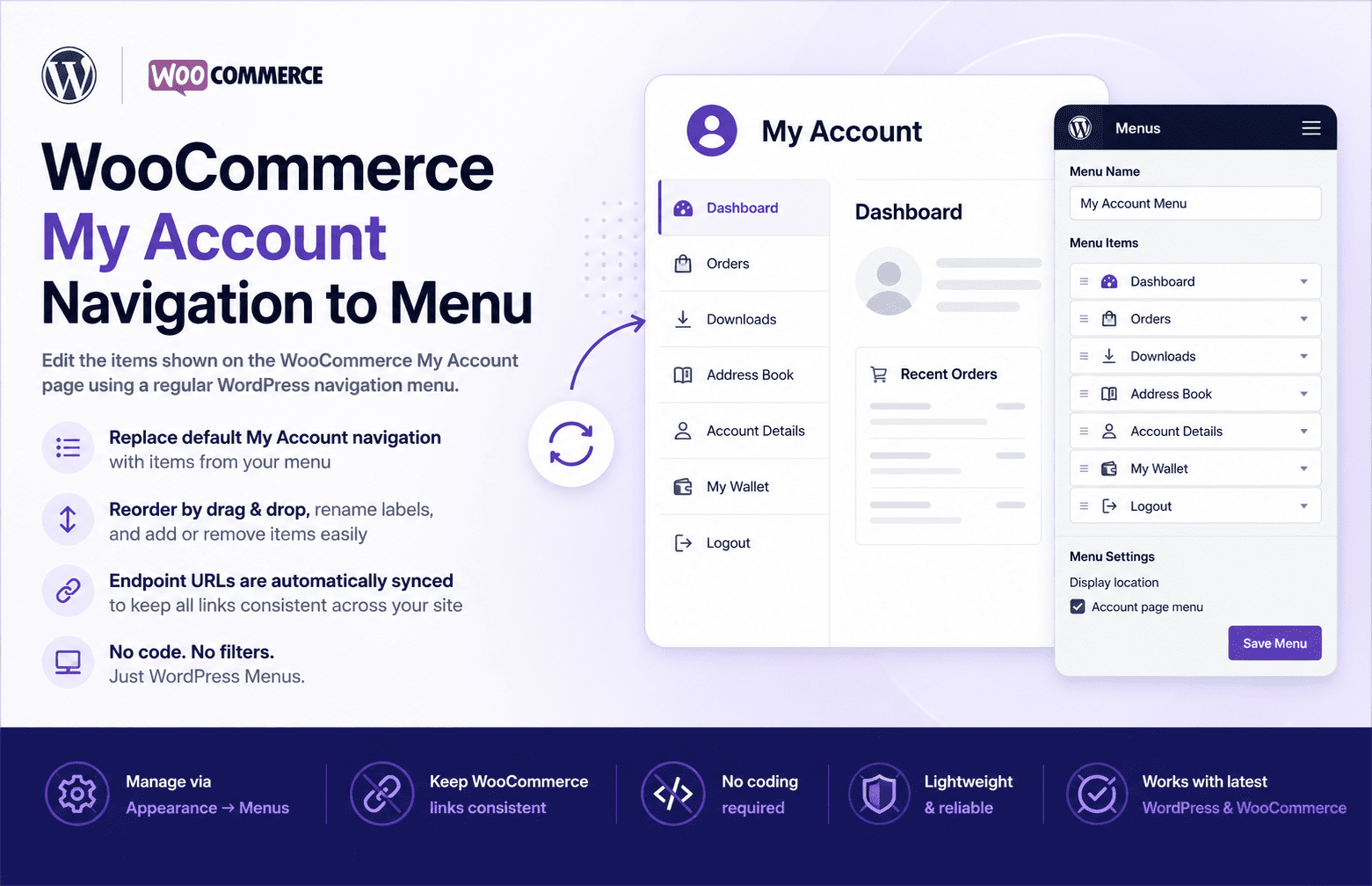
Intro
Faq
No, WooCommerce must be installed and active, since this plugin hooks into WooCommerce’s account navigation filters.
Yes. Any item you can normally add to a WordPress menu (pages, custom links, posts, categories) can be added to the Account page menu, as long as the corresponding endpoint exists.
Endpoints not present in your assigned menu are left to WooCommerce’s default behavior for their URL, but only items present in the menu will be pulled into the rendered navigation list.
Drag and drop the items into the order you want inside the Account page menu under Appearance Menus, then save the menu.
Edit the corresponding menu item’s navigation label in Appearance Menus and save. The new label will appear on the My Account page.
Simply leave its menu item out of (or remove it from) the menu assigned to the Account page menu location.
Reviews
Changelog
1.0.0.0
- Initial release.