Pattern CSS – The CSS Editor For Blocks

Pattern CSS – The CSS Editor For Blocks
Description
The missing inline block CSS editor for the Gutenberg editor. Very powerful with synced patterns as well. And it pairs well with global styles.
This plugin is perfect for users looking to add CSS for blocks without needing to create a child theme, or use a bloated plugin. Client safe too. CSS won’t leak outside of the block, and only valid block CSS is persisted.
Star it on GitHub
Follow me on Twitter @kevinbatdorf
How to
- Every block will have a new “Pattern CSS” settings panel
- Open it and add any CSS. It will be scoped to the block
- To target the block directly, you must use the
[block]selector - To target any element inside the block, use the normal CSS selector
- Use
!importantto override your theme styles (use sparingly)
Global Editor
- Access global styles under the options menu (three dots) in the top right corner of the editor
- Additionaly, you can open from the Pattern CSS block editor controls
Features
- Powered by WebAssembly for fast and secure CSS parsing
- Smart loading. Only loads the CSS when the block is present
- Styles persist when changing themes
- Scopes styles to the block so that parent/sibling blocks are not affected
- It’s fast
- CSS is minified and optimized
- It’s safe. Invalid, non-spec CSS is never persisted
- Supports reusable (synced or not-synced) patterns
- See changes on the page as you make them
- Combines adjacent rules (to decrease size)
- Minifies colors and math functions to simplify according to spec
- Supports CSS nesting
Basic Example
/* Target the block directly */
[block] {
  background: antiquewhite;
  padding: 2rem;
}
/* Target any inner elements */
a {
  text-decoration-color: burlywood;
  text-decoration-thickness: 2px;
  text-decoration-style: solid !important;
}
a:hover {
  text-decoration-color: darkgoldenrod;
}

/* Output: */
.pcss-a1b7b016{background:#faebd7;padding:2rem}.pcss-a1b7b016 a{text-decoration-color:#deb887;text-decoration-thickness:2px;text-decoration-style:solid!important}.pcss-a1b7b016 a:hover{text-decoration-color:#b8860b}
Supports Media Queries
@media (prefers-color-scheme: dark) {
  [block] {
    border-color: blue;
  }
}

/* Output: */
@media (prefers-color-scheme:dark){.pcss-cddaa023{border-color:#00f}}
Combines Rules
[block] {
  color: red;
}
.bar {
  color: red;
}

/* Output: */
.pcss-3aa0f0fc,.pcss-3aa0f0fc .bar{color:red}
Fixes redundant properties
[block] {
  padding-top: 5px;
  padding-left: 50px;
  padding-bottom: 15px;
  padding-right: 5px;
}

/* Output: */
.pcss-3aa0f0fc{padding:5px 5px 15px 50px}
Supports CSS nesting
[block] {
  padding: 1rem;
  a {
    color: red;
  }
  background: white;
  /* Including media queries */
  @media (prefers-color-scheme: dark) {
    background: black;
    color:white;
  }
}

/* Output: */
.pcss-f526bb2d{background:#fff;padding:1rem;& a{color:red}@media (prefers-color-scheme:dark){&{color:#fff;background:#000}}}
Check browser support for CSS nesting
Installation
- Activate the plugin through the ‘Plugins’ screen in WordPress
Screenshots
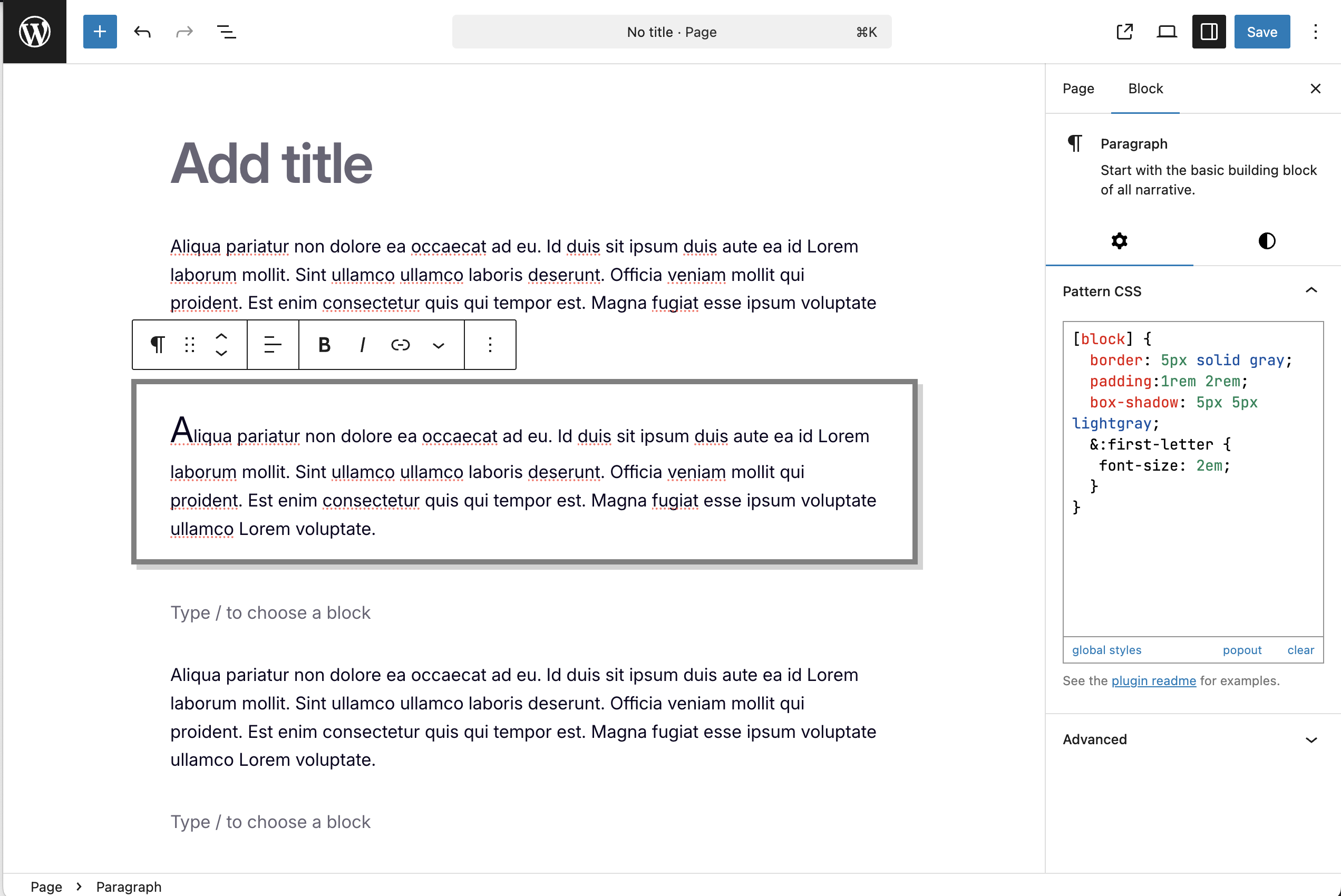
Add styles not available in the editor (supoprts nesting)
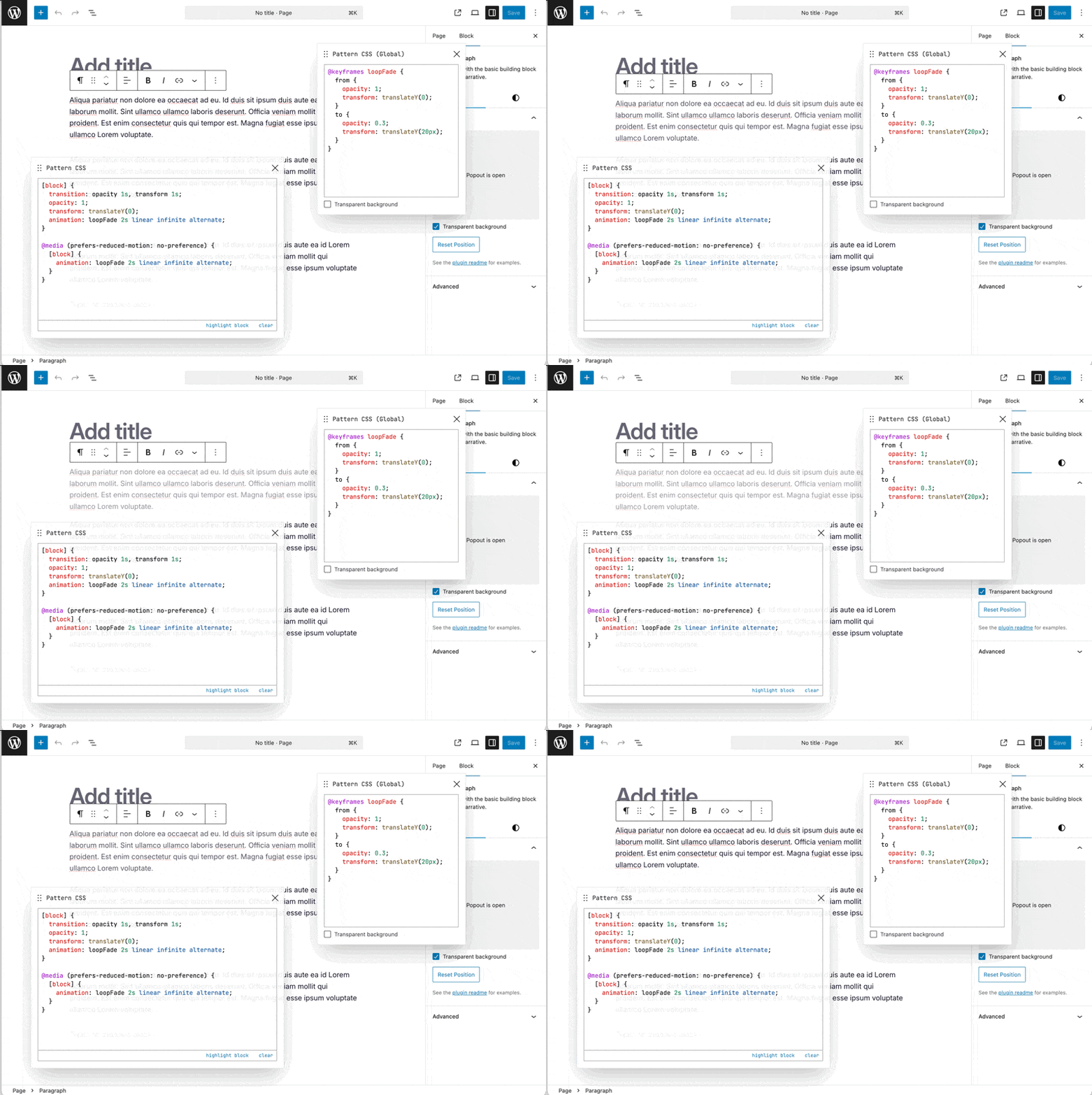
Add animation using the global editor

Will warn you if your CSS is invalid
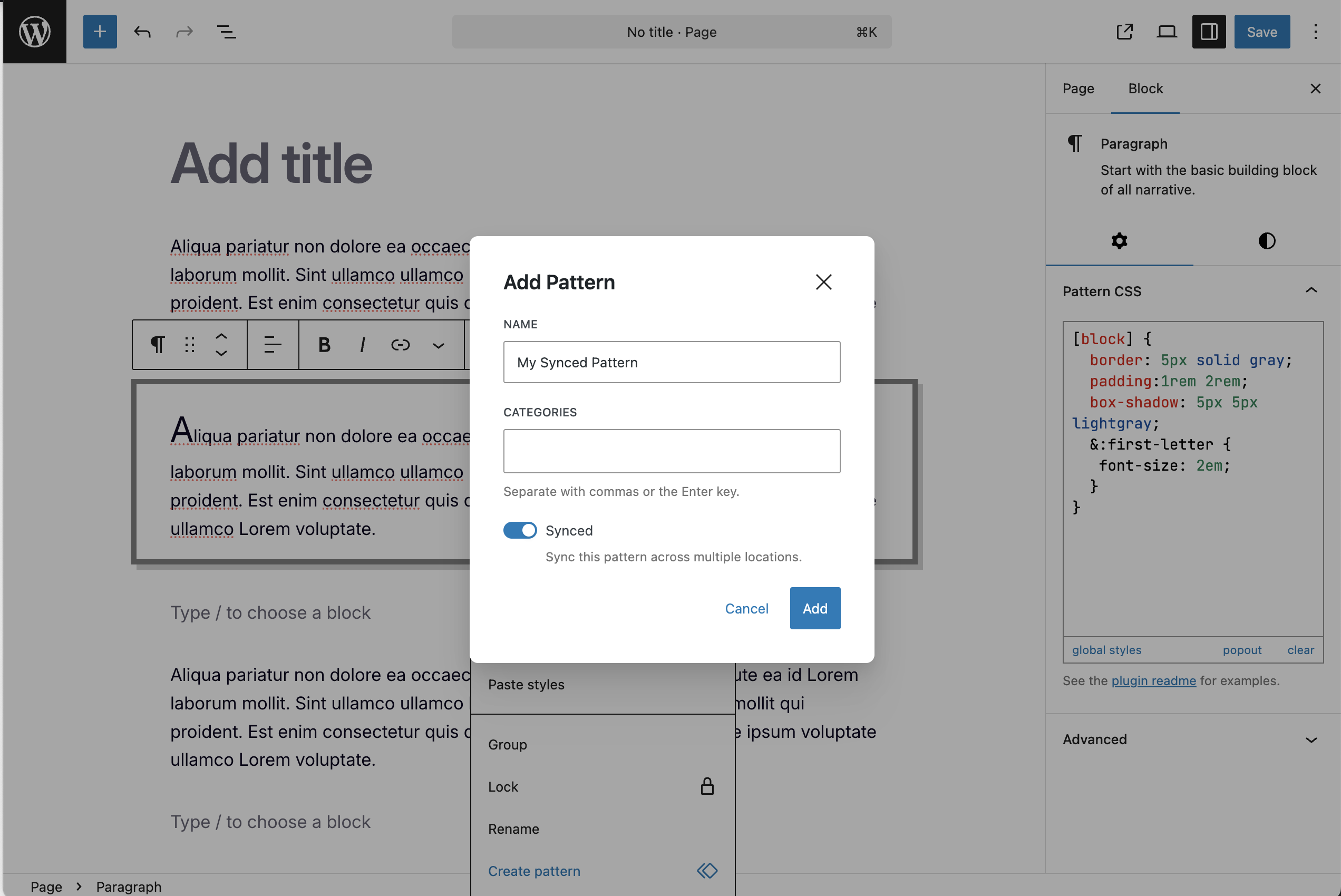
Works with reusable and synced patterns
Faq
Your server needs to be able to identify the mime type being used. See here: https://wordpress.org/support/topic/webassembly-instantiatestreaming-failed-because-your-server-does-not-serve-wasm/
You can add a custom selector via a PHP constant. It requires setting a type (type, attribute, etc) and the name.
Here’s an example for “foo { color: red }”, where foo will be replaced with .pcss-h3Hso39bsK (or something similar):
Add this to functions.php:
define('PATTERN_CSS_SELECTOR_OVERRIDE', ['name' => 'foo', 'type' => 'type']);
By default, class IDs are auto-generated. If you need to manually set or change a block’s class ID (e.g. to match an existing class), you can enable this by adding the following constant to wp-config.php or functions.php:
define('PATTERN_CSS_ALLOW_MANUAL_OVERRIDE', true);
Once enabled, the ID field in the Advanced panel becomes editable. Type your desired class name and press “Apply” to save it. The value will be slugified automatically.
Reviews
Essential for pro developers
By 
An essential add-on for anyone wanting to make as much use of a proper CSS-first approach to development without relying on a myriad of styling inputs which often don't offer the control that you need.
This plugin is lightweight and just adds in the functionality required to add whatever custom styling any individual block requires and the developer was blazingly quick in fixing an issue I experienced as well as introducing a new feature I'd requested (the ability to define our own class names rather than having them auto-generated).
Highly recommended.
Need responsiveness? You need this plugin!
By 
Until FSE theme blocks can have different styles on different screen sizes this is a must for any custom theme builder out there.
Maybe hard to use for end users (content creators), but for site builders it should be natural.
Best block CSS plugin out there right now
By 
By far the best block CSS editor of any of the others I've tried, especially with its efficiency functions like the automatic selection and minifying. This has been an immense lifesaver.
must-have plugin
By 
An awesome and must-have plugin if you know your way around writing CSS.
Simple CSS editor for blocks!
By 
Does exactly what it is supposed to do and also has support for me advanced styling (media queries, CSS variables, etc.).
Awesome!
Extremely useful tool for speeding up your workflow
By 
As a seasoned WP developer often working on tight timelines and sometimes on tight budgets, this is such an important tool. Thank you for making it! Inline block styles are such an efficient and performant way to quickly customise the styles of blocks. Love it!
it does everything it says it will do
By 
No complais, it does what it says it would do, and it's not heavy
really, really great CSS control
By 
This is exactly what I need. Very easy to use. Love that you can scope to current item with [block] {}
JANUARY 2025 UPDATE: after a year of use and having installed on at least 20 client sites, I now look at this as indispensable to my work as a website developer. No complaints whatsoever.
Changelog
1.5.7 – 2026-08-15
- Tested up to WordPress 7.1
- Chore: Update GitHub Actions off the deprecated Node 20 runtime
1.5.6 – 2026-04-11
- Removes class ID from block when CSS is cleared
1.5.5 – 2026-03-24
- Added manual class ID override (opt-in via constant)
- Warns when duplicate class IDs are detected in the editor
- Prevents duplicate inline styles on the frontend
- Switched to Biome for linting and formatting
- Switched to Playwright and WP Playground for testing
1.5.4 – 2026-03-23
- Fixed dynamic blocks with POST
1.5.3 – 2025-09-27
- Fixes an issue where filtered attributes sent wp/v2/block-renderer causes a block validation error
1.5.2 – 2025-05-21
- Fixes an overflow bug in the editor
1.5.1 – 2025-05-18
- Retagging for release
1.5.0 – 2025-05-18
- Adds support for global styles via a new editor
1.4.0 – 2025-05-12
- Adds a draggable, resizable popout mode
- Updates CSS engine to include recent CSS features
- Allows “supports” support scoped to the block
1.3.0 – 2025-01-27
- Switches to useStyleOverride for injecting styles
1.2.6 – 2024-09-20
- Removes an unecessary html escape that mangled some css.
1.2.5 – 2024-07-28
- Fixed a small bug where a block may not have attributes when we access them.
1.2.4 – 2024-07-21
- Renamed the panel to Pattern CSS to differenciate it from the core panel on FSE
1.2.3 – 2024-05-09
- Removed globals like @import, @font-face, and @keyframes (and others)
1.2.2 – 2024-04-19
- Fixed an issue where CSS media queries using <= were stripped out
- Removed loading the viewer for users without the edit_css cap
- Removed the tag stripping output – now only privlidged users can use
- Updated tests to run on modern WP (by disabling the iframe)
1.2.1 – 2024-02-22
- Removed the example code and added a useful default
- Render blocks now work – now adds the id to the main class list
1.2.0 – 2024-02-20
- Feature: Adds support for CSS nesting
- Removes the code example on focus and adds it back on blur (if empty)
- Lets users define an additional block selector
- Adds a notice that the site logo isn’t currently supported
1.1.0 – 2024-02-18
- Prevent adding classes to blocks unless CSS is added
- Force the settings area to the bottom (mainly for custom blocks)
1.0.1 – 2023-11-04
- Fixed a bug where the it would crash on the pattern manager page
1.0.0 – 2023-07-15
- Feature: Now supports reusable blocks/patterns
- Update: Removed the “per page” functionality to limit the scope of this plugin to blocks and reusable patterns only
- Performance: Added global loading strategy to prevent per block n+1 loading issues
- Improvement: Added the option to update the CSS selector used for scoping (useful for duplicating blocks)
- Improvement: Added some examples when no CSS is present
- Improvement: Removed the public className attribute requirement from the Additional Settings area
- Improvement: Instead of saving as meta on a post, it now pulls from the attribute directly during page load (via the pre_render_block filter).
- Fix: Now it will only show on post types with the public setting set to true