Pi Handling Fee for WooCommerce
Pi Handling Fee for WooCommerce
Description
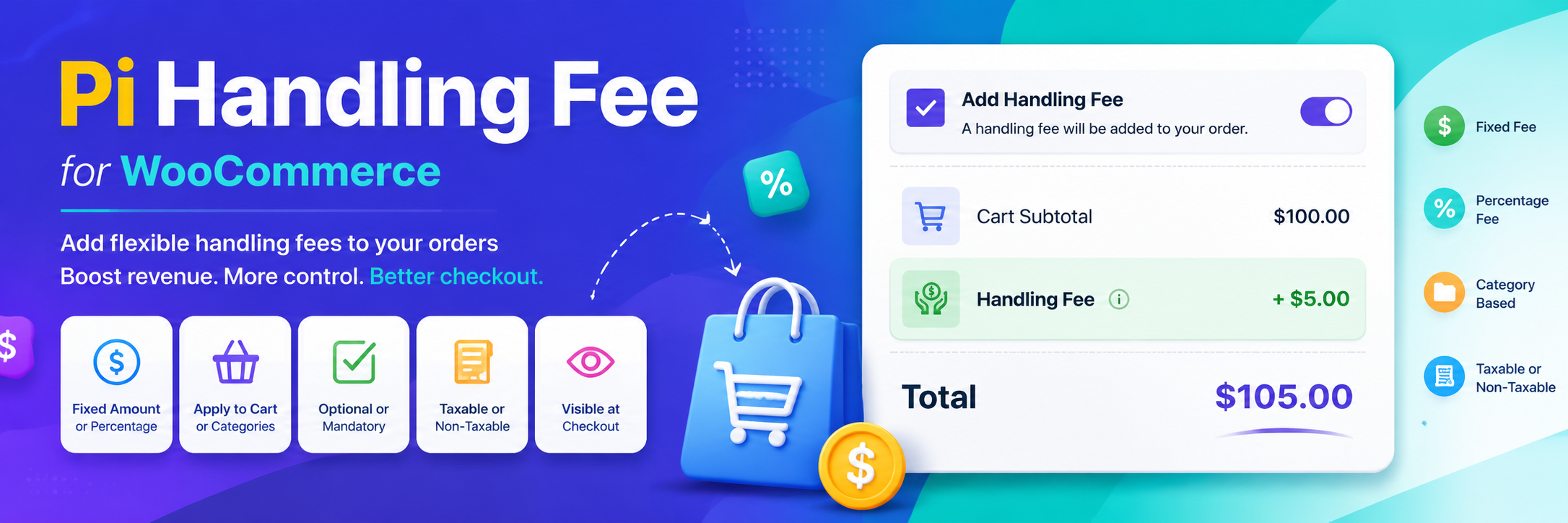
Handling fee for woocommerce plugin allows store owners to add flexible handling fees to orders based on various conditions. Support both fixed and percentage-based fees, with options to target specific product categories or entire cart subtotals. Features optional (checkbox) or mandatory fee modes, and is compatible with both classic and block-based checkout experiences.
Features
- Flexible fee types — Support for fixed amount fees and percentage-based fees
- Multiple calculation methods:
- Fixed amount added to cart
- Percentage of cart subtotal
- Percentage of specific product categories
- Conditional application — Apply fees to specific product categories or entire cart
- Checkout mode options:
- Optional fees (checkbox) — Customers can choose to add the fee
- Mandatory fees — Fees automatically added to all orders
- Checkout compatibility — Works with both classic checkout and block-based checkout
- Tax settings — Configure fees as taxable or non-taxable
- Easy administration — Admin settings page under WooCommerce menu for configuration
- HPOS compatible — Compatible with WooCommerce’s High-Performance Order Storage
How to Use
Follow these steps to configure handling fees for your store:
Step 1: Access Plugin Settings
- Go to your WordPress Dashboard
- Navigate to WooCommerce > Handling Fee
- You’ll see the Handling Fee Configuration page with multiple sections
Step 2: Configure Handling Fee Type
Make Handling Fee Optional toggle:
* ON (Optional) — Customers see a checkbox at checkout to add the fee manually
* OFF (Mandatory) — Handling fee is automatically added to all orders
* Enter a title under “Optional Fee Selection Title” (e.g., “Add Handling Service”)
Step 3: Choose Fee Calculation Method
Select how the fee should be calculated:
- Fixed Amount — Add a flat fee (e.g., $5.00)
- Percentage of Cart Subtotal — Fee is a percentage of the entire cart (e.g., 5%)
- Percentage of Specific Categories — Fee is a percentage of selected product categories only (e.g., 10% on “Clothing”)
Step 4: Set Target Categories (Optional)
If using Percentage of Specific Categories:
* Check the “Apply Handling Fee for Specific Categories” section
* Select the product categories where the fee applies
* Only items in selected categories will count toward the fee calculation
* Leave empty to apply the fee to all products
Step 5: Configure Fee Details
- Handling Fee Amount / Percentage — Enter the fee value (number only)
- Handling Fee Title — Set a display name for the fee at checkout (e.g., “Handling Fee”, “Service Charge”)
Step 6: Set Tax Configuration
- Tax Status — Choose whether the handling fee is:
- Taxable — Tax will be applied to the fee amount
- Non-Taxable — Fee is exempt from taxes
- Tax Class — Select the appropriate tax rate class if fee is taxable
Step 7: Save Settings
- Click the Save Settings button at the bottom
- A success message will confirm your settings are saved
Usage Examples
Example 1: Optional 5% Handling Fee on All Products
- Enable “Make Handling Fee Optional”
- Set Fee Type to “Percentage of Cart Subtotal”
- Enter 5 in “Fee Amount / Percentage”
- Enter “Handling Fee” in “Handling Fee Title”
- Set Tax Status to “Taxable”
- Save Settings
* Result: Customers see an optional checkbox for a 5% fee on their cart subtotal
Example 2: Mandatory $10 Service Fee
- Disable “Make Handling Fee Optional”
- Set Fee Type to “Fixed Amount”
- Enter 10 in “Fee Amount / Percentage”
- Enter “Service Charge” in “Handling Fee Title”
- Set Tax Status to “Non-Taxable”
- Save Settings
* Result: A mandatory $10 fee is added to every order
Example 3: 8% Fee on Clothing Category Only
- Enable “Make Handling Fee Optional”
- Check “Apply Handling Fee for Specific Categories”
- Select “Clothing” category
- Set Fee Type to “Percentage of Specific Categories”
- Enter 8 in “Fee Amount / Percentage”
- Enter “Clothing Handling Fee” in “Handling Fee Title”
- Save Settings
* Result: Customers see an optional 8% fee (calculated only on clothing items)
Pro Version
For advanced features like conditional fees based on user roles, cart contents, or other criteria, consider upgrading to the Pro Version.
Displaying Fees at Checkout
- Classic Checkout — Handling fee appears as a checkbox option in the checkout form
- Block Checkout — Handling fee displays in the order summary section
- Customers can see the fee title, amount, and tax details before completing their purchase
Installation
- Upload the plugin folder to the
/wp-content/plugins/directory, or install the plugin through the WordPress plugins screen directly. - Activate the plugin through the ‘Plugins’ screen in WordPress.
- Ensure WooCommerce is installed and activated.
- Navigate to WooCommerce > Handling Fee to access the plugin settings.
Screenshots


Faq
A: No. Fees are calculated at checkout time and locked into the order. Changes to settings apply only to future orders.
A: For that you will need our Pro Version of the plugin, which allows for advanced conditional logic based on user roles or other criteria.
A: If set to “Taxable”, the fee amount is multiplied by the selected tax rate, similar to product taxes.